
01Who this is for
- Agency owners can automate client WhatsApp conversations and keep replies organized.
- Small business Founders can send appointment reminders via WhatsApp without manual effort.
02WhatsApp workflow automation, explained
The feature lives in the Automations area of HighLevel. Within a workflow you can add a trigger, filter for the WhatsApp channel, and then attach WhatsApp specific actions. Actions include sending a pre approved template, a manual text message, or waiting for a contact to reply. Smart Branching lets the workflow react to flow completion, undelivered messages, or timeouts. You also choose the sending phone number per workflow from numbers that show a connected status, and you can enable a Do Not Disturb action for WhatsApp alone or for all channels when a contact sends a STOP phrase.
03How businesses use WhatsApp workflow automation
- Digital marketing agency. Create a workflow that triggers when a prospect replies on a WhatsApp ad, sends a welcome template, waits for a reply, then branches to schedule a call or mark the lead as unresponsive.
- Health clinic. Set up an appointment reminder workflow that selects the clinic's WhatsApp number, sends a reminder template, and pauses until the patient confirms or cancels. If the patient replies with STOP, DND is enabled for WhatsApp.
- Ecommerce store. Build a post purchase follow up that sends a delivery update template, waits for the buyer's question, and uses smart branching to route unanswered messages to a support ticket.
04The numbers and rules that matter
- Free Entry Point Conversations last 72 hours.
- Standard conversation window is 24 hours.
- Template messages can be sent after the 24 hour window and incur additional charges.
05Before you start
- A WhatsApp number must be connected under the Phone Number tab so it appears in the dropdown.
- Only numbers that show a connected status appear in the sending number dropdown.
06How to set up and use WhatsApp workflow automation in HighLevel
Create a WhatsApp automation workflow
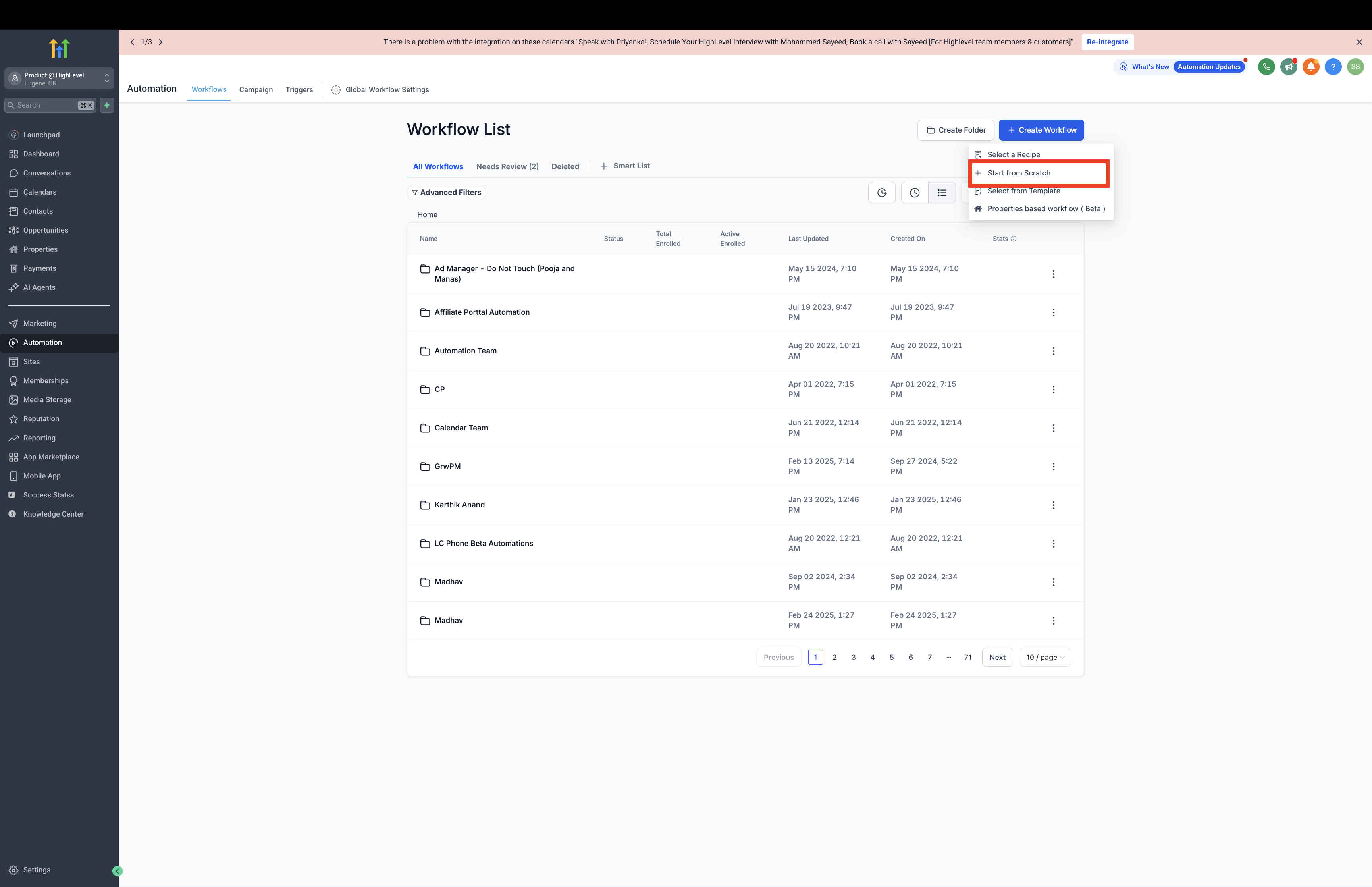
- Open Automations and click Create Workflow.
- Choose Start from Scratch.
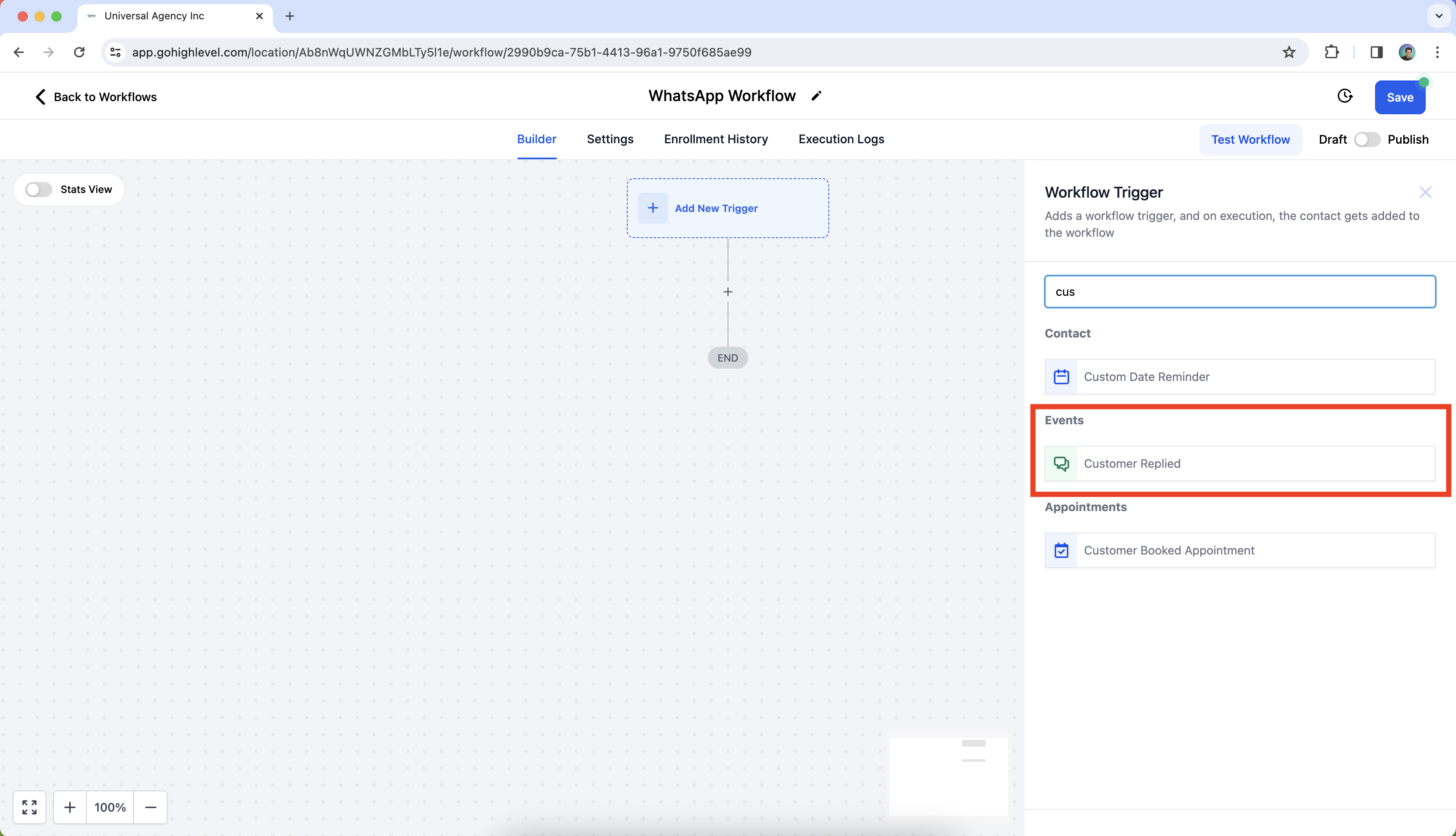
- Press Add New Trigger and look up Customer Replied.
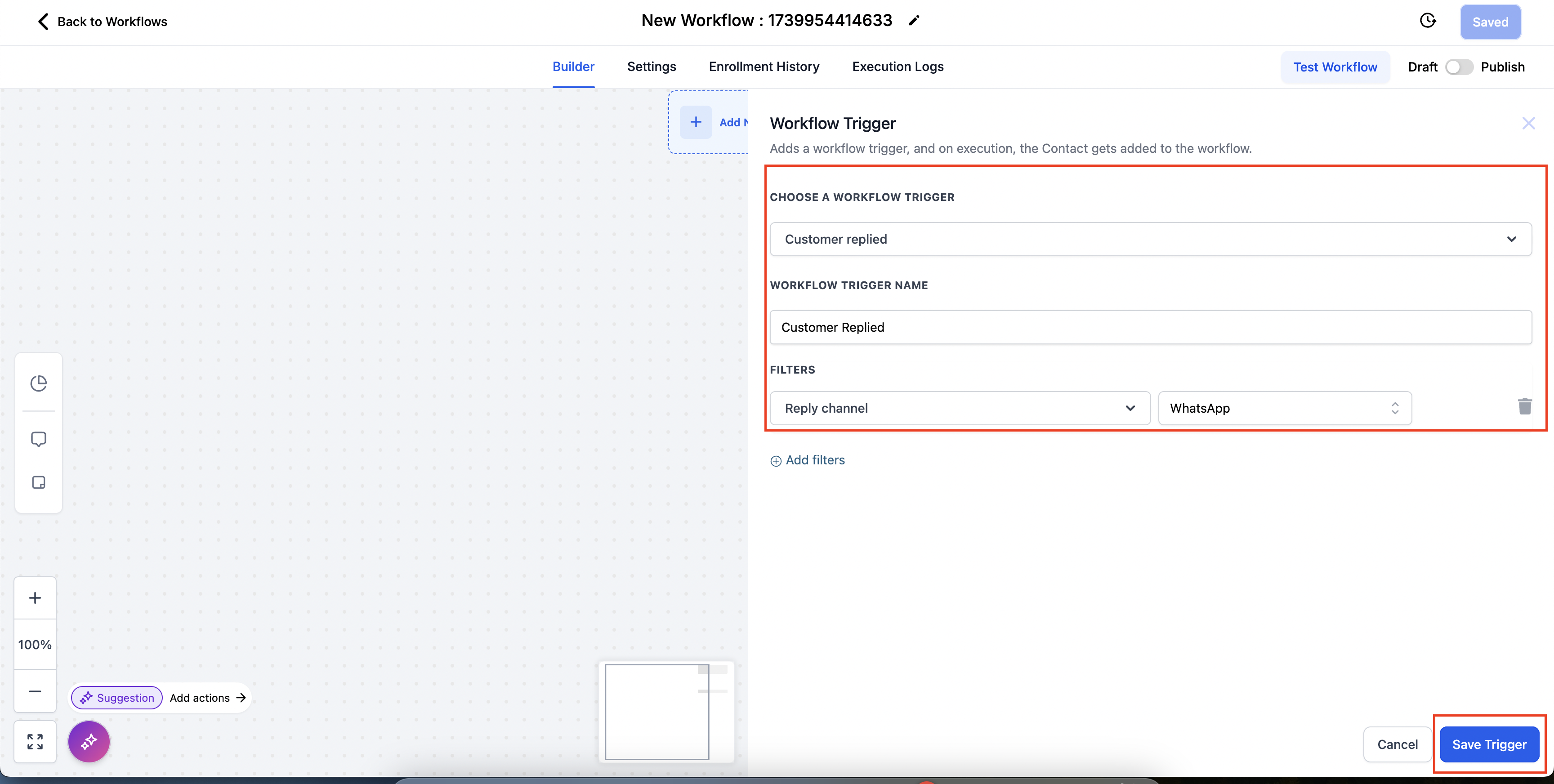
- Add a filter where Reply Channel equals WhatsApp.
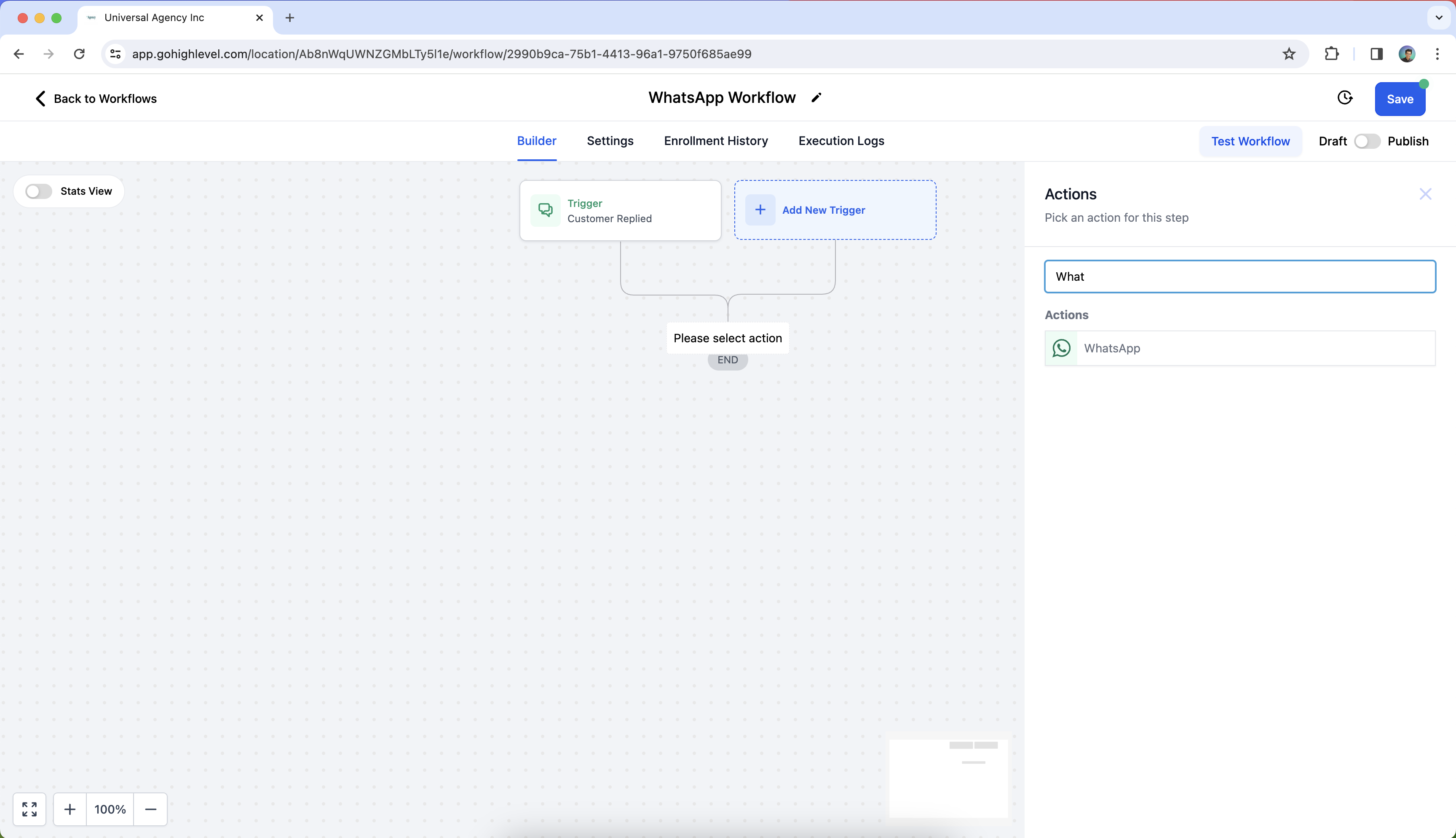
- Tap the plus icon to add an action.
- Select WhatsApp as the action type.
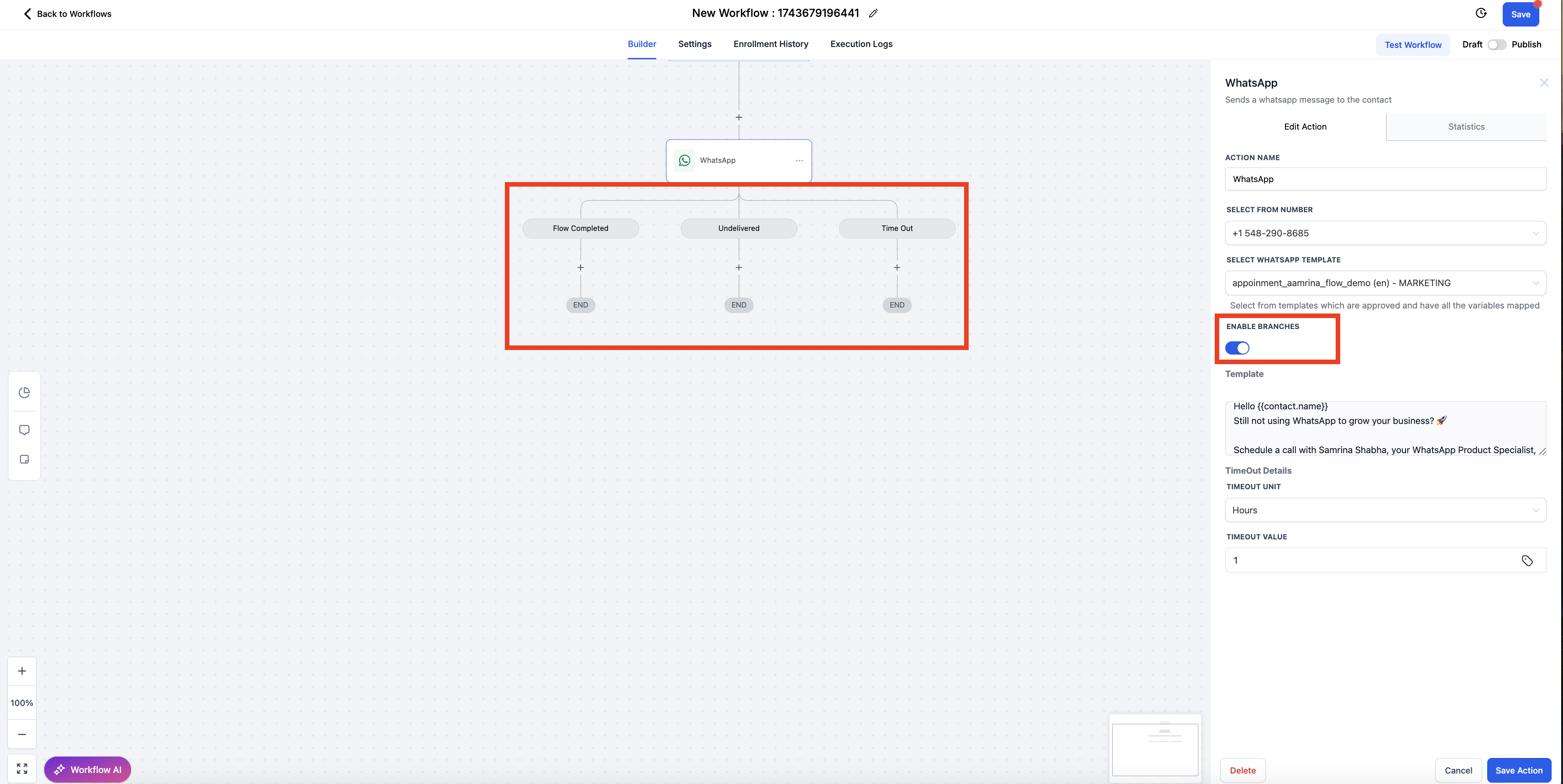
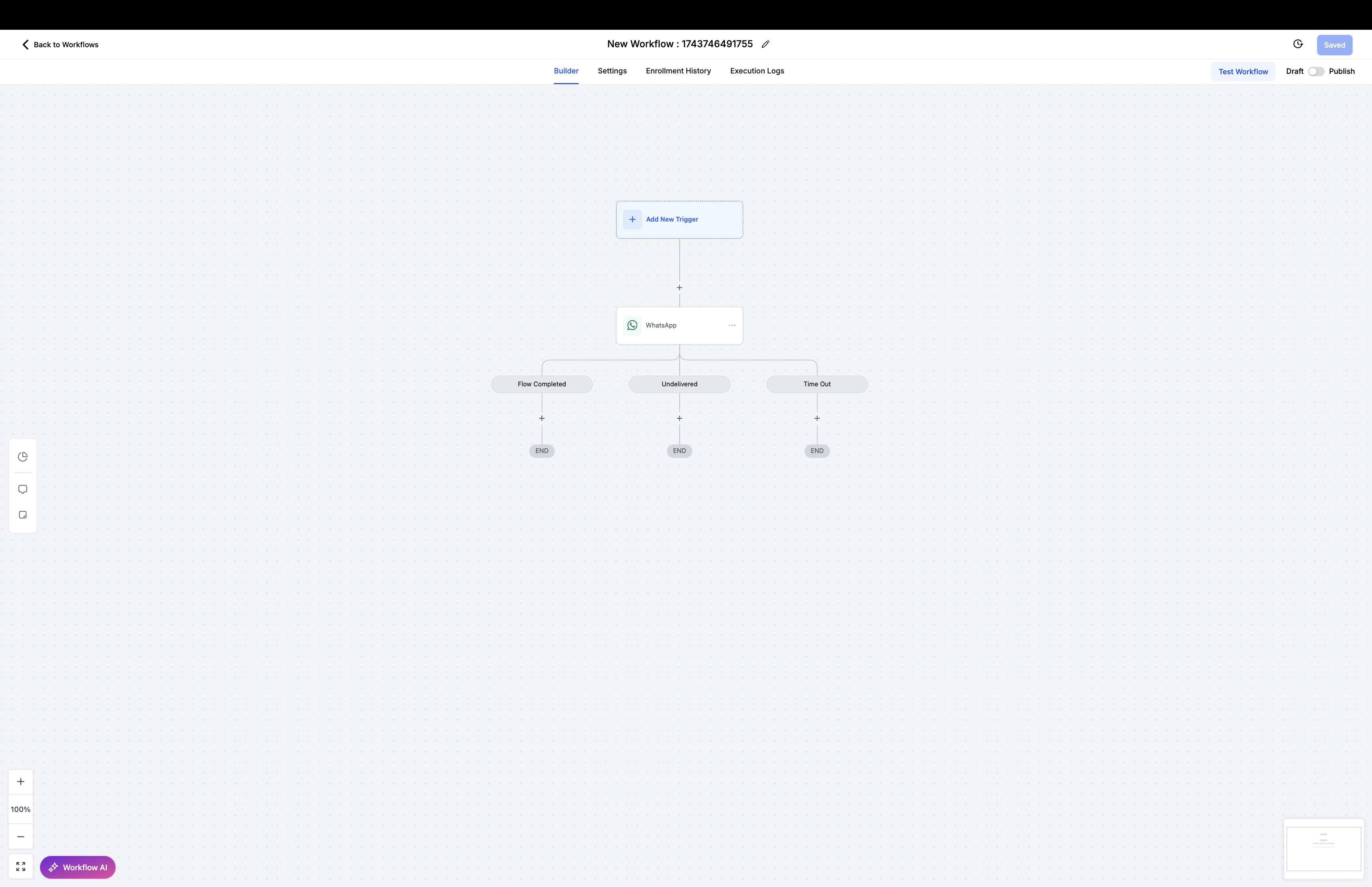
- Optionally enable Smart Branching and define Flow Completed, Undelivered, and Timeout branches.
- Click Save Action.
- Click Publish.
- Click Save to activate the workflow.
Select the from phone number for sending WhatsApp messages
- Tap the plus icon inside the workflow to add a new action.
- In the Action search box, type WhatsApp.
- Select the WhatsApp option.
- From the dropdown, pick the connected phone number you want to use.
Configure wait for WhatsApp contact reply
- Navigate to Automations > Workflows > Create Workflow and start from Scratch.
- Add a new trigger and search for Contact Created.
- Tap the plus button to add an action and choose WhatsApp.
- Select a WhatsApp template you wish to send.
- Tap the plus button again and choose Wait.
- Set the wait condition to Contact Reply, Reply To WhatsApp, and save the action.
- Add another action, name it WhatsApp, and set the template option to None, Manual Text.
- Save the action, publish the automation, and click Save.
Configure Do Not Disturb (DND) for WhatsApp
- Open Automations > Workflows > Create Workflow and start from Scratch.
- Add a trigger for Customer Replied.
- Add filters: Reply Channel equals WhatsApp and Contains Phrase equals STOP, then save the trigger.
- Press the plus button, search for DND, and select Enable/Disable DND.
- Choose Enable DND for specific channels, select WhatsApp, and save the action.
07What it looks like in HighLevel
08Settings that matter
- Reply Channel. Filters automations so they run only when the contact replies via WhatsApp.
- Enable/Disable DND. Turns Do Not Disturb on or off for WhatsApp or for all messaging channels.
- Smart Branching. Adds conditional paths based on flow completion, undelivered messages, or timeouts.
09Things to know before you rely on it
- Only numbers that show a connected status appear in the sending number dropdown.
- Free form messages can be sent at no extra cost only after a Free Entry Point Conversation is opened.
- Template messages sent outside the 24 hour window incur additional charges.
- Smart Branching is optional and only applies when you enable it.
10How it connects to the rest of HighLevel
- Full guide for agencies on reselling WhatsApp within HighLevel WhatsApp reselling guide
- Steps to create WhatsApp templates used in workflows Create WhatsApp templates
- Information on pricing, billing, and rebilling for WhatsApp WhatsApp pricing guide
Michael's take

WhatsApp workflow automation is handy for teams that need consistent, timed messaging without manual effort.
Businesses that rarely use WhatsApp or have no connected numbers should skip it.