
01WhatsApp coexistence, explained
Coexistence lets you link the WhatsApp Business App you already use to the HighLevel CRM. After setup, the same phone number works in both places, so inbound messages appear in the app and in the CRM at the same time.
The feature also copies up to six months of chat history and contacts into the CRM, and lets you run automations and send approved template messages from the CRM. Profile details stay managed in the WhatsApp app.
02How businesses use WhatsApp coexistence
- Send and receive messages. Your team can reply to customers from the phone app or from HighLevel. The conversation stays in sync, so you never miss a message whichever channel you use.
- Run automations. Create workflows in HighLevel that trigger based on incoming WhatsApp messages. The automation runs even though the number is also active in the app.
- Import chat history. During setup you can pull up to six months of past chats and contacts into HighLevel, giving you a complete view of prior interactions.
- Send template messages. All template messages are created and dispatched from HighLevel. The app cannot send templates, so you keep that function in the CRM.
03The numbers and rules that matter
- Import up to 6 months of chat history.
- Maximum of one phone number per account in Coexistence.
- Fixed throughput of 20 messages per second.
- 24 hour window to synchronize contacts and history after onboarding.
- Chat history sync covers 180 days; media only for messages within 14 days of onboarding.
04Before you start
- Facebook account credentials.
- Phone number currently active in WhatsApp Business App.
- Device ready to scan QR code.
- WhatsApp Business App updated to the latest version.
05How to set up and use WhatsApp coexistence in HighLevel
Connect your existing WhatsApp Business App
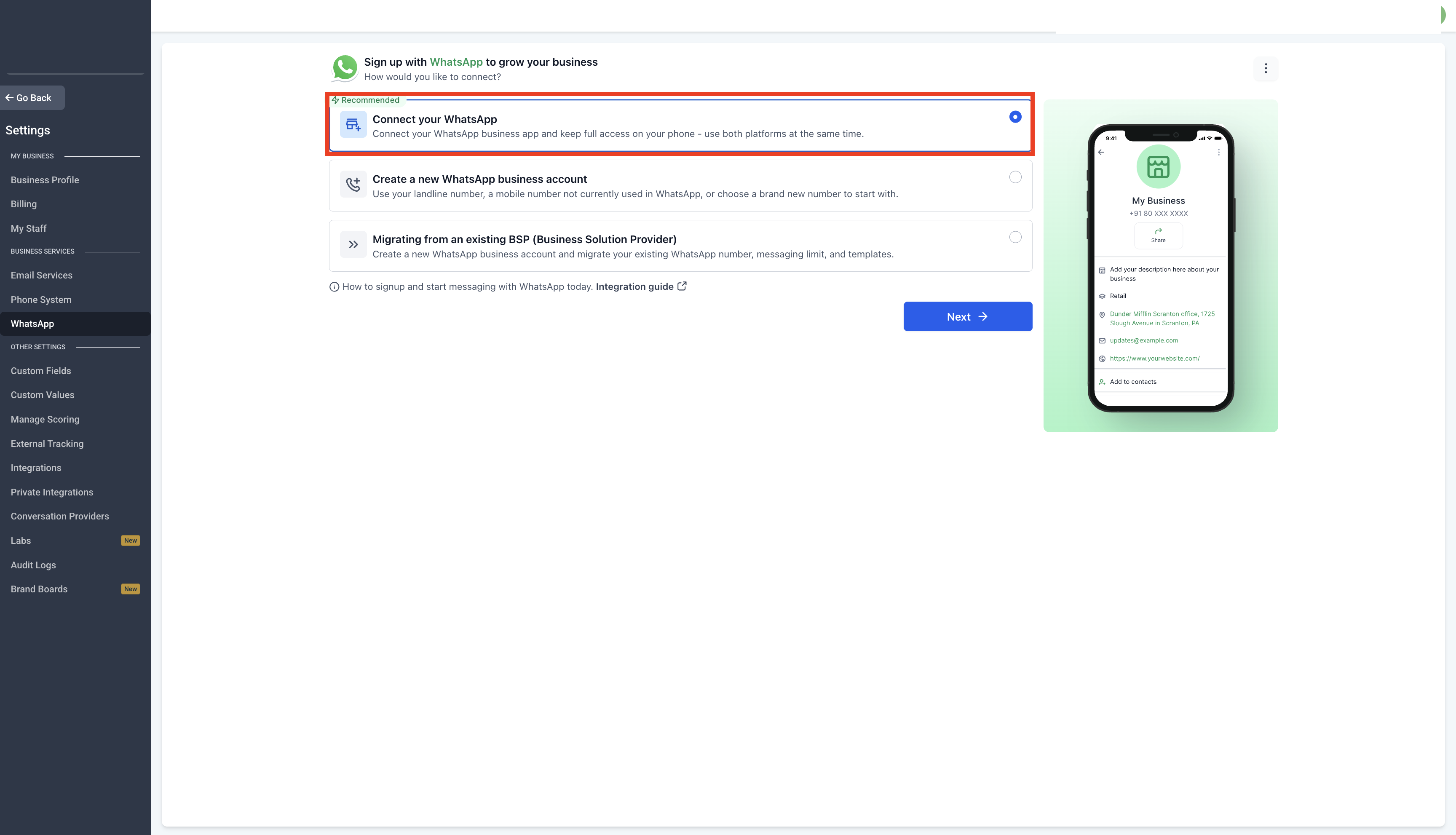
- Navigate to Settings > WhatsApp and select Connect your WhatsApp.
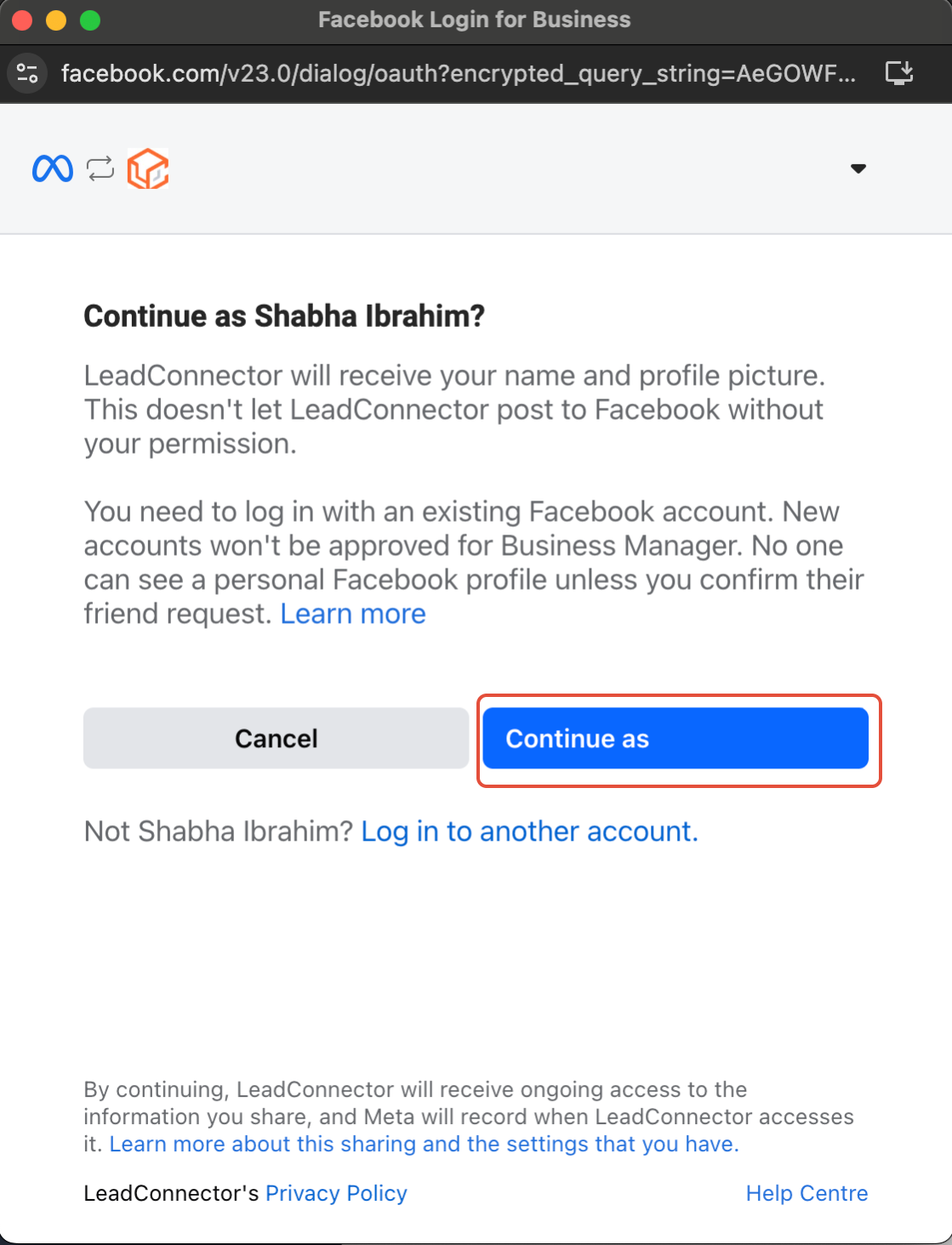
- Follow the on screen instructions to begin the registration process.
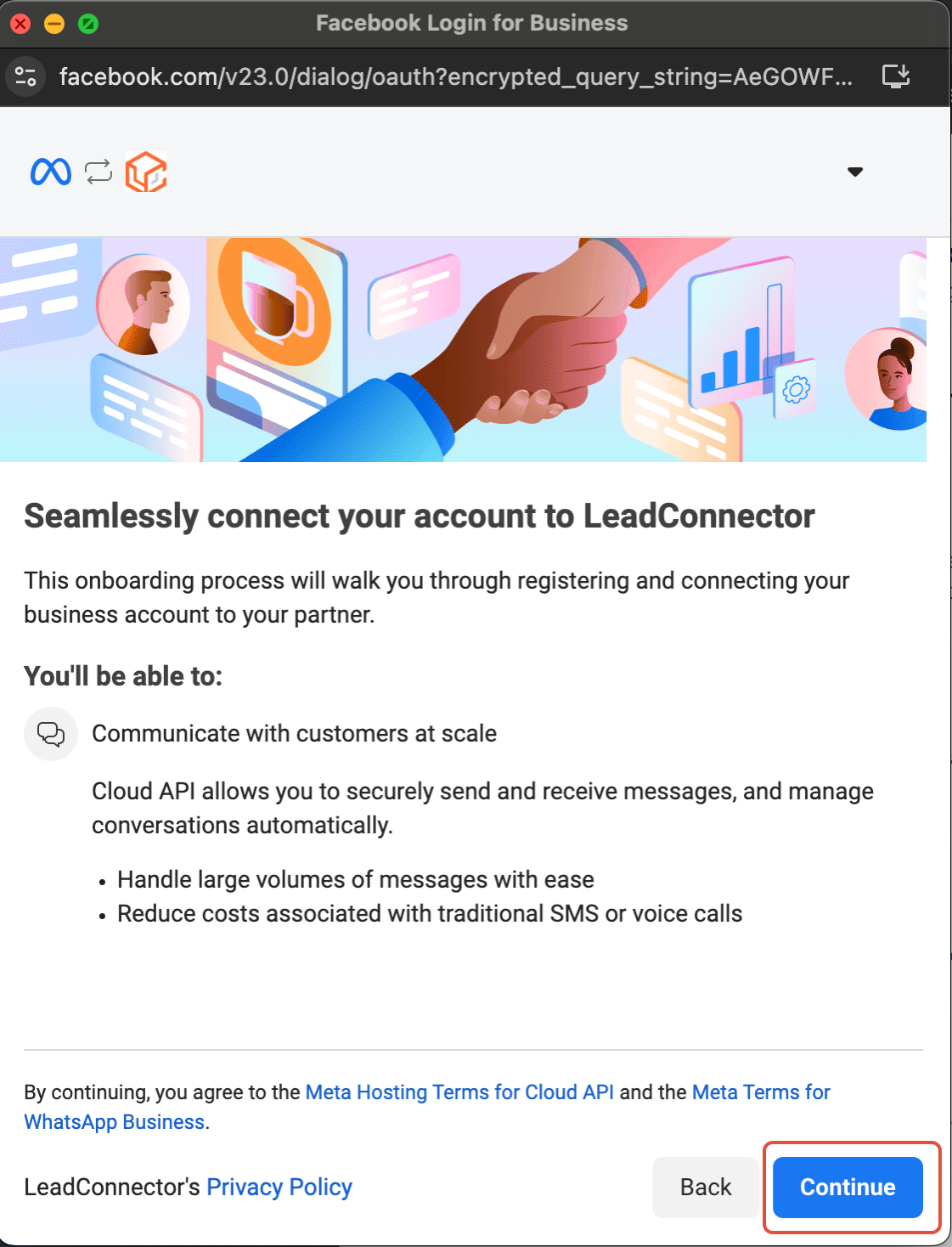
- Click Continue to proceed with the integration.
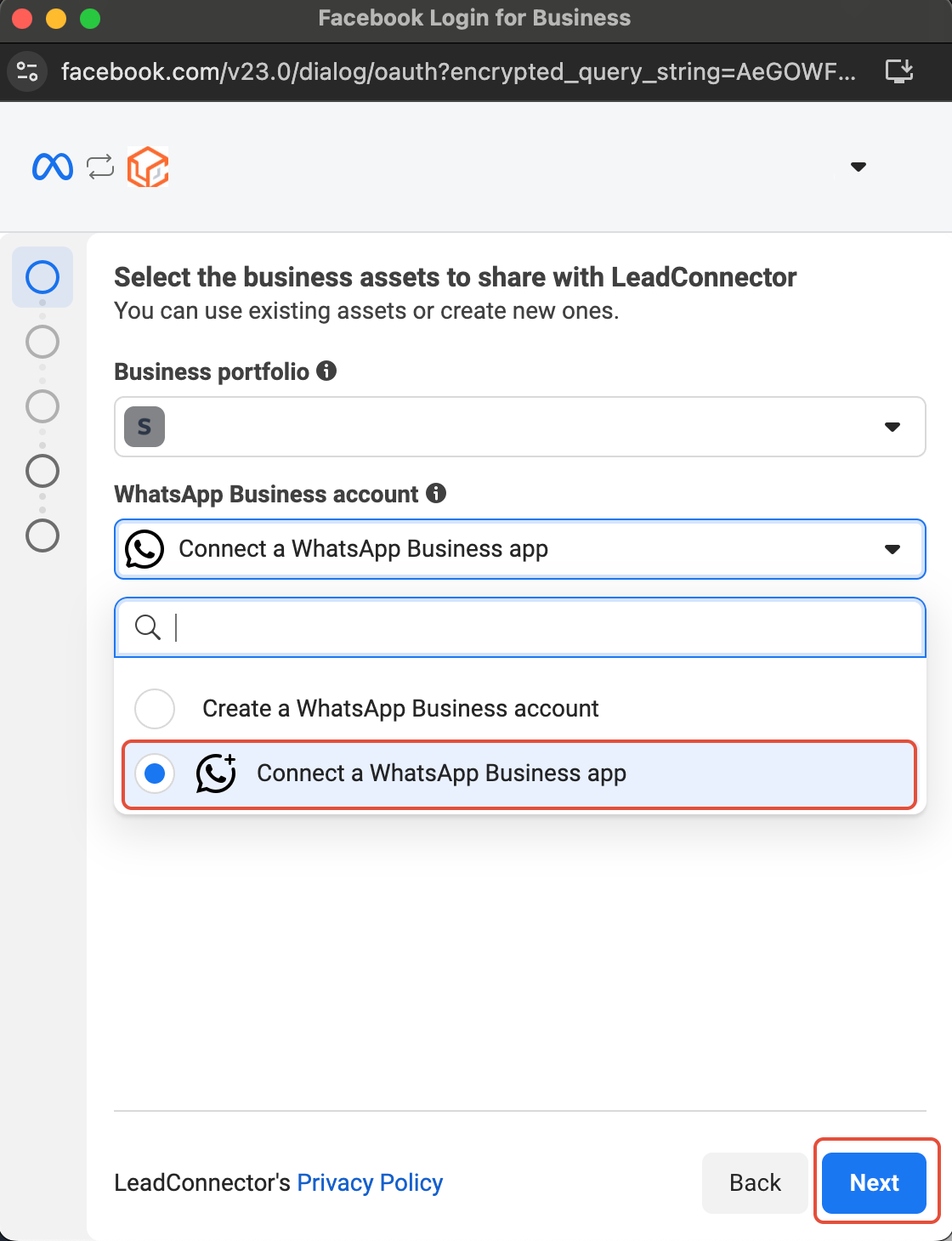
- Click Connect a WhatsApp Business App, then tap Next.
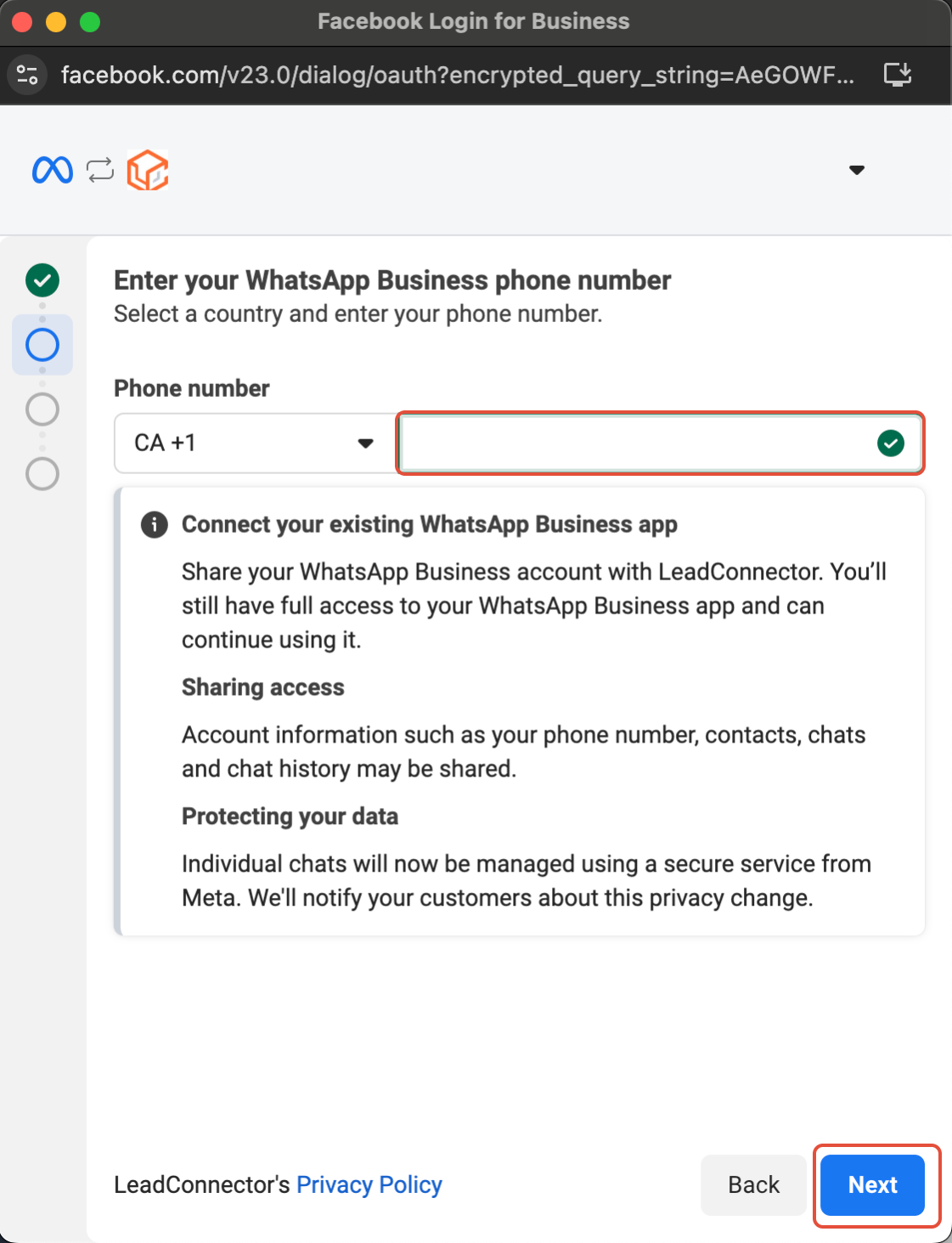
- Add your WhatsApp Business phone number and tap Next.
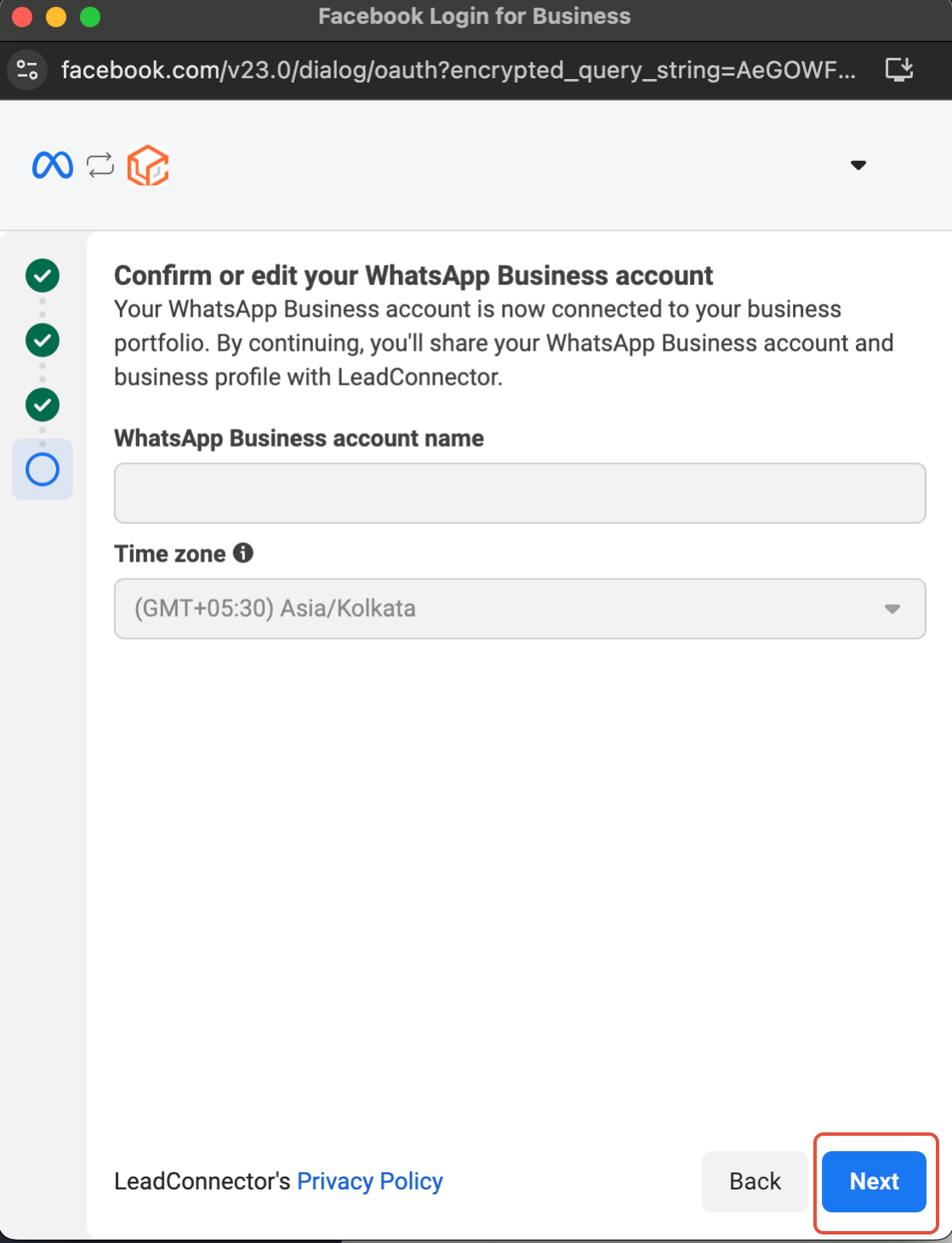
- Review your WhatsApp Business Account details and make any corrections.
- Import contacts and up to six months of chat history; update the app, look for a message from the official Facebook Business account and scan the QR code when prompted.
- Scan the QR code to complete the connection; you can continue using the WhatsApp Business App alongside the CRM.
- Your contacts and conversations will be securely synced with the CRM.
- Check all entered details carefully, then click Confirm.
- Click Finish and send a test message to confirm everything is working.
06What it looks like in HighLevel
07Things to know before you rely on it
- One phone number only per Coexistence account.
- Not available for Nigeria or South Africa numbers.
- 24 hour sync window after onboarding.
- Chat history sync covers 180 days; media only for messages within 14 days.
- Group chats, disappearing messages, view once messages, live location, broadcast lists, voice and video calls, catalog, and linked companion devices are disabled.
08If something goes wrong
- QR code expired before scanning. Restart the setup from Step 7. Keep the device unlocked and the WhatsApp Business App open so you can scan the code promptly.
- No message from Facebook Business appears in the app. Ensure the WhatsApp Business App is updated to the latest version, then restart the process. The message may take a few minutes to arrive.
- Cannot send template messages from the WhatsApp Business App. Send all template messages through the CRM; the app does not support template sending in Coexistence mode.
- Number from Nigeria or South Africa. Use the New Number or BSP Migration method instead of Coexistence.
Michael's take

Most people assume they can keep sending template messages from the phone app after they link it, and then wonder why the messages never go out. The reality is Coexistence only allows templates to be created and sent from HighLevel, so the app becomes a receiver only tool for those messages.
If I were setting this up, I would first map out which automated flows need template messages and configure them inside HighLevel before I even scan the QR code. That way the moment the number is live, the CRM can handle all template traffic without a hiccup.