
01Who this is for
- Agencies that resell WhatsApp services need a reliable way to keep client numbers active in the Cloud API.
- Small businesses using WhatsApp Business for customer communication must ensure their number stays registered to send messages.
- Founders of platforms that integrate WhatsApp require a repeatable process to fix registration errors quickly.
02WhatsApp error #133010 fixes, explained
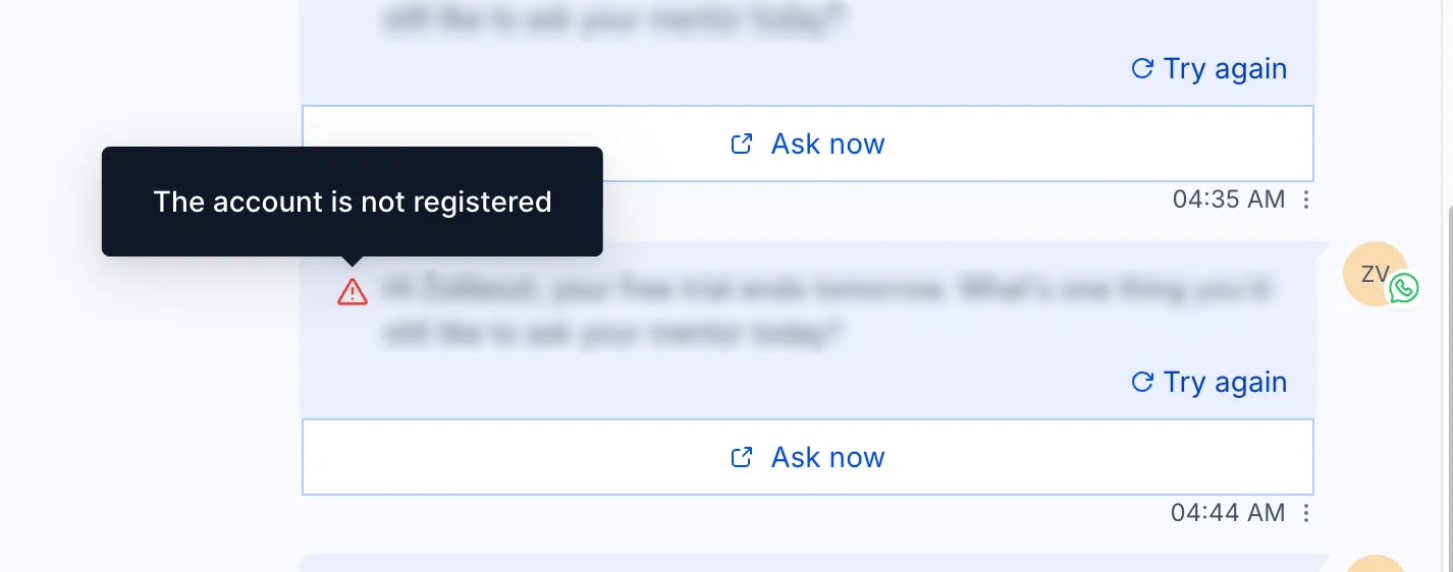
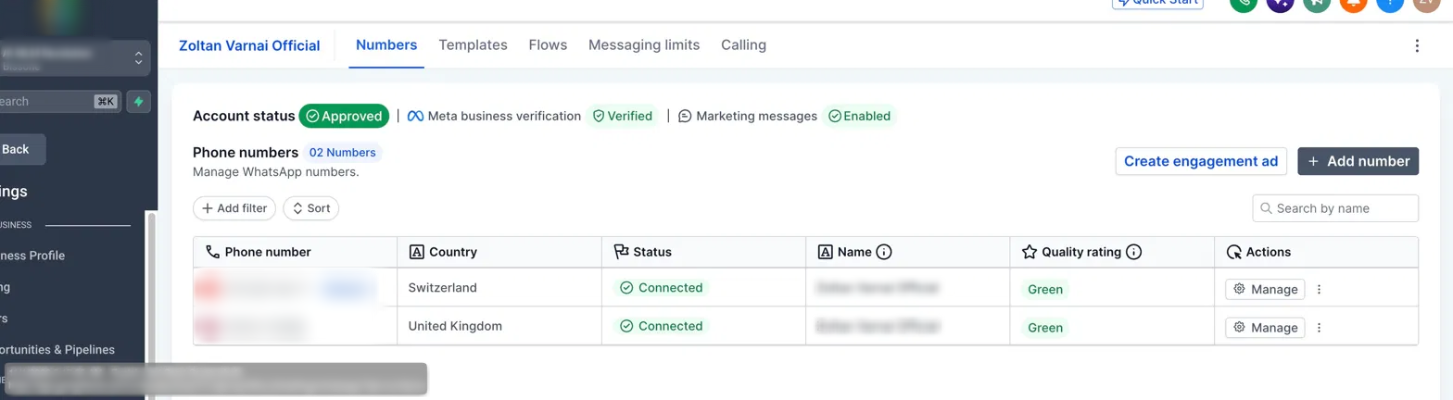
The guide explains WhatsApp error #133010, which occurs when a phone number is not recognized by the WhatsApp Cloud API even though it shows as connected in Meta Business Manager. The steps refresh the Cloud API registration so messages can be sent again. All actions are performed in the Meta WhatsApp Manager and then the user returns to HighLevel to test messaging.
03How businesses use WhatsApp error #133010 fixes
- Digital marketing agency. The agency opens the client’s WhatsApp Business Account in Meta, re registers the phone number following the process, and then sends a test message from HighLevel to confirm the client can receive campaign texts.
- Ecommerce store. The store owner accesses the Phone Numbers page in Meta, deregisters the sales hotline, registers it again, verifies the two step PIN and finally sends a test order confirmation through HighLevel.
- Real estate brokerage. The brokerage verifies that the agent’s listing line is registered with the Cloud API, confirms the PIN if two step verification is enabled and sends a test property alert via HighLevel to ensure delivery.
04The numbers and rules that matter
- Error Code: 133010.
05How to set up and use WhatsApp error #133010 fixes in HighLevel
Re register the WhatsApp phone number
- Open the WhatsApp Business Account through Meta.
- Navigate to the Phone Numbers section.
- Select the number that shows the error.
- Start Meta’s registration or verification flow.
- If prompted verify ownership with an SMS or voice call.
- Complete the registration and confirm success.
Deregister and register the number again
- Remove the affected phone number from the WhatsApp Cloud API.
- Begin the registration process again.
- Verify the number using SMS or a voice call.
- Confirm that registration finishes successfully.
Verify the two step verification PIN
- Have the six digit PIN ready.
- Enter the PIN when the registration prompts for it.
- If the PIN is forgotten follow Meta’s recovery steps.
Send a test message
- Return to the HighLevel account.
- Open a WhatsApp conversation with a test contact.
- Send a test message to that contact.
- Verify that the message is sent without error.
06What it looks like in HighLevel
07If something goes wrong
- Error #133010 persists after completing all steps. Contact the Support Team for further assistance.
08How it connects to the rest of HighLevel
- Full guide for agencies reselling WhatsApp WhatsApp reselling guide
- Set up WhatsApp for a subaccount and migrate numbers Subaccount setup
- Create and manage WhatsApp templates in HighLevel WhatsApp templates
- Link a LeadConnector number with WhatsApp Business LeadConnector integration
- Increase your HighLevel WhatsApp message limit to 2,000 Message limits
Michael's take

Michael ReimerFounder of CRM Pros, HighLevel Commander and Certified Admin
Fixing the registration issue can get the campaign back on track.
If the number is only used for occasional alerts or the client can afford a new, fully verified number, the time spent deregistering and reregistering may not be worth it. In those cases, moving to a fresh number could be a cleaner path.
Get More InformationOpens on HighLevelPublished November 3, 2026 · Updated November 17, 2026