
01Who this is for
- Sales managers who need to log early stage deals before contact details are known, because the panel accepts minimal information.
- Customer support teams that capture inbound inquiries as opportunities, using the optional contact feature to add callers on the fly.
02Add opportunity side panel, explained
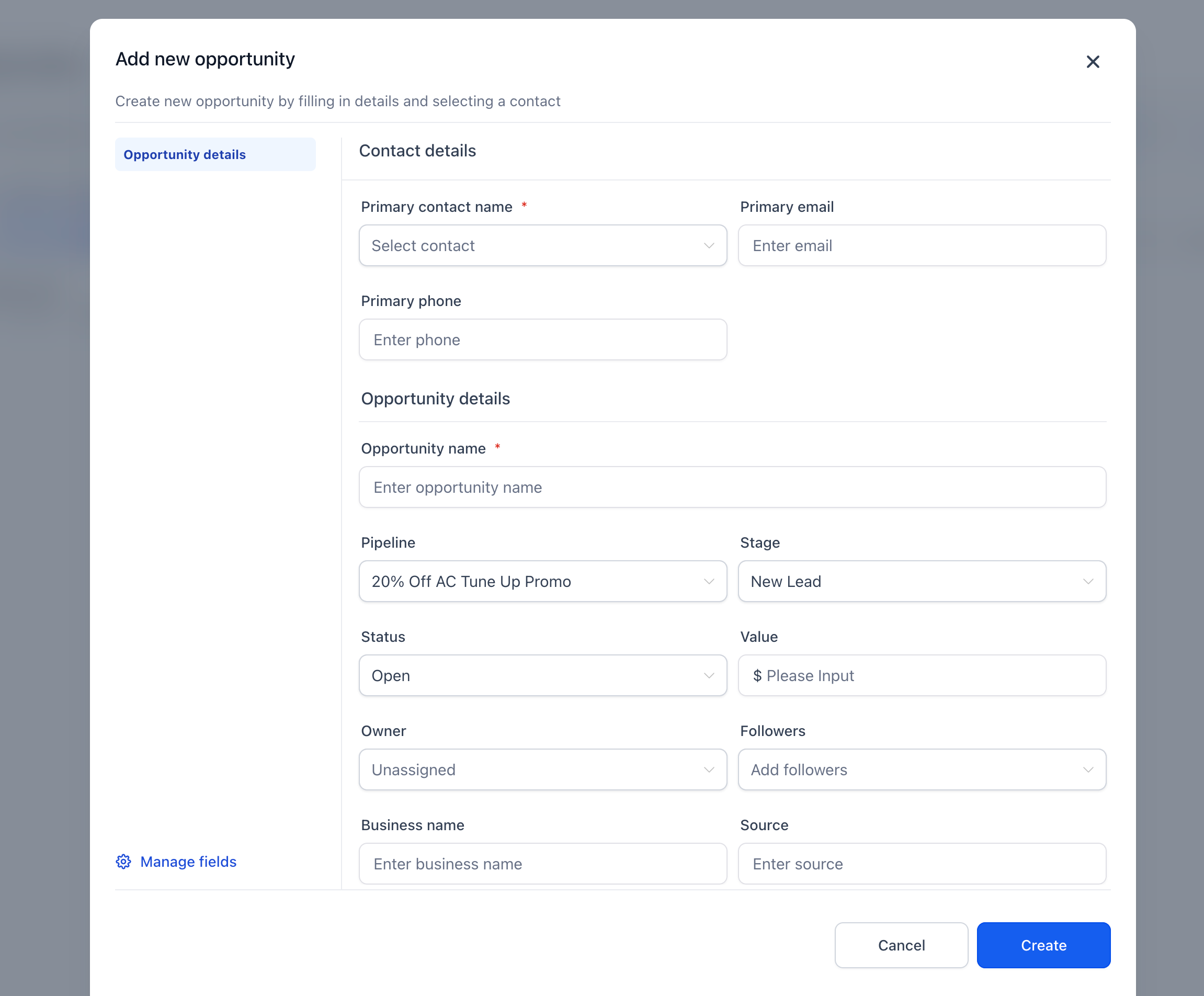
The side panel is a configurable form that appears when you click Add opportunity in the Opportunities view. It always asks for Opportunity Name, Pipeline, and Stage, while all other fields can be added, removed, or marked required by an administrator.
Inside the panel you can select an existing contact, create a new one directly, or leave the contact section blank. New contacts are saved at the moment you click Create Contact, even if the opportunity is not later saved.
Administrators control the form through Settings > Objects > Opportunities > Customize fields for add Opportunity, where they can reorder fields, set additional required fields, hide fields, add custom fields, and set which associations (contacts, companies, custom objects) users may attach during creation.
03How businesses use the Add Opportunity side panel
- Real estate office. Agents open the Add Opportunity panel, type the property title, select the sales pipeline and stage, and optionally link a client contact. They then save the record or use Save and add another to log multiple listings quickly.
- Software SaaS startup. Product managers create a new opportunity for an inbound trial request, skip the contact step until the lead replies, and attach the relevant company record using the association selector before saving.
- Consulting firm. Consultants use the panel to capture a consulting engagement idea, add a custom field for projected hours, and associate a partner organization, then press Save and add another to continue entering other prospects.
04Before you start
- The location must be enrolled in the Opportunity First private beta via the beta access form.
05How to set up and use the Add Opportunity side panel in HighLevel
Create an opportunity using the side panel
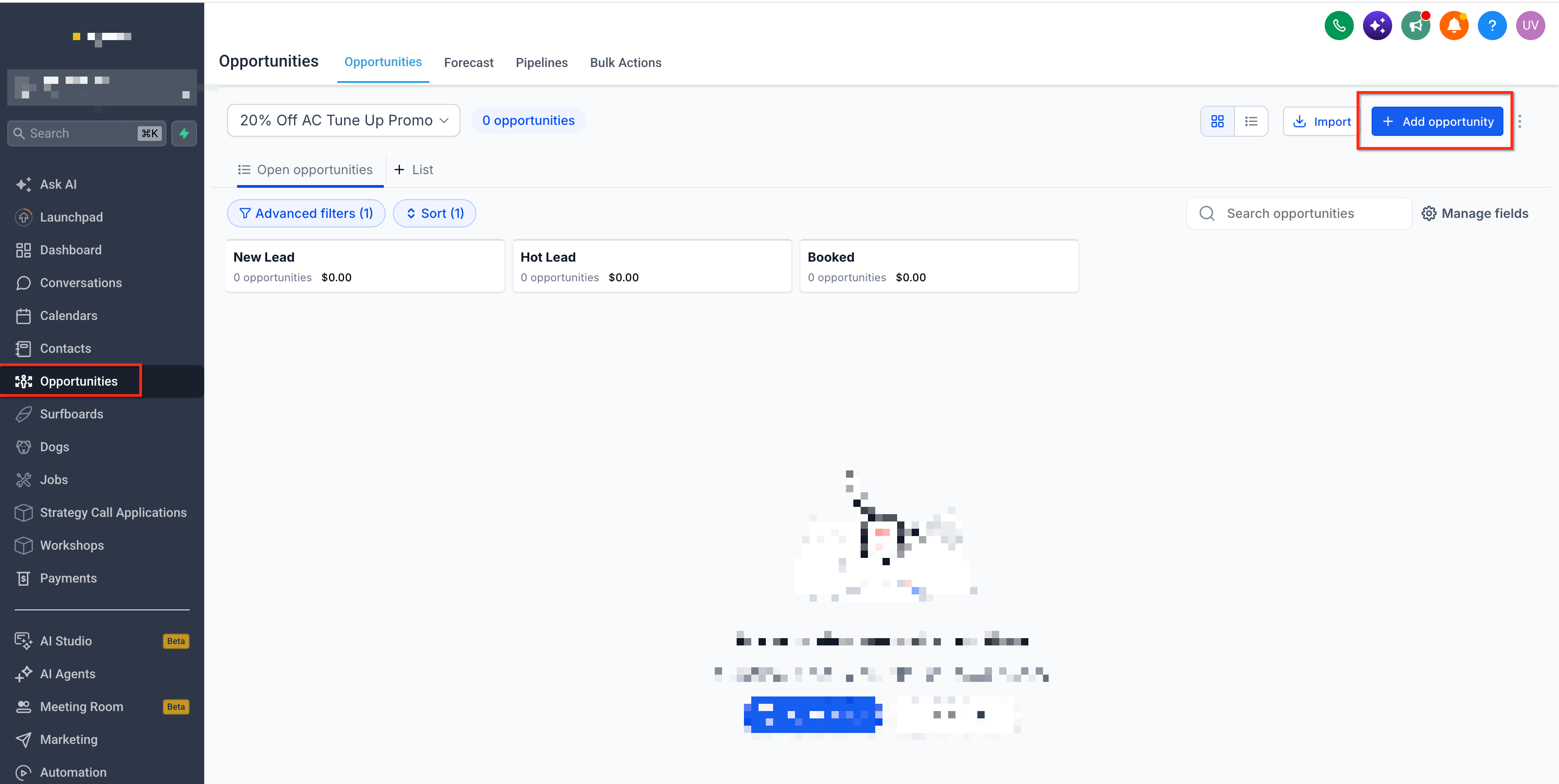
- Navigate to Opportunities and click Add opportunity.
- Enter the Opportunity Name.
- Select the Pipeline and Stage.
- Optionally choose an existing Primary Contact or click Create Contact.
- Provide any extra contact details, required fields, or associations.
- Click Save or Save and add another.
Customize the Add Opportunity form
- Open Settings > Objects > Opportunities > Customize fields for add Opportunity.
- Drag fields to reorder them as needed.
- Mark fields as Required or hide fields that are not needed.
- Click Manage fields to add standard opportunity fields, custom fields, or primary contact fields.
- Click Add associations to enable linking contacts, companies, or custom objects.
- Press Preview to view the form layout.
- Click Save to apply the configuration.
06What it looks like in HighLevel
07Settings that matter
- Customize fields for add Opportunity. Controls which fields appear on the side panel, their order, and whether they are required or hidden.
- Add associations. Determines which relationship types (contacts, companies, custom objects) users can attach while creating an opportunity.
08Things to know before you rely on it
- The feature is only available to locations that have been granted private beta access.
- Opportunity Name, Pipeline, and Stage are mandatory and cannot be removed from the form.
- Selecting Create Contact creates the contact immediately, even if the opportunity is not saved.
09If something goes wrong
- The Add Opportunity side panel does not appear.. Confirm that your location has been enrolled in the Opportunity First private beta.
10How it connects to the rest of HighLevel
- Set up pipelines and stages to use with the side panel. Create pipelines
- Add custom fields that can be included in the side panel. Custom fields guide
- Learn how to manage associations between opportunities and other records. Associations overview
Michael's take

Jumping into a private beta without confirming your team’s workflow can create friction. The Add Opportunity side panel adds a new way to capture deals, but it also means contacts can be created unintentionally if users click Create Contact and walk away.
When you have the beta enabled, the ability to tailor fields to your process can help keep data consistent while the panel protects unsaved work.