
01Who this is for
- Sales managers who need to capture deal specific details such as budgets or client preferences.
- Operations teams that want to group related fields to keep opportunity records tidy and searchable.
- Analytics specialists who require custom data in reports and filters for deeper pipeline analysis.
02Custom Fields for Opportunities, explained
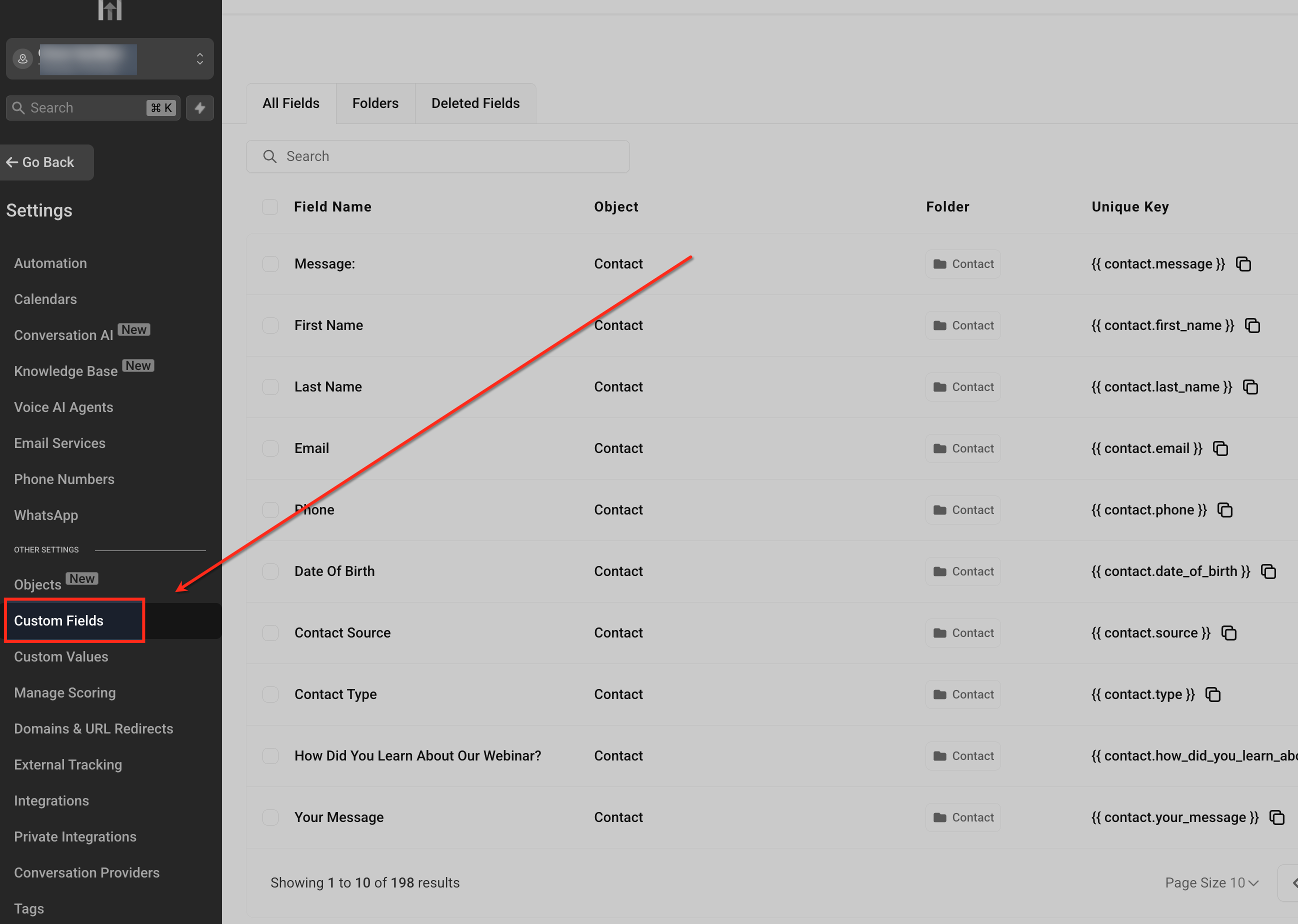
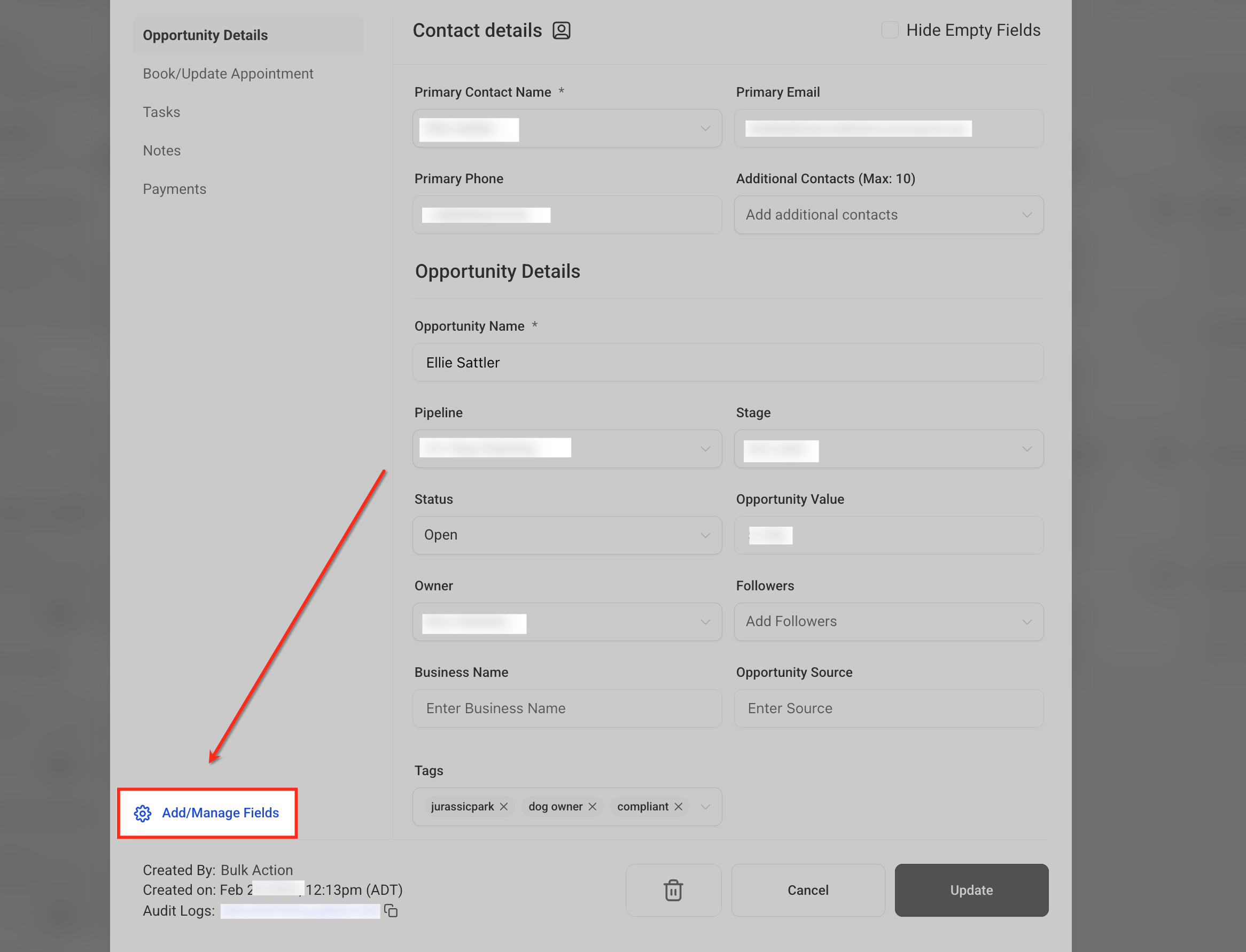
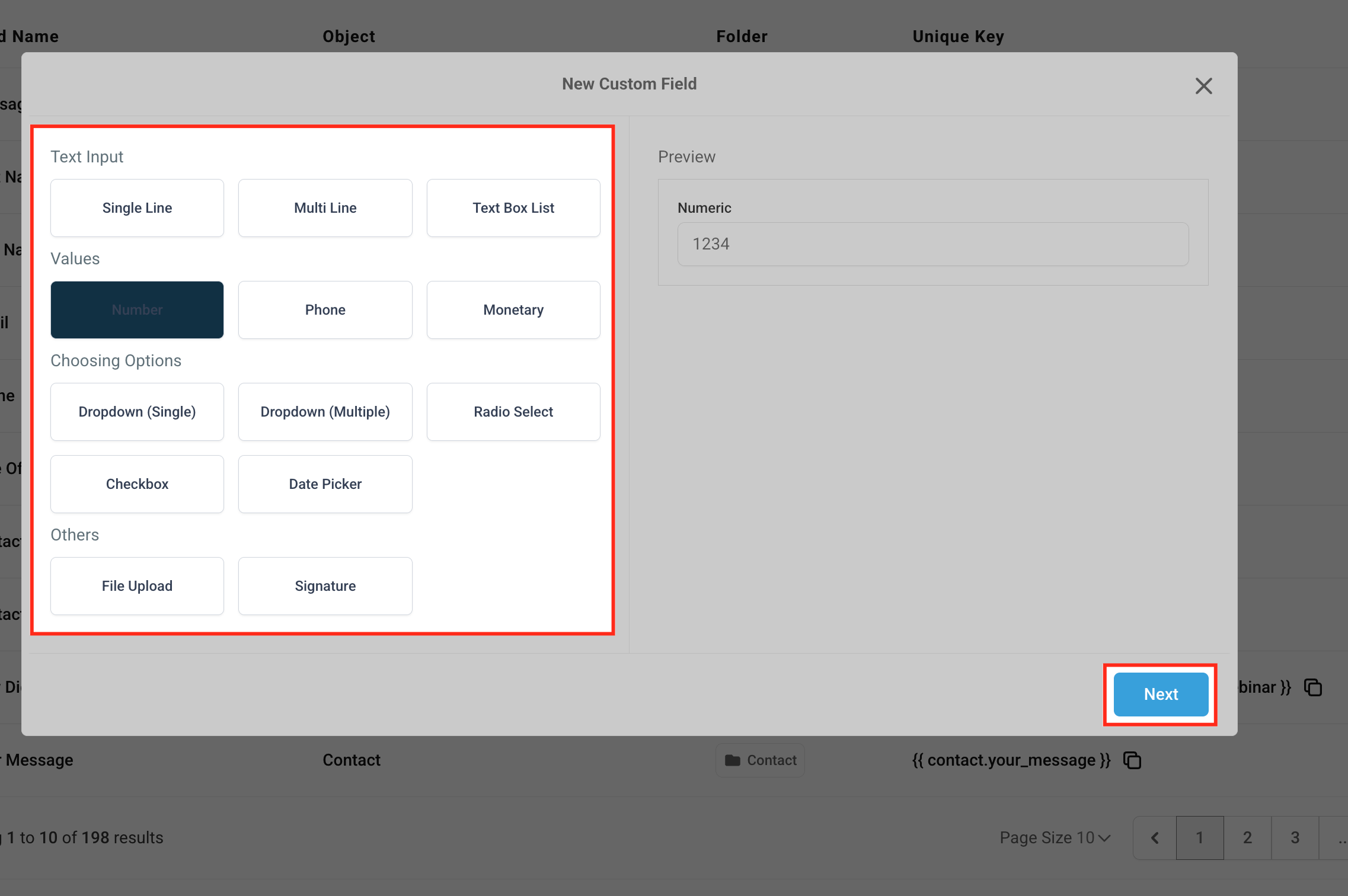
The feature adds a layer of user defined fields to the Opportunity object. After creation, each field appears on the opportunity record and can be placed on the card view for quick reference. Field types include text inputs, numbers, dates, dropdowns, monetary values and more. Fields are organized in folders, and the optional “Hide Empty Fields” toggle removes empty entries from card displays. Most custom fields can be used in Advanced Filters, dashboards, widgets and automation workflows; file upload and signature fields cannot be filtered. You reach the Custom Fields dashboard via Settings > Custom Fields or from an open opportunity by clicking Add/Manage Fields. The same screen lets you add, edit, delete, reorder and move fields between folders.
03How businesses use Custom Fields for opportunities
- SaaS subscription business. Create a monetary field named “Annual Contract Value” and a date picker for “Renewal Date”. Add these fields to the opportunity card so sales reps see contract size and renewal timing without opening the full record.
- Construction contractor. Set up a dropdown field for “Project Phase” and a text box list for “Materials List”. Group them in a folder called “Project Details” and hide empty fields to keep the card view clean for field crews.
- Digital marketing agency. Add a checkbox field titled “Need Creative Brief” and a file upload field for “Client Assets”. Use the checkbox on cards to flag opportunities that require additional briefing before moving forward.
04How to set up and use Custom Fields for opportunities in HighLevel
Create a new custom field
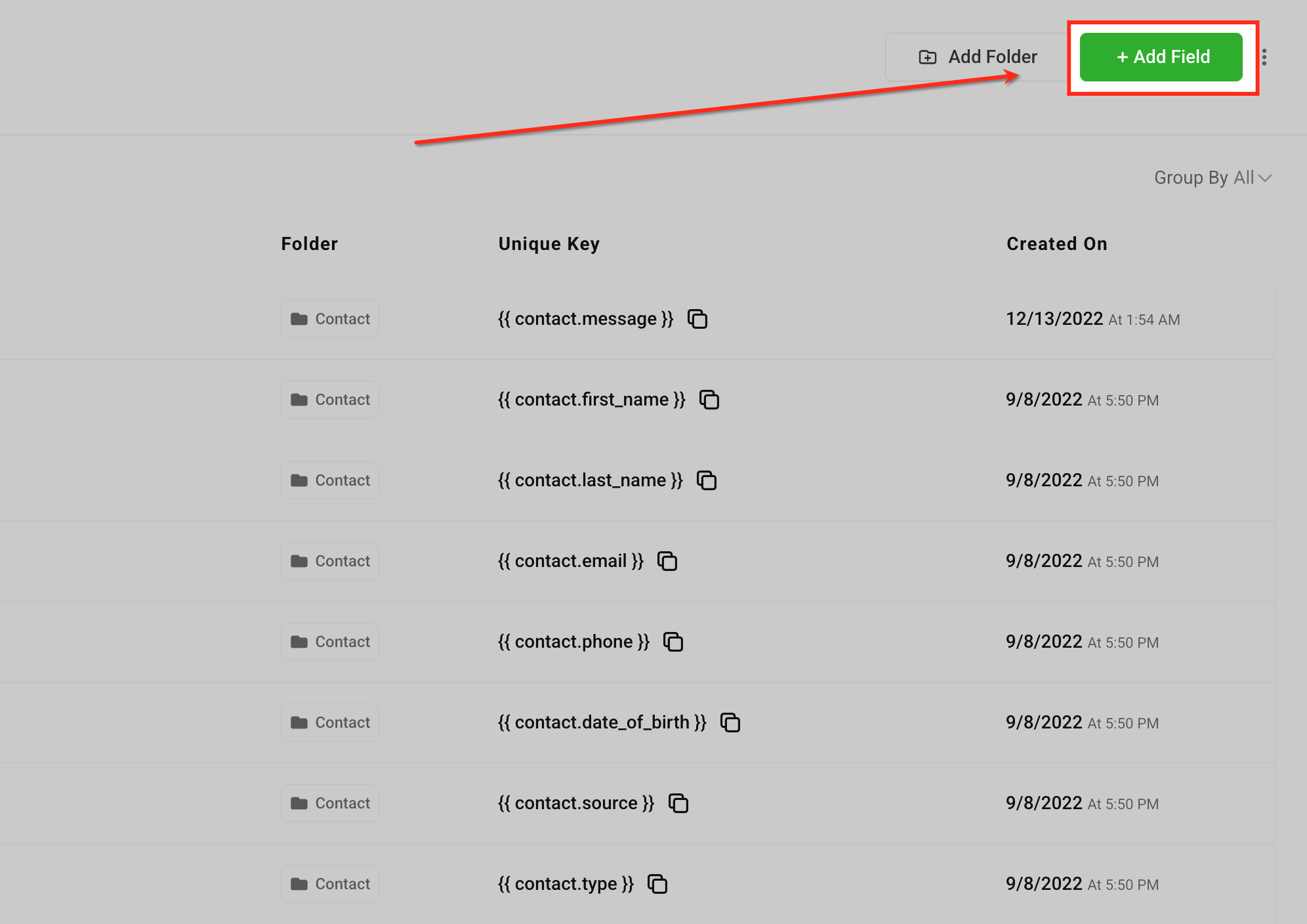
- Open the Custom Fields dashboard via Settings or an opportunity and click the + Add Field button.
- Select the desired field type from the list of options.
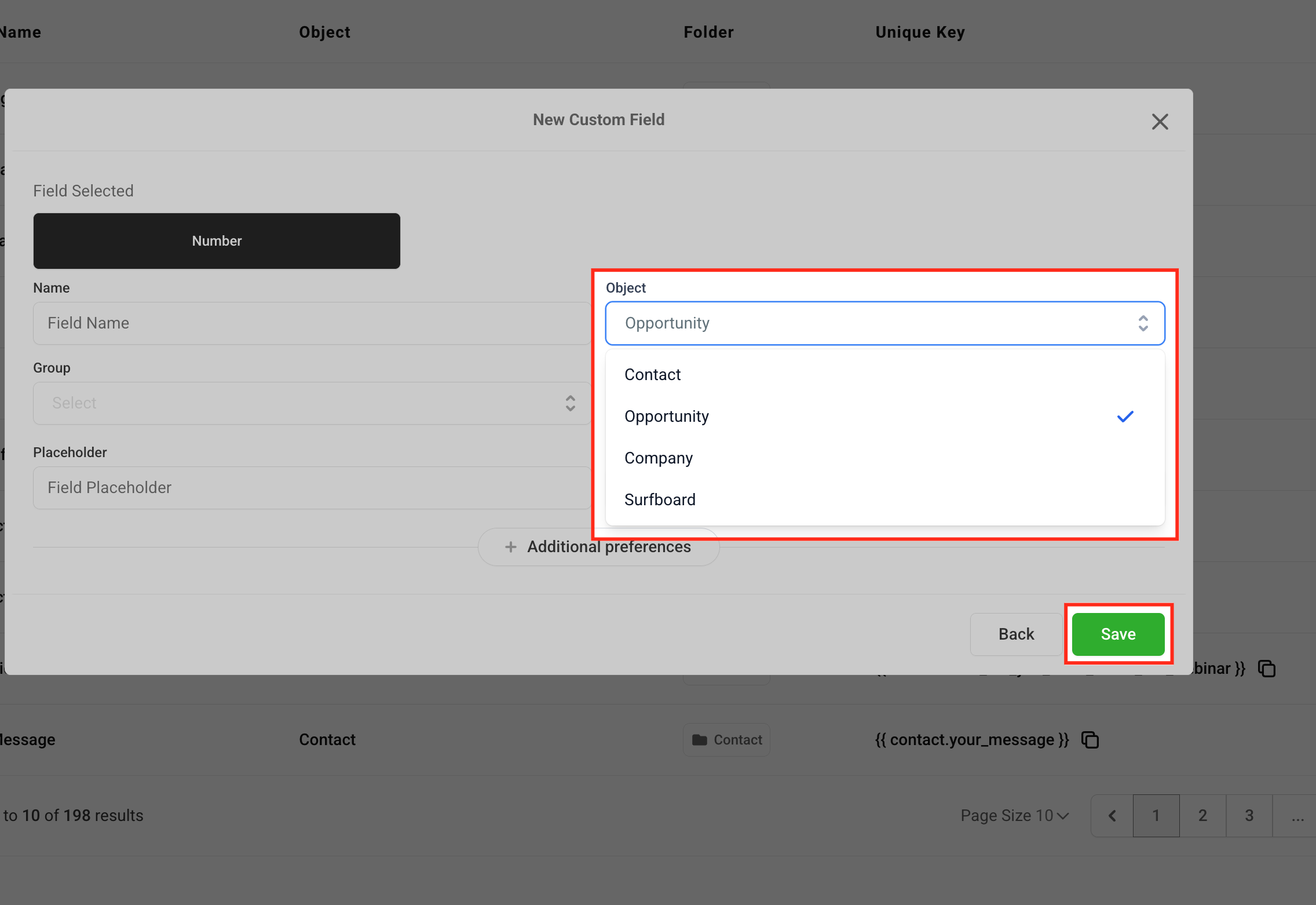
- Click Next, then enter a name, assign the Object as Opportunity, and choose a folder if desired.
- Click Save to add the field to all opportunity records.
- If you accidentally assign the field to Contact instead of Opportunity, it will not appear in opportunity records.
Create a folder for Custom Fields
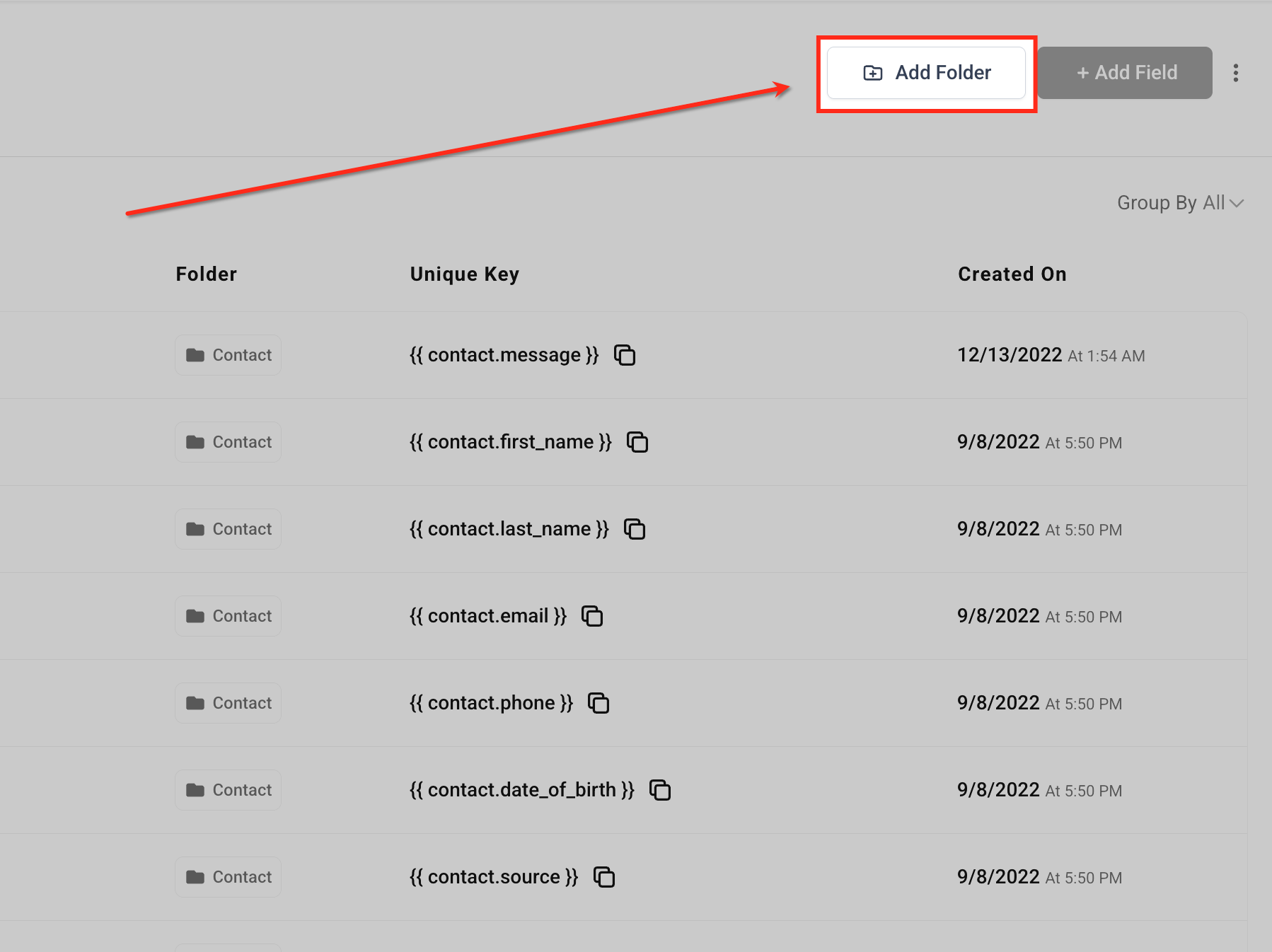
- In the Custom Fields dashboard, press the Add Folder button.
- Type a descriptive folder name such as “Budget Details”.
- Select Opportunity as the object for the folder.
- Save the folder to organize related custom fields.
Add Custom Fields to opportunity cards
- Navigate to the Opportunities view and click the Manage Fields button.
- Scroll to the Add Fields section and expand the Opportunity Details area.
- Check the boxes for the custom fields you want visible on cards.
- Press Apply to update the card layout with the selected fields.
05What it looks like in HighLevel
06Settings that matter
- Hide Empty Fields. Controls whether fields without values are hidden on opportunity cards.
- Object. Determines which record type (Opportunity, Contact, etc.) the custom field belongs to.
- Add/Manage Fields. Shortcut that opens the Custom Fields dashboard from an open opportunity.
- Add Field. Initiates the creation of a new custom field for the selected object.
- Add Folder. Creates a new container to group related custom fields.
- Group By. Organizes the field list by folder or other categories in the dashboard.
- Filter by Object. Filters the displayed custom fields to those attached to a specific object type.
07Things to know before you rely on it
- Deleting a custom field permanently removes its data from all opportunities; this action cannot be undone.
- If a field is mistakenly assigned to Contact instead of Opportunity, it will not appear in opportunity records.
- File Upload and Signature field types cannot be used in Advanced Filters for opportunities.
- Changes made in the Manage Fields panel affect only the personal view of the user; other users retain their own layouts.
08How it connects to the rest of HighLevel
- Filter opportunities using custom fields Filter opportunities
- Edit opportunity statuses for better pipeline control Edit statuses
- Automate workflows with opportunity custom fields Automate opportunities
- Start a 30 day HighLevel trial Start trial
Michael's take

Ever wonder if you really need another layer of data in your pipeline? Custom Fields for Opportunities let you capture exactly what matters to your business. Budget, dates, product details. Without cluttering the view. I’d start by mapping the few extra data points that your team constantly asks for, then create fields for them.
If I were setting this up, I’d test the new fields in a couple of deals first, make sure they appear in the Advanced Filters I need, and confirm the data shows up in my reports. Once I’m confident the fields are working, I’d roll them out to the team and let each person customize their card view for maximum efficiency.