
01Who this is for
- Sales managers who need to track deal progress and mark wins or losses quickly.
- Agency owners who run multiple pipelines and must keep opportunity data current.
- Founders of small businesses who rely on a clear view of active, won, lost, and abandoned deals.
02Opportunity statuses, explained
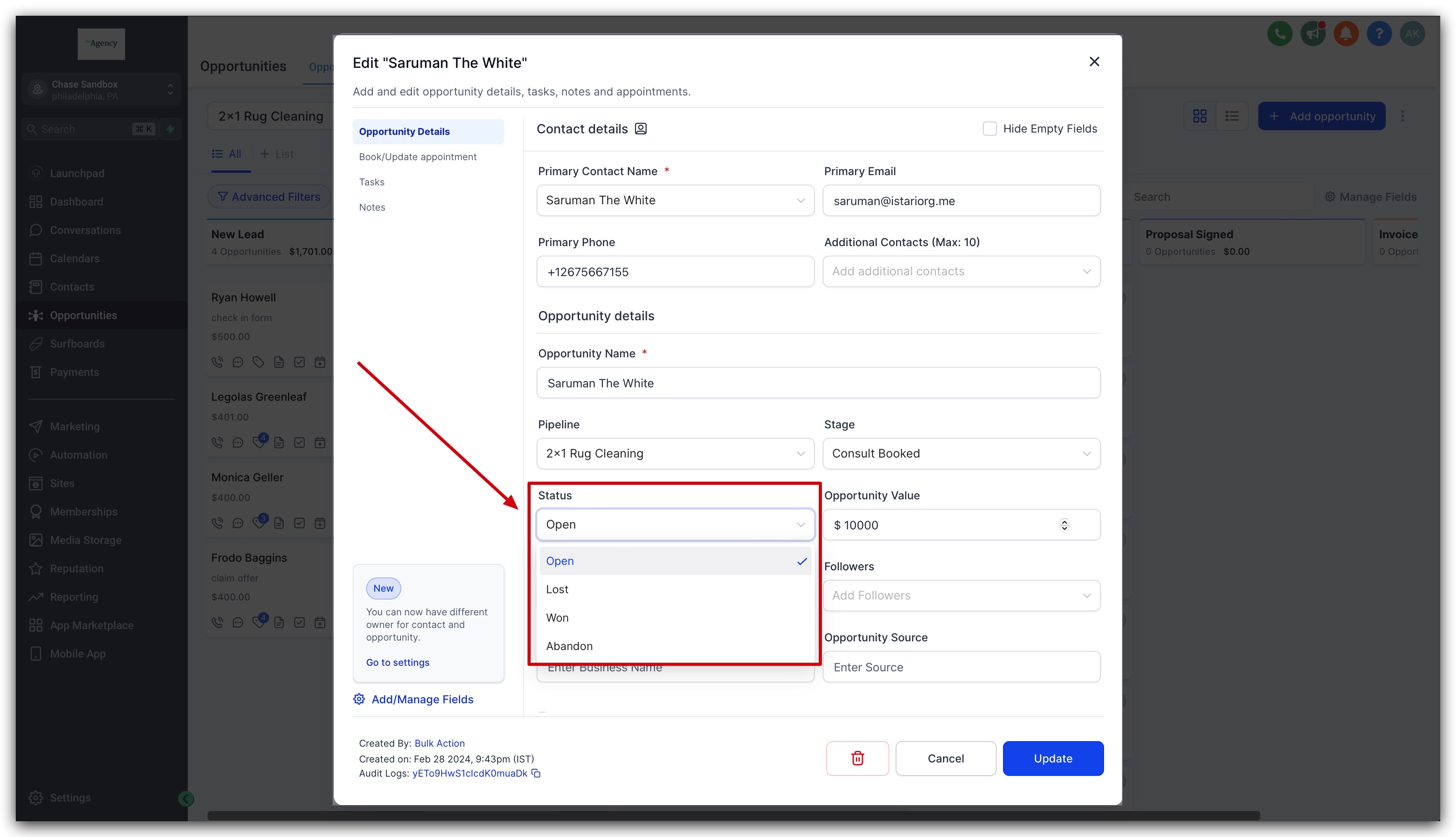
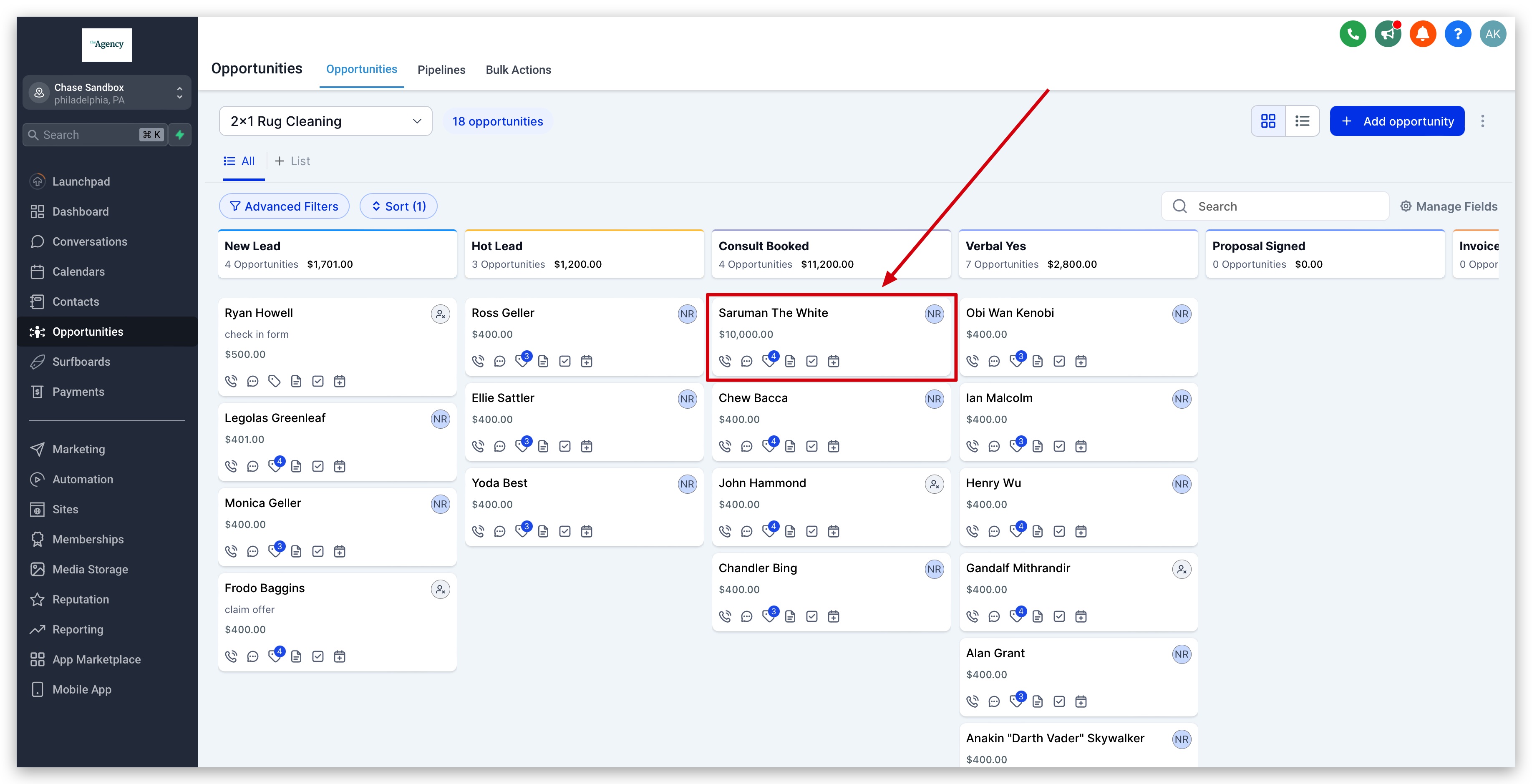
The opportunity status feature shows whether a deal is Open, Won, Lost, or Abandoned. Each status is a fixed label that cannot be renamed. Changing the status updates the opportunity’s position in the sales pipeline and reflects on the opportunity card.
You can change the status from the opportunity’s detail page, by moving the card to a different status column, or through an automated workflow. All three methods modify the same status field, so the pipeline view stays synchronized.
The controls live inside the Automation section of HighLevel where the Opportunities list and workflow builder are located.
03How businesses use opportunity statuses
- Real estate brokerage. An agent opens an opportunity for a property listing, then clicks the status field to switch from Open to Won after the sale closes. The change right away appears in the pipeline view.
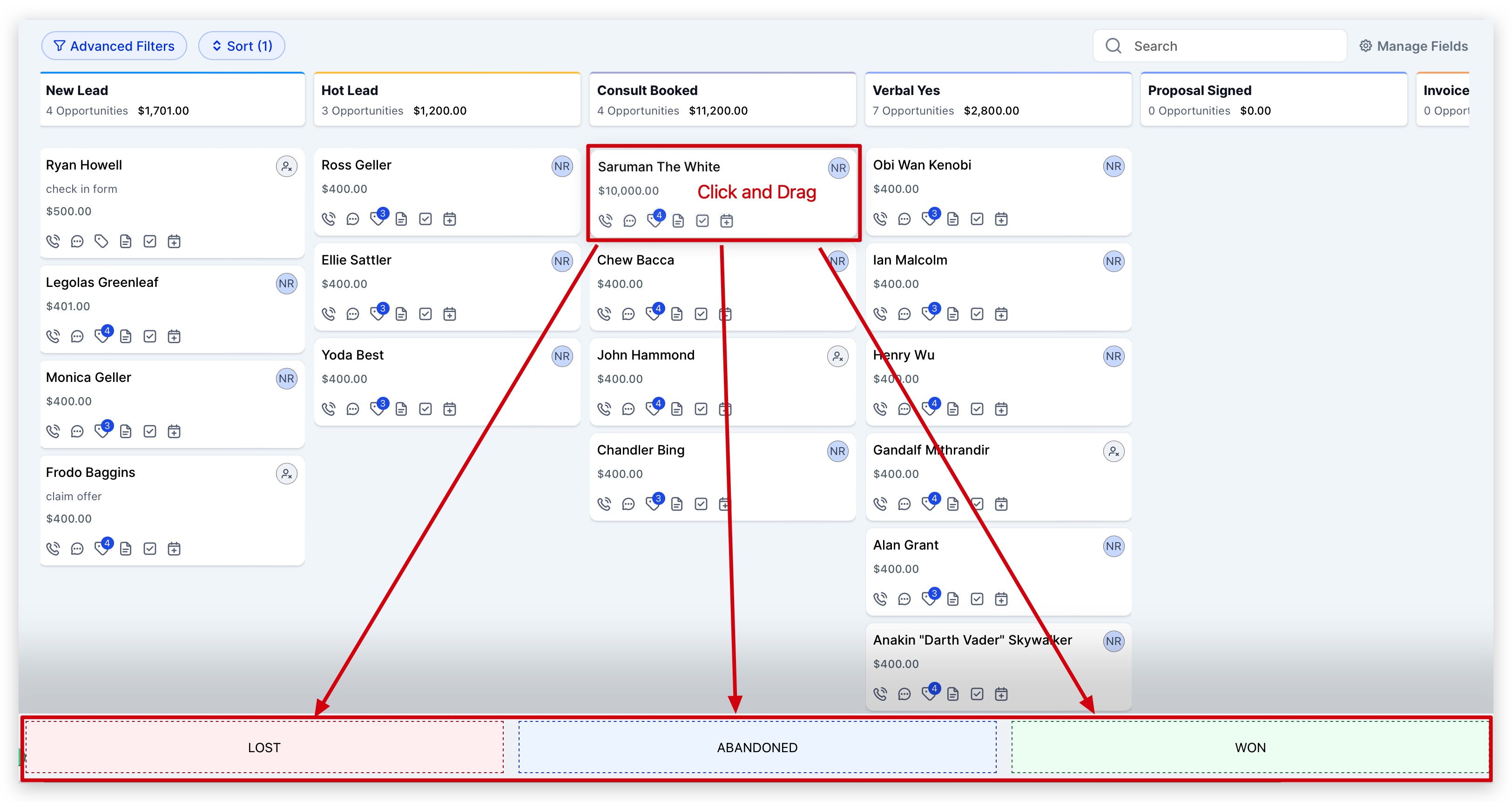
- Dental practice. The front desk drags a patient’s consultation opportunity card from Open to Lost when the patient decides not to proceed. The status updates on the card without opening a new window.
- Online course creator. A workflow triggers when a purchase is completed, runs the Create/Update Opportunity action, and sets the opportunity status to Won automatically, keeping the sales funnel up to date.
04How to set up and use opportunity statuses in HighLevel
Update status by clicking directly
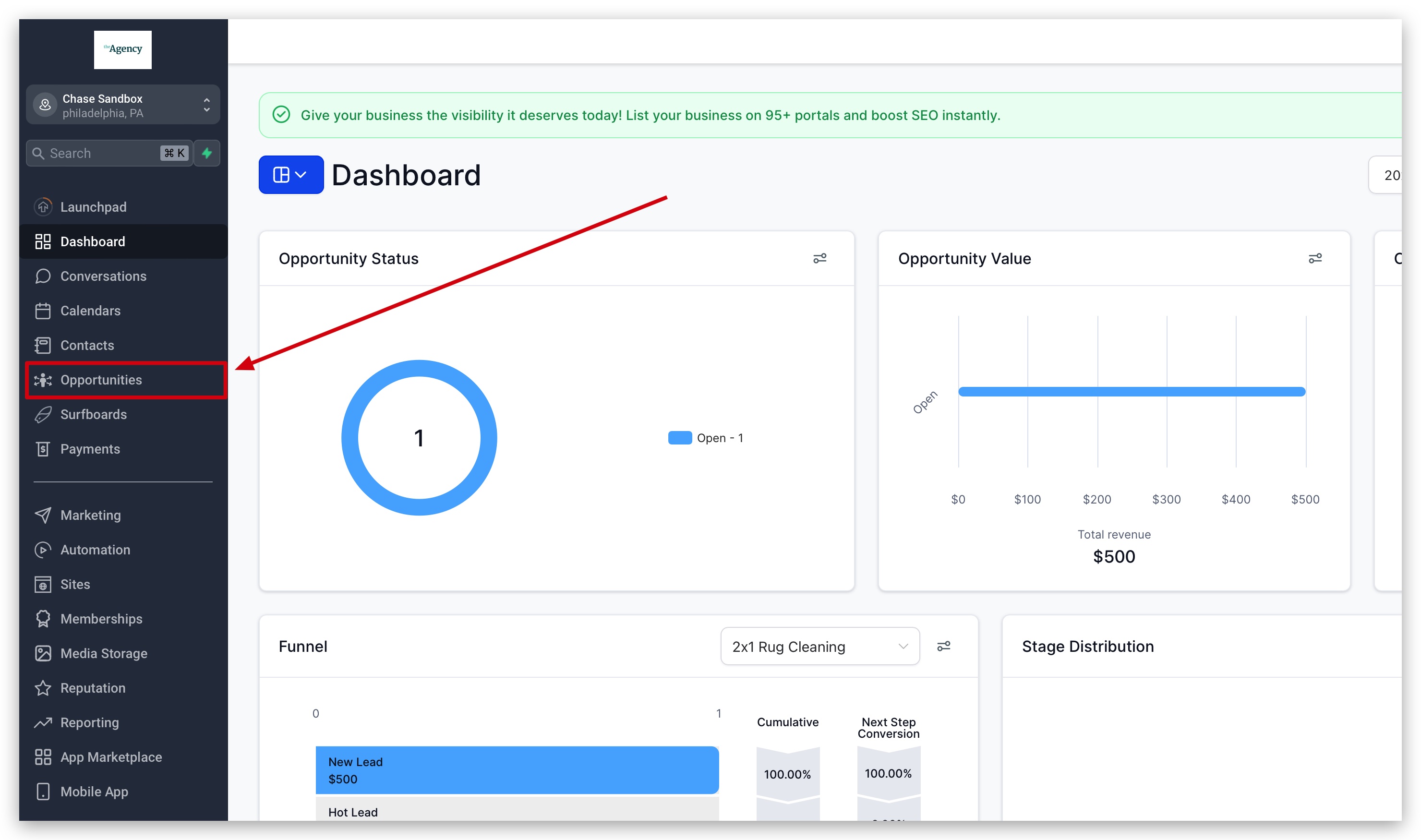
- Log in and go to Automation > Opportunities.
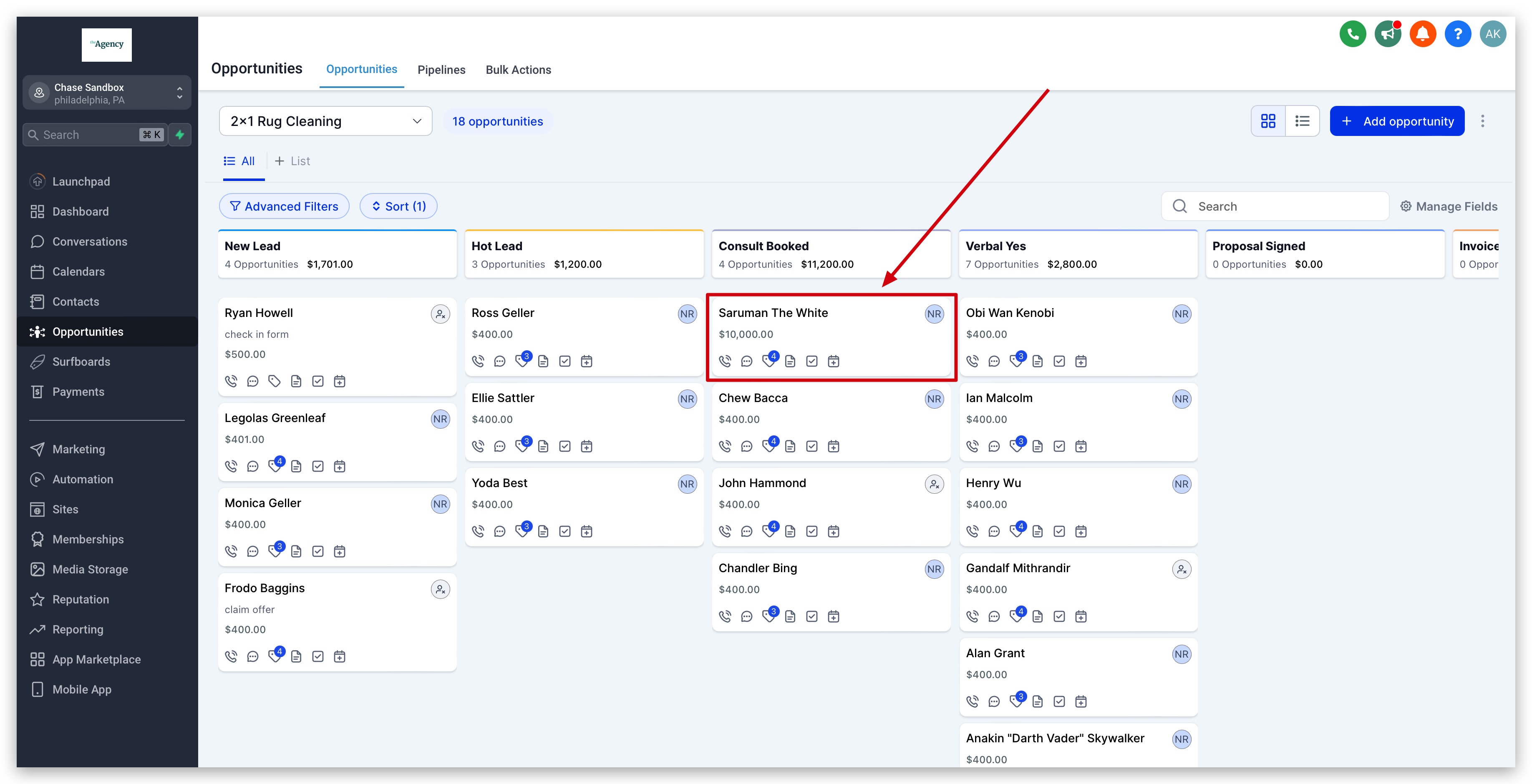
- Find the opportunity you need, open its details, or click Edit.
- Select the status field, choose Open, Won, Lost or Abandoned, and confirm the change.
Update status via drag and drop
- Log in and go to Automation > Opportunities.
- Locate the opportunity card you wish to modify.
- Drag the card onto the column that shows the desired status and release it.
Update status through workflow
- Log in and open Automation > Workflows.
- Create a new workflow or edit an existing one that handles opportunities.
- Add a trigger such as a form submission, tag change, or invoice payment.
- Insert the Create/Update Opportunity action and search for “opportunity”.
- Select the pipeline, stage, and the new status, then save the action and the workflow.
05What it looks like in HighLevel
06Settings that matter
- Opportunity status type. Defines which of the four fixed statuses, Open, Won, Lost, Abandoned, an opportunity can hold; the names cannot be edited.
07Things to know before you rely on it
- Only the four predefined status types are available; you cannot rename or add new statuses.
08How it connects to the rest of HighLevel
- Set up pipelines and stages to organize where opportunities belong. Create pipelines
- Add custom fields to enrich opportunity records with extra details. Custom fields
- Start a trial of HighLevel to explore the opportunities feature. 30 day trial
Michael's take

Be careful about assuming you can rename the stages to match your unique sales lingo, HighLevel locks the four status names, so you’ll need to work within Open, Won, Lost, and Abandoned. That restriction can feel tight at first, but it also keeps everyone on the same page and simplifies reporting.
I find the workflow option convenient for triggers like “invoice paid” to move a deal to Won without needing to remember to click the status field.