
01Who this is for
- Sales managers who need to keep opportunity data accurate for reporting.
- Customer service teams that follow up on deals and add notes or tasks.
- Marketing directors who align pipeline stages with campaign tracking.
02Editing opportunities, explained
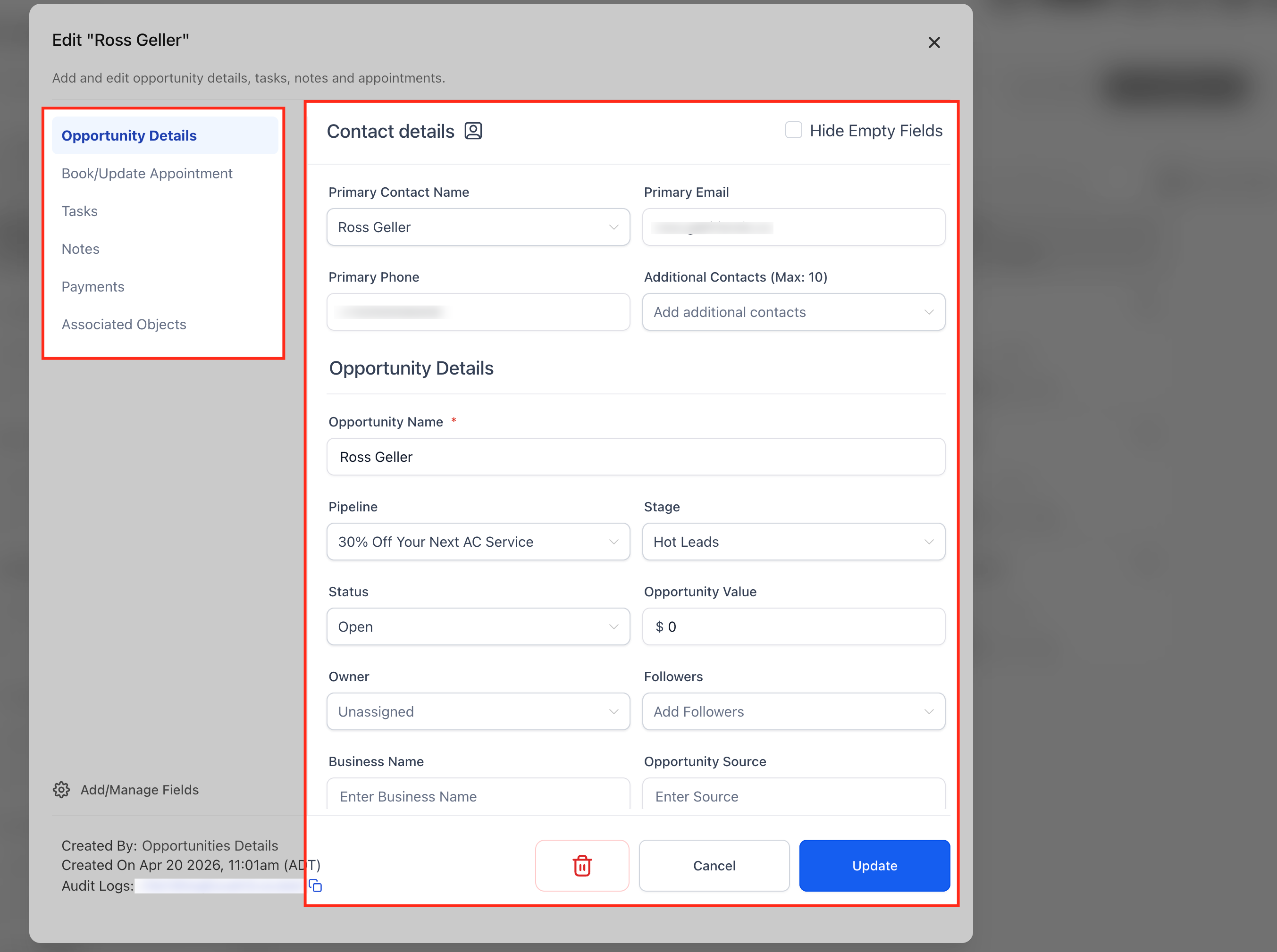
The opportunity editor in HighLevel provides a central place to modify any data tied to a sales deal. Users can change basic contact information, monetary value, source, pipeline stage, owner, tags, and any custom fields that have been defined.
From the same screen you can schedule or edit a single appointment, add notes that also appear on the related contact, create tasks with due dates and priority, and move the deal among status columns such as Open, Won, Lost, or Abandoned. All edits are saved directly to the opportunity record.
03How businesses use editing opportunities
- Real estate agency. The agent opens an existing property lead in HighLevel, updates the potential sale price and adds a client tag. They schedule a showing as the sole appointment, attach a note about the property condition, and set a follow up task for the next day.
- Software consulting firm. A consultant edits a consulting opportunity to change the service scope, moves it to the proposal stage, and logs a meeting with the prospect. They add a note summarizing the discussion and assign a task to draft a contract.
- Event planning company. The planner selects an event booking opportunity, updates the event date field, schedules a site visit appointment, adds a note with venue details, and creates a task for the catering team with a priority reminder.
04Before you start
- Be logged into a HighLevel account.
- Have permission to view and edit opportunities.
- An opportunity must already exist in the system.
05How to set up and use editing opportunities in HighLevel
Locate the opportunity to edit
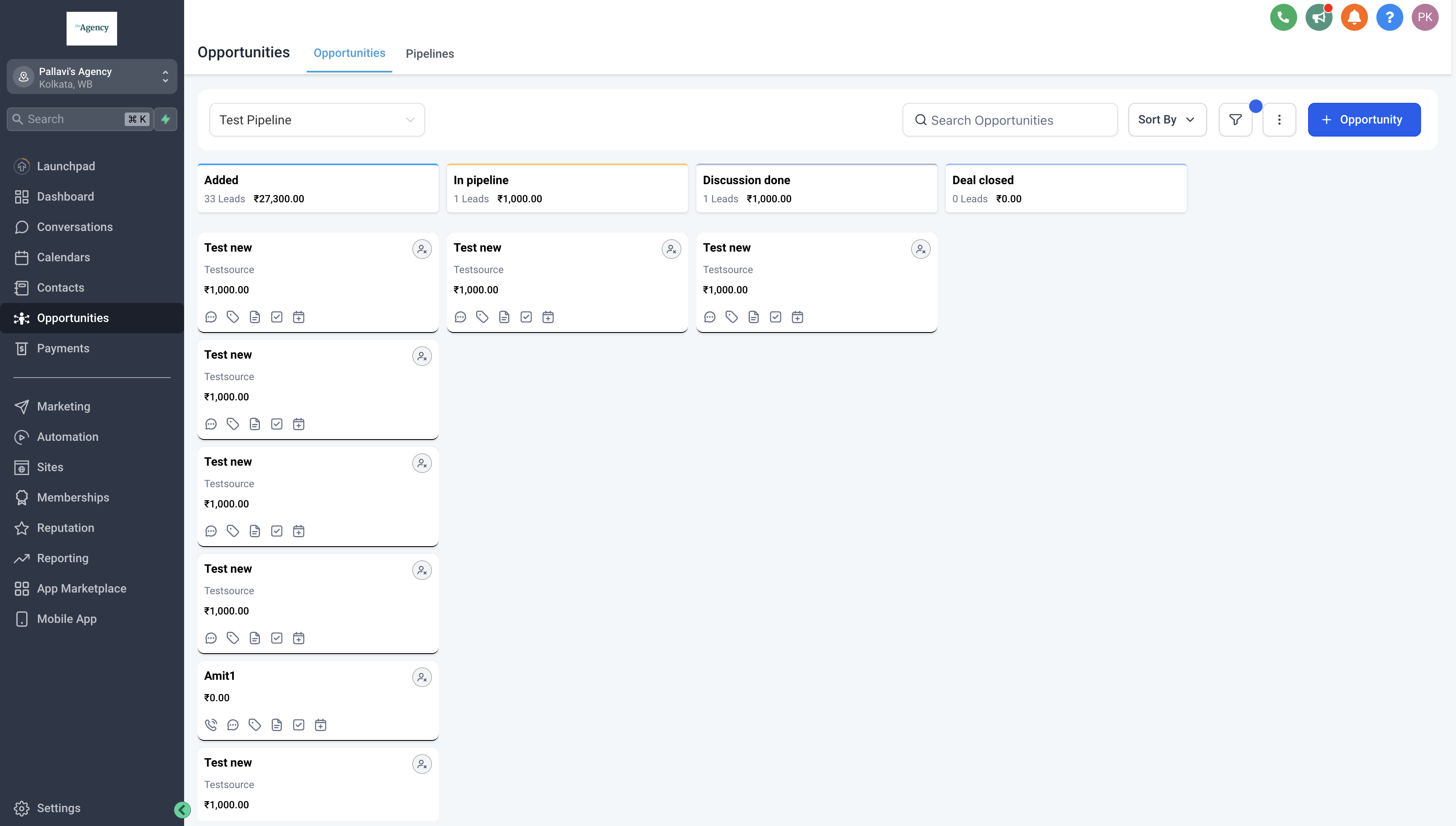
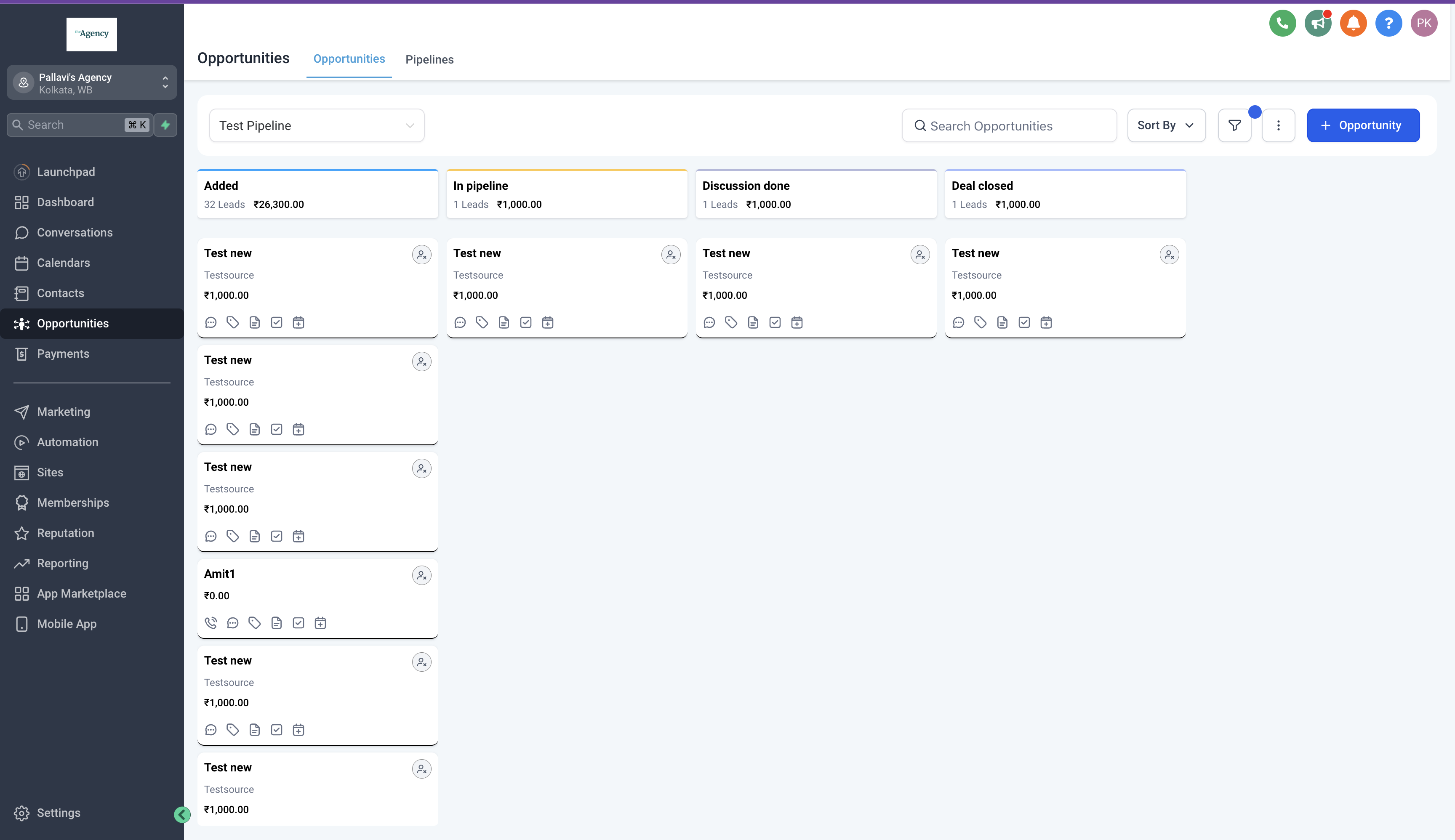
- Open the Opportunities section from the sidebar.
- Use the filter tools or scroll to find the specific opportunity.
- Click the opportunity’s name to select it.
Open opportunity details page
- Select the opportunity to load its details view.
- Review the displayed fields such as contact name, value, and source.
- Edit any of those fields, including pipeline stage, owner, tags, or custom fields.
Book or update an appointment
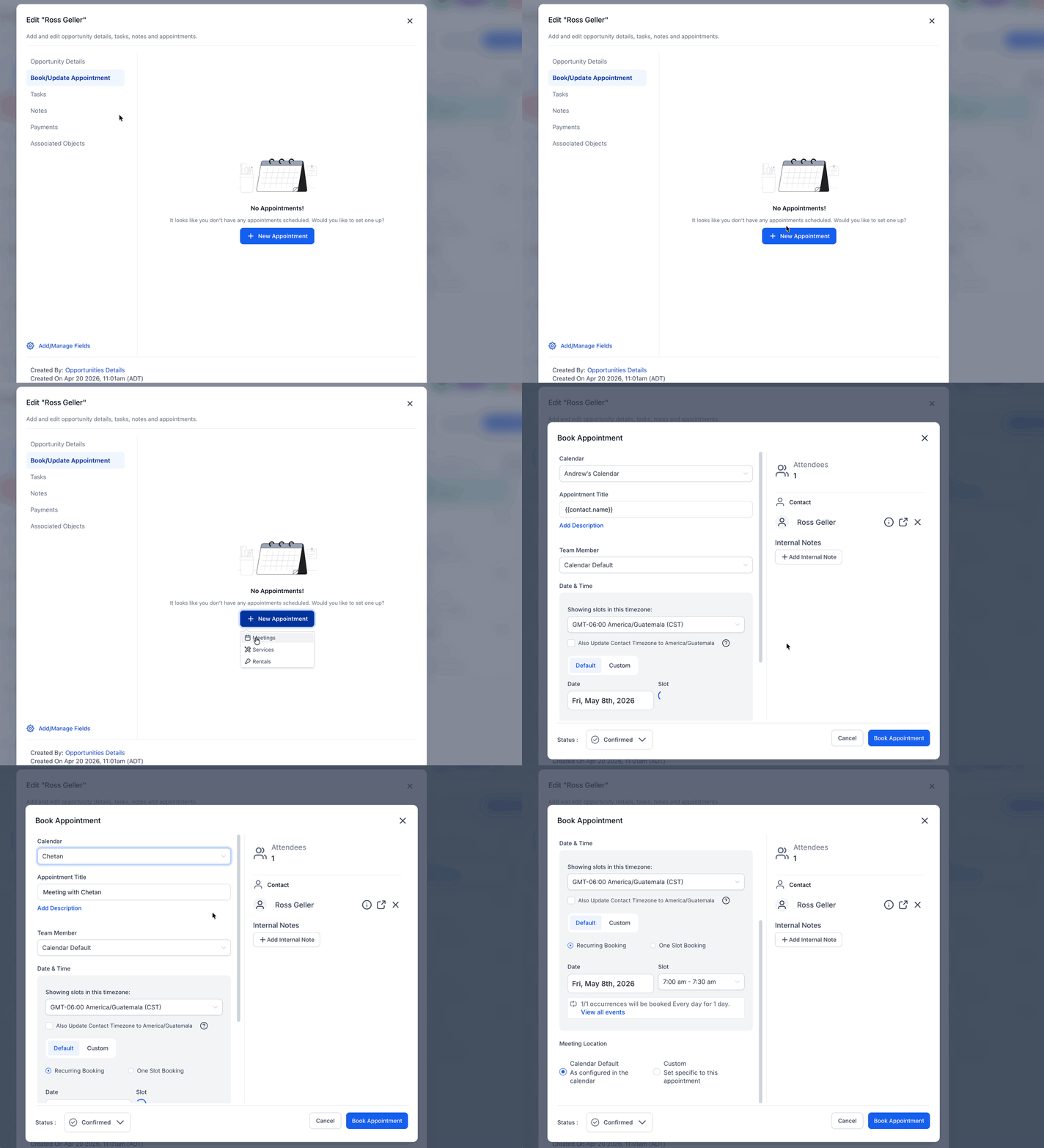
- From the Edit Opportunity view, click the Book/Update Appointment button.
- If no appointment exists, choose the + New Appointment option.
- Pick the type of appointment: Meetings, Services, or Rentals.
- If an appointment already exists, open the three dot menu and select Edit, View, or Delete.
- Select Edit to open the appointment with pre filled details and make changes.
Add notes and attachments
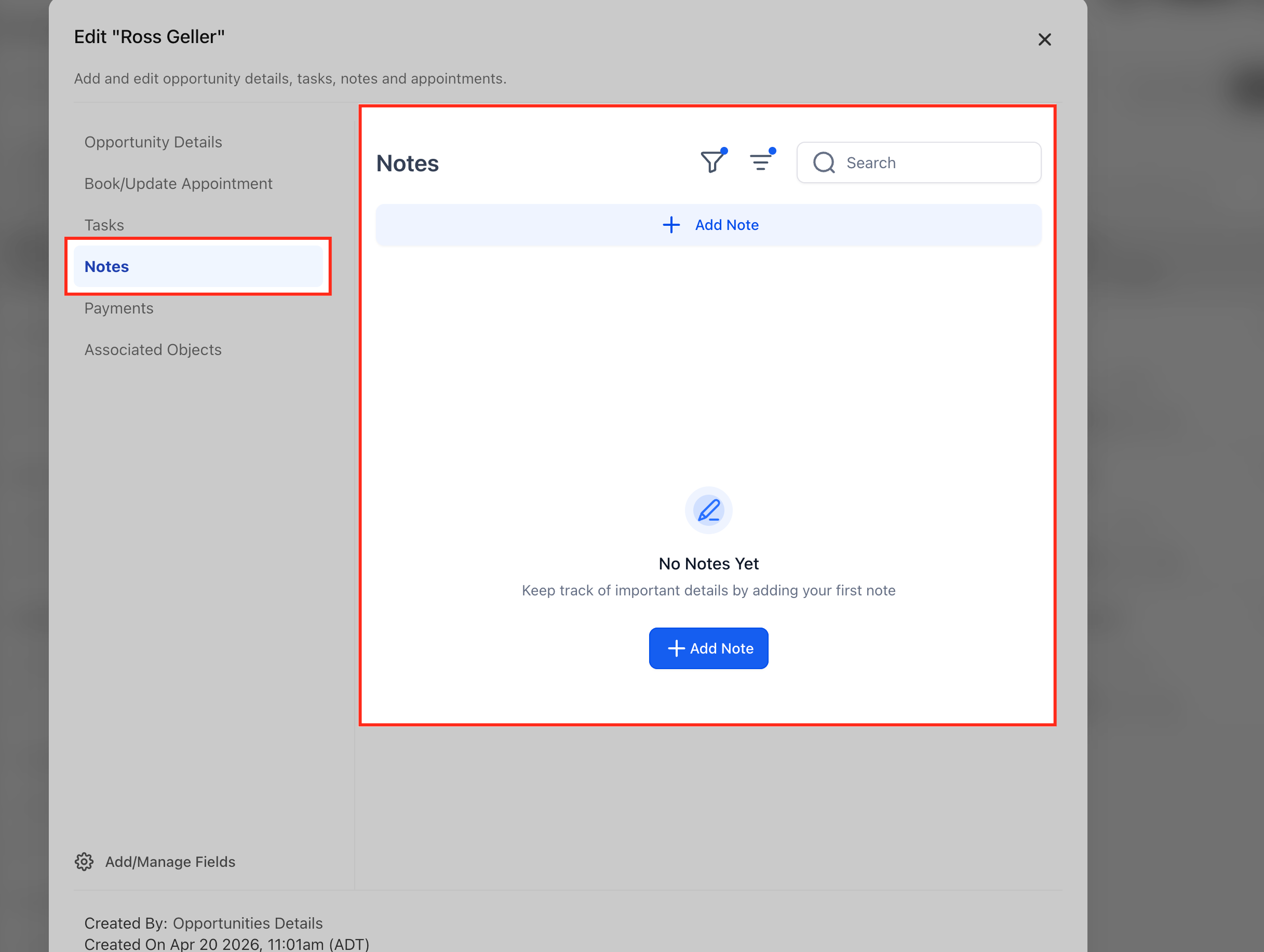
- In the left sidebar, click the Notes option.
- Enter the note text or attach a file as needed.
- Save the note; it will also appear on the linked contact’s notes.
Set tasks and reminders
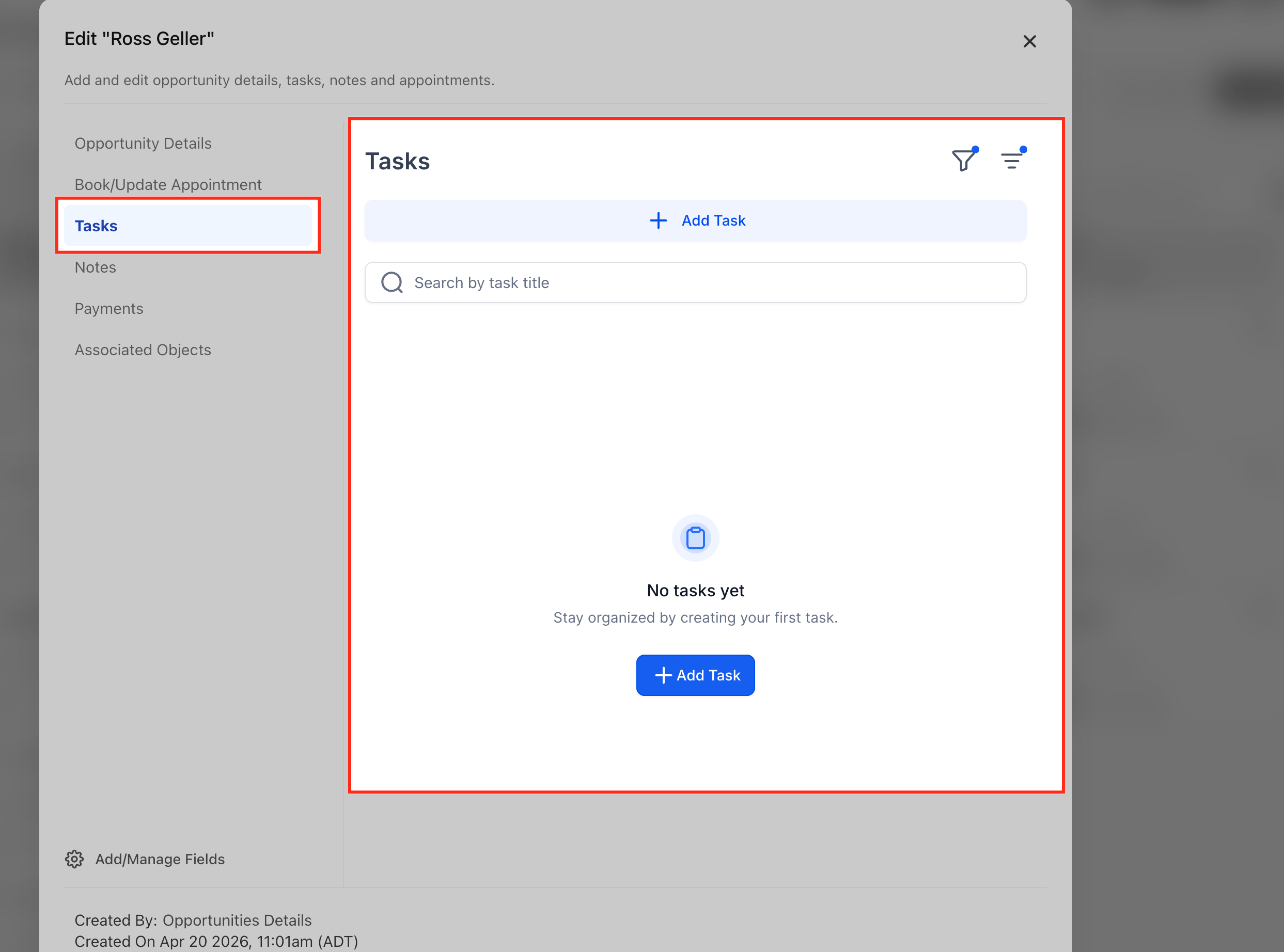
- Open the Tasks section from the sidebar.
- Create a new task for the opportunity.
- Assign the task to a user, set a due date and priority.
- Save the task, which will also be linked to the associated contact.
Manage opportunity status
- Drag the opportunity card to the desired status bar at the bottom of the screen.
- Select one of the statuses: Open, Won, Lost, or Abandoned.
- If Lost is chosen, enter a lost reason when prompted.
06What it looks like in HighLevel
07Settings that matter
- Opportunity status. Determines which of the four categories, Open, Won, Lost, or Abandoned, the opportunity belongs to.
08Things to know before you rely on it
- Each opportunity currently supports one appointment only.
- The default status for a newly created opportunity is Open.
- Only the four listed statuses can be applied to an opportunity.
09How it connects to the rest of HighLevel
- Create pipelines and stages to organize your opportunities Pipelines guide
- Add custom fields to capture extra data on opportunities Custom fields
- Review HighLevel pricing and plans for feature access Pricing
Michael's take

Most people try to edit every detail directly from the list view and end up missing the linked contact notes and tasks. The edit modal is where all the connections happen, so start by opening the opportunity details page.
If I were setting up a new deal, I would pull up the opportunity, update the contact info, add a single appointment, and then create a follow up task before moving the stage. That keeps the record tidy and ensures nothing slips through the cracks.