
01Who this is for
- Sales managers who need to populate many deals quickly without opening each record.
- Data migration specialists moving deal information from another CRM into HighLevel.
- Small business owners who want to update pipeline stages or values across many opportunities at once.
02Opportunities CSV import, explained
The feature reads a CSV file and either creates fresh Opportunity records or updates existing ones. It works only for Opportunities that belong to contacts already stored in HighLevel, unless you also import contacts in the same file.
During the import you select the record type, upload the file, map each column to a HighLevel field, set how empty values are treated, and then launch the process. The import runs in the background and results appear in Bulk Actions where you can see successes and failures.
03How businesses use importing opportunities using a CSV file
- Real estate brokerage. The brokerage prepares a CSV with listings as Opportunities, includes Contact IDs of agents, and maps columns to Pipeline and Stage. The import creates a deal for each listing in the correct sales pipeline.
- SaaS startup. The startup exports its lead list with deal values and statuses, adds Contact IDs, and runs an Opportunities only import to update the Opportunity Value and Status for existing deals.
- Dental practice. The practice adds a CSV that contains new treatment plans as Opportunities, includes patient Contact IDs, and maps custom fields for procedure type. The import adds those plans to the appropriate pipeline.
04The numbers and rules that matter
- CSV file size must be under the currently documented 30 MB limit.
05Before you start
- Save the data as a CSV file.
- Keep the file under the 30 MB size limit.
- Create the pipelines that will receive the Opportunities.
- Create the stages within those pipelines if you will import stage information.
- Create any custom Opportunity fields you plan to map.
- Ensure every Opportunities only row contains a valid Contact ID.
- Include Opportunity ID when you intend to update an existing record.
- Review the CSV for blank or incorrect values.
- Test the import with a small sample file before processing a large dataset.
06How to set up and use importing opportunities using a CSV file in HighLevel
Start the import
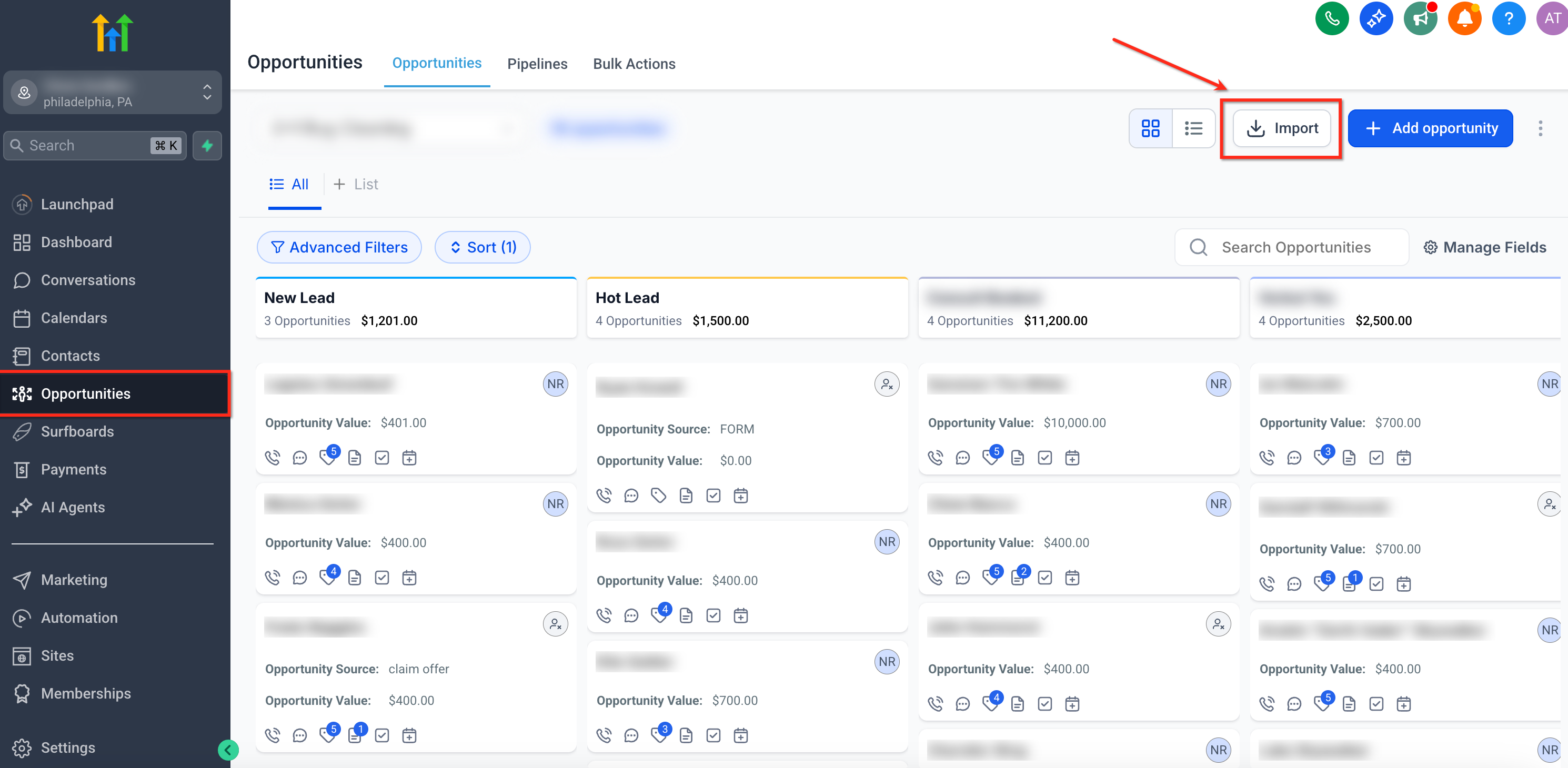
- Navigate to Opportunities in your HighLevel subaccount.
- Click the Import button that appears in the Opportunities view.
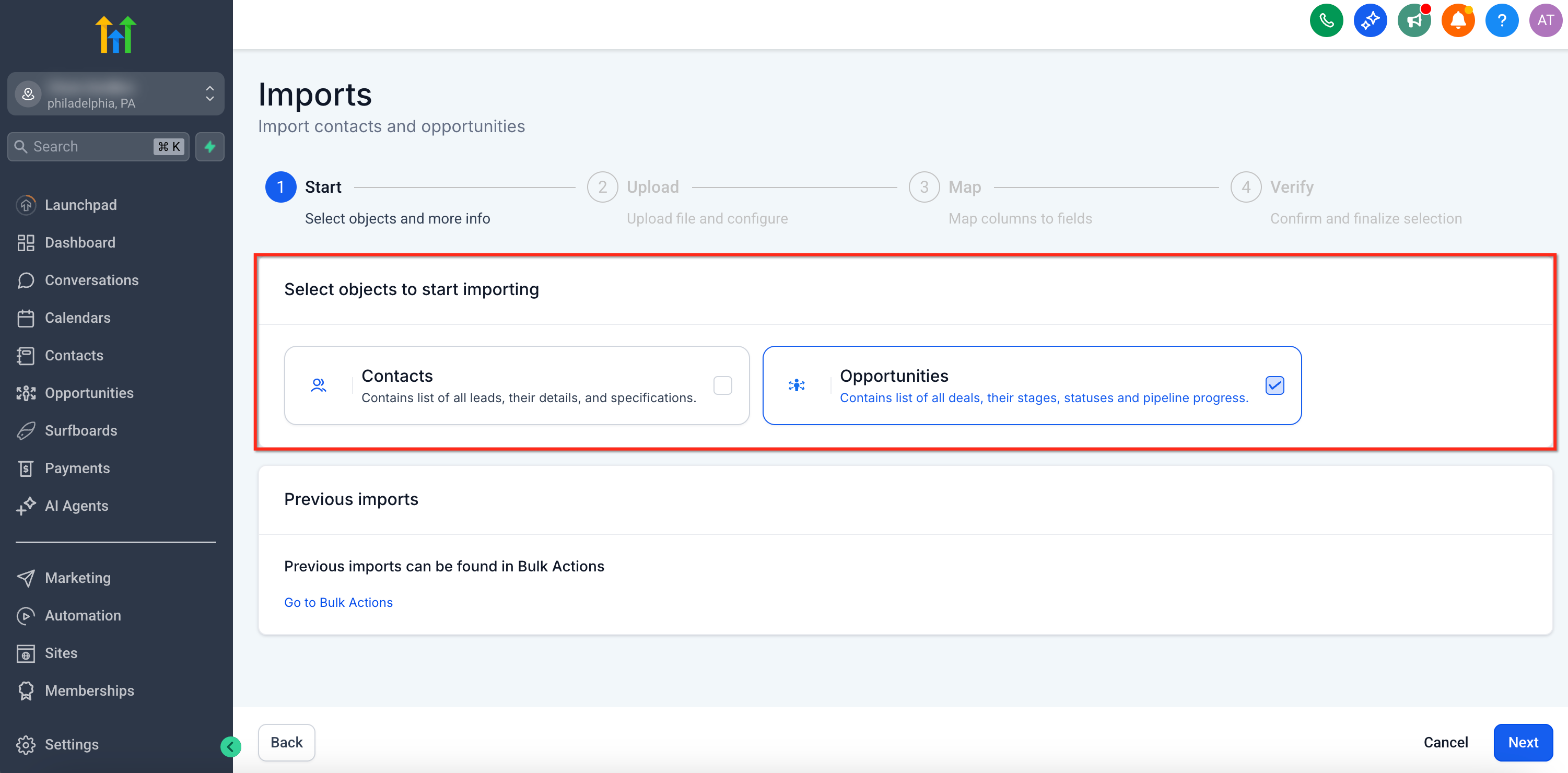
- Select either Opportunities or Contacts + Opportunities as the import type.
Choose import behavior
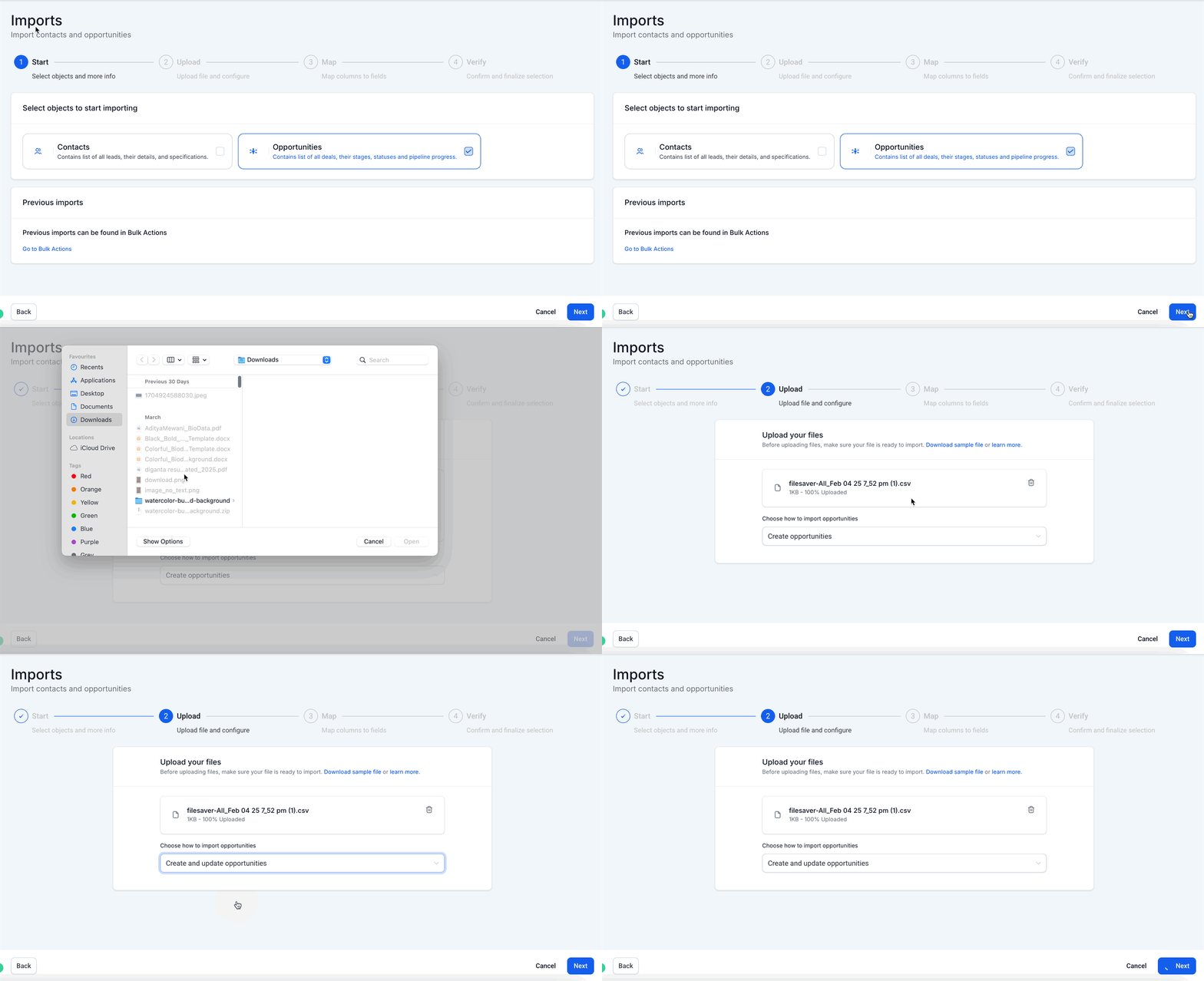
- Select whether the rows will create new Opportunities or update existing ones based on the presence of Opportunity IDs.
- If updating, verify that each row includes the correct Opportunity ID.
Upload the CSV file
- Drag and drop or browse to select your CSV file in the import window.
- Confirm that the file uploads without error.
- Acknowledge any initial warnings that the importer displays.
Configure empty value behavior
- Enable the Don’t update Empty Values option if you want blank cells to leave existing values unchanged during an update import.
Map CSV columns to HighLevel fields
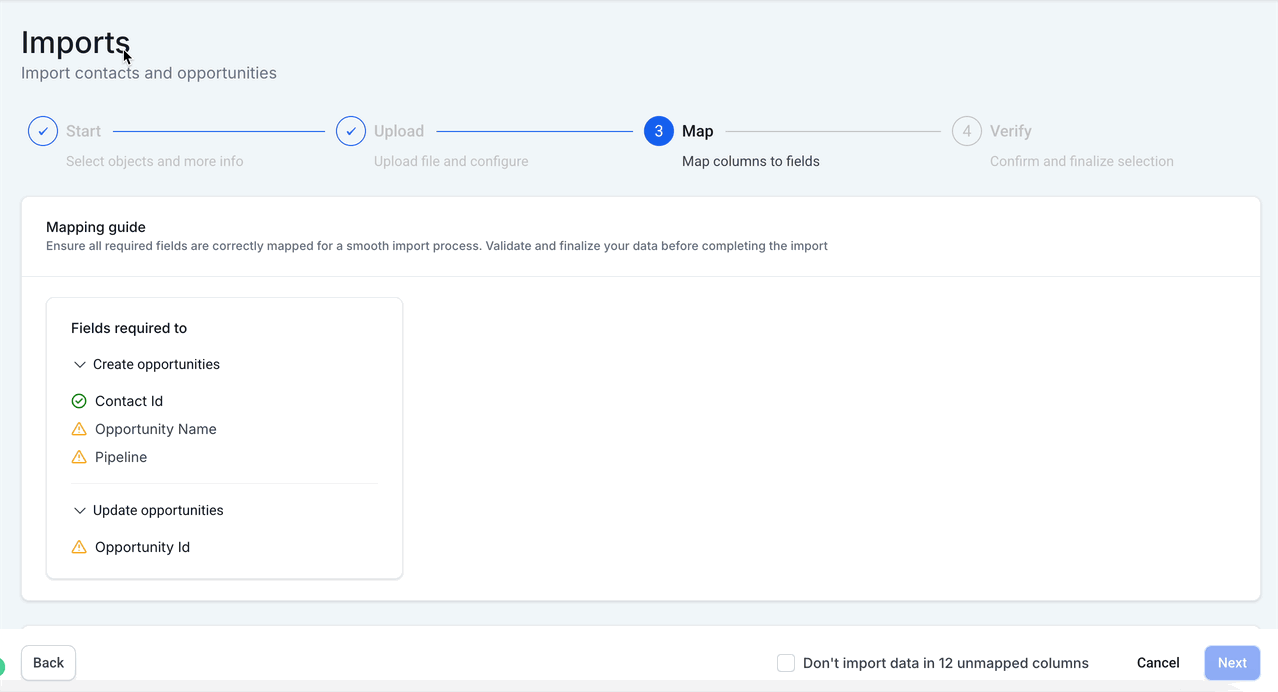
- Map the required columns: Contact ID, Opportunity Name, and Pipeline.
- Map optional columns such as Pipeline Stage, Opportunity ID, Opportunity Value, Status, and any custom Opportunity fields.
- When prompted, choose the option to not import data for any columns you leave unmapped.
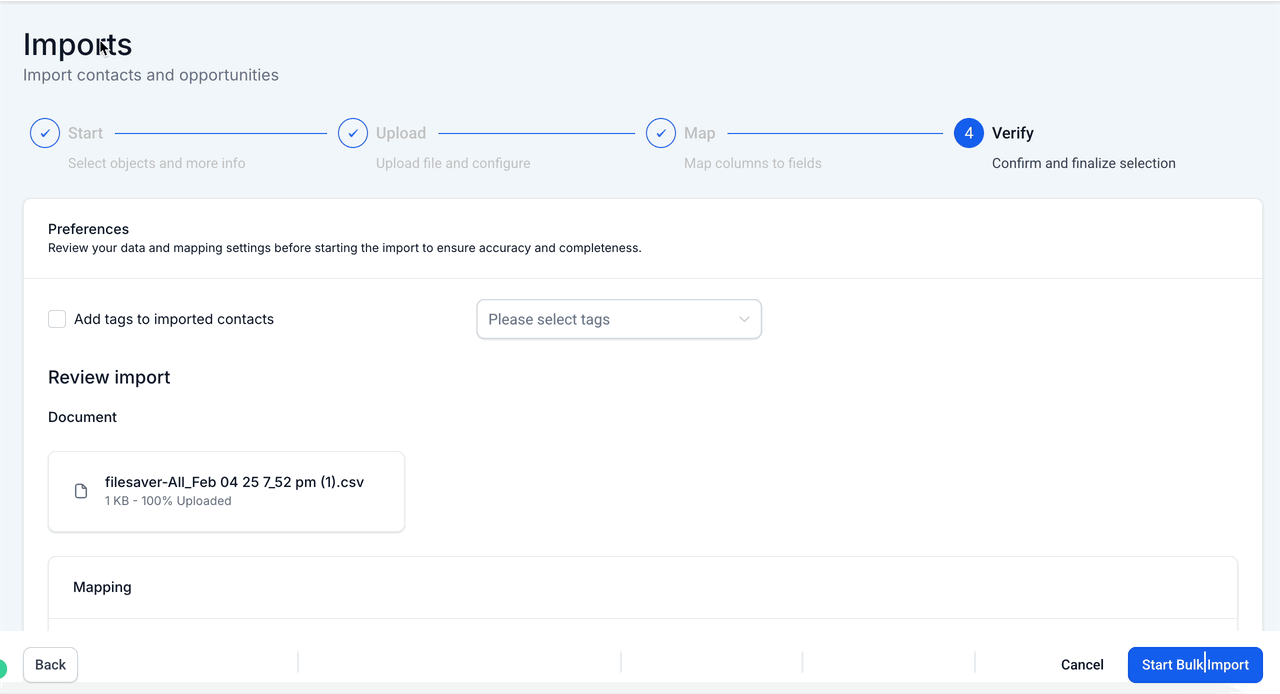
Review and start the import
- Verify that all required fields are correctly mapped.
- Check that the empty value setting matches your intention.
- Review any warnings shown by the importer.
- Click the Start Import button to begin processing the rows.
Review import results
- Go to Bulk Actions after the import finishes.
- Open Show Stats to see successes and failures.
- If there are errors, download the error log, correct the rows, and re import only the corrected records.
Important warning
- Completed imports cannot be undone with a single click; always test with a small sample first.
07What it looks like in HighLevel
08Settings that matter
- Don’t update Empty Values. Controls whether blank cells in the CSV overwrite existing Opportunity data during an update import.
- Import behavior. Determines if the CSV rows create new Opportunities or update existing ones based on the presence of Opportunity IDs.
- Don’t import data for unmapped columns. Specifies that any CSV column left unmapped will be ignored rather than creating a field with empty data.
09Things to know before you rely on it
- CSV files must be 30 MB or smaller.
- A completed import cannot be undone with a single click; test with a small sample first.
- Pipeline and stage values in the CSV must match existing pipelines and stages; the import will not create them automatically.
10If something goes wrong
- Opportunity is not linked to the correct contact. Check that the CSV contains the correct Contact ID and that the column is mapped to Contact ID.
- A new Opportunity was created instead of updating the existing one. Ensure the row includes the correct Opportunity ID and that the column is mapped to Opportunity ID.
- Pipeline value is rejected. Confirm the Pipeline name in the CSV matches an existing HighLevel pipeline; create the pipeline beforehand if needed.
- Opportunity appears in the wrong stage. Verify that the Pipeline Stage value in the CSV corresponds to a stage that exists within the selected pipeline.
- Existing data was replaced by blank values. Enable the Don’t update Empty Values setting when running an update import.
- Custom field missing during mapping. Create the custom field for the Opportunity object before starting the import and map the CSV column to that field.
11How it connects to the rest of HighLevel
- Create pipelines and stages before importing Opportunities Set up pipelines
- Add custom Opportunity fields to capture extra data Custom fields guide
- View and manage import results in Bulk Actions Bulk Actions overview
Michael's take

People often think they can drop a giant spreadsheet into the importer and let HighLevel magically create everything, but the system won’t build pipelines, stages or Custom Fields for you. If those pieces aren’t set up first, the import will fail or place deals in the wrong spot.
I would begin with building the exact pipelines and stages I need, then create any custom opportunity fields. After that I run a tiny test file with just a couple of rows to verify the mapping and the empty value settings. Once the test passes, I expand to the full dataset with confidence.