
01Who this is for
- Sales managers need a single view of all open deals to coordinate efforts and forecast revenue.
- Agency Founders track client project pipelines and assign owners to ensure accountability.
- Real estate teams capture property leads, set values, and move listings through negotiation stages.
02Opportunities, explained
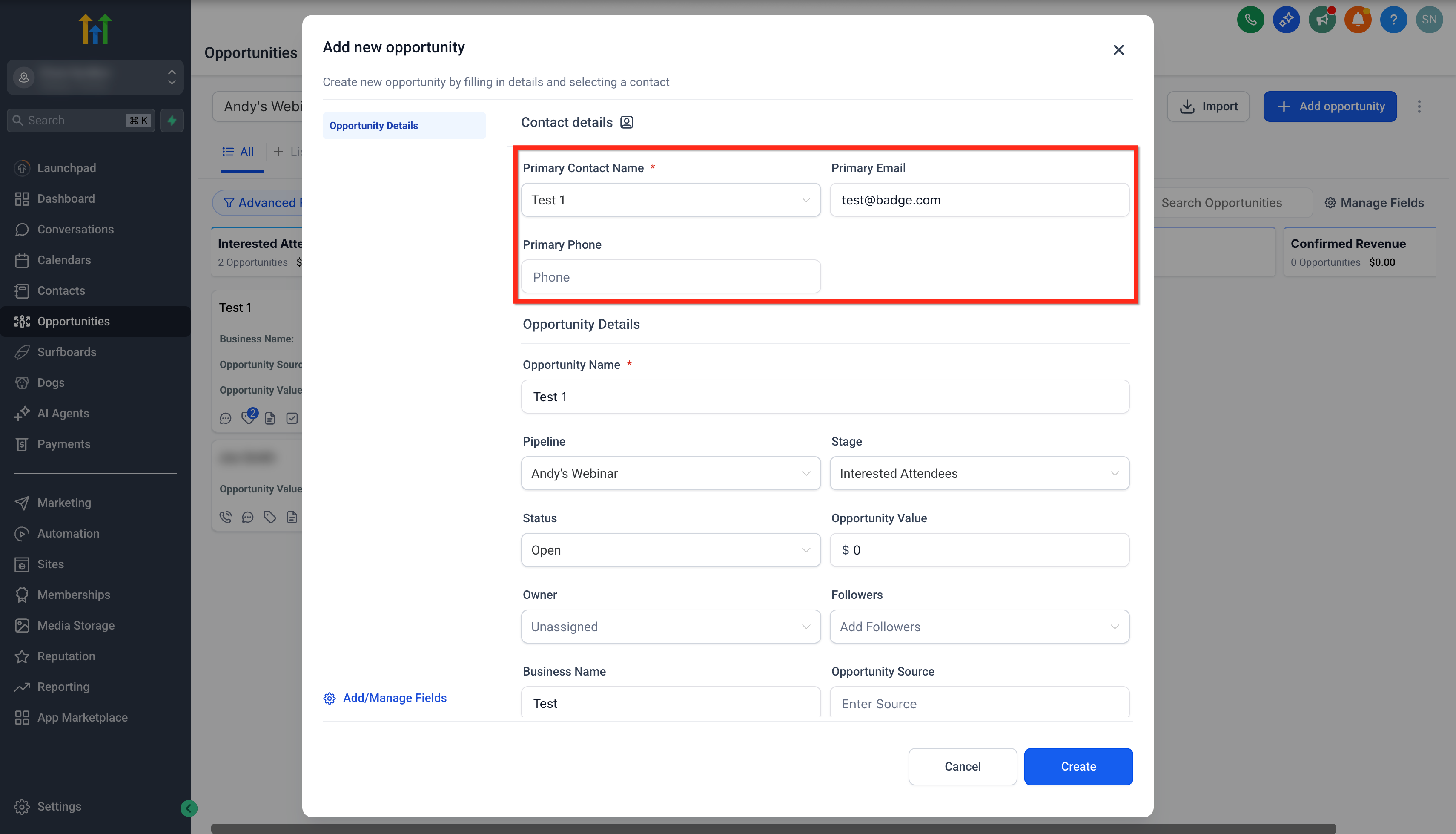
Opportunities live in the Opportunities module of HighLevel. Each record bundles a primary contact, the pipeline it belongs to, the current stage, a monetary value and an assigned owner. The module also holds notes, tags and custom fields for additional context.
Users add an opportunity by selecting a contact, naming the opportunity, and placing it in a defined pipeline and stage. Status options include Open, Lost, Won, and Abandon, which reflect the deal’s outcome. After saving, the opportunity appears on the board where it can be dragged to other stages or edited later.
The feature integrates with other HighLevel tools such as pipelines, custom fields and team collaboration. Owners and followers receive updates, and the opportunity’s value contributes to forecasting reports.
03How businesses use opportunities
- Digital marketing agency. The agency creates an opportunity for each new client project, selects the appropriate sales pipeline, assigns the account manager as owner, and records the projected contract value. Team members follow the opportunity to stay informed on progress.
- Real estate brokerage. Agents log a property listing as an opportunity, choose the sales pipeline for listings, set the stage to "Showing" or "Negotiation", and input the expected sale price. The broker is assigned as owner while assistants follow the opportunity.
- B2B SaaS startup. The sales team adds a new opportunity for each inbound lead, selects the subscription pipeline, assigns a sales rep, and enters the estimated annual recurring revenue. Custom fields capture lead source and deal priority.
04The numbers and rules that matter
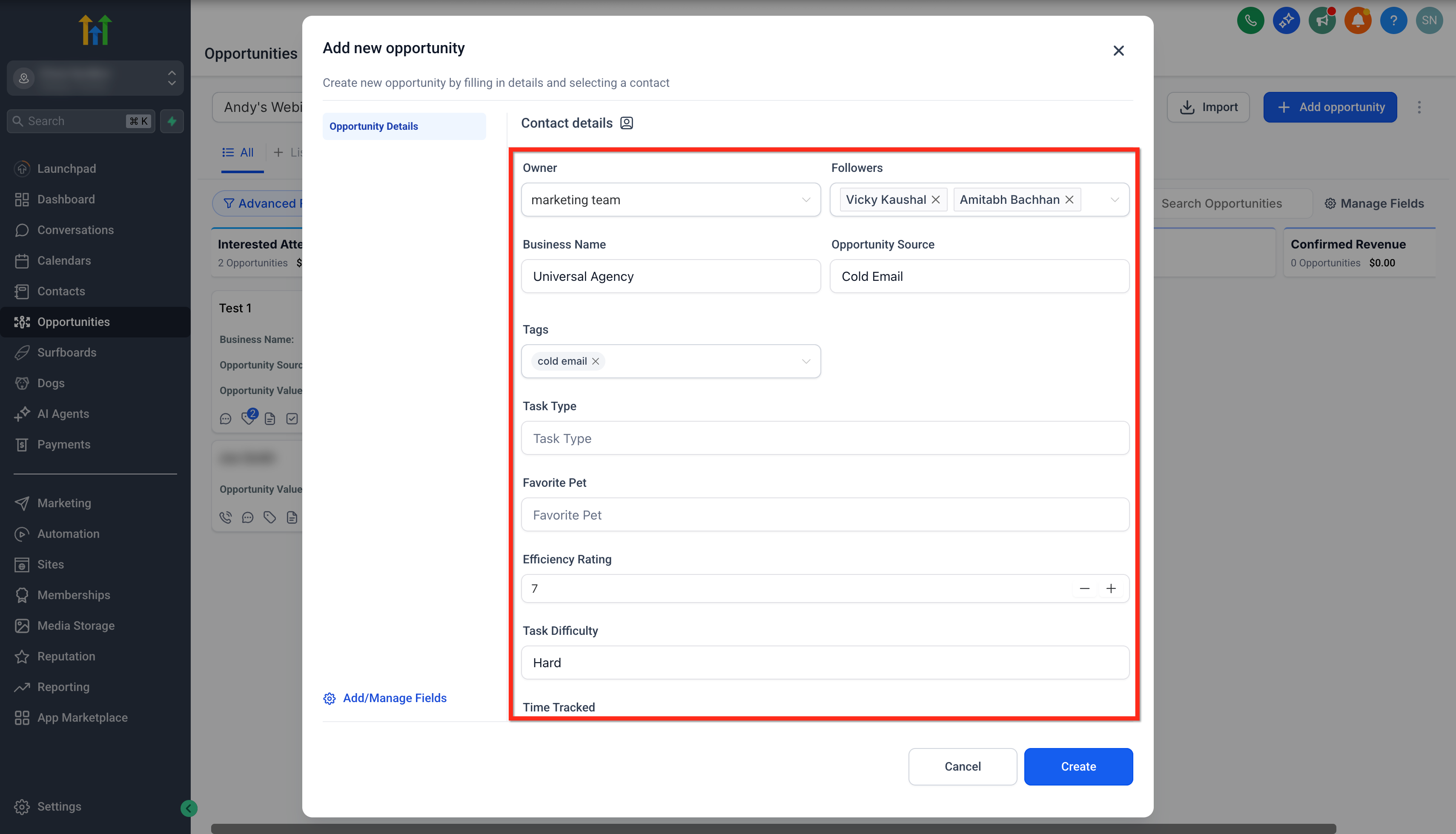
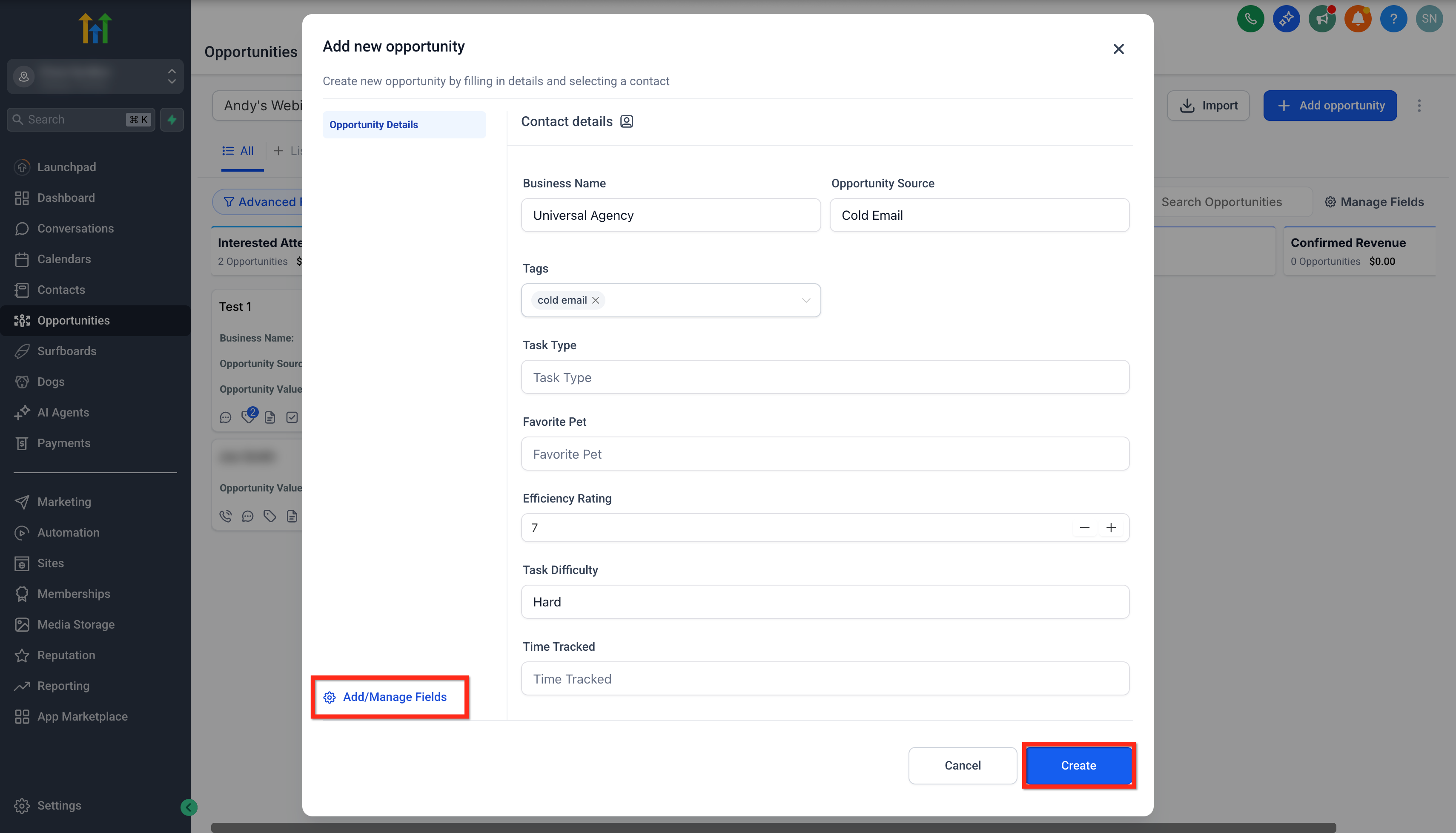
- Additional Fields include: Business Name, Opportunity Source, Tags, Task Type, Favorite Pet, Efficiency Rating, Task Difficulty, Time Tracked.
05Before you start
- A HighLevel subaccount must be active and you must be logged in.
06How to set up and use opportunities in HighLevel
Accessing the opportunities module
- Log in to your HighLevel subaccount.
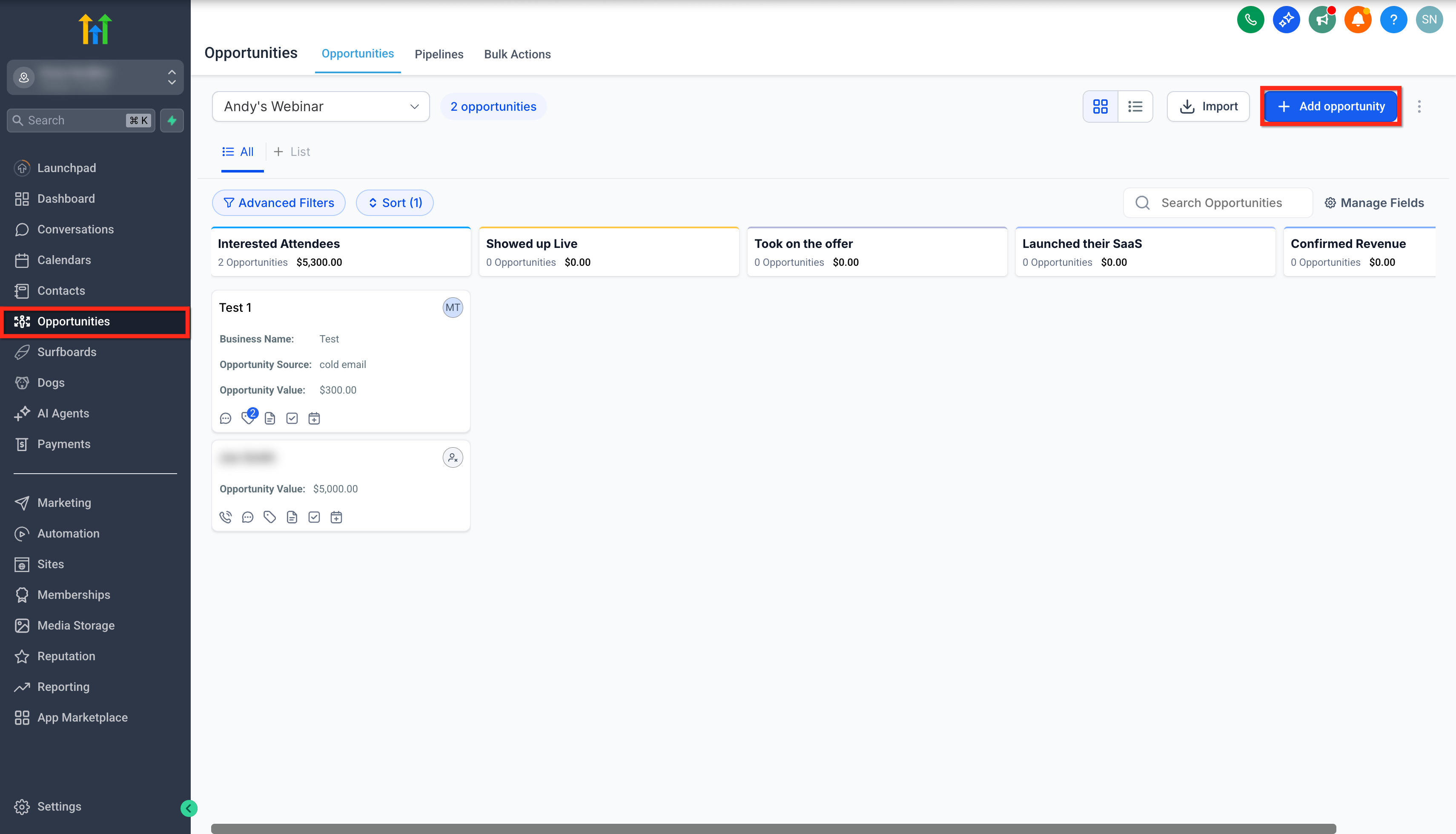
- Click the Opportunities tab in the navigation bar.
- Press the + Add Opportunity button located at the top right of the screen.
Assigning pipeline, stage, and status
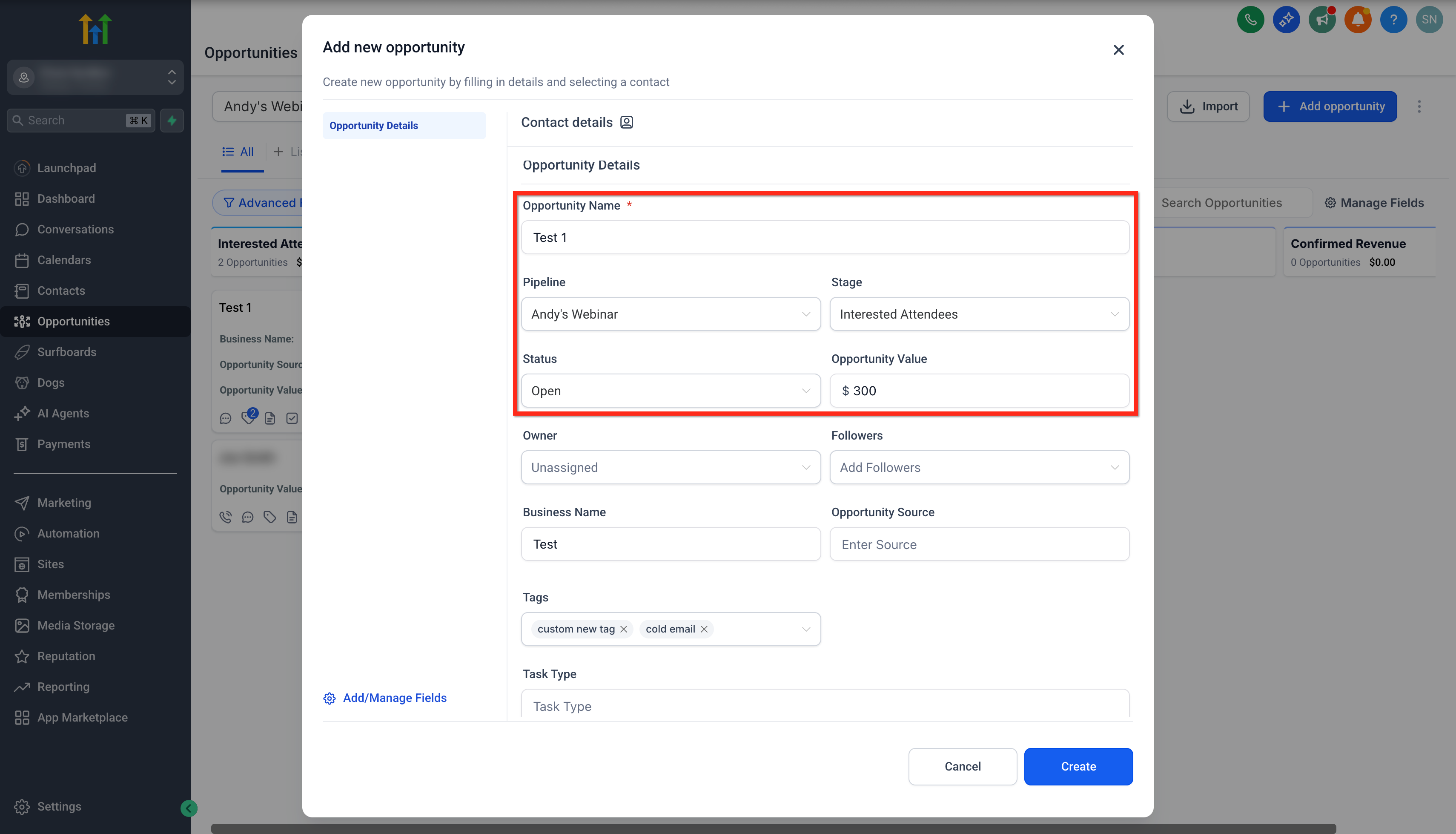
- Enter a custom Opportunity Name or keep the default contact name.
- Choose the Pipeline that will contain the new opportunity.
- Select the appropriate Pipeline Stage for the deal.
- Set the Opportunity Status to Open, Lost, Won, or Abandon.
- Enter the estimated Opportunity Value.
Adding owner, team members and additional details
- Assign an Owner to be responsible for the opportunity.
- Add one or more Followers who need to stay informed.
- Complete any Additional Fields such as Business Name, Source, or Tags.
Finalizing the opportunity
- Click Add/Manage Fields to adjust any custom fields needed.
- Press the Create button to save the new opportunity.
- Confirm that the opportunity appears in the selected pipeline.
07What it looks like in HighLevel
08Things to know before you rely on it
- The platform does not support duplicating an existing opportunity; a new record must be created manually.
- Only one primary contact can be linked to an opportunity at a time.
- If a linked contact is deleted, the opportunity remains but loses its contact association.
09How it connects to the rest of HighLevel
- Set up pipelines and stages Pipelines guide
- Use custom fields for opportunities Custom fields
- Understanding opportunities in HighLevel Opportunities overview
Michael's take

Having a clear naming scheme for your opportunities helps keep the dashboard organized, especially when multiple team members add cards.
Consistent naming and realistic values make it easier to stay aligned and spot bottlenecks early.