
01Who this is for
- Founders who need a visual view of sales steps can map each customer phase and track progress.
- Operations managers can set stage visibility to keep reports focused on relevant data.
- Service teams can assign stage colors to quickly identify where a client is in onboarding.
02Pipelines, explained
Pipelines organize opportunities into a series of stages that represent a sales or service process. Each pipeline lives under the Opportunities section of a subaccount and feeds data to automation, reporting, and opportunity dashboards. The updated Pipelines experience uses the HighRise design system for faster navigation.
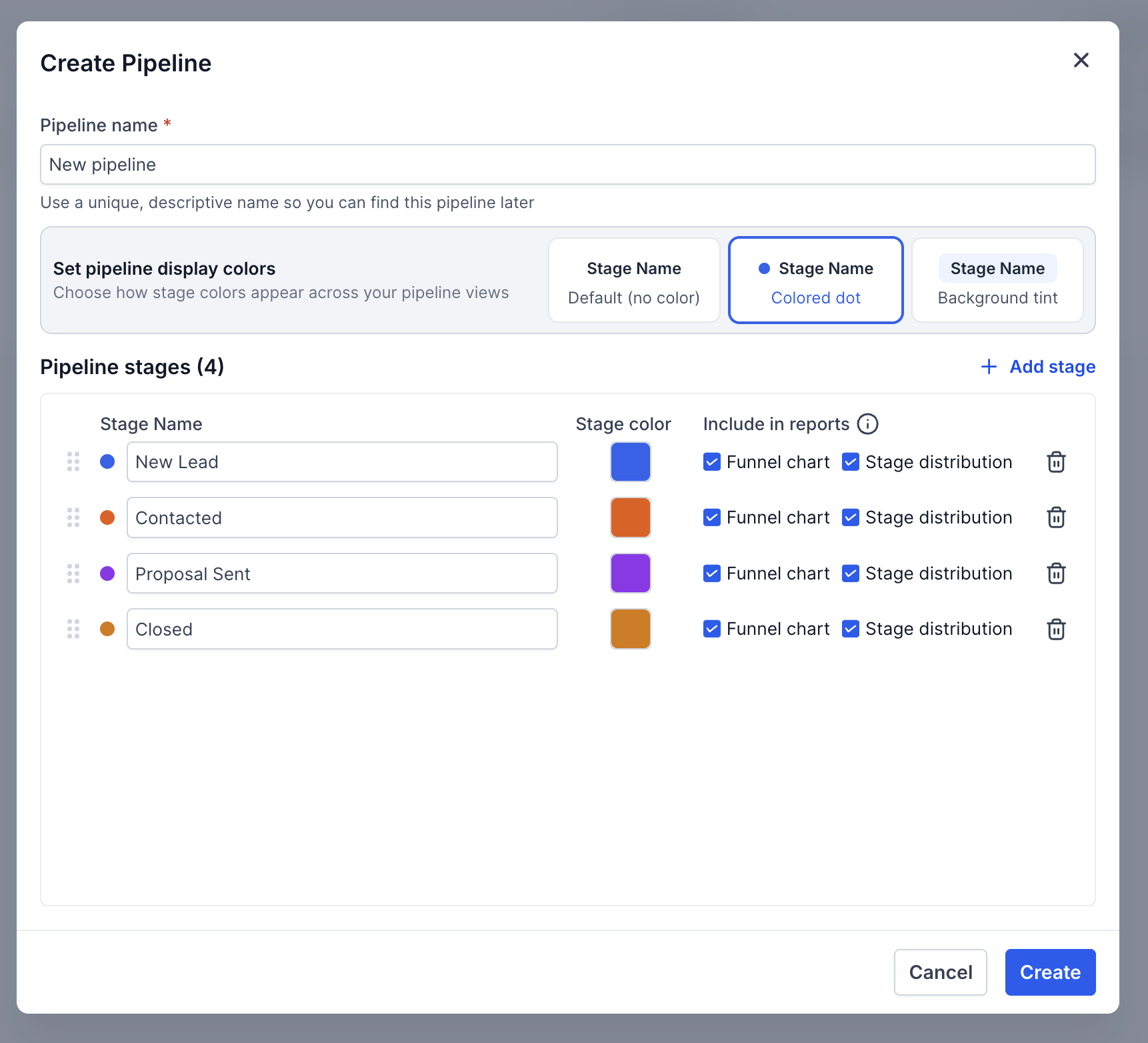
Within a pipeline you define stage names, arrange their order, control if they appear in funnel or pie charts, and apply optional colors. Won and Lost stages are added automatically, so you only need to create the active steps of your workflow. When a stage is removed, existing opportunities are moved to a destination stage you choose, preserving the records.
03How businesses use pipelines
- Real estate agency. The agency opens the Pipelines area, creates a new pipeline called "Property Sales", and adds stages such as Lead, Showing, Offer, and Closed. It sets a blue background tint for the Offer stage so agents can see pending deals at a glance. The agency then hides the Offer stage from funnel charts to keep reports focused on closed sales.
- Dental practice. The practice builds a "Patient Intake" pipeline with stages like Consultation, Treatment Plan, and Follow Up. It assigns a colored dot to the Treatment Plan stage to signal appointments that need scheduling. When a stage is no longer used, the practice deletes it and moves remaining patients to the Follow Up stage.
- Software SaaS startup. The startup creates a "Trial to Paid" pipeline, adds stages for Trial Started, Engaged, and Converted. It selects default color (no color) for all stages and enables visibility for both funnel and pie chart icons, allowing the sales manager to monitor conversion ratios in dashboard reports.
04How to set up and use pipelines in HighLevel
Access the Pipelines Section
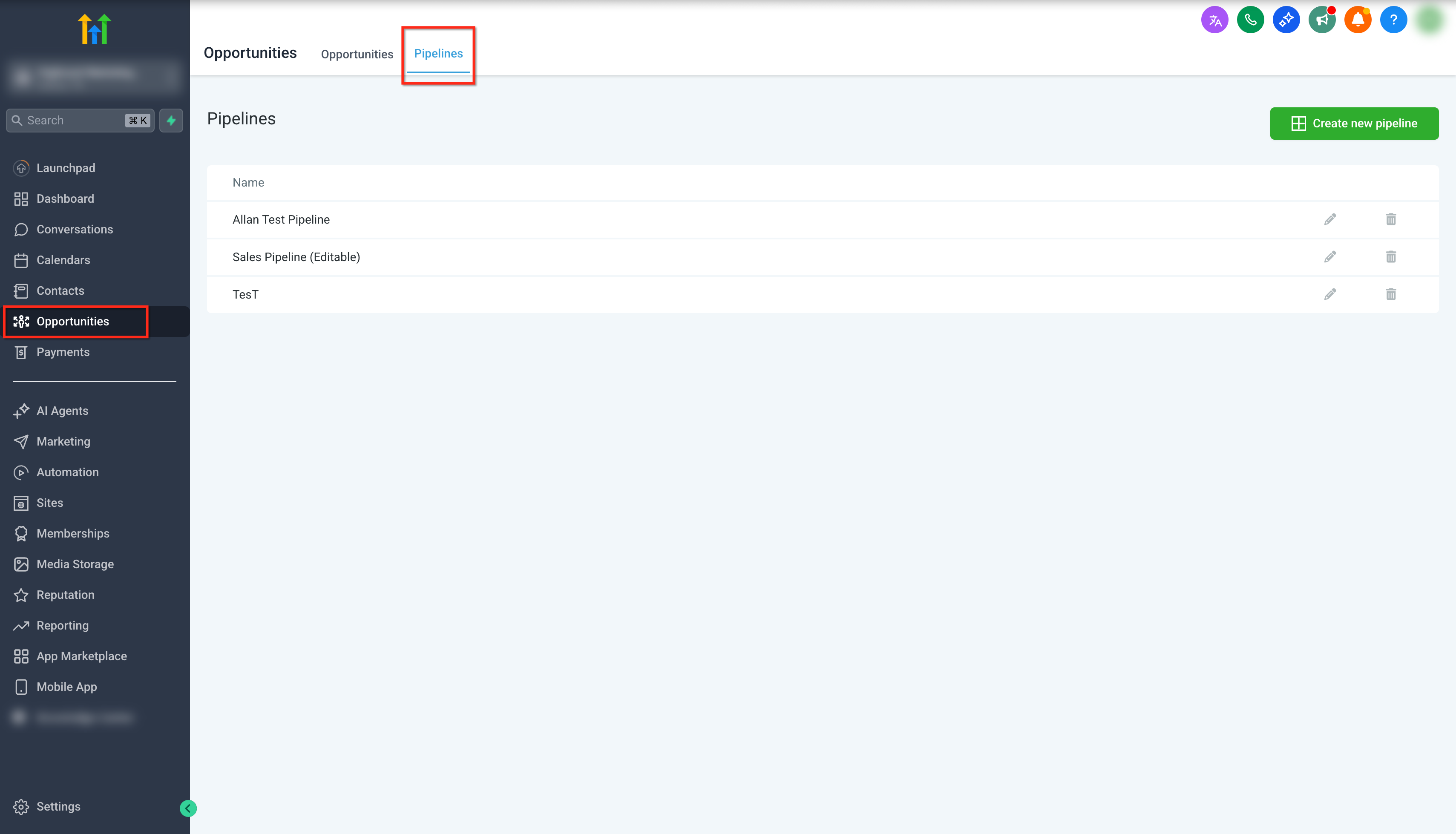
- Navigate to the Subaccount area.
- Click the Opportunities option in the left sidebar.
- Select Pipelines from the top navigation menu.
Create a New Pipeline
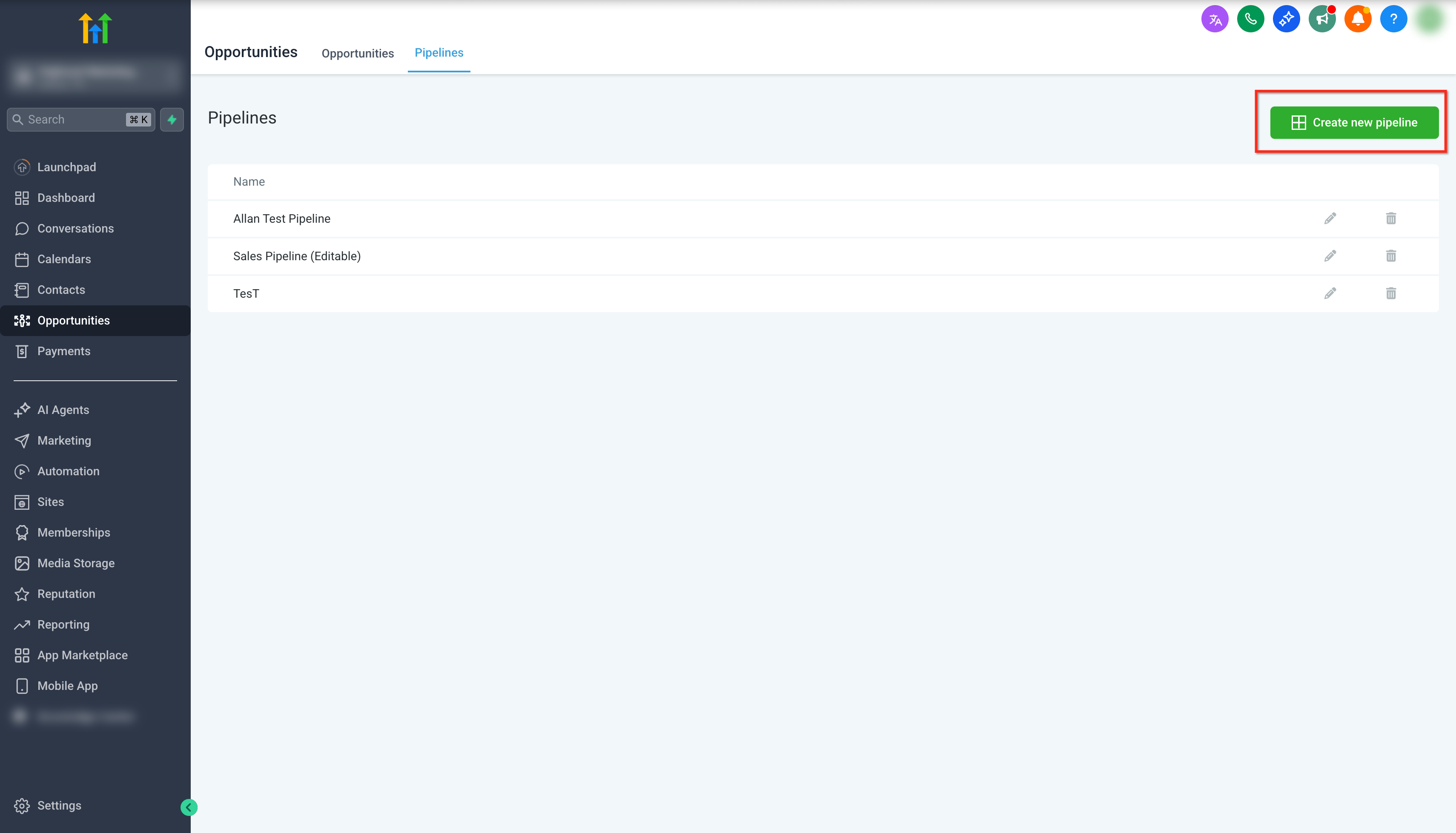
- Click the Create new pipeline button at the top right of the Pipelines page.
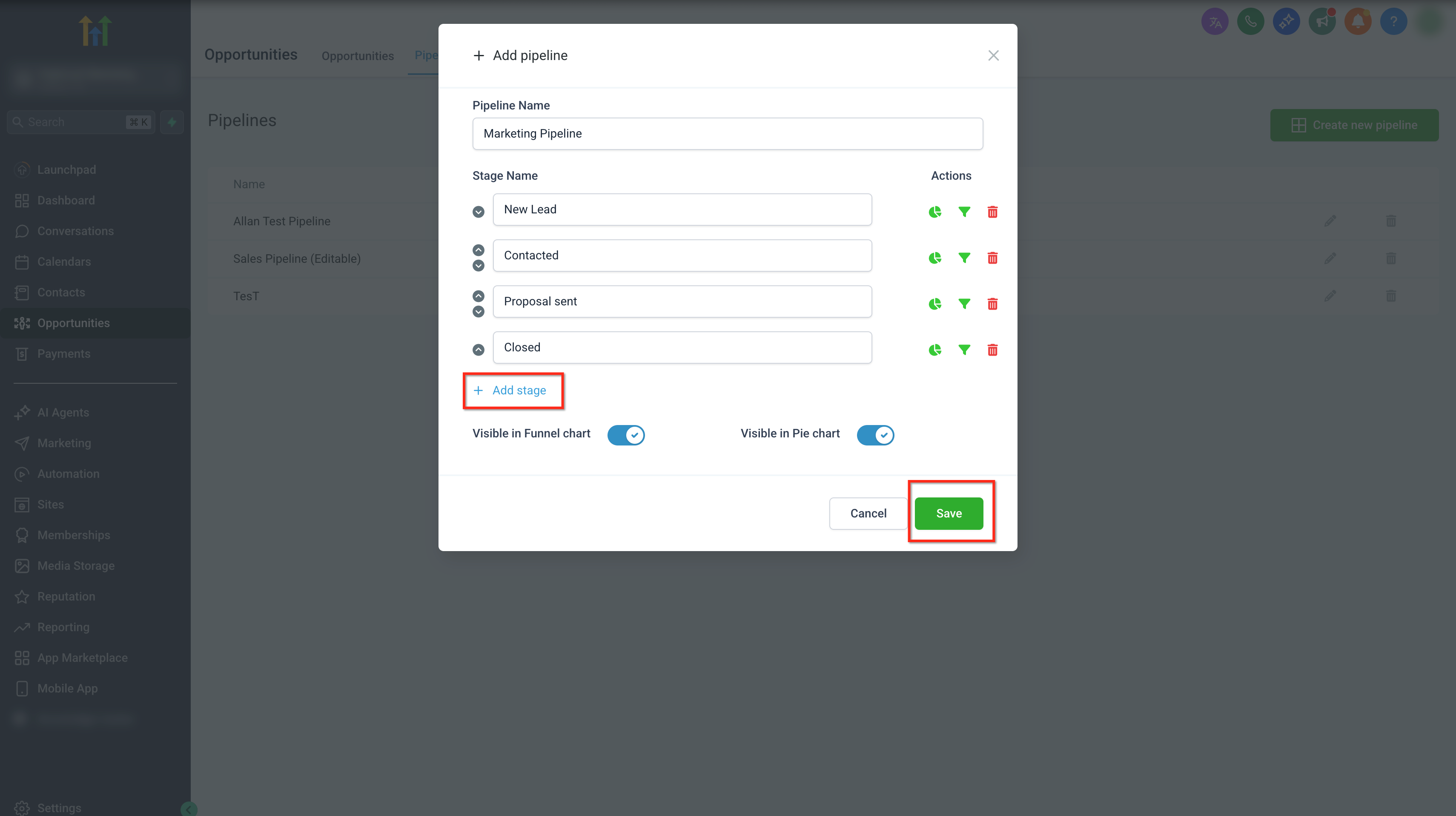
- Enter a descriptive name for the pipeline.
- Click Save to store the new pipeline.
Add and Manage Pipeline Stages
- Enter a Stage Name in the provided field.
- Click Add stage to insert the stage into the pipeline.
- Reorder stages using the up and down arrows.
- Control reporting visibility with the funnel and pie chart icons.
- Delete a stage by clicking the trash icon.
Customize Stage Colors
- Open the desired pipeline.
- Go to the Stages tab within the pipeline.
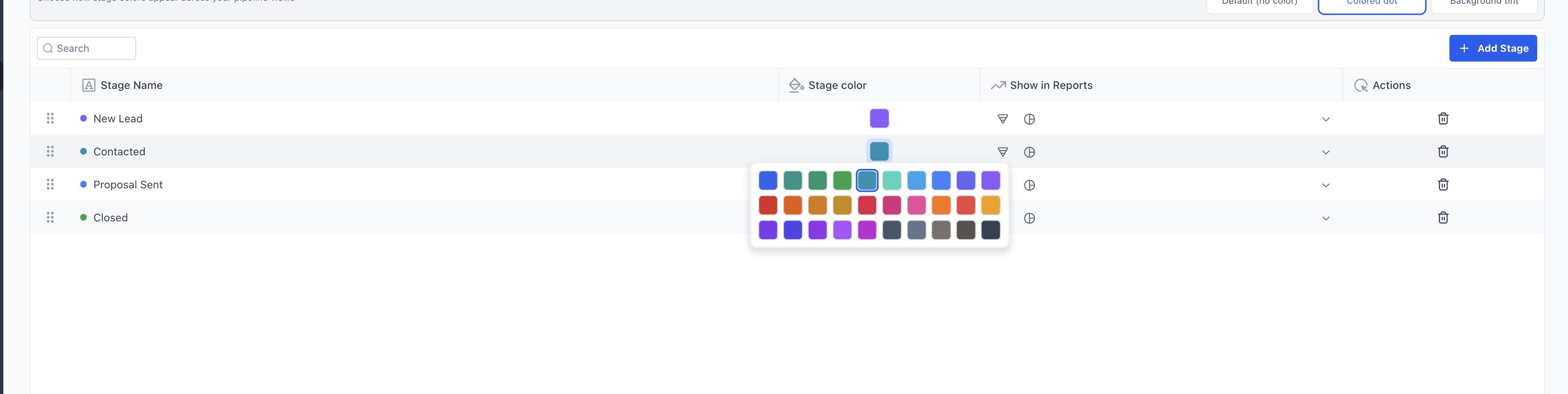
- Select a color option for each stage.
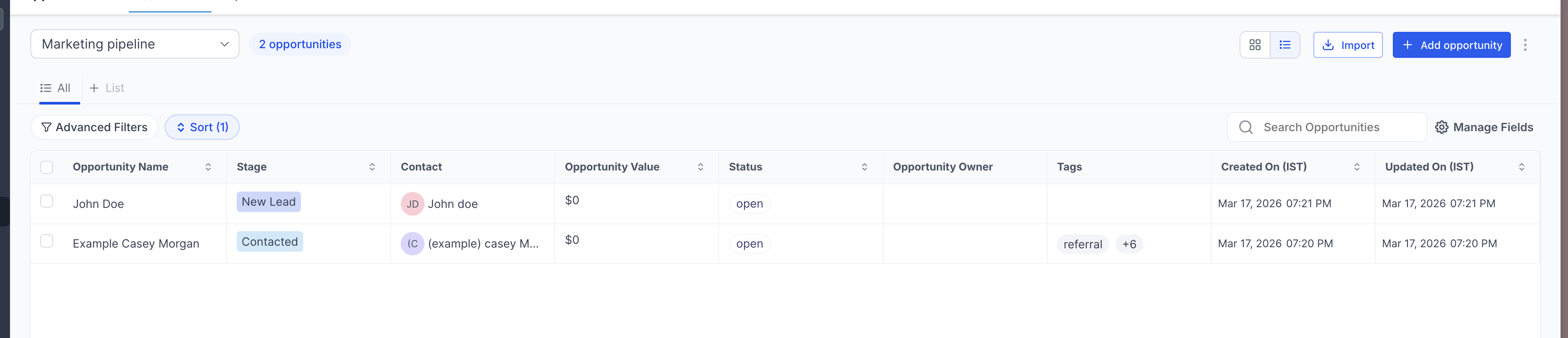
- Choose the display style: default, colored dot, or background tint.
Delete a Pipeline Stage
- Open the pipeline that contains the stage to remove.
- Click the delete icon next to the target stage.
- Select a destination stage for any existing opportunities.
- Confirm the deletion to move opportunities and remove the stage.
Configure Pipeline Dashboard Visibility
- Enable or disable the pipeline’s presence in funnel charts.
- Enable or disable the pipeline’s presence in pie charts.
- Adjust stage level visibility using the icons beside each stage.
05What it looks like in HighLevel
06Settings that matter
- Pipeline Name. Defines the identifier for a pipeline; it must be unique within the subaccount.
- Stage Name. Sets the label for a stage; it must be unique inside its pipeline.
- Stage Color. Determines the visual cue for a stage, default, colored dot, or background tint.
- Funnel chart visibility icon. Controls whether a stage appears in funnel chart reports.
- Pie chart visibility icon. Controls whether a stage appears in pie chart reports.
07Things to know before you rely on it
- Pipeline names must be unique across the same subaccount.
- Stage names must be unique within each pipeline.
- Won and Lost stages are added automatically and cannot be created manually.
- Stage colors can be set as default, colored dot, or background tint only.
- When deleting a stage, opportunities are moved to a selected destination stage, preventing data loss.
08How it connects to the rest of HighLevel
- Add custom fields to capture extra opportunity data Custom fields for opportunities
- Edit opportunity statuses to match pipeline stages Edit opportunity statuses
- Create individual opportunities that flow through your pipeline Create opportunities
Michael's take

Wondering how to keep your sales process from turning into a chaotic spreadsheet? Pipelines in HighLevel give you a visual board where every deal moves step by step, and you can color code each stage so the whole team sees exactly where things stand.
If I were setting up a new service offering, I’d map each client milestone as a stage, give the onboarding stage a bright background tint, and make sure the visibility icons line up with the funnel reports my managers love. That way the data stays clean and the team stays aligned.