
01Who this is for
- Sales managers can off load follow up emails and status updates to keep pipelines moving without manual effort.
- Founders of small agencies benefit from consistent handling of leads across multiple client pipelines.
- Team leads in service businesses can assign new opportunities to the right staff member right away.
02Automating opportunities, explained
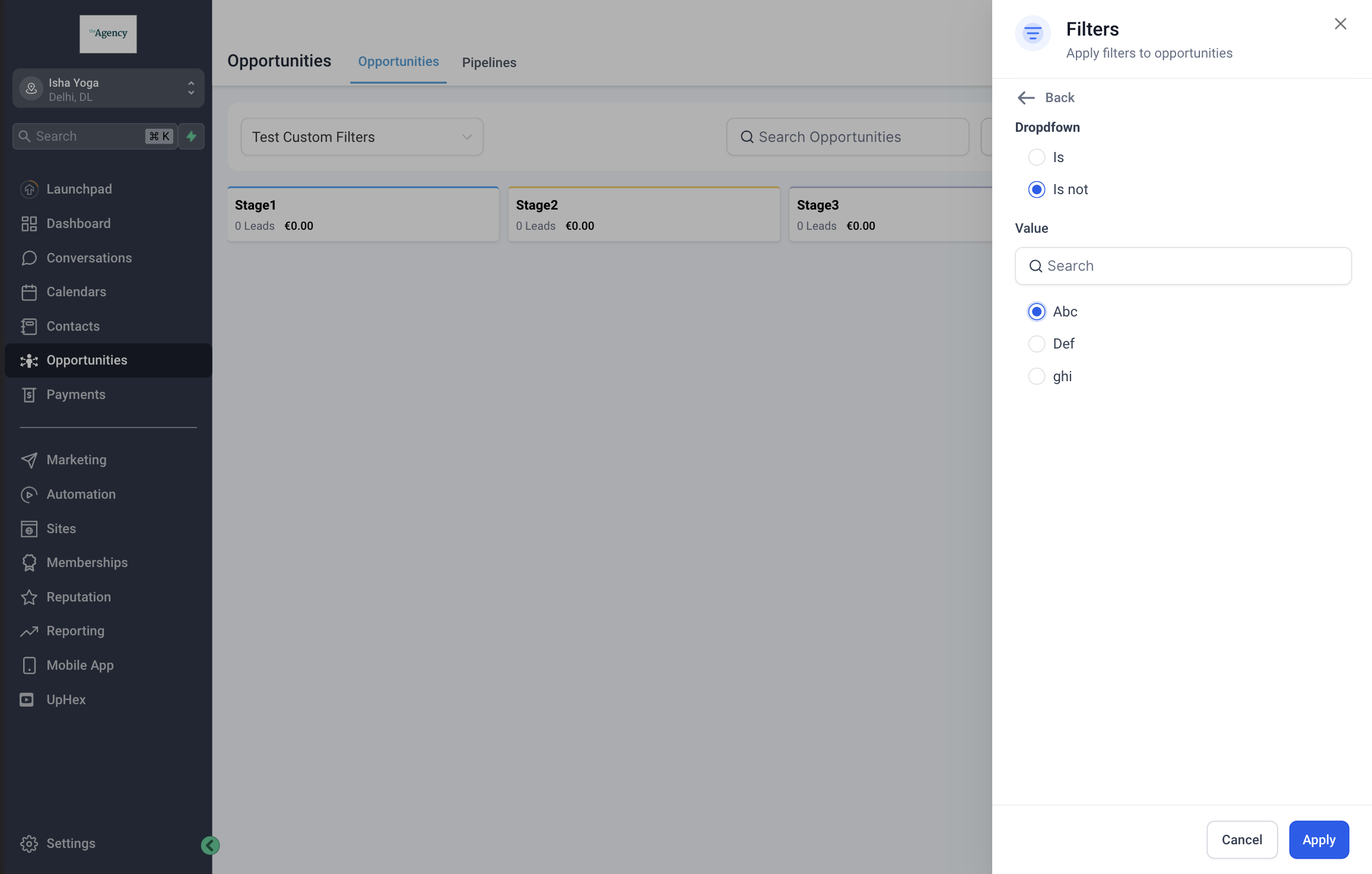
The feature uses HighLevel’s workflow builder to run actions whenever an opportunity related event occurs. Triggers include status changes, new opportunity creation, stale opportunities, and pipeline stage changes. When the trigger fires, the workflow can create opportunities, remove them, update fields, or branch using IF/ELSE conditions.
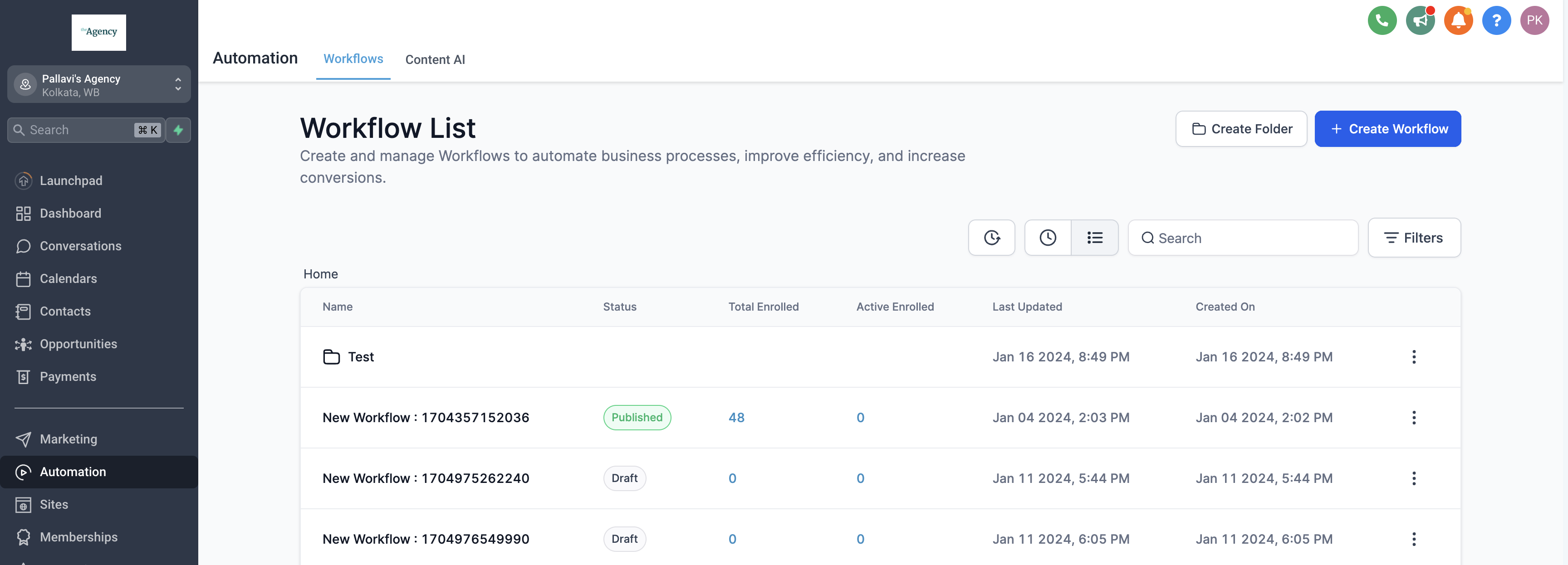
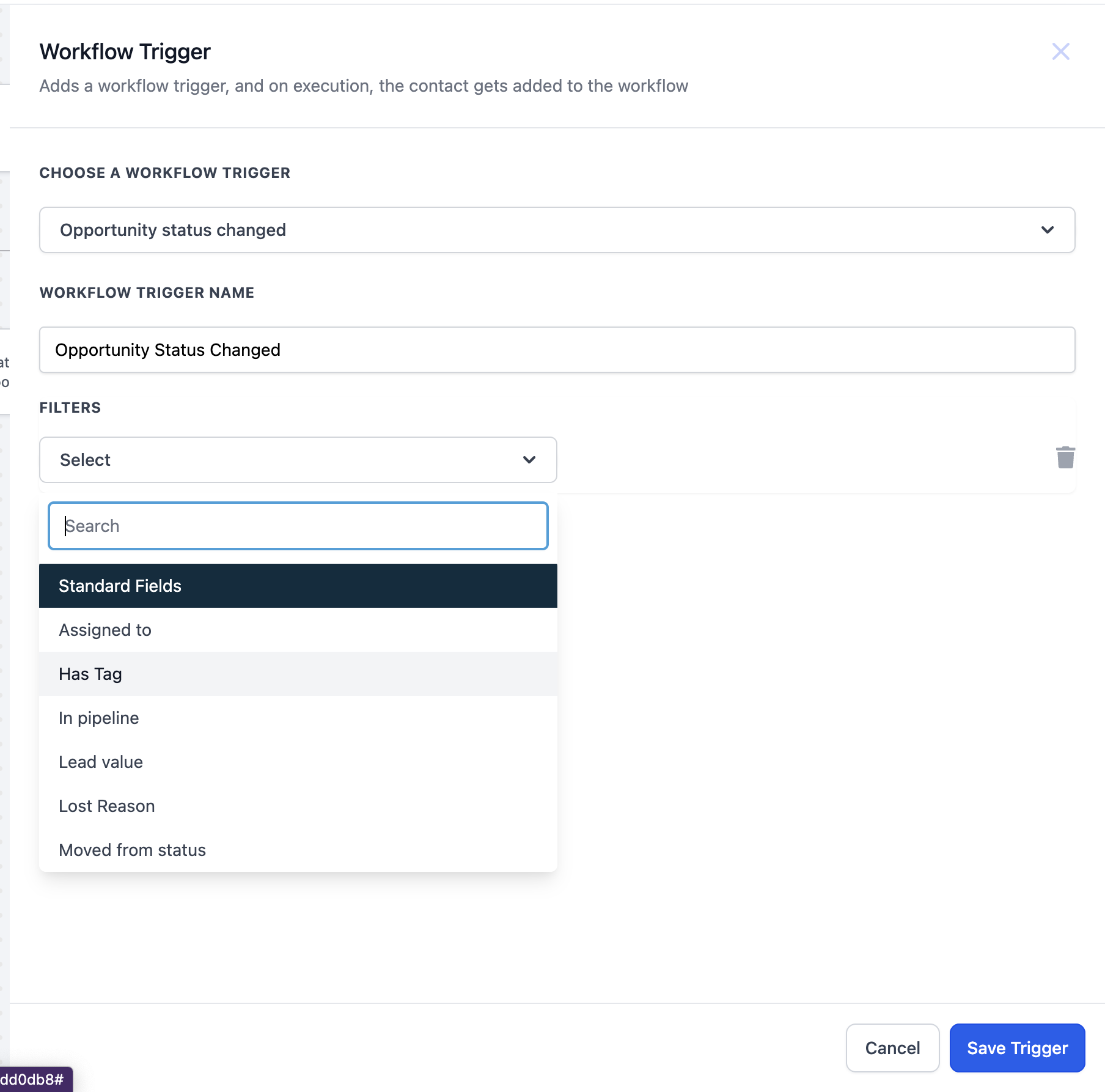
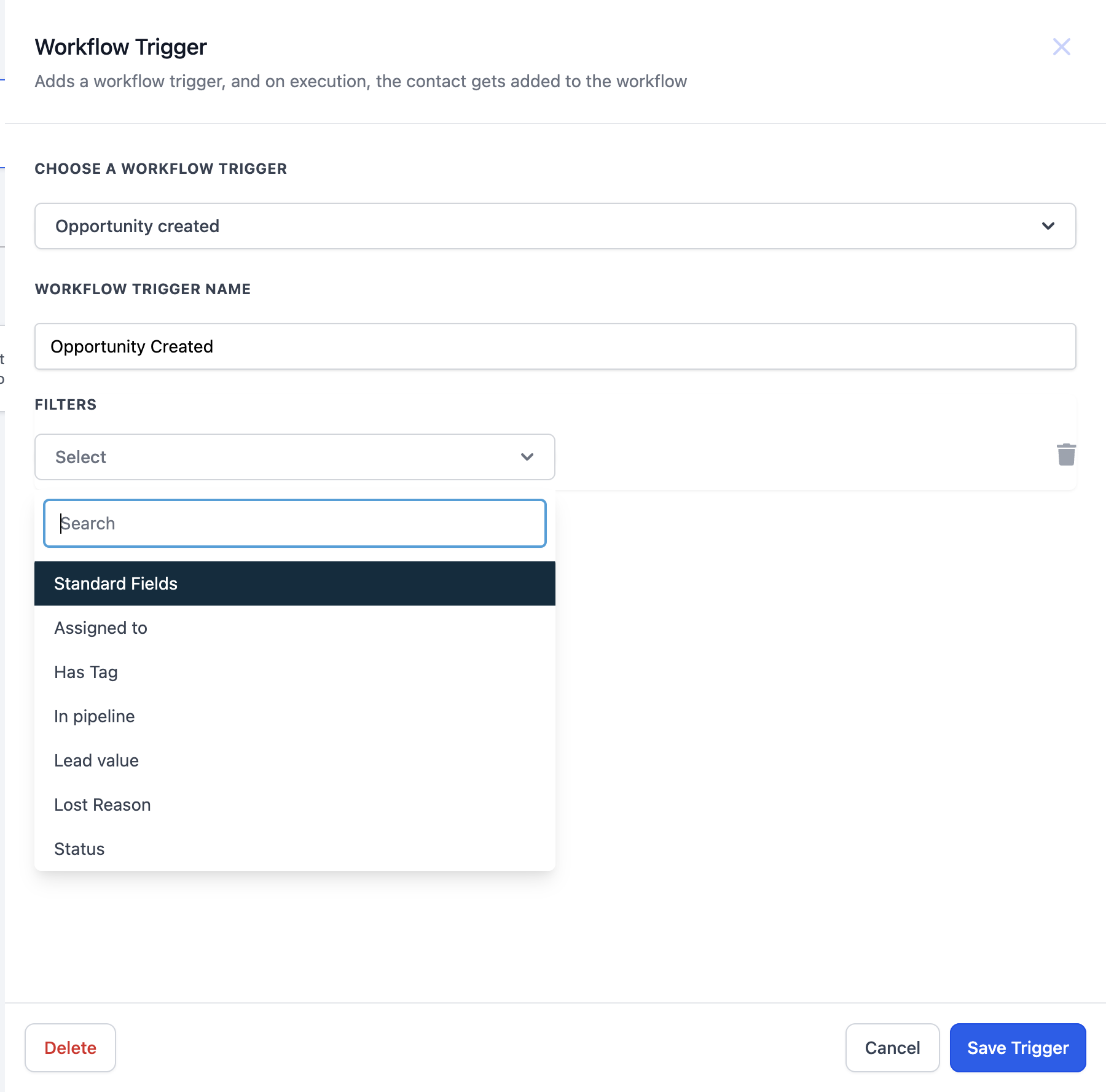
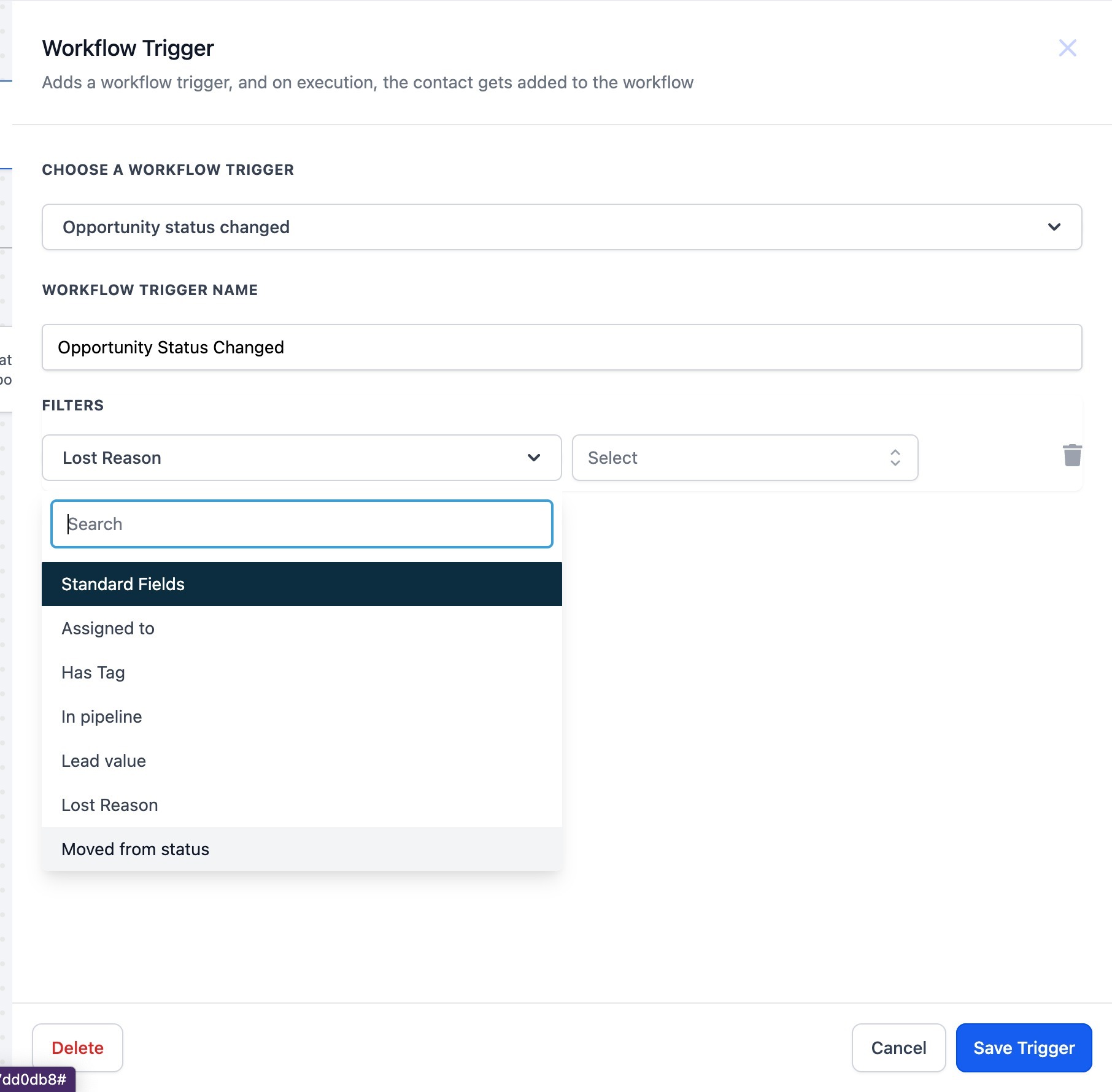
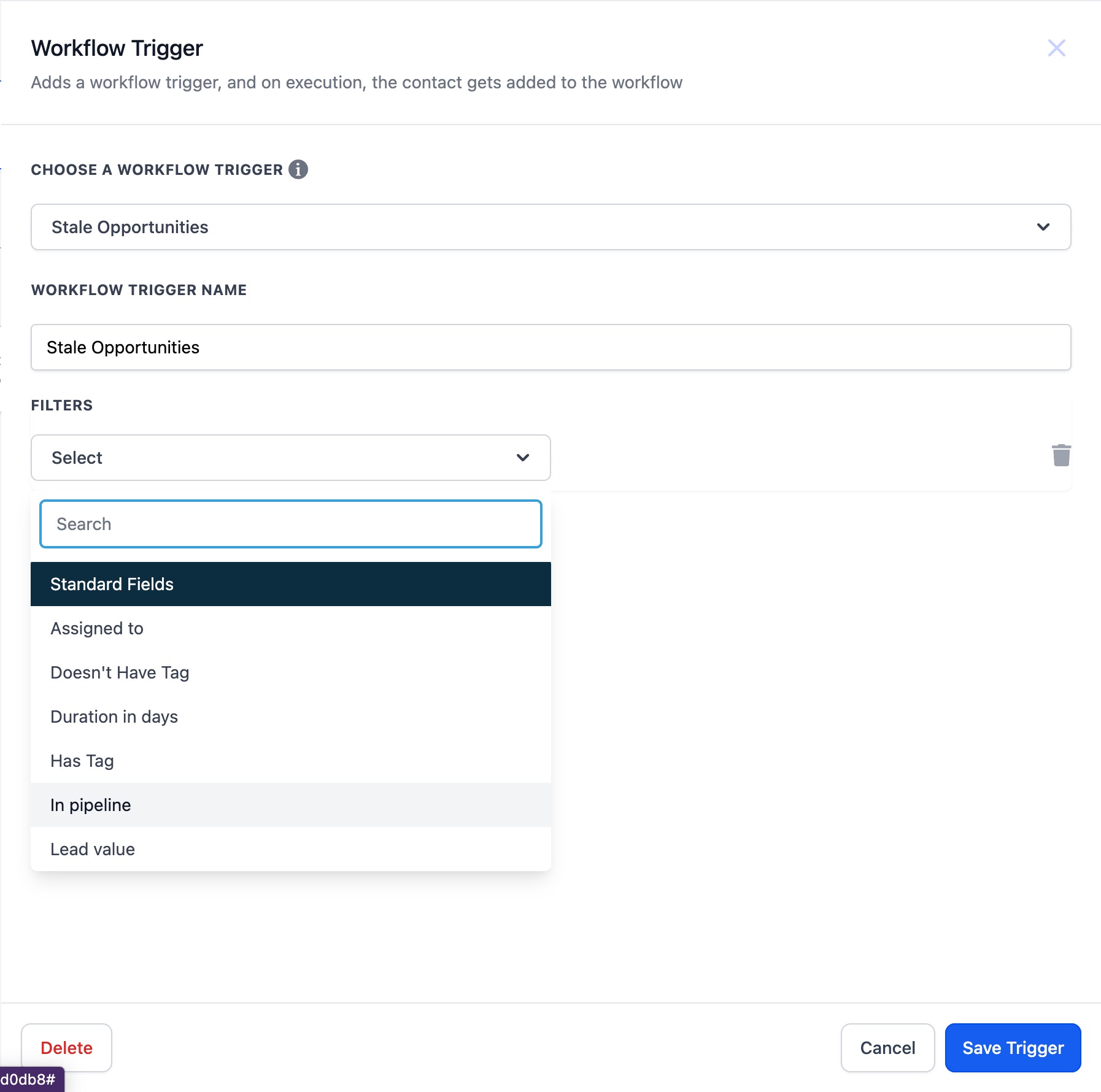
The workflow builder is found under Automations > Workflows in the HighLevel dashboard. Within a workflow you select an opportunity based trigger, set optional filters on standard or custom fields, and then add actions from the Opportunity actions list. The workflow runs in real time each time the defined conditions are met.
03How businesses use automating opportunities
- Real estate brokerage. Agents set a trigger for "Opportunity Created" when a new property lead is entered. The workflow automatically creates a follow up opportunity, assigns it to the appropriate agent, and schedules a reminder email. This keeps each lead moving through the sales funnel without manual data entry.
- Dental practice. The office configures a trigger on "Pipeline Stage Changed" to detect when a patient moves from consultation to treatment planning. An IF/ELSE action checks whether the patient has insurance information; if not, it sends an email request, otherwise it creates a treatment opportunity. This ensures every patient receives the correct next step.
- SaaS startup. A workflow uses the "Stale Opportunities" trigger to find trials that have not advanced in 7 days. The workflow then updates the opportunity status to "At Risk" and sends a re engagement email. This helps the team focus on leads that need attention.
04Before you start
- You must have access to the Automations section in your HighLevel dashboard to create opportunity workflows.
05How to set up and use automating opportunities in HighLevel
Set up automated opportunity workflow
- Identify the repetitive sales tasks you want to automate.
- Open the Automations section from the HighLevel dashboard.
- Select Workflows to launch the workflow builder.
- Click Create New Workflow and give it a descriptive name.
- Choose an opportunity based trigger such as status changed or opportunity created.
- Add one or more opportunity actions like Create Opportunity, Remove Opportunities, or IF/ELSE.
- Test the workflow with dummy data and then activate it.
06What it looks like in HighLevel
07Settings that matter
- Opportunity status changed. Starts the workflow when an opportunity’s status is updated, and allows filtering by any standard or custom field.
- Opportunity Created. Runs the workflow when a new opportunity is added, with optional filters on its fields.
- Stale Opportunities. Triggers after an opportunity has not changed for a set number of days, filterable by fields.
- Pipeline Stage Changed. Initiates the workflow when an opportunity moves to a different stage, supporting field based filters.
08Things to know before you rely on it
- IF/ELSE branches can only reference opportunity fields if the workflow uses an opportunity based trigger.
- All standard and custom fields are usable for filtering, but only within opportunity triggered workflows.
09How it connects to the rest of HighLevel
- Understanding opportunities in HighLevel Opportunity basics
- How to set up pipelines and stages in HighLevel Pipeline setup
- HighLevel pricing and plans Pricing details
Michael's take

I find automating opportunities a useful way to streamline sales workflows.