
01Who this is for
- Real estate agents handling multiple property listings for a single buyer can send distinct follow up messages per listing.
- Real estate agencies managing several properties for the same client can automate actions for each property without overlap.
02Multiple opportunities toggle, explained
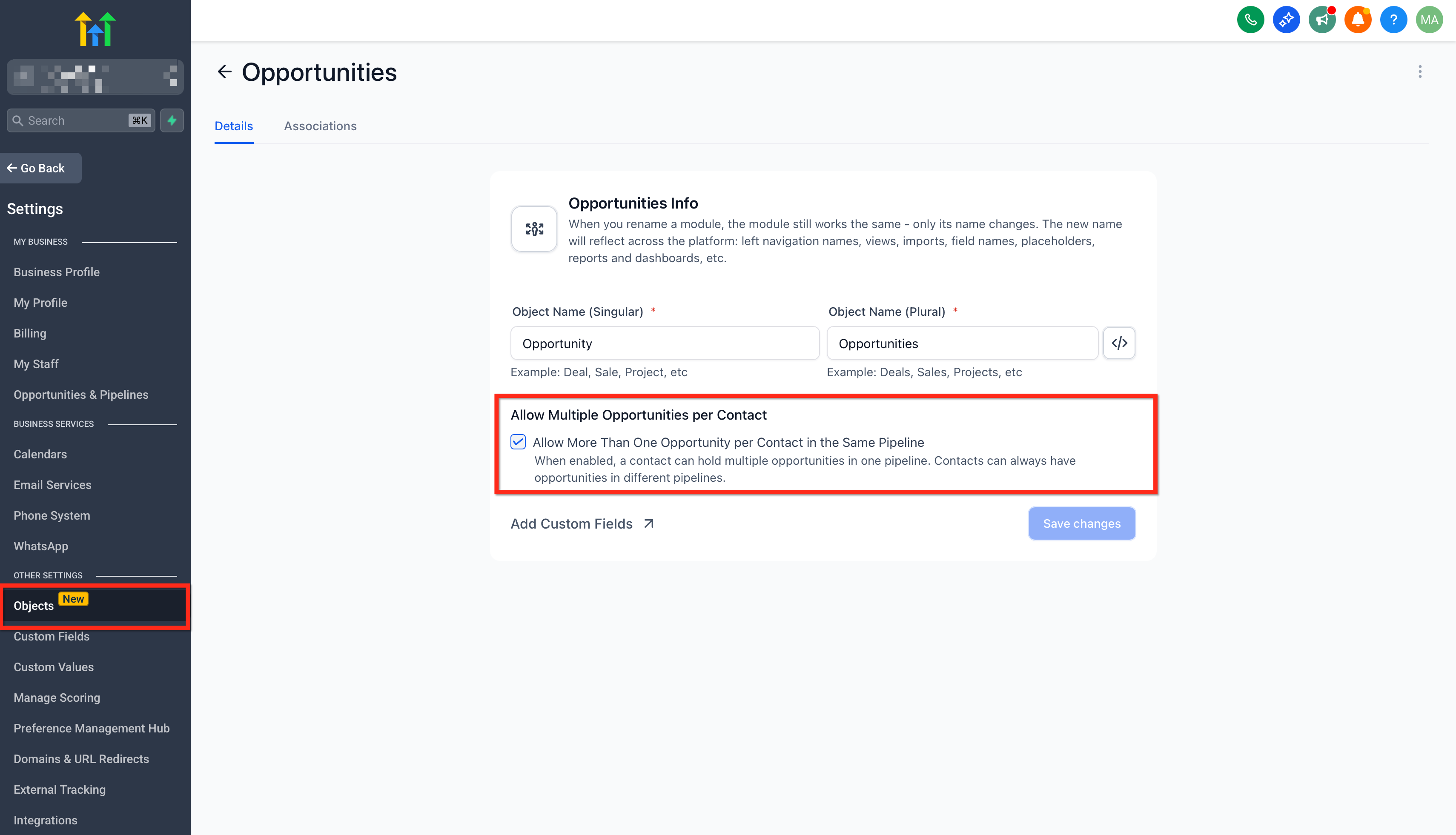
The feature adds an Allow Multiple Opportunity setting under the Opportunities object. When the toggle is on, any opportunity linked to a contact creates its own workflow execution, rather than only the most recent one being considered.
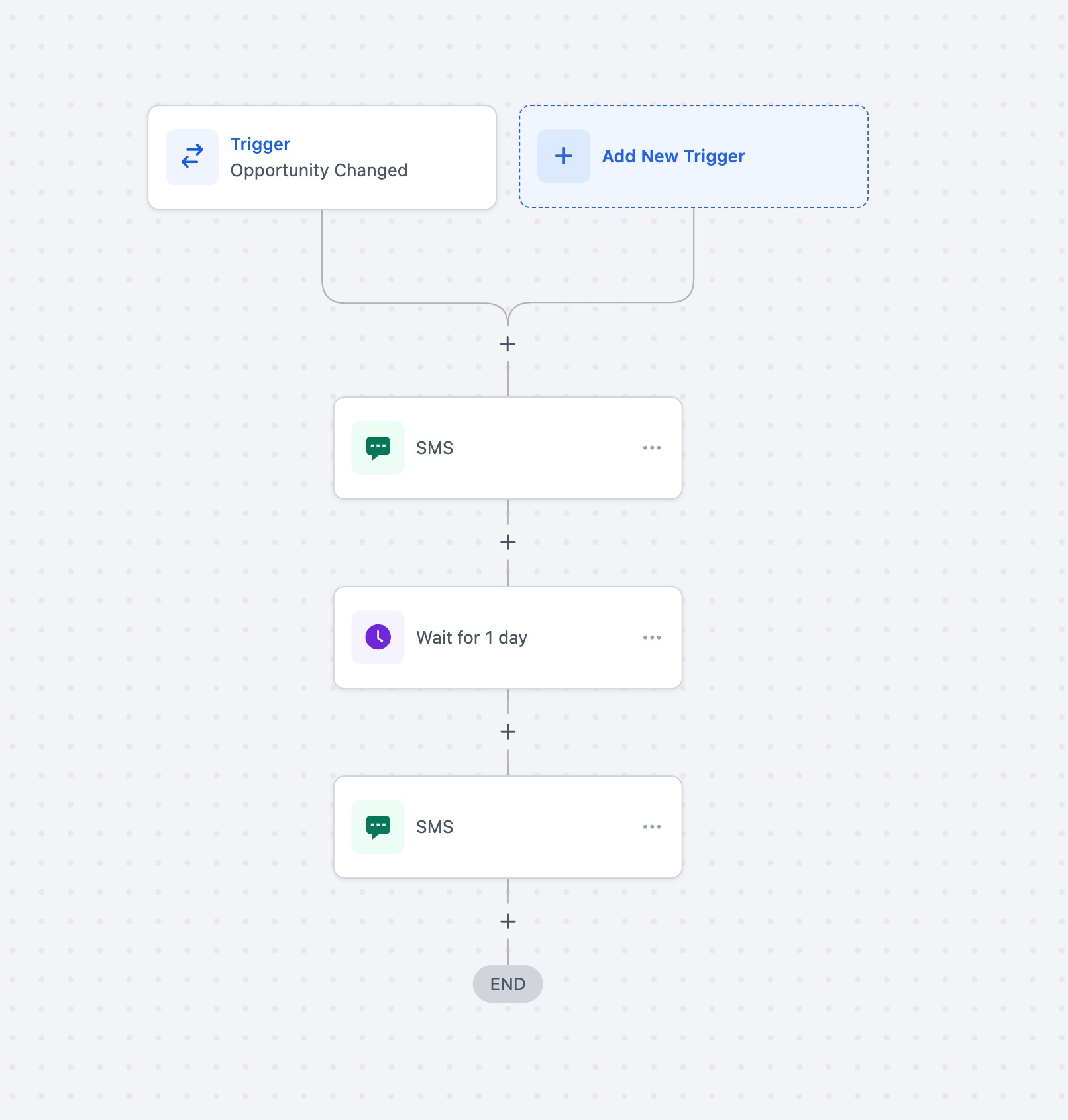
Updates made to an opportunity after it has entered a workflow do not cause the workflow to restart. Instead, the workflow proceeds from its current step, using the updated opportunity fields for any remaining actions.
The setting is found in the platform’s Settings area, under Objects > Opportunities, and must be saved after turning it on.
03How businesses use multiple opportunities toggle
- Real estate brokerage. Enable the toggle, then create a workflow that sends a reminder SMS when an opportunity (property listing) is updated. Each listing for the same client will trigger its own reminder, ensuring both properties receive follow up messages.
- Real estate investment firm. Turn on multiple opportunities, then build a workflow that adds a task for the investment team each time a property opportunity moves to a negotiation stage. Separate tasks are created for each property tied to the same investor.
- Property management company. Activate the setting, then use a workflow that emails the property owner whenever a rental opportunity status changes. Each rental unit linked to the owner generates its own email without overriding the others.
04How to set up and use multiple opportunities toggle in HighLevel
Enable multiple opportunities toggle
- Navigate to Settings > Objects > Opportunities.
- Find the Allow Multiple Opportunity toggle at the top of the settings, near the Allow Re entry option.
- Switch the Allow Multiple Opportunity toggle to ON.
- Save the changes.
05What it looks like in HighLevel
06Settings that matter
- Allow Multiple Opportunity. Controls whether each opportunity tied to a contact launches a separate workflow execution instead of only the most recent one.
07How it connects to the rest of HighLevel
- Automating opportunities in HighLevel Automate opportunities
- How to set up pipelines and stages in HighLevel Set up pipelines
- HighLevel pricing and plans Pricing
Michael's take

Michael ReimerFounder of CRM Pros, HighLevel Commander and Certified Admin
The multiple opportunities toggle is useful if you need separate workflows per deal.
Skip it if you only ever handle one opportunity per contact.
Get More InformationOpens on HighLevelPublished November 2, 2026 · Updated November 16, 2026