
01Who this is for
- Sales managers: can isolate each rep’s open deals to monitor activity.
- Marketing teams: can filter by source or campaign type to evaluate lead quality.
- Business analysts: can segment by custom fields and dates for detailed pipeline reports.
02Filtering opportunities, explained
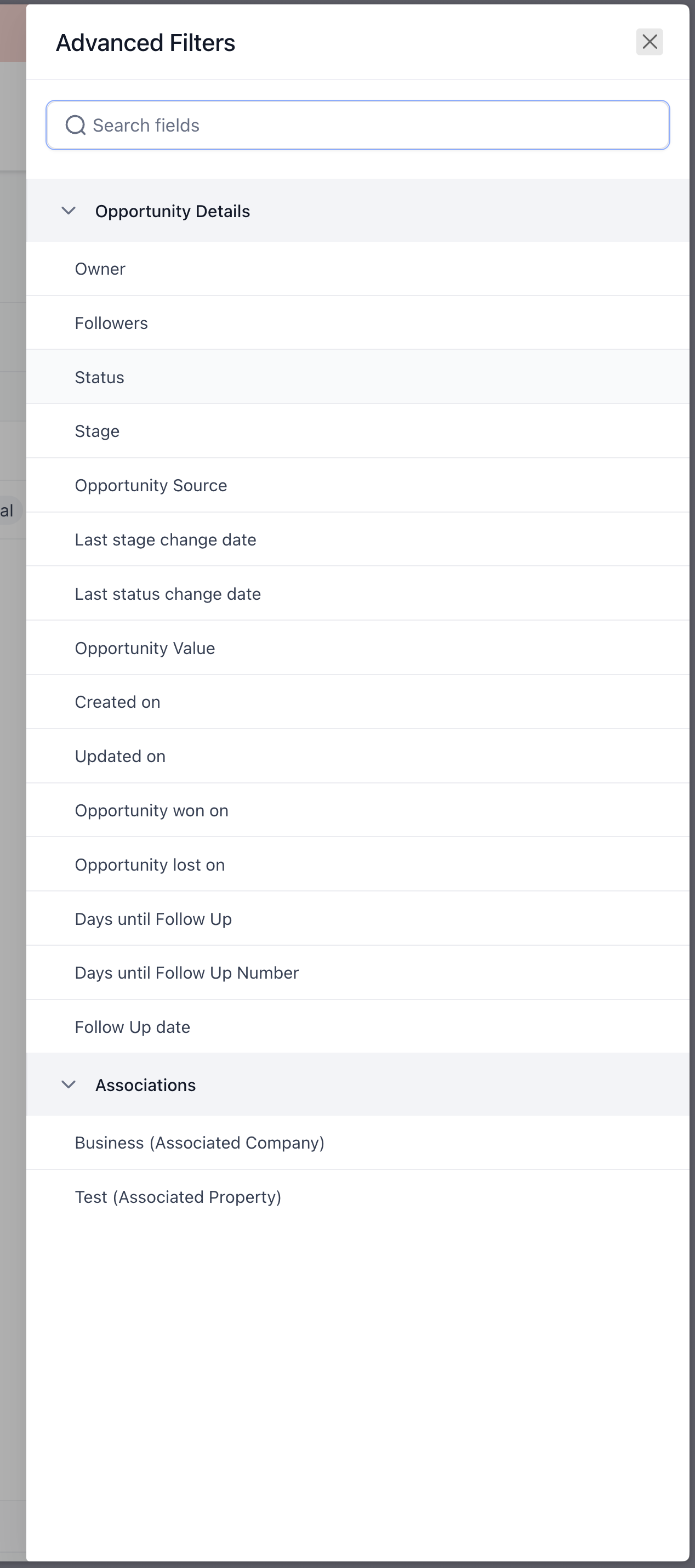
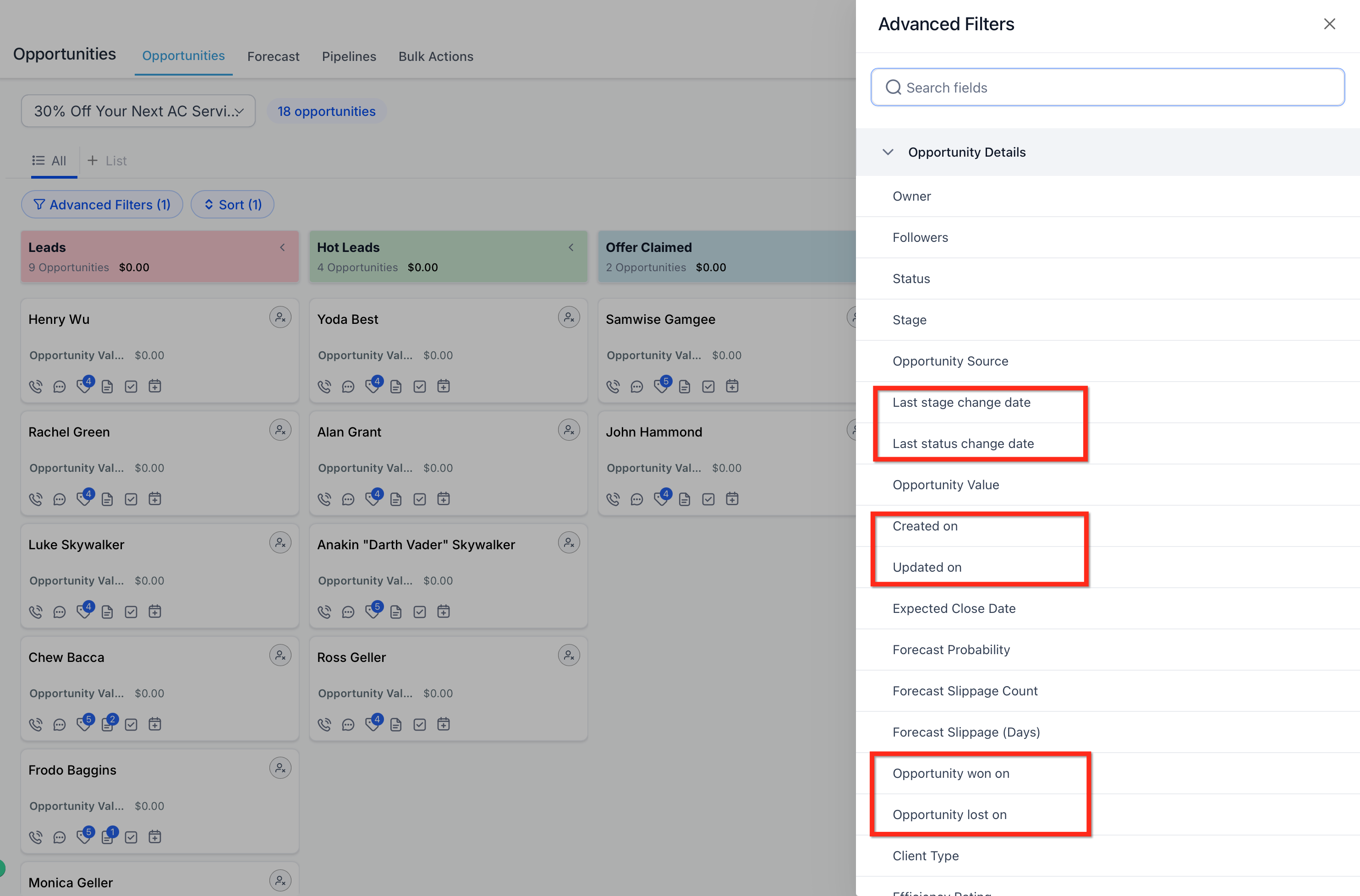
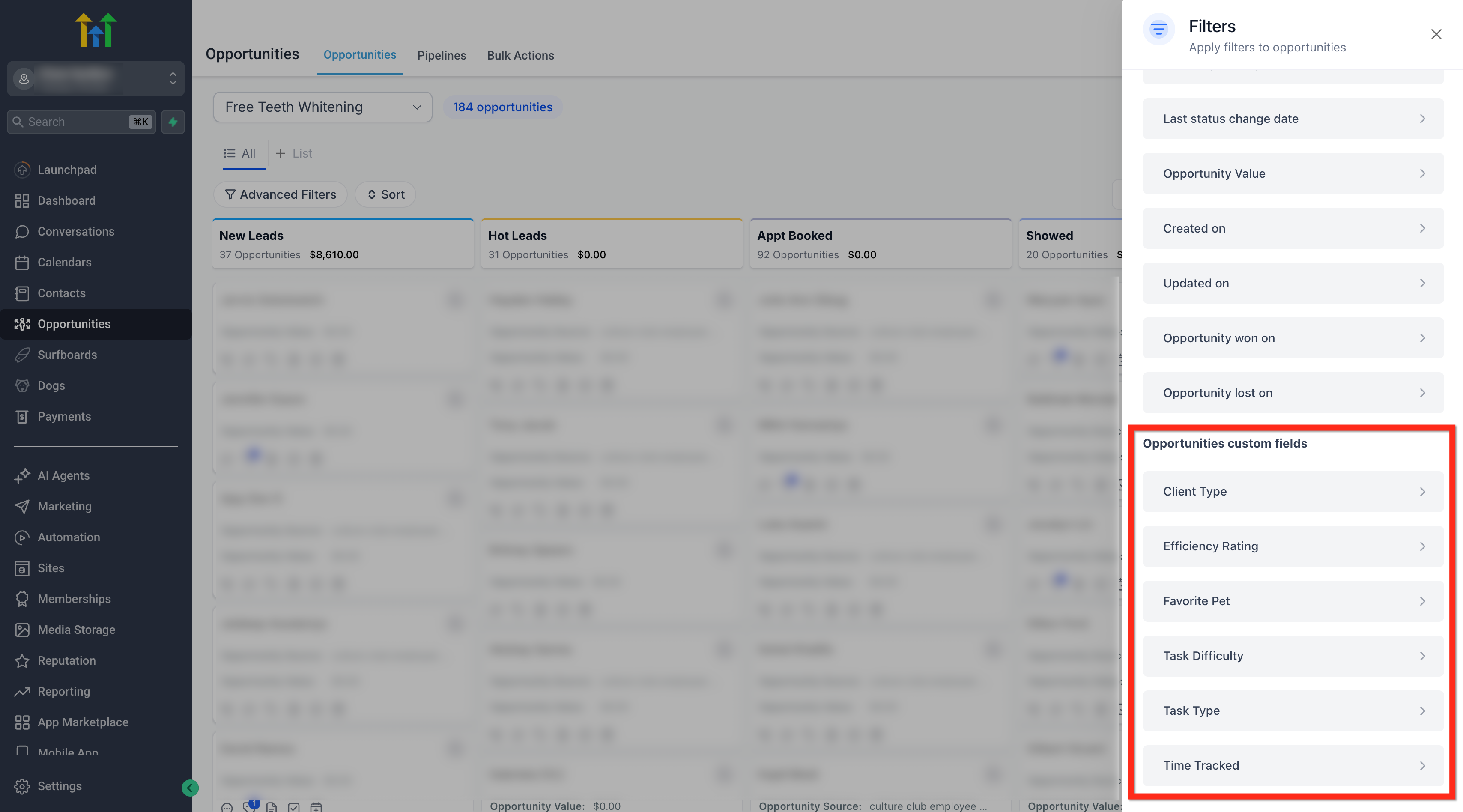
Filtering in HighLevel reduces the opportunity view to records that match chosen criteria. You select fields like Owner, Status, Value, dates or any custom field and pair them with operators such as equals, not equals, empty or greater than. The result is a focused list or board of deals.
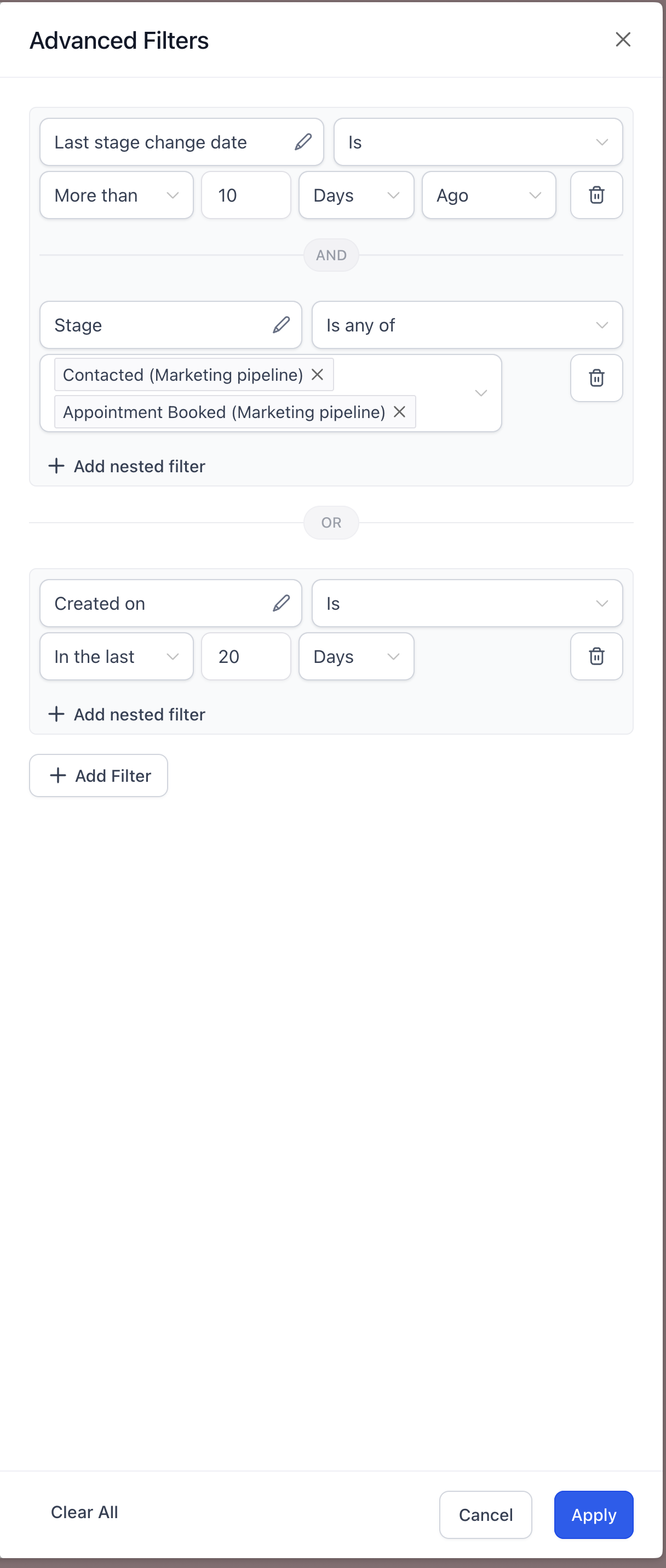
The filter pane lets you set logical relationships between conditions. Use the AND option when every condition must be true, or OR when any condition can match. Operators are available for standard fields, date presets and custom fields, and you can add nested filters for deeper logic.
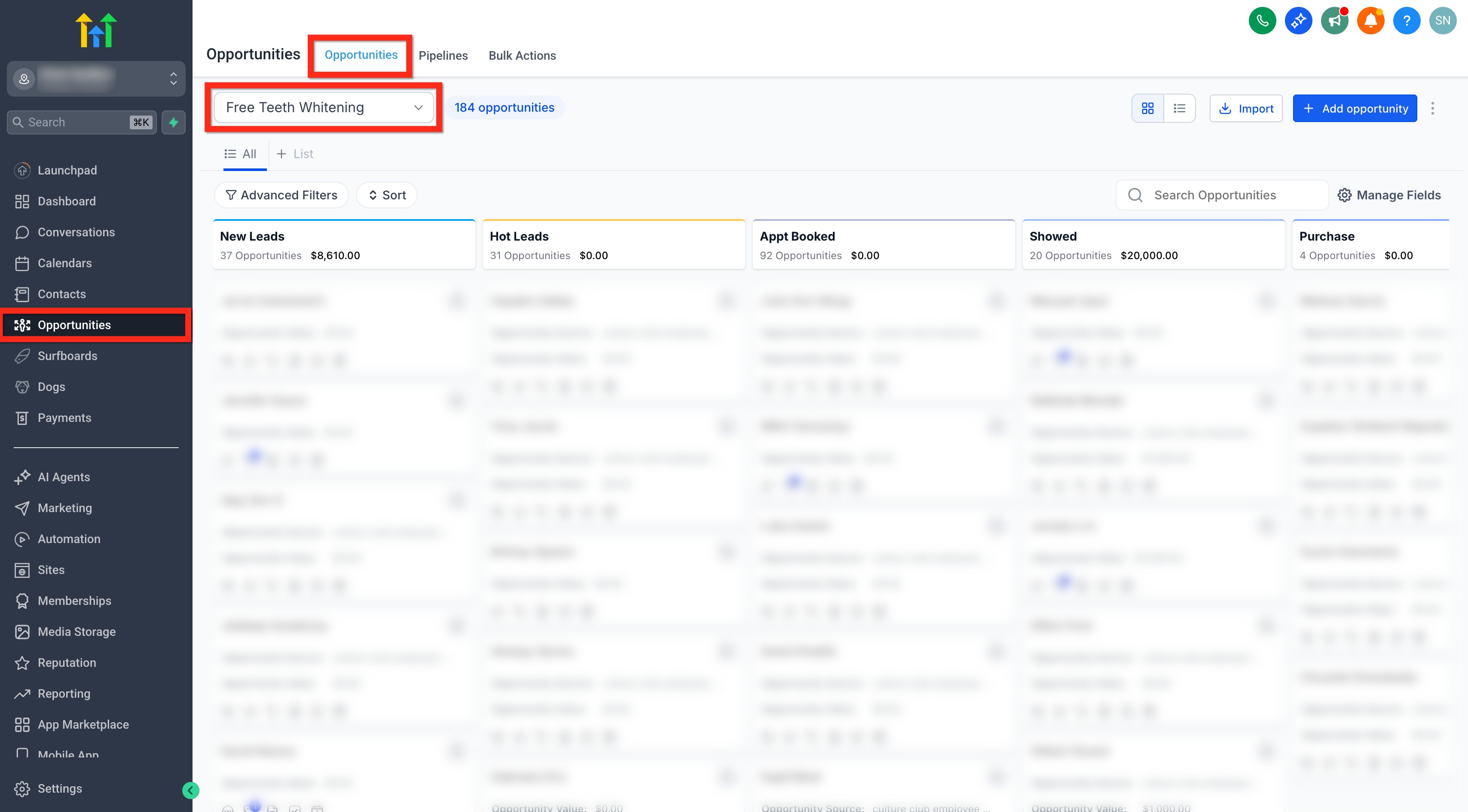
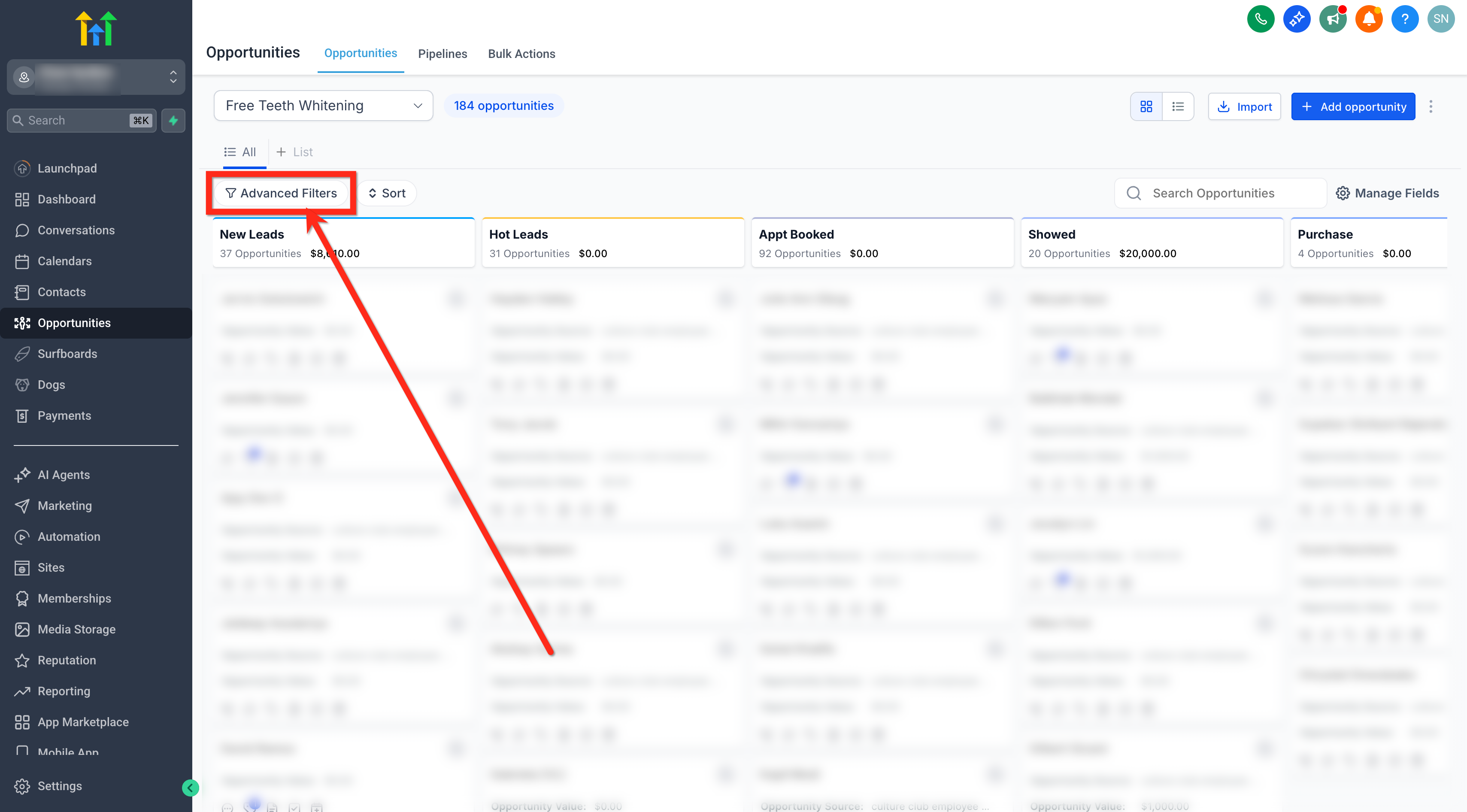
The filter controls reside in the Opportunities section. After selecting a pipeline, click the Advanced Filter icon beneath the Status area to open the right hand sidebar where you define the conditions and apply them.
03How businesses use filtering opportunities
- Real estate brokerage. Agents select the Owner filter to see only their open listings and add a Last Stage Change Date preset like "This Week" to track recent property movements. The filtered view shows exactly the deals that need attention.
- SaaS startup. The sales team applies an Opportunity Value filter greater than a set amount and adds the custom field "Client Type" equals "buyer". Combining these with AND logic returns high value prospects ready for targeted outreach.
- Event planning agency. Planners filter by Tags such as "difficulty" and by Campaign Type to locate events that require extra resources. Using OR logic broadens the view to any event matching either tag or campaign.
04The numbers and rules that matter
- Operators include is, is not, is empty, is not empty, equal to, not equal to, less than, greater than.
- Date presets: Yesterday, Today, This Week, Last Week, Last 7 Days, Last 30 Days, This Month, Last Month, This Year, Last Year, Custom, In the Next, In the Last, Less Than, More Than.
05How to set up and use filtering opportunities in HighLevel
Filter opportunities
- Log in to your subaccount.
- Open the Opportunities area from the left navigation.
- Choose the pipeline you wish to examine.
- Click the Advanced Filter (funnel icon) located under the Status heading.
- Select the desired filter fields and set their options.
- Press Apply to display the filtered results.
06What it looks like in HighLevel
07If something goes wrong
- Opportunity does not appear in the list. Verify that the appropriate filters and any search term are correctly applied.
08How it connects to the rest of HighLevel
- Learn how to enable multiple opportunities for the same contact. Multiple opportunities per contact
- Understand the create new opportunity toggle and its impact on filtering. Create new opportunity toggle
- Explore custom fields for opportunities to expand filter options. Opportunity custom fields
Michael's take

Most people start by scrolling through endless rows of deals, hoping to spot the ones they need. The filter panel is there for a reason. Set the right field, pick the correct operator, and let the system do the heavy lifting.
If I were setting up a view, I would first decide whether I need every condition to match (AND) or just one of them (OR). Then I would add Owner = me, Status = Open, and a date preset like This Week for Last Stage Change. That gives me a clean snapshot of my active pipeline without the noise.