
01Who this is for
- Team members can view opportunity details, activity logs and custom fields.
- Administrators can configure custom fields, hide empty fields and edit lost reason options.
02Opportunities, explained
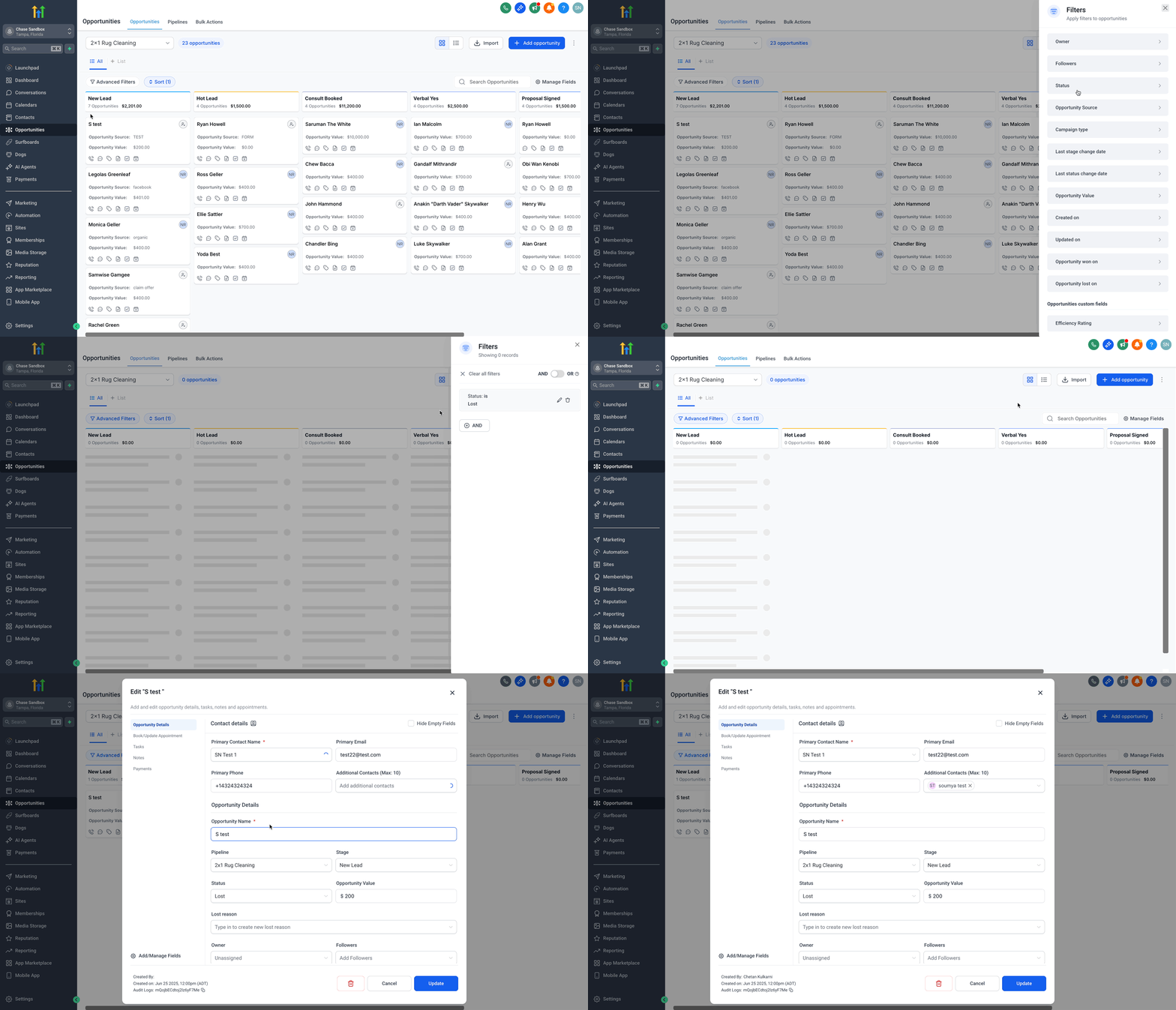
Opportunities act as containers for potential sales. Each record can hold custom fields, a primary contact and up to ten additional contacts. Empty custom fields can be hidden for a cleaner view. All activity on an opportunity is recorded for the past sixty days and can be accessed via the Opportunity ID at the bottom left. Settings let you control lost reason values and duplicate opportunity permissions.
03How businesses use opportunities
- Deal tracking. Users add multiple contacts to a deal, hide empty fields and export the list to analyze upcoming closings.
- Collaboration. Team members share a direct opportunity link so others can view details without navigating the dashboard.
- Data management. Administrators edit lost reason values so reports reflect updated terminology across all opportunities.
04The numbers and rules that matter
- Maximum of 10 additional contacts per opportunity.
- Audit logs keep activity for the last 60 days.
05Before you start
- You must have access to Settings > Custom Fields to modify lost reason values.
06How to set up and use opportunities in HighLevel
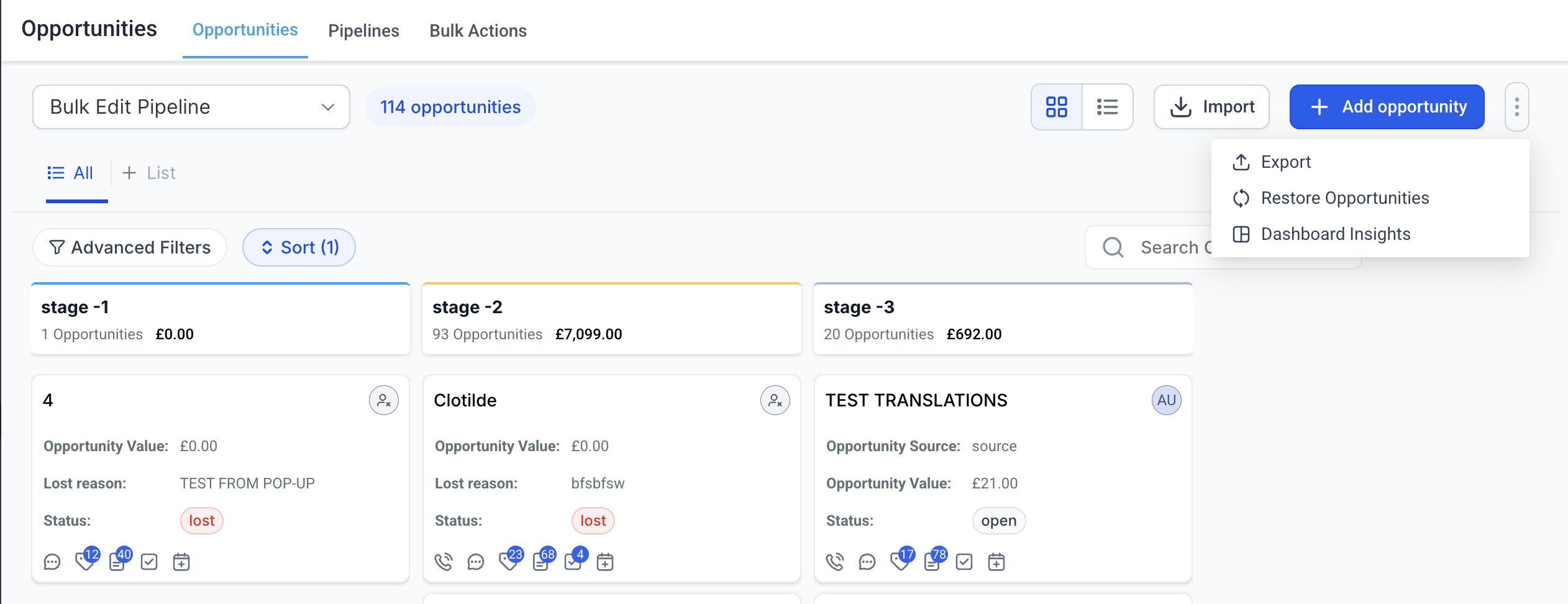
Export opportunities
- Open Opportunities from the left sidebar.
- Click the three dot menu in the top right.
- Select Export Opportunities.
- Wait for the file to be processed and downloaded to your default browser folder.
Share a specific opportunity
- Open the desired opportunity in the app.
- Copy the URL from your browser address bar.
- Send the link to team members or stakeholders.
Track activity and find the Opportunity ID
- Open the opportunity by clicking its card.
- Notice the Opportunity ID in the bottom left and click it.
- You are taken to the audit logs, which display activity for the last sixty days.
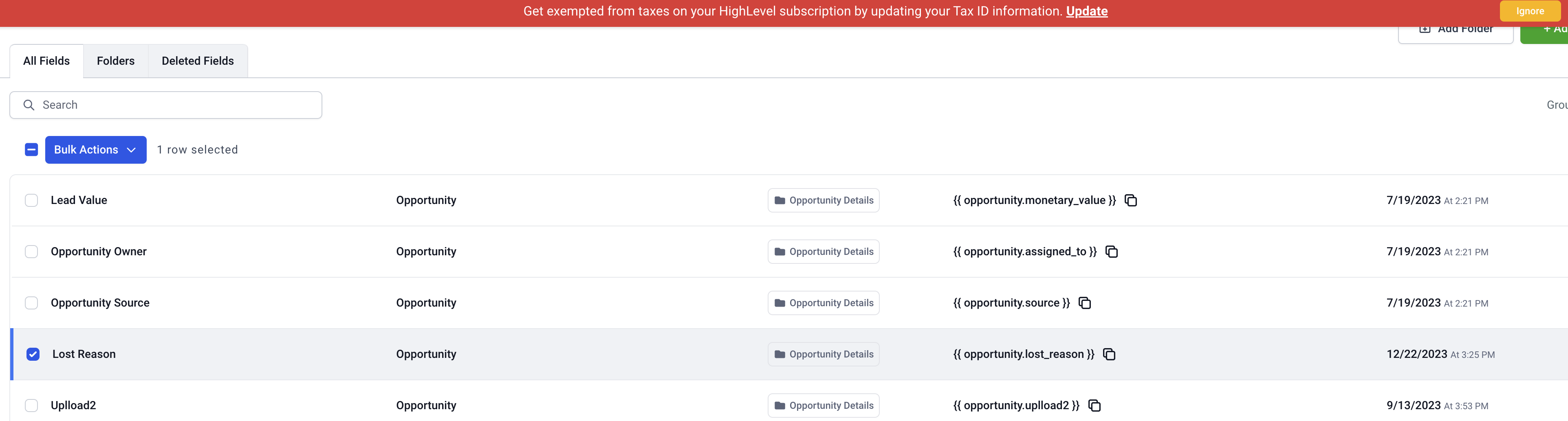
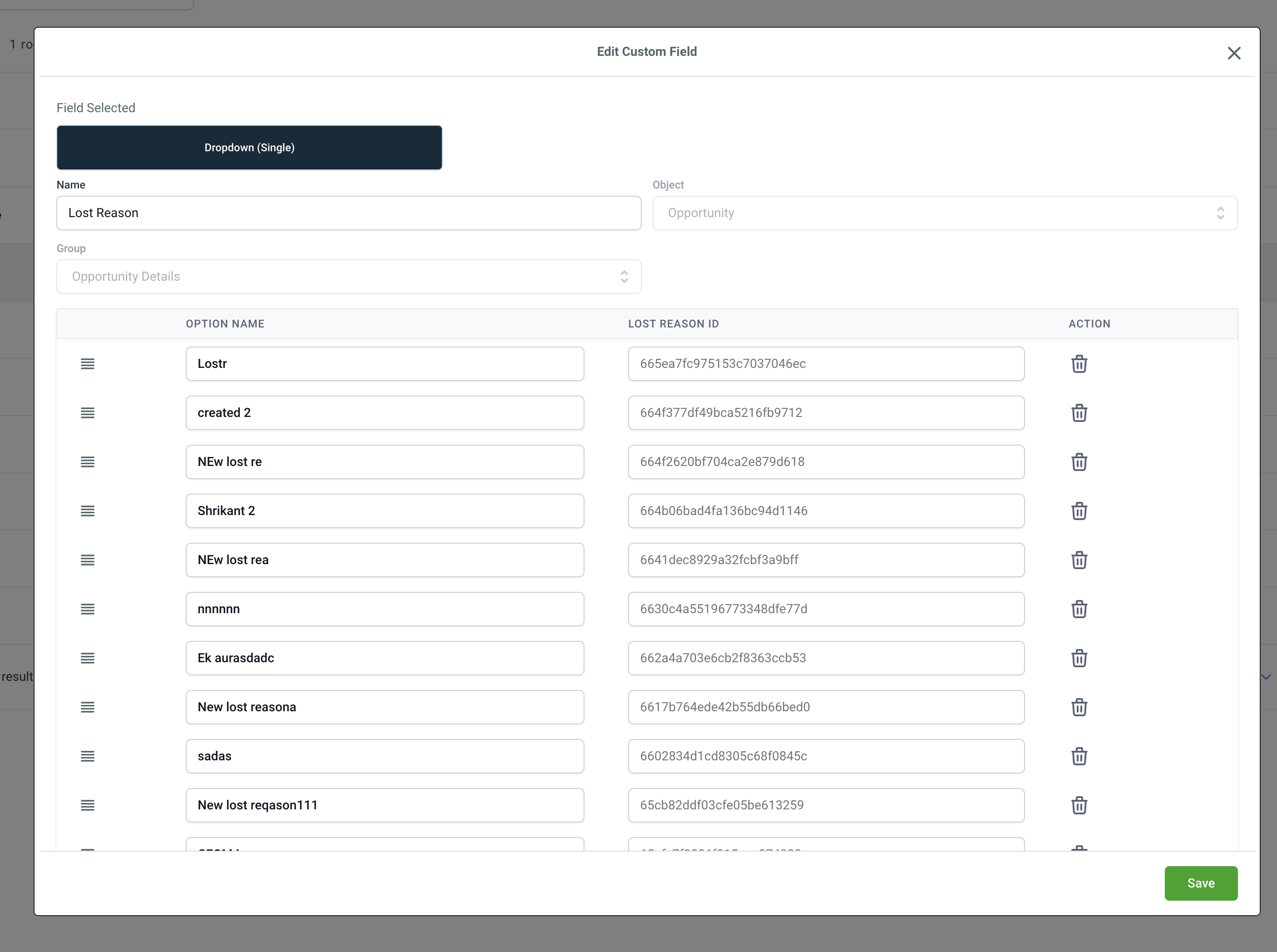
Edit lost reason values
- Navigate to Settings > Custom Fields.
- Select Lost Reason and open Bulk Actions, then choose Edit.
- Adjust the lost reason entries in the modal and save the changes.
07What it looks like in HighLevel
08Settings that matter
- Lost Reason. Controls the list of reasons shown when an opportunity is marked as lost.
- hide empty fields. When turned on, fields without values are not shown in the opportunity view.
- Allow duplicate opportunities. Determines whether the same contact can appear in multiple opportunity records.
09Things to know before you rely on it
- A maximum of ten additional contacts can be added to an opportunity.
- The primary contact cannot also be listed as an additional contact.
- If duplicate opportunities are not allowed, a contact cannot be linked to more than one opportunity as primary or additional.
- Audit logs retain activity for only the past sixty days.
- Lists and workflows reference only the primary contact; additional contacts are not yet supported for those features.
10How it connects to the rest of HighLevel
- Enable multiple opportunities per contact multiple opportunities
- Use opportunity filters for precise views filters
- General overview of opportunities overview
Michael's take

Michael ReimerFounder of CRM Pros, HighLevel Commander and Certified Admin
Opportunities are useful, but if you don’t need detailed deal tracking, you can skip the feature.
Get More InformationOpens on HighLevelPublished November 2, 2026 · Updated November 16, 2026