
01Who this is for
- Sales managers who need to compare deals across multiple pipelines to prioritize follow up.
- Account executives who want to read the latest notes from a contact while scanning a list of opportunities.
02List view for opportunities, explained
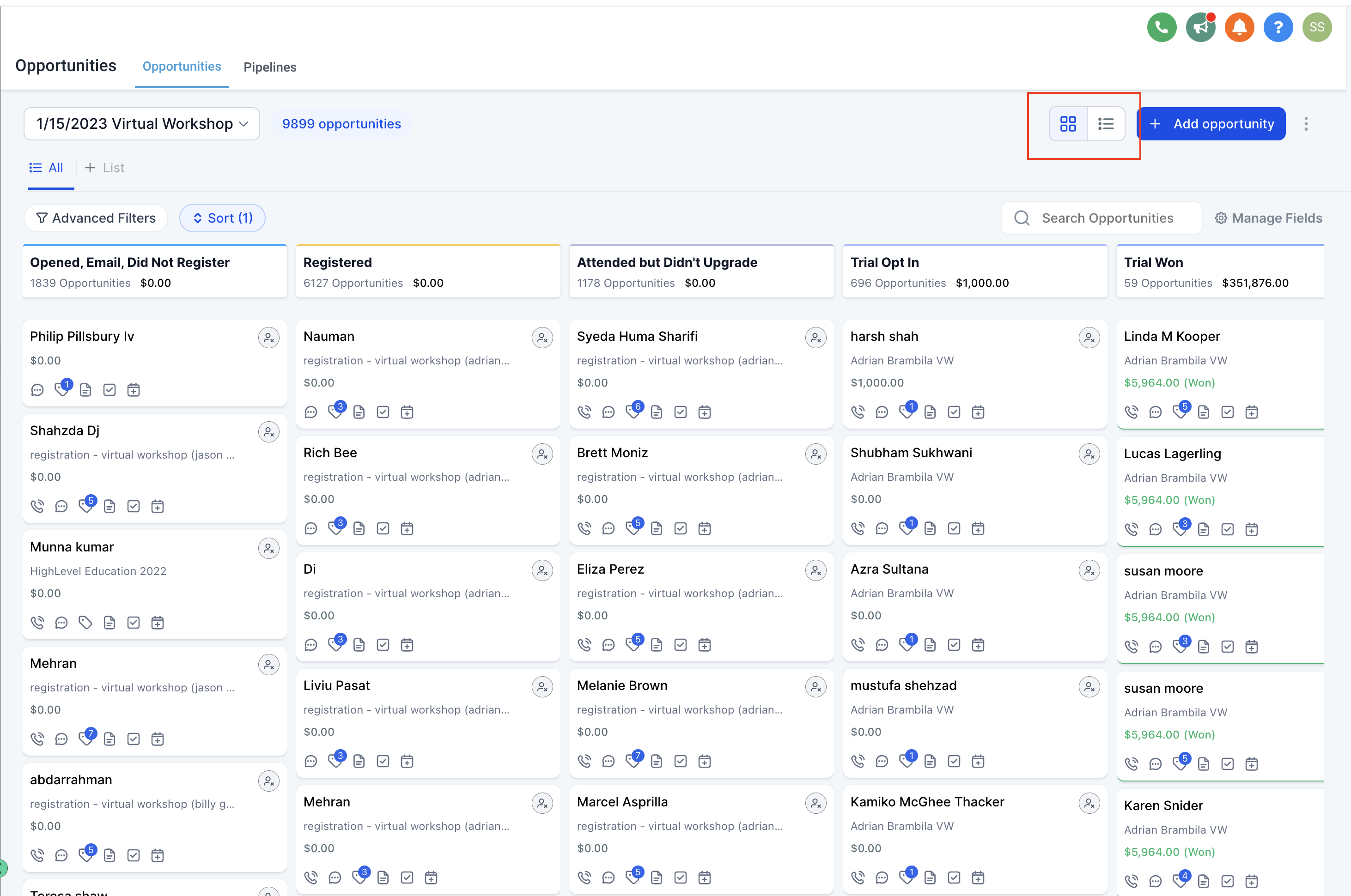
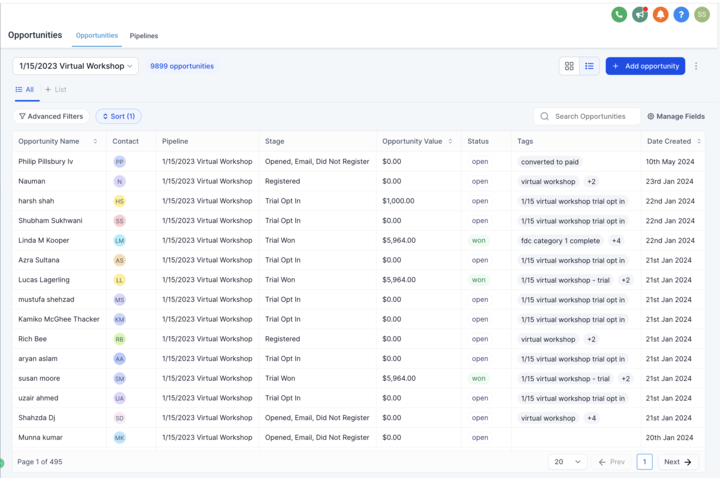
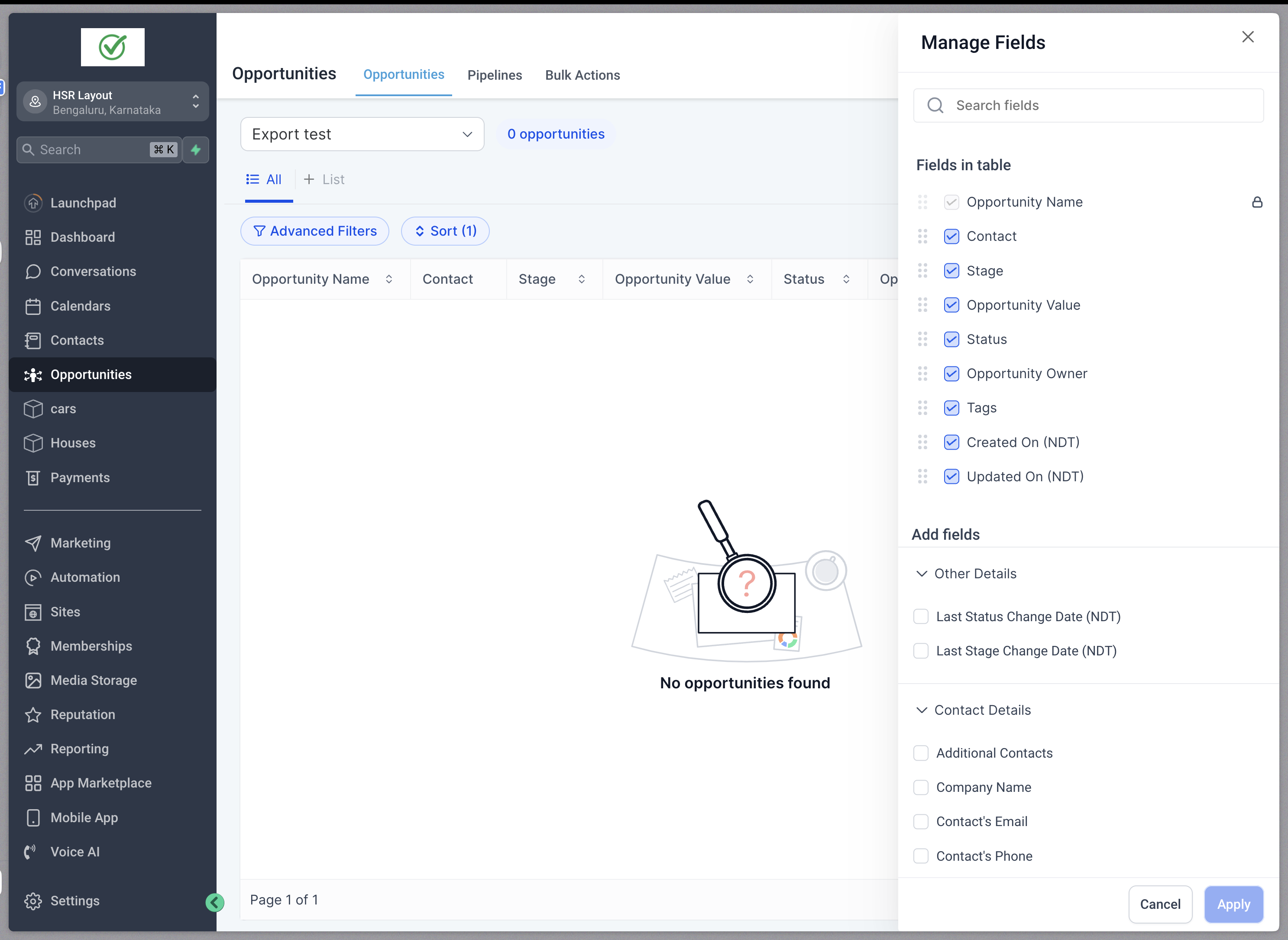
The List View replaces the board layout with a detailed table. Each row represents an opportunity and columns display selected fields. Users decide which columns appear, move them left or right, and adjust column width.
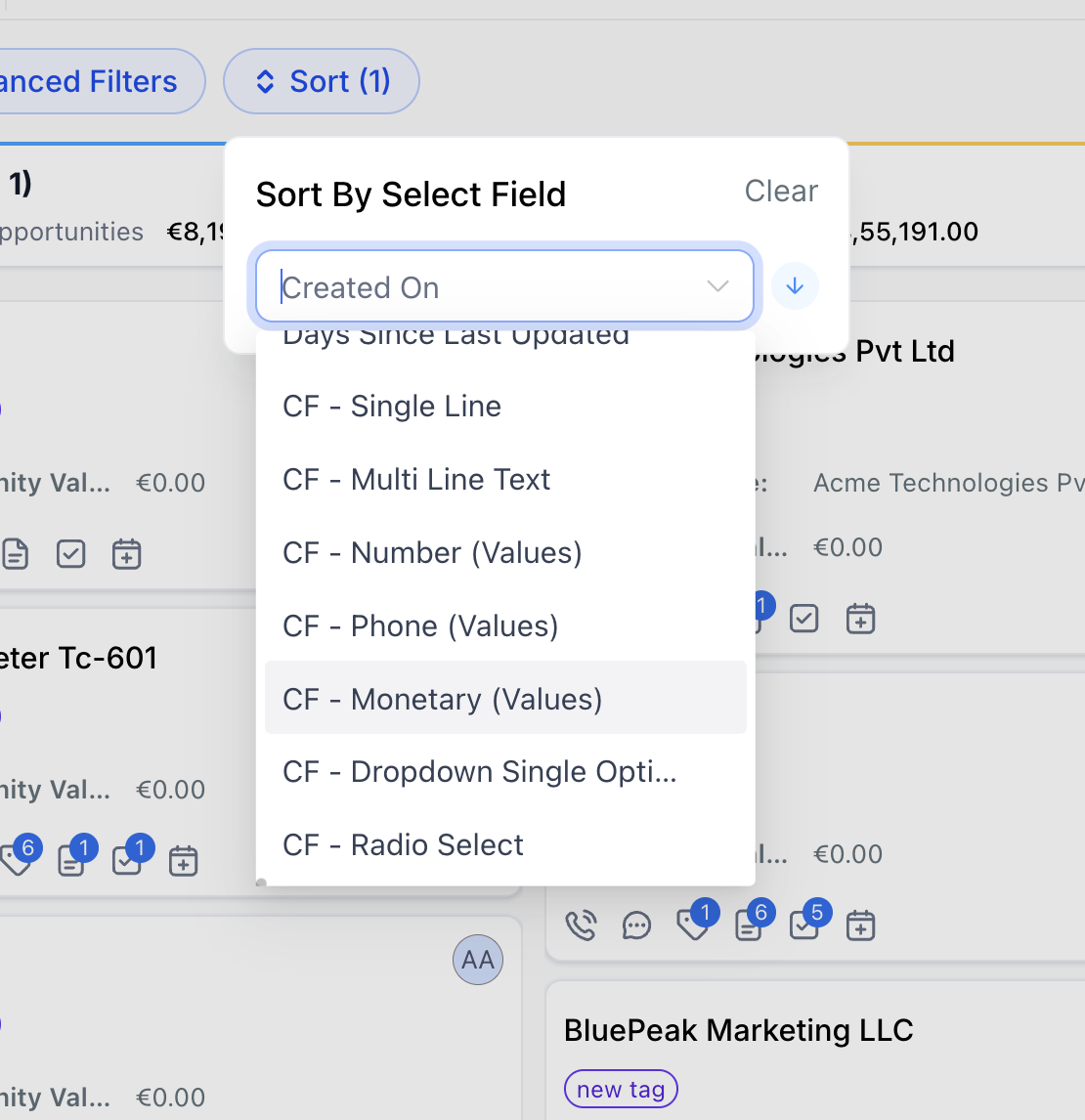
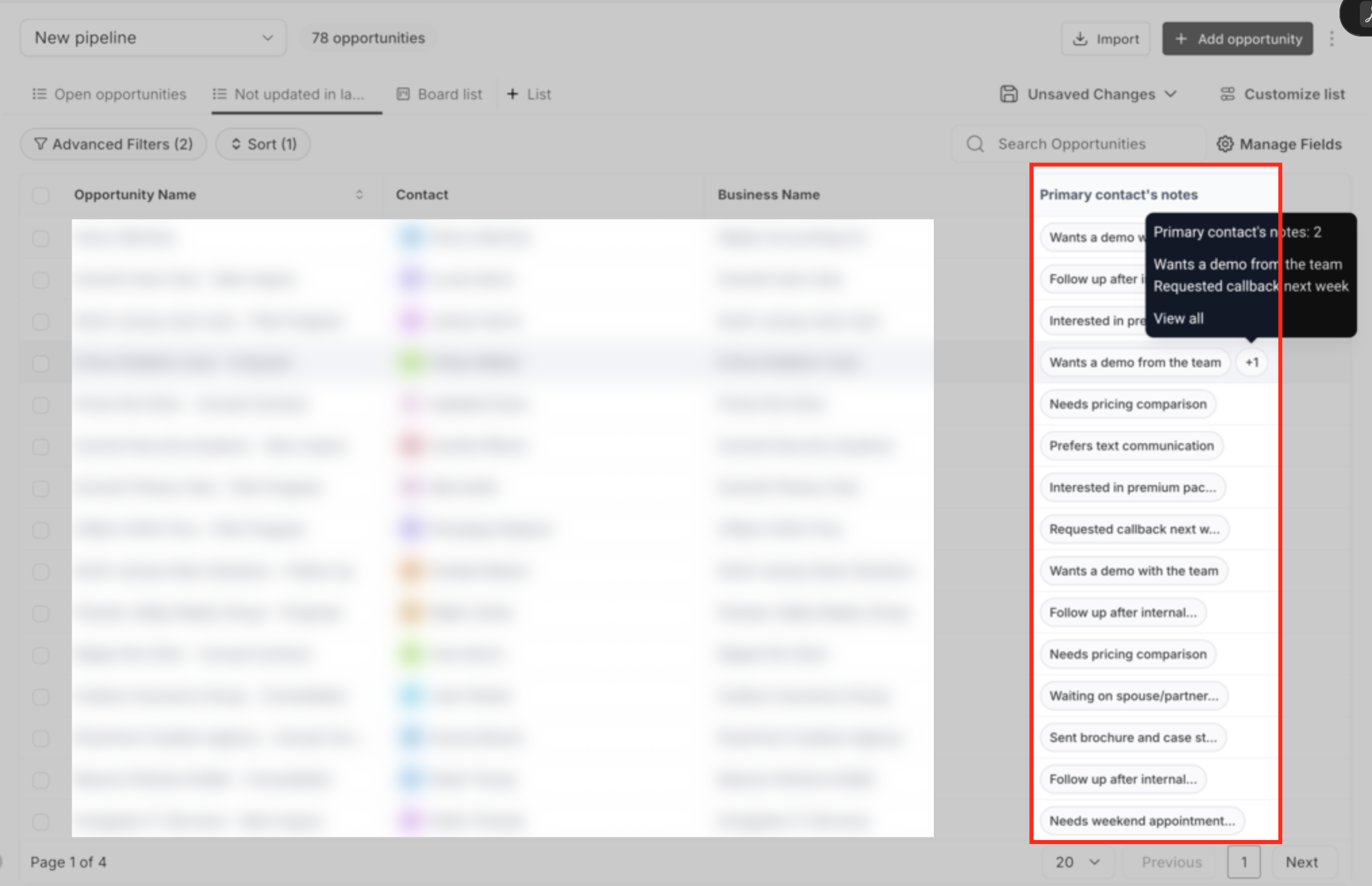
Sorting works on any standard field and on custom fields of types such as Single Line, Number, Date, or Monetary. The view also supports adding the Primary Contact Notes column, which pulls the most recent note from the opportunity’s main contact.
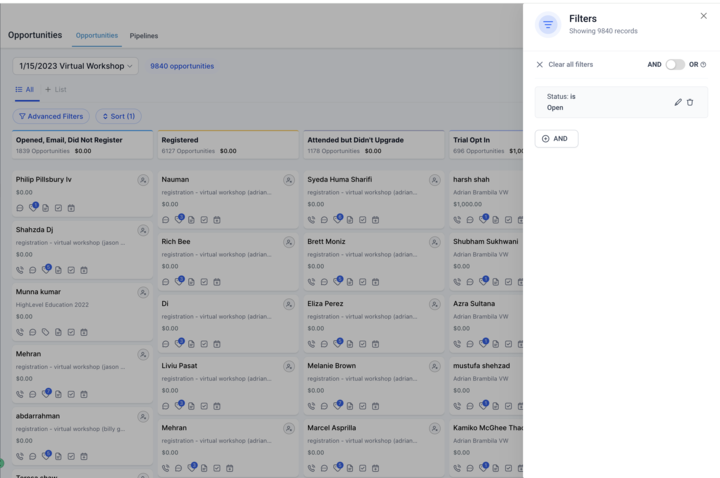
All pipelines can be combined into a single list by choosing the All Pipelines option from the pipeline dropdown. The view then adds a Pipeline column to identify each opportunity’s origin.
03How businesses use list view for opportunities
- Real estate brokerage. The brokerage sorts opportunities by Closing Date to see which deals are due soon. It adds the Primary Contact Notes column to read client remarks while reviewing the list. The All Pipelines view lets agents compare leads from different property types in one table.
- Digital marketing agency. The agency sorts opportunities by Monetary value to focus on high budget projects. It enables Primary Contact Notes to capture the latest client feedback. Using All Pipelines, the team views prospects from SEO, PPC, and Social Media pipelines together.
- Consulting firm. The firm sorts opportunities by Custom Date fields to track proposal timelines. It displays Primary Contact Notes to keep consultants aware of recent client communication. The All Pipelines view aggregates deals from Strategy and Operations pipelines for a unified overview.
04The numbers and rules that matter
- Supported custom field types: Single Line, Multi Line Text, Dropdown (Single Select), Radio Select, Number, Monetary, Phone, Date.
05Before you start
- Open the Opportunities section and switch to List view before applying any List view features.
06How to set up and use list view for opportunities in HighLevel
Sort opportunities
- Navigate to Opportunities and select List view.
- Click the Sort button.
- Choose the field you want to sort by, using either a default field or a supported custom field.
- Select Ascending or Descending order.
Enable primary contact notes column
- Navigate to Opportunities and switch to List view.
- Open the Customize Columns menu.
- Turn on the Primary Contact Notes option to add the column to the table.
View all pipelines in one list
- Open Opportunities and confirm you are in List view.
- Click the Pipeline dropdown at the top left.
- Select the All Pipelines option.
- The list now displays opportunities from every pipeline, with a Pipeline column indicating their source.
07What it looks like in HighLevel
08Settings that matter
- Primary Contact Notes. Controls whether the column showing the latest note from an opportunity’s primary contact appears in List view.
09Things to know before you rely on it
- All Pipelines can be used only in List view; it is unavailable in Board (Kanban) view.
- Smartlists saved from an All Pipelines view are List type only; Board type Smartlists cannot be used here.
- Sorting by stage does not work in the All Pipelines view; sorting falls back to the Created date field.
- Supported custom field types for sorting include Single Line, Multi Line Text, Dropdown (Single Select), Radio Select, Number, Monetary, Phone, and Date.
10How it connects to the rest of HighLevel
- Learn how to filter opportunities for precise views Filter opportunities
- See how to customize opportunity cards in board view Customize board cards
- Explore how to enable multiple opportunities per contact Multiple opportunities per contact
Michael's take

The List view for opportunities is a clean way to see everything at once.
If you never need a spreadsheet style overview, you can skip it.