
01Who this is for
- Sales managers can focus on key deal data without scrolling through full records.
- Small business owners gain a quick overview of pipeline health by displaying custom metrics.
02Opportunity cards, explained
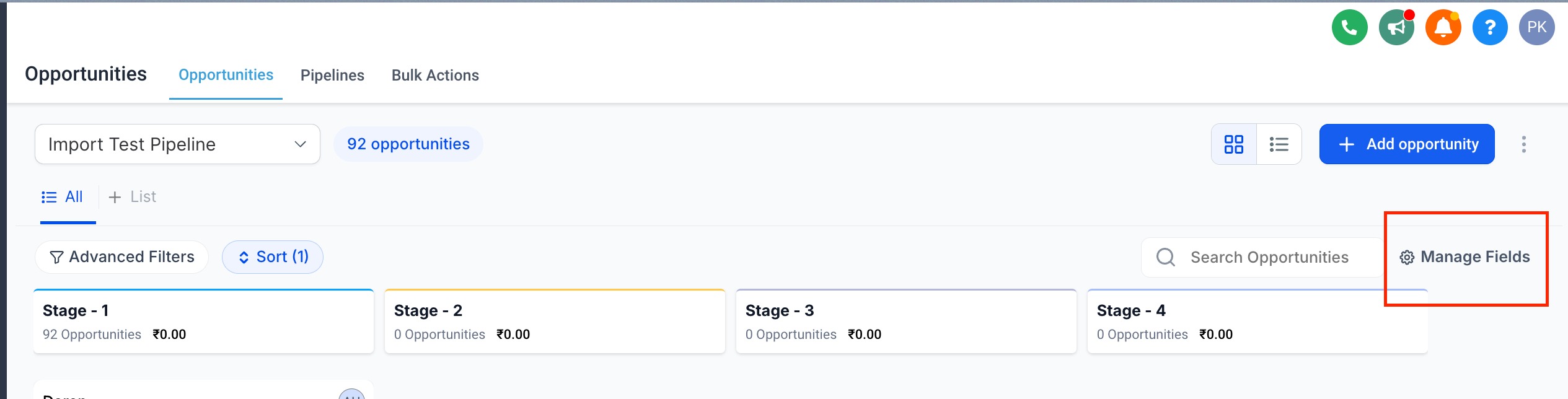
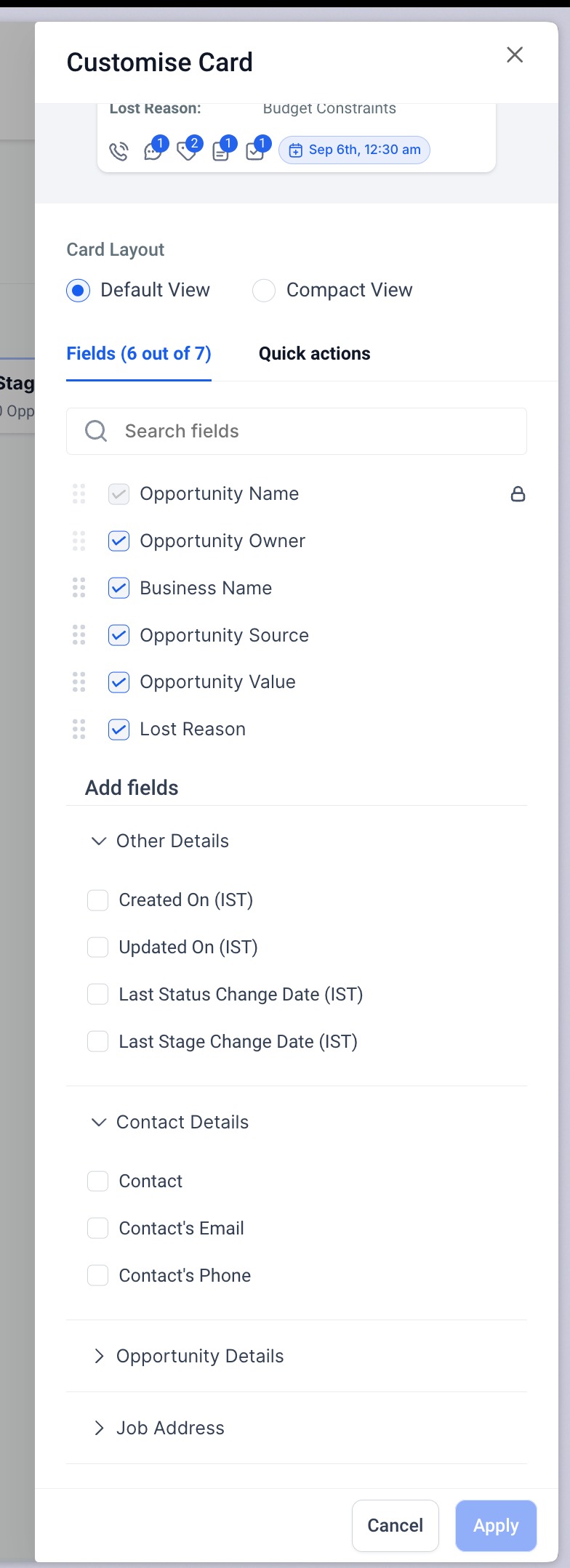
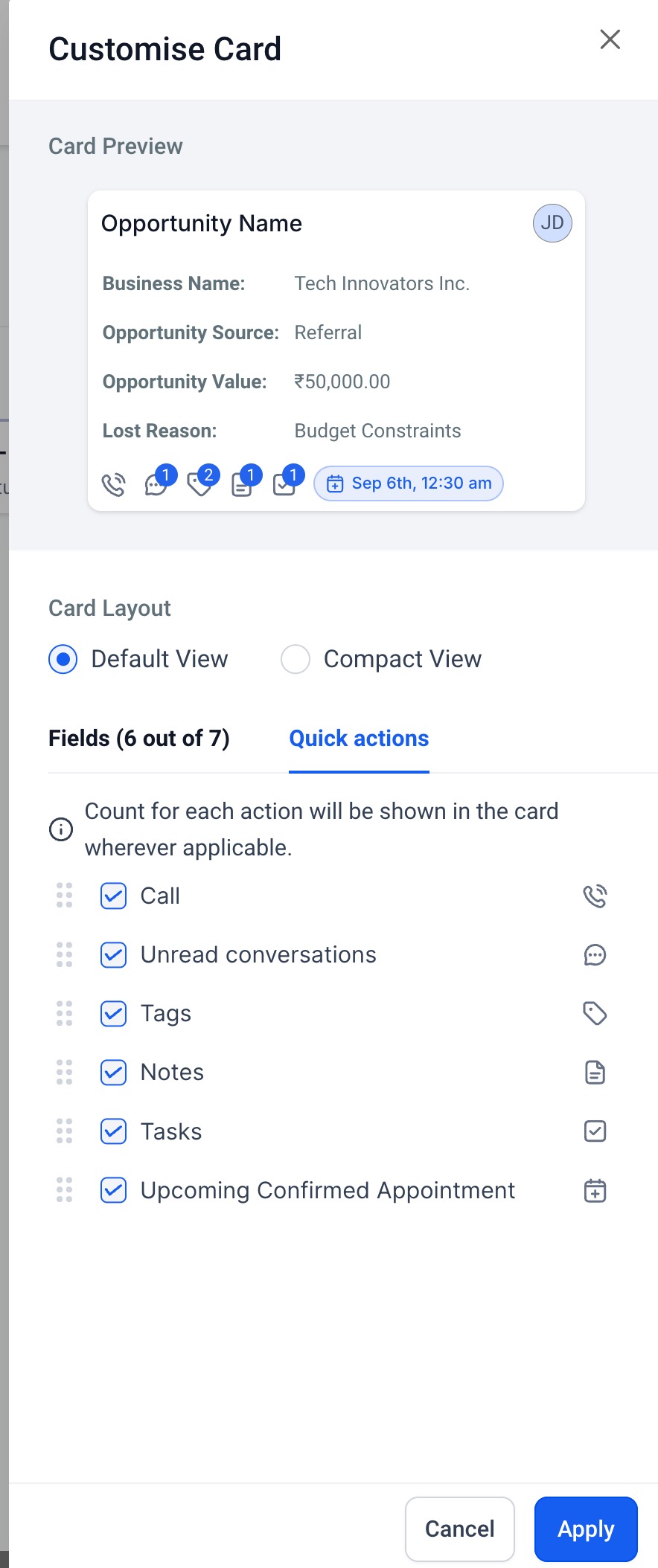
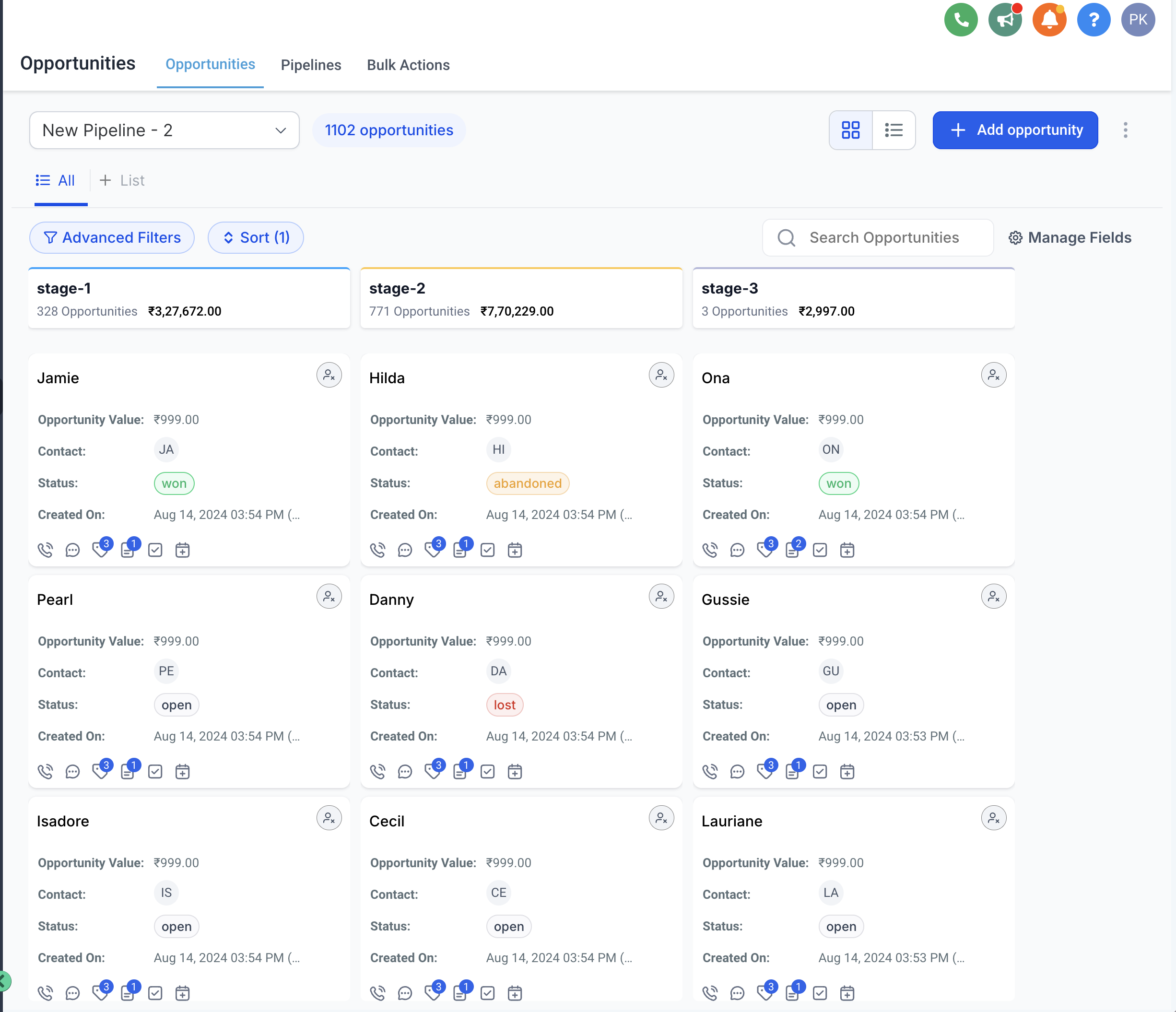
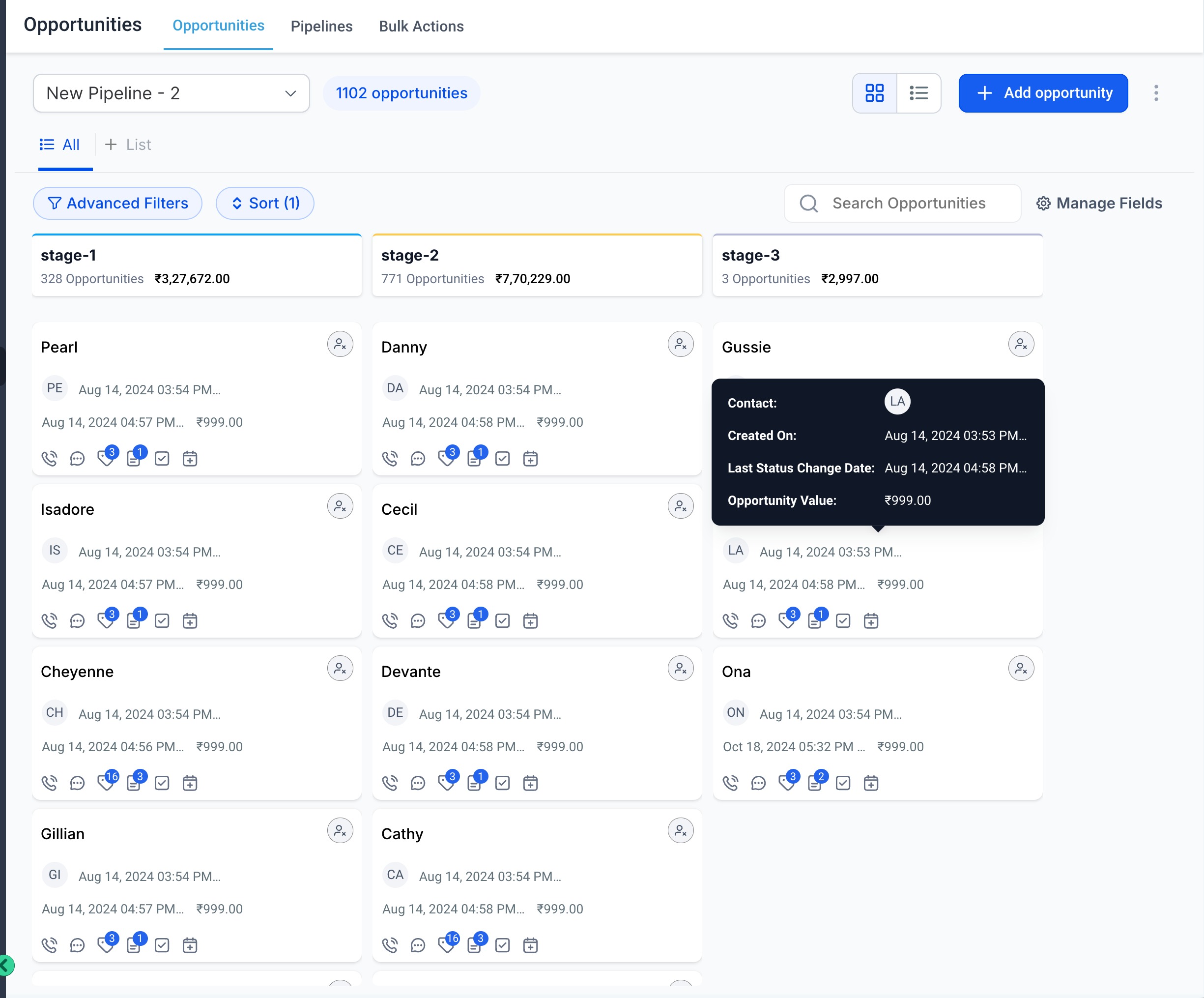
The feature adds a Manage Fields button to the Opportunities board. When you open it, you can pick which standard, custom, or contact fields show on each Opportunity Card, up to a maximum of seven. The Quick Actions tab lets you decide which icons, such as conversations or tasks, appear at the bottom of the card.
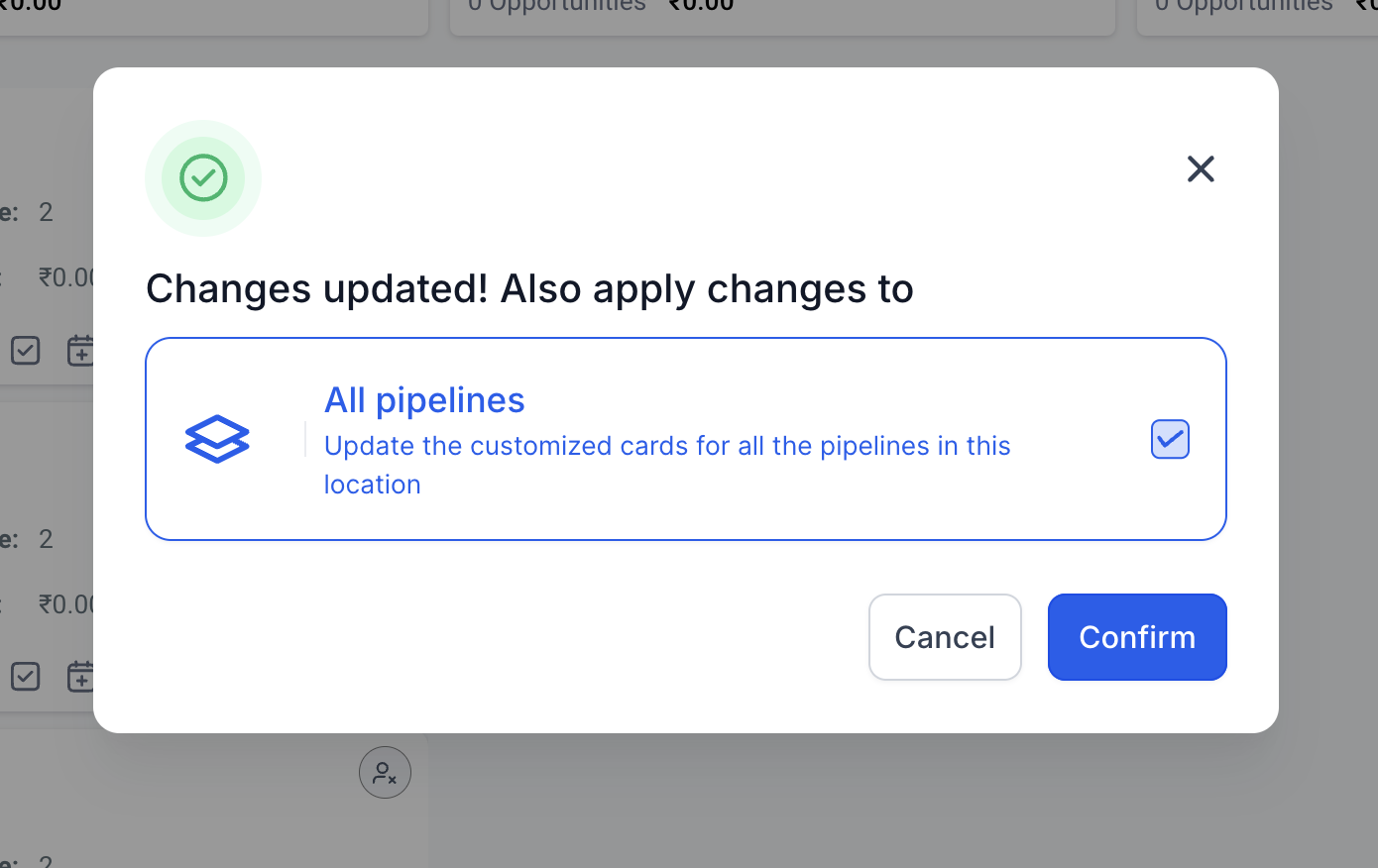
Customizations are saved per user in the browser’s local storage and apply to the current pipeline unless you choose to push them to all pipelines. Layout options let you show field labels (Default), hide them (Compact), or dedicate a line per field (Unlabeled). Stage columns can be collapsed, expanded, or resized to control visual clutter.
03How businesses use customizing opportunity cards
- Real estate brokerage. The broker opens Manage Fields, selects Opportunity Name, Opportunity Value, Contact Name, Contact Phone Number, Contact Email Address, Next Task Due Date, and Days Till Next Task Due Date as the seven visible fields. In Quick Actions they add the Conversation and Task icons to track client messages and tasks directly on each card.
- Dental practice. The practice manager chooses Opportunity Name, Contact Name, Contact Phone Number, Contact Email Address, Appointment Icon, and Days Till Next Appointment Date, plus the Task icon for quick reference. The Appointment icon shows the next appointment date on every opportunity card.
- Marketing agency. The agency picks Opportunity Name, Opportunity Source, Engagement Score, Opportunity Owner, Created On, and Updated On. Using the Compact view, they hide labels and rely on hover details, keeping the board tidy while still seeing key metrics.
04The numbers and rules that matter
- Up to 7 fields can be displayed on each Opportunity Card.
- Engagement Score appears only for opportunities created or updated after 19th March 2025.
- Customizations apply per pipeline by default; an option exists to apply changes to all pipelines.
- Stage layout (collapse, expand, resize) is saved per user in local storage.
05Before you start
- Opportunities must be displayed in the board (Kanban) view.
- Any custom fields you want to show need to be created beforehand.
06How to set up and use customizing opportunity cards in HighLevel
Accessing the Opportunity Card Customization
- Open the Opportunities section.
- Click the Manage Fields button in the top right corner of the board.
Selecting fields to display on cards
- In the Manage Fields panel, browse available standard, custom, and contact fields.
- Check up to seven fields you wish to display on each Opportunity Card.
- Confirm the selection to apply the changes.
Customizing counters at the bottom of the card
- Switch to the Quick Actions tab inside Manage Fields.
- Toggle the icons you want to see, such as Conversations, Task, Note, Tags, Call, or Appointment.
- Save the configuration.
Collapse or expand a stage
- Go to Opportunities.
- Make sure the view mode is set to Kanban.
- Click the arrow on a stage header to collapse or expand that stage.
Resize a stage column
- Hover near the right edge of the stage column.
- Drag the edge left or right to adjust the column width.
07What it looks like in HighLevel
08Settings that matter
- Manage Fields. Determines which fields are shown on each Opportunity Card.
- Quick Actions. Controls which counter icons appear at the bottom of the card.
- Layout Options. Sets how field labels and values are displayed: Default (labels and values), Compact (values only), or Unlabeled (one field per line).
09Things to know before you rely on it
- You can select a maximum of seven fields for a card.
- Engagement Score appears only on opportunities created or updated after 19 March 2025.
- Customizations apply to the current pipeline by default, but you can extend them to all pipelines.
- Settings are stored in local browser storage; they do not carry over to other browsers or users.
- Missing custom field folders indicate those custom fields have not been set up yet.
10How it connects to the rest of HighLevel
- Create custom fields for opportunities custom fields guide
- Set up pipelines and stages pipeline setup
- Filter opportunities for precise views opportunity filters
Michael's take

Seeing a sea of cards with the same generic info makes it hard to spot the deals that need attention. The first thing I would get right is the field selection, I’d put the value, owner and next task due date on every card so the team can prioritize quickly.
Once the fields are set, I’d tweak the quick action icons to surface unread conversations and pending tasks. That gives a visual cue without opening each record, and it keeps the board tidy for everyone who logs in.