
01Who this is for
- Service oriented teams that need to adjust bookings while away from the office, because the mobile actions remove the need for a desktop.
- Front line staff who receive last minute client calls, as they can update or resend appointment options right away from their phone.
02Service v2 appointments, explained
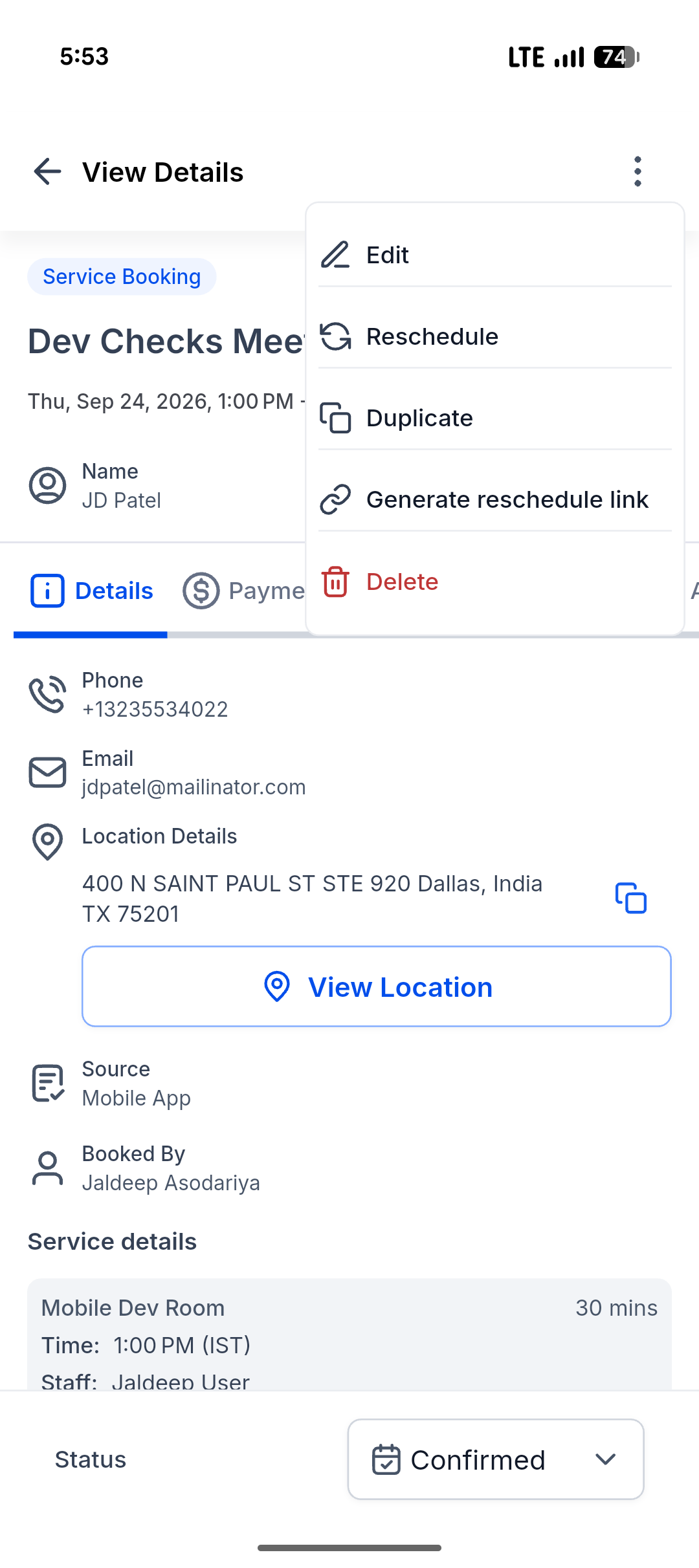
The feature gives full control over Service Calendar v2 bookings from within the HighLevel mobile client. After opening an appointment you see a three dot menu that supplies actions such as edit, reschedule, duplicate, delete, and generate a reschedule link. Each option follows the same rules as the web calendar, including restrictions for paid appointments.
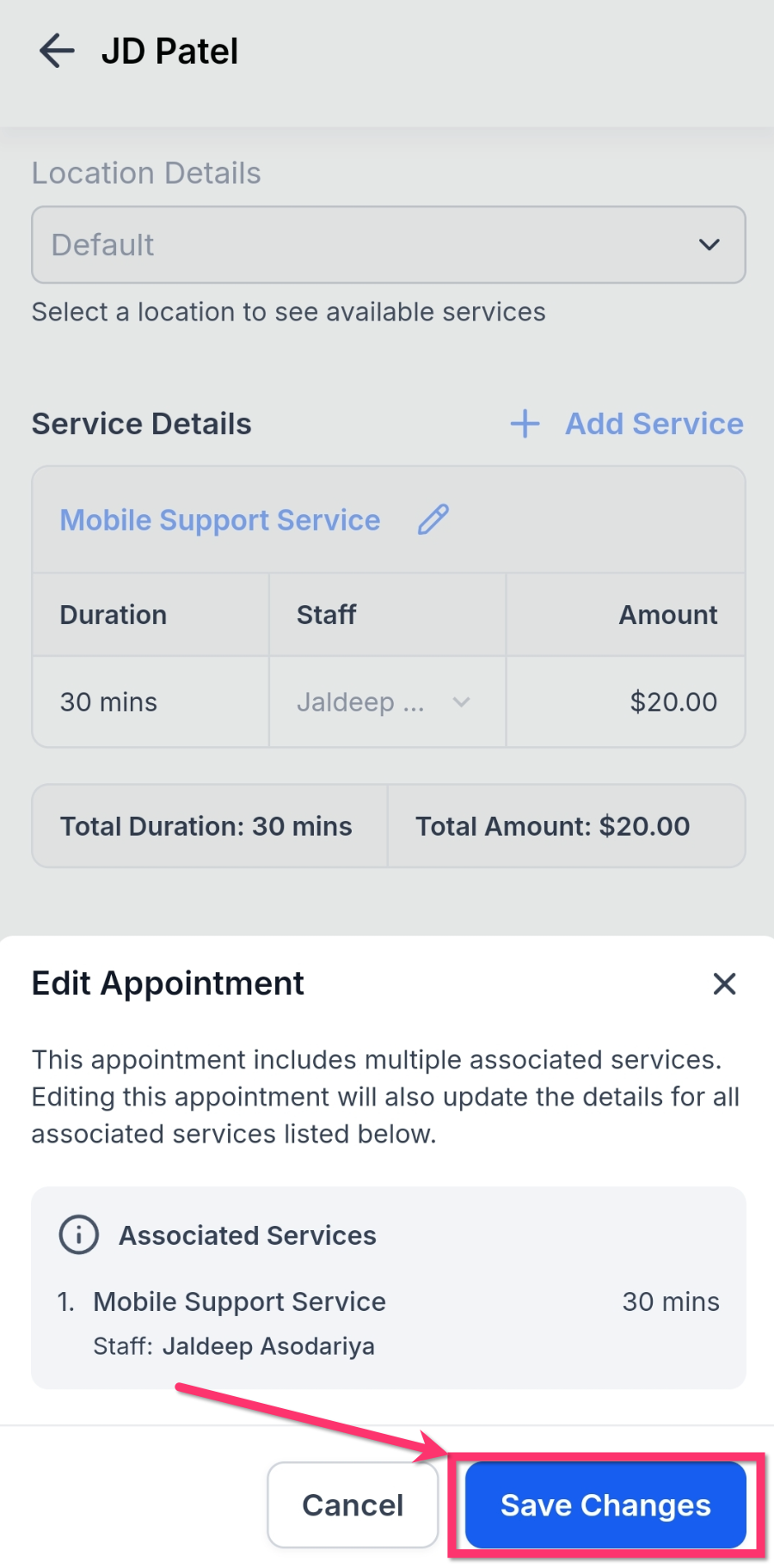
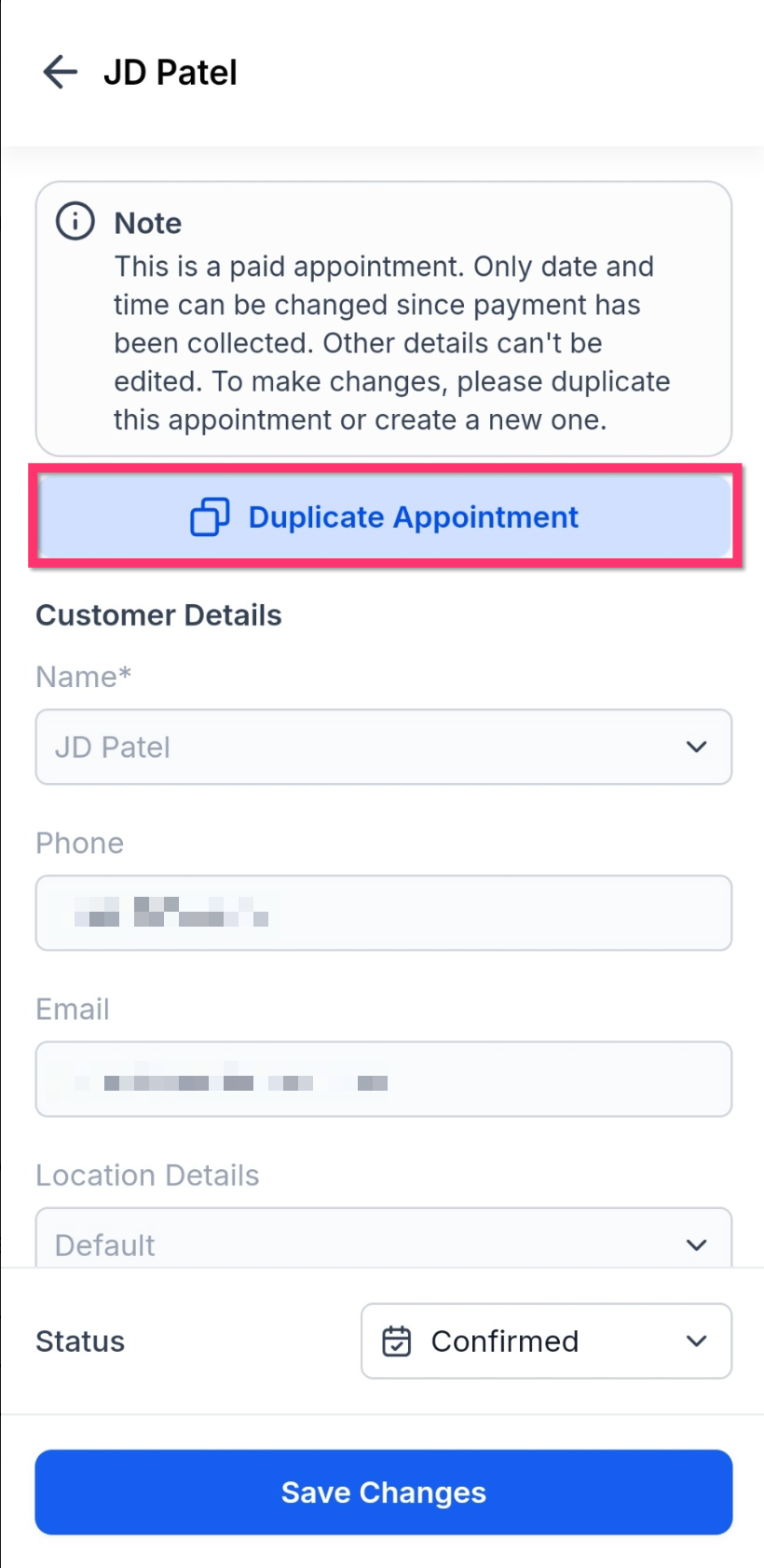
When you choose an action, the app presents the appropriate screens, date pickers for rescheduling, pre filled fields for duplication, or a confirmation dialog for deletion. For paid bookings, only date and time can be changed; service, staff and other structural data stay locked. The reschedule link option copies the URL to the clipboard and opens the device’s native share sheet.
All of this lives exclusively in the HighLevel mobile app, LeadConnector mobile app, or any white labeled version that runs version 4.10.0 (810) or newer.
03How businesses use service v2 appointments
- Hair salon. A stylist can open a client’s appointment, tap the three dot menu, and select Edit to change the service or add a new add on. If the client already paid, the stylist can only adjust the time, then Save Changes.
- Home repair service. A technician receiving a call can pick the appointment, choose Duplicate, modify the service date to today, and save the new booking for an urgent repair without re entering all details.
- Online tutoring business. A tutor can generate a reschedule link, share it via the phone’s messaging app, and let the student pick a new slot, while the original appointment remains unchanged.
04The numbers and rules that matter
- Service Calendar v2 appointments only.
- Mobile app version 4.10.0 (810) or later.
05Before you start
- The booking must be a Service Calendar v2 appointment.
- You need the HighLevel mobile app, LeadConnector mobile app, or a white labeled mobile version.
- The app must be version 4.10.0 (810) or later.
06How to set up and use service v2 appointments in HighLevel
Manage Service v2 appointments in the mobile app
- Open the HighLevel mobile application.
- Navigate to the Calendars section.
- Select any Calendar View you prefer.
- Tap the desired Service v2 appointment to view its details.
- Tap the three dot icon at the top right corner.
- Pick one of the actions: Edit, Reschedule, Duplicate, Delete, or Generate reschedule link.
- Read any notes, restrictions, or confirmation messages that appear.
- Adjust the fields required for the chosen action.
- If deleting, confirm the deletion when prompted.
- Tap Save Changes or confirm the deletion as prompted.
Share a reschedule link
- Open the Service v2 appointment you wish to share.
- Tap the three dot icon in the upper right corner.
- Select Generate reschedule link.
- Review the link in the sheet and tap Share.
- Choose an app from the device’s native share sheet.
07What it looks like in HighLevel
08Things to know before you rely on it
- Only Service Calendar v2 appointments are eligible for these actions.
- The feature exists solely inside the mobile app; it cannot be used in native or share link booking flows.
- Paid appointments lock service and staff fields; only date and time may be altered.
- If a reschedule link cannot be built, the sheet shows N/A and the Share button is disabled.
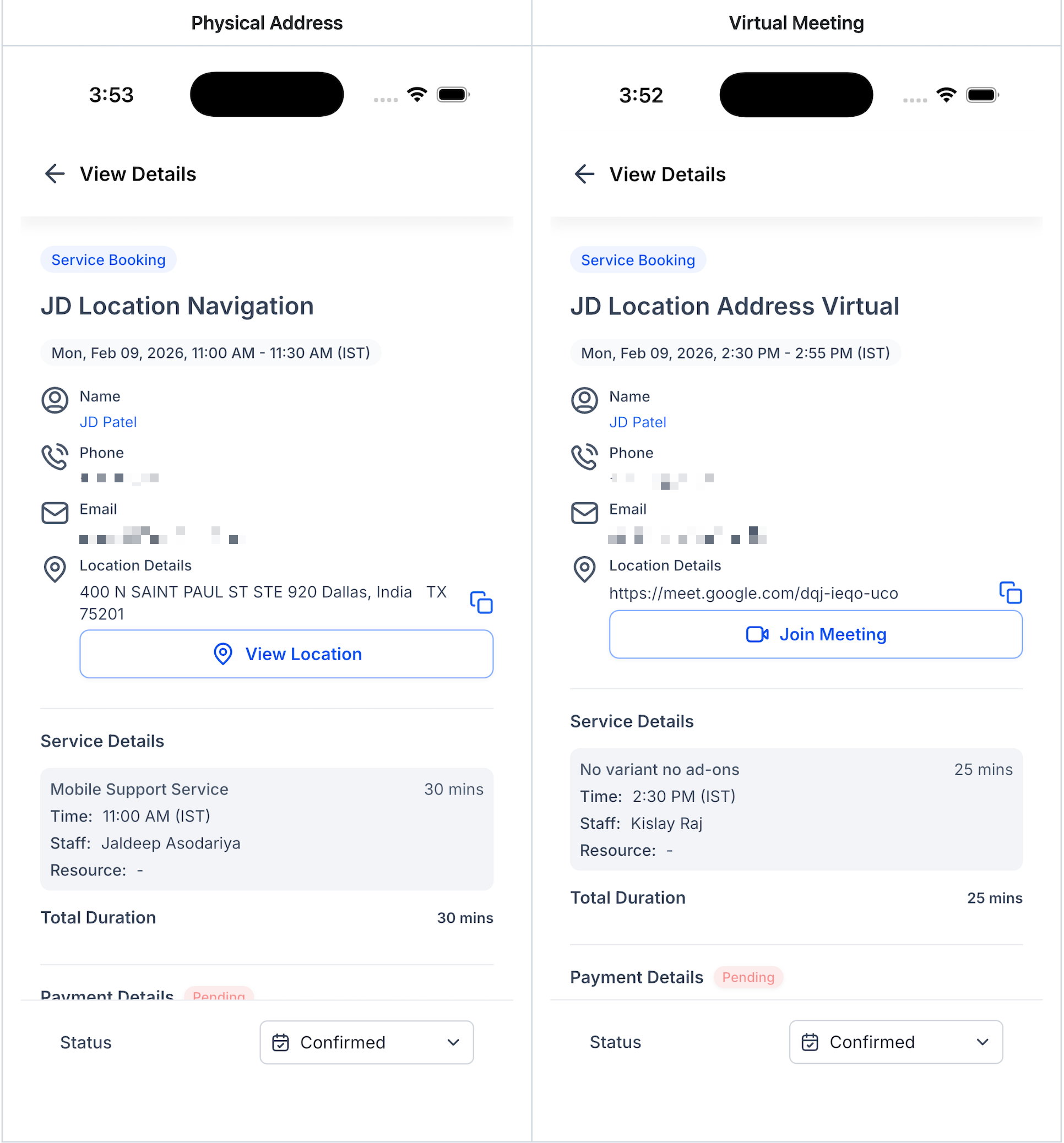
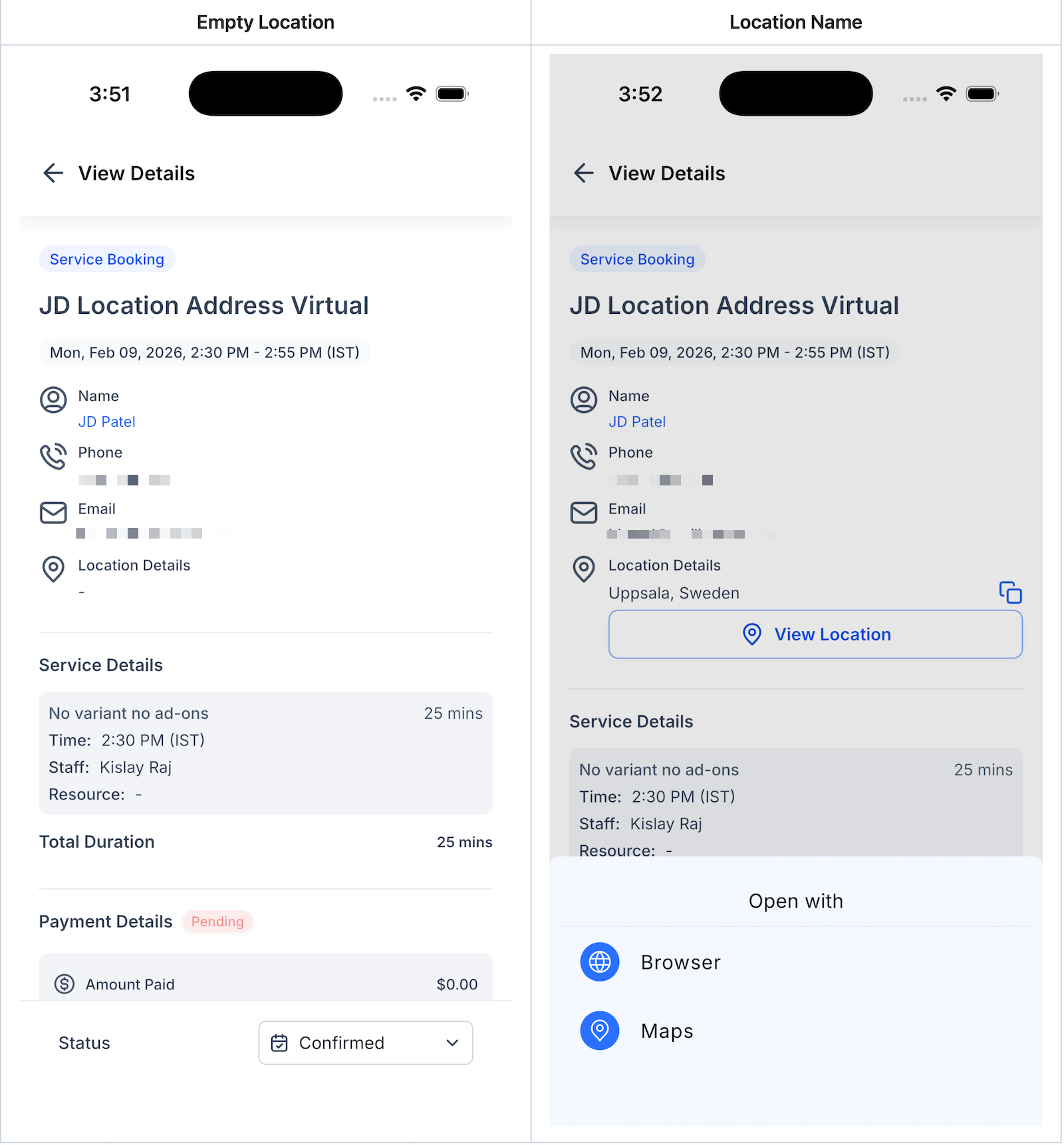
- Location display falls back to address, then name, then a dash if neither is available.
09How it connects to the rest of HighLevel
- Explore multiple calendar views in the mobile app Multiple calendar views
- Learn how to share calendar links from the mobile app Share calendar links
- See all features available for the HighLevel mobile and desktop apps All mobile features
Michael's take

People often assume they can change every field of a paid booking from their phone and end up hitting locked fields they didn’t expect. That stops them in the middle of a call and slows everything down.
I would begin with checking whether the appointment is unpaid or paid. If it’s unpaid, I edit the details right there.