
01Who this is for
- Agency owners who need to prepare client apps quickly, because the AI checks reduce manual review time.
- Small business Founders launching their own branded app, as the guided steps keep required information organized.
02AI verification, explained
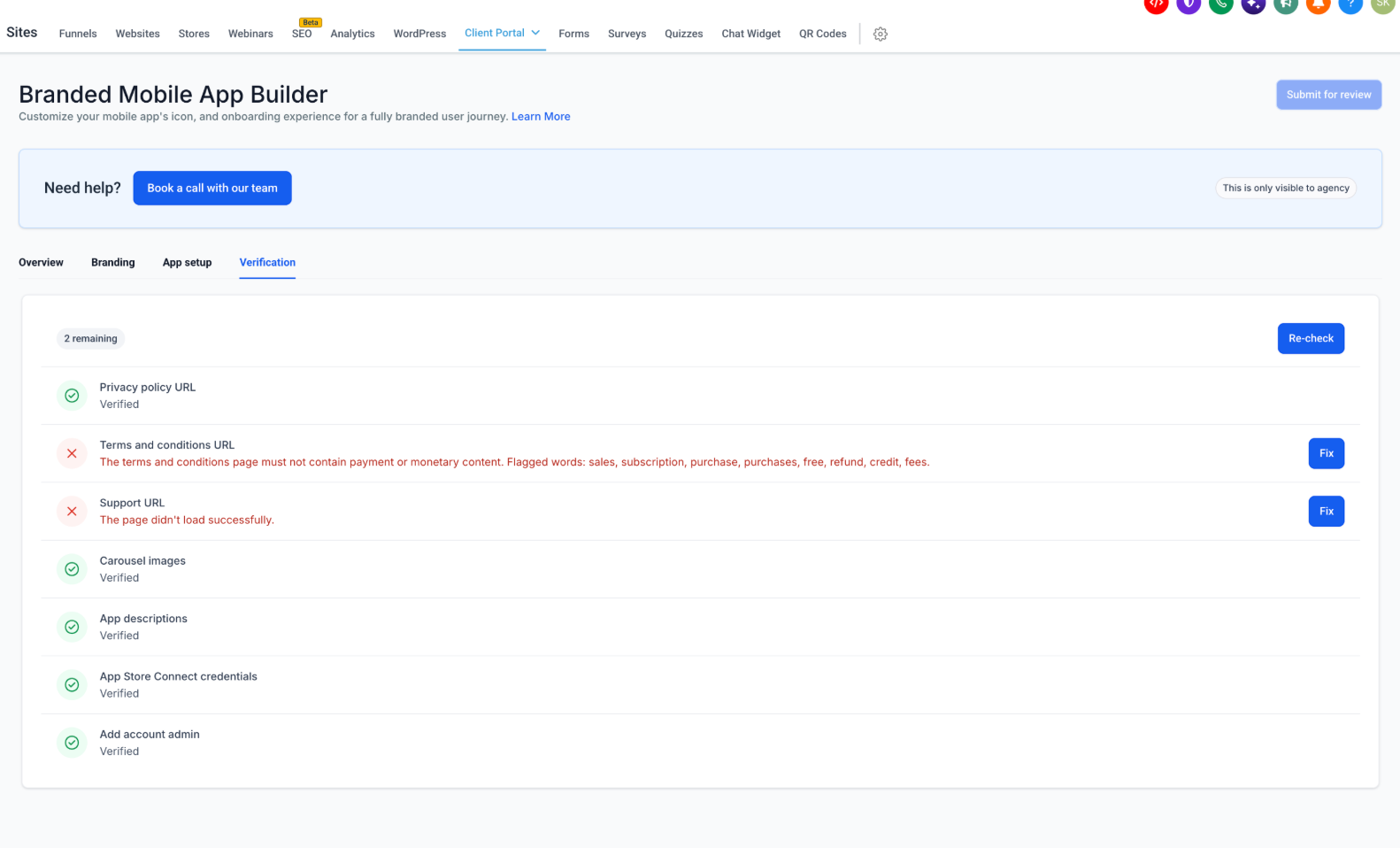
The feature runs an automated checklist on the information you enter in the Branded Mobile App Builder. It validates app icons, carousel images, legal page URLs, app descriptions, and developer account data. Results appear on a Verification tab, showing green checks for passed items and red Xs for issues that need fixing.
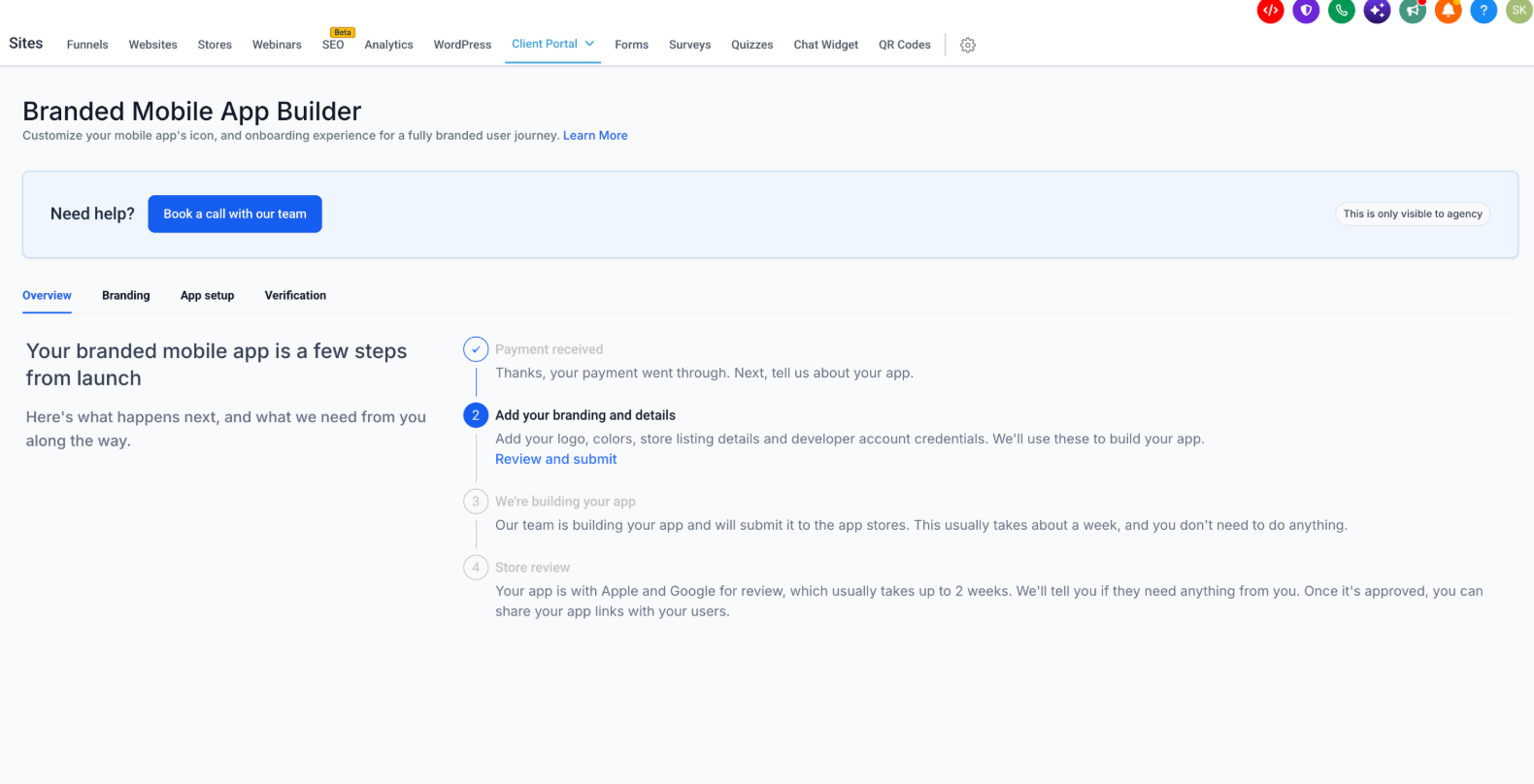
The builder lives under Sites > Client Portal > Branded Mobile App in each HighLevel subaccount. It contains four tabs, Overview, Branding, App setup, and Verification, guiding you through branding, personal info, app details, and development credentials before you can submit the app.
When all required checks pass, the Submit for review button becomes active, and HighLevel’s Pilot system forwards the app to Apple or Google. Passing the AI verification does not guarantee approval by the app stores.
03How businesses use AI verification
- Fitness studio. Upload a 1024 × 1024 PNG icon, add carousel images that showcase classes, and input the studio’s privacy policy URL. The AI verification will confirm the assets and legal pages before submission.
- Dental practice. Enter the practice’s contact name, support email, and a publicly accessible support URL. Provide the practice’s terms and conditions link and run verification to ensure the URLs load correctly.
- Ecommerce retailer. Supply Google and Apple developer emails, upload the App Store Connect key file, and add an administrator. The builder checks the developer credentials and admin access before allowing the app to be submitted.
04The numbers and rules that matter
- App icon: 1024 × 1024 pixels, PNG.
- Carousel image: 600 × 800 pixels, PNG, 50 character title limit.
- Play Store banner: 1024 × 500 pixels, PNG or JPG.
- App name: Up to 30 characters.
- App short description: Up to 80 characters.
- App description: Up to 4,000 characters.
- AI verification is designed to complete in seconds, replacing a manual review that could take up to five working days. Actual verification times may vary.
05Before you start
- You must be logged into a HighLevel subaccount.
- Payment for the Branded Mobile App must be confirmed.
06How to set up and use AI verification in HighLevel
Open the Branded Mobile App Builder
- Log in to your HighLevel subaccount.
- Navigate to Sites > Client Portal > Branded Mobile App.
- Select the Overview tab.
- Confirm that payment has been received before proceeding.
Configure Your App Branding
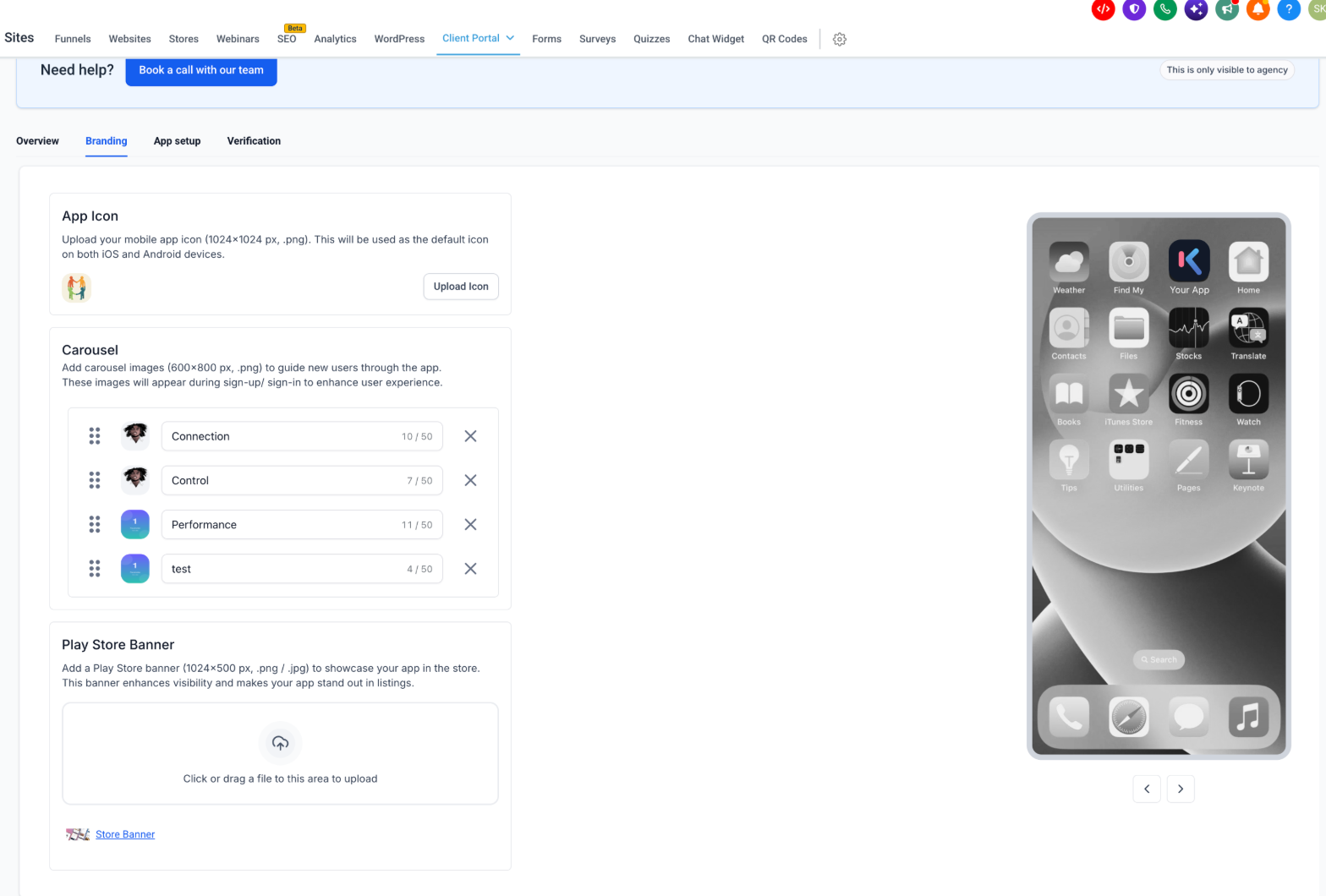
- Open the Branding tab.
- Upload an app icon that meets the required dimensions and format.
- Add carousel images, set titles, and arrange their order.
- Upload a Play Store banner with the correct size and file type.
- Use the device preview to review how the branding appears.
Enter Personal Information
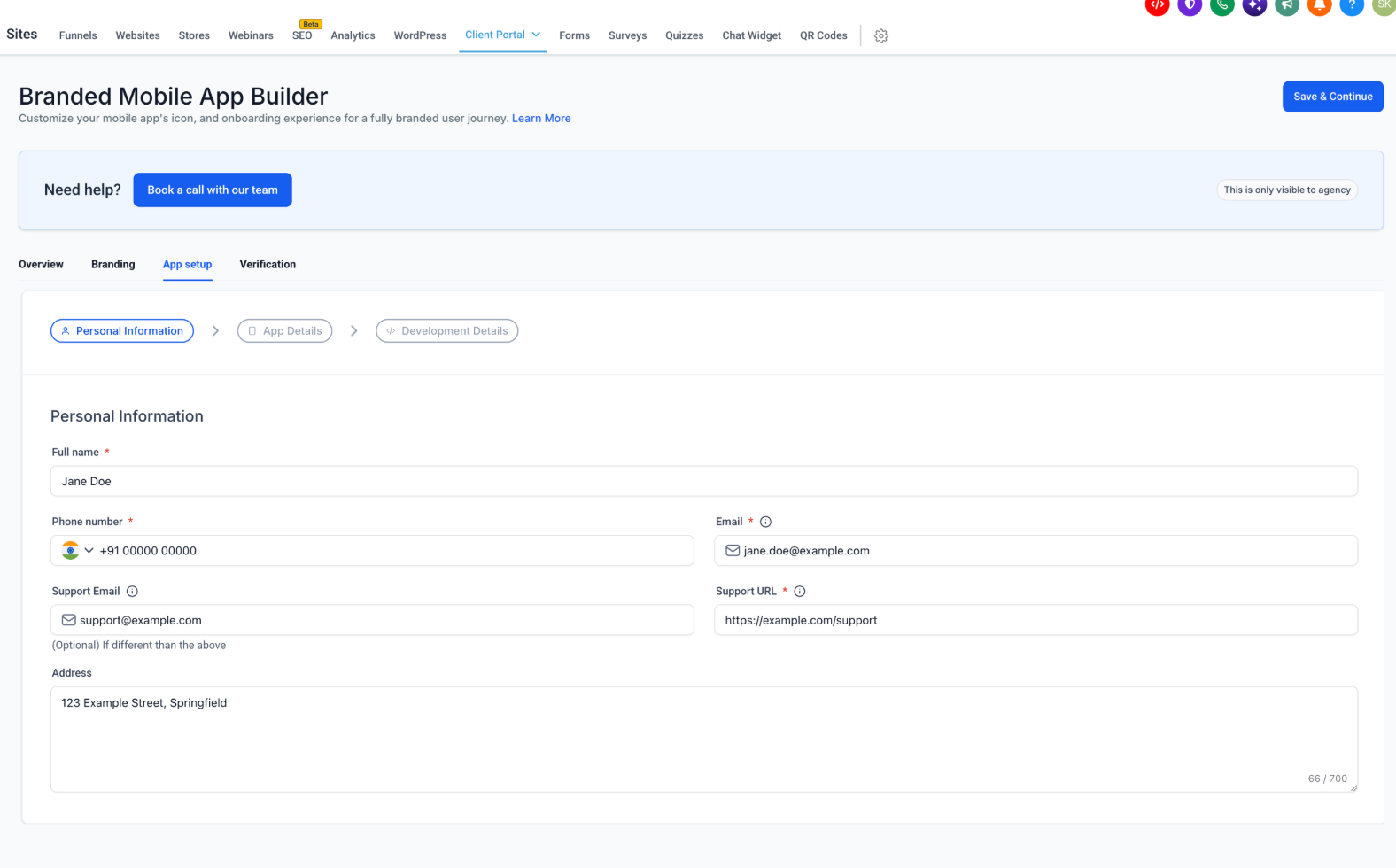
- Open the App setup tab and select Personal Information.
- Enter full name, phone number, and primary email address.
- Provide a support email (if different) and a publicly accessible support URL.
- Enter the address and click Save & Continue.
Add App Details
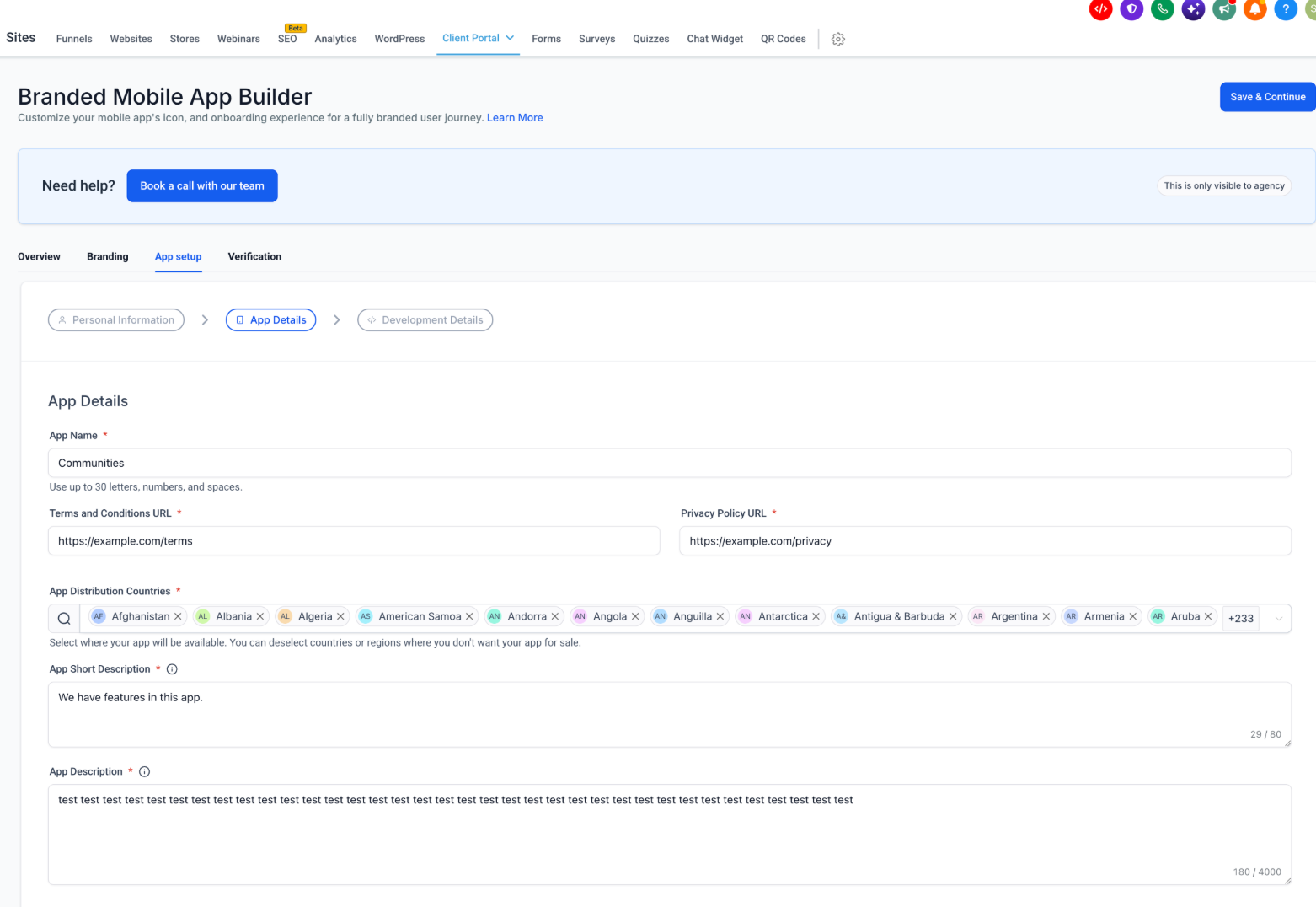
- Select App Details within the App setup tab.
- Enter the app name, terms and conditions URL, and privacy policy URL.
- Select the countries where the app will be distributed.
- Write an app short description within the character limit.
- Complete the full app description and click Save & Continue.
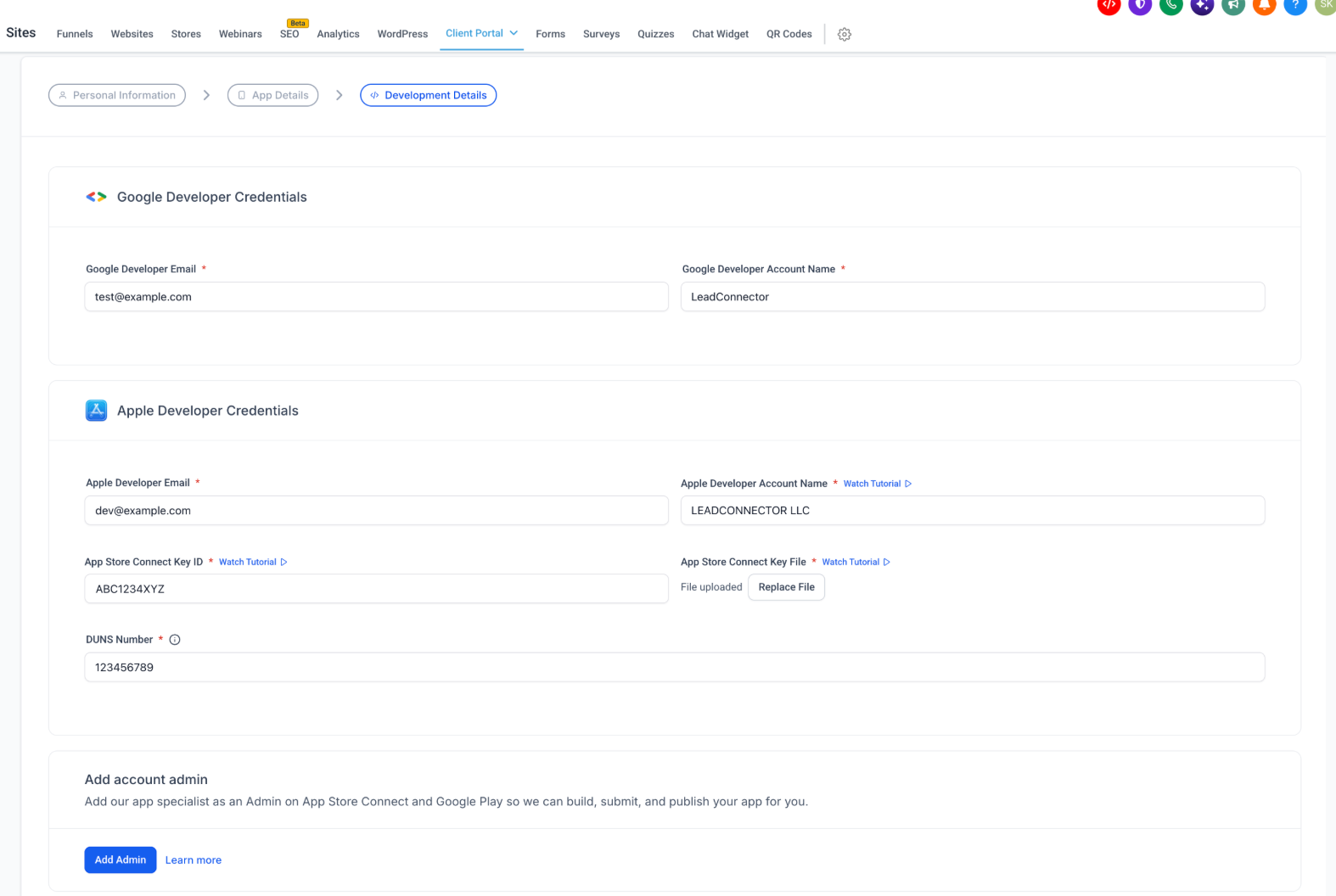
Provide Development Details
- Select Development Details in the App setup tab.
- Enter Google developer email and account name.
- Enter Apple developer email and account name.
- Provide the App Store Connect key ID and upload the key file.
- Enter the DUNS number.
- Click Add Admin, follow the instructions to grant required access, then save.
Review AI Verification Results
- Open the Verification tab.
- Examine the checklist and note any items marked with a red X.
- Click Fix beside a failed item to navigate to the related field.
- Update the information and save the changes.
Re run Verification
- In the Verification tab, click Re check.
- Wait for the automated checks to finish.
- Review the updated results and repeat if any checks still fail.
Submit Your Branded Mobile App
- Verify that all required checks show a green checkmark.
- Review branding and app details for accuracy.
- Click Submit for review when the button becomes active.
- Follow any final prompts displayed by the interface.
07What it looks like in HighLevel
08Settings that matter
- App Icon. Controls the image displayed as the app’s icon on iOS and Android devices.
- Carousel images. Controls the set of images shown during the app’s sign up or sign in flow.
- Play Store Banner. Controls the banner image used in the Google Play store listing.
- App Name. Controls the name that appears for the app in app stores and on devices.
- Privacy policy URL. Controls the link to the app’s privacy policy that AI verification checks for accessibility and content.
- Terms and Conditions URL. Controls the link to the app’s legal terms that AI verification checks for accessibility and content.
09Things to know before you rely on it
- App icon must be a 1024 × 1024 PNG file.
- Carousel images require 600 × 800 PNG files and titles limited to 50 characters.
- Play Store banner must be 1024 × 500 PNG or JPG.
- App name can contain up to 30 characters; short description up to 80 characters; full description up to 4,000 characters.
- AI verification results appear in seconds but actual time may vary.
- Passing AI verification does not guarantee approval from Apple or Google.
- Submitted app details cannot be changed after clicking Submit for review.
10If something goes wrong
- Terms and Conditions URL fails verification. Read the error message, edit the linked page to remove restricted content, then run Re check.
- Support URL fails verification. Open the URL in a browser, ensure it loads without login, correct the link or page availability, and re run verification.
- Submit for review button is disabled. Go to the Verification tab, resolve all red X items, click Re check, and ensure every required check shows a green checkmark.
11How it connects to the rest of HighLevel
- Promote and customize your whitelabel mobile app Whitelabel app guide
- View HighLevel pricing and plans Pricing page
- Start a 30 day HighLevel trial Free trial
Michael's take

Most people think the AI check will automatically make the app store happy. It only tells you what HighLevel can validate. Missing URLs, wrong image sizes or credential mismatches. The store still runs its own review, so you must treat the AI results as a preflight checklist, not a final stamp of approval.
If I were setting up a new branded app, I would run the verification early, fix every red X, and then do a quick manual browse of each public URL to confirm they load cleanly. That extra glance catches the few cases where the AI flags a page as reachable but the content still isn’t what the stores expect.