
01Who this is for
- Founders who run marketing automation need reliable personalization without manual edits.
- Customer support teams benefit from consistent data insertion in email replies and AI prompts.
- Sales managers use merge fields to embed appointment times and invoice totals directly in proposals.
02Merge fields and email fallback values, explained
Merge fields are tokens such as {{contact.first_name}} that the platform replaces with real data from the record that triggers the content. They work in emails, text messages, documents, workflow actions, calendar settings, and supported AI prompts. The correct value appears only when the required record, contact, appointment, invoice, company, or booking, is present in the action.
Fallback values are small pieces of text you attach to a specific merge field usage inside an email. If the original field is empty, the fallback text displays instead, keeping the message readable. The fallback does not alter the underlying record and can differ for each occurrence of the same field.
Both features are accessed through the Merge Field or Custom Value picker inside the editor. The picker lists only the fields that are valid for the current content type and record context, reducing formatting errors.
03How businesses use merge fields and email fallback values
- Real estate agency. Agents insert {{contact.first_name}} and {{appointment.start_time}} into property showing reminders. If a client’s phone number is missing, they add a fallback like “(no phone on file)” so the reminder still reads clearly.
- Dental practice. The office templates pull {{appointment.date}} and {{contact.email}} into appointment confirmations. When a patient’s email is not on record, a fallback such as “email unavailable” appears in the message.
- SaaS startup. The onboarding workflow uses {{invoice.total_amount}} in welcome emails. If an invoice amount has not been generated yet, a fallback of “to be determined” keeps the email professional.
04The numbers and rules that matter
- Merge fields insert saved data into emails, messages, documents, workflows, calendars, and supported AI prompts.
- Fallback values are supported in email templates, workflow emails, campaign emails, and bulk emails, including subject lines and preview text.
05Before you start
- The source field must contain a saved value.
- The action must have access to the required record type (contact, appointment, invoice, etc.).
- Insert the token using the Merge Field, Custom Value, or { } picker.
- Confirm the editor you are using supports the chosen merge field.
- Save fallback text for the specific merge field tag inside the email.
- Test with a record that mimics the expected data conditions.
06How to set up and use merge fields and email fallback values in HighLevel
Insert a merge field into content
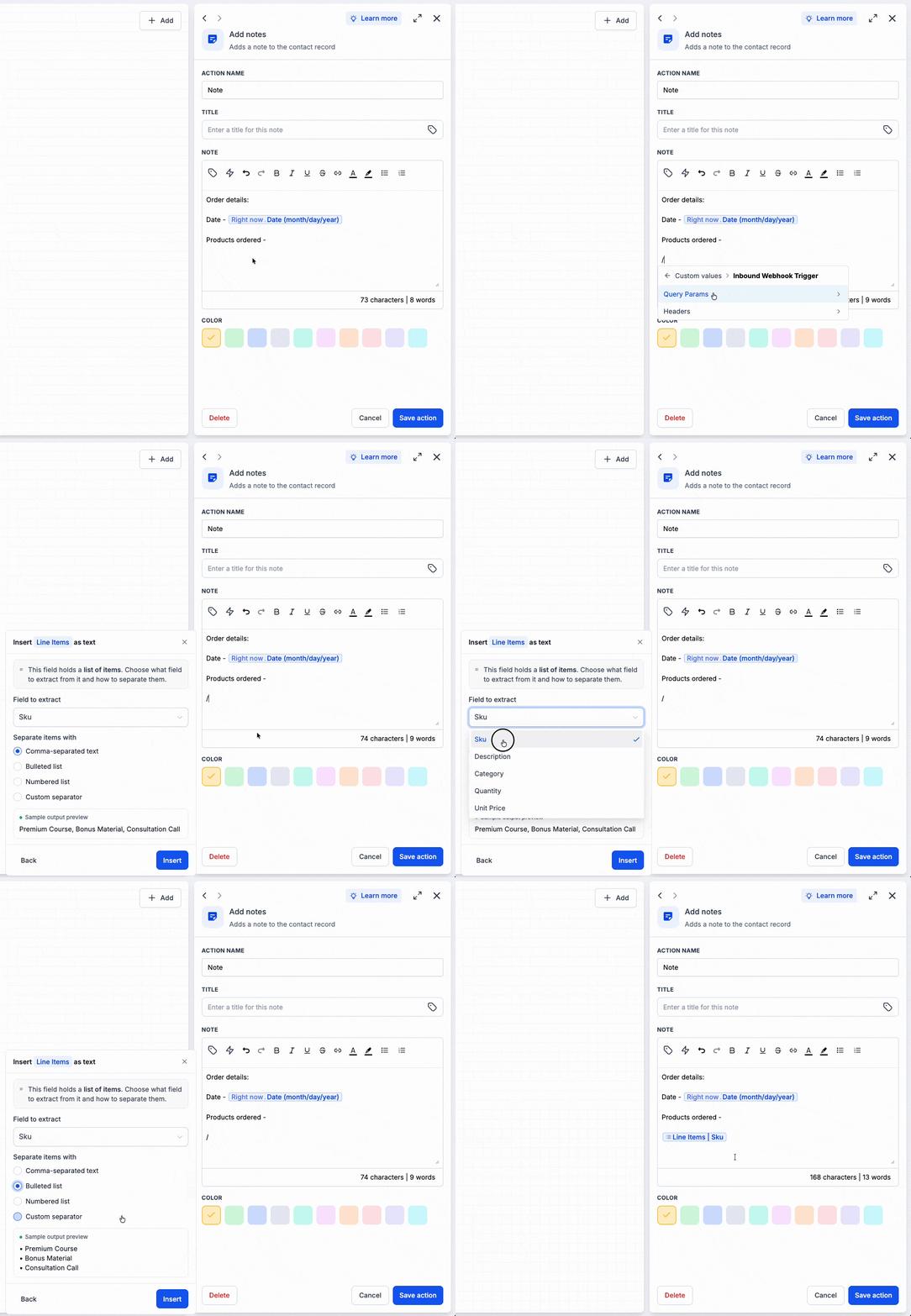
- Open the email, message, workflow action, document, calendar setting, or AI prompt you want to edit.
- Click in the text area where the personalized data should appear.
- Select the Merge Field, Custom Value, or { } icon to launch the picker.
- Enter a keyword or browse the categories to locate the desired field.
- Choose the field from the list; the exact token is inserted at the cursor.
- Read the surrounding sentence to ensure the token fits naturally.
- Save the edited content.
- Run a test using a record that contains the required data.
- Verify that the generated output shows the correct value before publishing.
Add an email fallback value
- Create a new email or edit an existing one.
- Insert the merge field token or find the existing tag you want to augment.
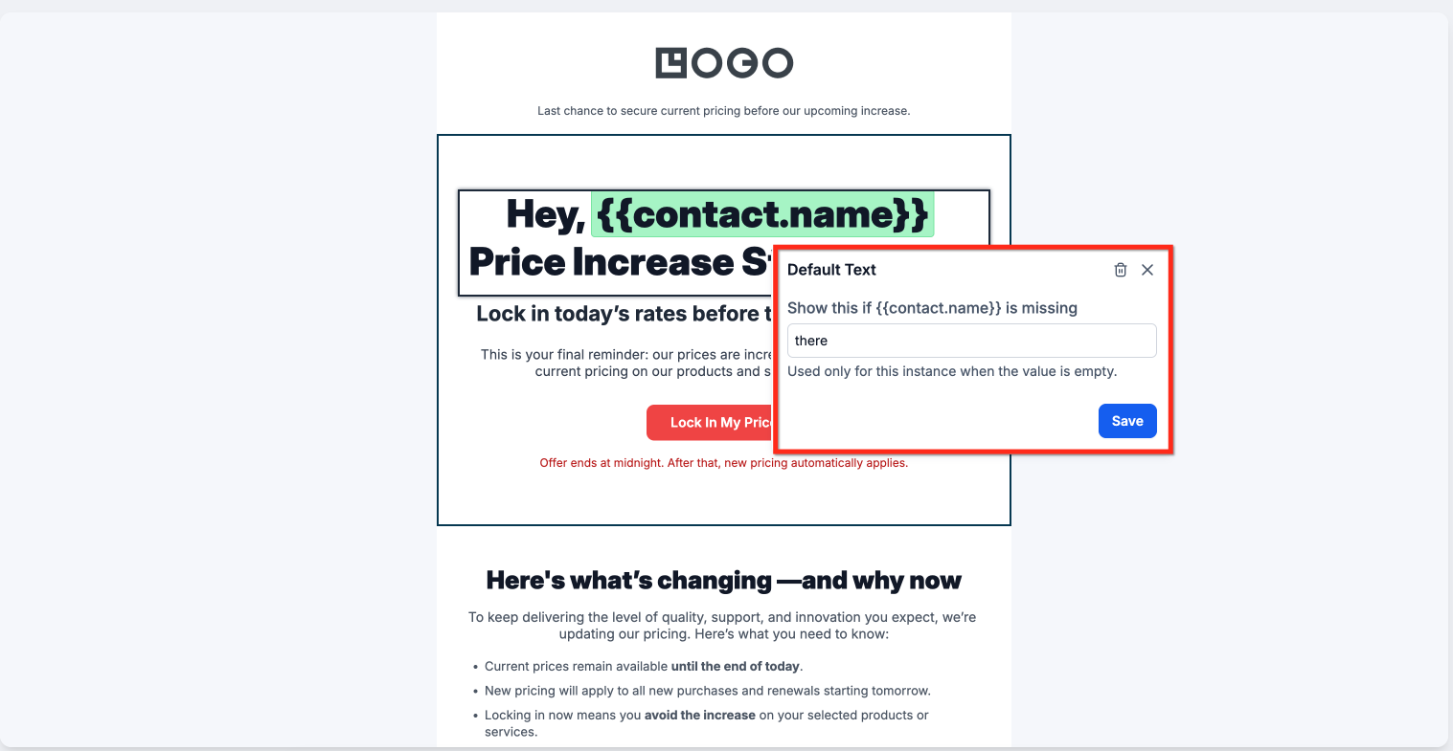
- Click the token to open the Default Text editor.
- Type the fallback text that should appear when the field is empty.
- Save the fallback setting.
- Send a test email using a contact whose field is blank to confirm the fallback displays.
07What it looks like in HighLevel
08Settings that matter
- Merge Field picker. Displays a searchable list of supported fields for the current editor and record context, inserting the exact token when selected.
- Custom Value picker. Provides reusable values that can be inserted like merge fields, ensuring consistent information across templates.
- Default Text editor. Allows you to define fallback text for a specific merge field occurrence within an email.
09Things to know before you rely on it
- Available fields vary by product, editor configuration, user permissions, and the record context present when the content is generated.
- Raw phone fields ending in _raw strip spaces, parentheses, and dashes; they are intended for links or tracking parameters.
10If something goes wrong
- The value is blank. Make sure the source record holds data and that the action includes the needed record context.
- The raw token remains visible. Delete the token and reinsert it using the picker; also verify the editor supports that field.
- The wrong user appears. Check the assigned user, appointment owner, or sender linked to the action.
- A Company field is blank. Confirm the contact is linked to the correct Company and that the selected Company field contains data.
- An email fallback does not appear. Ensure the fallback was saved for that exact tag in a supported email area.
- An AI Agent uses the value awkwardly. Add instructions for missing values in the prompt and retest the conversation.
11How it connects to the rest of HighLevel
- View the full list of merge fields supported by HighLevel Merge fields reference
- Learn how merge fields and custom variables work together Merge fields overview
- Start a 30 day trial to test merge fields in your own account 30 day trial
Michael's take

Watch out for missing record context; a merge field will render blank if the needed contact, appointment or other record isn’t present when the content is generated. That’s a common source of empty values that can slip through testing.