
01Who this is for
- Agency owners who need to deliver ready made structures to multiple client subaccounts quickly.
- Service businesses such as real estate or home services that require industry specific data fields without building them from scratch.
02Custom object templates, explained
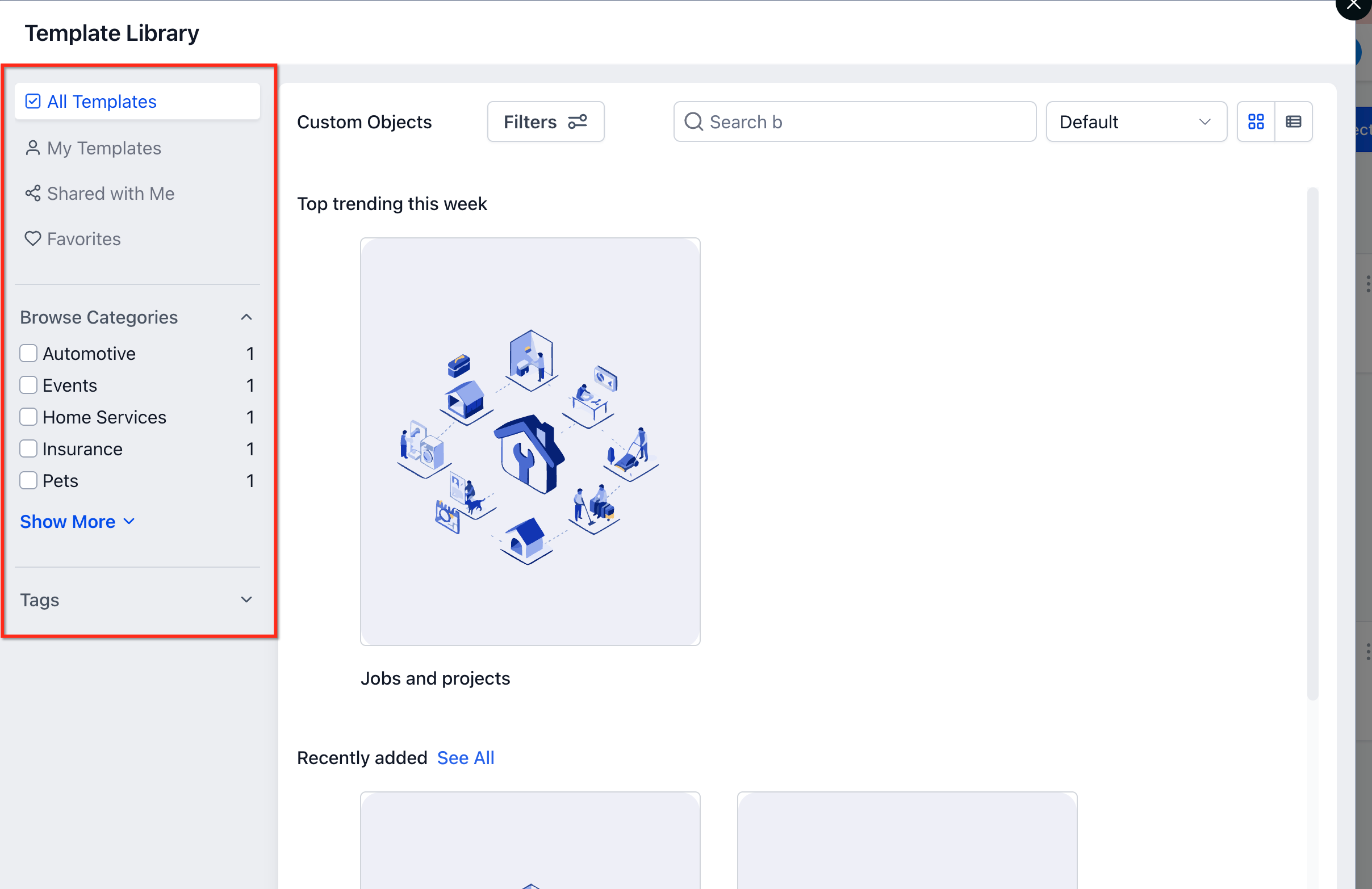
Custom Object Templates provide a bundle of Custom Objects, grouped fields, folders and optional associations that match common industry processes. When a template is imported, the platform creates those objects and their relationships in a single operation. The templates live in the Template Library, which can be accessed from Settings > Objects when adding a new Custom Object.
The Template Library may have visibility controls that let agency admins decide which subaccounts can see or import specific templates or categories. Those controls are managed from the Agency Dashboard and affect only subaccount users; agency users always retain access.
03How businesses use custom object templates
- Real estate brokerage. The brokerage selects the Real Estate template from the Template Library, imports the objects, and then tweaks the property fields to match its listing forms. All custom objects appear ready for use in the broker’s pipeline.
- Automotive service center. The service center chooses the Automotive template, imports the predefined service record objects, and adds a few extra fields for warranty details. The imported structure organizes vehicle work orders without manual setup.
- SaaS startup. The startup applies the SaaS template, which creates objects for subscriptions and usage metrics. After import the team adjusts field names to align with their product terminology.
04The numbers and rules that matter
- Supported industries: Real Estate, Insurance, Automotive, SaaS, Events, Pets, Home Services.
05How to set up and use custom object templates in HighLevel
Apply a Custom Object Template
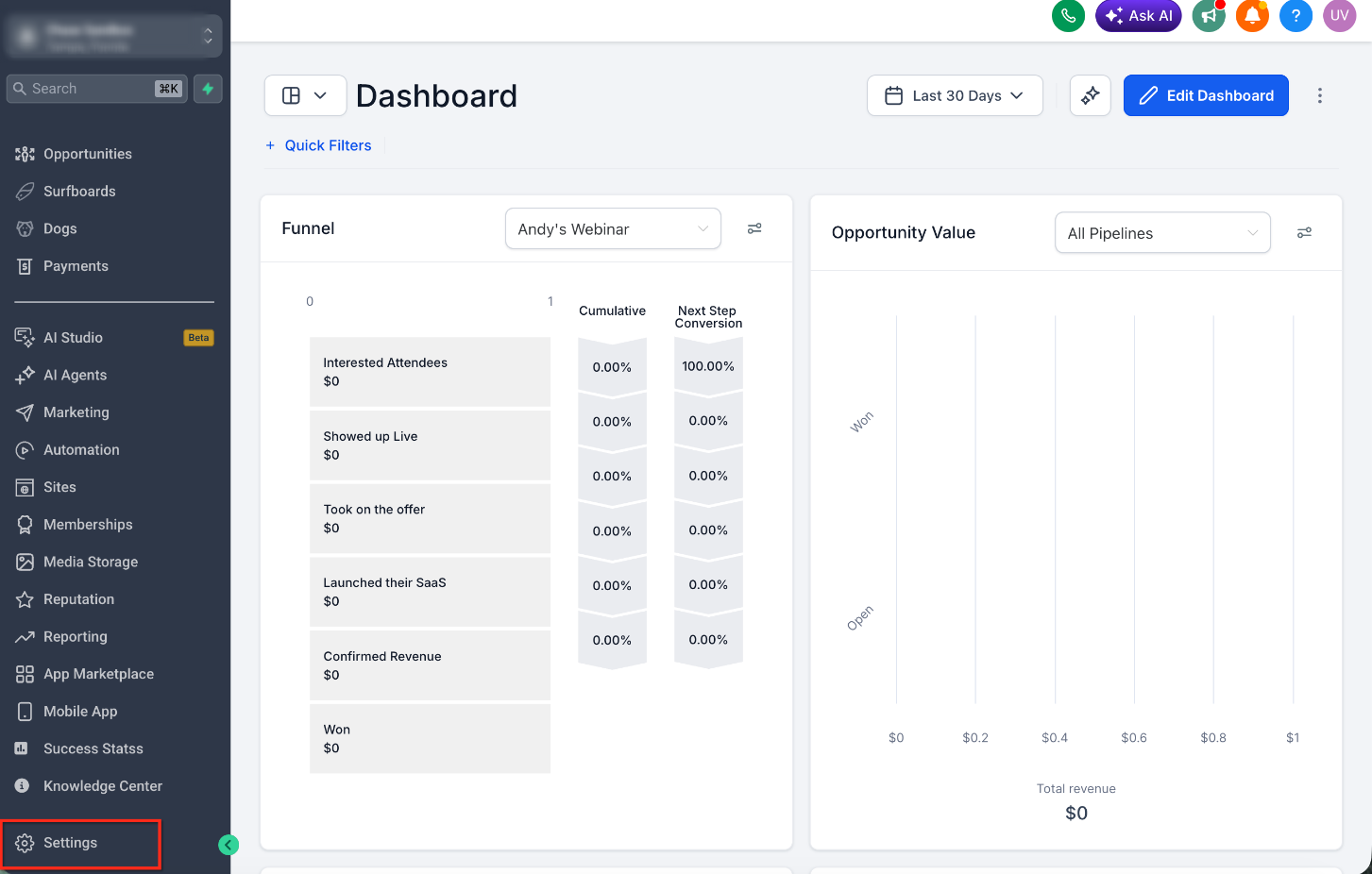
- Open Settings from the main navigation.
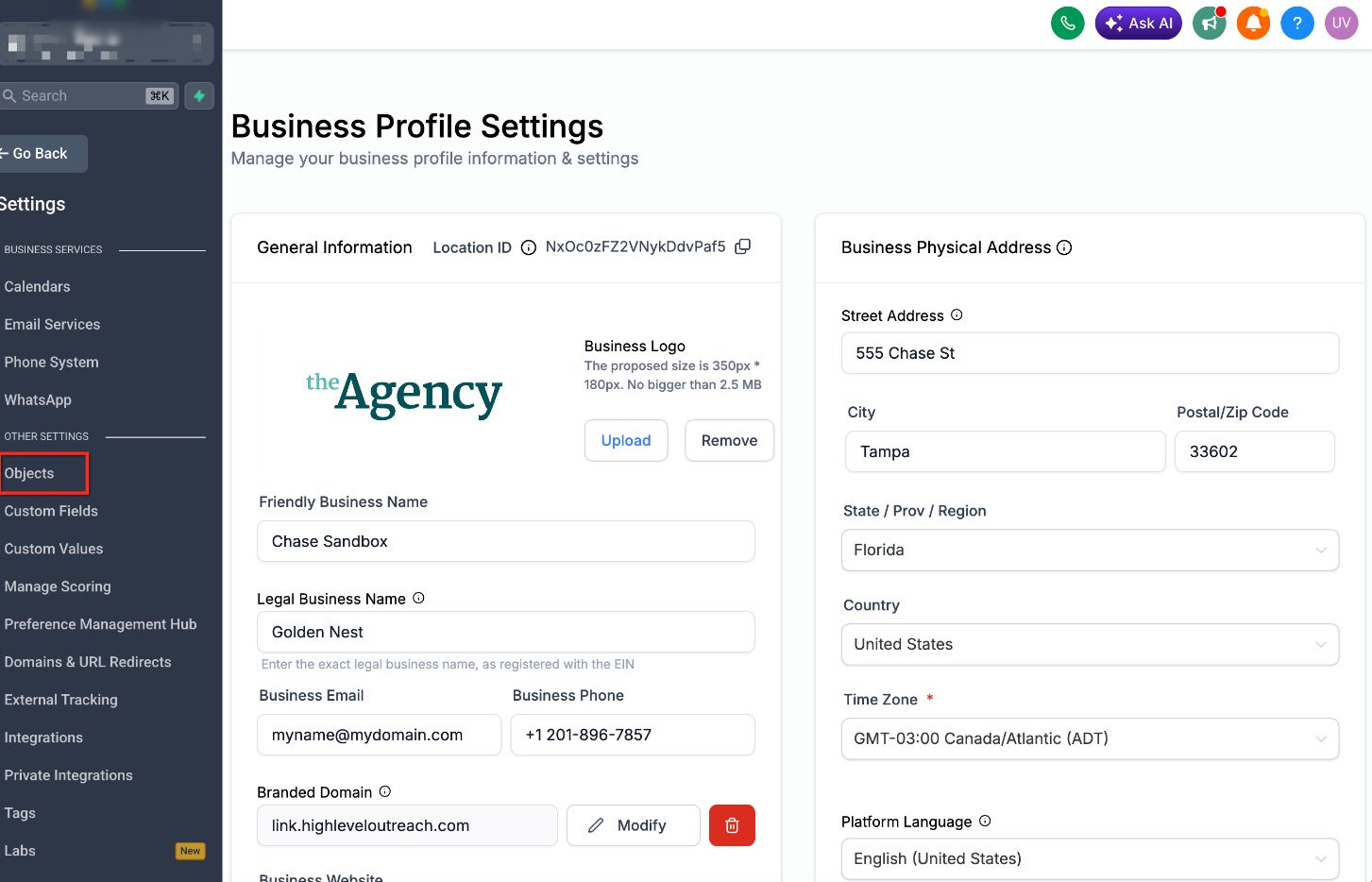
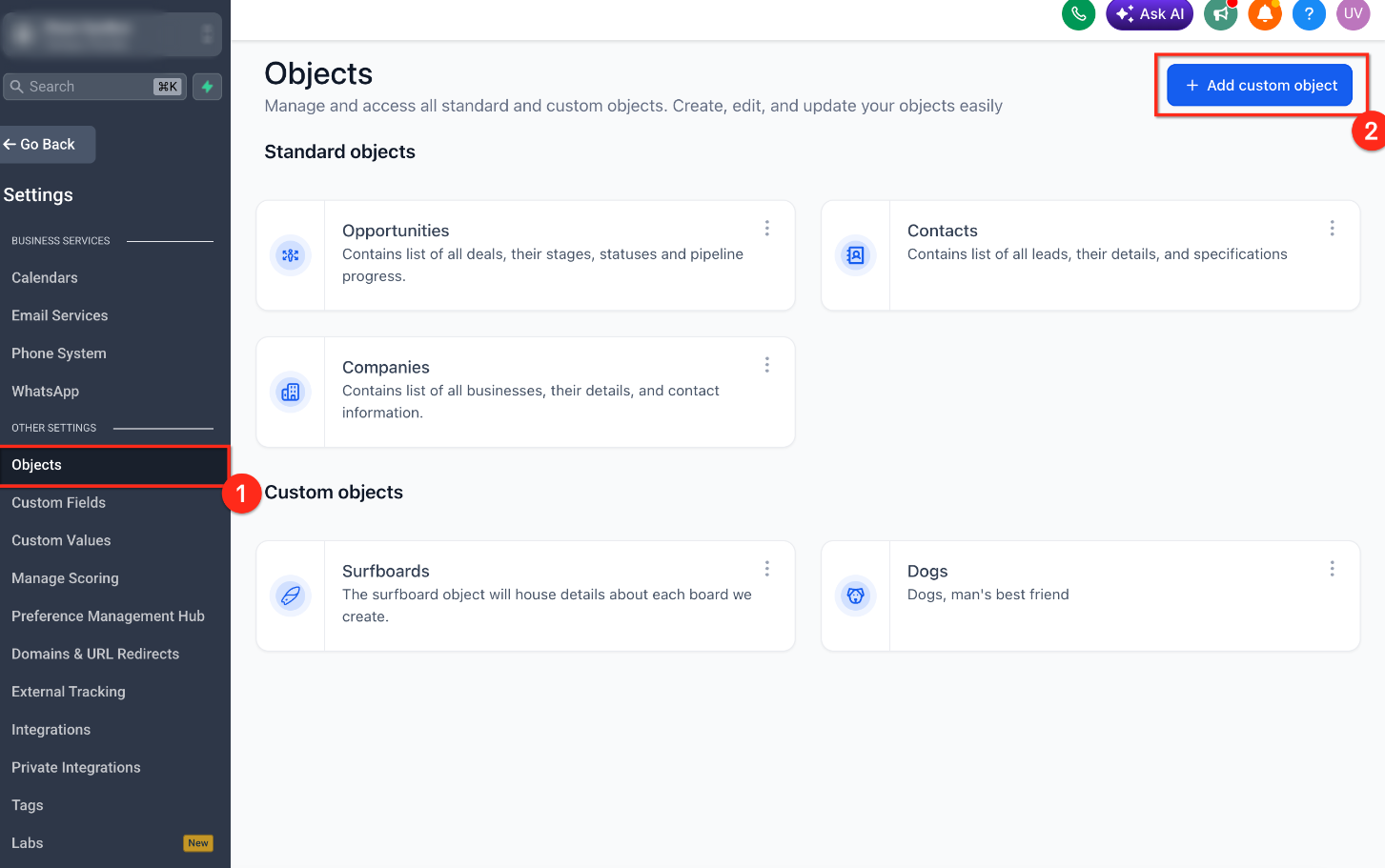
- In the left pane, choose Objects.
- Select Add Custom Object.
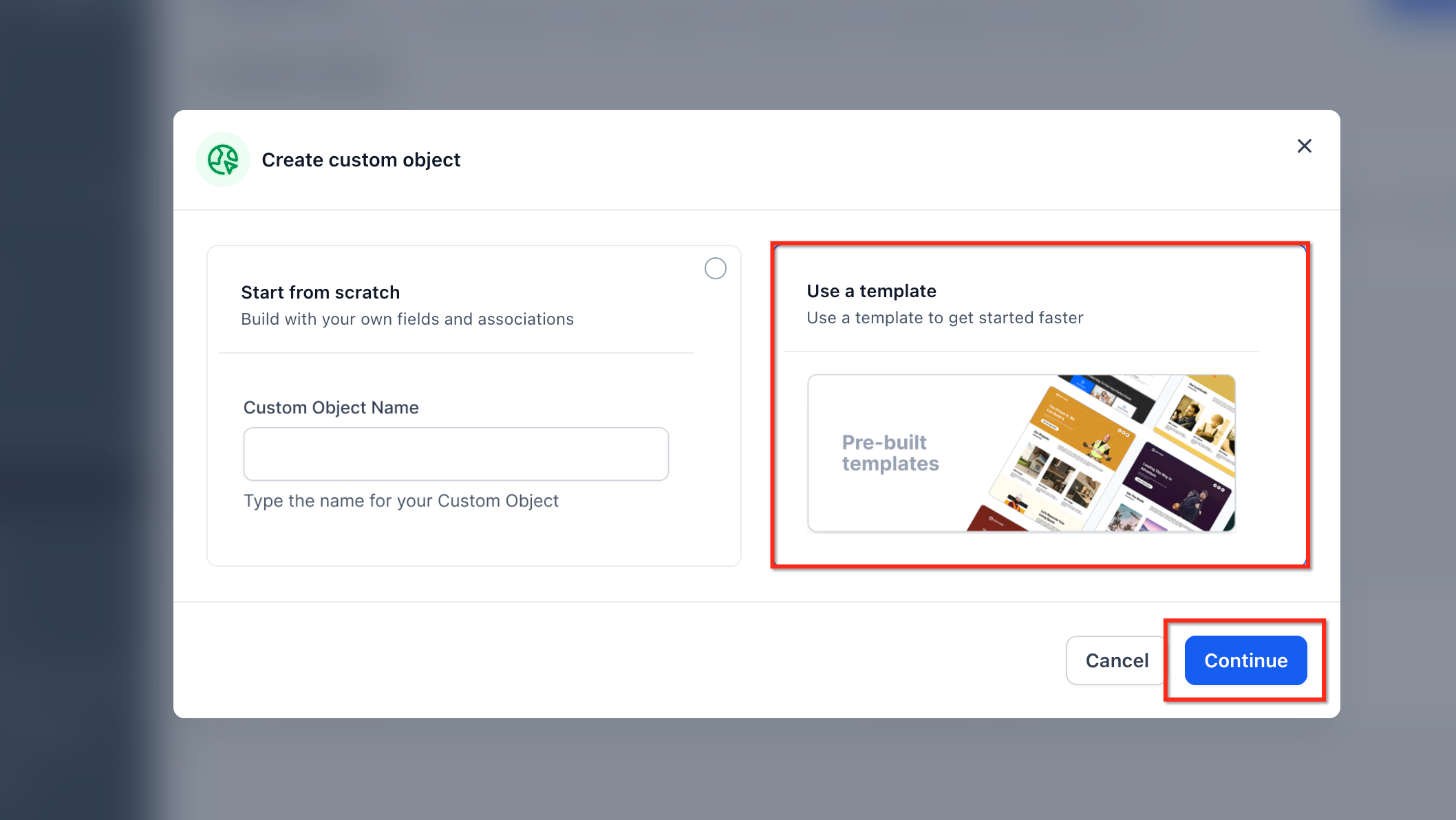
- Pick the option to use a template for creating objects.
- Browse the list of available Custom Object Templates.
- Select the template that matches your industry or use case.
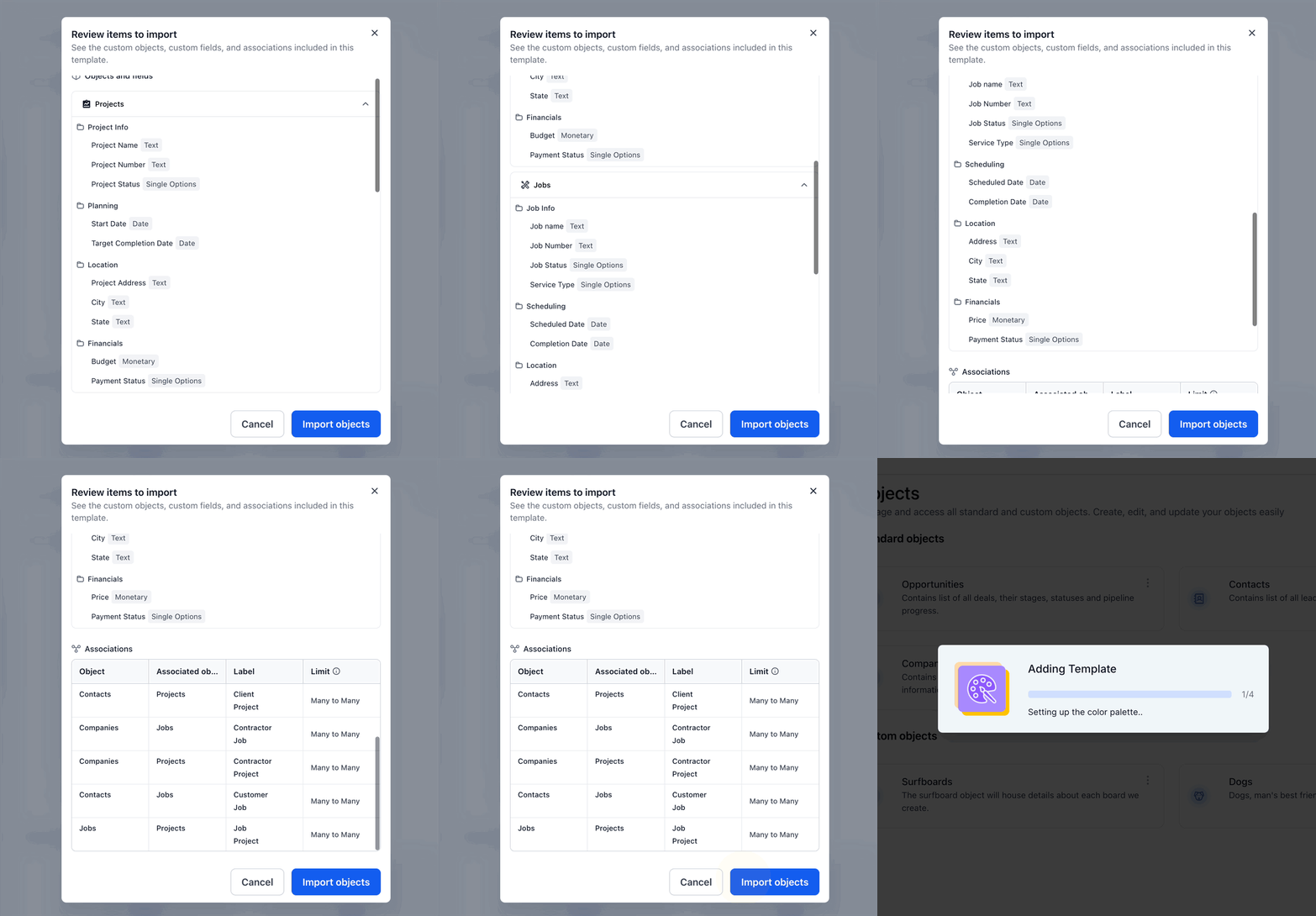
- Examine the preview, which shows objects, fields, associations, description, tags and any prerequisites.
- Press Import Objects to bring the template into your account.
- Check the newly created Custom Objects and modify them as needed.
Manage Template Visibility for Subaccounts
- From the Agency Dashboard, open Template Library using the left navigation.
- Click the Settings gear icon in the top right corner.
- Select the Customize for Subaccount Settings tab.
- Search for the target subaccount and click Edit.
- Choose whether to hide the entire library, show it, or hide only specific modules such as Custom Objects.
- Switch to the Categories tab and toggle visibility for each category you want to expose or conceal.
06What it looks like in HighLevel
07Settings that matter
- Template Library Visibility Controls. Determines whether subaccounts can browse or import templates and which categories are shown.
- Customize for Sub, Account Settings. Controls visibility options for each individual subaccount, including full hide, show, or module specific hide.
- Categories. Allows toggling of individual industry categories (e.g., Real Estate, Insurance) within the Template Library.
08Things to know before you rely on it
- Templates only create the object structure; they do not generate customer records or sample data.
- No workflow or sample data is included in a template.
- Users cannot create or save their own Custom Object Templates.
- Importing a template adds new objects but does not overwrite existing Custom Objects.
- Assets created from a hidden template remain editable for users.
- Visibility changes apply right away and affect only subaccount users.
09How it connects to the rest of HighLevel
- Learn how to create and organize custom fields for better data management. Custom fields guide
- Step by step instructions for using custom fields within HighLevel. How to use custom fields
- Overview of HighLevel pricing and plan options. Pricing
Michael's take

Custom object templates are worth the time you spend building a tailored CRM for a small business because they collapse weeks of design into a single click, giving you industry ready objects and relationships right away.
Don’t forget to preview the template before you import it, or you’ll waste effort fixing mismatched fields later.