
01Who this is for
- Founders who need a single source for company contact details, ensuring consistent information across all client communications.
- Marketing teams that reuse standard messaging such as taglines or legal disclosures, saving time when the text changes.
- Support managers who want the same support email and phone number in tickets, chat responses and automated replies.
02Custom Values, explained
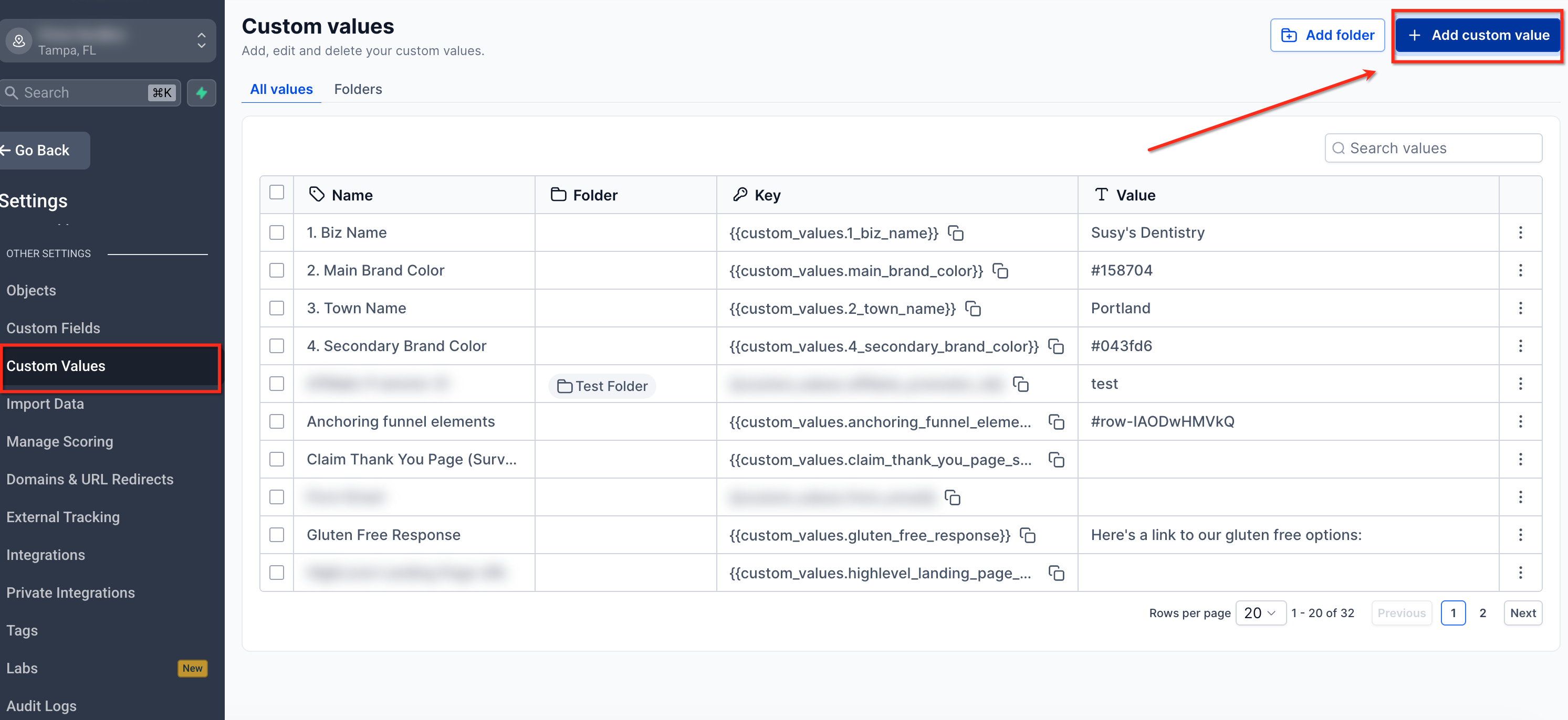
Custom Values are reusable placeholders created under Settings > Custom Values. Each entry consists of a name, the stored value and an automatically generated merge field that can be placed in any supported content area. The merge field follows the double curly brace syntax and is replaced with the stored value when the content is displayed or sent.
These values can be used in emails, SMS, workflow messages, website pages, funnels, social planner posts and other parts of the platform that support merge fields. Updating a Custom Value changes the displayed information everywhere the merge field is used, keeping communications synchronized without editing each item individually.
Custom Values are distinct from Custom Fields, which store data specific to individual contacts or opportunities. Use Custom Values for information that stays the same across the business, and organize them into folders for easier management.
03How businesses use Custom Values
- Real estate brokerage. The brokerage creates a Custom Value for its office phone number and inserts the merge field into email templates, flyer pages and automated follow up messages. When the office number changes, the broker updates the Custom Value once, and every template reflects the new number.
- Online course provider. The provider defines a Custom Value for the course enrollment link and places the merge field in welcome emails, workflow notifications and landing pages. Changing the enrollment URL requires only an edit of the Custom Value, right away updating all points of contact.
- Dental practice. The practice sets a Custom Value for its standard disclaimer text. The disclaimer merge field is added to appointment reminder SMS, email confirmations and the practice’s website footer. Updating the disclaimer once ensures all patient communications show the latest statement.
04The numbers and rules that matter
- Supported features include Conversations, Automations and Workflows, Websites and Funnels, Email Campaigns and Templates, and Social Planner.
05Before you start
- Before deleting a Custom Value, confirm it is no longer referenced in any templates, workflows, pages or other content.
06How to set up and use Custom Values in HighLevel
Create a Custom Value
- Open Settings and choose Custom Values.
- Select the + Add Custom Value button.
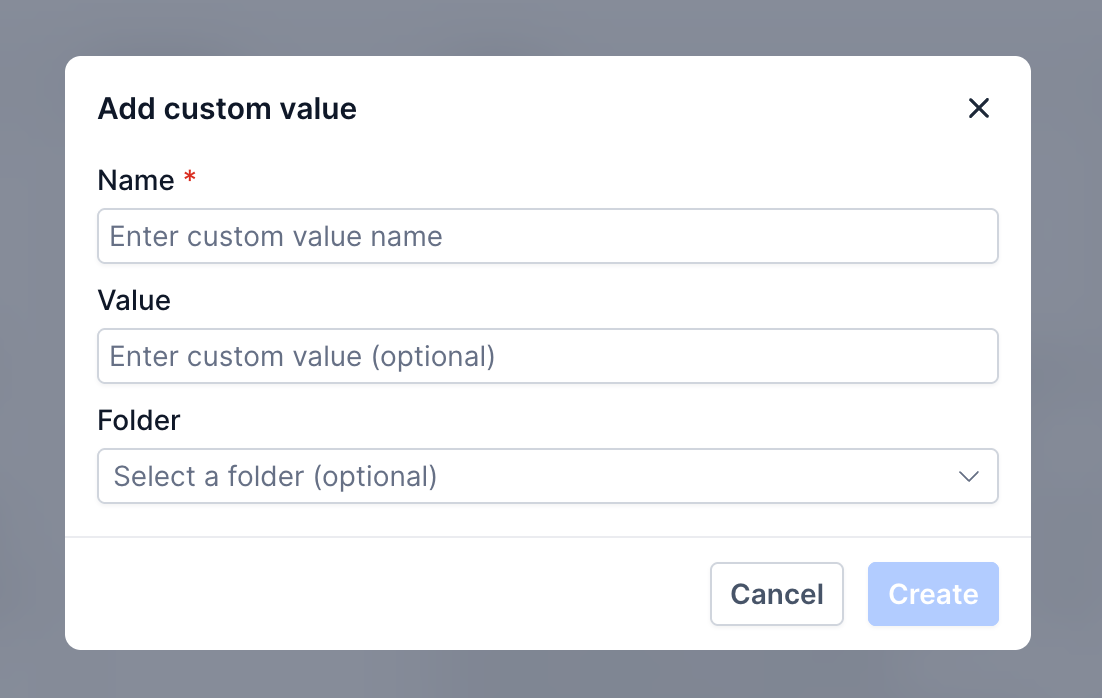
- Enter a descriptive name for the new value.
- Provide the text or data that the value should display.
- Choose a folder if you want to group the value.
- Click Save to store the Custom Value.
Edit a Custom Value
- Go to Settings > Custom Values.
- Find the Custom Value you need to change.
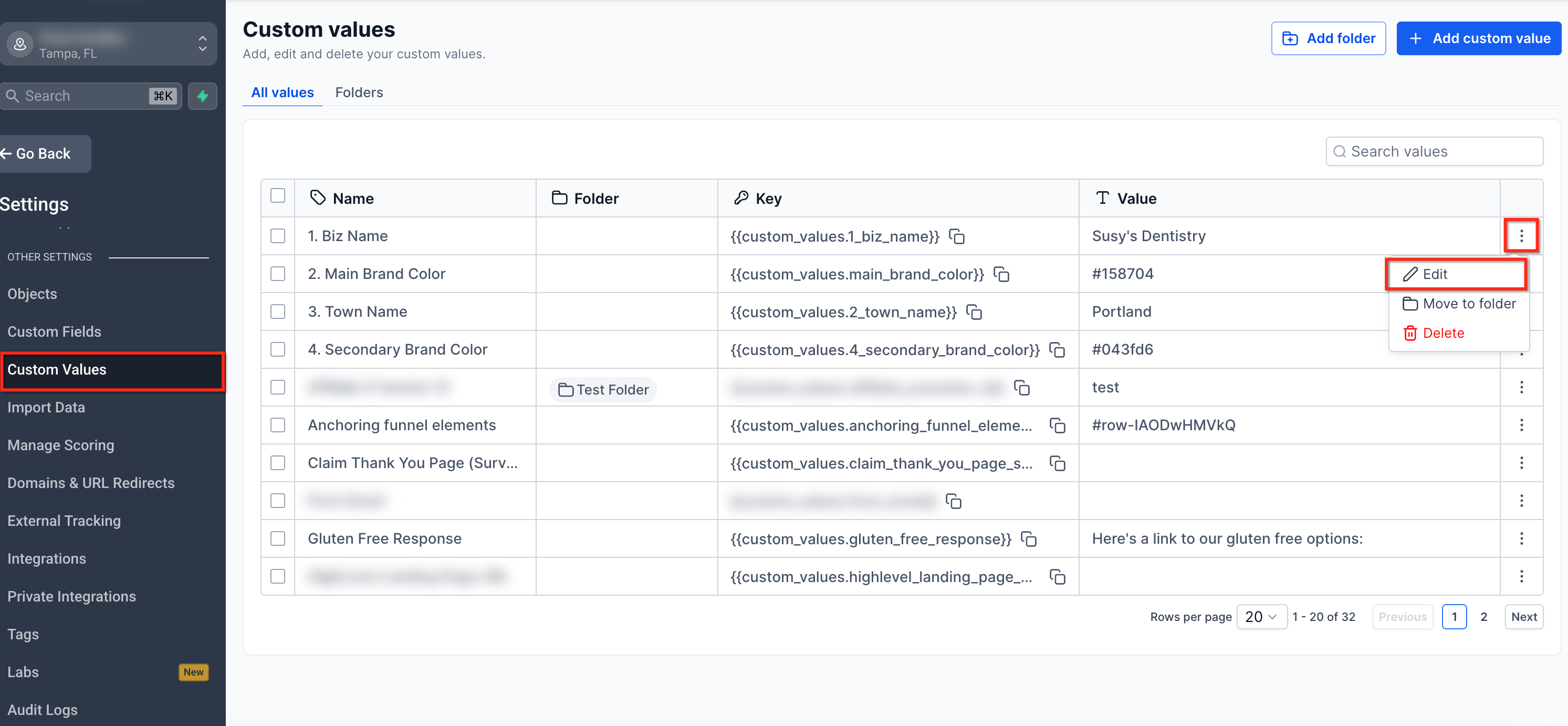
- Click the three dot menu (⋮) next to that value.
- Choose Edit Custom Value from the menu.
- Modify the name, stored value or folder as required.
- Save the changes to update the Custom Value.
Delete a Custom Value
- Navigate to Settings > Custom Values.
- Locate the Custom Value you wish to remove.
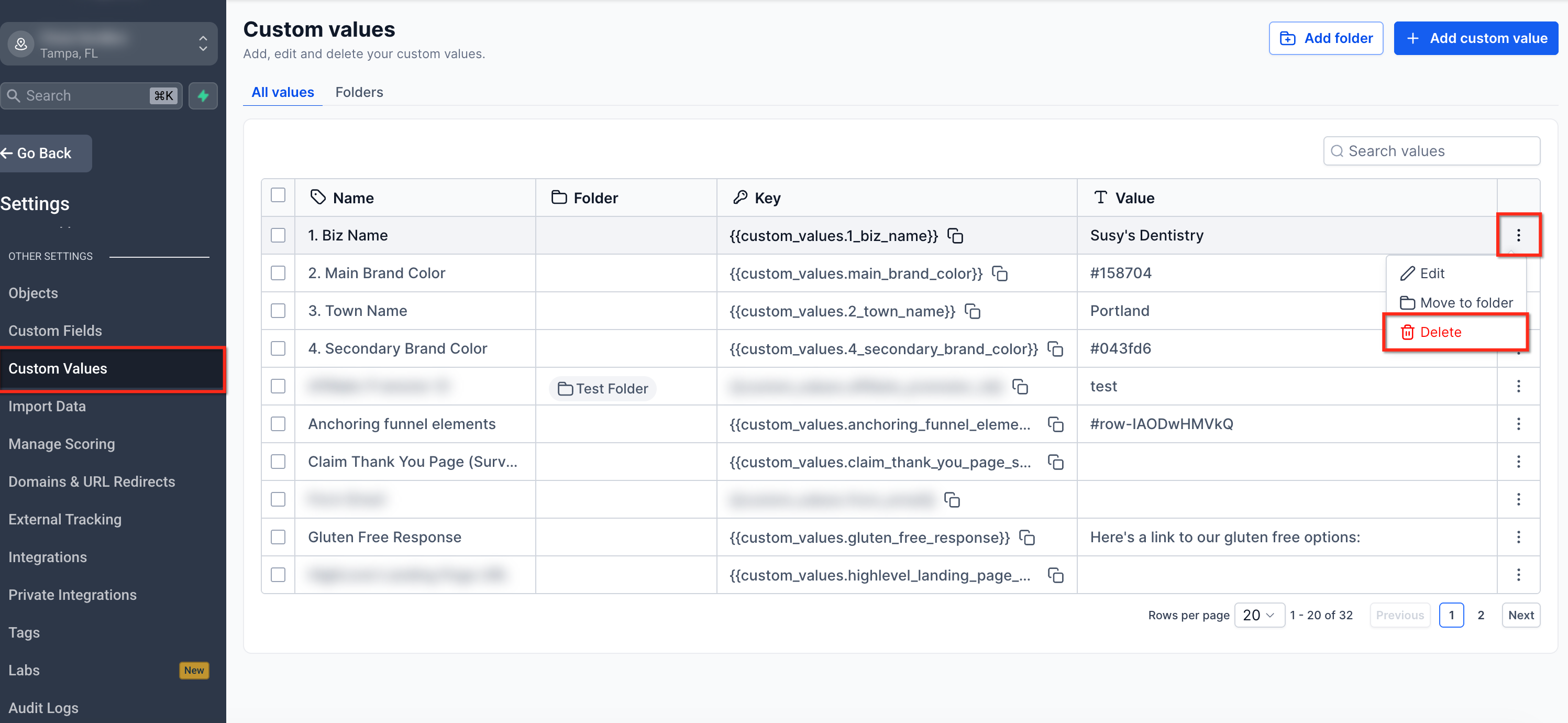
- Open the three dot menu (⋮) for that entry.
- Select Delete Custom Value.
- Confirm the deletion when prompted.
07What it looks like in HighLevel
08Settings that matter
- Custom Values. Stores reusable key value pairs that can be inserted as merge fields throughout the platform.
09Things to know before you rely on it
- Custom Values are meant for information that stays the same across the business; they are not for data that varies per contact.
- Supported features may vary; a merge field is only usable where the platform provides a picker.
- Merge fields are case sensitive and must match the picker entry exactly.
- If a merge field has no stored value, many features display a blank result.
10How it connects to the rest of HighLevel
- Full list of merge fields you can use with Custom Values Merge fields reference
- Overview of merge fields and custom variables in HighLevel Merge fields overview
- Guide to creating and managing Custom Fields for individual record data Custom Fields guide
Michael's take

Custom Values feel like a small convenience that can become a real shift in how you keep your brand details consistent. If the same support email or office hours appear in dozens of emails, pages and bots, changing that once saves you a lot of back and forth edits.
A straightforward example is a local yoga studio that prints the same class schedule link on its website, in reminder emails and on social posts. By storing that link as a Custom Value, the owner only needs to update the link when the schedule changes, and every piece of content reflects the update.