
01Who this is for
- Teams can capture deal specific details such as budget range or timeline to close, improving pipeline visibility.
- Users can store lead attributes like source or preferred contact method for better segmentation and targeted messaging.
02Custom Fields, explained
Custom fields are additional data points that you attach to contact or opportunity records. They appear in the record layout, can be grouped in folders, and are available for use in forms, surveys, workflows, smart lists, and automation steps. The platform supports several field types including short text, long text, drop downs, dates, phones, emails, radio selects, checkbox groups, and URLs.
When you create a field, you select the object (contact or opportunity), choose a field type, enter a name, optionally assign it to a folder, and preview how it will look. Once saved, the field cannot be switched from contact to opportunity or vice versa. Folders help keep related fields together, showing up as sections inside the record view.
03How businesses use Custom Fields
- Real estate agency. Add custom fields for property type, budget range, and timeline to close. Assign these fields to a "Property Details" folder. Use the fields in pipeline views and opportunity workflows to filter and sort deals.
- Dental practice. Create contact fields for patient birthday, preferred contact method, and referral source. Place them in a "Patient Information" folder. Pull the values into email and SMS reminders for personalized communication.
- Marketing agency. Set up custom fields for lead type, campaign source, and budget range on contact records. Group them in a "Lead Qualifiers" folder. Use the fields in smart lists and email merge fields to segment campaigns.
04The numbers and rules that matter
- Field types include Short Text, Long Text, Drop downs, Date Pickers, Phone, Email, Radio Selects, Checkbox Groups, URLs, and more.
- Dropdown (multiple) fields can have a lot of options (50+) so there is no practical limit.
05How to set up and use Custom Fields in HighLevel
Create a custom field
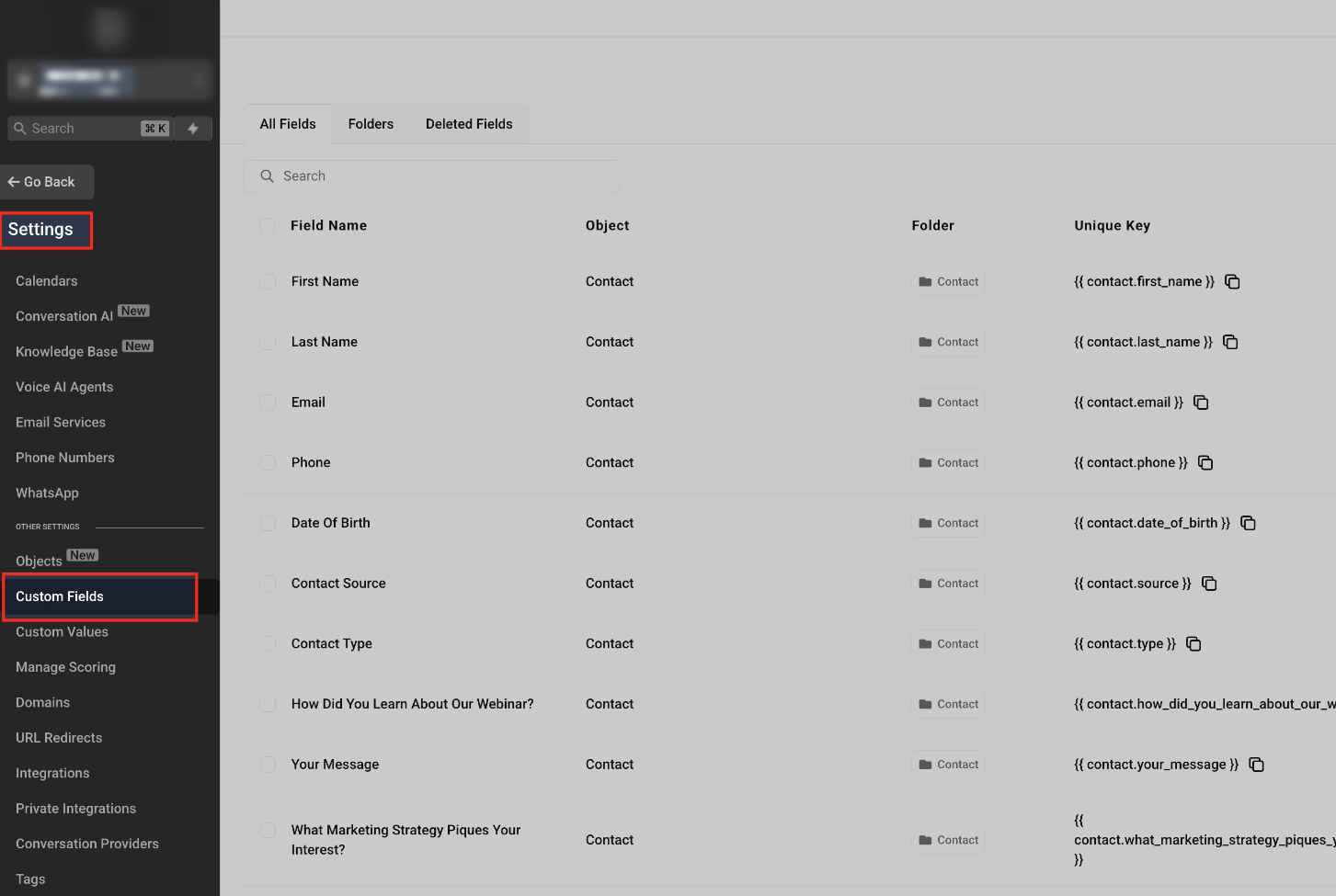
- Open Settings and select Custom Fields.
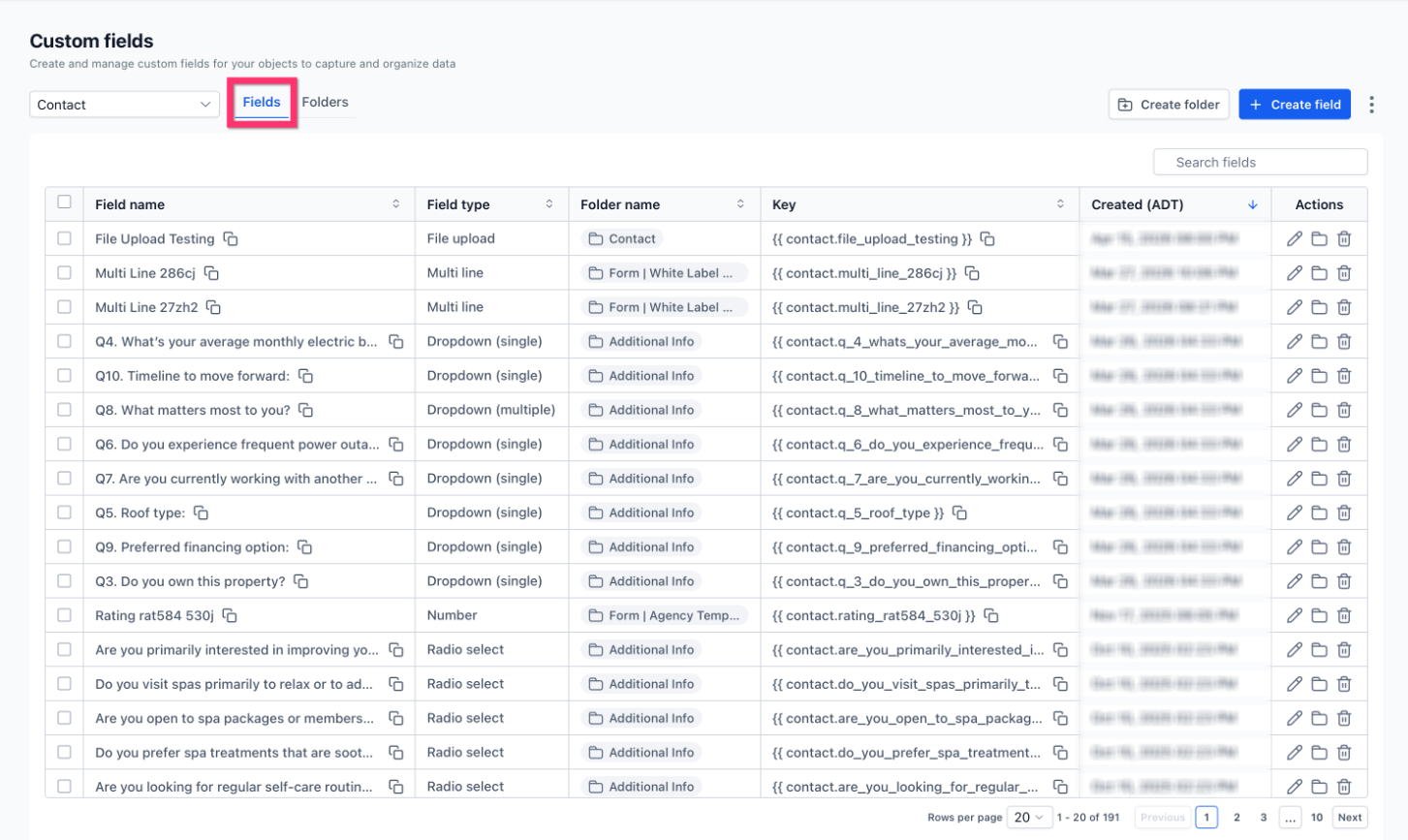
- Pick the desired object with the object selector.
- Stay on the Fields tab to view existing fields.
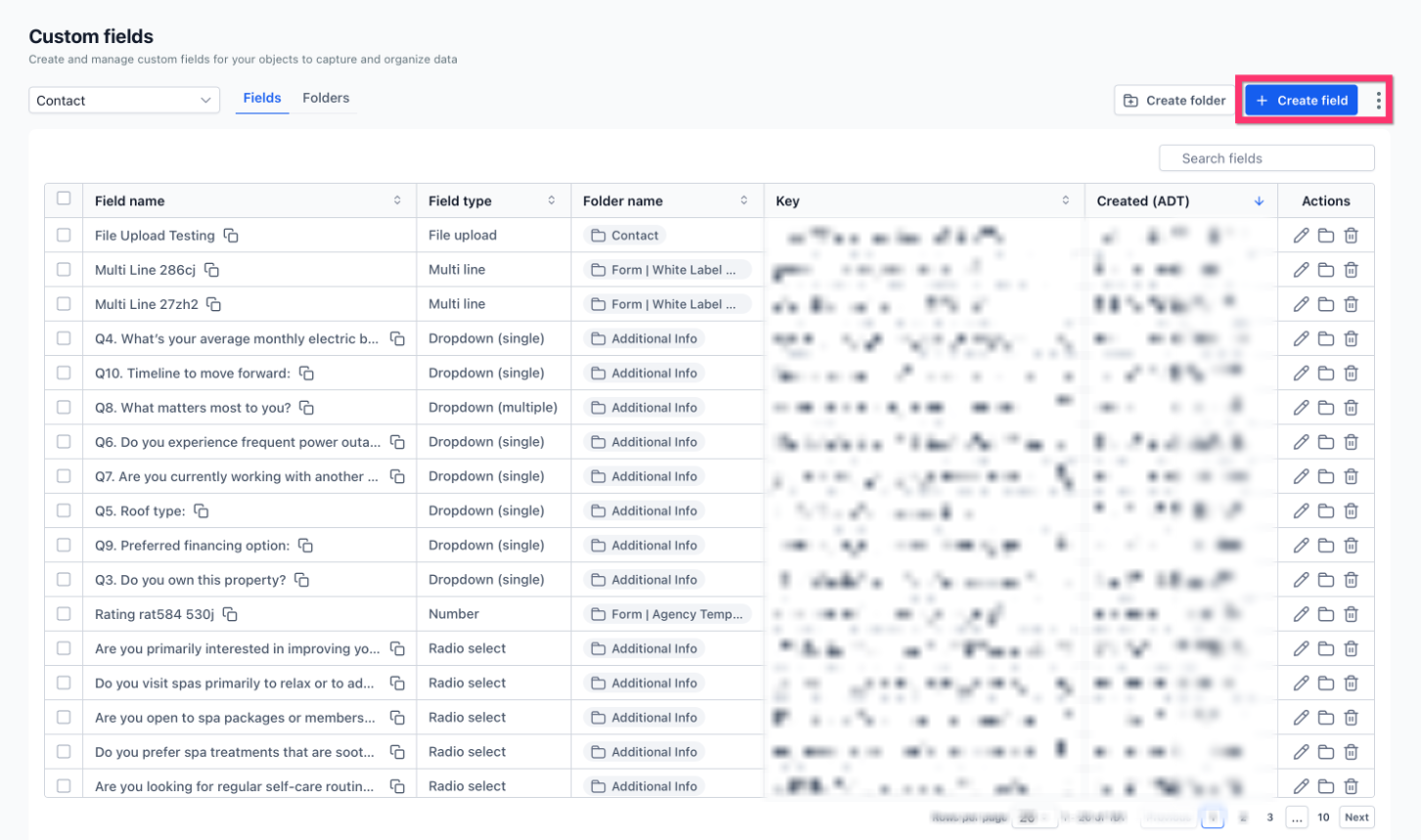
- Click the Create field button.
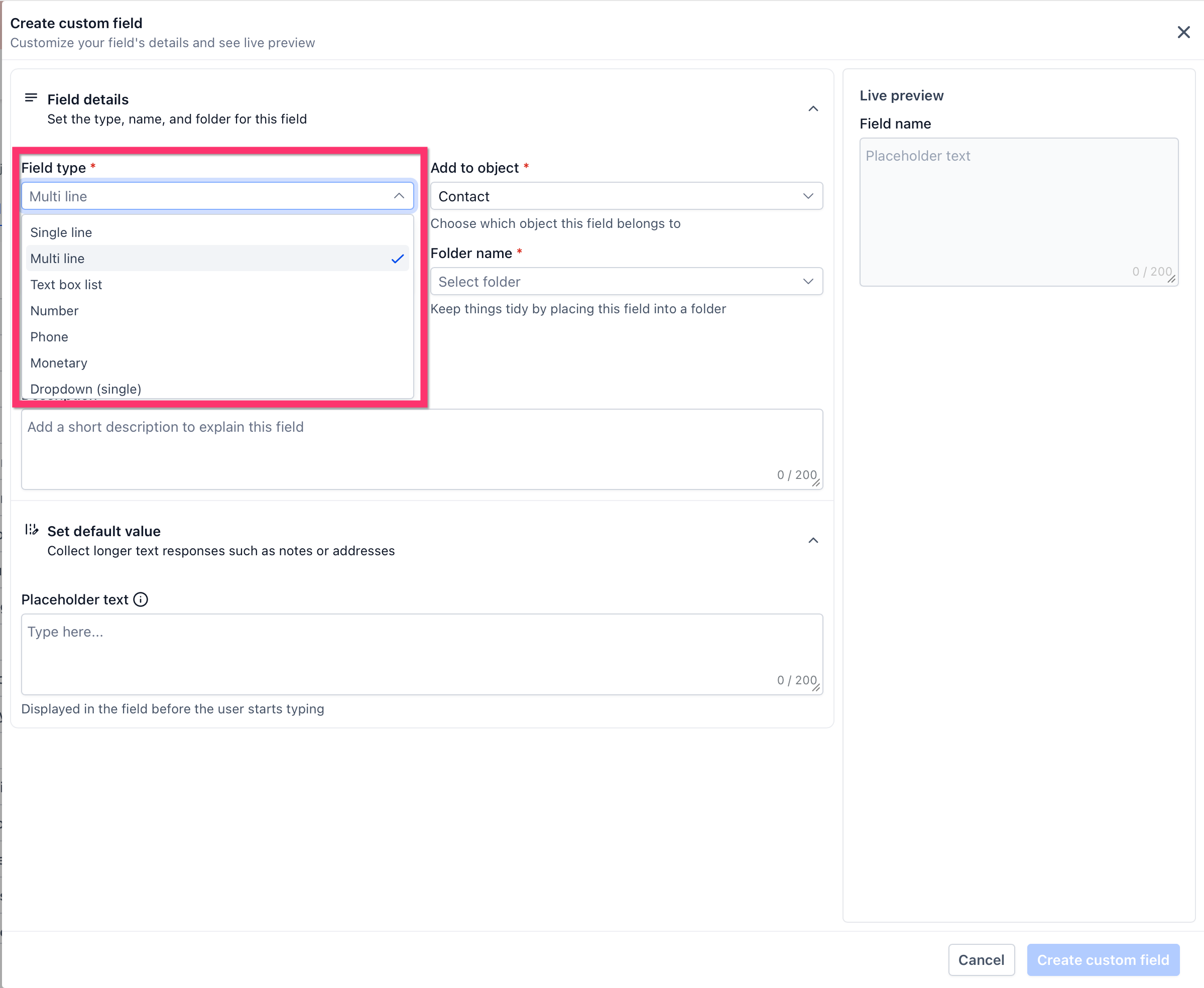
- Choose the appropriate field type.
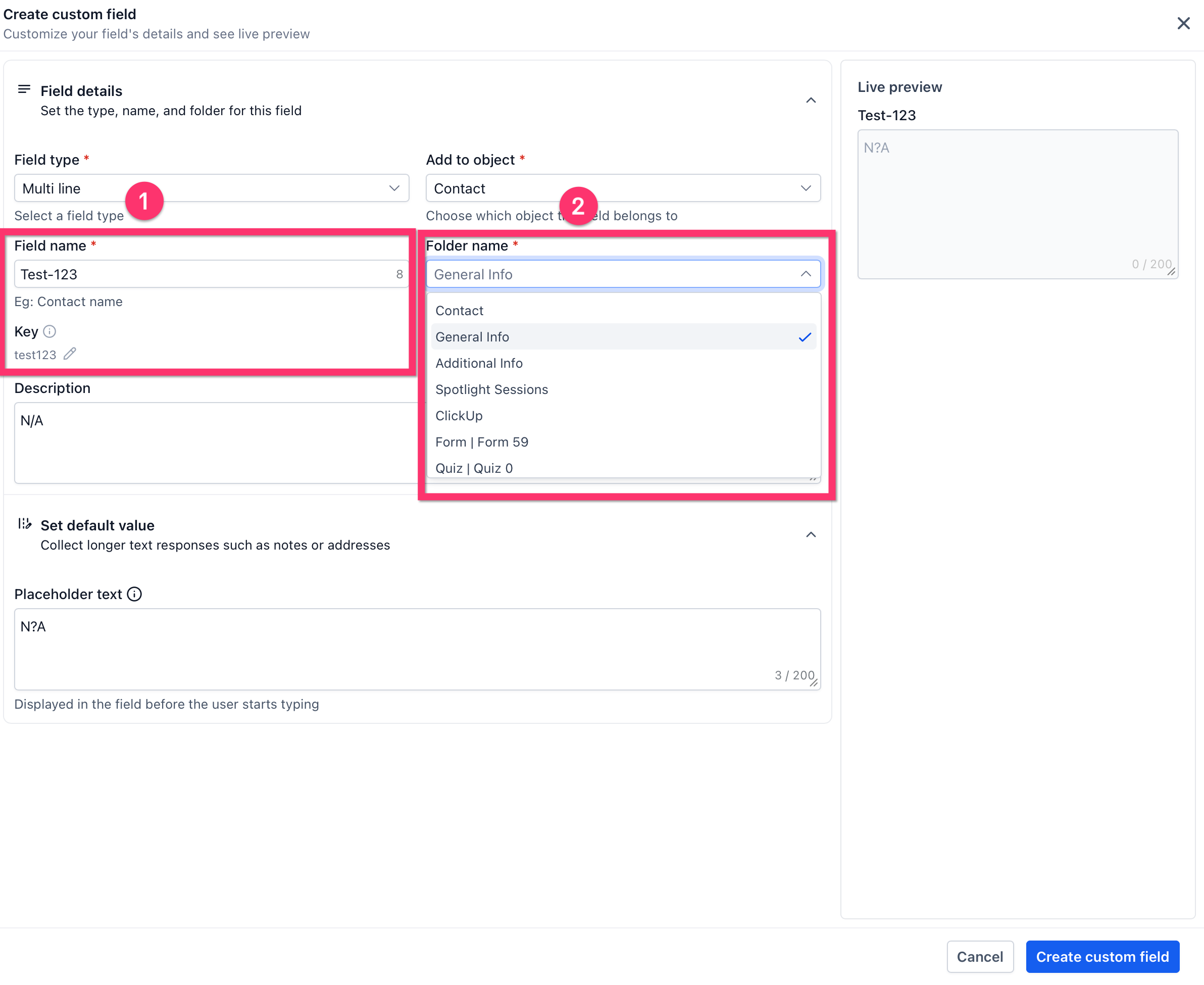
- Enter the field name and optional folder assignment.
- Check the Live preview panel for appearance.
- Press Create custom field to save the new field.
- Remember the field type cannot be changed after creation.
Create a folder
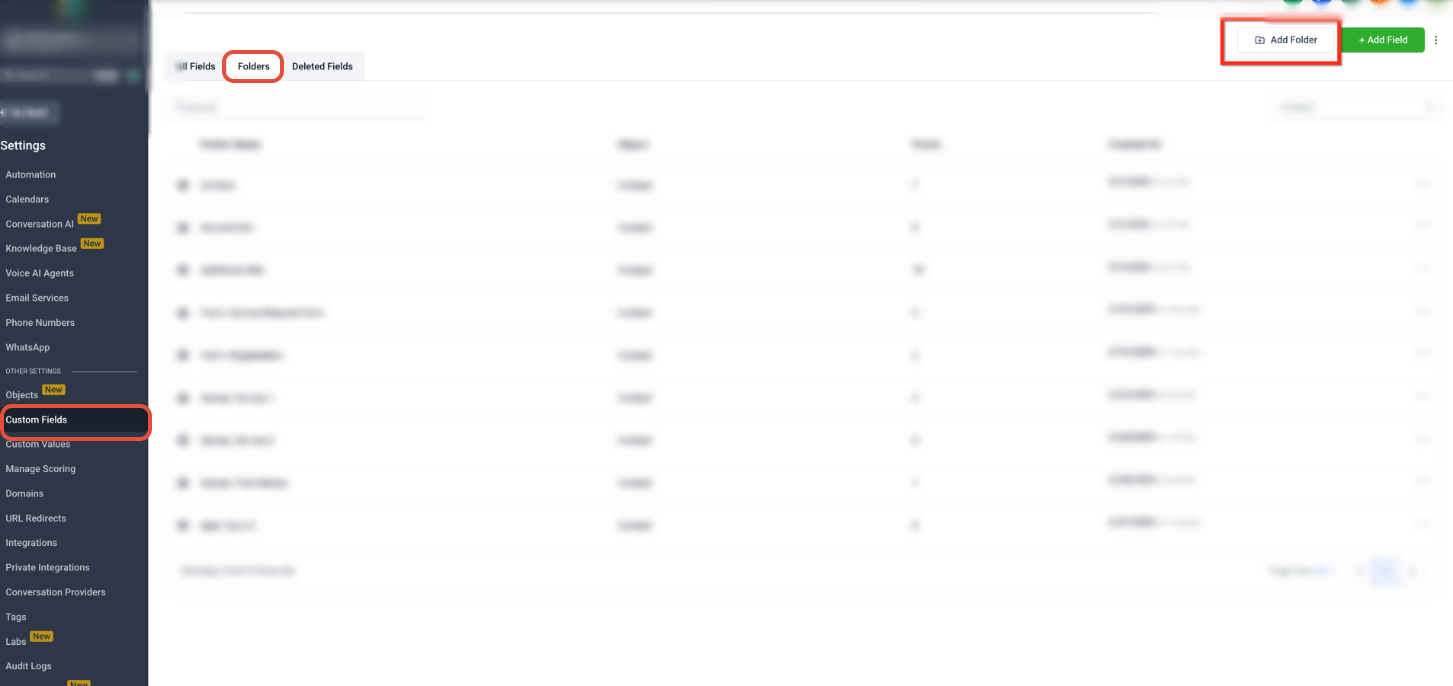
- Open Settings.
- Navigate to Custom Fields.
- Select the object using the object selector.
- Open the Folders tab.
- Click the Create Folder button.
- Type the folder name.
- Save the folder.
06What it looks like in HighLevel
07Settings that matter
- object selector. lets you choose whether you are managing contact or opportunity custom fields.
- Fields tab. displays existing custom fields and provides the option to create new ones.
- Create field. opens the form where you define a new custom field.
- field type selector. determines the kind of data the custom field will store, such as text or dropdown.
- Live preview. shows how the custom field will appear in record layouts before saving.
- Create custom field. finalizes and adds the new field to the selected object.
- Folders tab. allows you to create and manage folders that group related custom fields.
- Create Folder. starts a new folder that can hold custom fields for better organization.
08Things to know before you rely on it
- A Dropdown (multiple) field can hold more than 50 options; there is no practical limit.
- After a field is created as a contact or opportunity field, its type cannot be changed.
09How it connects to the rest of HighLevel
- Reference all merge fields usable with custom fields Merge fields reference
- Overview of merge fields and custom variables Merge fields overview
- Guide on organizing custom fields for better data management Managing custom fields
Michael's take

Custom Fields let you capture additional details beyond the standard fields, which can be handy for tailoring your data collection.