
01Who this is for
- Marketing managers who need to collect qualified leads from Meta campaigns and keep the data inside HighLevel.
- Small business owners looking to streamline lead capture from Facebook or Instagram without using external tools.
- Agencies that run client lead ads and want a single place to manage campaign creation, field mapping, and follow up automation.
02Facebook and Instagram lead ads, explained
The feature lives in Marketing > Ad Manager. It lets you activate the Ad Manager module, link a Facebook page (and optionally an Instagram account), and create Lead Generation campaigns that pull prospect data directly into HighLevel contacts. When you map the Facebook form fields to CRM fields, each submitted lead appears in the contact list and can trigger automation.
Ad creation follows the usual Meta workflow: you choose a campaign objective, configure an ad set with budget, placements, audience, and then attach a Facebook Lead Form. The platform handles the review and publishing steps, and all ad spend is billed through the payment method attached to the selected Meta ads account.
03How businesses use the Facebook and Instagram lead ads
- Real estate agency. The agency connects its Facebook page, builds a Lead Generation campaign targeting home buyers, maps the form fields to contact fields, and publishes the ad. Leads flow into HighLevel where follow up email sequences can be triggered.
- Dental practice. The practice links its Instagram account, creates a lead form for new patient appointments, maps name and phone number to HighLevel, and publishes the ad. Submitted leads appear as contacts ready for appointment setting calls.
- Online coaching business. The coach selects a Meta ad account, builds a lead ad offering a free webinar, maps the email field, and publishes the ad. Leads are stored in HighLevel and can start a webinar invite workflow.
04Before you start
- Ad Manager must be activated in the subaccount.
- A Meta ads account must be selected during the onboarding flow.
- A Facebook Page (and optionally an Instagram account) must be available to connect.
05How to set up and use the Facebook and Instagram lead ads in HighLevel
Set up Facebook and Instagram lead ads
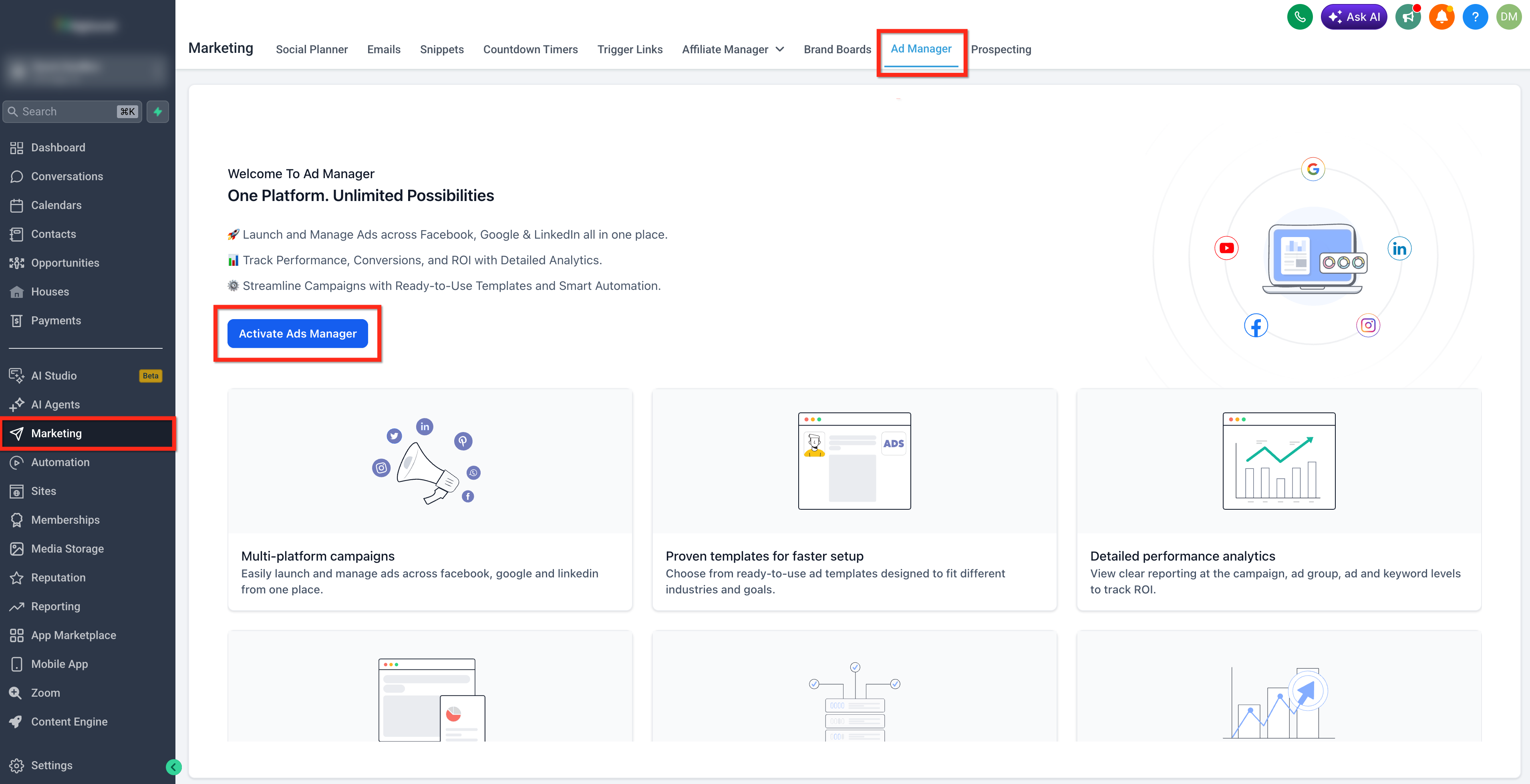
- Open Marketing > Ad Manager in the subaccount.
- Click Activate Ads Manager if it is not yet active.
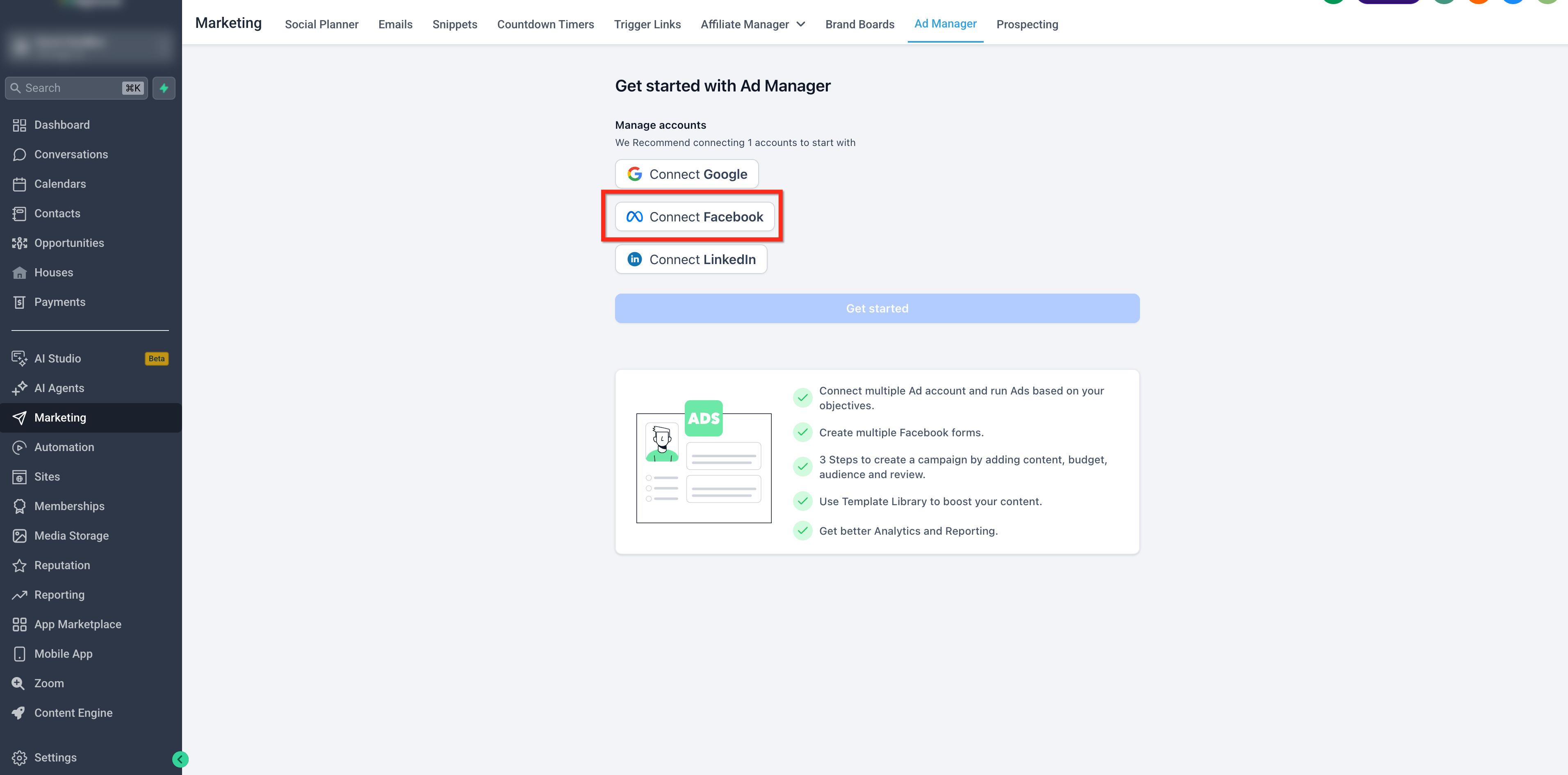
- Click Connect Facebook on the onboarding screen.
- Complete the Facebook login flow and grant LeadConnector permissions.
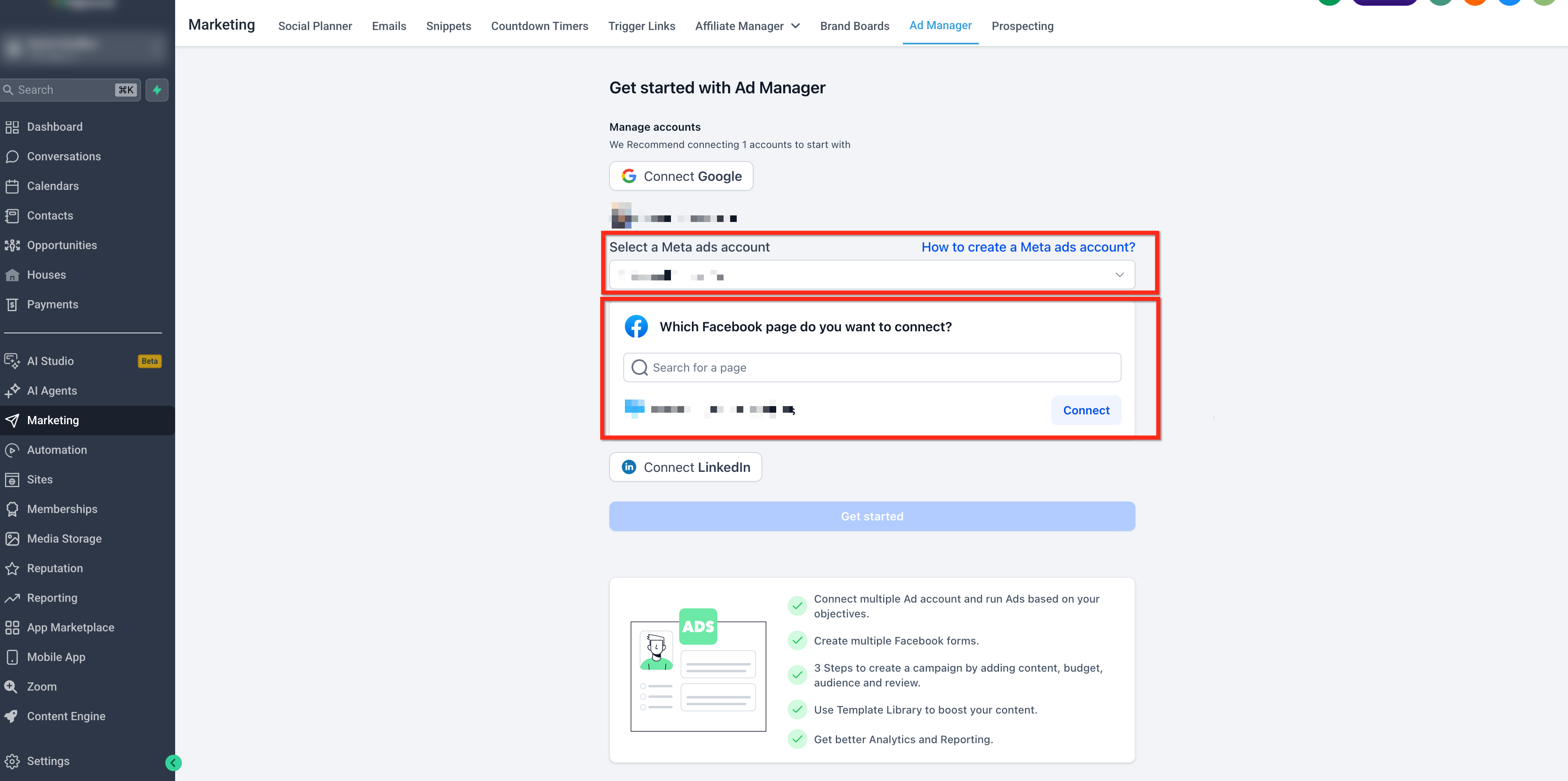
- Select the appropriate Meta ads account from the dropdown or search field.
- Search for and select the desired Facebook Page, then click Connect.
- Click the Get Started button after the page connects.
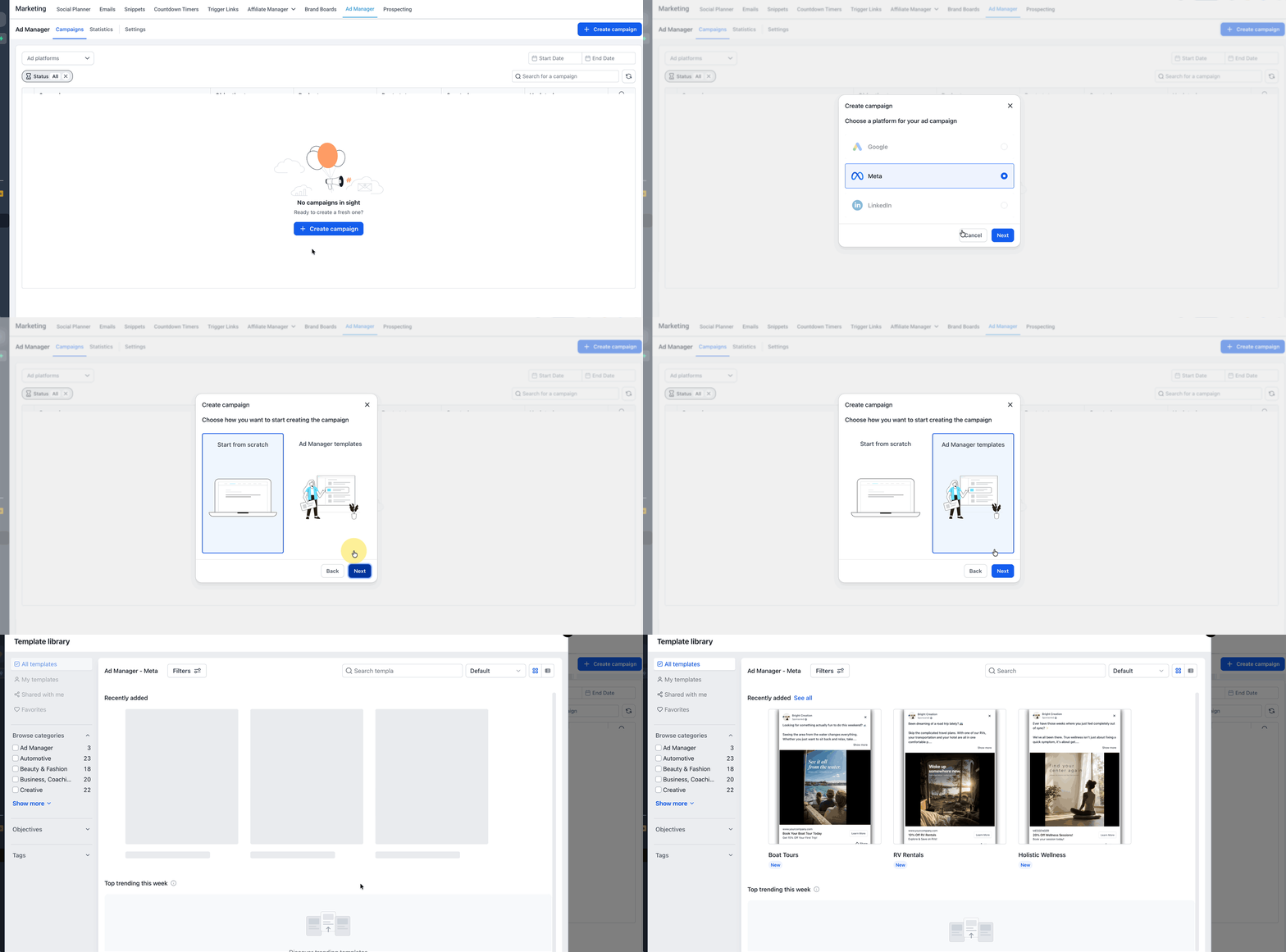
- Click + Create Campaign and select Meta as the platform.
- Click Next and choose to start from scratch or use an Ad Manager template.
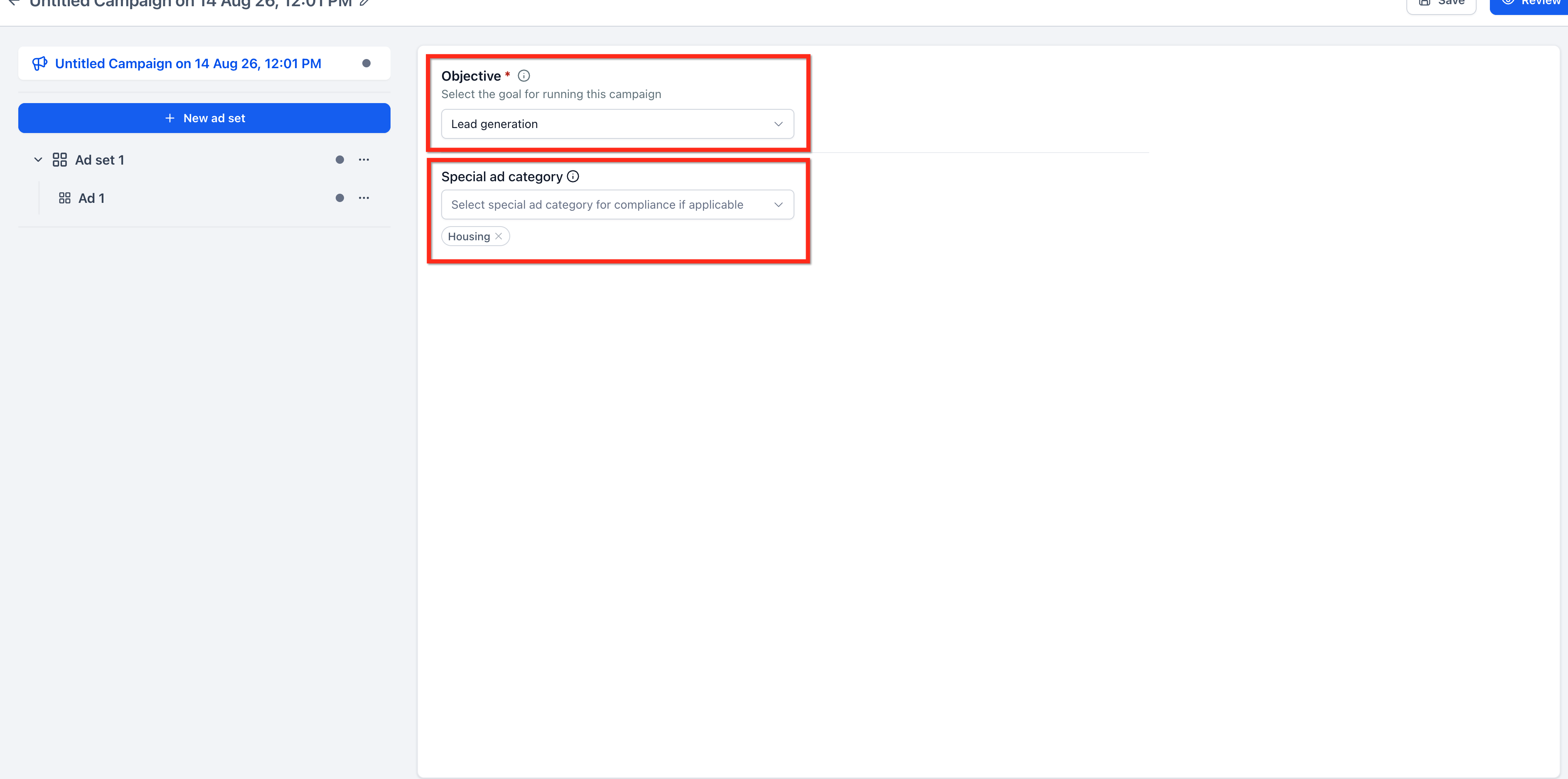
- Select Lead Generation as the campaign objective and set the Special Ad Category if required.
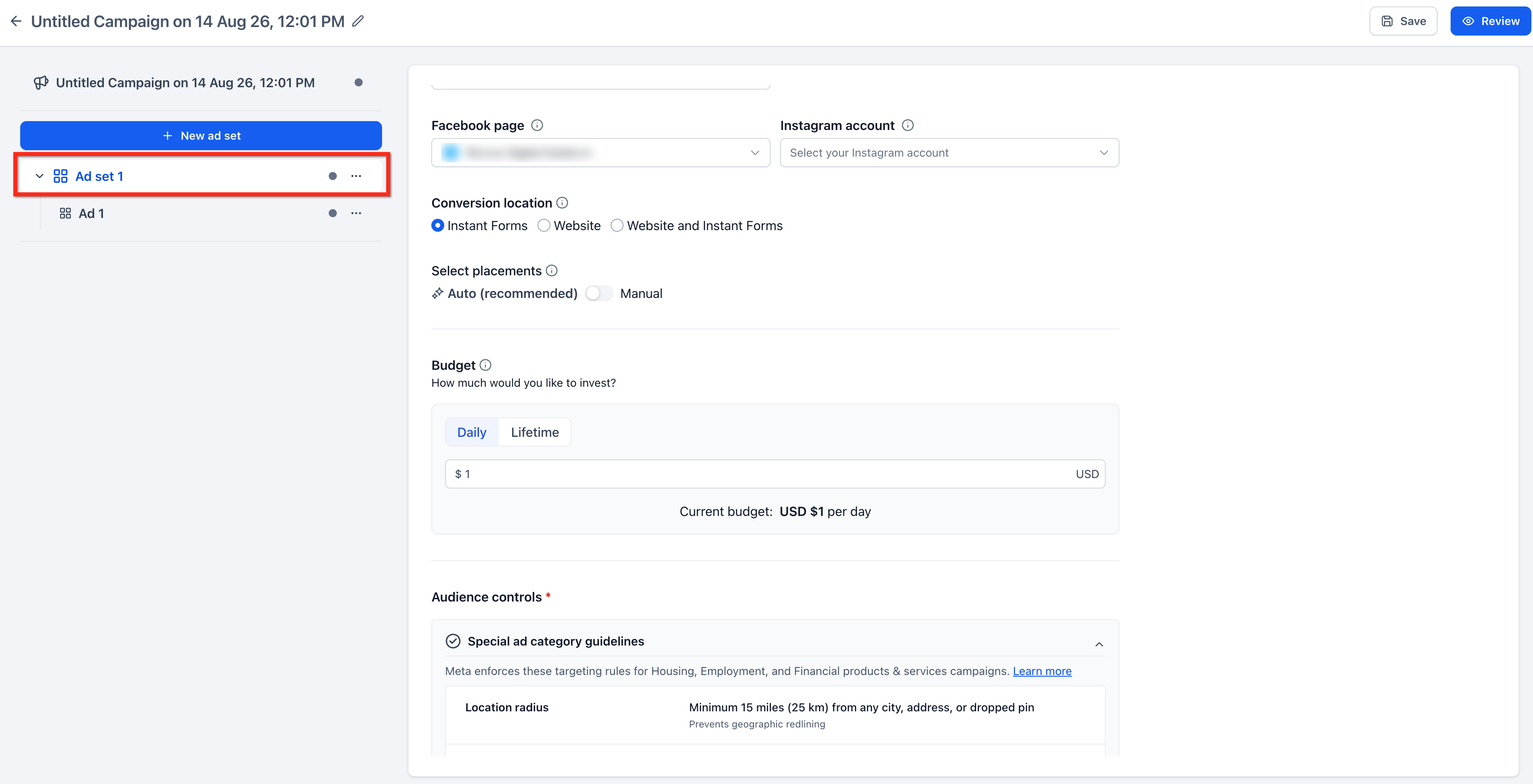
- Enter ad set details: name, Facebook Page, optional Instagram account, placements, budget, schedule, audience and location.
- At the ad level, choose a Facebook Lead Form, map any unmapped fields, add creative elements, then click Review and Publish Campaign Now.
Publish an existing ad
- Navigate to Marketing > Ad Manager.
- Find the ad or campaign you want to modify and open the three dot action menu.
- Select Edit to open the configuration screen.
- Review the campaign, ad set and ad settings as needed.
- Click the Publish action and confirm to make the ad live.
06What it looks like in HighLevel
07Settings that matter
- Special Ad Category. Specifies whether the ad falls under a restricted category; choosing the correct option ensures compliance with Meta policies.
- Lead Generation. Sets the campaign objective to collect prospect information via a lead form.
- Facebook Lead Form. Determines which lead form is used to capture prospect data and lets you map its fields to HighLevel contact fields.
08Things to know before you rely on it
- The Get Started button remains disabled until a Meta ads account is selected and a Facebook Page shows as connected.
- Meta ad spend is billed through the payment method attached to the selected Meta ads account.
09If something goes wrong
- Get Started button is disabled. Make sure a Meta ads account has been selected and that the Facebook Page appears as connected.
10How it connects to the rest of HighLevel
- Learn how to connect a Facebook page for posting and tracking Connect Facebook page
- Set up reusable text snippets for SMS follow up after a lead is captured SMS snippets
- Explore the template library to design ad creative quickly Template library
- View all marketing features available in HighLevel All marketing features
Michael's take

This is a solid way to pull leads straight from Meta ads into your HighLevel account.
Skip it if you don’t run any Facebook or Instagram advertising.