
01Who this is for
- Social media managers can centralize posting for multiple client pages, saving time on separate logins.
- Marketing agencies can add each client’s Facebook pages and control content distribution from one dashboard.
- Small business owners can publish directly to their brand page without needing separate tools.
02Facebook pages, explained
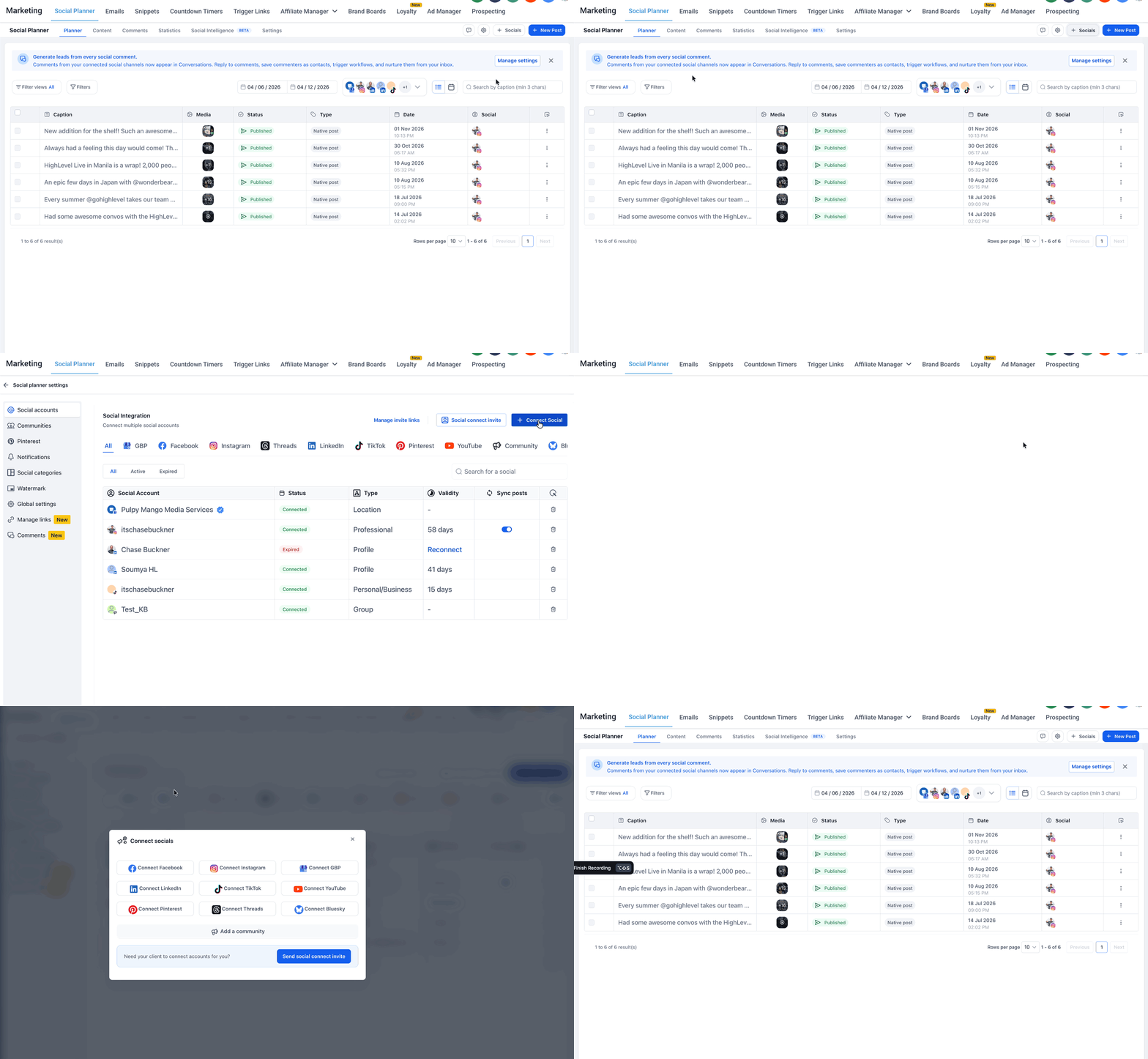
HighLevel’s Social Planner includes a connector that pulls Facebook fan pages into the publishing workflow. After authorization, the selected pages appear in the planner’s list, allowing you to create, schedule, and publish posts straight to Facebook. The connection lives within the Social Planner settings area, accessed via the gear icon in the top right corner.
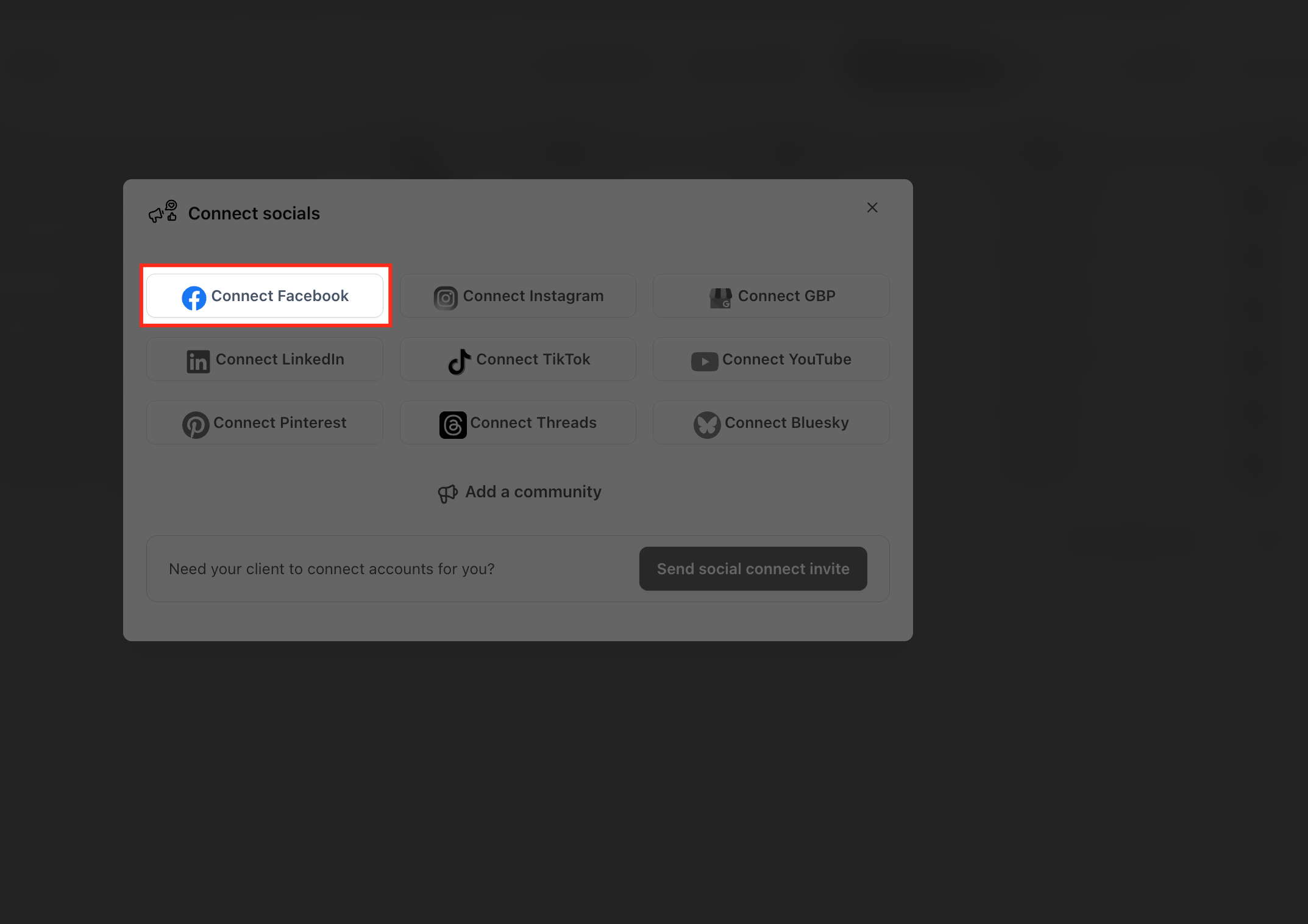
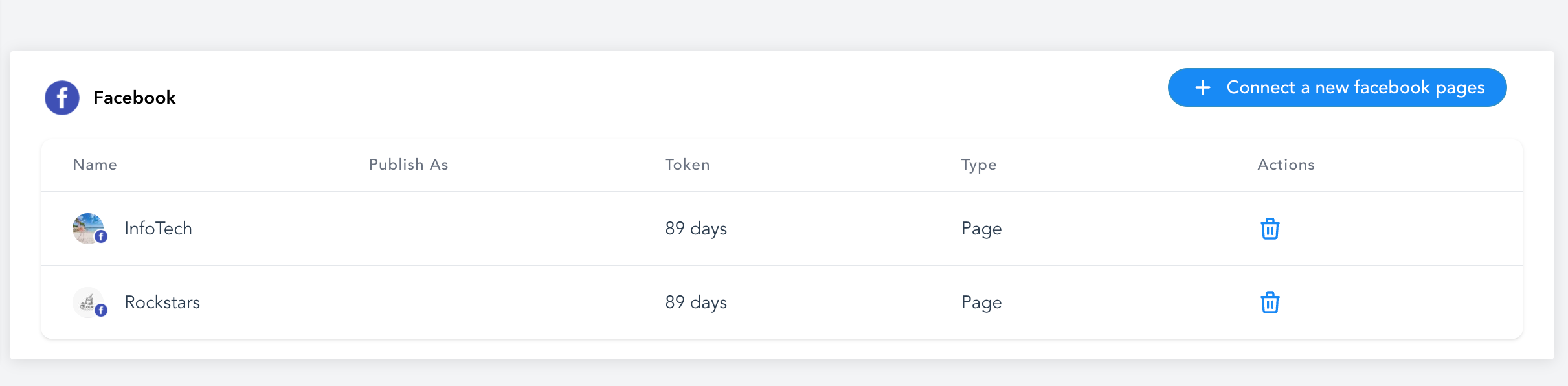
When you open the Connect Socials window, you choose Facebook, grant the required permissions, and then pick which pages to attach. The platform then shows a confirmation list, confirming each page is linked and ready for publishing. You can repeat the process to add more pages or remove and reconnect if needed.
03How businesses use Facebook pages
- Dental practice. The practice logs in with the Facebook profile that administers its business page, opens Social Planner, selects Facebook, authorizes access, and chooses the dental page. After verification, the practice can schedule patient education posts directly from HighLevel.
- Real estate agency. Agents use separate Facebook profiles for different office locations. Each agent signs in with the profile that manages its office page, connects the page through Social Planner, and then creates location specific listings that are published to the correct Facebook page.
- Fitness studio chain. The chain’s marketing lead connects multiple studio pages from various Facebook accounts, selects each page in the Connect Socials window, and confirms the links. The studios can then share class schedules and promotions from a single Social Planner calendar.
04Before you start
- You must have Admin rights on each Facebook page you intend to connect.
- Log in to Facebook with the profile that holds those Admin privileges.
- If you have previously linked pages, remove the HighLevel app from Facebook Settings > Business Integrations before starting.
05How to set up and use Facebook pages in HighLevel
Connect Facebook pages to Social Planner
- Remove the HighLevel app from Facebook Settings > Business Integrations if you have earlier connections.
- Confirm you are logged into Facebook with a profile that has Admin rights for the desired pages.
- Open Social Planner and click the gear icon in the top right corner to open Settings.
- Choose the + Connect Social option and select Facebook as the platform.
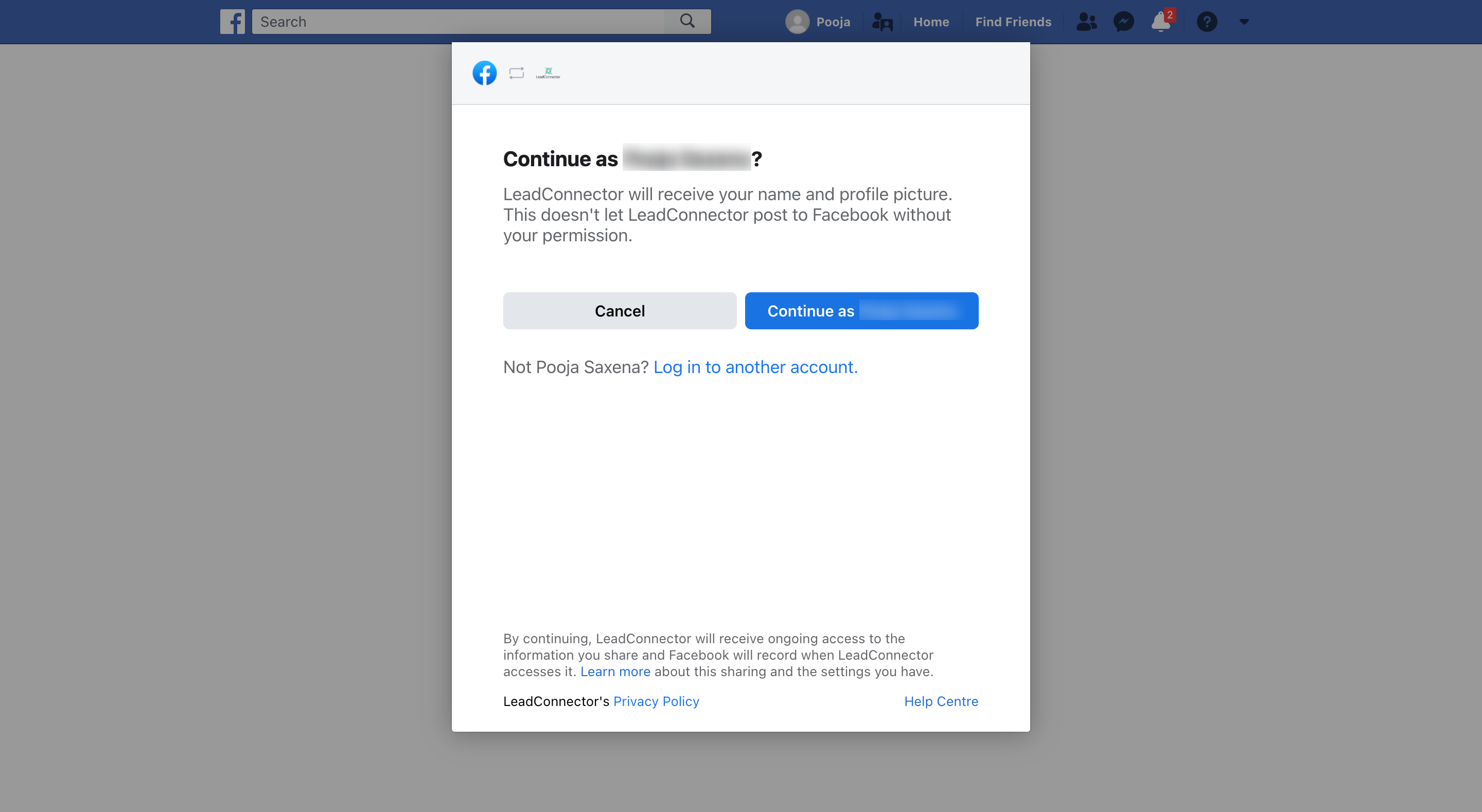
- Enter your Facebook login details and click Continue to grant all requested permissions.
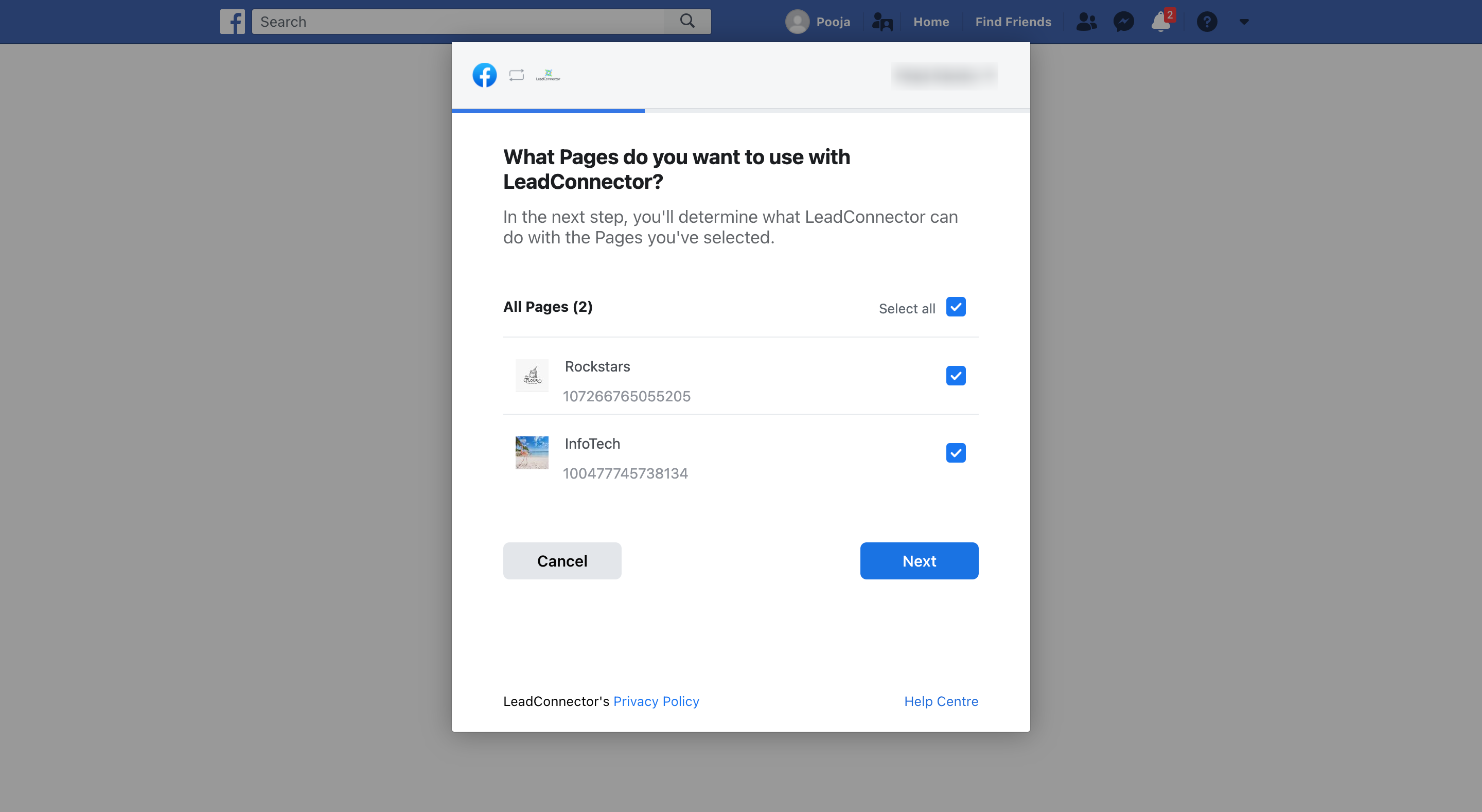
- From the displayed list, pick the Facebook pages you want to add to Social Planner.
- Check the confirmation list to verify each selected page shows a successful connection.
06What it looks like in HighLevel
07Settings that matter
- Facebook. Specifies the social network to link; selecting it opens the Facebook login and permission flow needed to fetch your pages.
08Things to know before you rely on it
- Posting to personal Facebook profiles is no longer supported because of recent API changes.
- You can connect pages that belong to different Facebook profiles, but each connection must be authorized with the profile that has Admin access to that page.
- New pages require the removal and re authorization of the HighLevel app before they appear for selection.
09If something goes wrong
- A Facebook page does not appear in the selection list.. Verify the Facebook account you used has Admin access to the missing page and that the page was included during the permission grant. Re authorize the connection if necessary.
10How it connects to the rest of HighLevel
- Social Planner content guidelines for images and videos content guidelines
- Facebook publishing troubleshooting guide troubleshooting
- HighLevel pricing and plans pricing
Michael's take

Watch out for the need to remove the app from Facebook Business Integration whenever you add new pages, as this page requires you to do this before adding new pages.
Connecting Facebook pages provides a way to manage content and engagement from one place. Once you have the right admin rights, the process is straightforward.