
01Who this is for
- Founders who manage their company’s social presence, because mentions increase post visibility.
- Marketing agencies handling multiple client accounts, as tagging lets them cross promote client pages efficiently.
- Content creators looking to reference other influencers, so they can include direct profile handles in their updates.
02@mentions or tags, explained
The @mention tool resides inside the Social Planner area of HighLevel. When you compose a new post you can type the @ symbol followed by a name or handle, and the platform will try to match it to a connected profile.
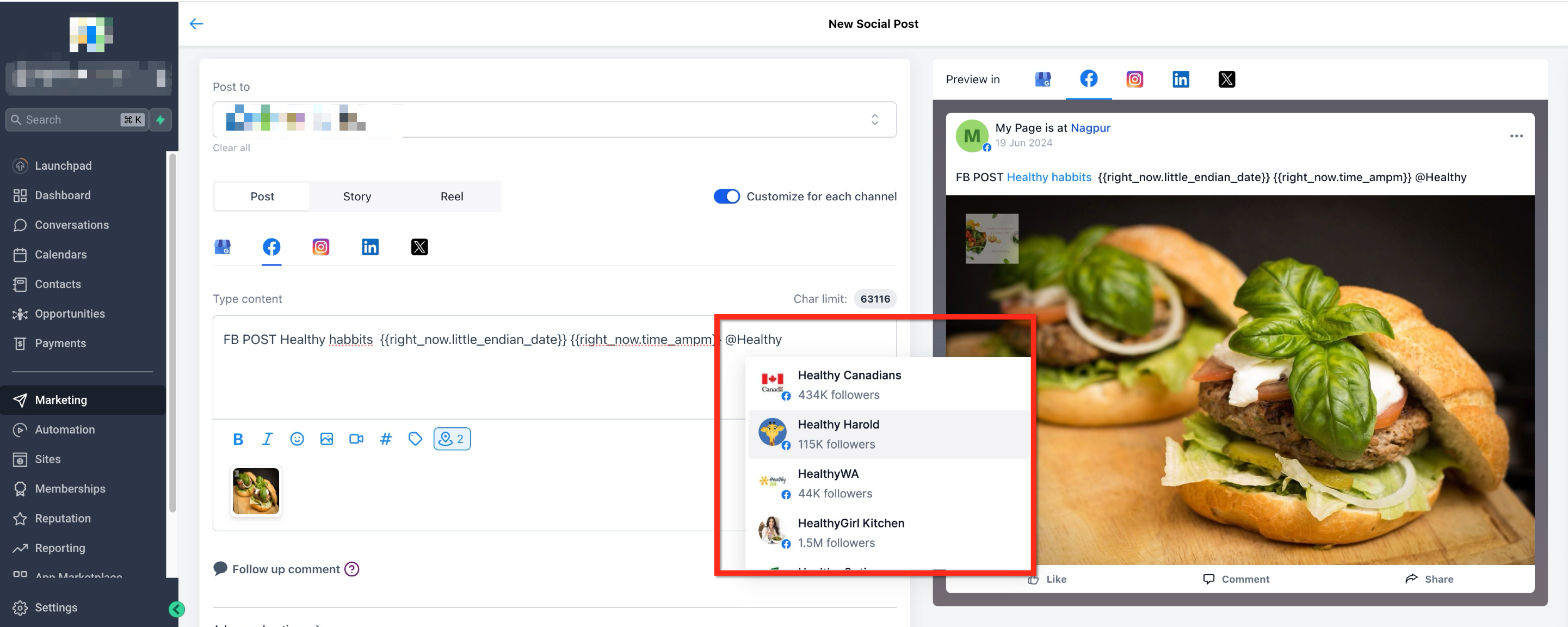
Supported networks such as Facebook and LinkedIn provide drop down suggestions that you can select, while Instagram and TikTok require you to enter the full @username manually. Once a match is recognized the tag appears highlighted in blue in the post preview, confirming the link.
03How businesses use @mention or tag profile in posts
- Dental practice. A dental office can tag its Facebook page in a promotional post, typing @ and selecting the page from suggestions, then confirming the blue highlight before publishing.
- Real estate agency. A real estate firm can reference a LinkedIn company page in a market update, using @ to pull up the page name, selecting it, and seeing the highlighted tag to ensure the mention is recognized.
- Fitness influencer. An influencer can add an Instagram handle to a workout announcement by typing the exact @username, since Instagram offers no suggestions, and verify the tag appears highlighted in the preview.
04The numbers and rules that matter
- Supported platforms: Facebook, LinkedIn, Instagram, TikTok.
05How to set up and use @mention or tag profile in posts in HighLevel
Add a mention or tag to a post
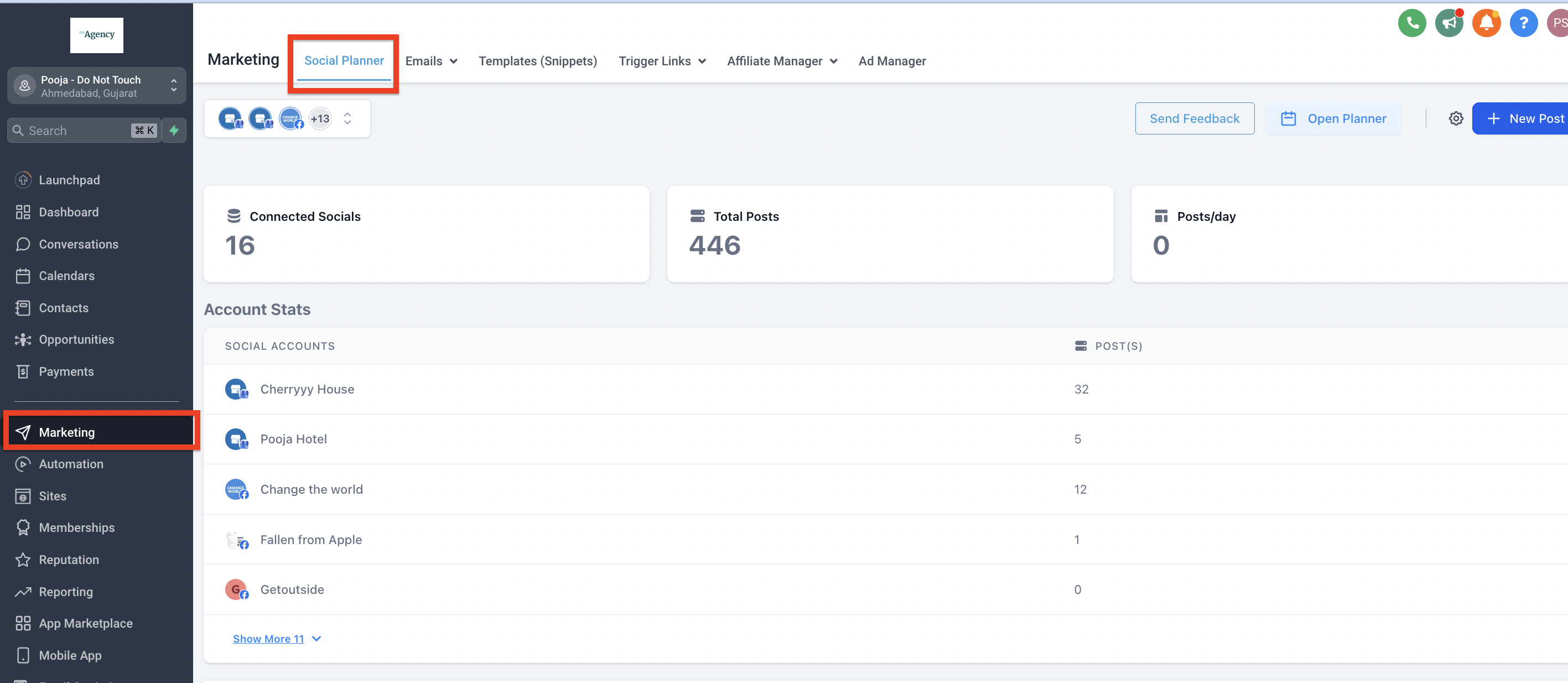
- Select Marketing from the left side navigation bar.
- Click the Social Planner tab on the top navigation ribbon.
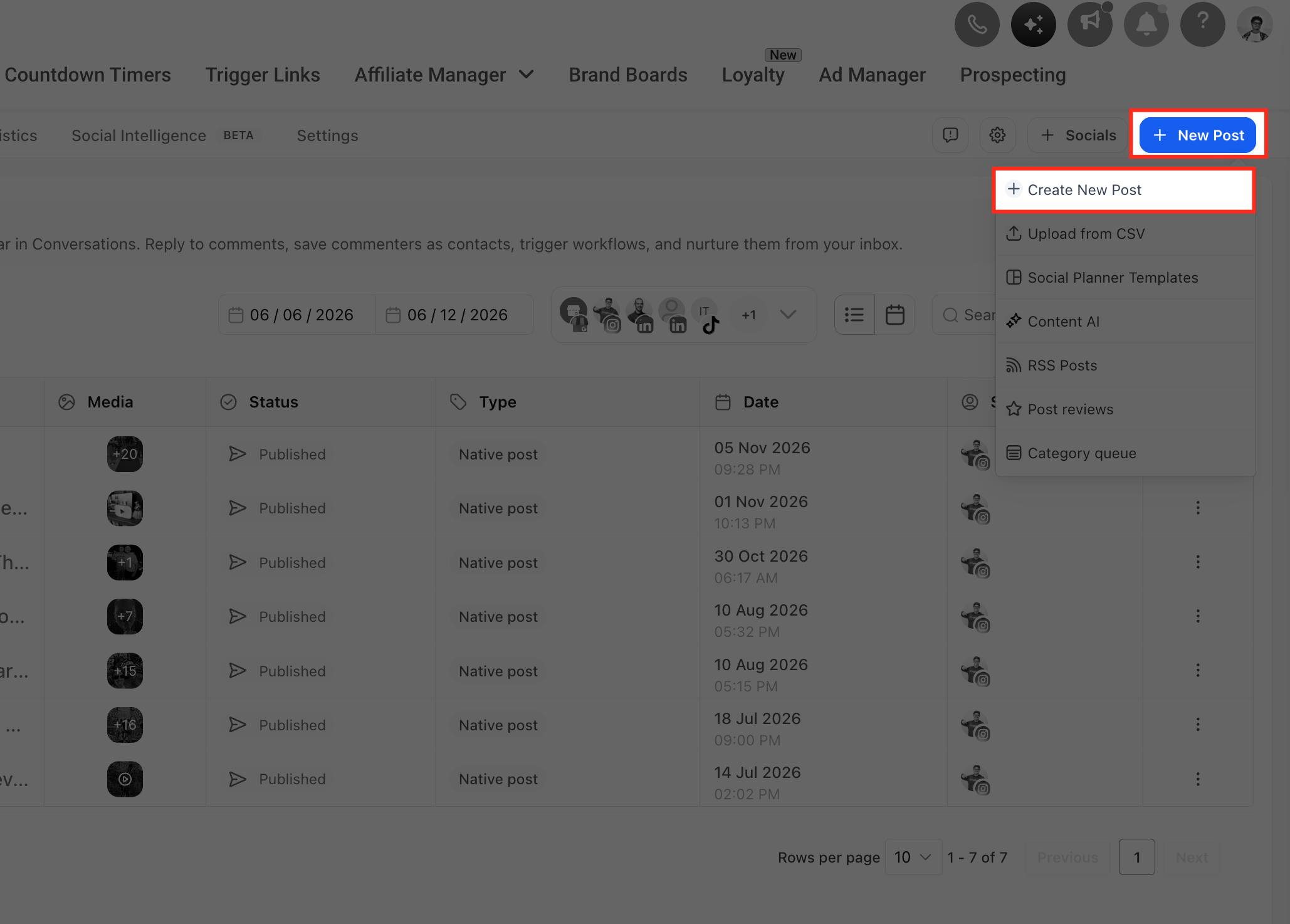
- Press the blue + New Post button.
- Choose + Create New Post from the dropdown menu.
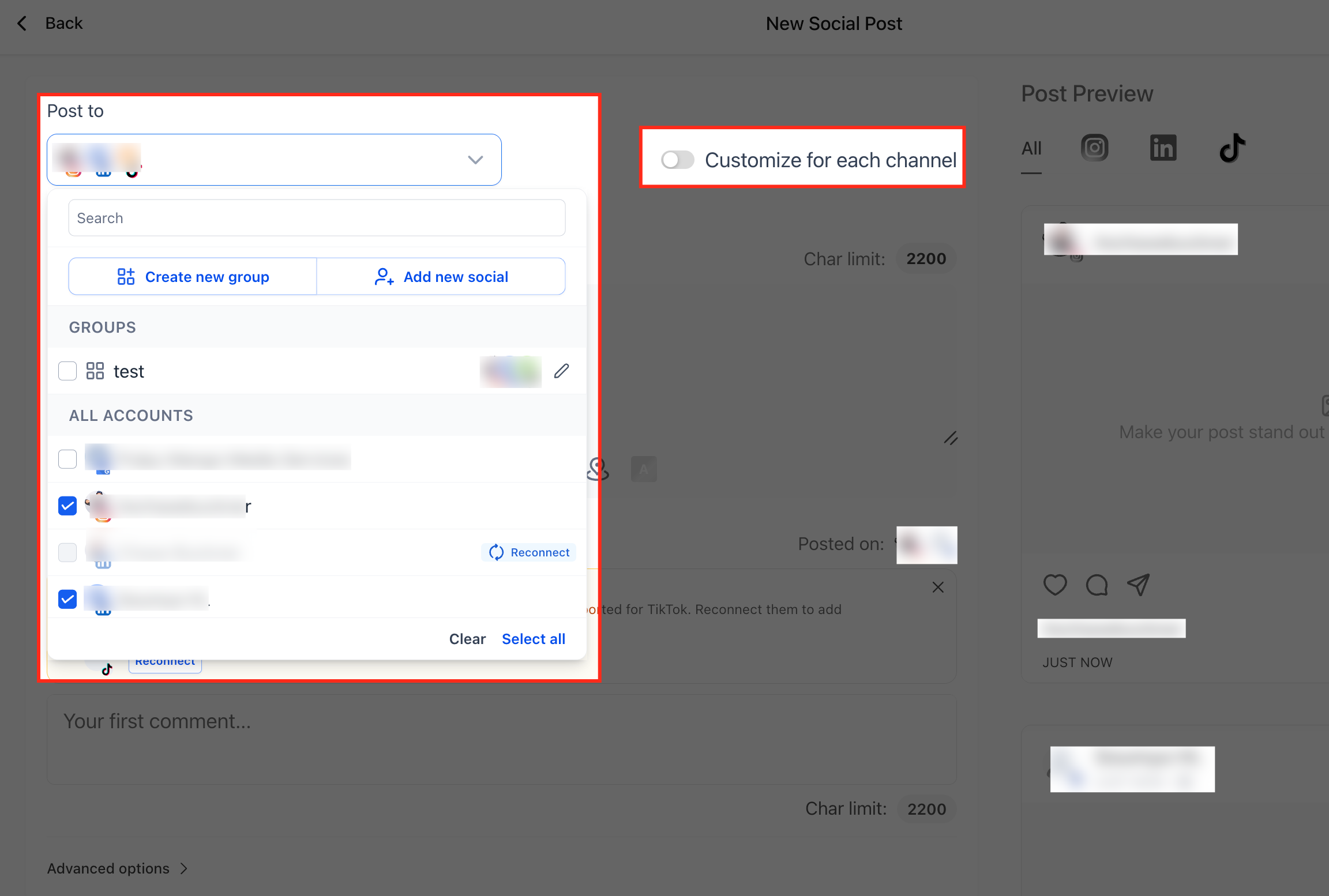
- Select the social network for the post.
- If more than one channel is chosen, enable the customise for each channel option.
- Write the post content for each selected channel.
- Type @ followed by the profile name or username you want to tag.
- After entering a few characters, select a suggested profile if it appears.
06What it looks like in HighLevel
07Settings that matter
- customise for each channel option. Allows you to provide different mention text or content for each social network when multiple channels are selected.
08Things to know before you rely on it
- Mentions do not work in CSV, RSS, or Review posting methods.
- Instagram does not provide auto suggested mentions; you must type the full @username.
- Tags appear highlighted in blue in the preview only when the platform recognises the mention.
- Mention behavior varies by network; some support searchable mentions while others allow only manual entry.
09If something goes wrong
- Mention suggestions do not appear for Instagram. Enter the exact @username manually because Instagram does not provide suggestions.
- The @mention shows as plain text in the preview. Recognize that the social network may not support searchable mentions; on those platforms the tag will remain plain text.
- Mentions are ignored when using CSV, RSS, or Review posting. Create the post through the standard Social Planner interface instead of those methods.
10How it connects to the rest of HighLevel
- Connect Facebook pages to use @mentions for pages. Facebook connection
- Link LinkedIn company pages for mentions in Social Planner. LinkedIn connection
- Set up Instagram integration to allow manual @username tagging. Instagram connection
Michael's take

Michael ReimerFounder of CRM Pros, HighLevel Commander and Certified Admin
The highlight in the preview indicates the tag was recognized.
The feature isn’t supported for bulk uploads, RSS feeds, or Review posts.
Get More InformationOpens on HighLevelPublished November 2, 2026 · Updated November 16, 2026