
01Who this is for
- Marketing managers who need to control multiple client Facebook pages; they can add any missing page to the planner.
- Agency owners who handle several accounts; reconnecting expired tokens prevents downtime for scheduled posts.
02Facebook publishing troubleshooting, explained
HighLevel stores a Facebook access token for each connected page. The token gives the platform permission to publish content and read insights. If the token loses validity or a page was not granted the required permissions, the page will not appear in the Social Planner list.
The token can be refreshed by disconnecting and reconnecting the page within the location’s Settings > Integrations. Adding a page requires the Facebook admin to grant content, insight and manage_permissions rights in the Facebook Business Integration settings. Once saved, the Social Planner will list the newly authorized pages.
03How businesses use the Facebook publishing troubleshooting
- Add missing Facebook page to Social Planner. Grant the required permissions in Facebook Business Integrations, then reconnect the account so the page appears in the planner.
- Reconnect an expired Facebook token. Use the original Facebook user, disconnect the expired token in Settings > Integrations, and reconnect to generate a new token.
- Resolve common publishing errors. Identify the error message, apply the corresponding fix (e.g., adjust content, re enable two factor authentication), and retry publishing.
04The numbers and rules that matter
- Access token expires after password change or 90 days without posting.
05Before you start
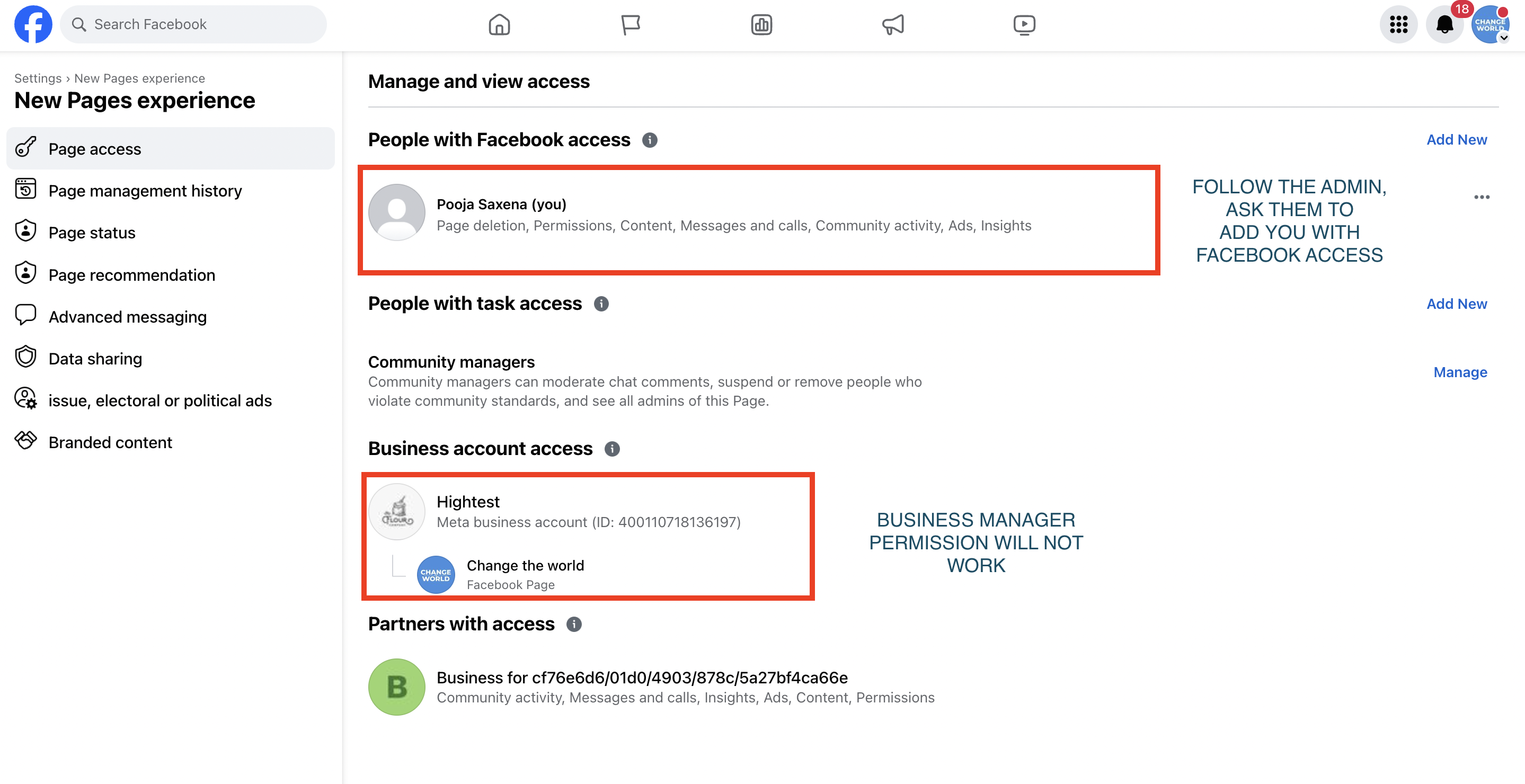
- User must have admin, editor or moderator rights on the Facebook page.
- User must be logged into the Facebook account that originally connected the page.
06How to set up and use the Facebook publishing troubleshooting in HighLevel
Add missing page to Social Planner list
- Log in to the Facebook admin account.
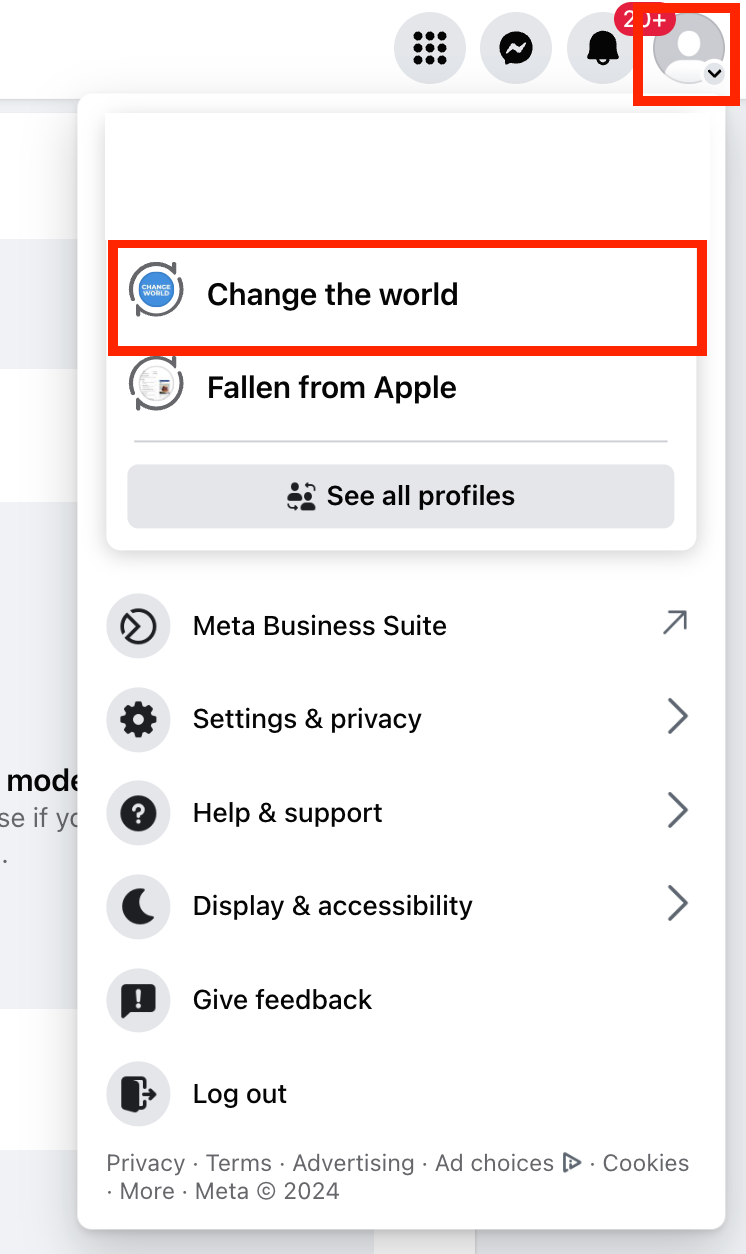
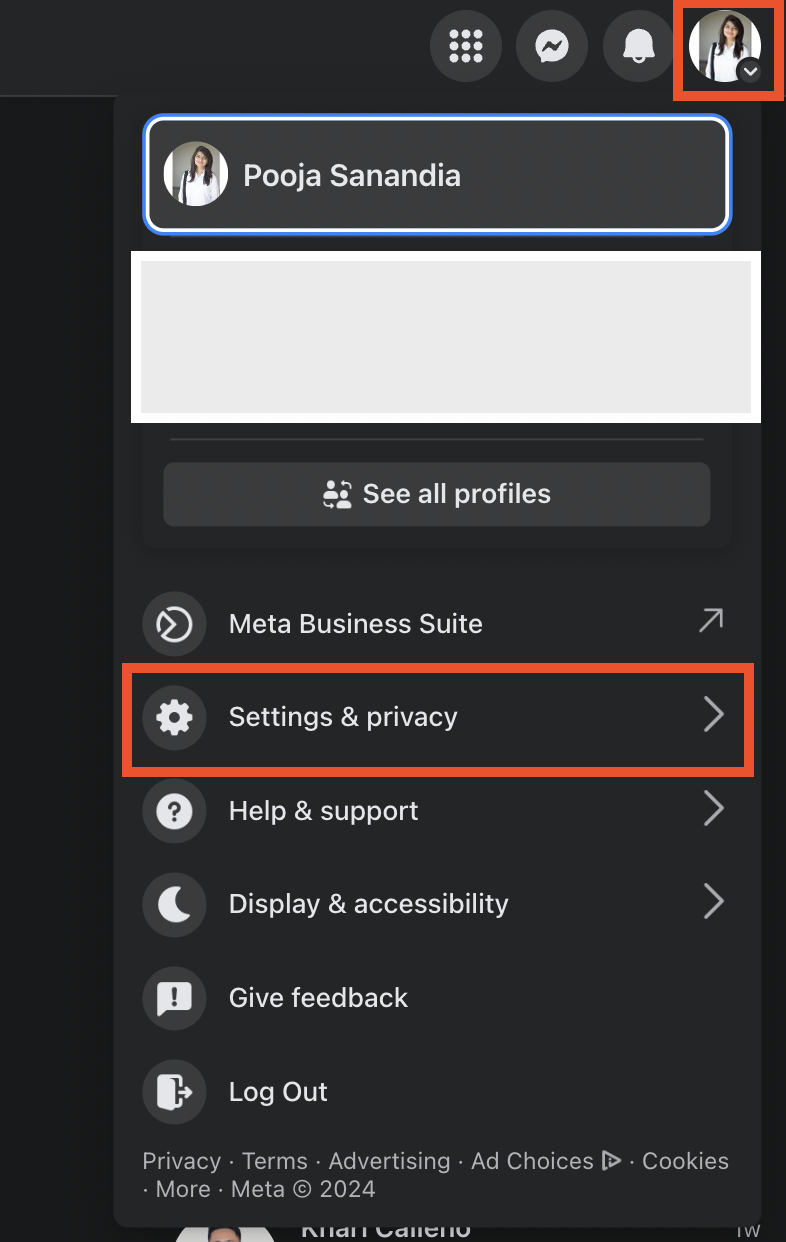
- Open Settings & Privacy from the profile picture menu.
- Choose Settings, then go to Business Integrations and select LeadConnector.
- Click the "View and Edit" link to open the permission dialog.
- In the dialog, ensure all needed pages are checked and that content, insight and manage_permissions permissions are granted.
- Save the changes inside Facebook.
- Return to HighLevel Social Planner, open Settings > Integration, and reconnect the Facebook account; the previously hidden pages should now appear.
Reconnect an expired Facebook token
- Identify the Facebook user who originally linked the page or group.
- Have that user sign into HighLevel.
- Navigate to the location, open Settings > Integrations.
- Click the disconnect icon next to the expired Facebook token.
- Immediately click the connect button and complete the authentication flow.
07What it looks like in HighLevel
08Settings that matter
- content and insight permission. Allows HighLevel to publish posts and read page insights for the connected Facebook page.
- manage_permissions. Grants the platform authority to manage page settings and publish on behalf of the page.
- Two, factor authentication. If the Facebook page requires it, the user must enable two factor authentication on their Facebook account before reconnecting.
09Things to know before you rely on it
- Business Manager is not recommended for granting content permission; admin rights on the page are required.
- A Facebook access token can expire after a password change or if no post is made for 90 days.
- Only users with page admin, editor or moderator roles can reconnect a page or group.
10If something goes wrong
- Abusive / Reported content goes against Community Standards. Remove the offending content or link and try publishing again.
- Error validating access token. Re authenticate the Facebook account in Social Planner to generate a fresh token.
- Two factor authentication required. Enable two factor authentication on the Facebook account, then reconnect.
- 'manage_permissions' must be granted. During connection, ensure the manage_permissions option is selected for the page.
- Missing or Invalid Image. Verify that the image URL in the scheduled post is still accessible.
- An unknown error occurred. Reconnect the Facebook pages and confirm all required permissions are granted.
- The URL you supplied is invalid or this link could not be posted. Check the link for correctness; retry after a few minutes if Facebook servers are overloaded.
11How it connects to the rest of HighLevel
- How to connect Facebook pages in HighLevel Social Planner Connect Facebook
- HighLevel social planner: image and video specifications Content specs
- Using post approvals in HighLevel Social Planner Post approvals
Michael's take

Getting Facebook publishing right matters for a small business. this page walks you through permission checks and token refresh steps so you don’t waste time guessing why a post disappeared.
Don’t ignore the admin rights requirement; without it the whole integration stays broken.