
01Who this is for
- Marketing teams can use post approvals to ensure every social media draft meets brand standards before publishing.
- Agencies and in house social managers benefit from a clear hand off between creators and reviewers.
02Post approvals, explained
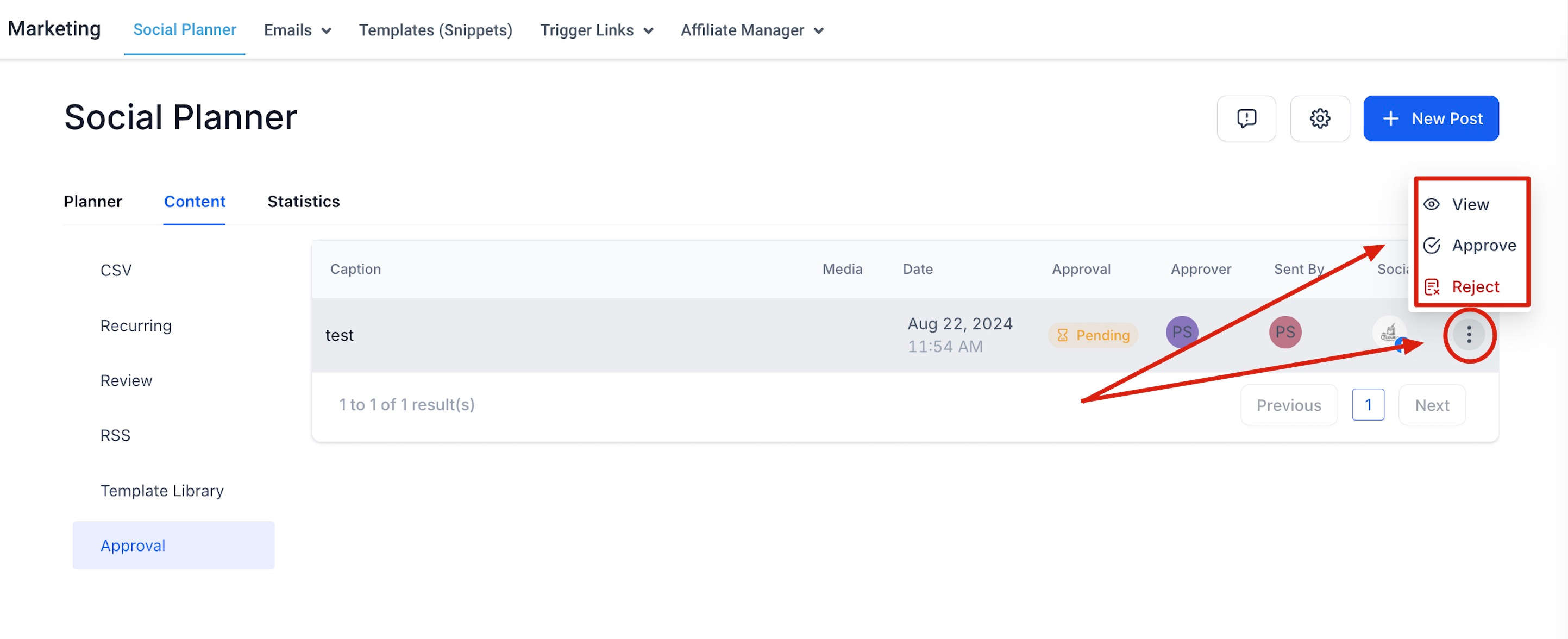
The post approval feature lives inside the Social Planner module. When a user creates a post, they can mark it for approval and assign a team member to review it. The approver receives an optional email, can edit the draft, change the scheduled date, or reject it. Approved items then move onto the publishing calendar.
All approval actions are tracked in the Content > Approval tab. The same process works for bulk uploads: a CSV file is imported, each row becomes a pending post, and the selected approver must clear the batch before the schedule is finalized.
03How businesses use post approvals
- Digital marketing agency. The agency creates client posts, tags a senior strategist as approver, and sends the draft for internal sign off. The strategist edits any copy issues, adjusts the schedule, and approves, after which the post is auto scheduled.
- Real estate brokerage. Agents draft property listings, assign the office manager as the approver, and submit the drafts. The manager reviews, ensures branding compliance, and either approves or returns the post with notes before it appears on the brokerage’s social calendar.
- Fitness studio. The studio uploads a CSV containing weekly class promotions, selects the studio owner as approver, and enables Send for approval. The owner validates each entry, makes timing tweaks if needed, and approves, allowing the promotions to publish on schedule.
04How to set up and use post approvals in HighLevel
Submit a post for approval
- Navigate to Marketing > Social Planner.
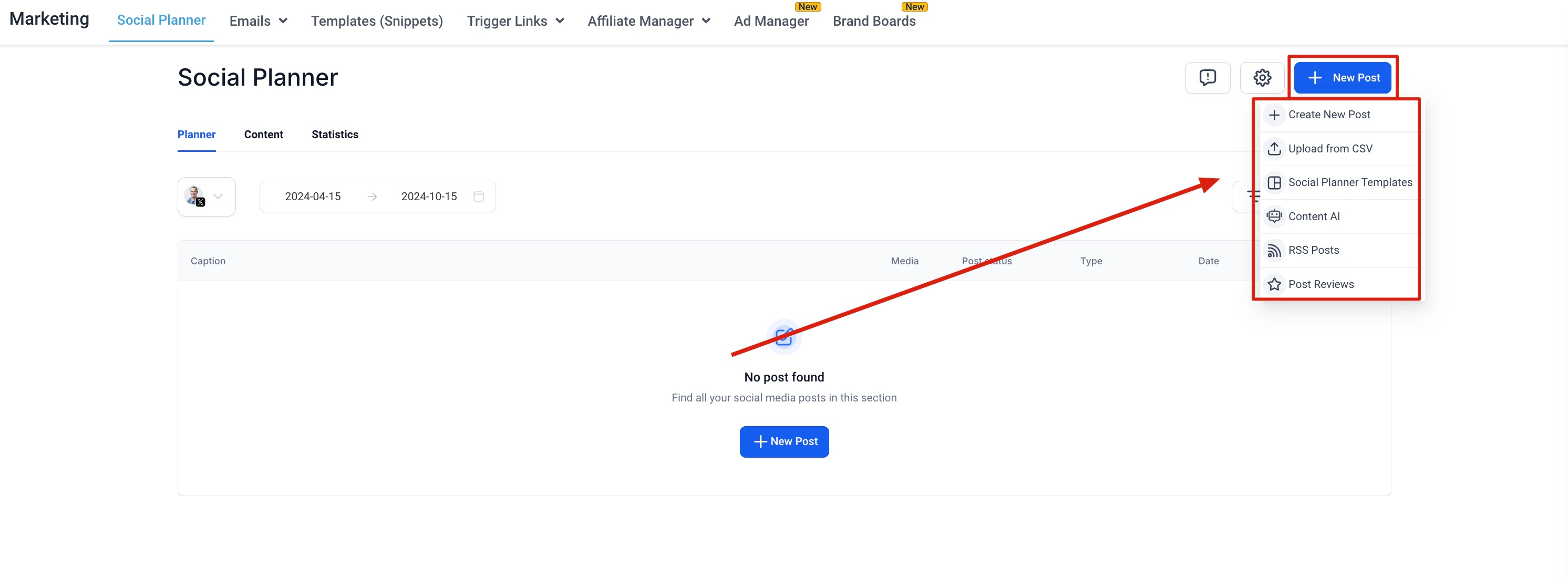
- Click New Post and compose the social media content.
- Add any media, hashtags, and required details.
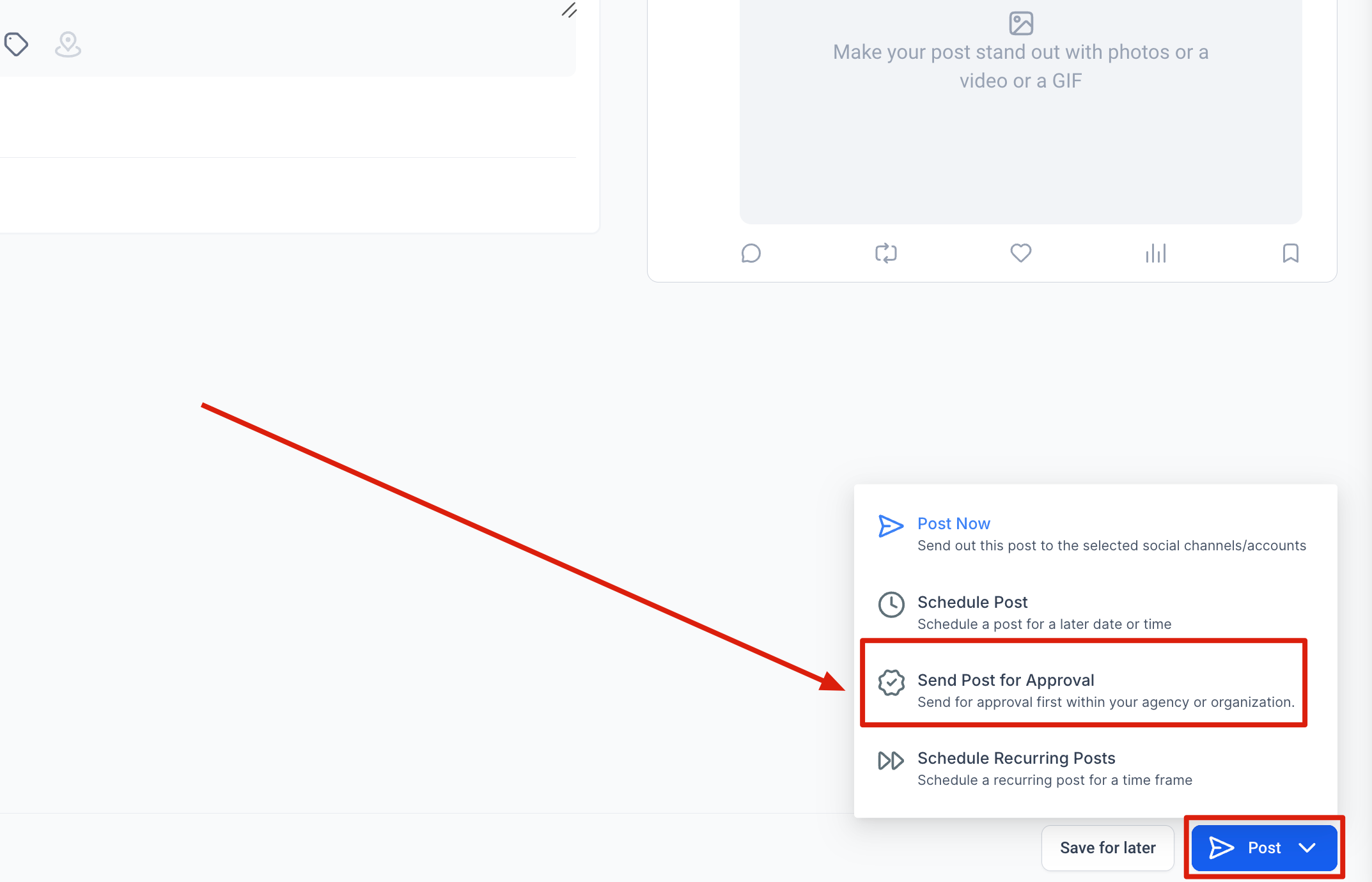
- Select the option to schedule the post for approval.
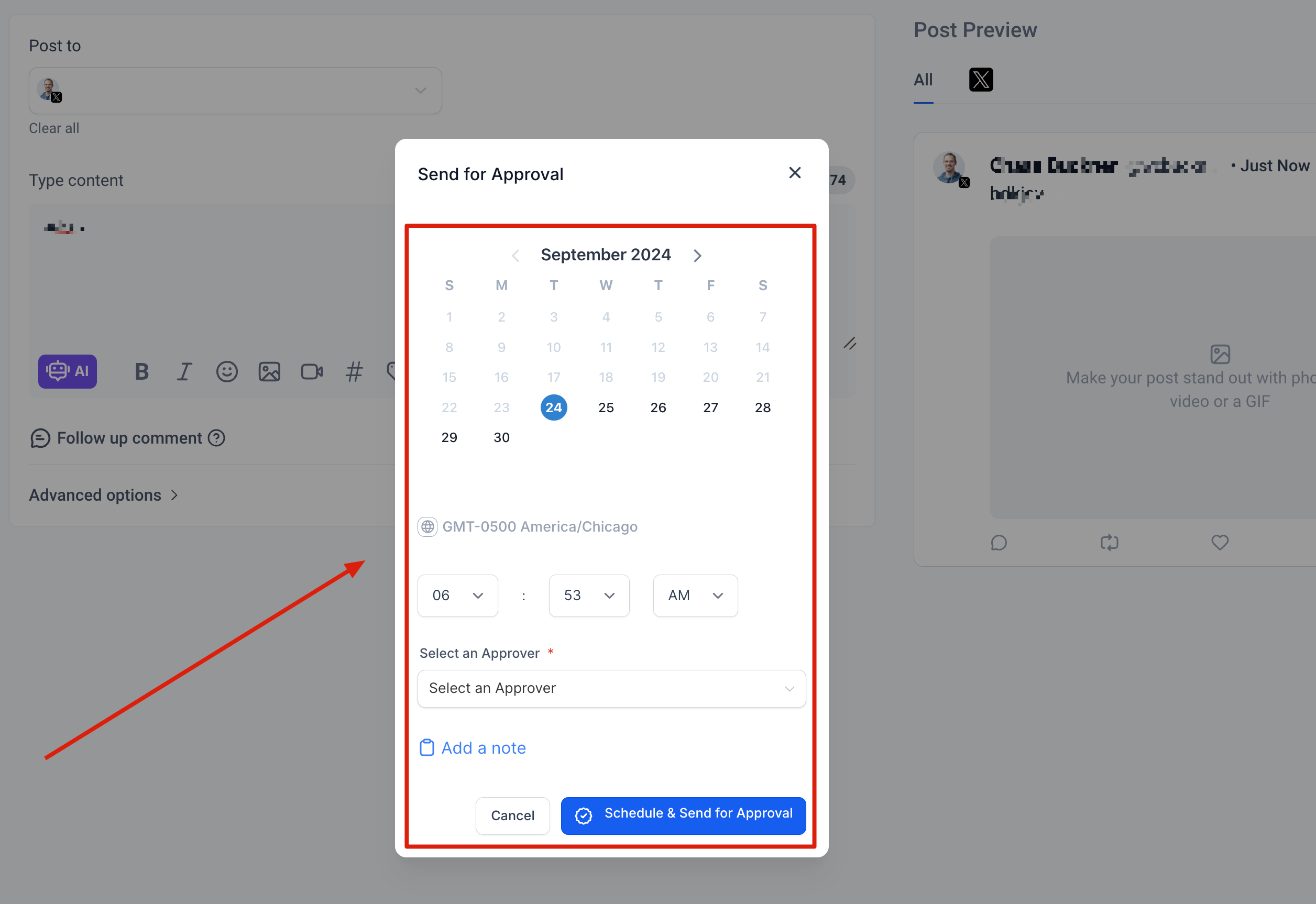
- Choose the desired publication date and time.
- Assign a team member who will act as the approver.
- Enter an internal note to give context to the reviewer.
- Submit the post for approval.
Configure the post approval email template
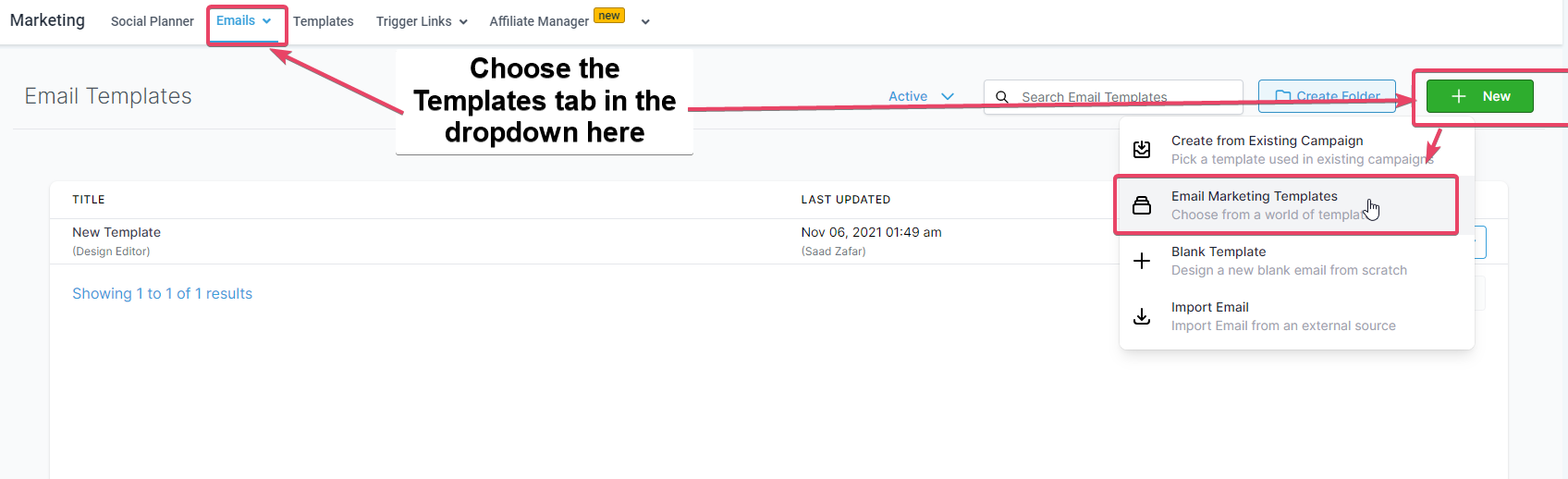
- Go to Marketing > Emails > Templates > New > Email Marketing Templates.
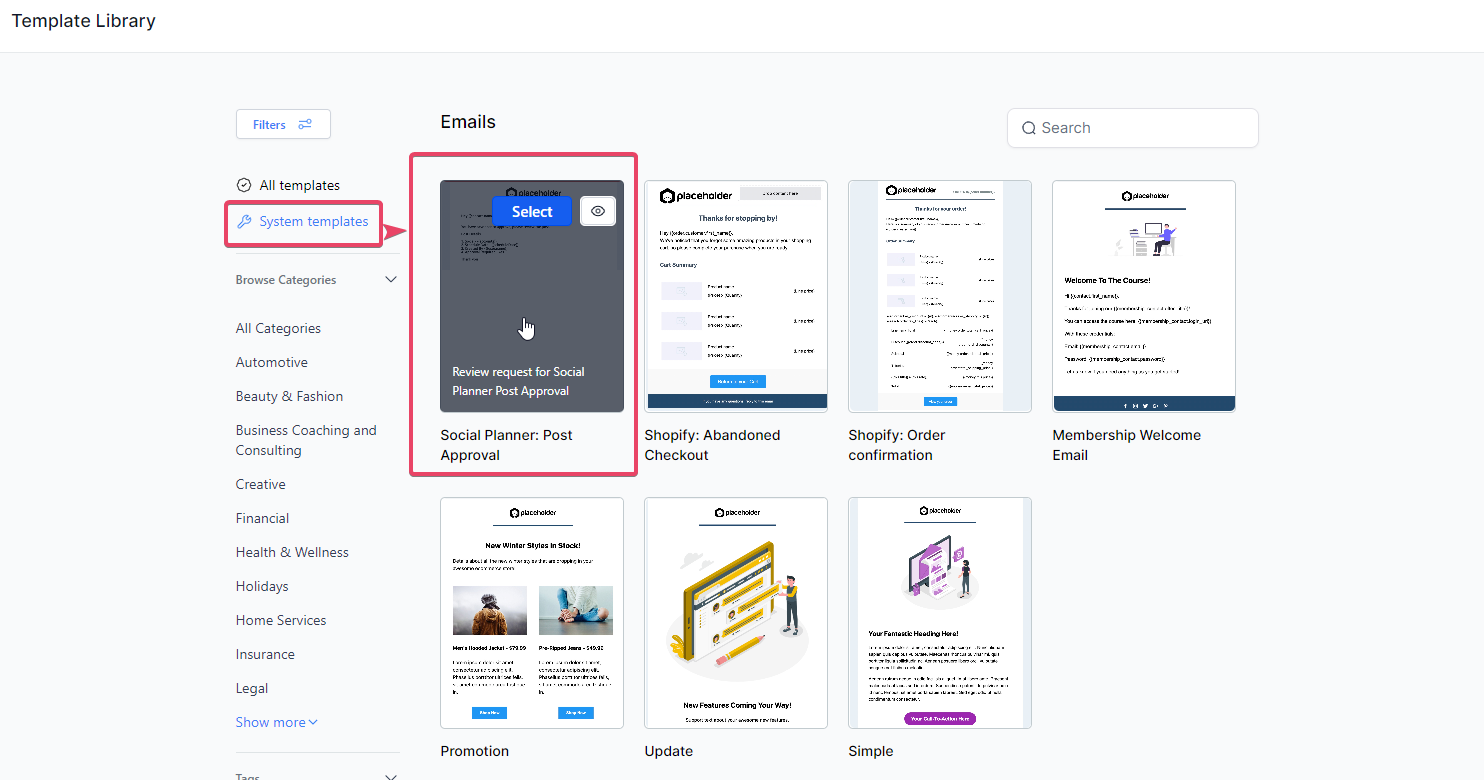
- In the Template Library, open System Templates > Social Planner : Post Approval.
- Edit the template content and branding as needed.
- Open Social Planner Settings > Notifications.
- Select the edited template under Setup Email template for Social Post Approval.
Schedule the CSV for bulk post approval
- Click the New Post button in Social Planner.
- Add the CSV file and choose the social accounts for the rows.
- Select an approver for the imported posts.
- Imported posts await review; once approved, they are scheduled on the calendar.
Submit bulk posts for approval
- Navigate to Marketing > Social Planner.
- Click New Post and choose Upload from CSV.
- Select the CSV or XLSX format and upload the file.
- Click Next.
- Choose the social media accounts where the posts will be published.
- Enable Send for approval.
- Select the team member who should approve the posts.
- Click Create.
- Review the imported posts, correct any errors, and complete the bulk upload.
05What it looks like in HighLevel
06Settings that matter
- Request for Post Approval notification. Turns on email alerts that inform the chosen approver when a post is submitted for review.
- Setup Email template for Social Post Approval. Specifies which email template is used for the approval notification sent to approvers.
- Send for approval. A toggle that places uploaded posts into the approval workflow instead of scheduling them immediately.
07Things to know before you rely on it
- External stakeholders who lack a HighLevel account must use the separate External Link Approval Flow.
- Posts remain blocked from publishing until an approver marks them as approved.
08If something goes wrong
- Approver did not receive an approval request email. Confirm that the Request for Post Approval notification is enabled under Social Planner > Settings > Notifications and verify that the correct approver was selected when the post was submitted.
09How it connects to the rest of HighLevel
- Connect your Facebook page to enable posting from Social Planner Facebook page connection
- Review image and video specifications for Social Planner posts Content specs
- See plan options and pricing for HighLevel access Pricing
Michael's take

Post approvals in Social Planner help teams maintain content quality and collaborate more effectively.
The Request for Post Approval notification can be enabled so that an email is sent to the selected approver when a post is submitted for approval.