
01Who this is for
- Marketing managers who need a single place to plan posts across LinkedIn and other channels.
- Social media agencies that handle multiple client LinkedIn pages and require shared access.
- Small business owners who want to keep personal and company LinkedIn activity under one schedule.
02LinkedIn integration, explained
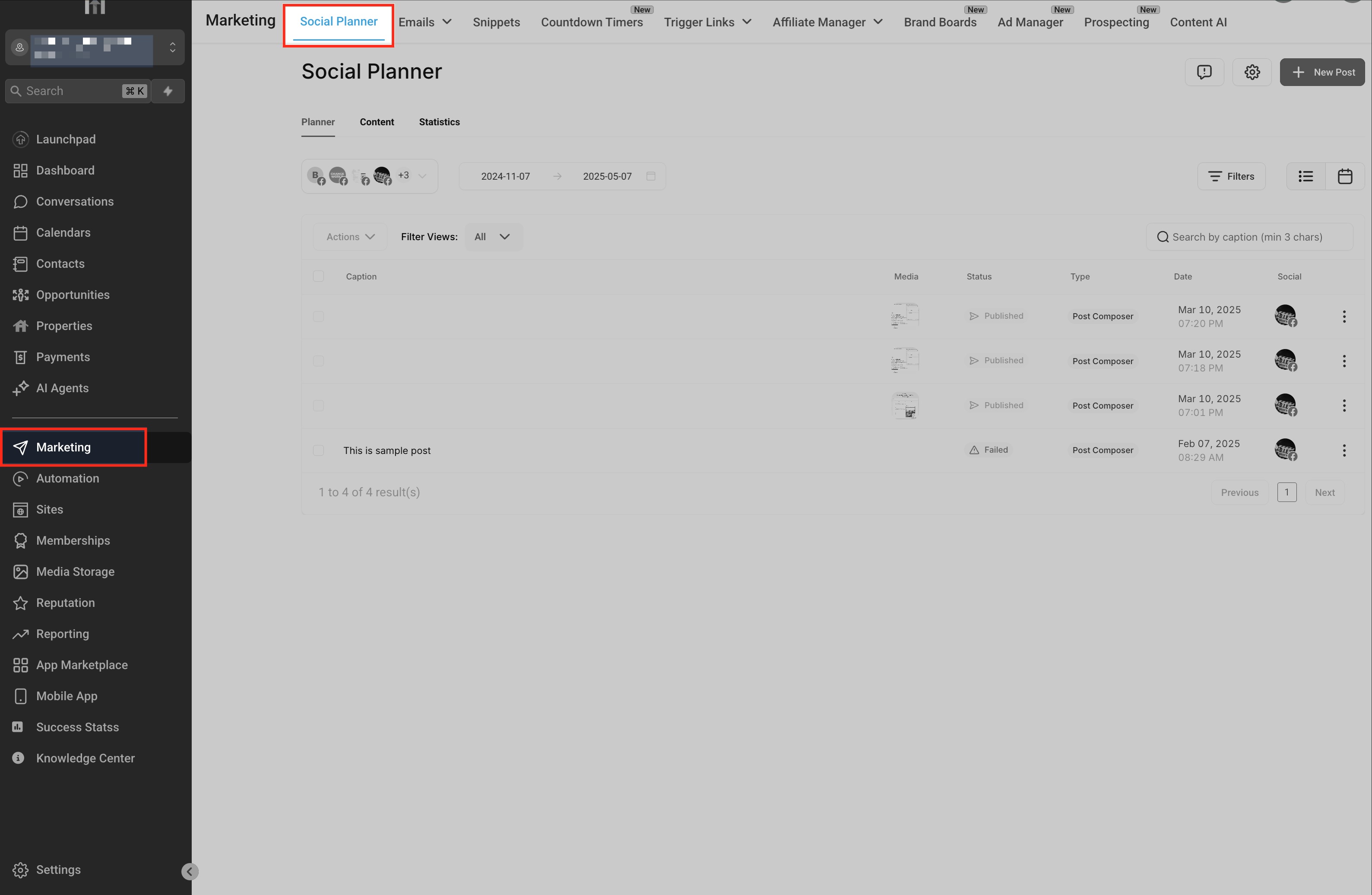
The integration adds LinkedIn as a selectable network inside the Social Planner. After a successful link, the platform stores an access token that allows posting on behalf of the chosen profile or page. Token health appears in the Social Accounts list and a Reconnect prompt shows when the token nears expiration. All actions are performed inside the Social Planner, reachable from the left navigation under Marketing > Social Planner.
03How businesses use LinkedIn integration
- Marketing agency. The agency opens Social Planner, connects each client’s LinkedIn page, and then queues campaign posts. The token status indicates when re authorization is needed.
- B2B consultancy. The consultant links their personal LinkedIn profile to schedule thought leadership articles. Selecting the profile during content creation queues the post without switching browsers.
- Retail storefront. The store owner adds the company LinkedIn page, chooses promotional graphics, and sets a future publish time. The connection badge confirms the page is ready for posting.
04The numbers and rules that matter
- Integration token is valid for approximately 60 days.
- No fixed limit on the number of LinkedIn accounts you can connect.
05Before you start
- You must have admin rights on the LinkedIn page you plan to attach.
- For ad related posting, the LinkedIn login must hold Super Admin or Campaign Manager role.
06How to set up and use LinkedIn integration in HighLevel
Connect a LinkedIn profile or page to Social Planner
- Open Marketing > Social Planner from the left menu.
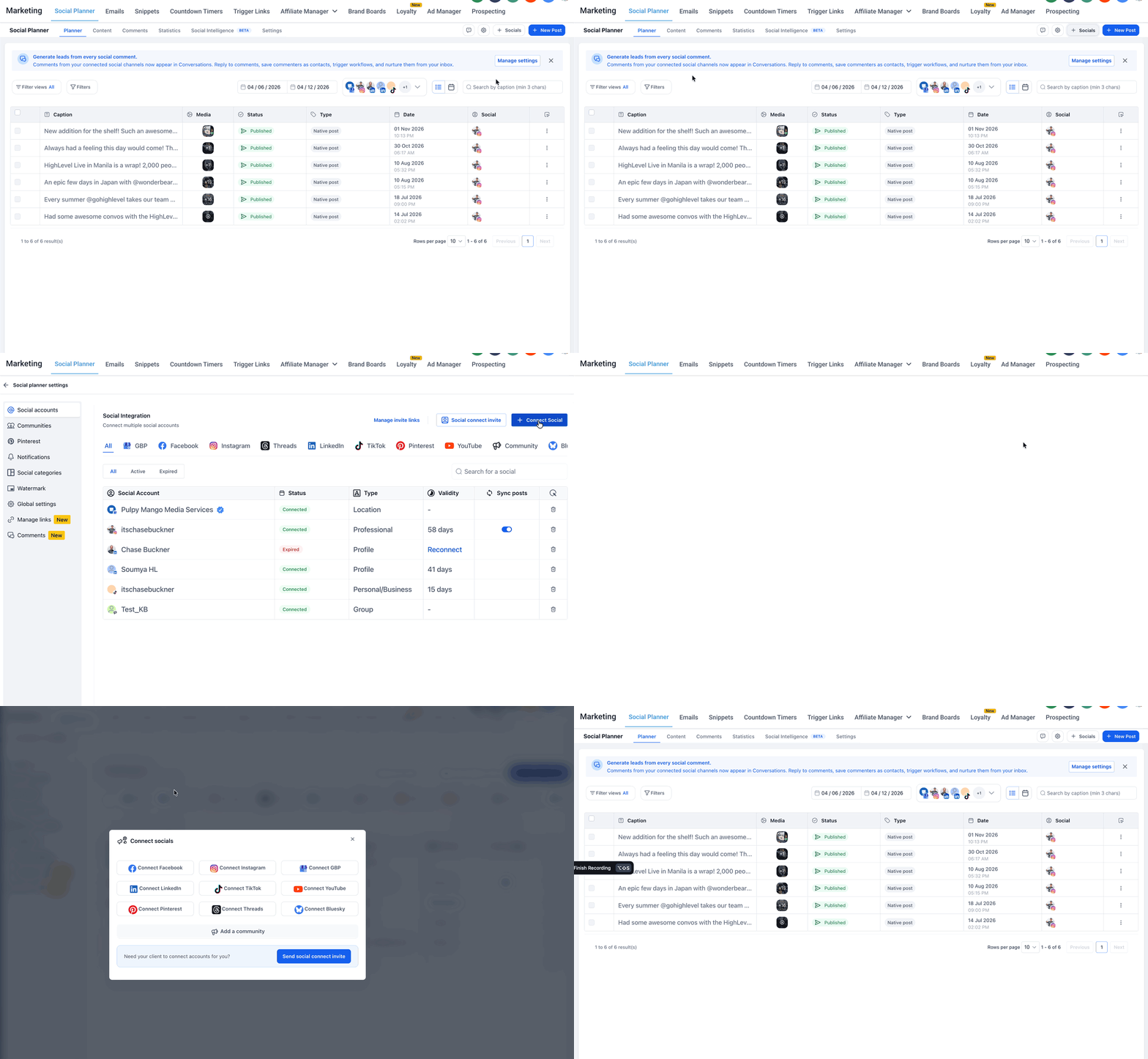
- Press the + Socials button to launch the connection window.
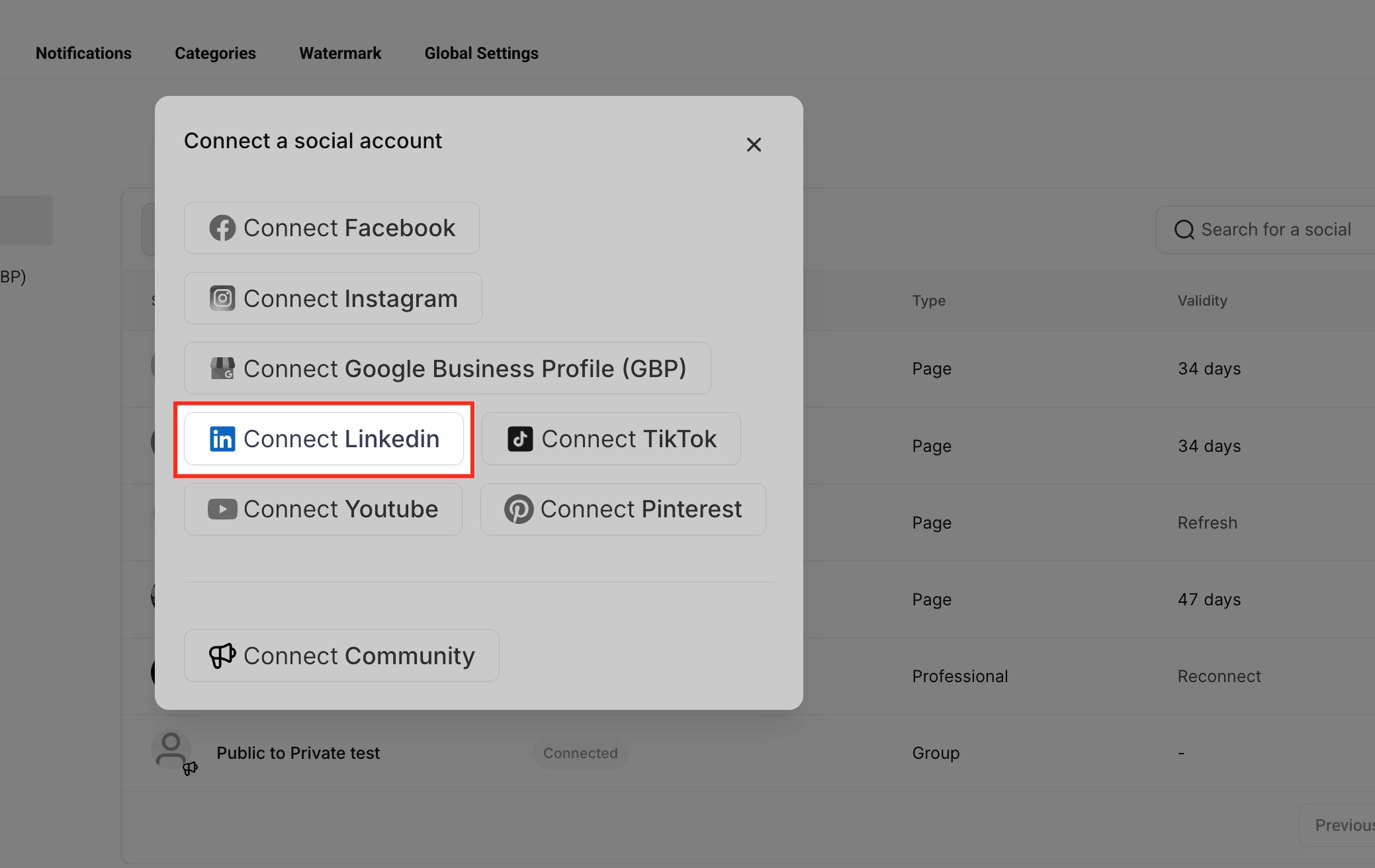
- Select Connect LinkedIn from the list of platforms.
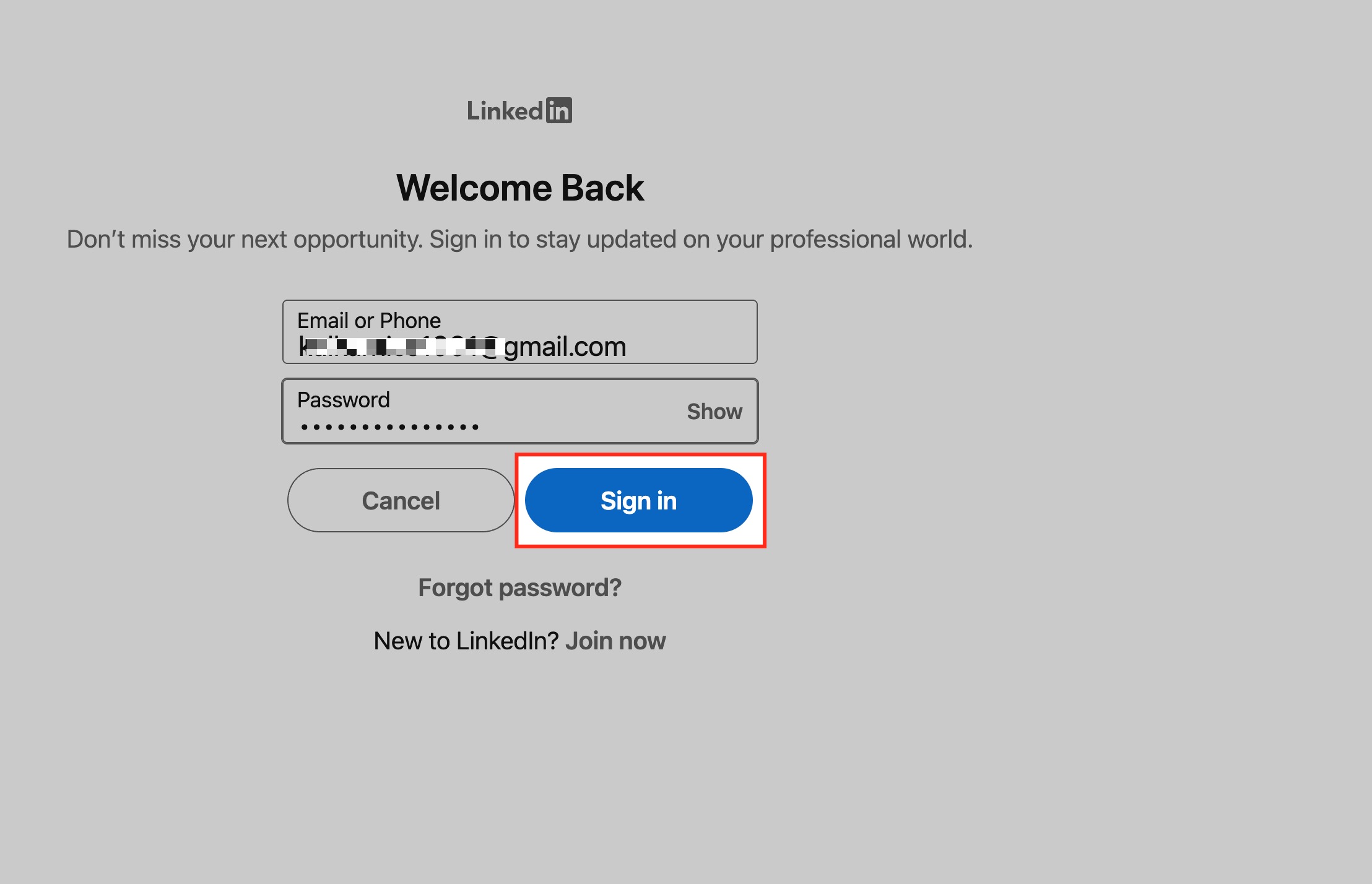
- Enter your LinkedIn credentials on the sign in screen and confirm.
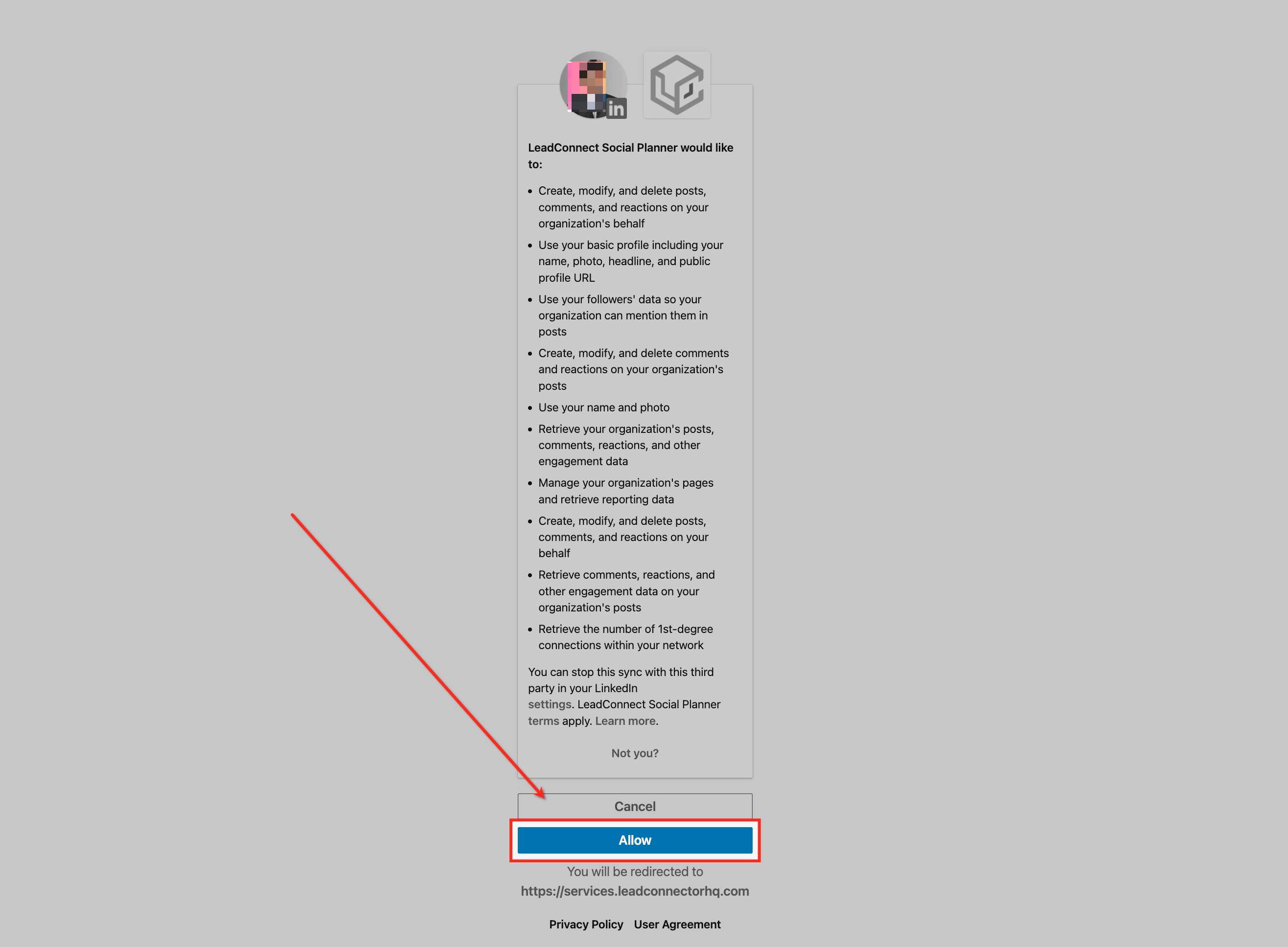
- Allow LeadConnector to access your LinkedIn account when prompted.
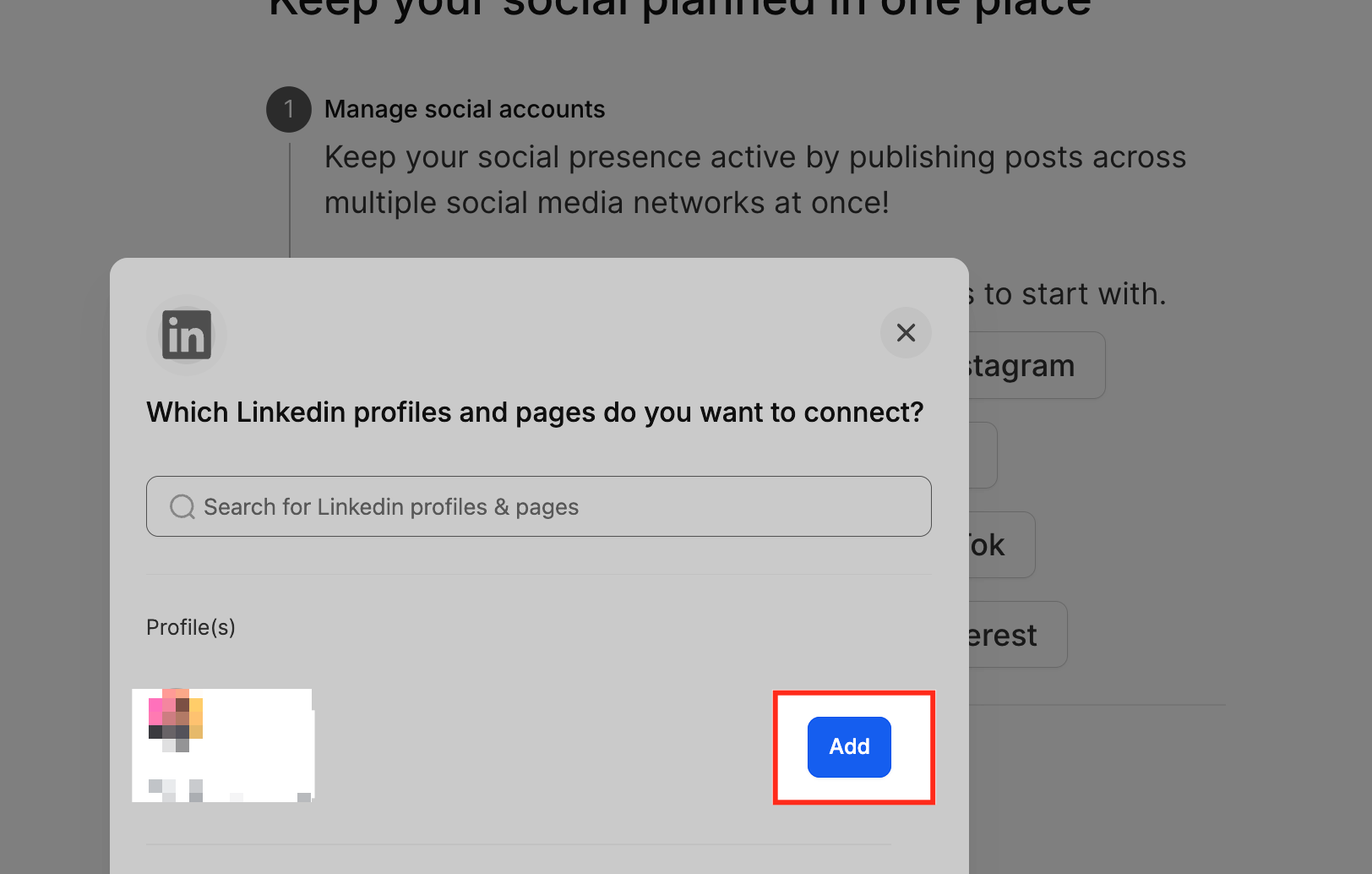
- Choose the personal profile or company page you wish to link and add it.
- Check that the new entry appears as Connected with token details displayed.
07What it looks like in HighLevel
08Settings that matter
- Token validity. Indicates how long the LinkedIn access token remains active before a reconnection is required.
09Things to know before you rely on it
- The access token stays valid for roughly 60 days; after that a Reconnect notice will appear.
- There is no hard cap on the number of LinkedIn accounts, but each must fit within your subscription’s permitted user count.
- Missing admin rights on a page will cause a Permissions Missing status.
- Ad account visibility requires the linked LinkedIn user to have Super Admin or Campaign Manager access.
10If something goes wrong
- Token expires and the account shows as disconnected.. Click the Reconnect button in the Social Accounts list and repeat the authorization steps.
- Permissions Missing appears for a page.. Confirm the LinkedIn account has admin rights on the page, then reconnect and grant all requested permissions.
11How it connects to the rest of HighLevel
- Link Facebook pages in Social Planner Facebook connection
- Connect Google Business Profile Google profile
- HighLevel pricing and plans Pricing
Michael's take

Michael ReimerFounder of CRM Pros, HighLevel Commander and Certified Admin
Linking LinkedIn to HighLevel saves a small business the hassle of juggling separate tools for posting and scheduling, turning one of the most time consuming social tasks into a few clicks.
Don’t forget to verify you have admin rights before you start.
Get More InformationOpens on HighLevelPublished November 2, 2026 · Updated November 16, 2026