
01Who this is for
- Founders who need to broadcast time sensitive offers to a specific segment can use bulk SMS for immediate reach.
- Marketing managers who run nurture sequences benefit from workflow SMS that fires after a form submission or appointment booking.
02SMS campaigns, explained
SMS campaigns in HighLevel provide two main methods: Bulk SMS for a single time broadcast to a chosen group, and Workflow SMS for messages that fire automatically when a contact meets a trigger condition. Bulk sends can be dispatched right away, scheduled for a later moment, or paced with Drip Mode to spread delivery over time. Workflow SMS lives inside the Automation > Workflows area and runs whenever its trigger fires, allowing you to embed waits, conditions, and additional actions.
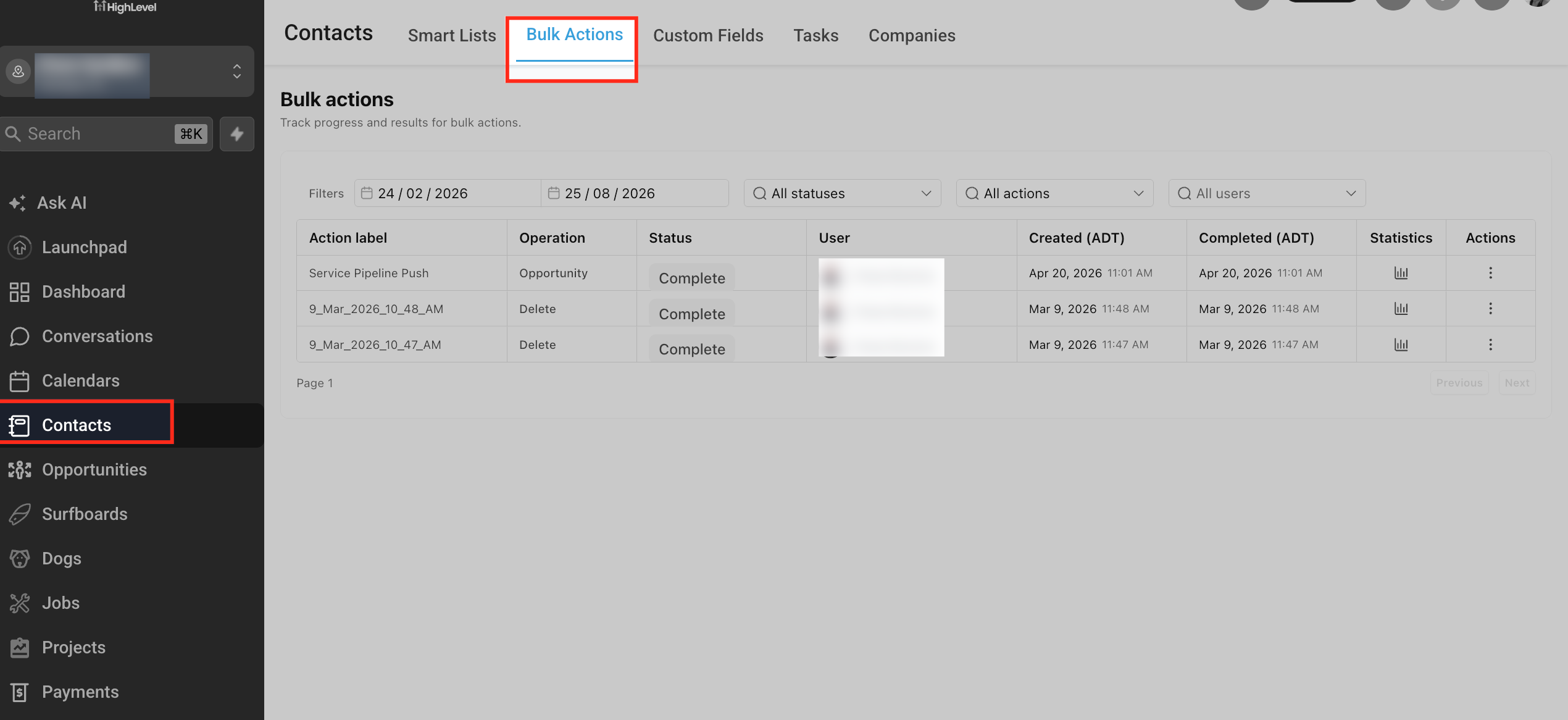
Both approaches support reusable snippets, which store standard text that can be inserted into messages. After a campaign is launched, HighLevel records the status of each contact, sent, delivered, failed, or skipped, so you can review performance in the Bulk Actions view under Contacts.
03How businesses use SMS campaigns
- Retail store. A retailer creates a bulk SMS to announce a flash sale, selects the customer segment, inserts a prepared snippet for the discount code, and schedules the send for the start of the promotion.
- Healthcare clinic. The clinic builds a workflow that triggers an appointment reminder SMS when a patient books a visit, adding a wait step of 24 hours before the message is sent.
- Real estate agency. Agents save a standard property inquiry response as a snippet, then reuse that snippet in bulk messages that inform leads about new listings.
04The numbers and rules that matter
- A2P registration is required for US 10DLC numbers.
05Before you start
- Confirm the subaccount has an eligible sending number configured.
- Verify contacts have given consent to receive SMS messages.
- Complete any required A2P registration when using US 10DLC numbers.
- Avoid messaging contacts marked as DND or who have opted out.
06How to set up and use SMS campaigns in HighLevel
Launch a bulk SMS campaign
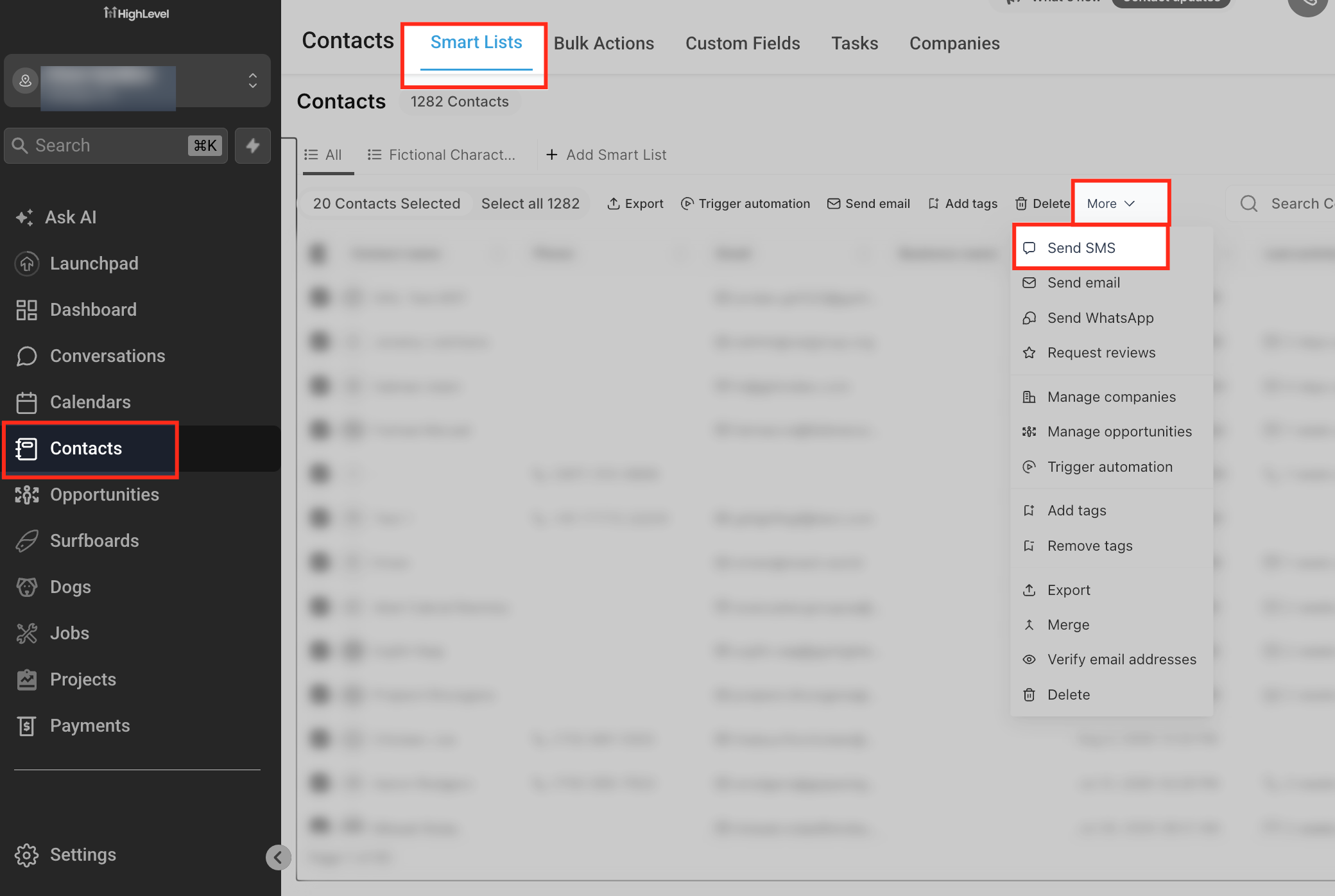
- Open the Contacts area.
- Mark the contacts you want to message.
- Select the Send SMS Bulk Action option.
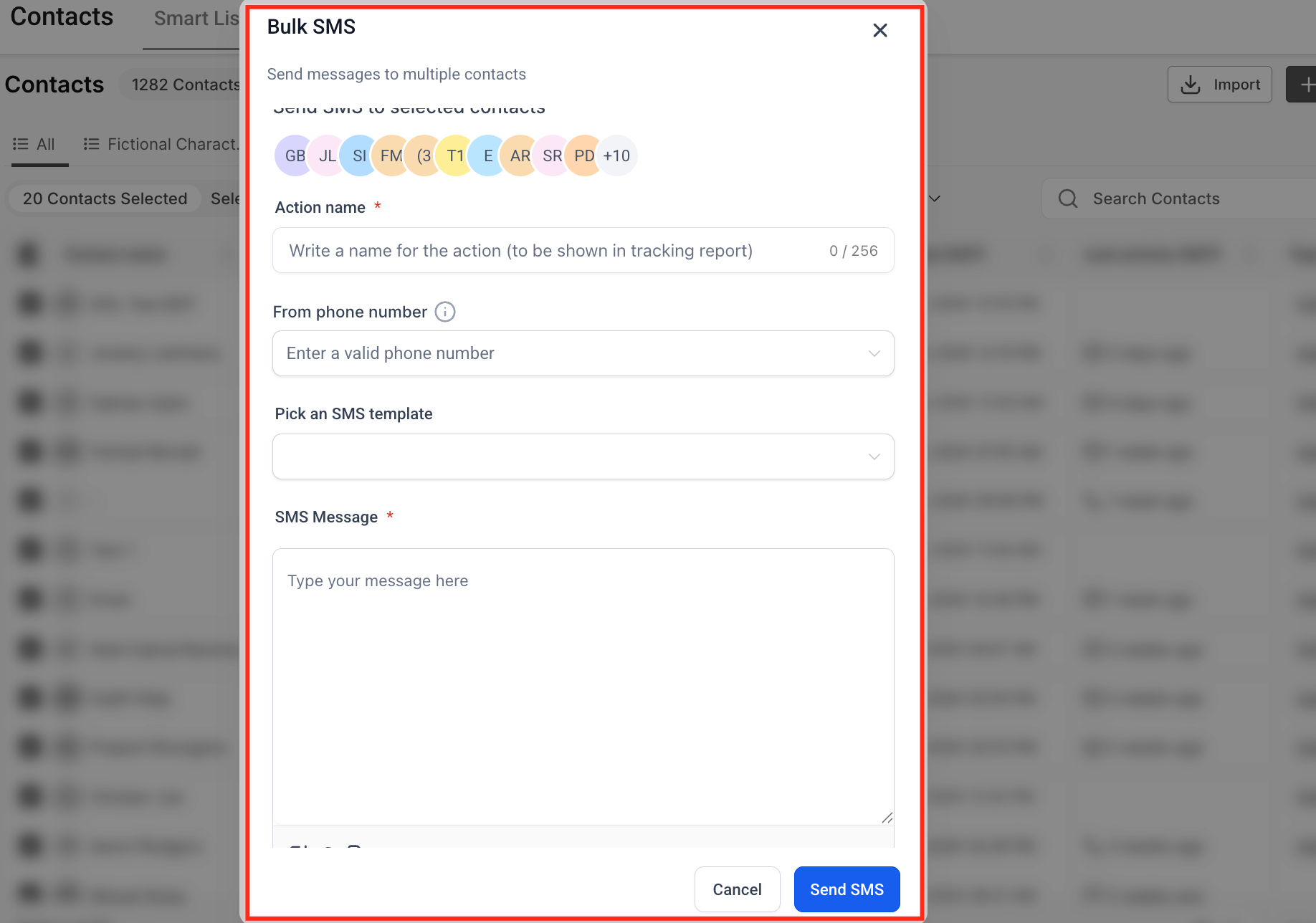
- Pick the sending phone number when prompted.
- Type the SMS text or pull in a saved snippet.
- Check the list of recipients and the message preview.
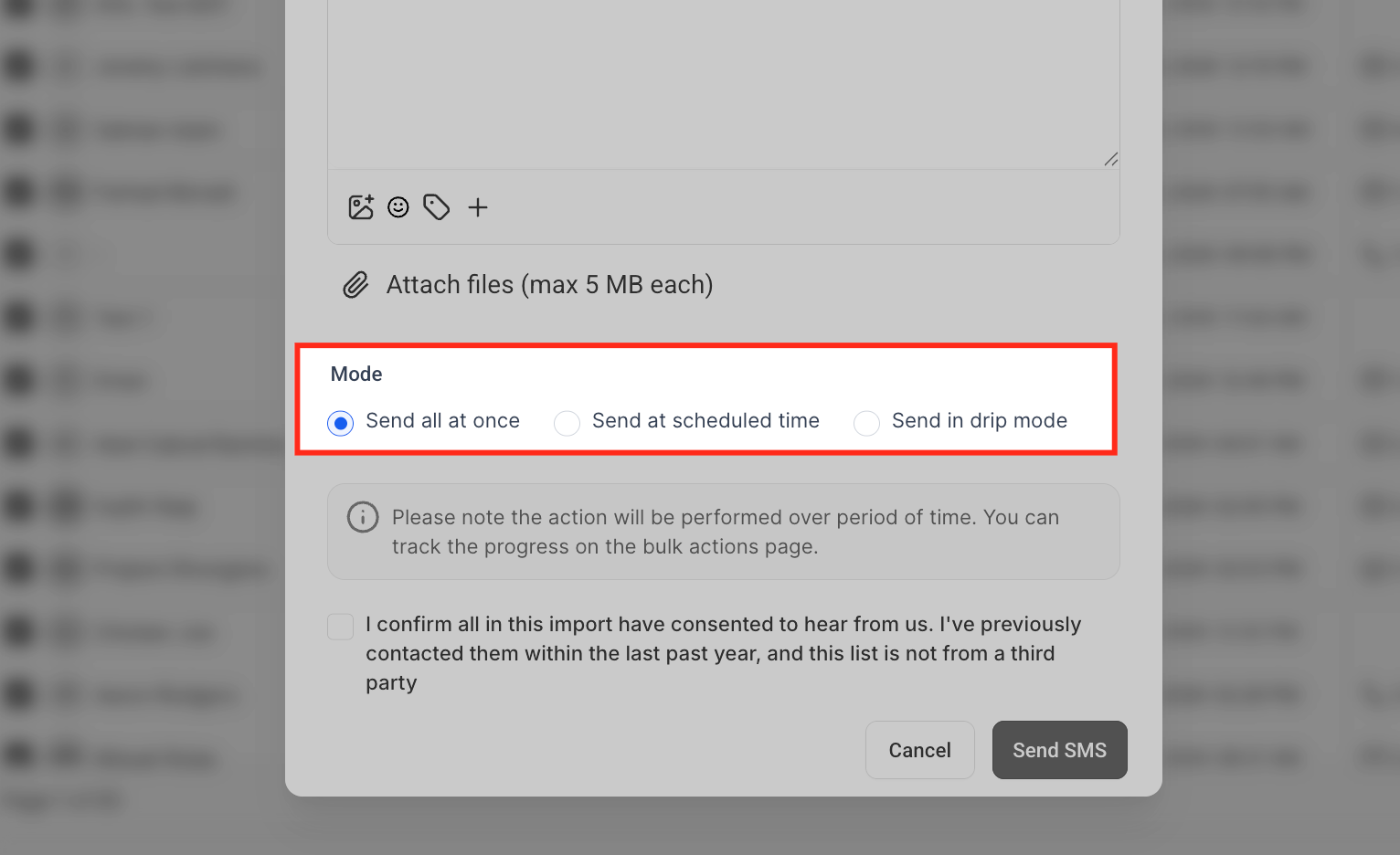
- Choose a delivery method: Send Now, Schedule, or Drip Mode.
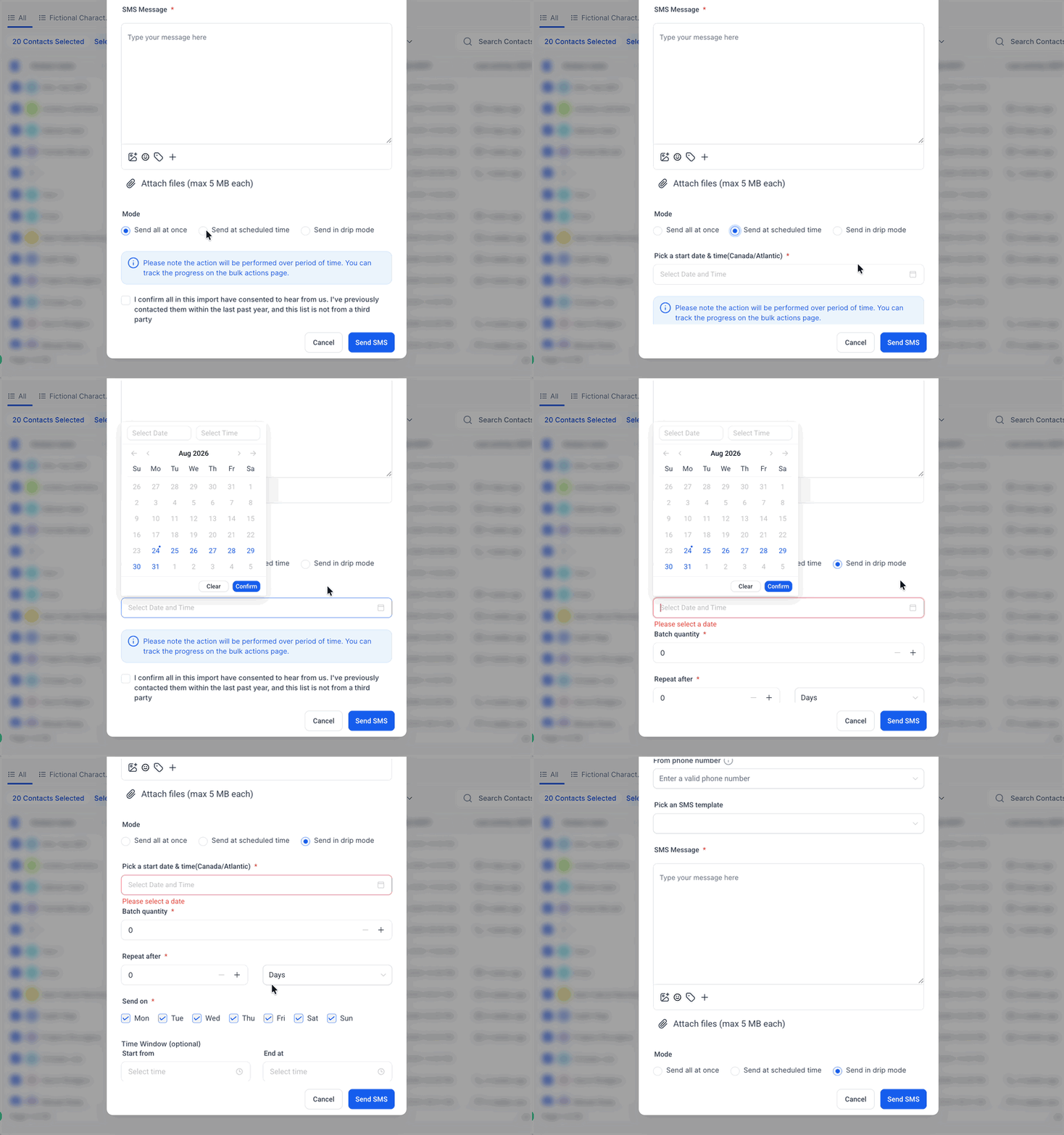
- Set any extra delivery parameters required.
- Confirm all details and start the send.
Create a reusable SMS snippet
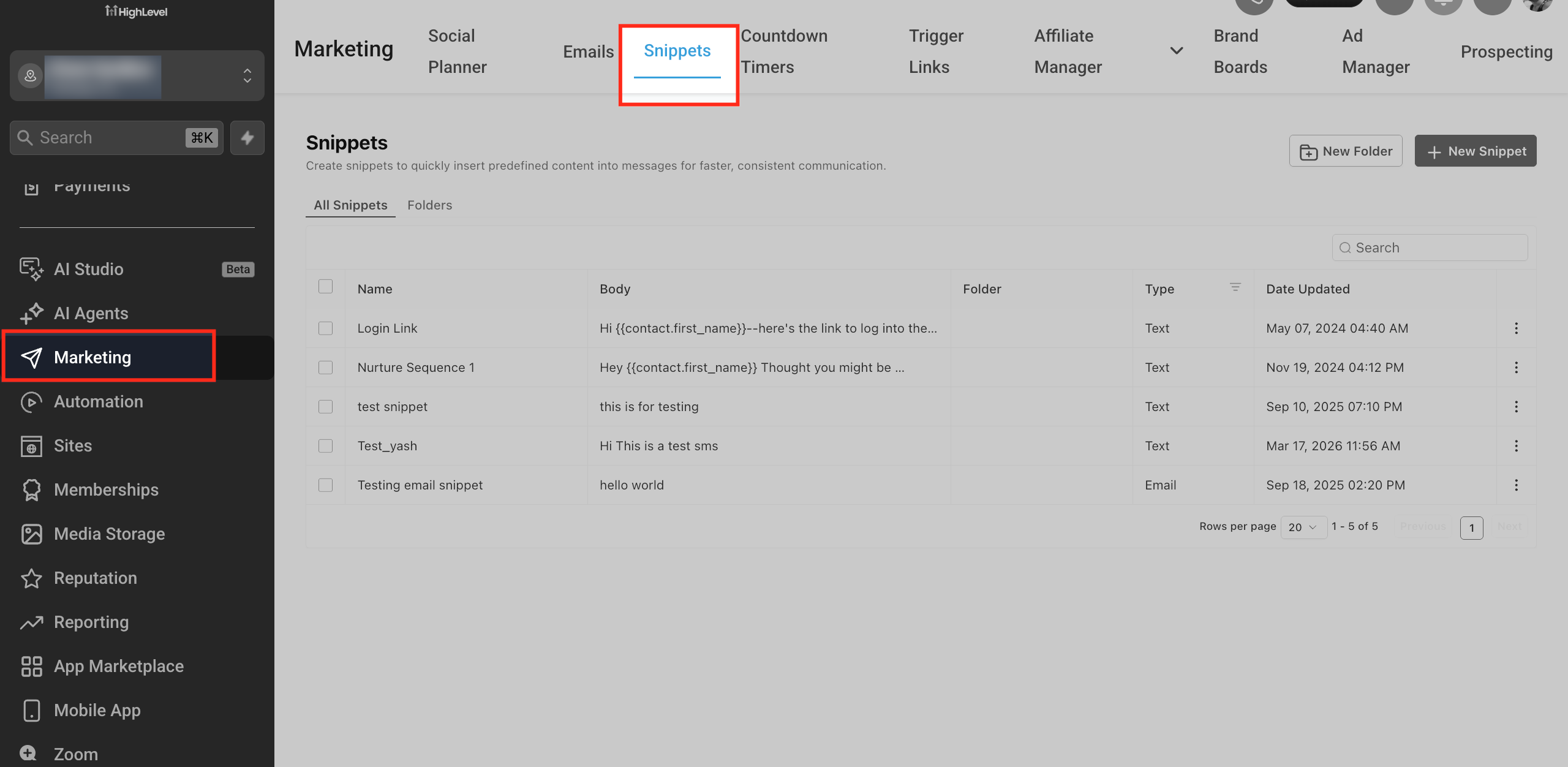
- Navigate to Marketing > Snippets.
- Click to add a new text snippet.
- Enter a clear name for the snippet.
- Paste the SMS body you want to reuse.
- Insert any supported personalization tokens.
- Save the snippet for later use.
Monitor your bulk SMS campaign
- Go back to the Contacts section.
- Open the Bulk Actions tab.
- Find the SMS Bulk Action you need to review.
- Select the campaign details or Show Stats link.
- Examine the delivery results such as sent, delivered, failed, or skipped.
Automate SMS with a workflow
- Open Automation > Workflows.
- Create a new workflow or edit an existing one.
- Pick the trigger that will start the automation.
- Add a Send SMS action to the workflow canvas.
- Enter the message text for the SMS.
- Add personalization or a snippet where needed.
- Insert any Wait steps, conditions, or extra actions.
- Run a test of the workflow and the SMS content.
- Publish the workflow to make it active.
Set up your first SMS campaign
- Define the objective of the text message.
- Decide if the send will be a one time broadcast or an automated follow up.
- Make sure your sending number and any A2P registration are in place.
- Confirm the target contacts are eligible to receive SMS.
- Write the message copy you intend to send.
- Select the delivery method: bulk for a list or workflow for automation.
- If using bulk, choose Send Now, schedule a future time, or enable Drip Mode.
- If using a workflow, pick the correct trigger and set up the Send SMS action.
- Review the final message and audience details.
- Launch the campaign and later monitor its results.
07What it looks like in HighLevel
08Settings that matter
- Sending phone number. Determines which phone number HighLevel uses to originate the SMS messages.
- Delivery option. Controls whether the bulk send is immediate, scheduled, or processed with Drip Mode.
- Send Now. Starts delivering the message to the entire eligible audience right away.
- Schedule. Sets a specific future date and time for the bulk SMS to begin.
- Drip Mode. Breaks a large bulk action into smaller batches and spaces them over time.
- Start On. Specifies the start time for Drip Mode batch processing.
- Batch Quantity. Defines how many contacts are included in each batch during Drip Mode.
- Repeat After. Sets the wait interval before the next batch is sent in Drip Mode.
- Snippet name. Provides an identifier for a saved SMS snippet so it can be inserted later.
- Snippet content. Holds the actual text that will be placed into SMS messages when the snippet is used.
09Things to know before you rely on it
- Contacts flagged as opt out or DND are automatically excluded from bulk sends.
- Messages that have already been sent cannot be edited or recalled.
- Available controls for pending bulk actions depend on the current campaign status.
- A2P registration is required for US 10DLC numbers before sending application to person SMS.
10How it connects to the rest of HighLevel
- Learn how to reuse SMS text with snippets SMS snippets overview
- View HighLevel pricing and plan options Pricing page
Michael's take

People often jump straight into a Bulk SMS without checking if any of their contacts have opted out or are marked DND. That leads to skipped messages and compliance headaches. I would begin with confirming consent and that the sending number is eligible, then pick the method that truly fits the need, Bulk for a one time announcement, Workflow for anything that should fire on an event.
Once the groundwork is solid, I’d set up a quick test: Send a tiny batch to myself using the chosen delivery option. That confirms the number works, the content looks good, and the timing is right before scaling up to the full list.