
01Who this is for
- Customer support teams benefit because they can quickly pull approved replies for common inquiries.
- Marketing staff gain efficiency by reusing standard promotional texts while still customizing each send.
- Operations managers keep messaging consistent across appointments, reminders, and follow ups.
02SMS snippets, explained
SMS snippets are a type of Text Snippet designed specifically for text messages. After you create a snippet, it appears in the Snippets library where it can be searched, grouped in folders, and edited. The content can include supported Custom Values so each message can pull contact specific data.
The snippet library lives inside each Subaccount. Users must have View & Manage Conversations permission to see and use snippets from the Conversations UI. The HiRise Snippets page is always active, so no additional Labs switch is required. Separate experiences exist for RCS Snippets and WhatsApp Templates.
When a snippet is inserted into a Conversation, the full message populates the composer, allowing the user to review and modify before sending. In workflows, the Send SMS action offers a Templates selector that loads the chosen snippet, letting you test the message and then publish the automation.
03How businesses use SMS snippets
- Dental practice. The office creates a reminder snippet with the dentist's name and appointment time using Custom Values. When a staff member opens a patient’s chat, they insert the snippet, adjust any details, and send the reminder.
- Real estate agency. Agents store a follow up snippet that includes the property address placeholder. In a conversation with a buyer, they select the snippet, the address fills in automatically, they tweak the text if needed, and send it.
- Ecommerce store. The marketing team saves a promotional SMS snippet with a discount code variable. In an automated workflow for abandoned carts, the Send SMS action pulls the snippet, inserts the unique code, and the message is dispatched.
04Before you start
- Create the reusable content as a Text Snippet.
- Work within the appropriate Subaccount.
- User must have View & Manage Conversations access.
- HiRise Snippets page is already enabled; no Labs toggle required.
05How to set up and use SMS snippets in HighLevel
Create an SMS snippet
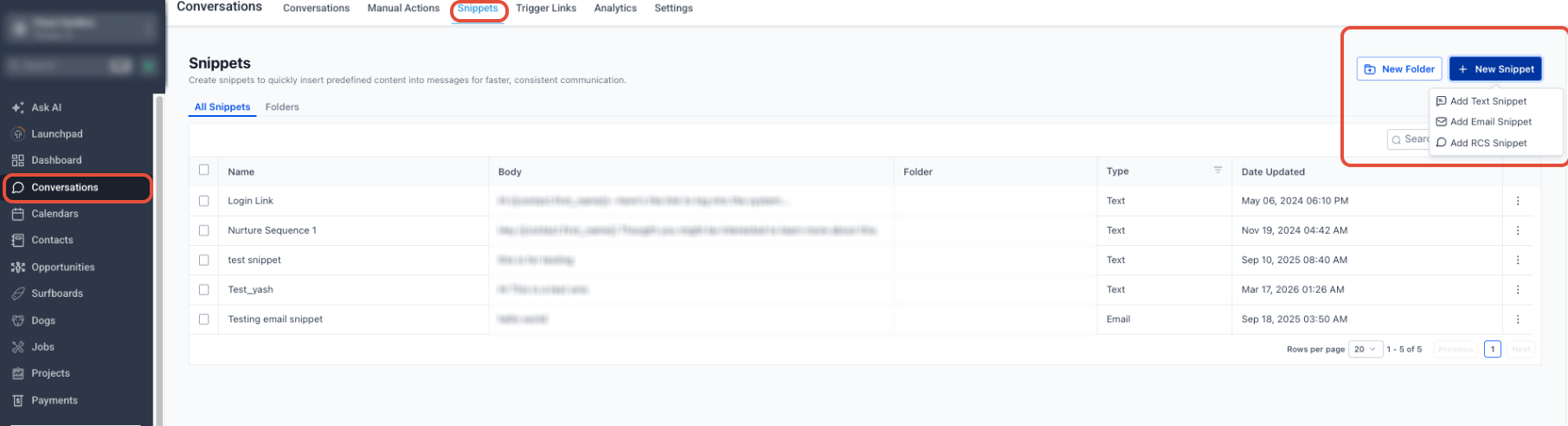
- Open the Subaccount view and navigate to Conversations.
- Select the Snippets tab.
- Click the + New Snippet button.
- Choose Add Text Snippet from the options.
- Enter a clear name for the snippet and type the message body.
- Insert any supported Custom Values needed for personalization.
- Check the character count and segment details displayed.
- Press Save to store the snippet.
Use an SMS snippet in Conversations
- Open a contact's conversation inside Conversations.
- Switch to the text messaging channel.
- Click the Snippets icon located in the message composer.
- Search for or pick the desired Text Snippet.
- Review the auto filled message and any dynamic data.
- Edit the text if further changes are required.
- Send the finalized SMS.
Use an SMS snippet in Workflows
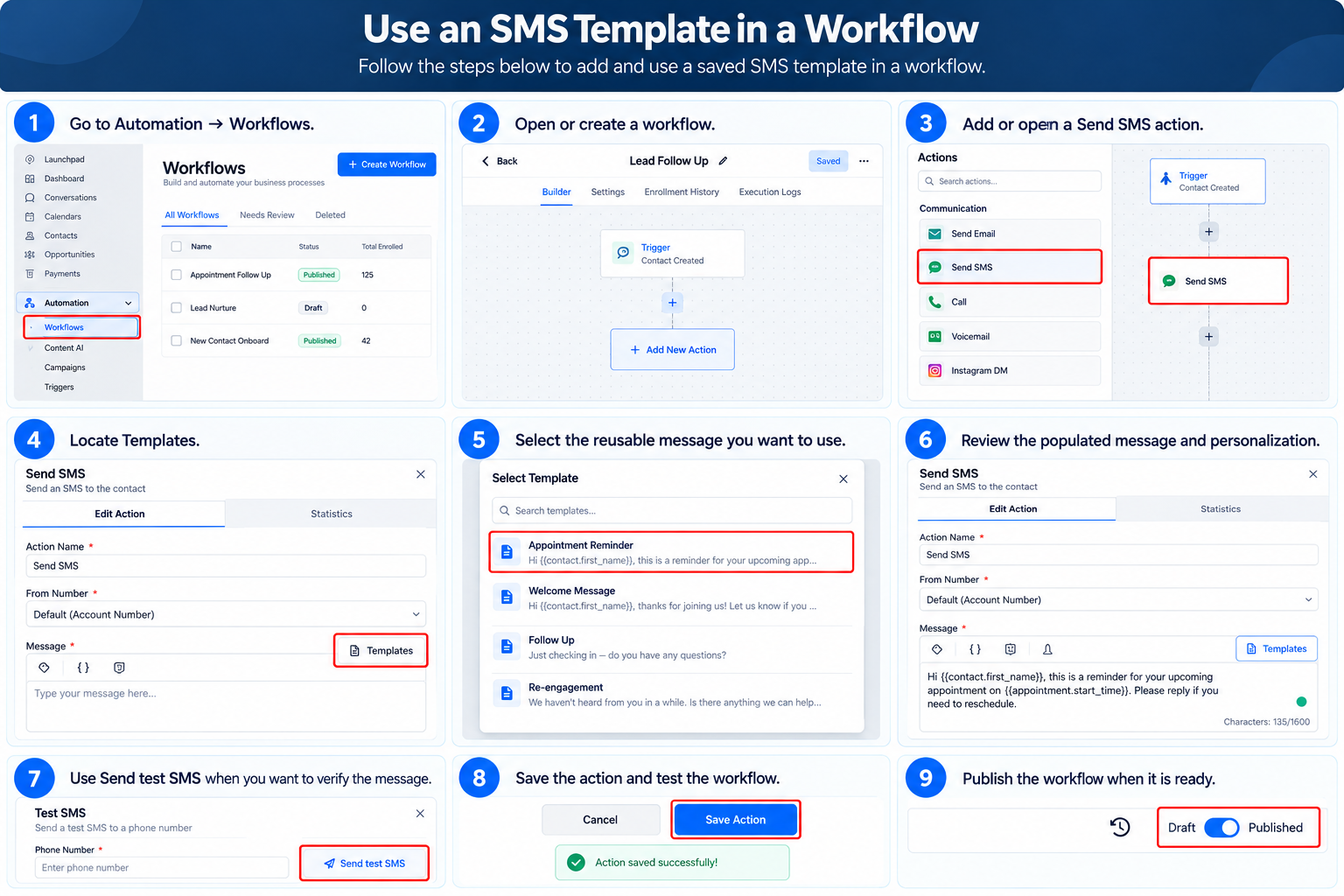
- Go to Automation and open Workflows.
- Select an existing workflow or create a new one.
- Add a Send SMS action or open an existing one.
- Find the Templates field within the action.
- Choose the saved snippet you want to use.
- Confirm the populated message and any personalization tokens.
- Optionally run Send test SMS to verify appearance.
- Save the Send SMS action and test the workflow.
- Publish the workflow once it works as expected.
06What it looks like in HighLevel
07Settings that matter
- Add Text Snippet. Specifies that the new record will be a Text Snippet, enabling it for SMS reuse.
- Templates. Opens a selector in the Send SMS workflow action to load a saved snippet into the message field.
- View & Manage Conversations. Permission that allows a user to see and insert snippets from the Conversations interface.
- Custom Values. Dynamic placeholders that pull contact or account data into a snippet for personalization.
08Things to know before you rely on it
- Snippets must be created as Text Snippets to be usable for SMS.
- Management of snippets occurs within the specific Subaccount; they do not cross accounts.
- Users need View & Manage Conversations rights to access snippets in chats.
- The HiRise Snippets page is always active; no separate Labs setting is needed.
- RCS Snippets and WhatsApp Templates are handled in different messaging sections.
- SMS length may affect the number of message segments and could influence sending cost.
09How it connects to the rest of HighLevel
- Learn how to create, organize and use snippets in HighLevel. Create and use snippets
- Set up Custom Values for dynamic content in messages. Custom value trigger links
- Explore the template library for additional reusable content options. Template library
Michael's take

Wondering if you really need a place to store those repeat after me texts? I’ve found SMS snippets in HighLevel are a tidy way to keep approved messages on hand while still letting the team add a personal touch before hitting send. It cuts the typing, keeps tone consistent, and you can drop a snippet into a workflow for automated follow ups without rebuilding the copy each time.
If I were setting up a new outreach campaign, I’d first build a handful of core snippets. One for appointment reminders, one for lead follow up, and one for a limited time offer. Then I’d slot them into the appropriate Send SMS actions and give the team quick access in Conversations. That way the message stays on brand and the team moves faster.