
01Who this is for
- Customer support agents benefit because snippets let them reply to frequent inquiries with a single click.
- Sales representatives can reuse appointment reminder language, ensuring every prospect receives the same details.
- Marketing staff keep promotional copy consistent by storing approved email bodies as reusable snippets.
02Text and email snippets, explained
Snippets are reusable templates for SMS or email messages. The platform stores a separate library for Text Snippets and Email Snippets, each able to contain dynamic placeholders called Custom Values and optional Trigger Links. Users access the library from the Conversations screen or from Marketing > Snippets.
When a snippet is selected, its content appears in the message composer, where the user can edit before sending. In automated workflows, the Send SMS action includes a Templates picker that pulls a saved snippet into the message field. Attachments attached to a snippet behave differently depending on whether the snippet is used in an email template, a campaign, or a workflow.
03How businesses use text and email snippets
- Dental practice. Create a Text Snippet for standard appointment reminders. When a patient calls, the staff opens the conversation, selects the snippet, tweaks the time if needed, and sends it. The same reminder can also be placed in an SMS workflow for automated follow up.
- SaaS startup. Build an Email Snippet containing onboarding steps and a link to the help center. The marketing team inserts this snippet into welcome emails manually or assigns it to the Send Email action in a workflow.
- Real estate agency. Develop a Text Snippet with property viewing instructions and a Trigger Link for scheduling. Agents pull the snippet into messages during live chats, then adjust the date and send the personalized details.
04The numbers and rules that matter
- HighLevel currently documents no fixed limit on the number of Snippets you can create.
05Before you start
- Snippets reside within the relevant subaccount, so you must be inside the correct subaccount view.
- Team members need the Conversations > View & manage conversation permission to see the Snippets tab.
06How to set up and use text and email snippets in HighLevel
Create a snippet
- From the subaccount view, click Conversations.
- Select Snippets at the top of the page.
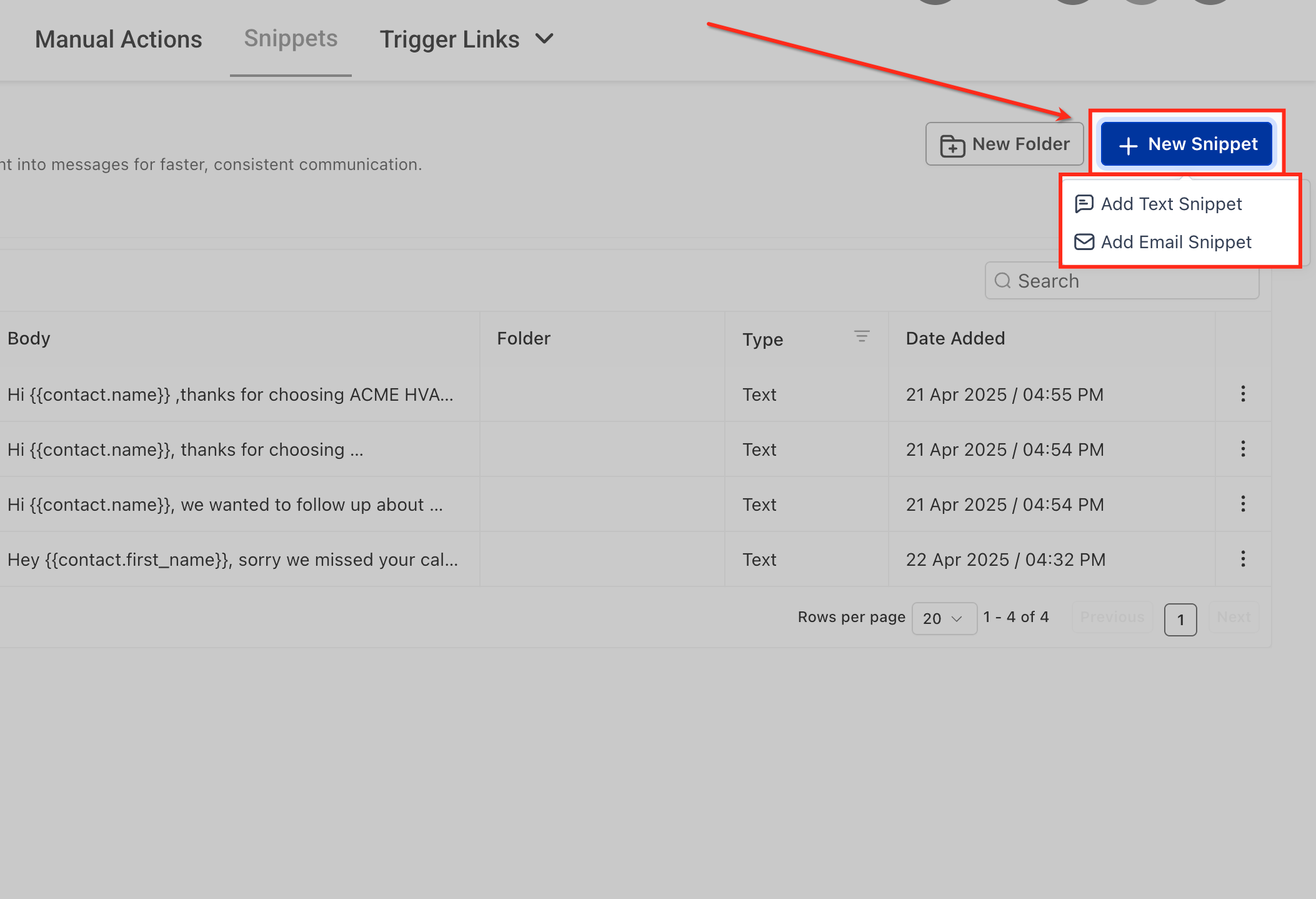
- Click the + New Snippet button.
- Choose Add Text Snippet or Add Email Snippet.
- Enter a clear name for the new snippet.
- Type the message body you want to reuse.
- Insert any required Custom Values for dynamic data.
- Add a Trigger Link if the snippet needs a trackable URL.
- Preview the snippet to verify formatting.
- Click Save to store the snippet.
Organize and manage snippets
- Open Conversations > Snippets.
- Click New Folder to create a grouping.
- Find the snippet you wish to sort.
- Press the three dot menu next to that snippet.
- Select Move to Folder and pick the appropriate folder.
- Open the three dot menu again and choose Edit Snippet to modify content.
- Open the three dot menu again and pick Duplicate Snippet to make a copy.
- Open the three dot menu again and select Delete Snippet to remove it.
Use a snippet in a conversation
- From the subaccount view, click Conversations.
- Open the specific conversation with the contact.
- Choose the messaging channel you will use.
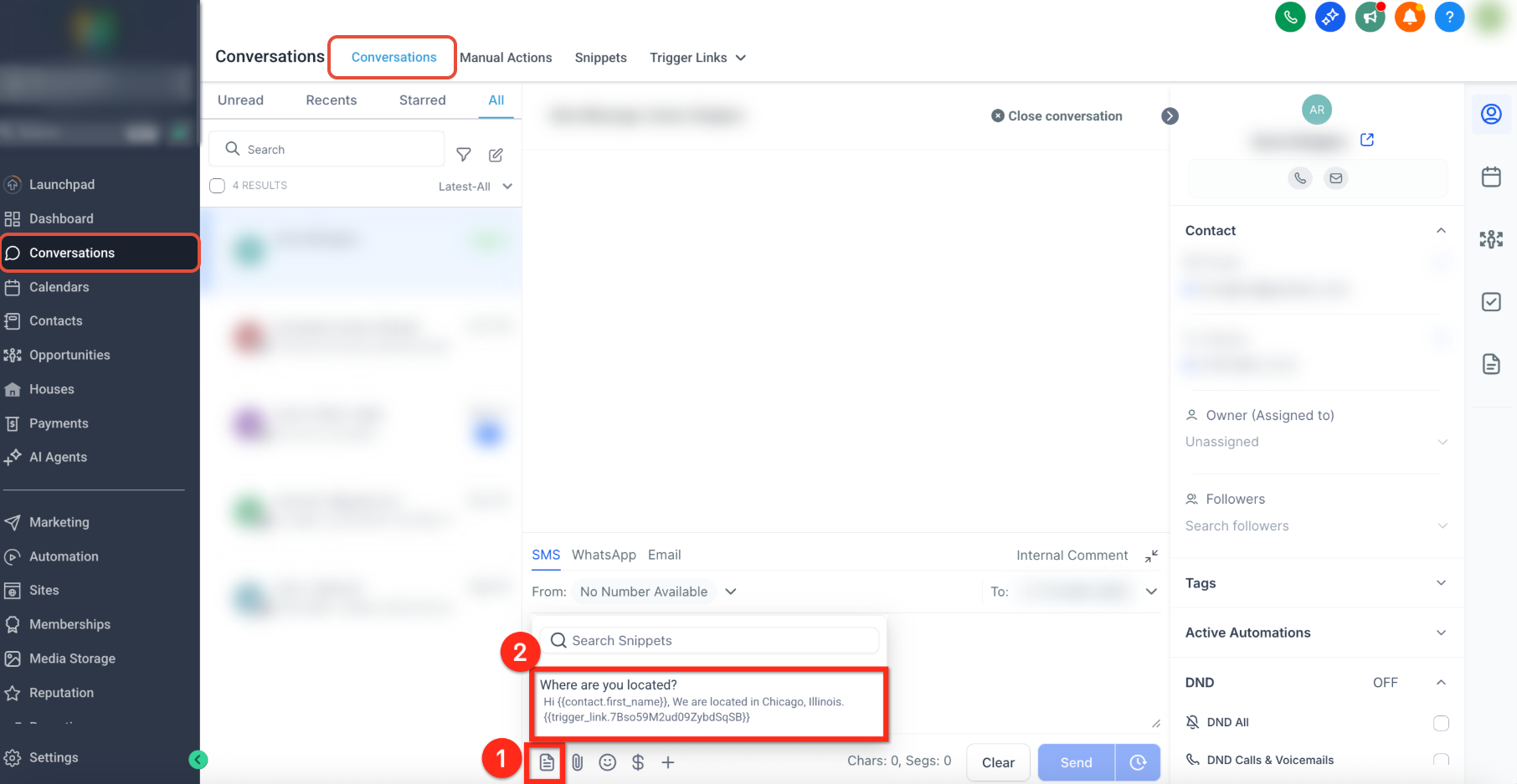
- Tap the Snippets icon inside the composer.
- Browse folders or search to locate the desired snippet.
- Click the snippet to insert it.
- Confirm the snippet content appears in the composer.
- Edit the message if any changes are needed.
- Send the finalized message.
Use a snippet in a workflow
- From the subaccount view, click Automation.
- Select Workflows.
- Open an existing workflow or create a new one.
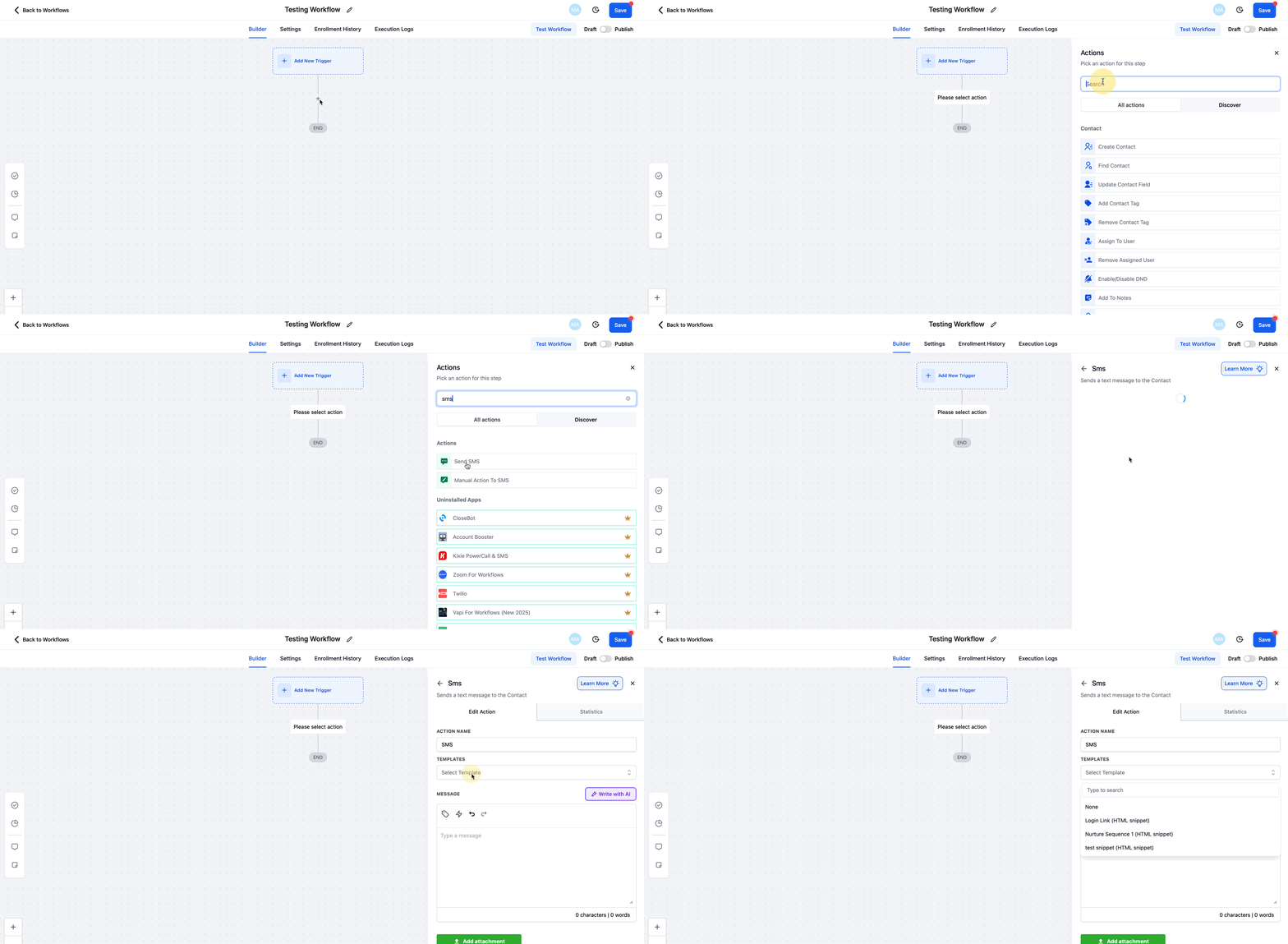
- Add a Send SMS action or open an existing one.
- Find the Templates selector inside the Send SMS settings.
- Pick the saved snippet you want to use.
- Review the populated message content.
- Use the test SMS option to verify the message.
- Save the workflow action.
- Test the workflow before publishing it.
07What it looks like in HighLevel
08Settings that matter
- Conversations → View & manage conversation permission. Controls whether a staff member can see and use the Snippets tab inside Conversations.
- Templates selector in Send SMS action. Determines which saved Text Snippet is inserted into an automated SMS message.
09Things to know before you rely on it
- There is no published cap on the total number of snippets you can create.
- Attachments attached to a snippet are not automatically added when the snippet is used in email templates or workflow messages.
- The HiRise Snippets interface is always on; no Labs toggle is required.
- Text Snippets and Email Snippets are distinct libraries and cannot be mixed.
10How it connects to the rest of HighLevel
- Learn how SMS snippets can be reused in text messages. SMS snippets overview
- Set up custom values and trigger links for dynamic content. Custom value trigger links
- Explore the template library for additional email templates. Template library
Michael's take

Businesses that send the same reminder, FAQ answer, or promotion over and over can benefit from clear naming conventions. Using purpose driven names makes it easy for anyone on the team to find the right block quickly.
Once the names are solid, I’d build a few core snippets for the most common touchpoints, add the Custom Values you need, and test them in a conversation. That quick check lets you see the dynamic fields in action before you lock them into a workflow.