
01Who this is for
- Founders who need real time insight into campaign health to keep sender reputation strong.
- Marketing managers tracking open and click trends across automated workflows.
- Support teams diagnosing delivery problems for individual contacts.
02Email statistics, explained
The Email Statistics feature aggregates interaction data for each email sent from the platform. It records delivery status, opens, clicks, replies, bounces, unsubscribes, spam complaints and SMTP level acceptance outcomes. The data refreshes near real time, though clicks, unsubscribes or spam reports may appear a few minutes later.
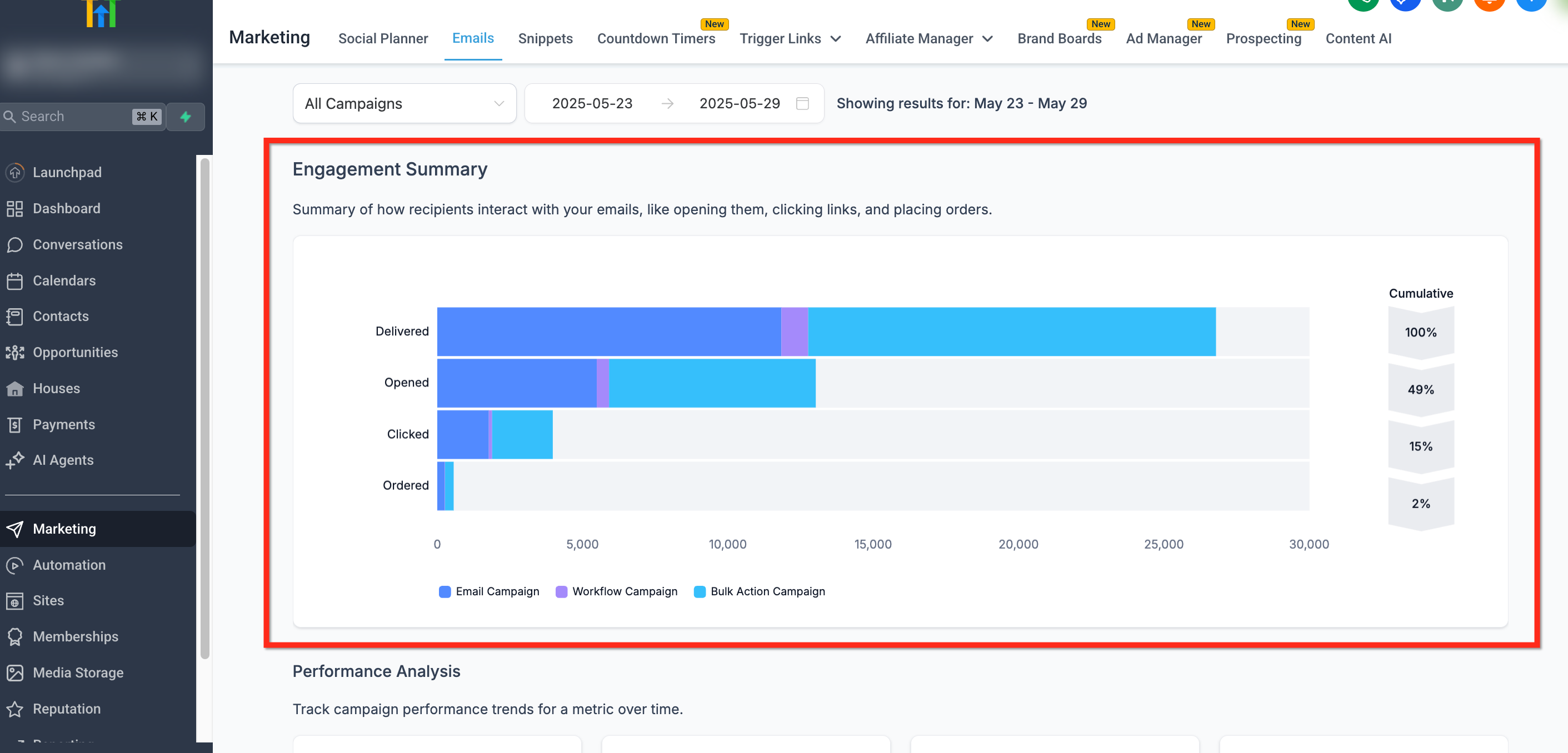
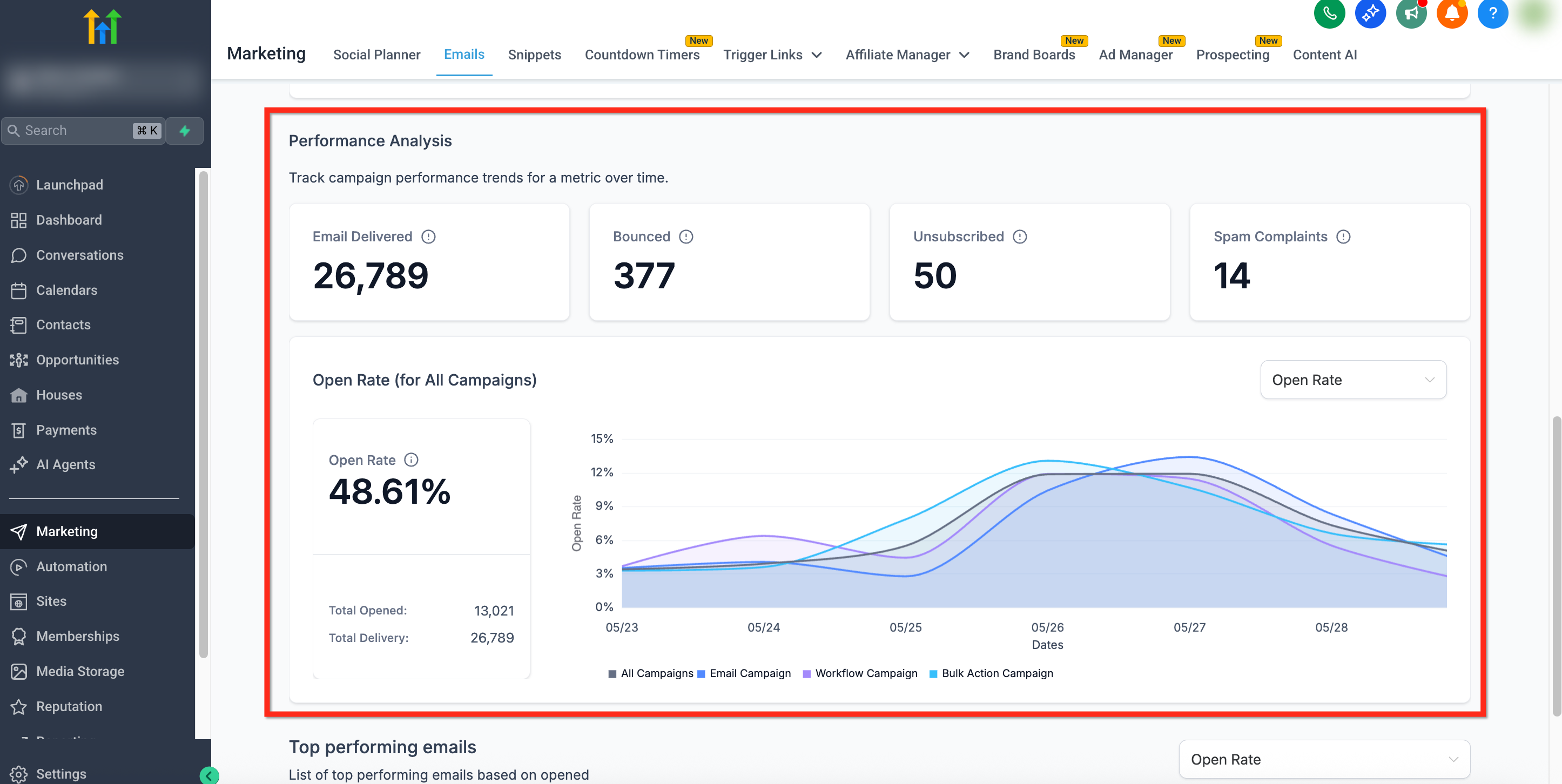
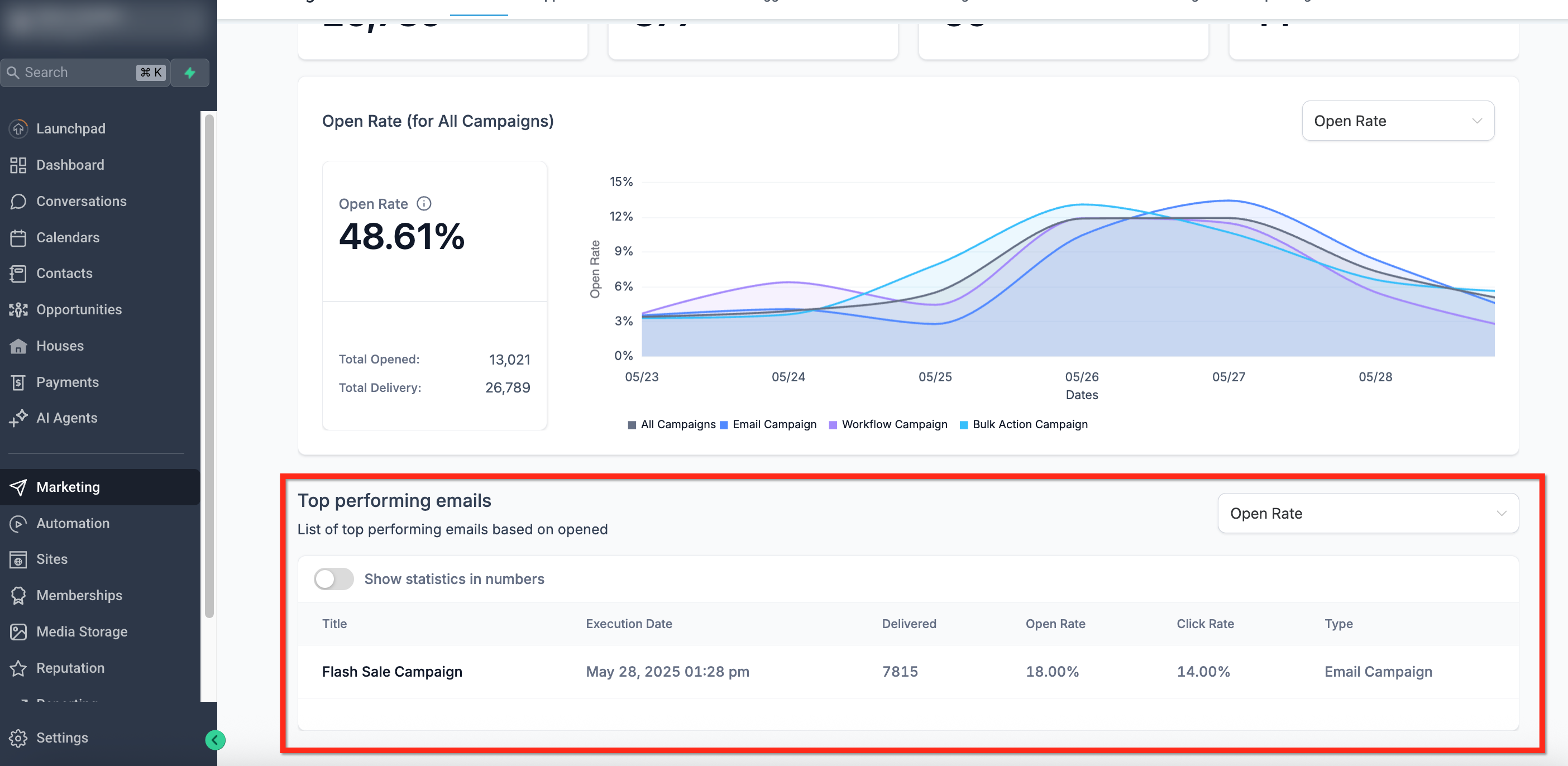
Statistics are available at three levels: campaign, workflow and bulk email. A summary graph shows overall delivery, engagement and conversion trends, while separate sections list top performing emails and detailed metric definitions. For workflow based emails, the stats are shown directly inside the workflow editor, defaulting to the last 30 days.
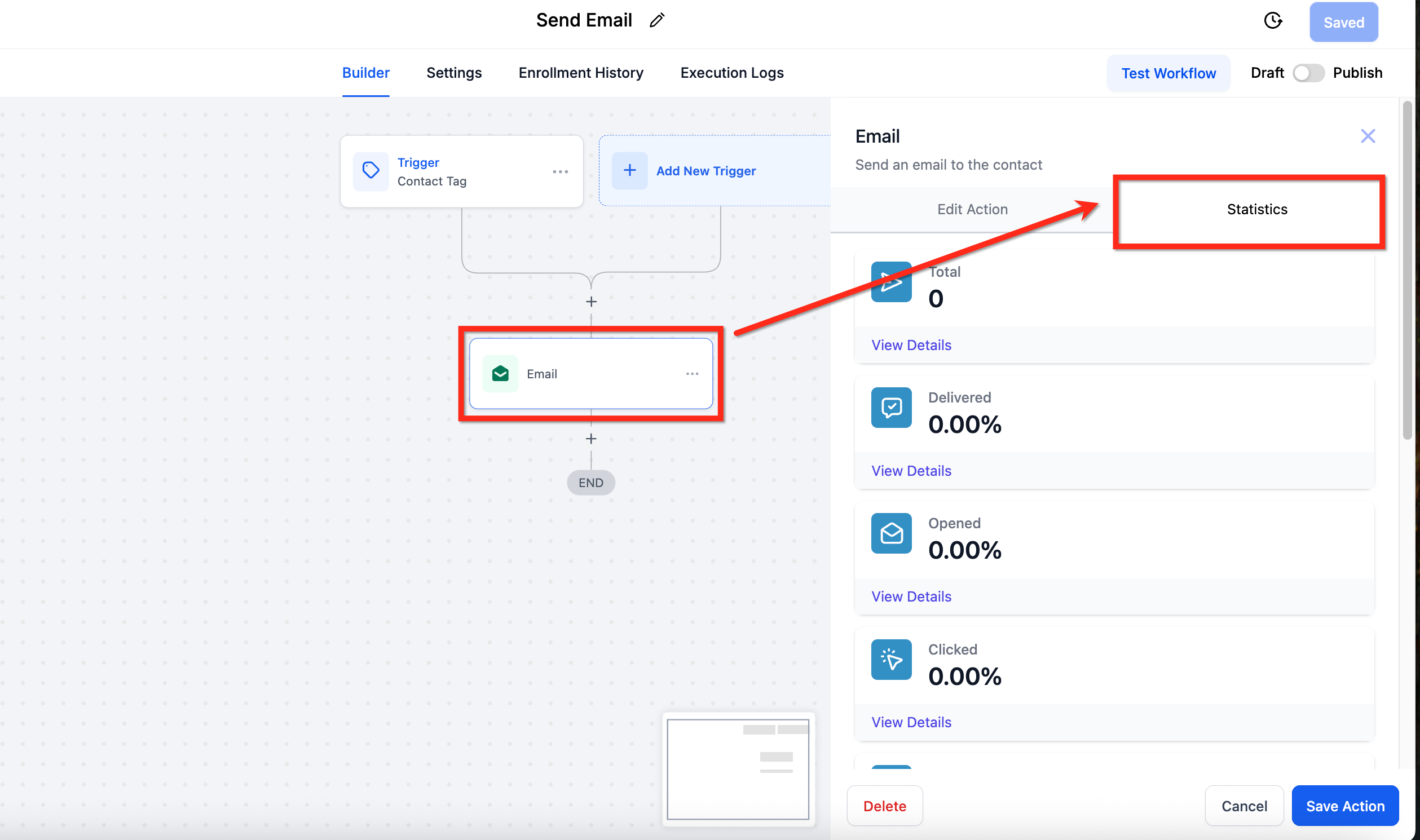
You find the feature under the Marketing menu for campaign and bulk email views, and under Automation > Workflows for workflow email actions. Selecting an email action opens a right hand panel where the Statistics button reveals the metric breakdown.
03How businesses use email statistics
- Coaching business. The coach opens a workflow that sends a welcome email to new leads. By clicking Statistics, they see how many of those emails were delivered, opened, and clicked, then adjust subject lines or send times based on the top performing results.
- Ecommerce store. The store runs a bulk promotional send to all subscribers. Using the Bulk Email Statistics view, they review delivered versus bounced counts and identify contacts that bounced to clean their list.
- Real estate agency. Agents trigger an automated email sequence after a property inquiry. Inside the workflow, they open the Statistics tab for each step to track open rates and click throughs, then tag contacts who engage for follow up.
04The numbers and rules that matter
- Metrics include Recipients, Delivered, Opened, Clicked, Soft Bounce, Hard Bounce, Unsubscribed, Failed, Spam Complaints, Replied, Accepted/Rejected.
- Workflow email statistics default to Last 30 days.
05Before you start
- Configure a Mailgun SMTP integration to see full delivery, bounce and spam metrics.
- Create a workflow that includes an Email action before attempting to view its statistics.
06How to set up and use email statistics in HighLevel
View workflow email statistics
- Navigate to Automation > Workflows.
- Open the desired workflow and select the Email action.
- In the right hand panel, click Statistics.
View campaign email statistics
- Navigate to Marketing > Emails.
- Select the desired campaign from the list.
- Click the Statistics button to open the metric panel.
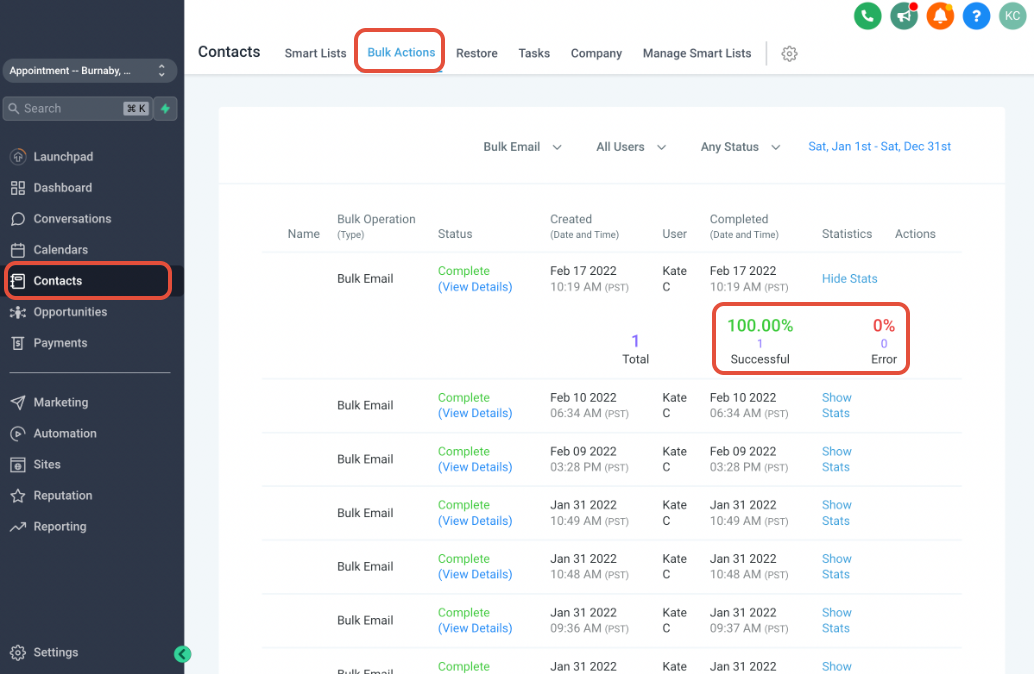
View bulk email statistics
- Navigate to Contacts > Bulk Actions.
- Locate the email send in the activity list.
- Click the entry to open the breakdown by recipient, including delivery and engagement metrics.
07What it looks like in HighLevel
08Things to know before you rely on it
- Statistics default to the last 30 days for workflow emails to match the summary view.
- Metrics update in near real time, but clicks, unsubscribes or spam complaints may lag by a few minutes.
- Full visibility into delivered, bounced, unsubscribed and spam metrics requires the Mailgun provider.
09If something goes wrong
- Email statistics are not showing delivered or bounce data.. Ensure the account is using Mailgun as the SMTP provider, as other providers only supply opens and clicks.
- Metrics appear outdated or missing recent interactions.. Allow a few minutes for recipient activity to propagate; most events update near real time.
10How it connects to the rest of HighLevel
- Guide to email campaign statistics Email campaign stats guide
- Viewing workflow email actions in statistics Workflow email stats
- Email statistics summary page overview Summary page details
Michael's take

Email statistics feel like a small convenience that can turn into a real shift when you let the data drive your messaging. Seeing which subject lines actually get opened and which emails bounce lets you keep your sender reputation healthy without guessing.
A local boutique that sends weekly promotions can lean on this feature to spot the best send times and weed out bad addresses. If I were setting it up, I’d start with the workflow stats to make sure each automated step is actually reaching people before scaling the campaign.