
01Who this is for
- Marketing managers can monitor campaign, workflow and bulk email performance from a single screen, reducing the need to switch between reports.
- Sales teams can quickly identify which email content drives the most opens and clicks, helping them focus follow up efforts.
02All in One Dashboard for Email Marketing, explained
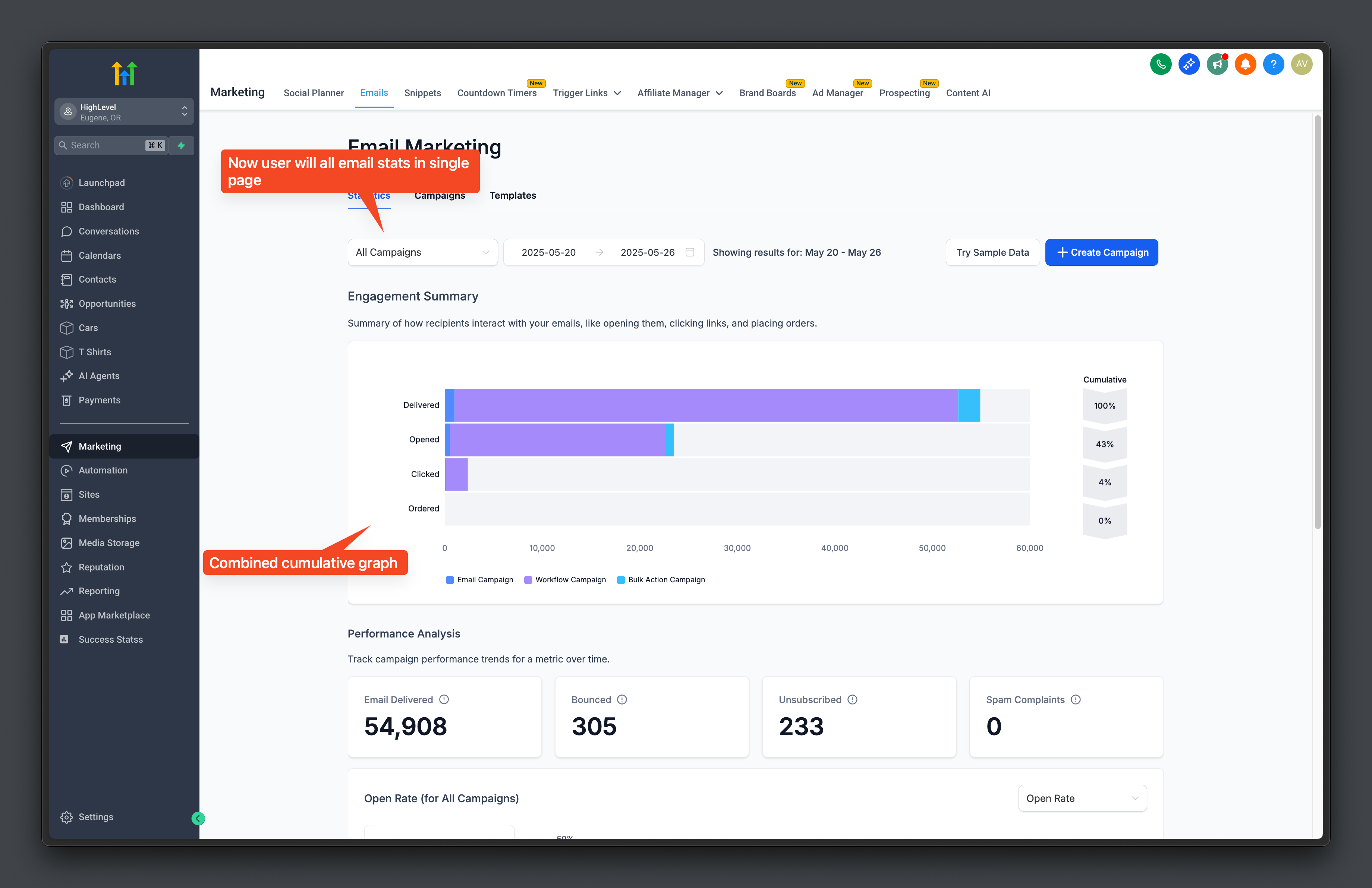
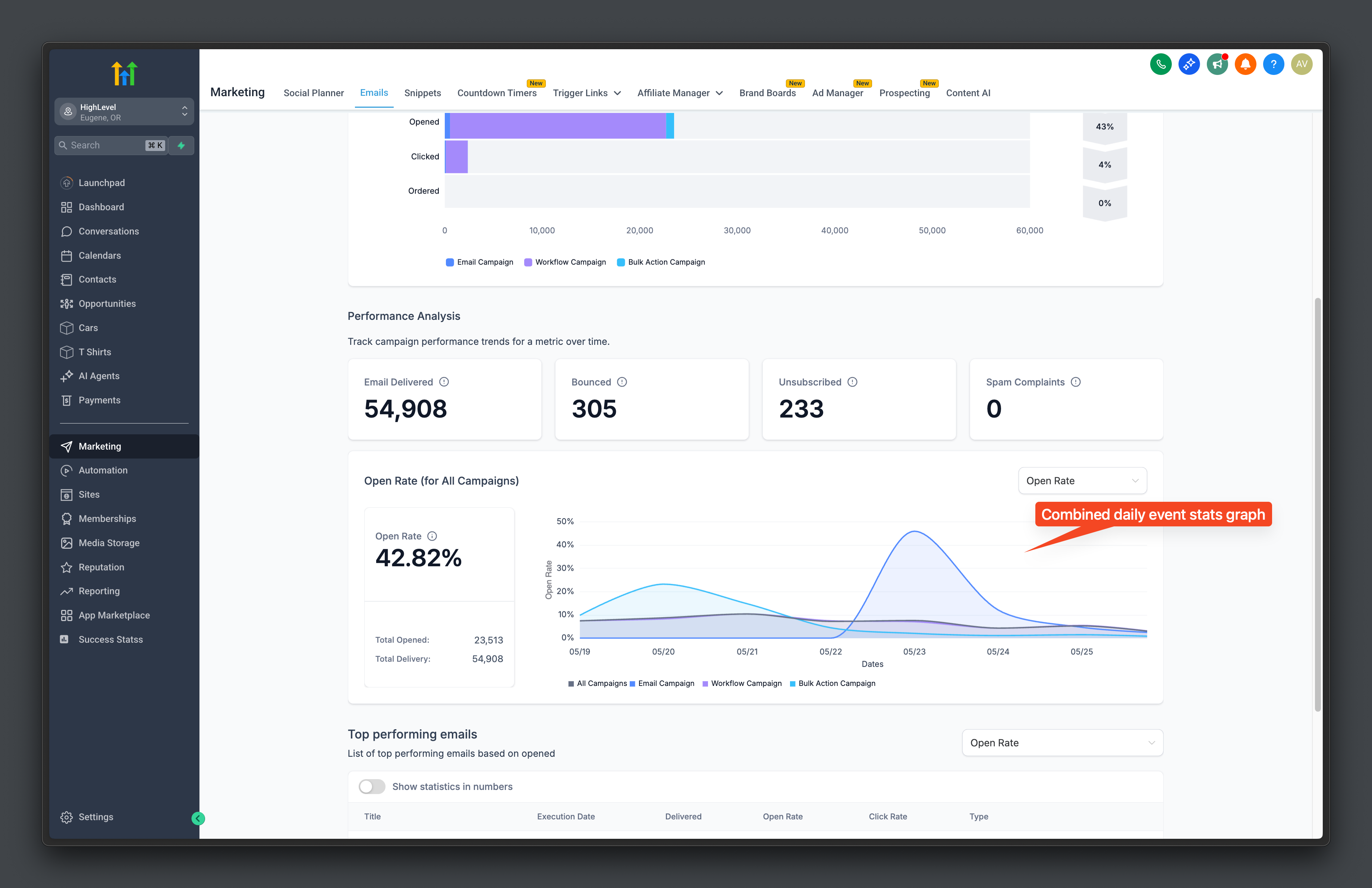
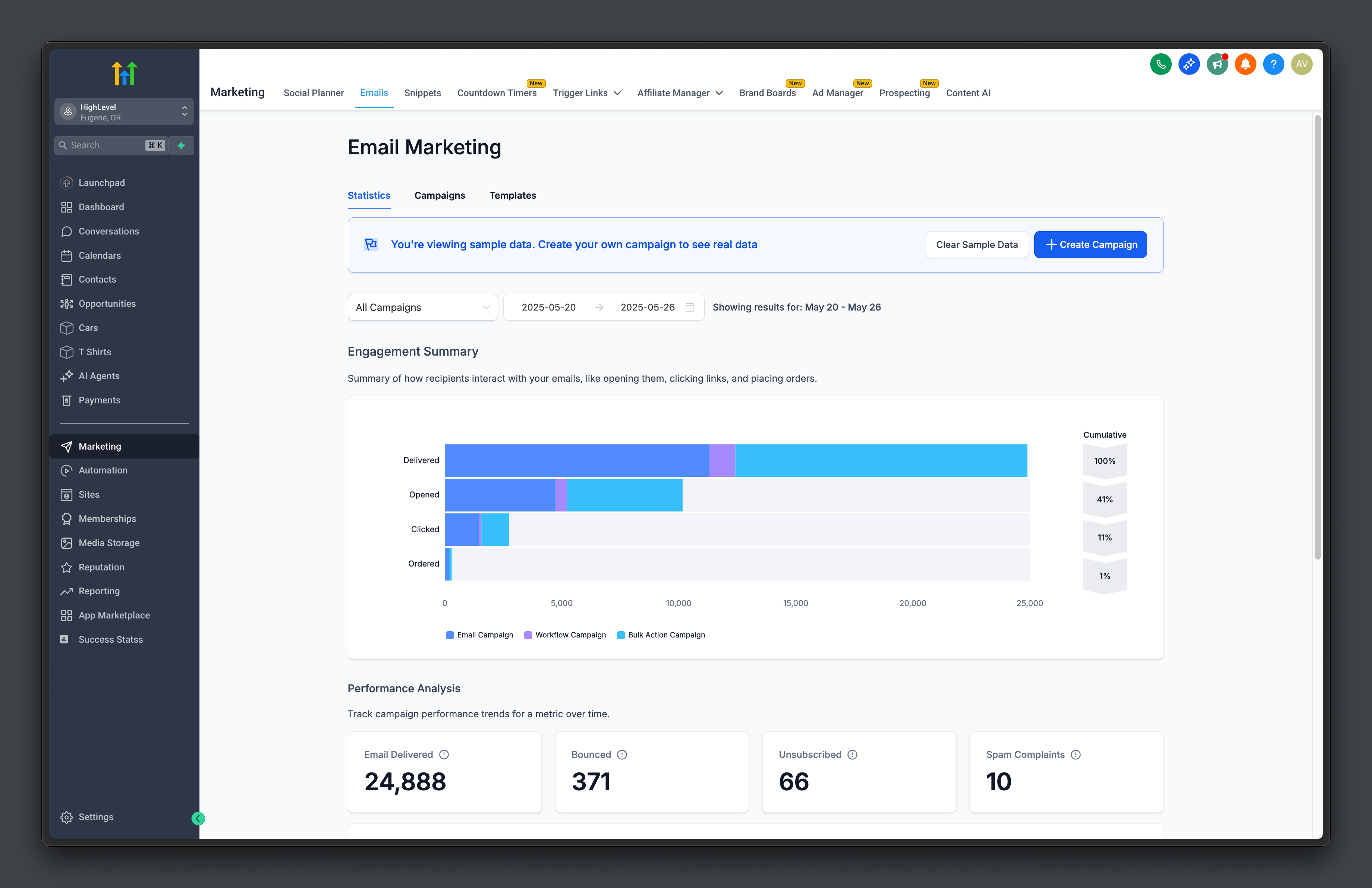
HighLevel aggregates email activity from three sending methods, Email Campaigns, Workflow email actions, and Bulk Action emails, into a unified Email Statistics view. The dashboard lives under Marketing > Emails > Statistics and shows an Engagement Summary, a Performance Analysis chart, and a Top Performing Emails list.
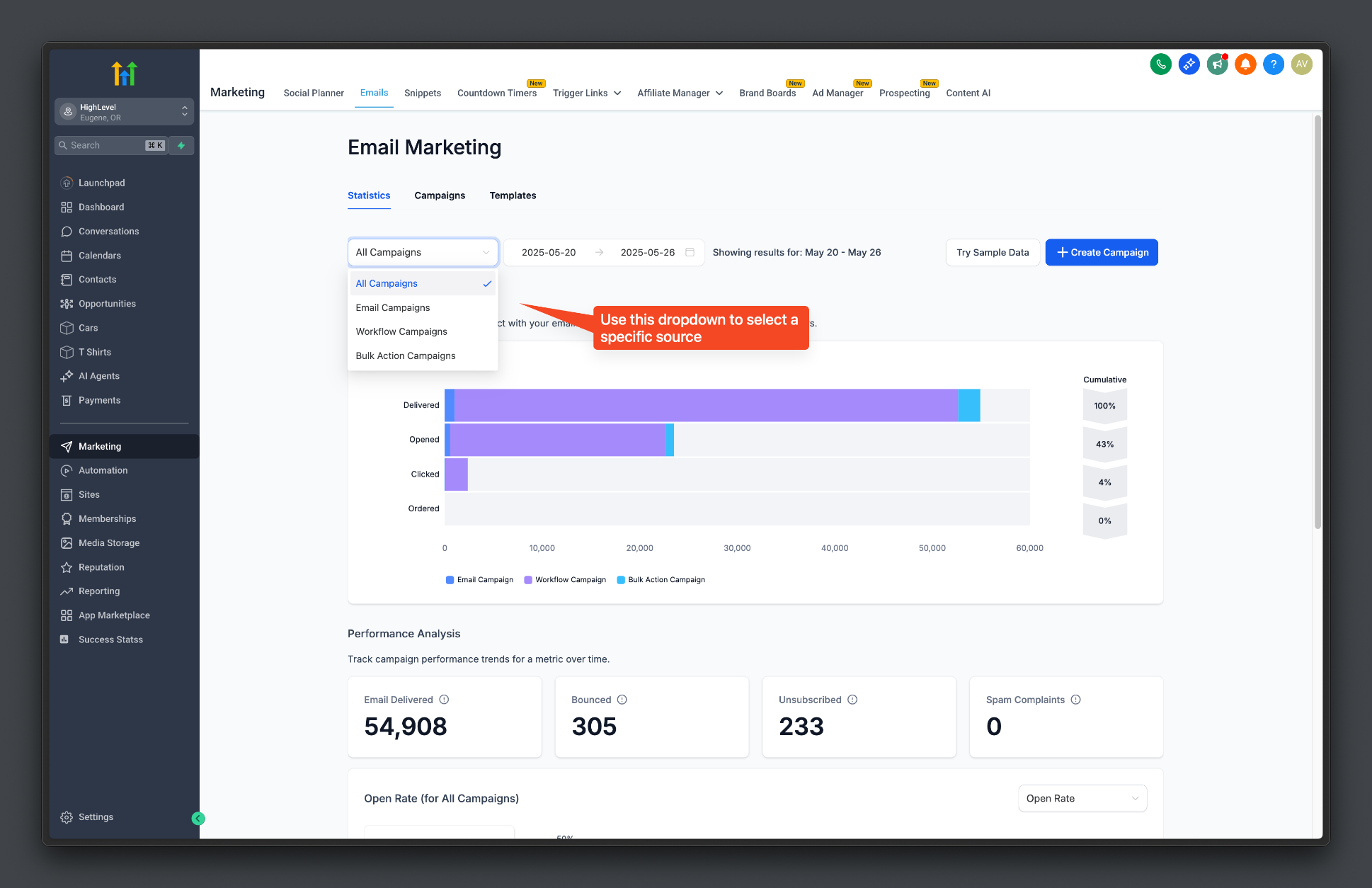
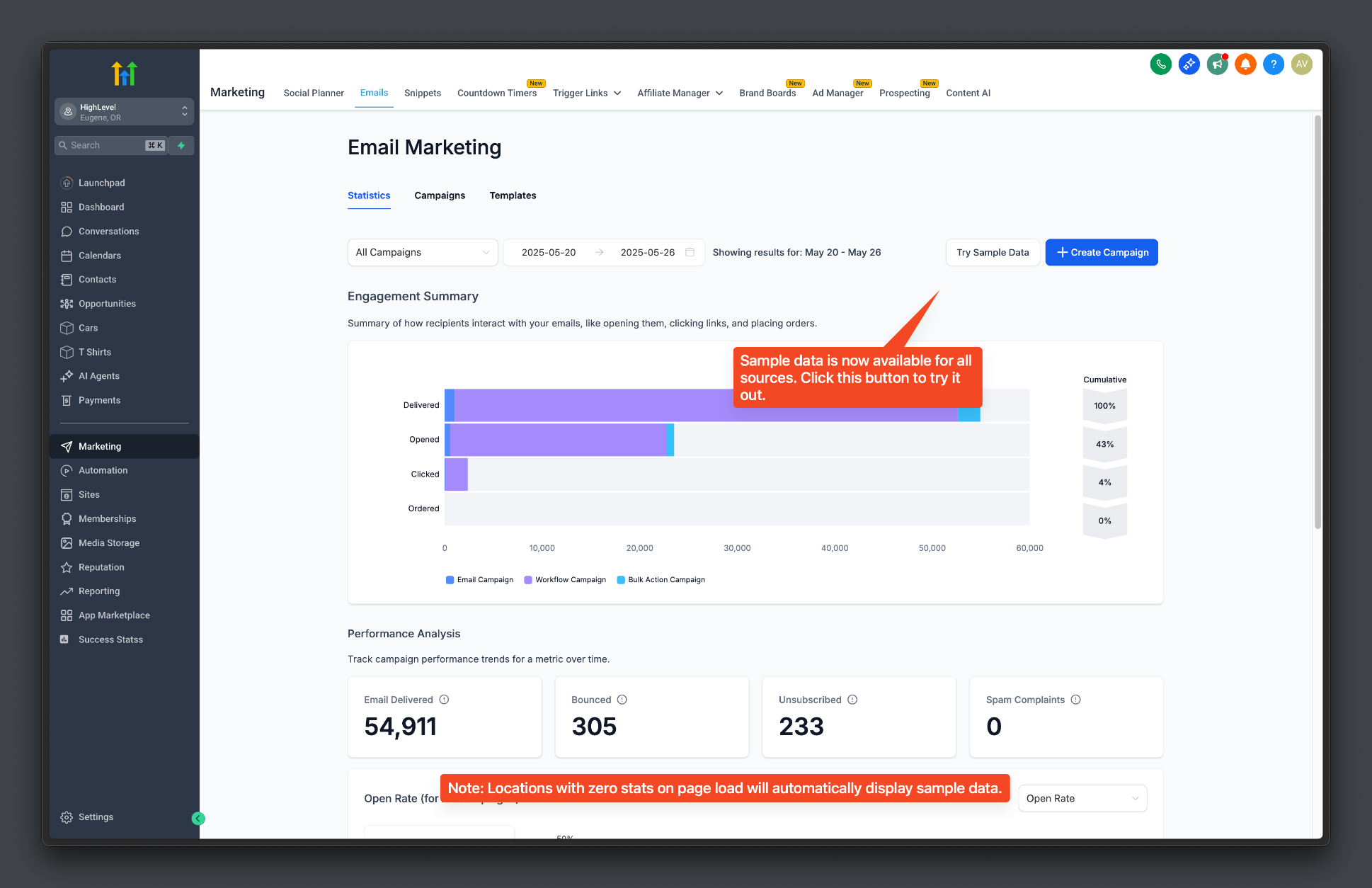
Users can filter the view by source using a dropdown, select custom date ranges, preview sample data when live activity is low, and export any view as a CSV file. The data updates near real time, though some engagement events may appear a few minutes later.
03How businesses use the All in One Dashboard for Email Marketing
- Ecommerce store. The store reviews the dashboard to see which promotional emails generate the highest click rates. It filters by Email Campaigns to isolate newsletter performance, then exports the CSV to compare results across product launches.
- Real estate agency. The agency looks at Workflow email actions to understand how drip campaigns for new listings perform. It uses the Top Performing Emails list to spot the most engaging property details and adjusts future workflows accordingly.
- Health clinic. The clinic sends appointment reminders via Bulk Actions. It opens the dashboard, selects Bulk Action Campaigns, and checks delivery rates. If needed, it exports the data to share with the office manager for audit purposes.
04The numbers and rules that matter
- Supported sources: Email Campaigns, Workflow Campaigns, Bulk Action Campaigns.
05How to set up and use the All in One Dashboard for Email Marketing in HighLevel
Export email statistics
- Navigate to Marketing > Emails > Statistics.
- Choose the reporting type you want to export, such as All Campaigns or Workflow only.
- Click the Export button.
- Enter the email address or addresses that should receive the export.
- Open the received email, follow the download link, and save the CSV file.
Troubleshoot missing data
- Confirm how the email was sent and verify that the correct source and date range are selected in the dashboard.
- Allow a few minutes for recent engagement events to appear in the reports.
- Check the configured email provider and review its specific troubleshooting guidance, as event availability can vary.
- Look for a sample data notice; if present, clear the sample data before interpreting the dashboard as live performance.
06What it looks like in HighLevel
07Settings that matter
- source dropdown. Selects which email source, All Campaigns, Email Campaigns, Workflow Campaigns, or Bulk Action Campaigns, appears in the dashboard.
- Export. Triggers generation of a CSV file containing the currently displayed email statistics and sends a download link to the entered email address.
08Things to know before you rely on it
- Sample data is only for demonstration and does not represent actual email performance.
- Some engagement events may take several minutes to appear after an email is sent.
- Export download links are available for a limited period and are sent by email.
09If something goes wrong
- Expected email activity is missing. Verify how the email was sent and ensure the correct source and date range are selected.
- A Workflow appears as several emails. This is expected; each email action inside the Workflow is tracked individually.
- Recent engagement is not visible yet. Wait a few minutes for applicable engagement events to be processed.
- Some statistics are missing. Check the configured email provider and follow its specific troubleshooting guidance.
10How it connects to the rest of HighLevel
- Learn how to read the metrics shown on the Email Statistics Summary Page. Email Statistics Summary Page
- Explore click performance details within Email Statistics. Click Performance
- Understand how email conversion metrics are attributed in HighLevel. Email Conversion Metrics
Michael's take

Michael ReimerFounder of CRM Pros, HighLevel Commander and Certified Admin
The All in One Dashboard for Email Marketing provides a single place to view performance of different email types.
Don’t mistake sample data for real results.
Get More InformationOpens on HighLevelPublished November 2, 2026 · Updated November 17, 2026