
01Workflow email actions, explained
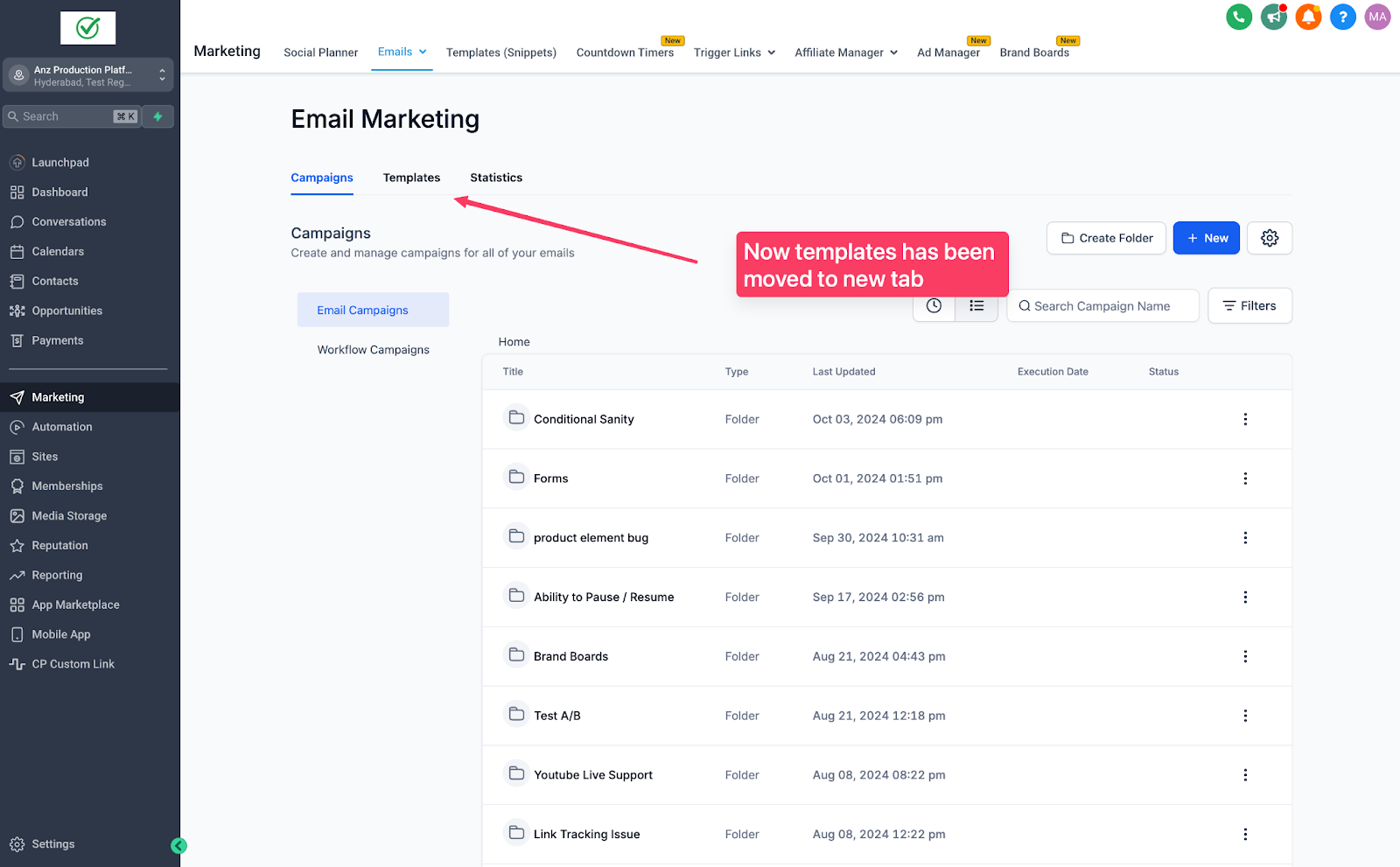
Workflow email stats are now under Email Marketing.
Creating email actions and syncing with templates or creating new templates remains unchanged.
02How businesses use workflow email actions
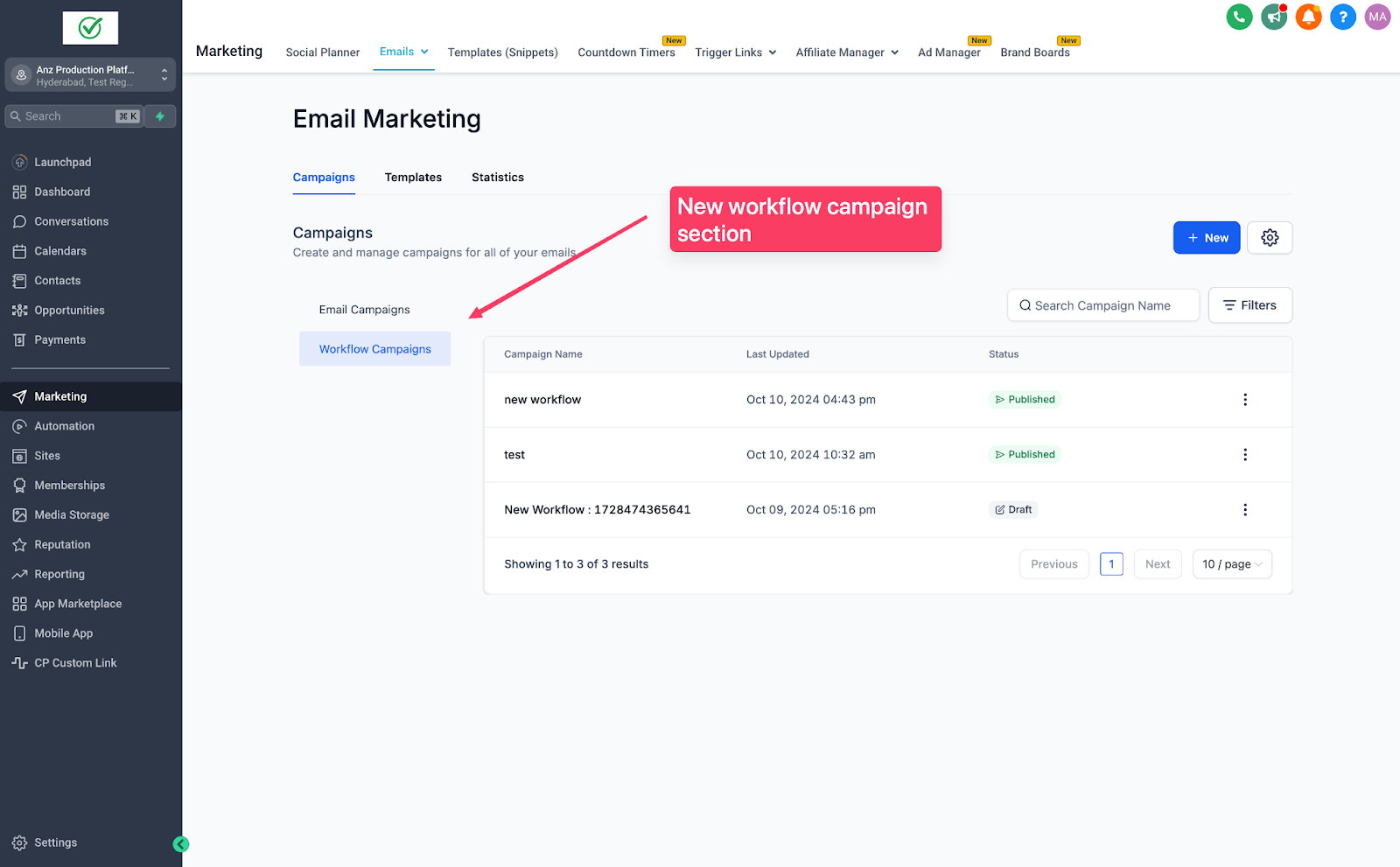
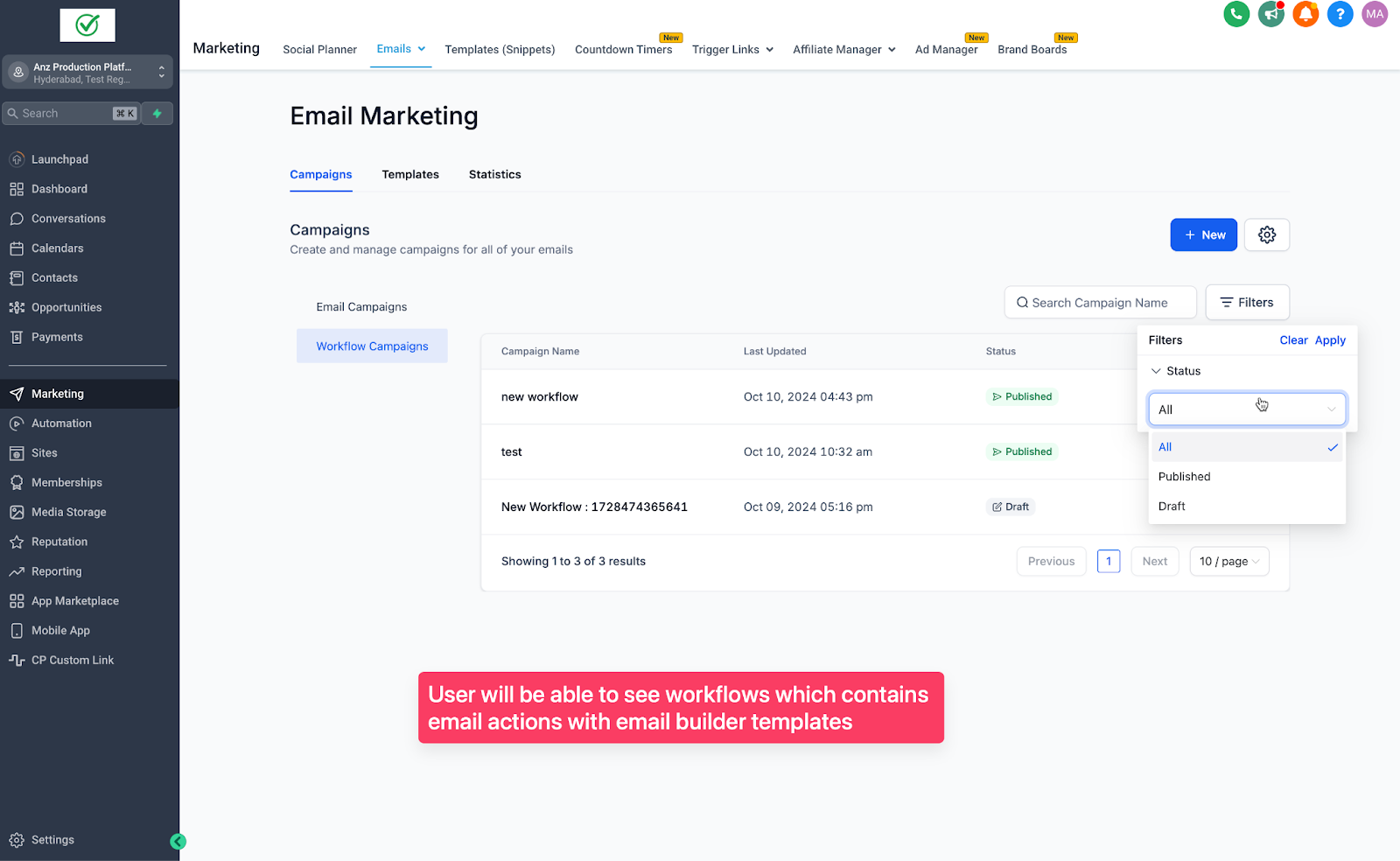
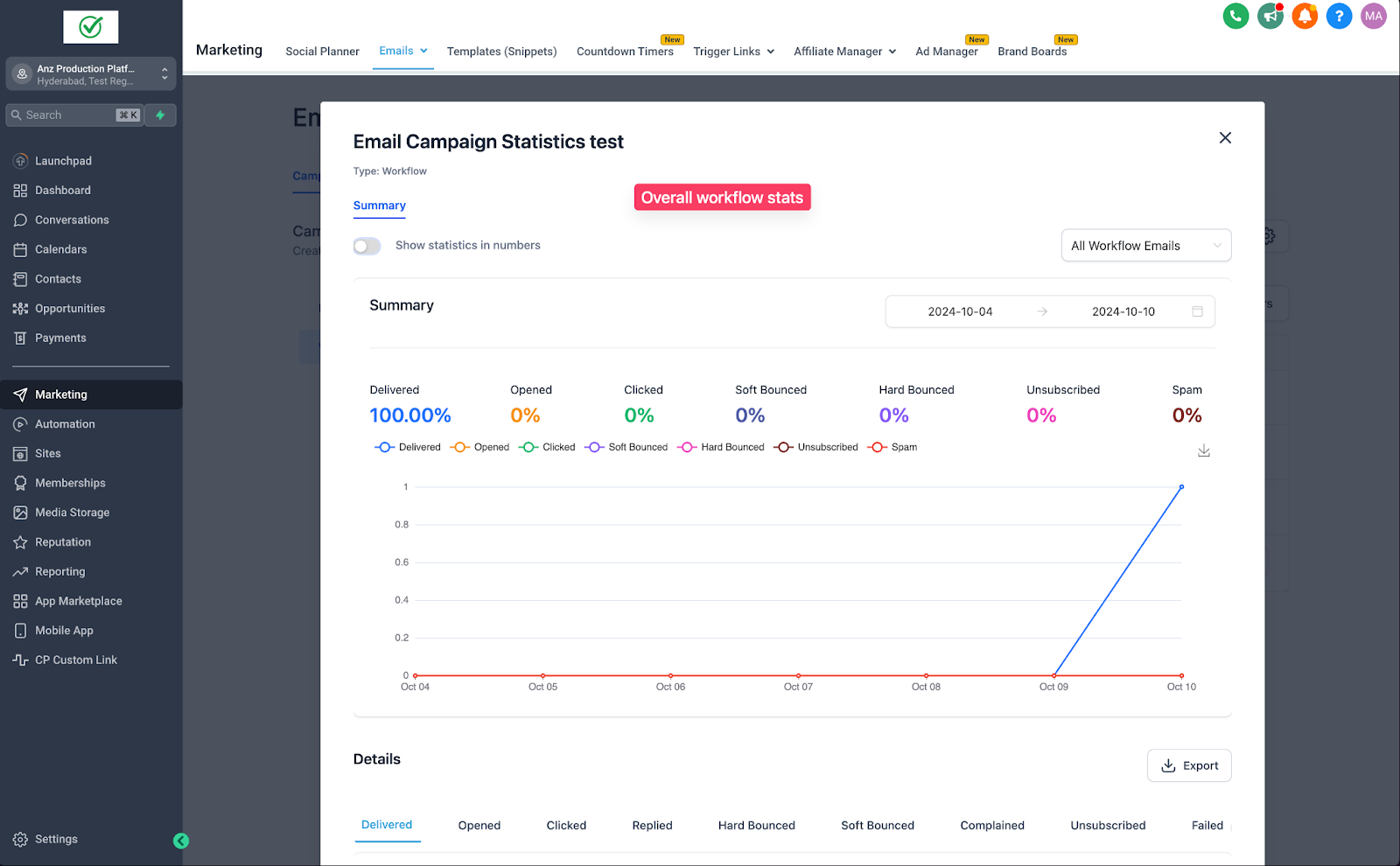
- View overall workflow email performance. Open Email Marketing > Campaigns > Workflow Campaigns and click Statistics to view overall workflow email stats.
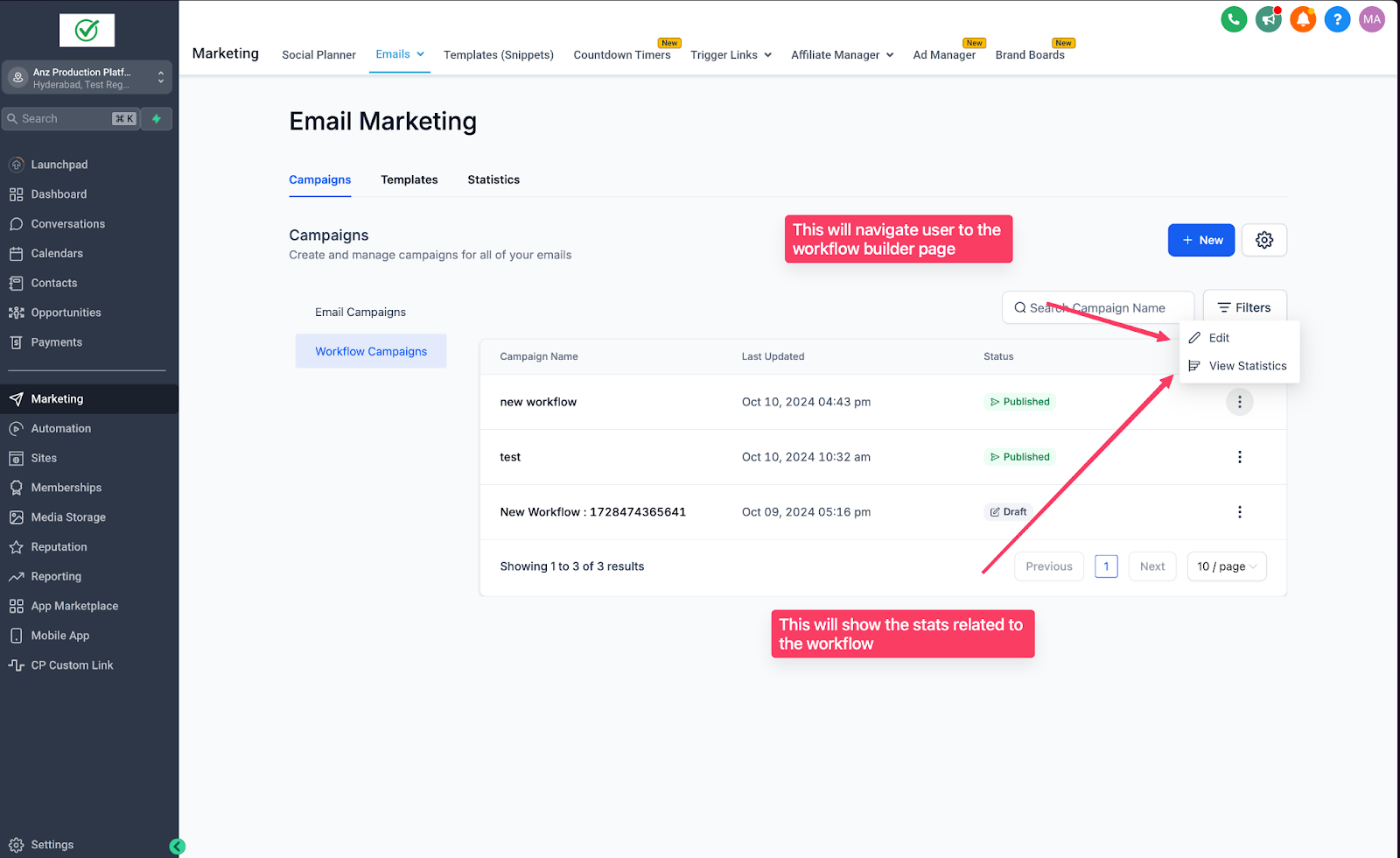
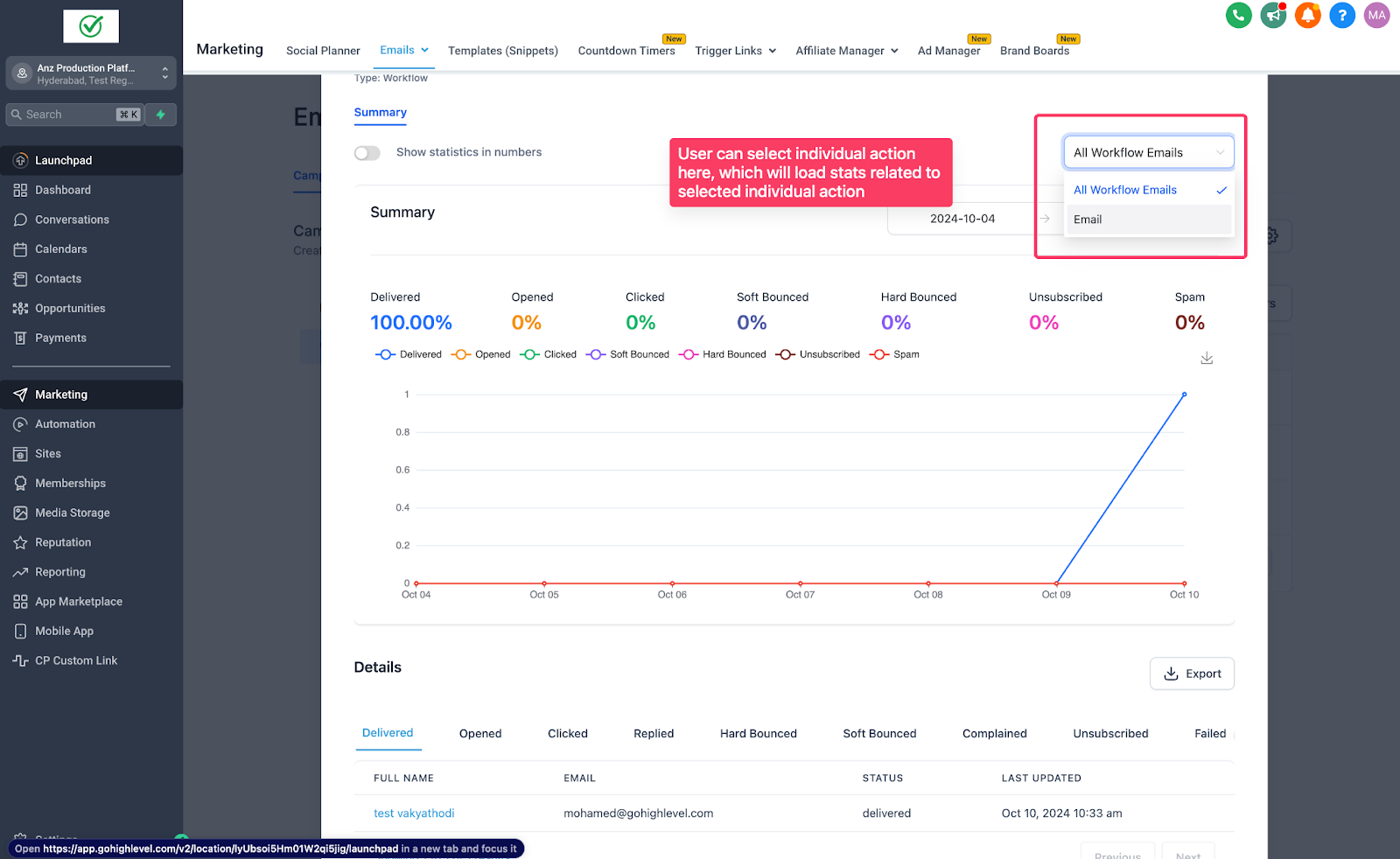
- Drill into individual email action stats. From the statistics view, use the dropdown to select a specific email action and see its stats.
- Edit a workflow from the stats screen. While viewing workflow statistics, click Edit Workflow to open the builder.
03How to set up and use workflow email actions in HighLevel
View workflow email action statistics
- Go to Email Marketing > Campaigns > Workflow Campaigns.
- Click Edit Workflow to access the builder.
- Click Statistics to view workflow stats.
- Use the dropdown to see stats for individual email actions.
04What it looks like in HighLevel
Michael's take

Michael ReimerFounder of CRM Pros, HighLevel Commander and Certified Admin
When you need a clear picture of how each email in a workflow is performing, this view can be very useful.
If your workflows are simple and you rarely check individual email metrics, the added screen may feel unnecessary.
Get More InformationOpens on HighLevelPublished November 2, 2026 · Updated November 3, 2026