
01Who this is for
- Founders who oversee email marketing can identify which campaigns drive purchases and revenue.
- Marketing managers can compare conversion rates across campaigns to allocate resources effectively.
02Email conversion and revenue attribution, explained
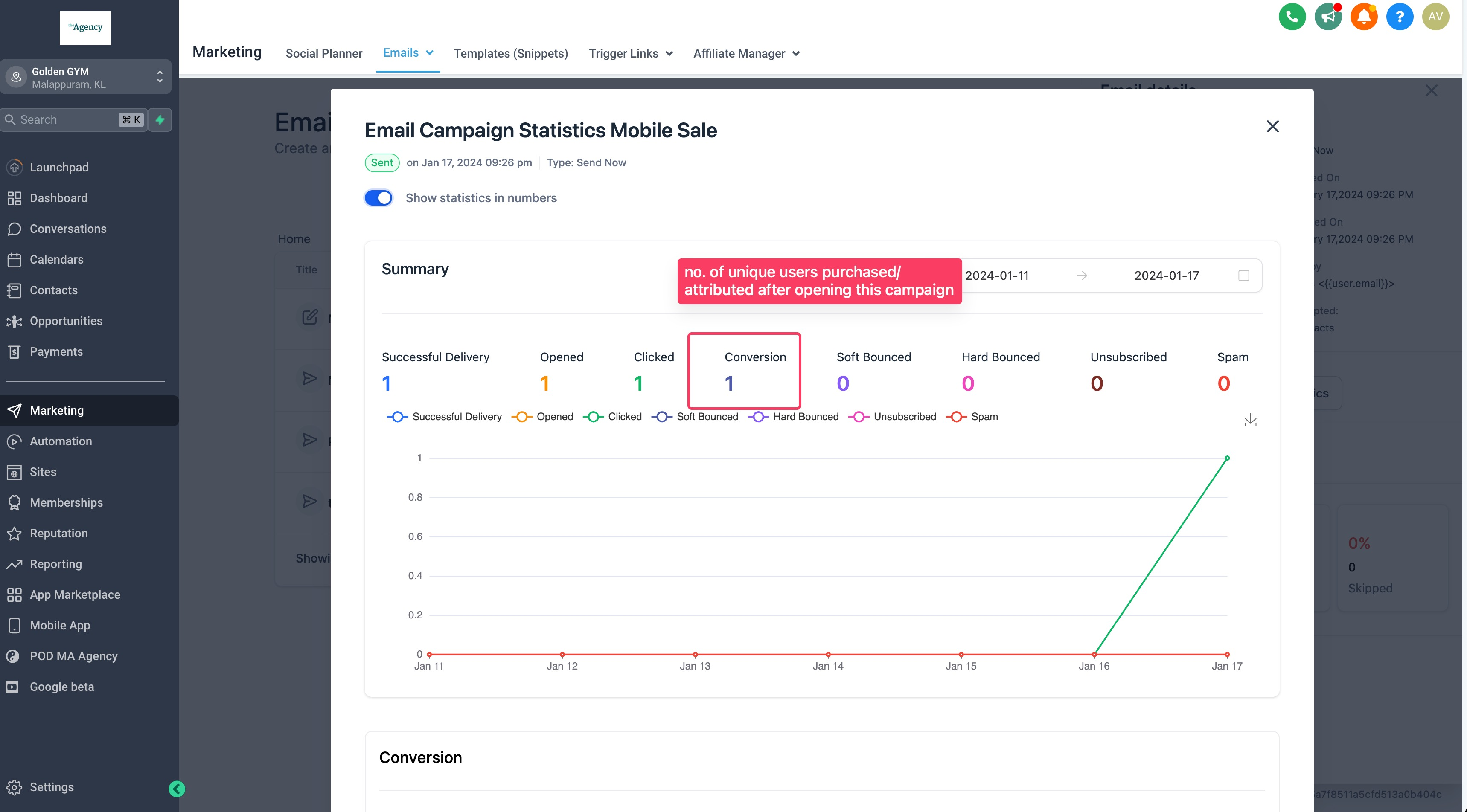
The feature records when a contact opens or clicks an email and later completes a purchase that meets the eligibility criteria. HighLevel then attributes that order to the most recent qualifying email within a configurable time window. The resulting data, orders, revenue, revenue per recipient, conversion rate, and average order value, appears in the campaign’s statistics view.
The attribution window defaults to five days but can be changed in the email attribution settings. A broader window captures purchases that happen farther from the email interaction, while a shorter window limits attribution to quicker conversions. The scope setting lets you attribute across all campaigns or only to product focused emails.
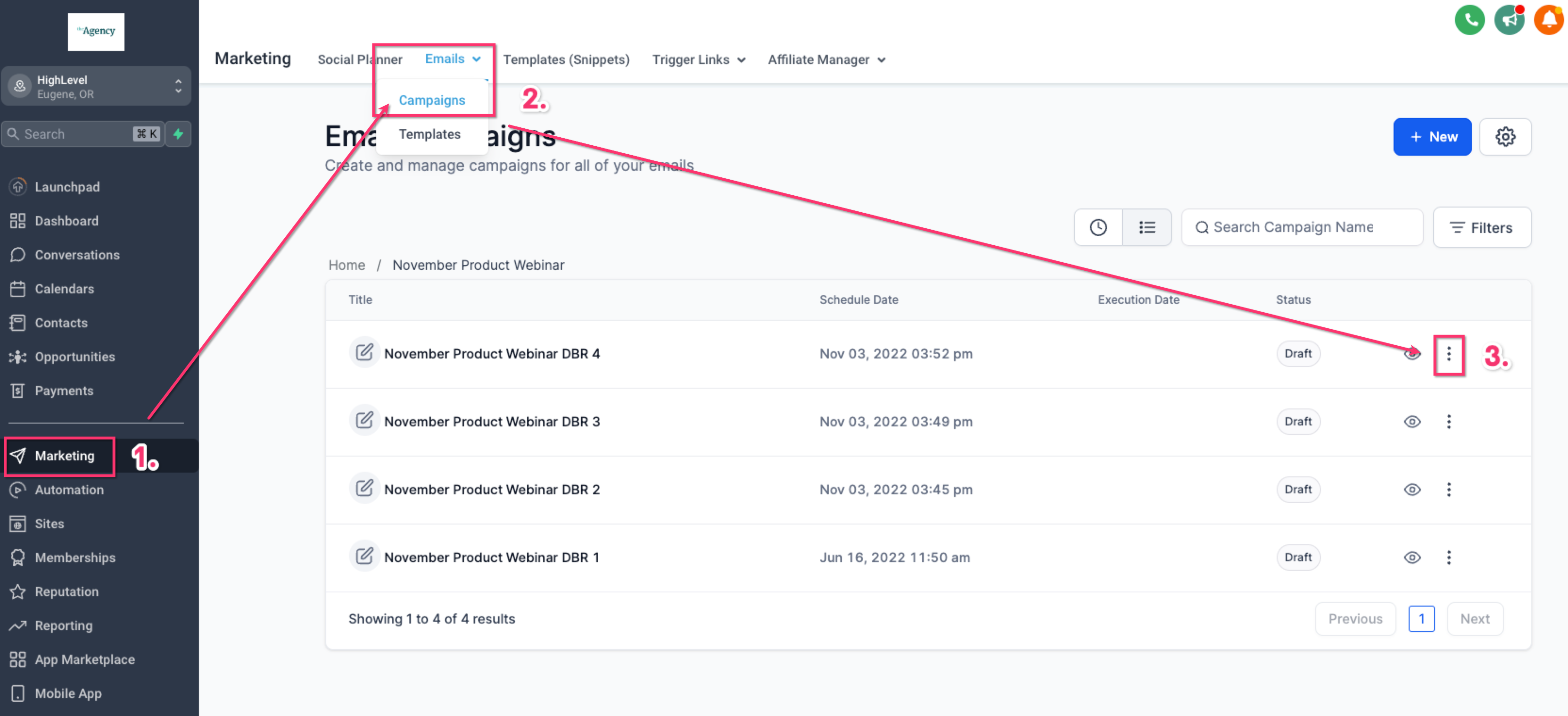
All of this lives under the Marketing > Emails > Campaigns section. From there you can open a campaign’s statistics, load more details, and switch to the Ordered tab to see which contacts generated attributed purchases.
03How businesses use email conversion and revenue attribution
- Dental practice. The practice runs a monthly newsletter promoting new services. By opening the campaign statistics, it can see how many appointments were booked after patients opened or clicked the email, and view the total revenue linked to that blast.
- Ecommerce store. The store launches a product promotion email. After publishing the statistics, it checks the orders and revenue attributed, using the attribution window to understand purchases that happened days after the email was sent.
- SaaS startup. The startup sends a feature update email to trial users. It reviews the conversion metrics to see how many users upgraded within the attribution window and calculates revenue per recipient for that campaign.
04The numbers and rules that matter
- Default attribution window: 5 days.
- Metrics: Orders/Conversions, Revenue, RPR (Revenue per Recipient), Conversion/Order Rate, Average Order Value.
05How to set up and use email conversion and revenue attribution in HighLevel
Viewing email conversion metrics for a campaign
- Open the Marketing > Emails > Campaigns area.
- Find the specific email campaign you want to assess.
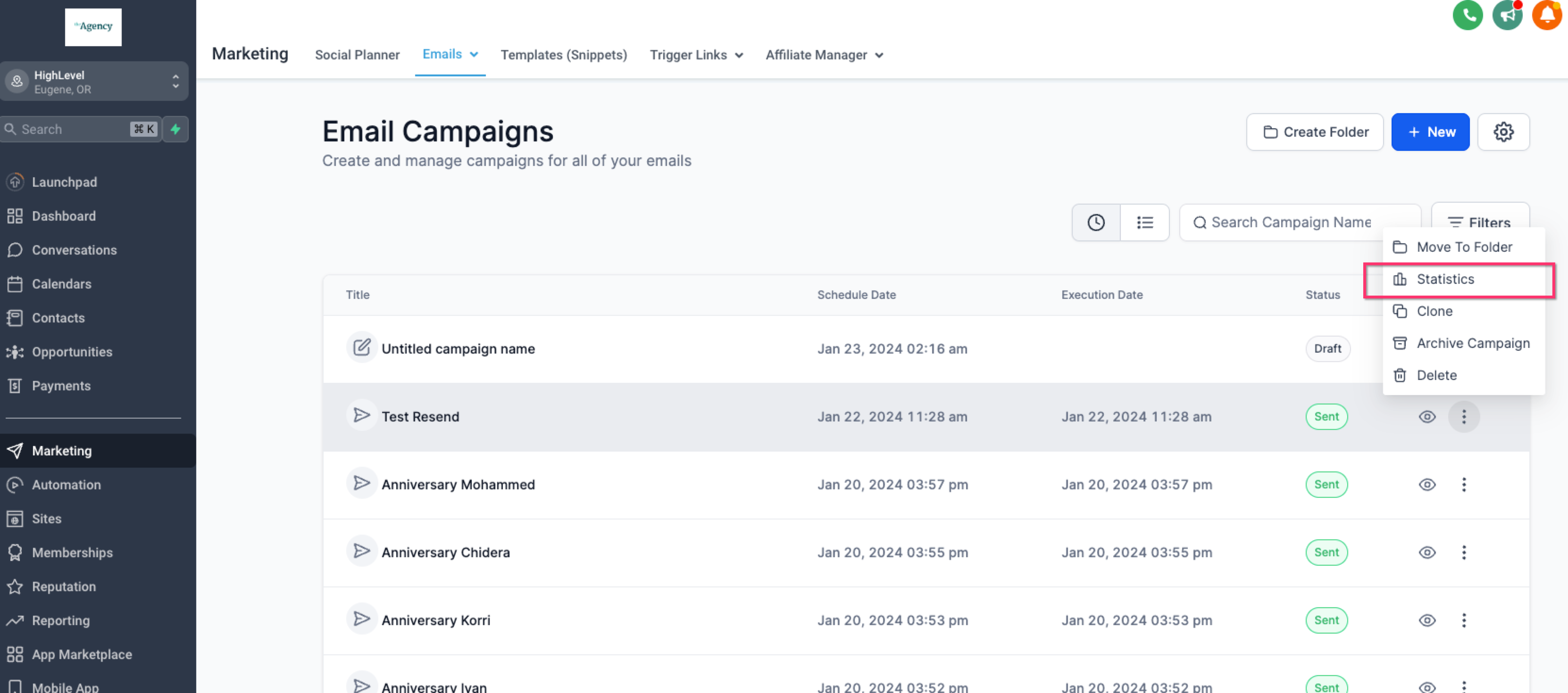
- Select the three dot menu next to the campaign and choose Statistics.
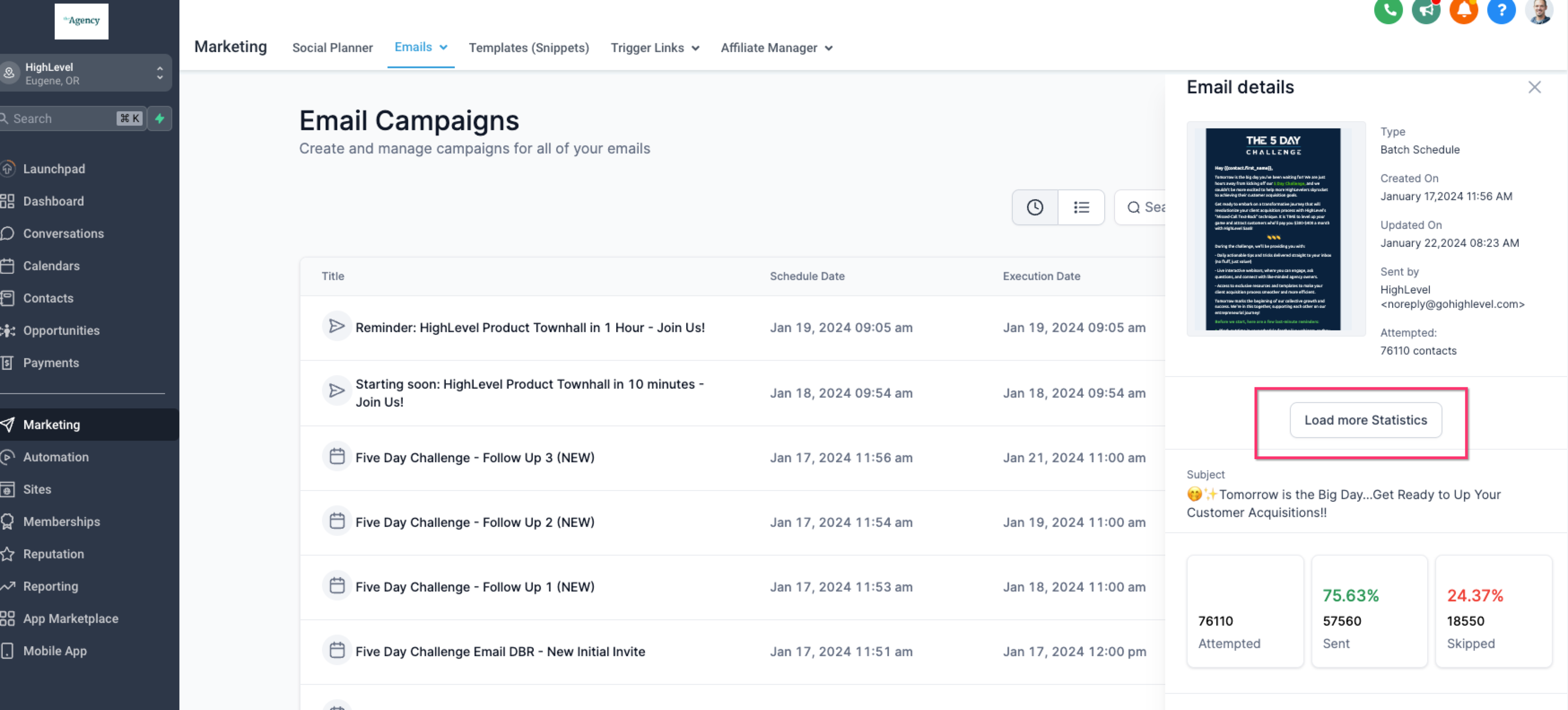
- Click the Load More Statistics button to expand the data view.
- Read the conversion and revenue numbers; use the Ordered tab for contact level details.
06What it looks like in HighLevel
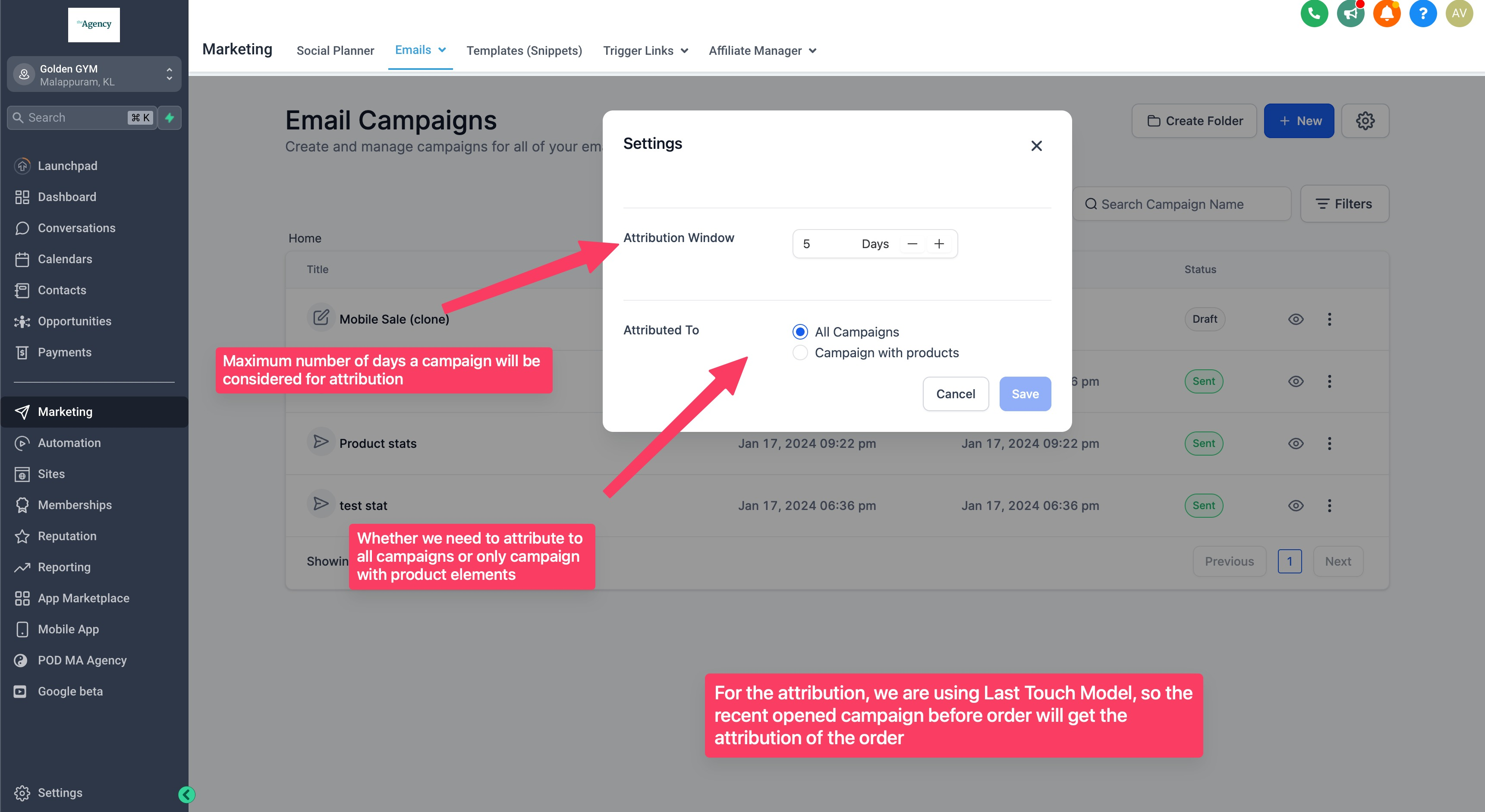
07Settings that matter
- Attribution Window. Controls how many days after an email interaction a purchase can still be credited to that campaign.
- Attribution Scope. Determines whether all eligible campaigns or only product specific campaigns can receive attribution.
08Things to know before you rely on it
- The default attribution window is five days; it can be adjusted in the email attribution settings.
- Only eligible orders recorded in HighLevel Payments, including Shopify orders, are considered for attribution.
- Attributed revenue does not include cost information, so it differs from ROI.
- When a contact interacts with multiple campaigns within the window, the most recent qualifying interaction receives credit.
09How it connects to the rest of HighLevel
- Email Statistics Summary Page email statistics summary
- Guide to Email Campaign Statistics email campaign stats
- All in One Dashboard for Email Marketing email dashboard
Michael's take

The platform only reports attributed revenue, which does not include spend information, so it cannot be used to calculate ROI.
I would first set the attribution window to match my sales cycle, then look at the conversion metrics to see which emails are actually moving the needle. After that I’d compare All Campaigns versus Product Element Specific scope to see if narrowing the focus gives clearer insight.