
01Who this is for
- Marketing managers can quickly segment engaged leads by tagging contacts who opened or clicked, streamlining follow up planning.
- Sales teams benefit from automatic tagging that keeps prospect lists up to date as new interactions occur.
- Email specialists use multiple tag support to create detailed audience groups for targeted newsletters.
02Tag contacts from campaign statistics, explained
The feature lives in the Statistics screen of a sent email campaign. It reads interaction data, such as Opened or Clicked, and lets you add one or more tags to the contacts shown. Tags are applied either manually for contacts that have already engaged or automatically for future engagements.
Manual tagging requires you to select contacts from the interaction list and choose tags in the Add Tags interface. Automatic tagging is configured by selecting the interaction category, choosing All contacts, adding tags, and turning on the Auto Tag Future Interactions toggle. The platform records manual tagging in Bulk Actions but does not log automatic tagging as a bulk job.
03How businesses use tag contacts from campaign statistics
- Real estate agency. After a property listing email is sent, the agent opens the campaign statistics, selects the Opened category, and adds a tag like "Interested Opened" to those contacts. The tags are then used to build a follow up sequence targeting interested prospects.
- Fitness studio. The studio enables Auto Tag Future Interactions for the Clicked category on a promotional class email. When a member clicks the sign up link later, HighLevel automatically adds the "Class Signup" tag, keeping the class interest list current without manual effort.
- Online retailer. A marketer reviews a recent sale announcement, selects contacts who clicked a product link, and applies both "Product A" and "Holiday Sale" tags in one operation. These tags help segment customers for future product specific campaigns.
04How to set up and use tag contacts from campaign statistics in HighLevel
Tag contacts from campaign statistics
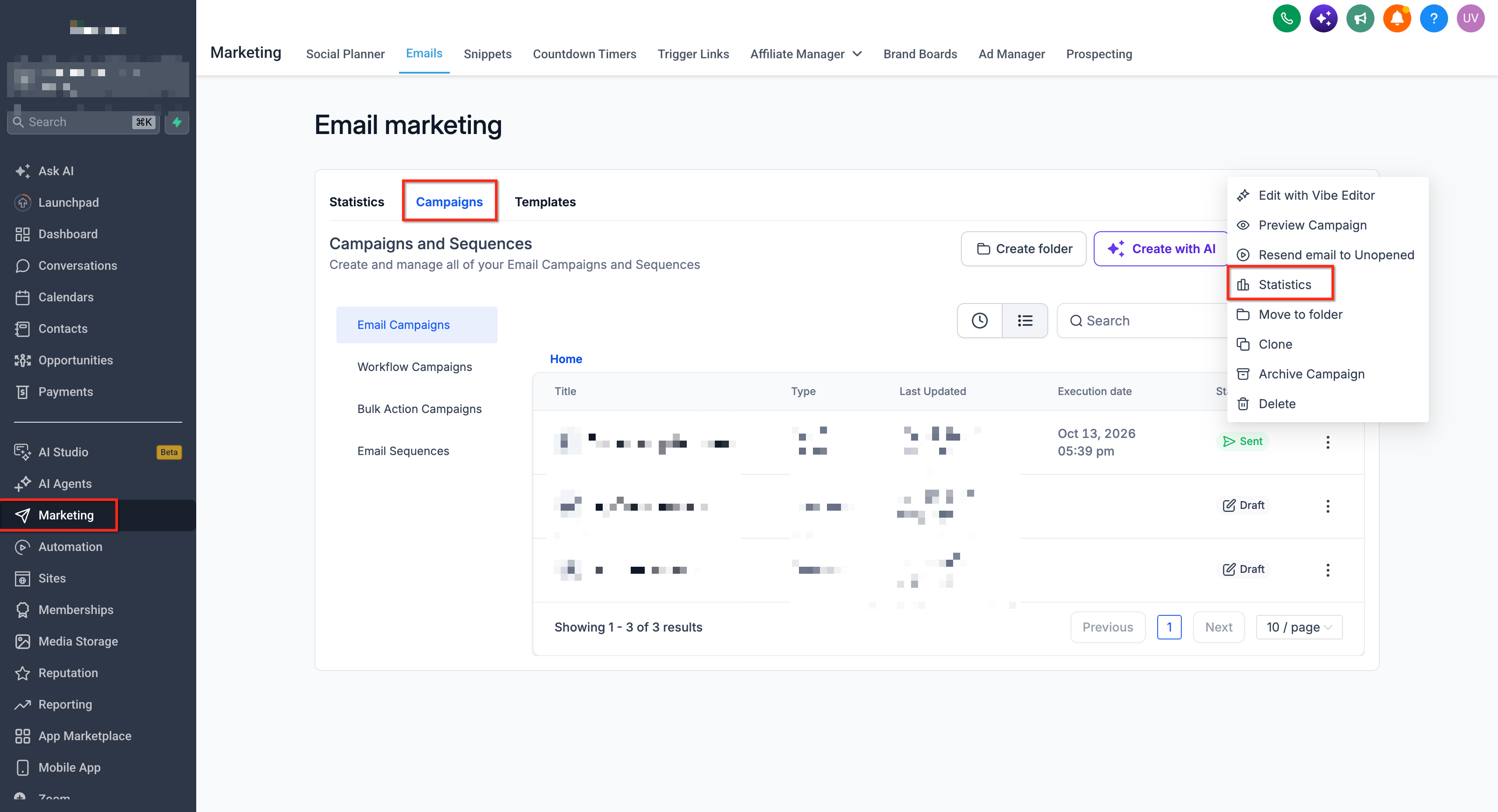
- Navigate to Marketing > Email Campaigns, find the sent campaign, open its three dot menu and select Statistics.
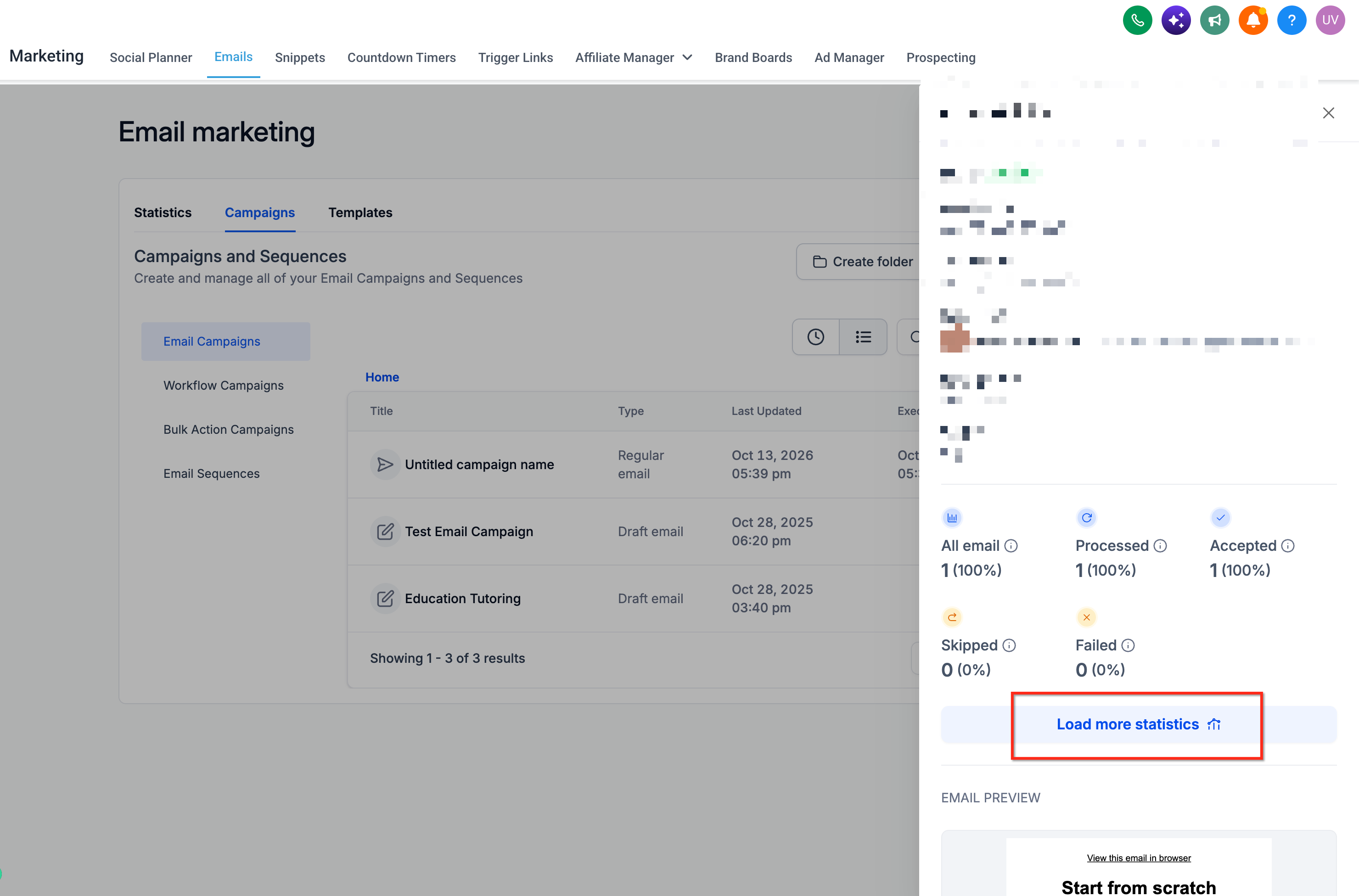
- In the Statistics view, click Load More, locate the desired interaction category (for example Opened or Clicked) and open it.
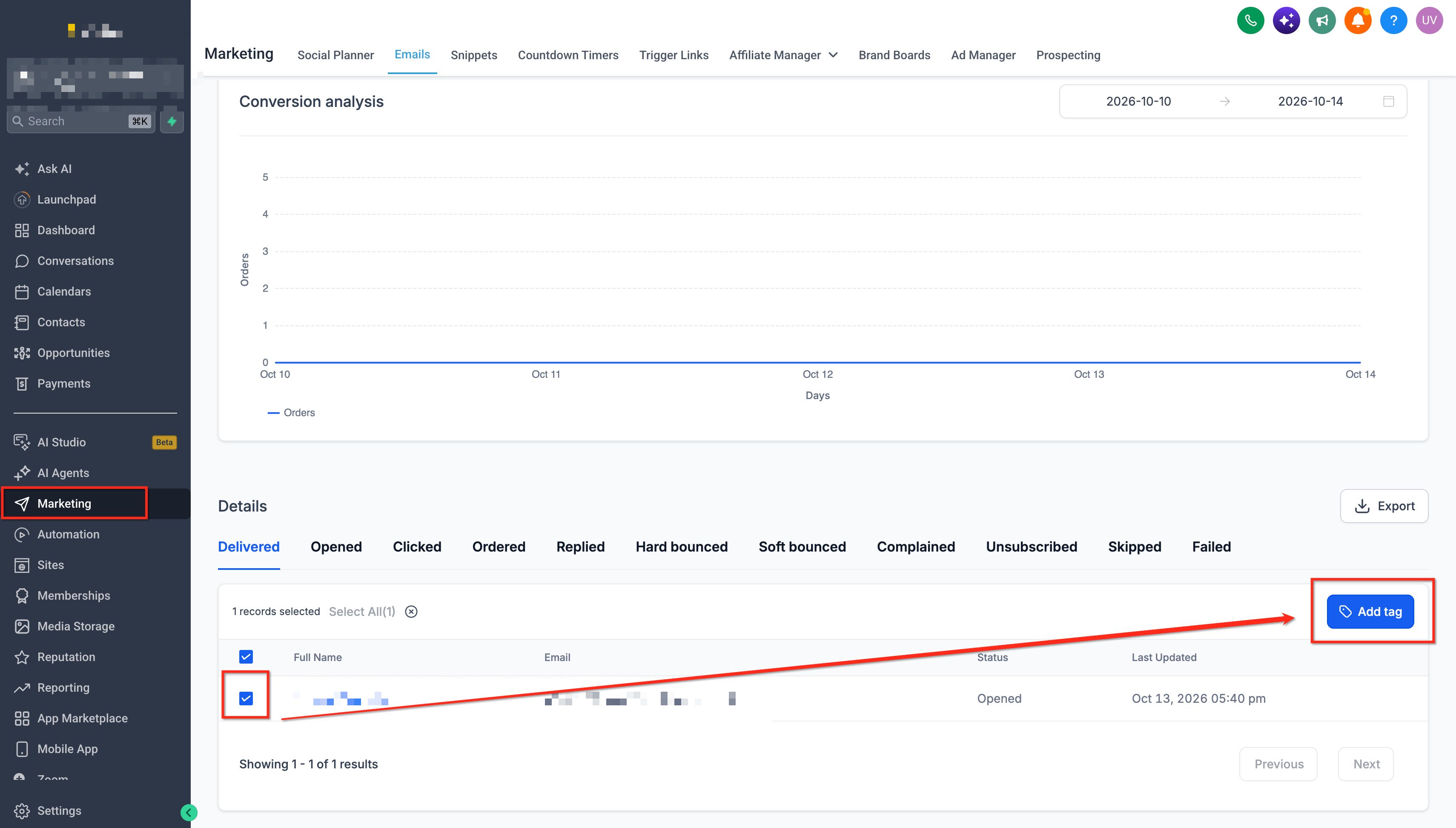
- Select the contacts you want to tag, either individual entries or All, and click Add Tags.
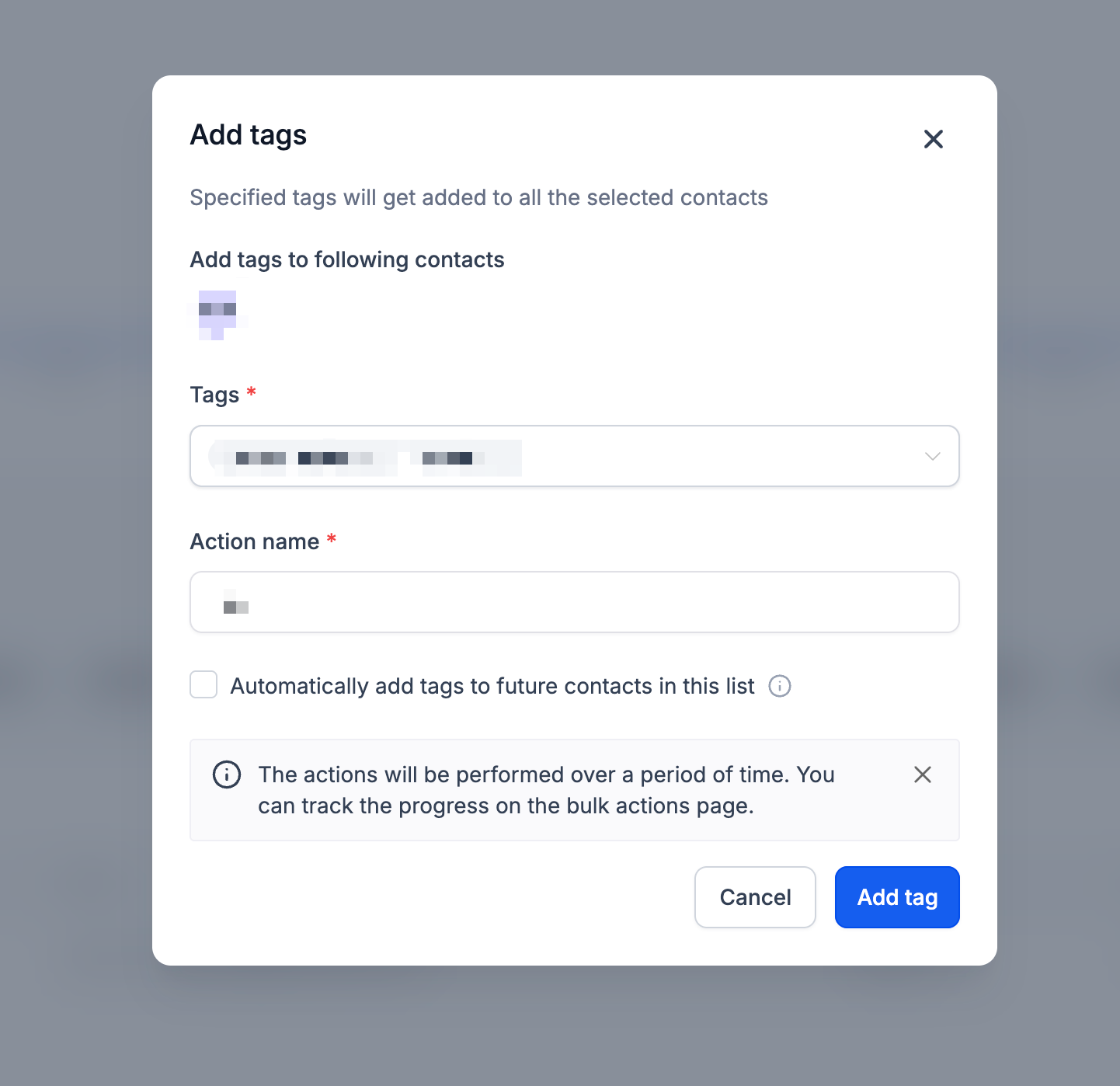
- Enter or choose the tag(s) to apply and confirm the tagging action.
- Optionally, open the same interaction category, choose All, add tags, toggle Auto Tag Future Interactions and complete the setup.
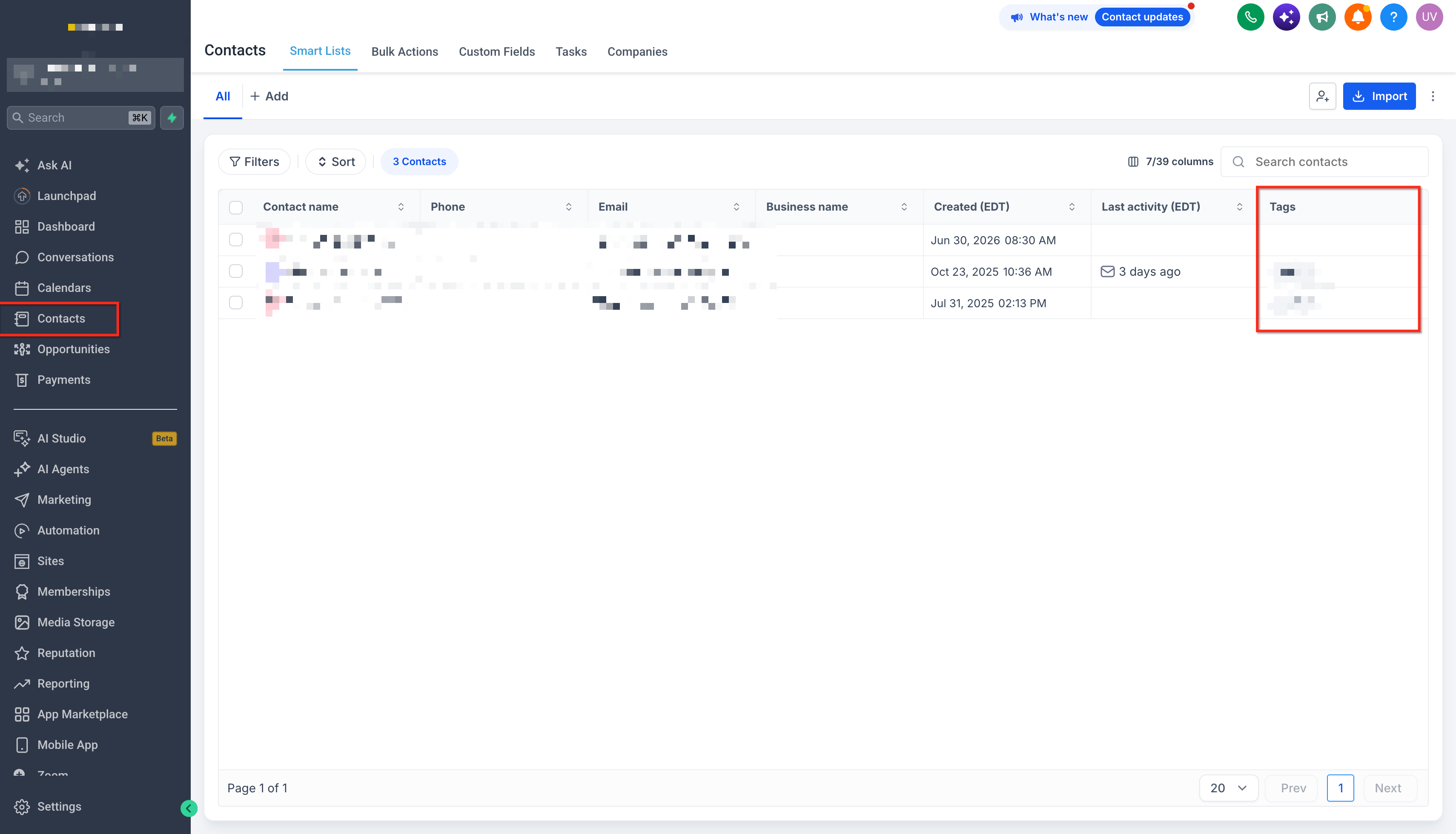
- Go to Contacts, open a sample contact and verify the new tags appear; review Bulk Actions for manual tagging if needed.
05What it looks like in HighLevel
06Settings that matter
- Auto Tag Future Interactions. Controls whether selected tags are automatically added to contacts who meet the interaction condition after the setting is enabled.
- Add Tags. Specifies which tag or tags are applied to the selected contacts during a tagging operation.
07Things to know before you rely on it
- Automatic tagging cannot be used for contacts in the Invalid category.
- Automatic tagging is not supported for Order Details lists.
- The feature only adds tags; it does not remove existing tags.
- Automatic tagging actions are not recorded in the Bulk Actions log.
- If a tag already exists on a contact, the system ignores the duplicate assignment.
08How it connects to the rest of HighLevel
- Learn how to interpret email campaign statistics in HighLevel. Email campaign statistics guide
- See how click tracking works within HighLevel email campaigns. Click tracking guide
- Explore the All in One Dashboard for email marketing in HighLevel. Email marketing dashboard
Michael's take

Tagging contacts from campaign statistics is a quick way for a small business to turn email opens and clicks into usable segments without extra manual work. It lets you label engaged prospects right where you see the data, then reuse those tags for follow up messaging.
Avoid assuming the system will delete tags for you; you must remove tags using the regular contact tools.