
01Who this is for
- Marketing managers benefit because they can enforce brand guidelines across all client facing forms.
- Agency owners gain a shared color set that their team can reuse without manual entry.
- Small business Founders keep their surveys and quizzes looking professional with a single click.
02Brand board colors, explained
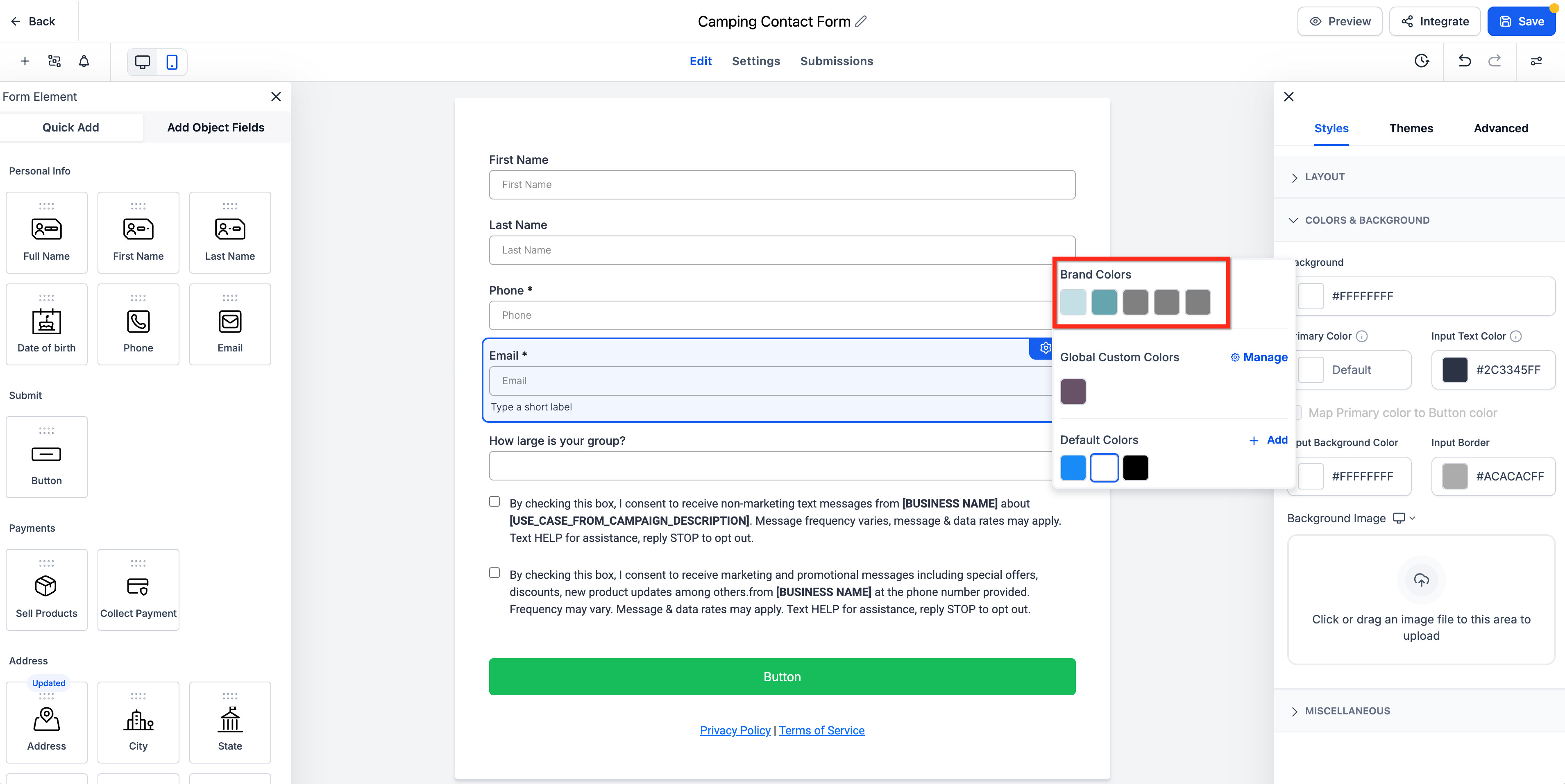
The feature adds a Brand Colors area to the color picker inside the Form, Survey, and Quiz builders. When you open any color field, the picker lists Brand Colors, Global Custom Colors, and the platform’s default palette. Selecting a brand shade immediately colors the chosen element and shows a preview.
Brand Colors are pulled from the Brand Board you have set as default. If the board does not contain colors or the wrong board is active, the Brand Colors section will be empty. You can open Brand Settings from the picker via the Manage button to create or edit brand shades.
The Builder does not automatically restyle existing assets when you switch the default Brand Board. Existing forms, surveys, or quizzes keep their current colors until you manually apply a new shade.
03How businesses use brand board colors
- Digital marketing agency. The agency opens a client survey in the builder, launches the color picker, and selects a preapproved brand shade from the Brand Colors area. This ensures every questionnaire matches the client’s visual identity without copying hex values.
- Fitness studio. When creating a class sign up form, the studio clicks Manage in the picker, adds a new corporate teal color, and saves it. The new shade appears under Brand Colors and can be applied to buttons right away.
- Online education platform. The platform’s course creators edit a quiz, open the label color field, and choose a brand orange from the Brand Colors list. The label updates with the chosen hue, keeping the quiz aligned with the platform’s brand kit.
04Before you start
- A Brand Board must have at least one saved color.
- The correct default Brand Board must be selected in the platform settings.
05How to set up and use brand board colors in HighLevel
Apply a brand color in the builder
- Open a Form, Survey, or Quiz builder and select the element whose color you want to change.
- Click the element’s color field to display the color picker.
- Locate the “Brand Colors” section within the picker.
- Click the desired brand shade from that section.
- Confirm that the element now shows the selected brand color.
Add a new brand color
- Open a color field in any Form, Survey, or Quiz builder to bring up the picker.
- Select the “Manage” button that appears inside the picker.
- In the Brand Settings window, choose the option to add a new color.
- Enter the hex code or pick a shade, then save the new color.
- Close the settings; the new color appears under the Brand Colors list.
06What it looks like in HighLevel
07Settings that matter
- default Brand Board. Determines which Brand Board’s palette is shown in the color picker for builders.
- Brand Settings. Opens the interface where you can create, edit, or delete reusable brand colors.
- Manage. Button in the color picker that launches Brand Settings for color management.
08Things to know before you rely on it
- Changing the default Brand Board does not automatically restyle existing forms, surveys, or quizzes.
- Brand Colors will only appear if the active Brand Board contains saved colors.
09If something goes wrong
- Brand Colors do not show in the color picker. Verify that your Brand Board has saved colors and that the correct default Brand Board is set.
10How it connects to the rest of HighLevel
- Create a Brand Board Brand Board creation guide
- Set a default Brand Board Default Brand Board setup
- Manage Global Custom Colors Global Custom Colors overview
Michael's take

Brand board colors are a quick way to keep your forms looking on brand without hunting down hex codes. Teams that already have a solid brand palette and need tight visual consistency should use it, but anyone without a defined Brand Board can skip it.