
01Who this is for
- Marketing managers who need to keep email communications on brand without repetitive styling.
- Small business owners who want a quick way to insert their logo and brand colors into newsletters.
- Design teams that create multiple campaigns and require a single source for brand assets.
02Brand boards, explained
Brand Boards act as a repository for a company's visual identity elements, color codes, typefaces, and logo files. When you open an email in the Design Editor, the pickers for color and font draw directly from the default Brand Board, allowing a single click to apply the correct style. Logos saved in a Brand Board appear in the Media Library, making insertion straightforward.
Only one Brand Board can be set as the default at any moment, and the editor shows assets solely from that board. Changing the default board updates the available colors and fonts across all email design screens.
03How businesses use brand boards
- Digital marketing agency. The agency opens an email template for a client, selects the header text, and chooses the client’s brand color from the Brand Colors picker. It then applies the client’s chosen typeface via the Brand Fonts list and inserts the client’s logo from the Media Library.
- Online retail store. When creating a promotional newsletter, the store selects the call to action button, opens the color picker, and picks the brand’s red shade from Brand Colors. It sets the button text to the store’s primary font using Brand Fonts and adds the store’s logo image through the Media Library.
- Coaching business. The coach designs a welcome email, highlights the greeting text, and applies the brand’s teal color from Brand Colors. They switch the text font to the brand’s signature font via Brand Fonts and embed the business logo by selecting it from the Media Library.
04Before you start
- Create a Brand Board that contains the desired colors, fonts, and logos before editing an email.
05How to set up and use brand boards in HighLevel
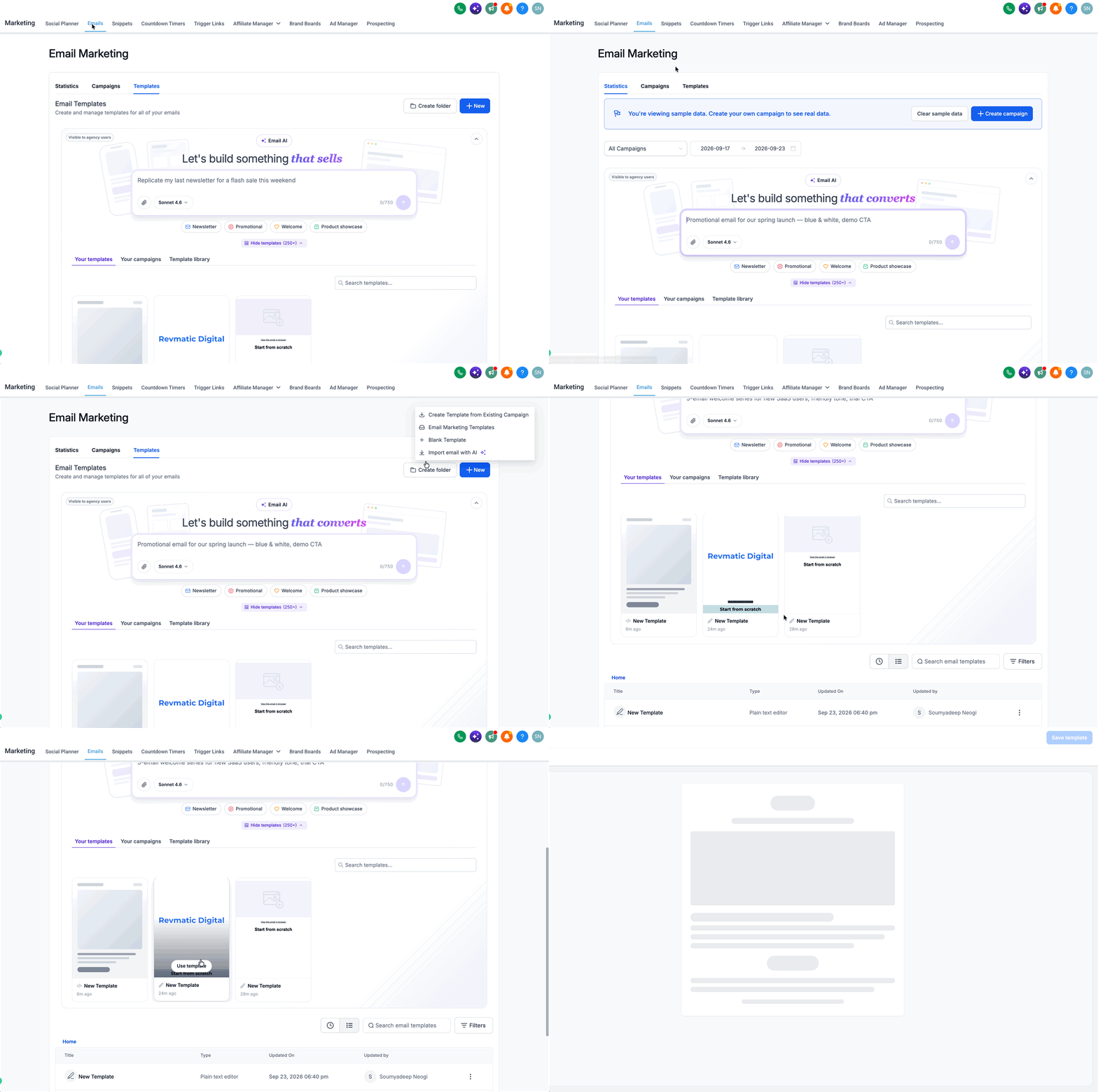
Open an email template or campaign
- Go to Marketing > Emails.
- Select to create a new template, start a new campaign, or edit an existing email.
- Switch the view to the Design Editor.
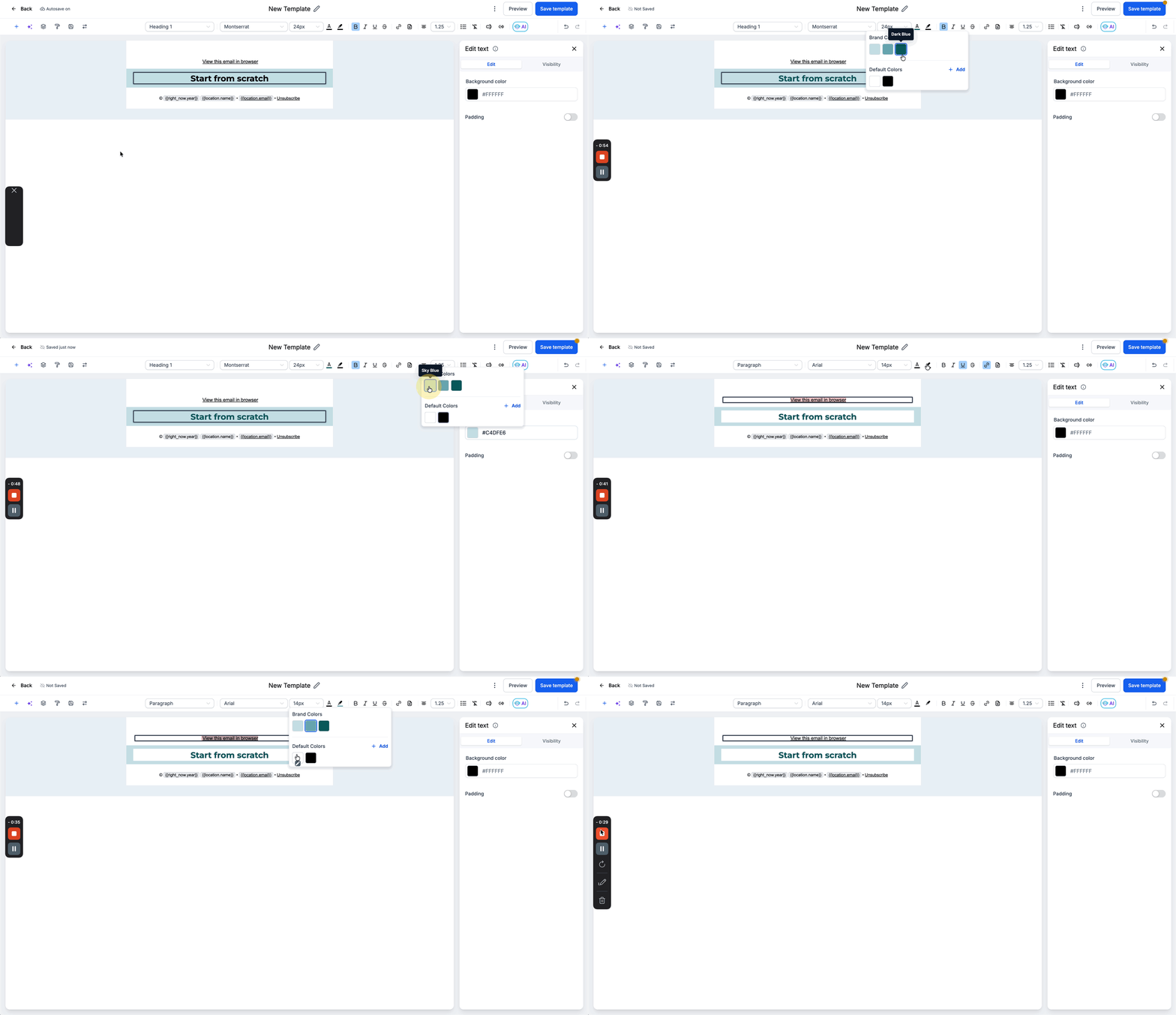
Apply a brand color
- Click the element you want to style, such as text, a section, or a button.
- Open the color picker linked to that element.
- Choose the required shade from the Brand Colors list.
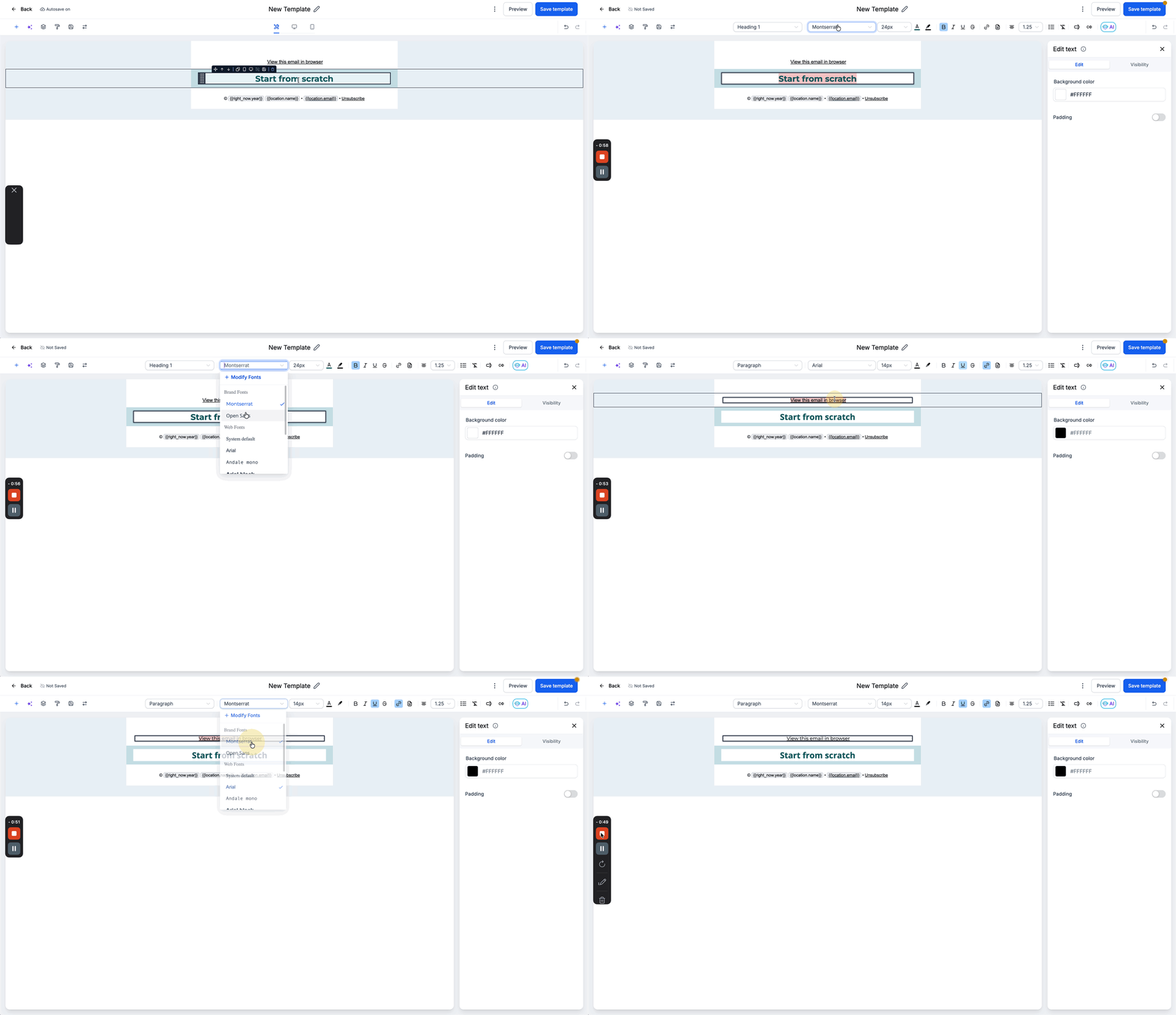
Apply a brand font
- Highlight the text you wish to change.
- Open the Font dropdown menu.
- Select the desired typeface from Brand Fonts.
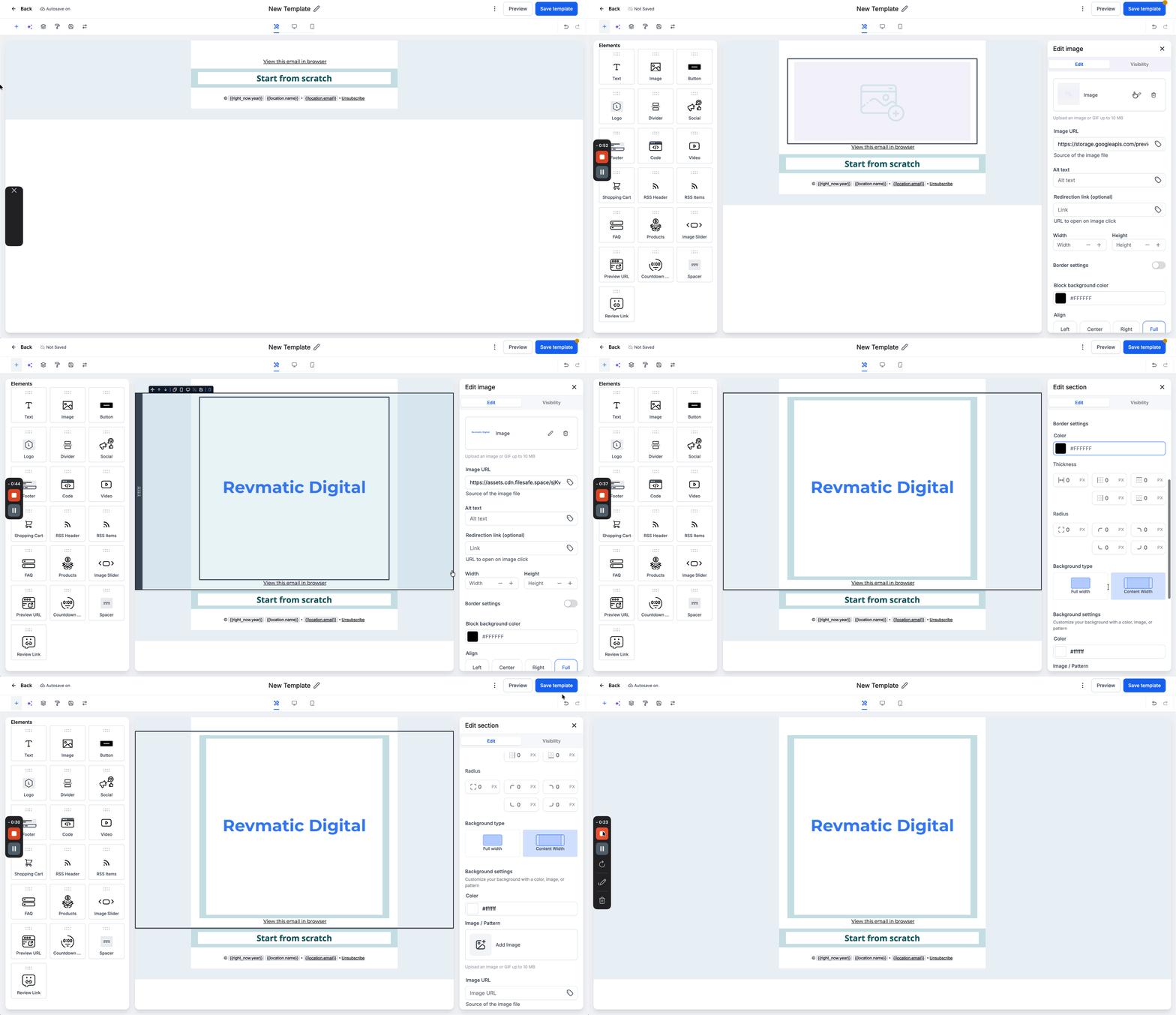
Add your brand logo
- Insert an Image block or select an existing image element.
- Open the Media Library selector.
- Find the logo that was saved through your Brand Board.
- Click Insert to place the logo in the email.
Note on default Brand Board
- Only one Brand Board can be the default at a time.
- If colors or fonts are missing, ensure the correct Brand Board is set as the default.
06What it looks like in HighLevel
07Settings that matter
- Default Brand Board. Determines which board's colors and fonts appear in the email editor’s pickers.
08Things to know before you rely on it
- Only one Brand Board can be set as the default at any given time.
09If something goes wrong
- Brand Board colors or fonts are missing from the editor.. Set the intended Brand Board as the default to make its assets visible.
10How it connects to the rest of HighLevel
- Create a Brand Board How to create brand boards in HighLevel
- Change the default Brand Board How to Change Default Brand Boards in HighLevel
- Use Brand Boards in funnels and websites Using Brand Boards in Funnels and Websites
Michael's take

How do I keep my emails on brand without extra work? Brand Boards pull your saved colors, fonts, and logos right into the email editor so you don’t have to hunt for assets each time. It’s a straightforward way to keep newsletters, promos, and drip campaigns consistent.
If I were setting up a new campaign, I’d verify that my default Brand Board has the latest logo and color palette, then go straight into the Design Editor. A quick check that the right board is set as default helps avoid missing assets later.