
01Who this is for
- Marketing managers can enforce brand guidelines quickly, reducing the need to copy HEX codes.
- Small business owners keep their online presence unified without hiring a designer for each page.
- Agencies can update a client’s visual assets in one place and have the changes reflected in new projects.
02Brand Boards, explained
A Brand Board stores your company’s logo, color palette, and typography as a design kit. When a board is set as the default, its colors show up in the color picker inside the funnel or website builder.
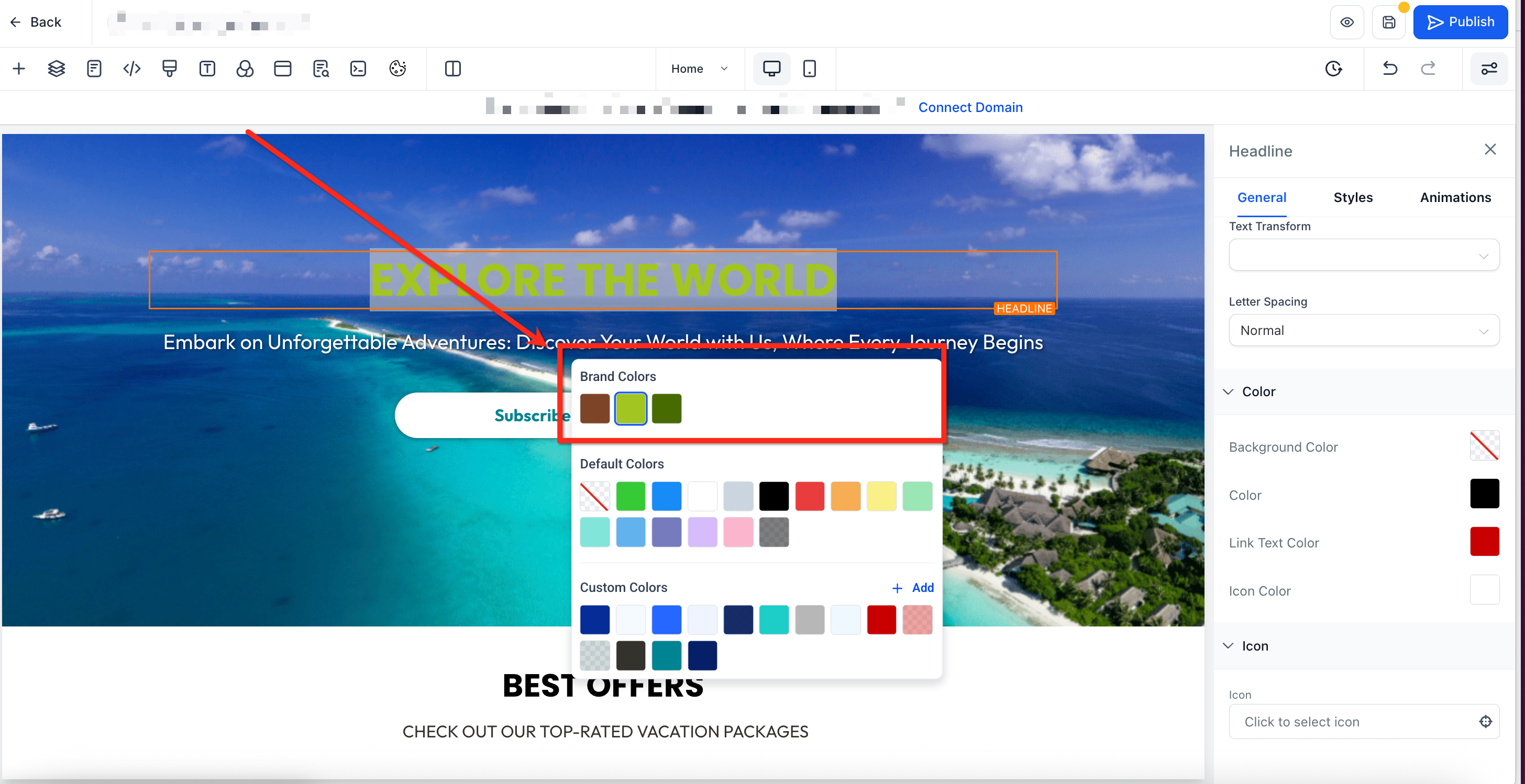
Inside the builder you select an element, open the color picker, and click a color from the top row that represents your Brand Board. The chosen shade is applied right away to the element.
Brand Boards live under the Marketing > Brand Boards section. They can be created, edited, or set as default, and any updates to the board affect future pages but not previously saved colors.
03How businesses use Brand Boards
- Digital marketing agency. The agency creates a Brand Board for each client, sets the appropriate board as default, and then styles landing pages by selecting colors directly from the picker, ensuring each client’s site follows its brand.
- Ecommerce store. The store adds its logo and brand palette to a Board, selects it as default, and then builds product launch funnels, applying the brand colors with a single click without entering HEX values.
- Real estate brokerage. The brokerage maintains a Board with its signature colors and fonts, uses the default board when creating property showcase websites, and right away applies the branding to text and buttons.
04Before you start
- Create a Brand Board in HighLevel before trying to use it in a funnel or website.
05How to set up and use Brand Boards in HighLevel
Apply a Brand Board in a funnel or website
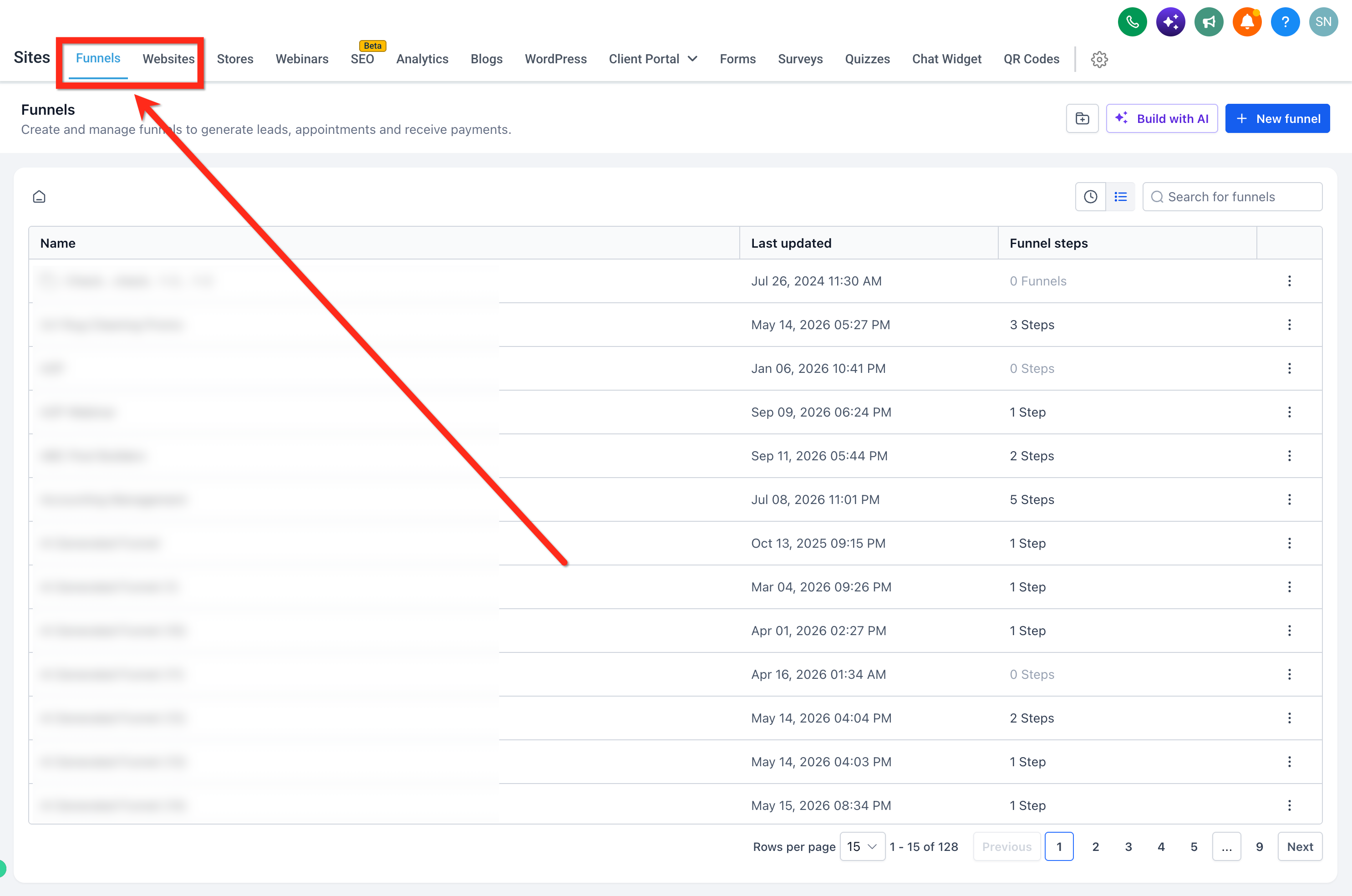
- Select Sites from the main navigation bar.
- Click the Funnels or Websites tab on the top ribbon.
- Open an existing site or create a new one with the + New Funnel or + New Website button.
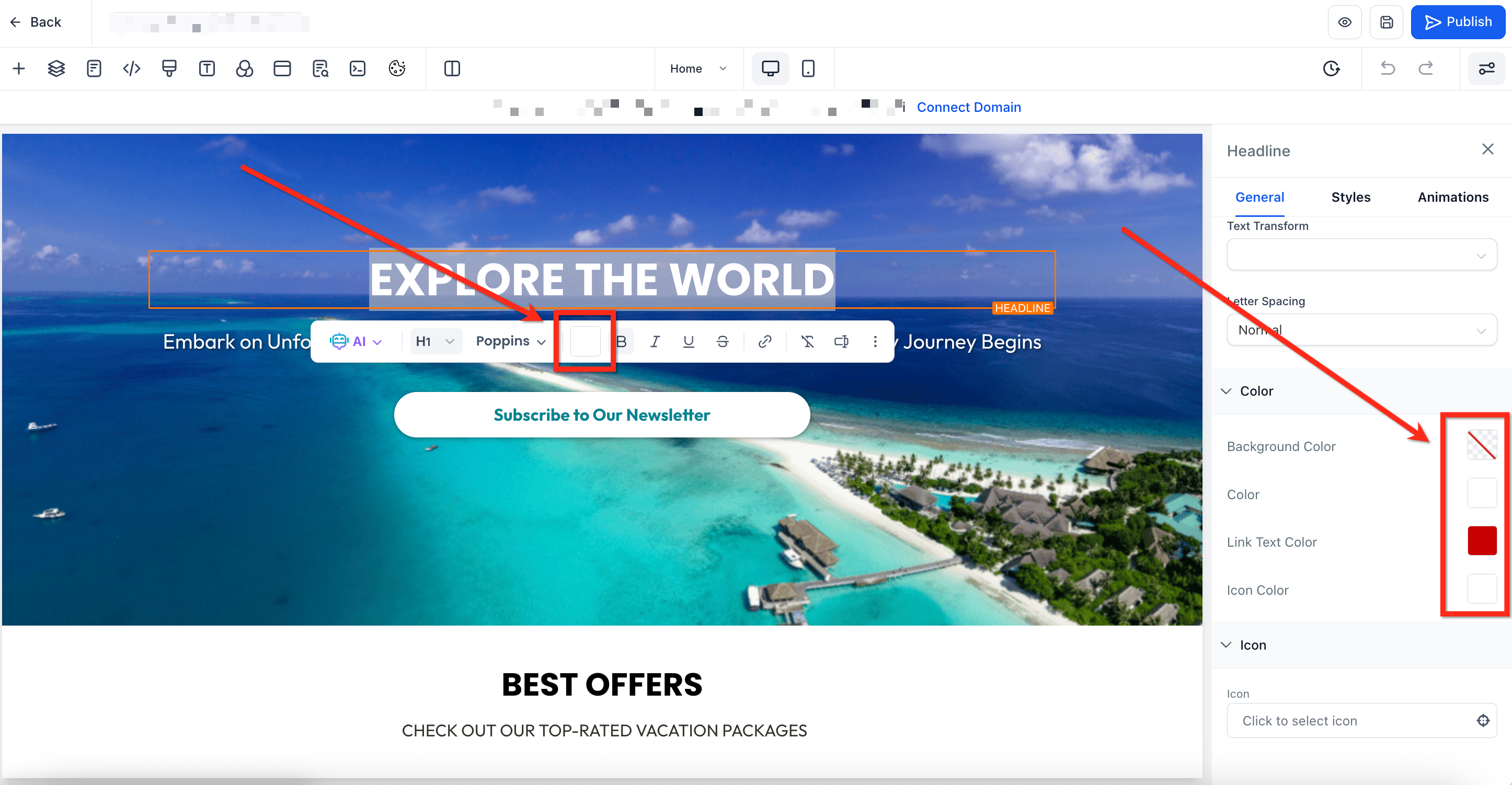
- Choose the page element you want to style.
- In the right sidebar, click a Color Swatch to launch the color picker.
- For typography, open the color picker using the inline toolbar.
- In the color picker, click a color from the Brand Board row to apply it.
06What it looks like in HighLevel
07Settings that matter
- Default. Controls which Brand Board appears in the color picker for new funnels and websites.
08Things to know before you rely on it
- Only the Brand Board marked as Default shows in the color picker.
- Updating a Brand Board does not change colors that were already applied on existing pages.
- You can create many Brand Boards, but only one can be set as Default at a time.
- If a Brand Board is deleted, colors already used stay on pages, but the board disappears from pickers.
09If something goes wrong
- Brand Board colors are not appearing in the color picker.. Open the Design tab and ensure a Brand Board is applied.
10How it connects to the rest of HighLevel
- Create a Brand Board How to create a Brand Board
- Set a default Brand Board Change default Brand Boards
- Edit a Design Kit Editing a Design Kit
- Apply global custom colors Global custom colors
Michael's take

If you have a solid visual identity and need to launch multiple funnels or websites, Brand Boards provide a single source of truth for your colors, fonts, and logos.
If you rarely change visual assets or only work on a single site, maintaining a Brand Board might add unnecessary steps.