
01Who this is for
- Marketing managers, keep brand colors consistent across campaigns.
- Design teams, update a single swatch to rebrand assets right away.
- Agency owners, apply the same palette for multiple client projects.
02Global custom colors, explained
Global Custom Colors are reusable color swatches stored under Brand Boards > Global Settings. They appear alongside Design Kit colors in the Color Picker of every builder.
When a global swatch is applied in an editor, the element records a reference to that swatch. Changing the swatch later updates every element that references it, providing two way synchronization.
The feature lives inside the Brand Boards area. After at least one color exists, a “Global Custom Colors” group shows in the Color Picker of supported builders such as email, funnel, website, form and countdown timer editors.
03How businesses use global custom colors
- Dental practice. The practice adds its brand blues and whites as Global Custom Colors. When creating patient appointment emails or website pages, staff pick those swatches from the picker, ensuring every communication matches the office palette.
- Real estate agency. Agents import the agency's logo colors saved as Custom Values into Global Custom Colors. They then apply the same swatches in property listing pages and lead capture forms, keeping a uniform look across all listings.
- SaaS startup. The startup defines primary, secondary, and accent colors as global swatches. As the product branding evolves, updating a single swatch right away refreshes all email newsletters, onboarding funnels, and survey forms.
04The numbers and rules that matter
- Add a new color by entering a name and a HEX/RGB value such as #1A73E8.
05Before you start
- Custom Values must contain valid HEX color entries.
- Custom Values need clear names for easy mapping during import.
- Add at least one Global Custom Color to make the picker group appear.
06How to set up and use global custom colors in HighLevel
Add a new global color
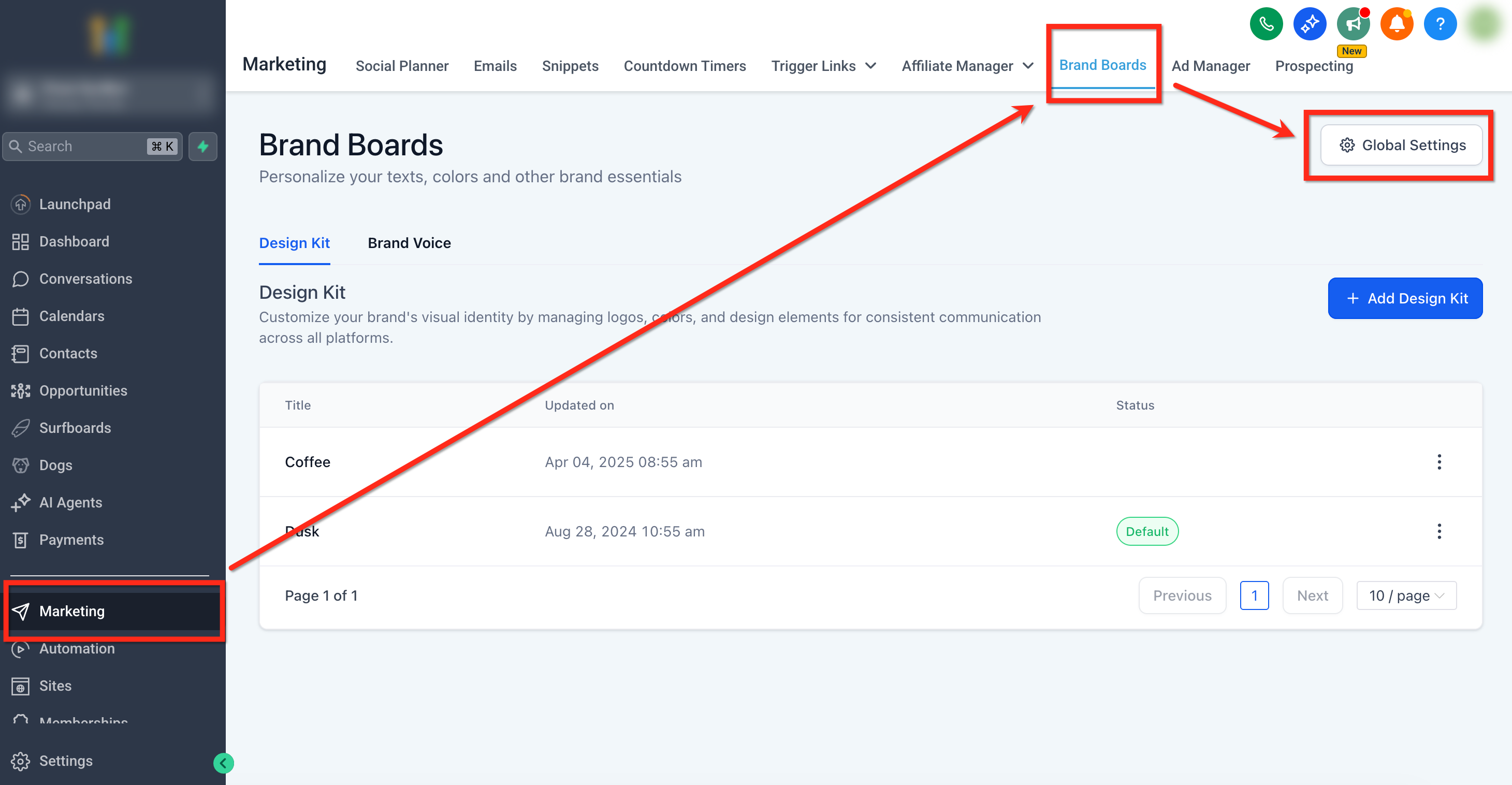
- Navigate to Marketing > Brand Boards > Global Settings.
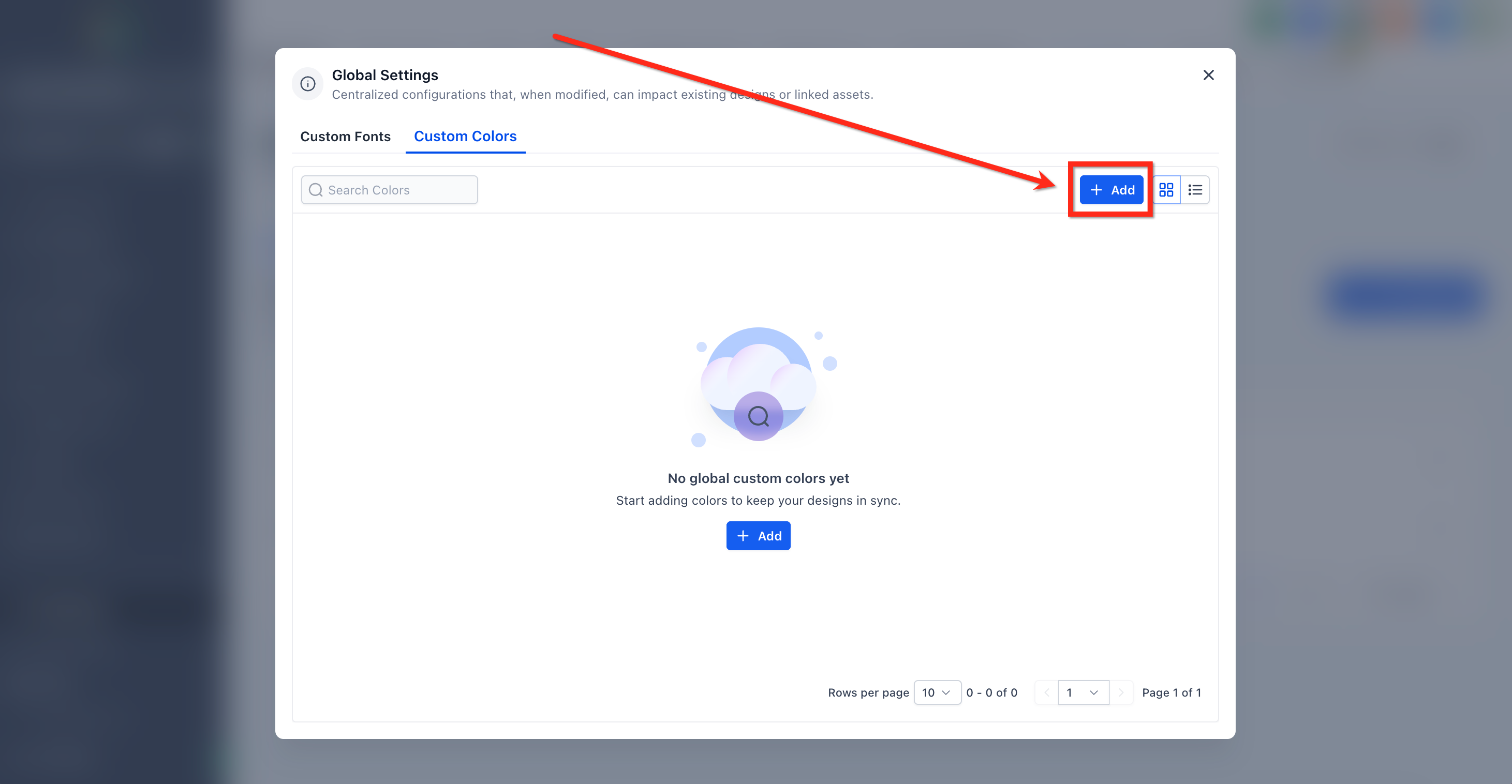
- Click the + Add button and select Add New.
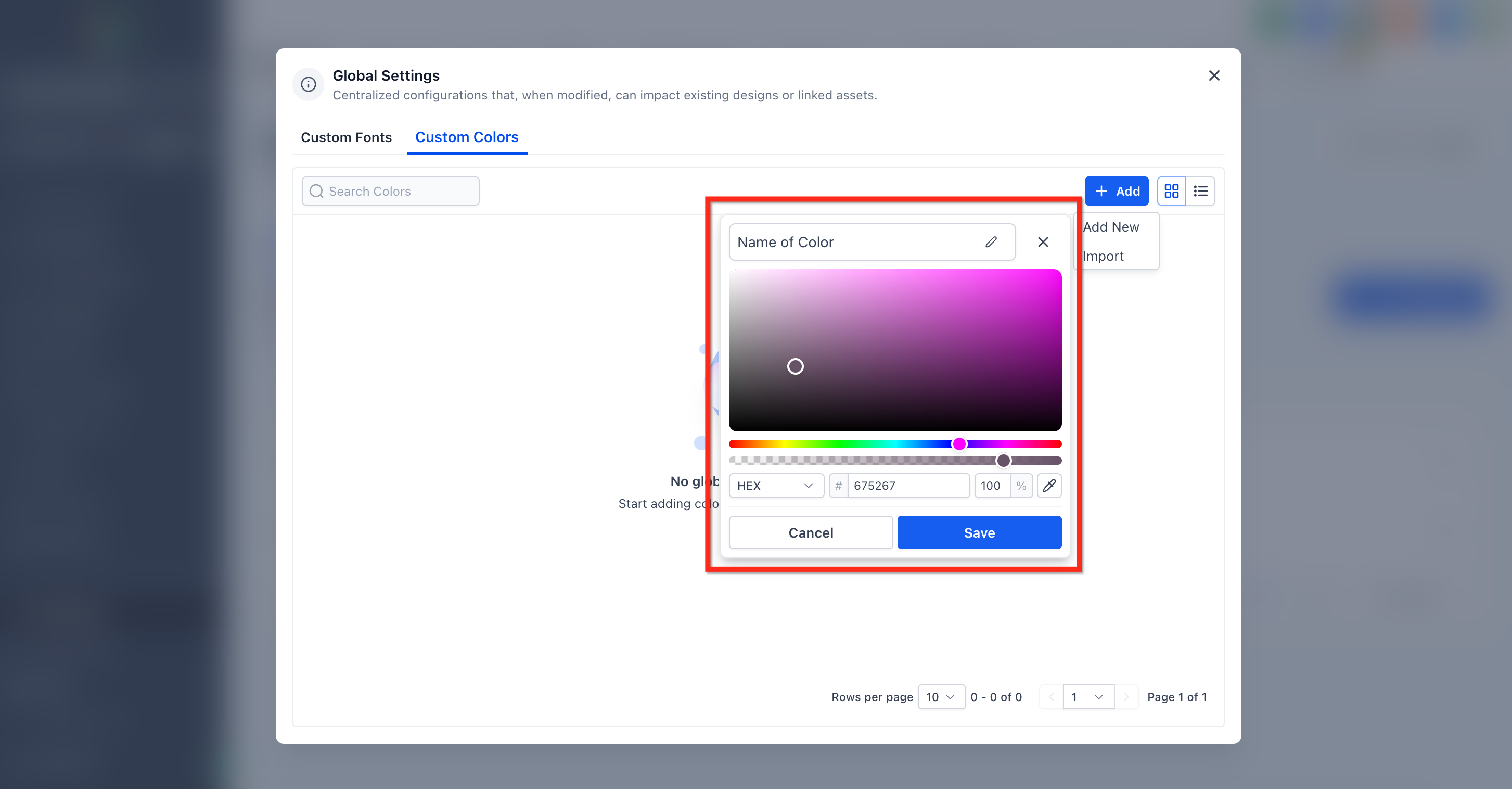
- Enter a name and provide a HEX or RGB value, or choose a color from the picker.
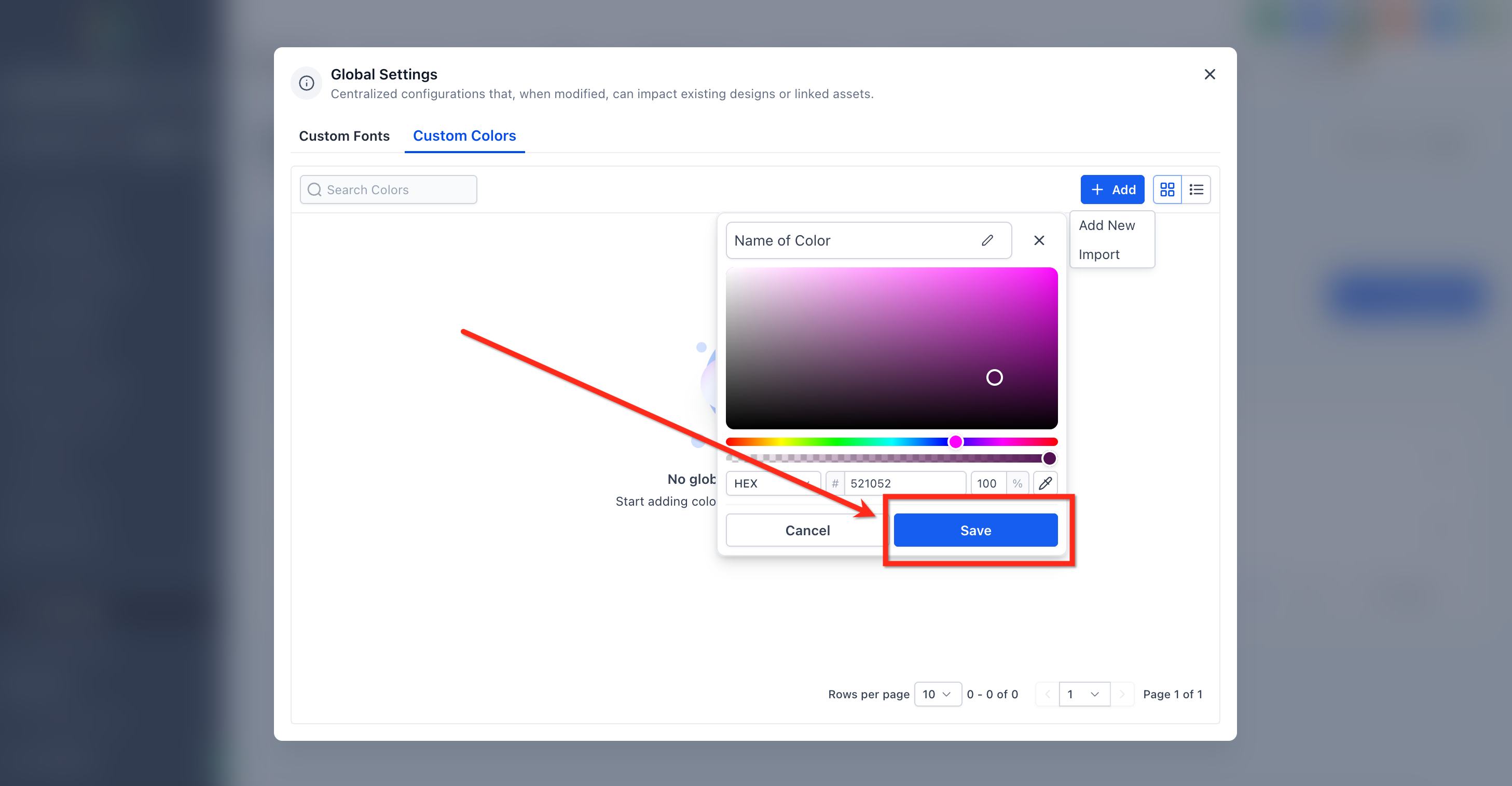
- Click Save to store the new global color.
Import global custom colors from Custom Values
- Go to Marketing > Brand Boards > Global Settings.
- Click the + Add button and choose Import.
- Select the Custom Values that hold color codes you want to import.
- Click Import to copy the selected values as Global Custom Colors.
Apply a global color within an editor
- Open any builder, email, funnel page, countdown timer, or form, and select an element with a color option.
- Open the Color Picker for that element.
- Locate the Global Custom Colors group inside the picker.
- Click the desired swatch to apply the global color to the element.
Edit, rename, or delete a global color
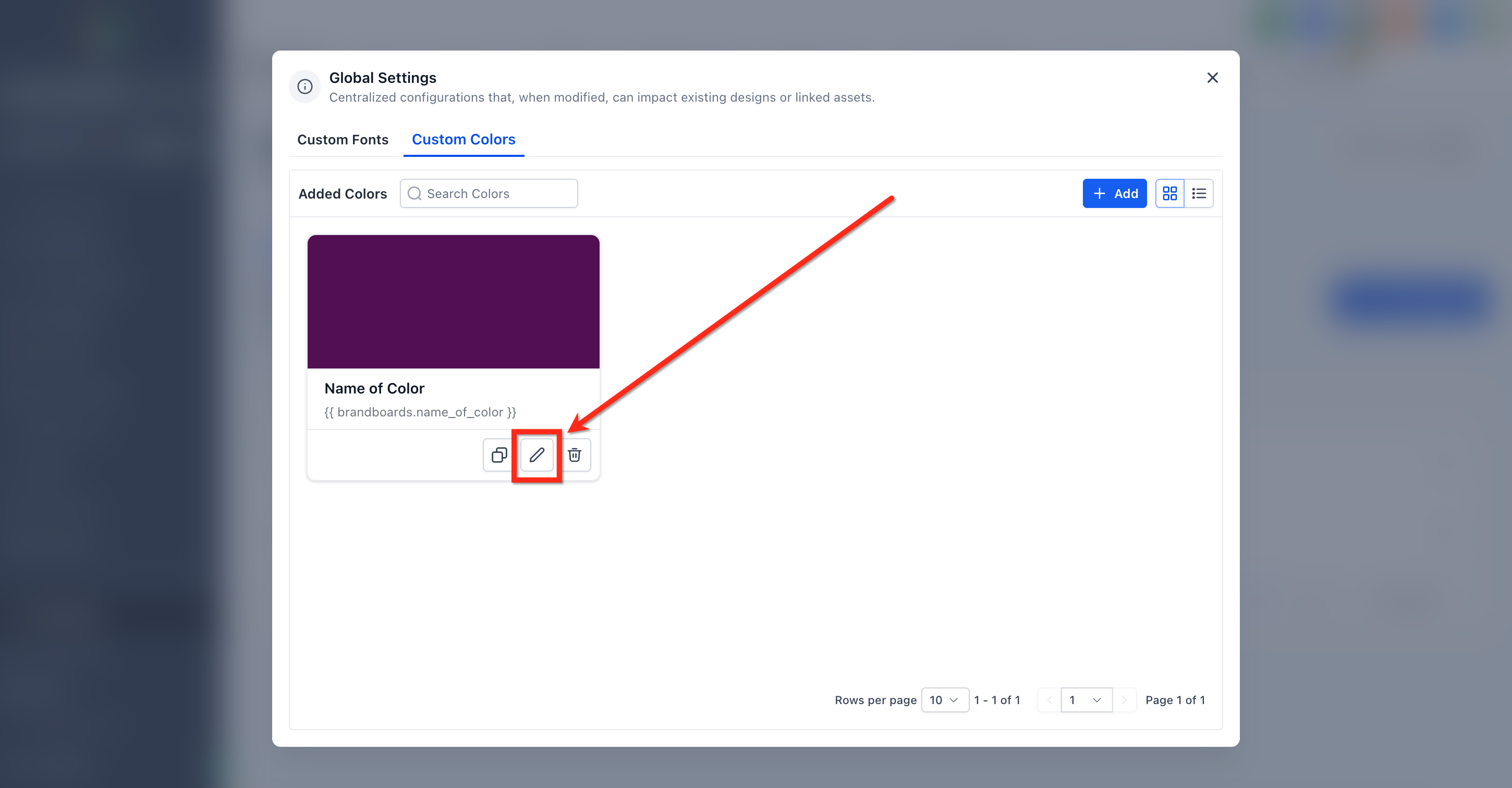
- In Global Settings, click the Edit (pencil) icon to modify a swatch or its name.
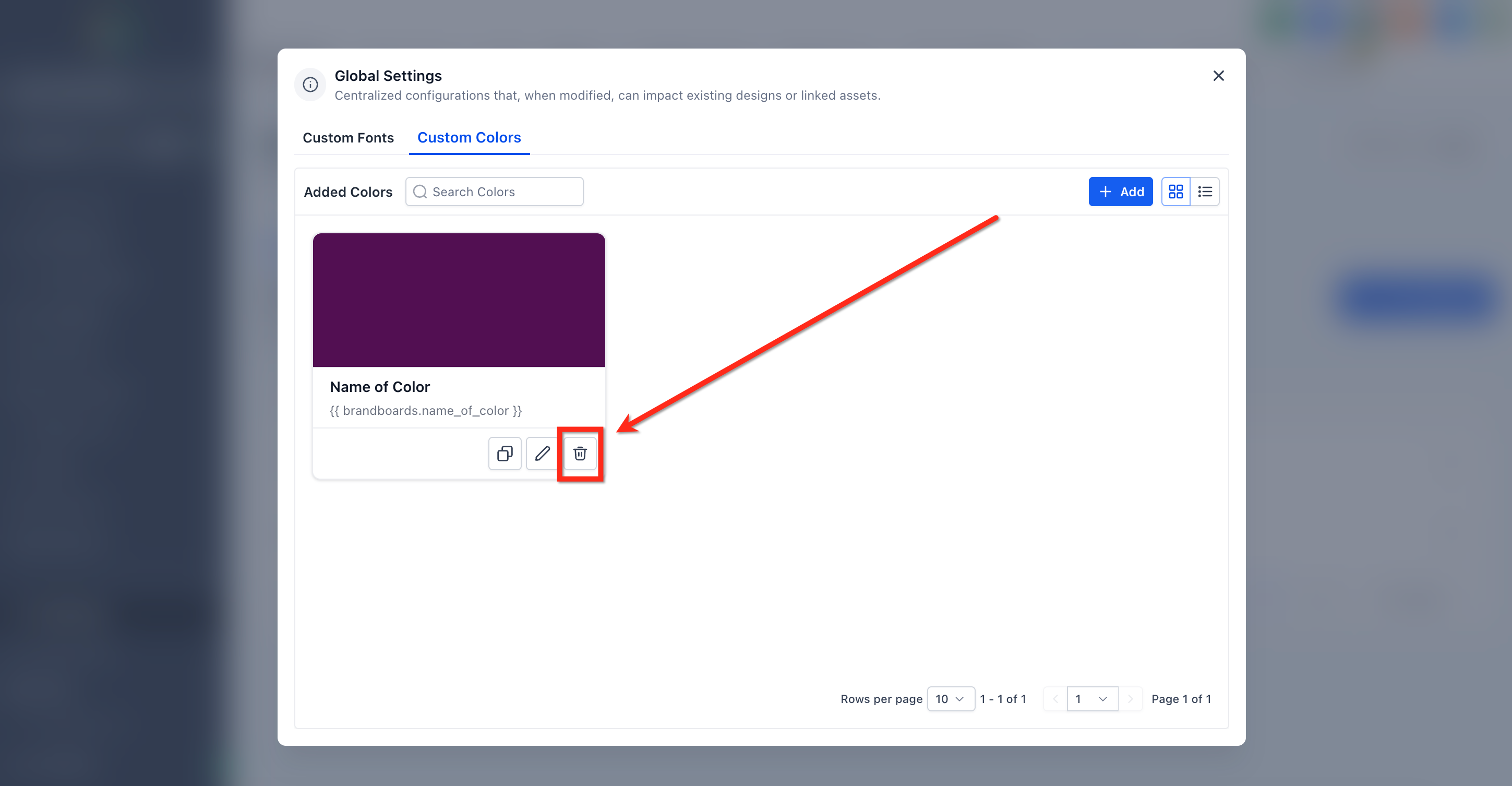
- To delete a color, click the trash can icon; the swatch disappears from pickers and designs that used it may change accordingly.
07What it looks like in HighLevel
08Settings that matter
- Global Settings. Controls the list of reusable color swatches that appear in the Color Picker across all builders.
- Custom Values. Stores individual values, such as HEX color codes, that can be imported into Global Settings for central color management.
09Things to know before you rely on it
- The Global Custom Colors group appears only after at least one color is created.
- Changes to a global swatch automatically update every design that uses it.
- Deleting a global color removes it from the picker and may alter designs that referenced it.
- Import creates copies of eligible Custom Values; entries that are not valid HEX codes are ignored.
10How it connects to the rest of HighLevel
- Create brand boards in HighLevel Create brand boards
- Apply Brand Boards in HighLevel funnels and websites Brand Boards in funnels
- Use Brand Boards in Email Templates and Campaigns Brand Boards in emails
Michael's take

Global custom colors help keep brand colors consistent across marketing assets. Agencies or teams that move quickly between client projects may find them useful, while others may skip if they don’t need centralized color control.