
01Who this is for
- Marketing managers can keep the chosen color palette readily available for new campaign assets.
- Small business owners can quickly align email and funnel designs with their latest brand guidelines.
- Agency designers can avoid manual selection errors by setting the most used brand board as default.
02Brand boards, explained
A default brand board is a collection of core visual elements, colors, fonts, and logos, that HighLevel shows first in its design pickers. Marking a board as default tells the platform which set to display when users open color or font selectors. Changing the default only affects pickers for new or future edits; existing emails, pages, or funnels keep their current styling.
03How businesses use brand boards
- Dental practice. The practice creates a brand board with its logo and colors. By setting this board as default, the color and font pickers in new patient reminder emails and appointment pages start with the correct palette, reducing the need to choose styles manually.
- Real estate agency. Agents build listing landing pages. When the agency’s brand board is set as default, the page editor opens with the company’s color scheme, helping maintain consistent branding across all property sites.
- Online coaching business. Before a seasonal promotion, the coach switches the default board to a themed palette. New sales funnel templates then open with the seasonal colors, allowing quick creation of on brand promotions.
04Before you start
- A Brand Board must already exist, or you must create one first.
05How to set up and use brand boards in HighLevel
Set default brand board via list view
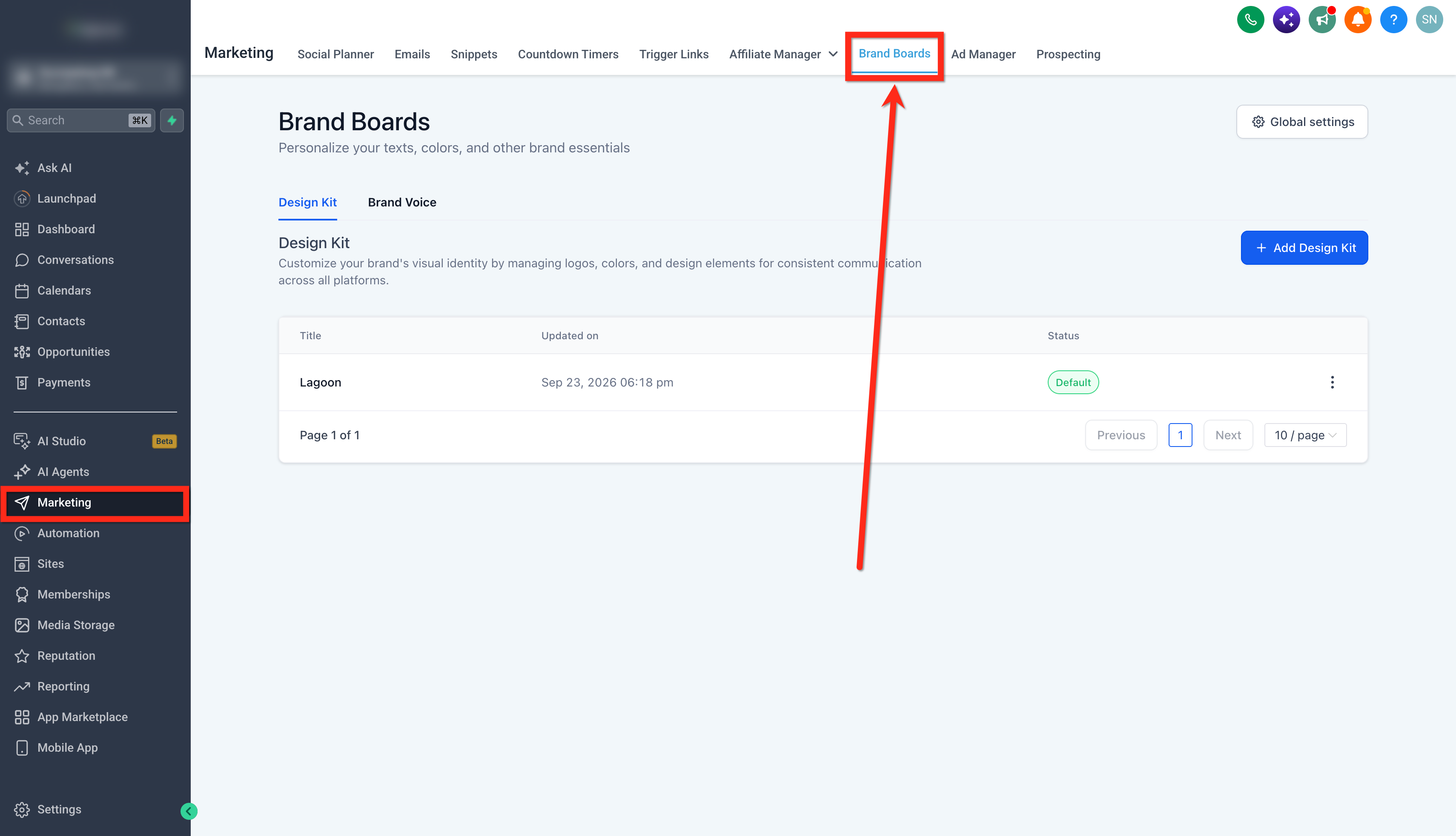
- Open the Marketing menu in the main navigation bar.
- Select the Brand Boards tab at the top of the page.
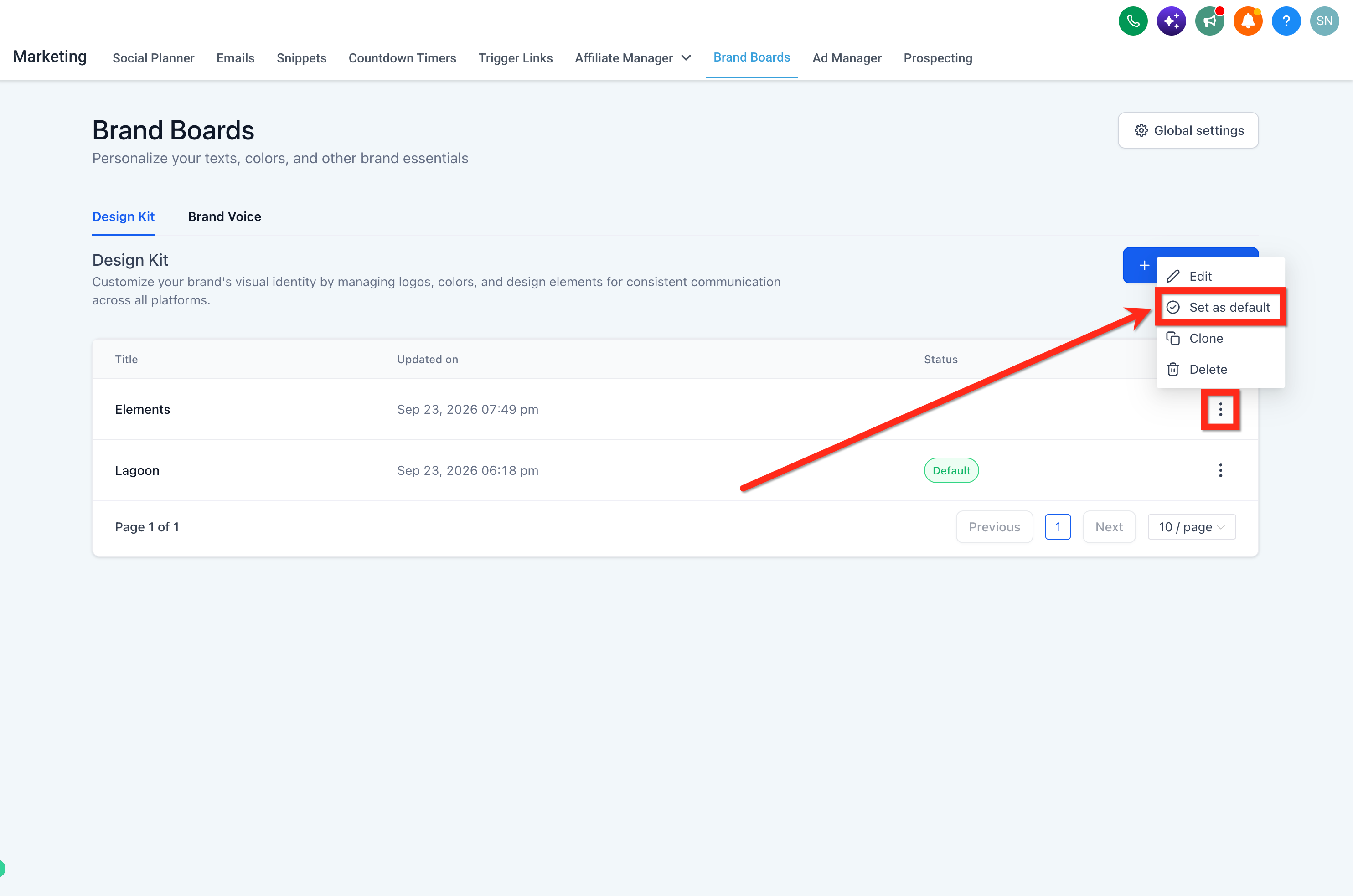
- Locate the brand board you want to make default.
- Click the three dot icon next to that brand board.
- Choose Set as Default from the dropdown menu.
Set default brand board from inside the editor
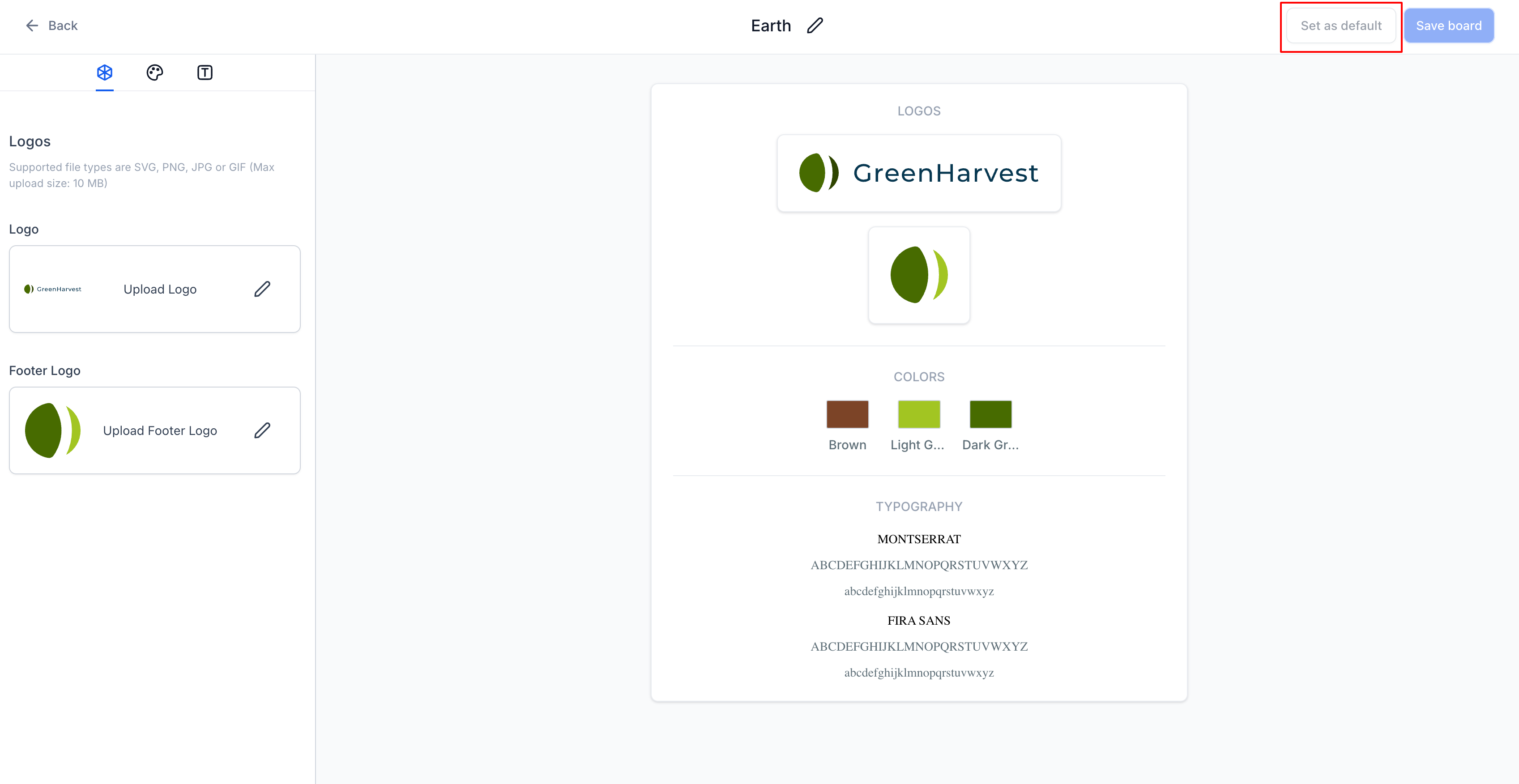
- Open the desired Brand Board by clicking its name.
- In the upper right corner, click the Set as Default button.
Verify the default board
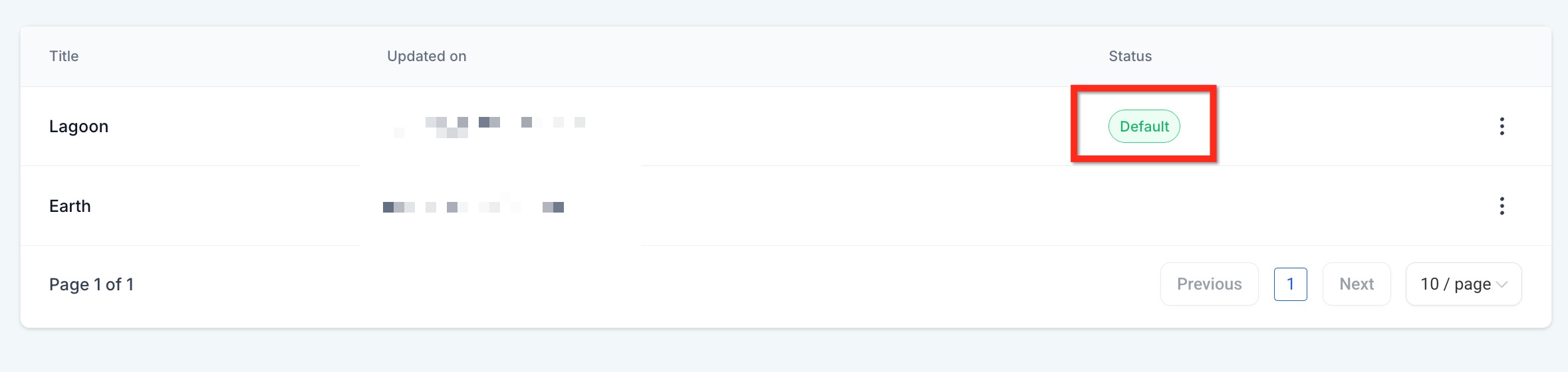
- The board you set as default will show "Default" as its status.
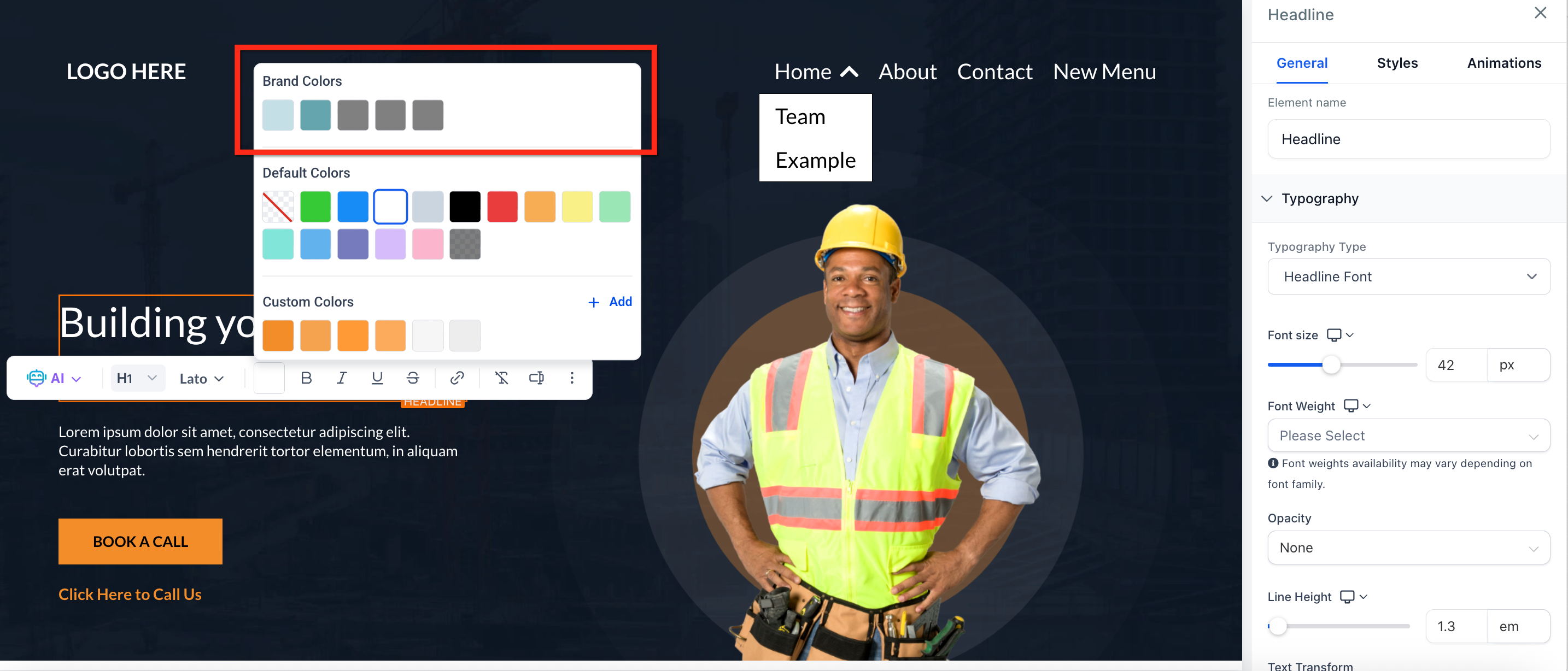
- Open a color or font picker in any editor to confirm the selected colors appear first.
06What it looks like in HighLevel
07Settings that matter
- Set as Default. Marks the chosen brand board as the primary source for colors and fonts shown in HighLevel’s editors and pickers.
08Things to know before you rely on it
- Only one Brand Board can be set as default at any time.
- Changing the default does not modify the styling of existing emails, pages, or funnels.
09How it connects to the rest of HighLevel
- Create a brand board to use as default Create brand board
- Apply brand boards in email templates and campaigns Brand boards in emails
- Use brand boards in funnels and websites Brand boards in funnels
Michael's take

The default brand board is a small convenience that can feel like a real shift when you finally get your colors and fonts pulling up in the pickers. It removes the extra clicks that add up over many projects, so you spend more time creating and less time hunting for the right shade.
A boutique agency that builds custom landing pages for local businesses will love this. They can set a seasonal board for a holiday promotion, then flip back to the core board for regular clients without rebuilding anything.