
01Who this is for
- Agency owners who manage many client email accounts benefit from quick visibility into each subaccount’s sending health.
- Founders who run a dedicated sending domain use the dashboard to keep delivery rates high and spam complaints low.
- Small business leaders using a shared domain can see aggregate health and decide whether to upgrade to a dedicated domain.
02Email services dashboards, explained
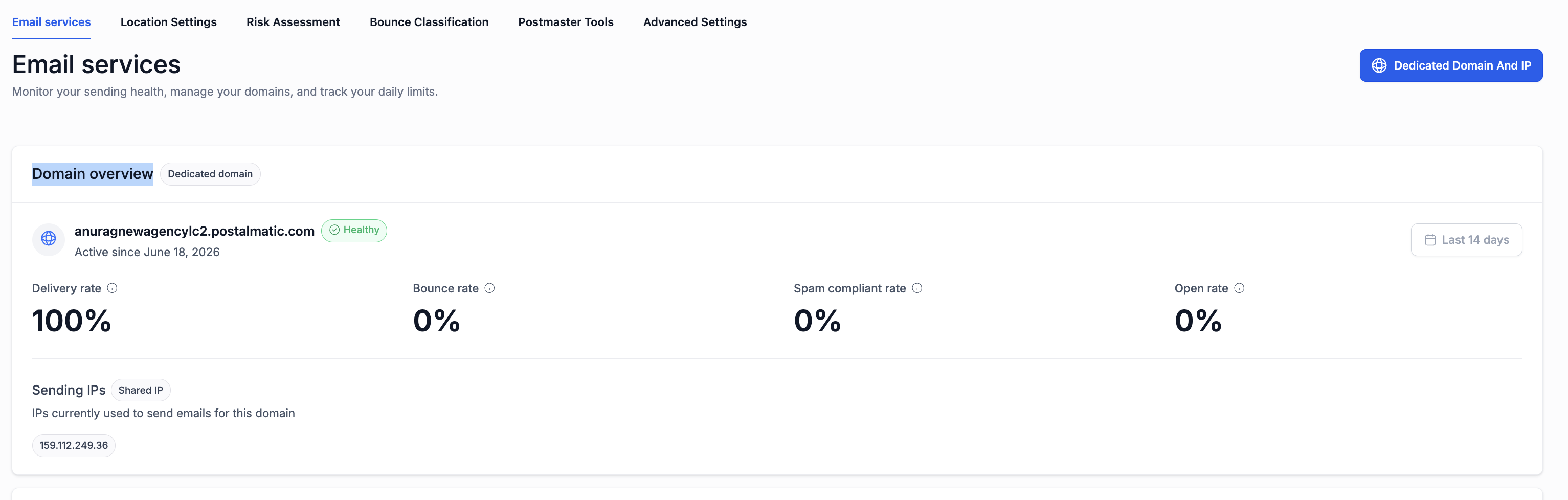
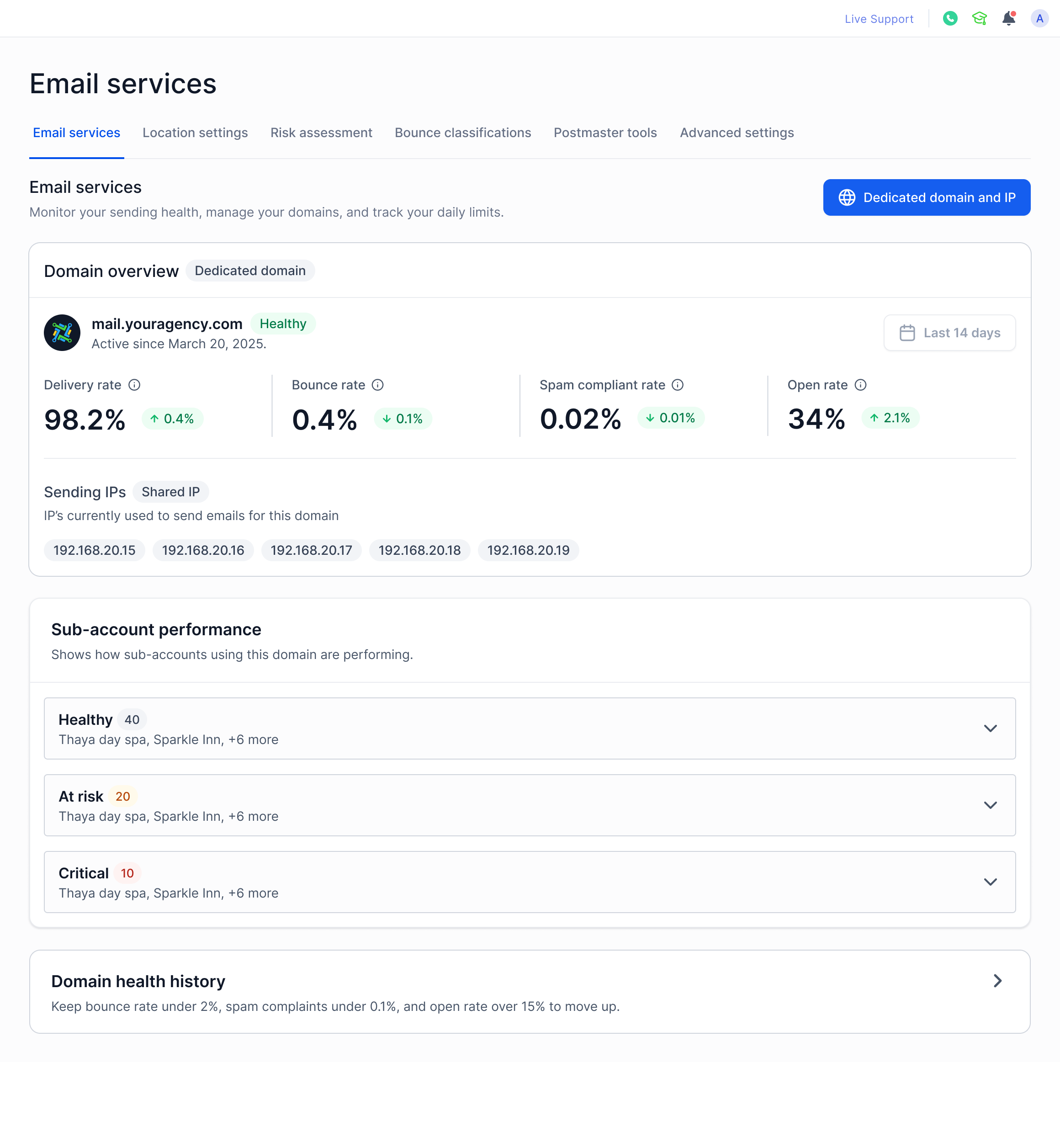
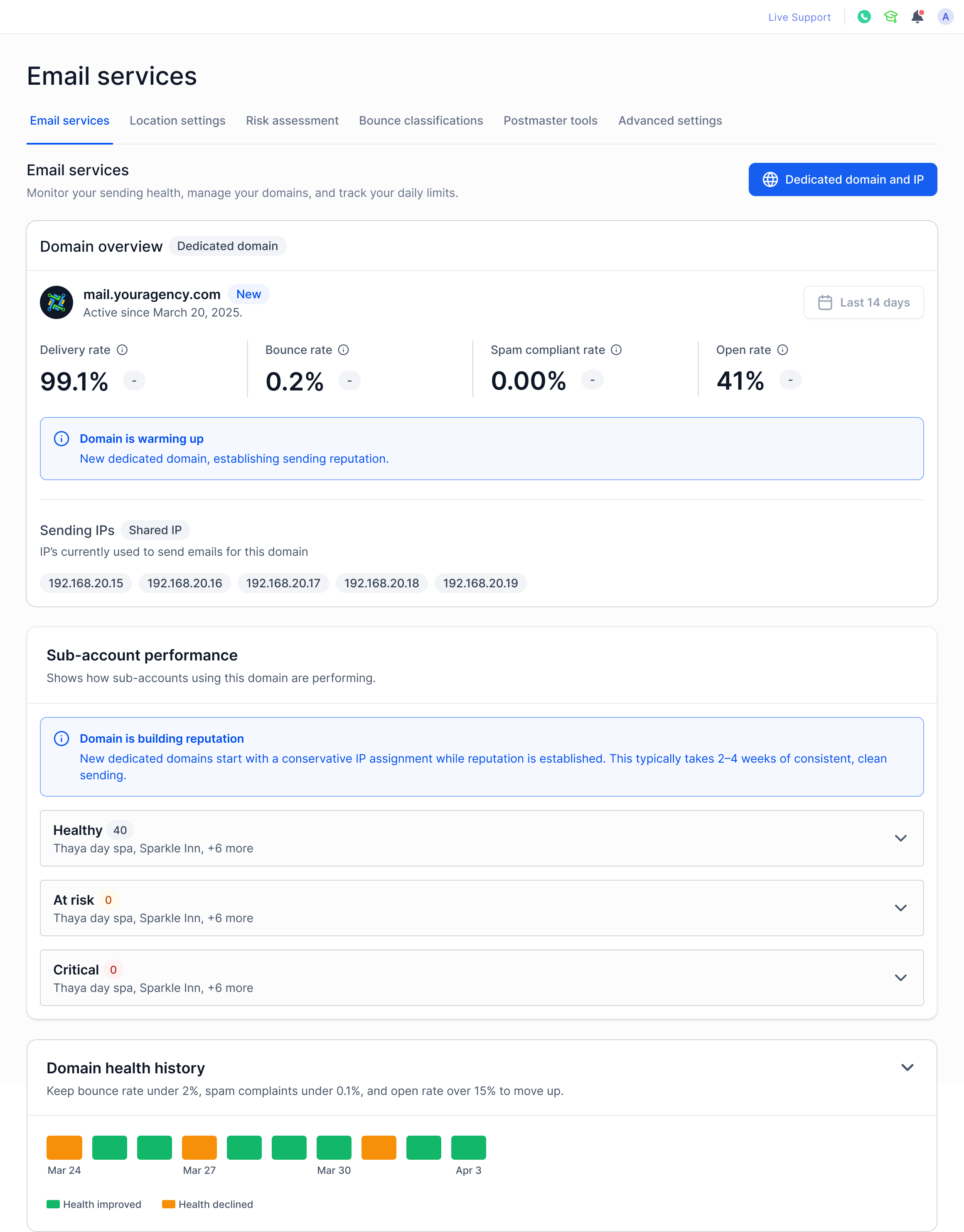
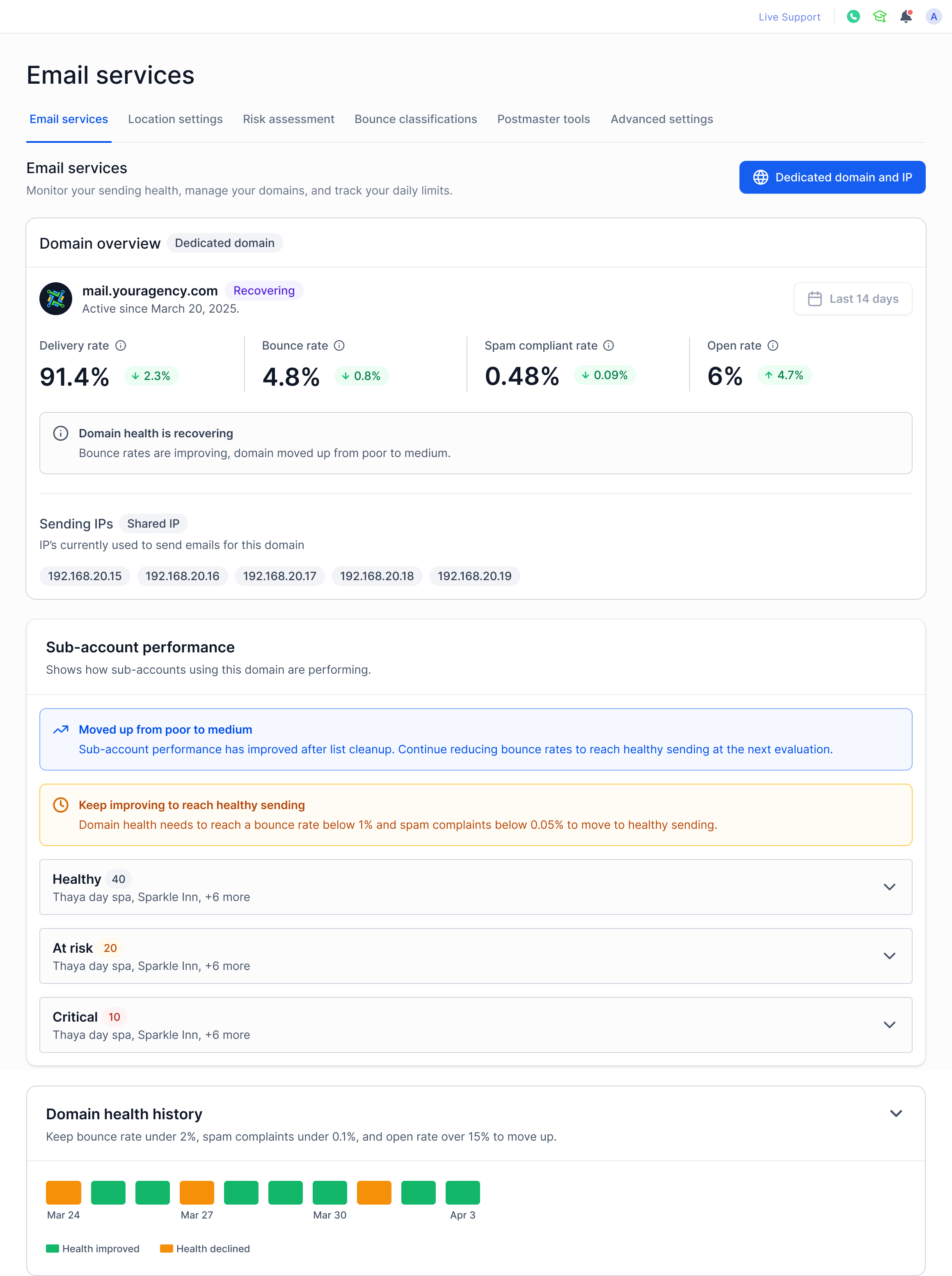
The dashboard lives in the Email Services area of HighLevel. It displays four core metrics for any dedicated domain: delivery rate, bounce rate, spam complaint rate, and open rate. Each metric has a target range that guides you toward healthy sending.
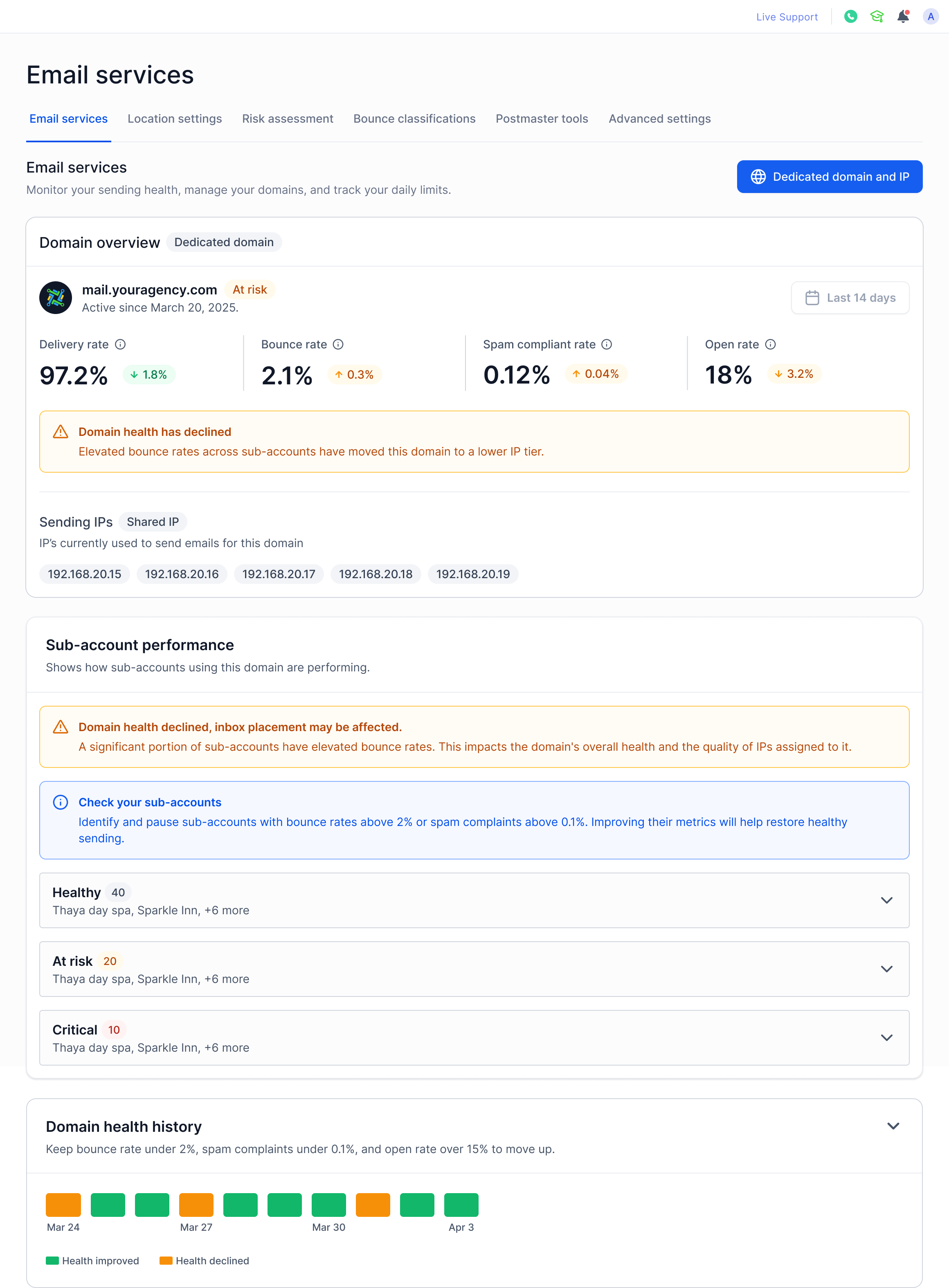
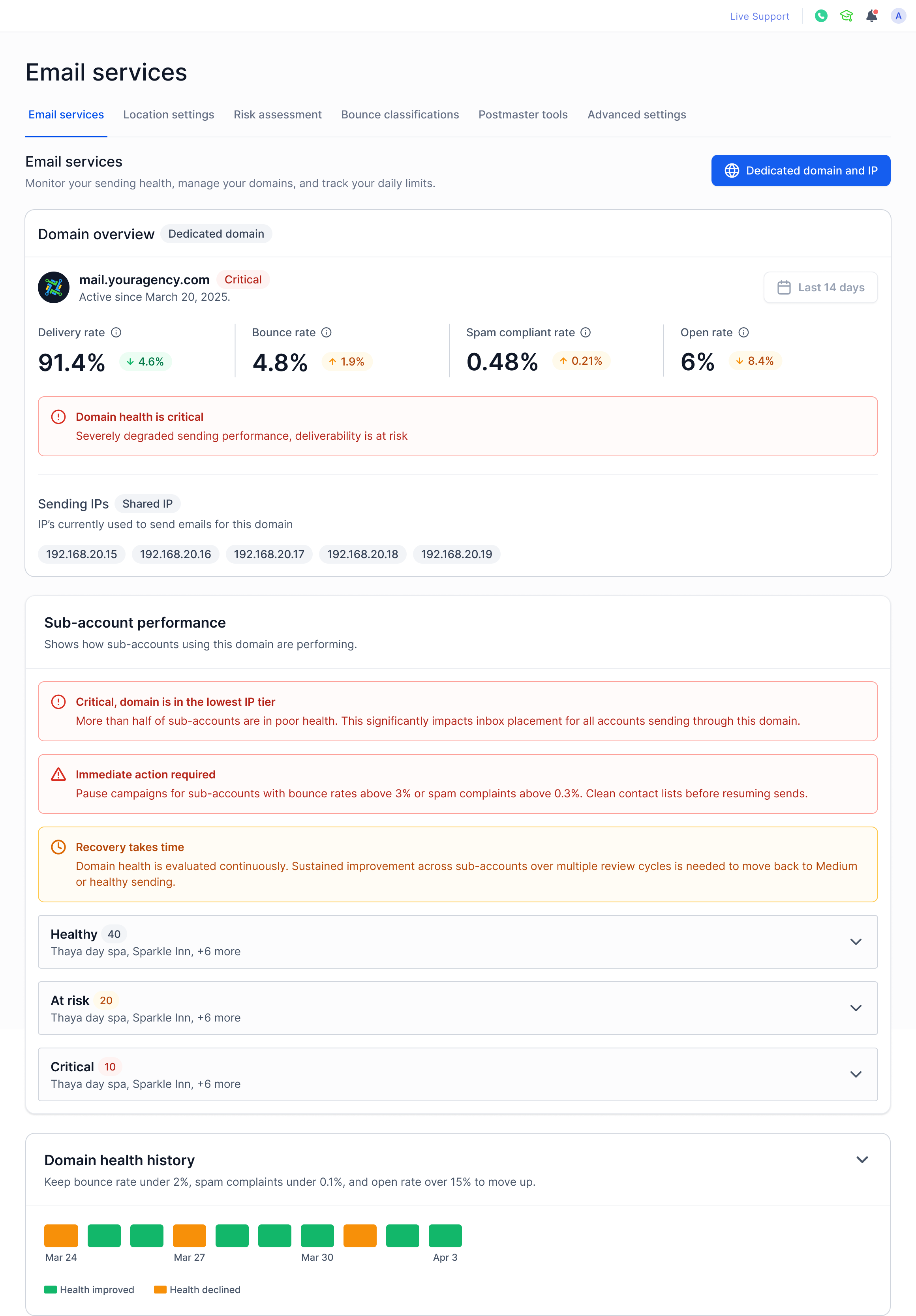
The platform evaluates bounce rate, spam complaint rate, and open rate to assign one of six health states: Healthy, At Risk, Critical, New, Recovering, or Shared Domain. The current state appears with visual cues and recommended actions. A history panel visualizes upgrades (green) and downgrades (orange) over time.
Below the domain view, the Subaccount Performance section lists every subaccount using the domain. Accounts are grouped into Healthy, At Risk, and Critical buckets. A search bar filters accounts right away, and infinite scroll loads the first 20 rows and then adds more as you scroll. Clicking an account opens its own Email Services page.
03How businesses use email services dashboard
- Digital marketing agency. Open the Email Services dashboard, review the domain health state, and filter subaccounts to spot clients that need list cleaning or sender reputation work.
- Ecommerce store with a dedicated domain. Check the four key metrics on the dashboard to ensure delivery rate stays above 95 percent and adjust sending practices if bounce or spam rates approach limits.
- Software startup sending onboarding emails. Monitor the health history timeline to see how recent campaigns affect the domain state and use the subaccount list to verify each product line’s sending health.
04The numbers and rules that matter
- Delivery Rate. Keep above 95%.
- Bounce Rate. Keep under 2%.
- Spam Complaint Rate. Keep under 0.1%.
- Open Rate. Keep above 20%.
- Signal thresholds, Bounce Rate under 2% / over 2%, Spam Complaint Rate under 0.1% / over 0.1%, Open Rate above 15% / below 15%.
- Infinite scroll. First 20 accounts load, additional accounts load as you scroll.
05How to set up and use email services dashboard in HighLevel
Navigate the Email Services dashboard to assess domain and subaccount health
- Open the Email Services dashboard in HighLevel.
- Locate the domain overview panel and read the delivery, bounce, spam complaint, and open rate values.
- Observe the displayed health state; note that a Critical state may restrict sending capability.
- Hover over any indicator in the health history timeline to see details about upgrades or downgrades.
- Scroll to the health history panel to see past upgrades (green) or downgrades (orange).
- Find the Subaccount Performance section, expand each health bucket, and use the search field to locate specific accounts.
- The first 20 accounts load immediately; as you scroll down, additional accounts load automatically without a pagination button.
06What it looks like in HighLevel
07Settings that matter
- Search field placeholder. Defines the gray text that appears in the subaccount search box, prompting users to type an account name.
08Things to know before you rely on it
- Bounce rate must stay under 2 percent; higher values trigger a downgrade.
- Spam complaint rate must stay under 0.1 percent; exceeding it can move the domain to Critical.
- Open rate must remain above 15 percent to help upgrade the health state.
- New domains are in a warm up phase and may have sending limits until enough data is collected.
09How it connects to the rest of HighLevel
- Learn how dedicated domains differ from shared ones and how to upgrade. Dedicated vs shared domains
- Step by step guide for setting up a dedicated sending domain. Dedicated domain setup
- Best practices for warming up a new domain and configuring DMARC. Domain warm up guide
Michael's take

For a small agency, the Email Services dashboard is worth the time it takes to keep deliverability in check and avoid costly sending restrictions.
Don’t ignore a rising bounce rate until it triggers a Critical state.