
01Who this is for
- Agency owners who manage many client subaccounts benefit from faster email provider oversight.
- Marketing teams that need to ensure consistent sending domains across multiple campaigns.
- Support managers who must verify email settings for compliance across all subaccounts.
02Enhanced subaccount filtering, explained
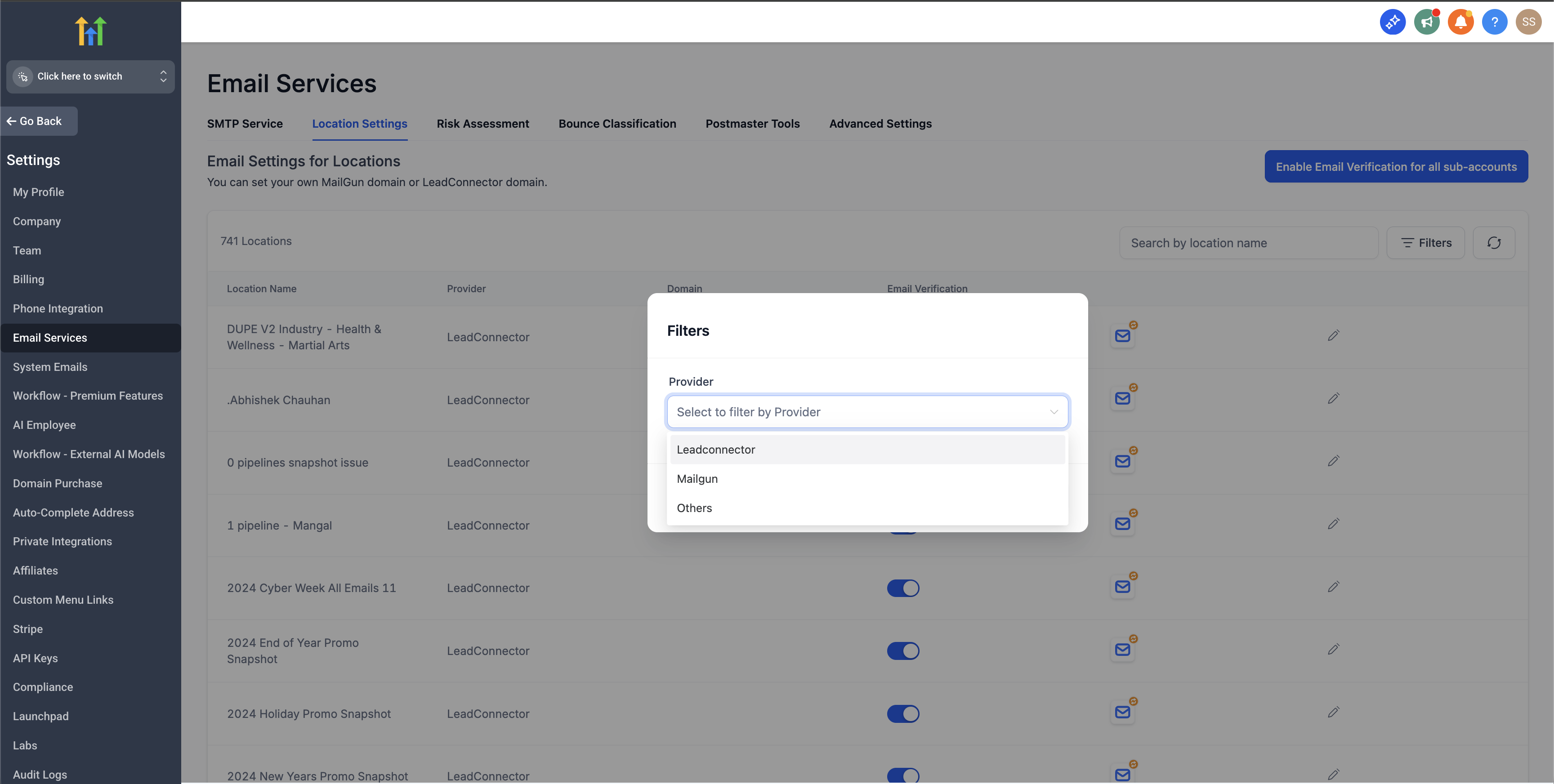
The feature adds a filter panel to the agency level subaccount list. Three dropdowns let you specify Provider (LC, Mailgun, Others), Domain, and Email Verification (enabled or disabled). The filters can be combined to isolate any slice of subaccounts.
After filtering, a bulk action bar appears. Depending on the provider you filtered, you can bulk update the sending domain, toggle verification, or switch the provider to LC. Actions apply only to the subaccounts you check, and changes affect only future outgoing emails.
The filter panel lives directly in the agency view of the subaccount list, so you never need to open individual accounts to make these changes.
03How businesses use enhanced subaccount filtering
- Digital marketing agency. The agency opens its subaccount list, selects Provider = Mailgun, chooses a specific domain, and then uses the bulk action to switch those accounts to LC. This aligns all client sending under a single provider for easier reporting.
- Ecommerce consultancy. The consultancy filters subaccounts by Provider = LC and Email Verification = Disabled, then bulk enables verification for the selected accounts to meet deliverability standards.
- SaaS reseller. The reseller filters by Provider = Others, selects multiple subaccounts, and runs the bulk action to switch them to LC, consolidating their email infrastructure.
04How to set up and use enhanced subaccount filtering in HighLevel
Filter and bulk update subaccounts by email provider
- Open the agency view and go to the subaccounts list.
- Locate the new filter panel at the top of the list.
- Choose a value in the Provider dropdown (LC, Mailgun, or Others).
- Optionally set a Domain value in the Domain dropdown.
- Optionally set Email Verification to Enabled or Disabled.
- Click the filter button to display matching subaccounts.
- Tick the checkboxes next to the subaccounts you want to modify.
- Select a bulk action that matches the chosen provider.
- Double check your selection before confirming the bulk action.
05What it looks like in HighLevel
06Settings that matter
- Provider. Filters the subaccount list to show only accounts using the selected email provider.
- Domain. Narrow the list to subaccounts that use the specified sending domain.
- Email Verification. Shows subaccounts with verification either enabled or disabled.
- Bulk, update domain. Changes the sending domain for all selected LC subaccounts.
- Toggle email verification. Enables or disables email verification for the selected LC subaccounts.
- Switch provider to LC. Migrates selected Mailgun or Others subaccounts to the LC provider.
- Modify the Mailgun domain. Updates the Mailgun sending domain for the selected Mailgun subaccounts.
07Things to know before you rely on it
- Only LC, Mailgun, or Others providers appear in the Provider filter.
- Bulk actions differ by provider; for example, Others only allow switching to LC.
- There is no one click undo; you must re filter and reapply the original setting.
- Provider changes affect only future outgoing emails; already sent or scheduled messages remain unchanged.
- All bulk changes are recorded in the agency activity log for audit purposes.
08How it connects to the rest of HighLevel
- Set up dedicated sending domains Dedicated sending domains
- Configure SMTP providers for custom email SMTP provider setup
- Review HighLevel pricing and plan options Pricing
Michael's take

When managing many client subaccounts, the new filter lets me target groups of accounts without opening each one individually.
If I only have a few subaccounts or rarely change providers, I may stick with the standard view because there’s no one click undo.