
01Who this is for
- Agency owners who manage multiple client accounts and need each client to send from their own branded domain.
- Coaches or consultants who want to keep their email appearance consistent with their website domain.
- Ecommerce merchants who send order confirmations and marketing blasts and want to avoid spam filters.
02Dedicated sending domains, explained
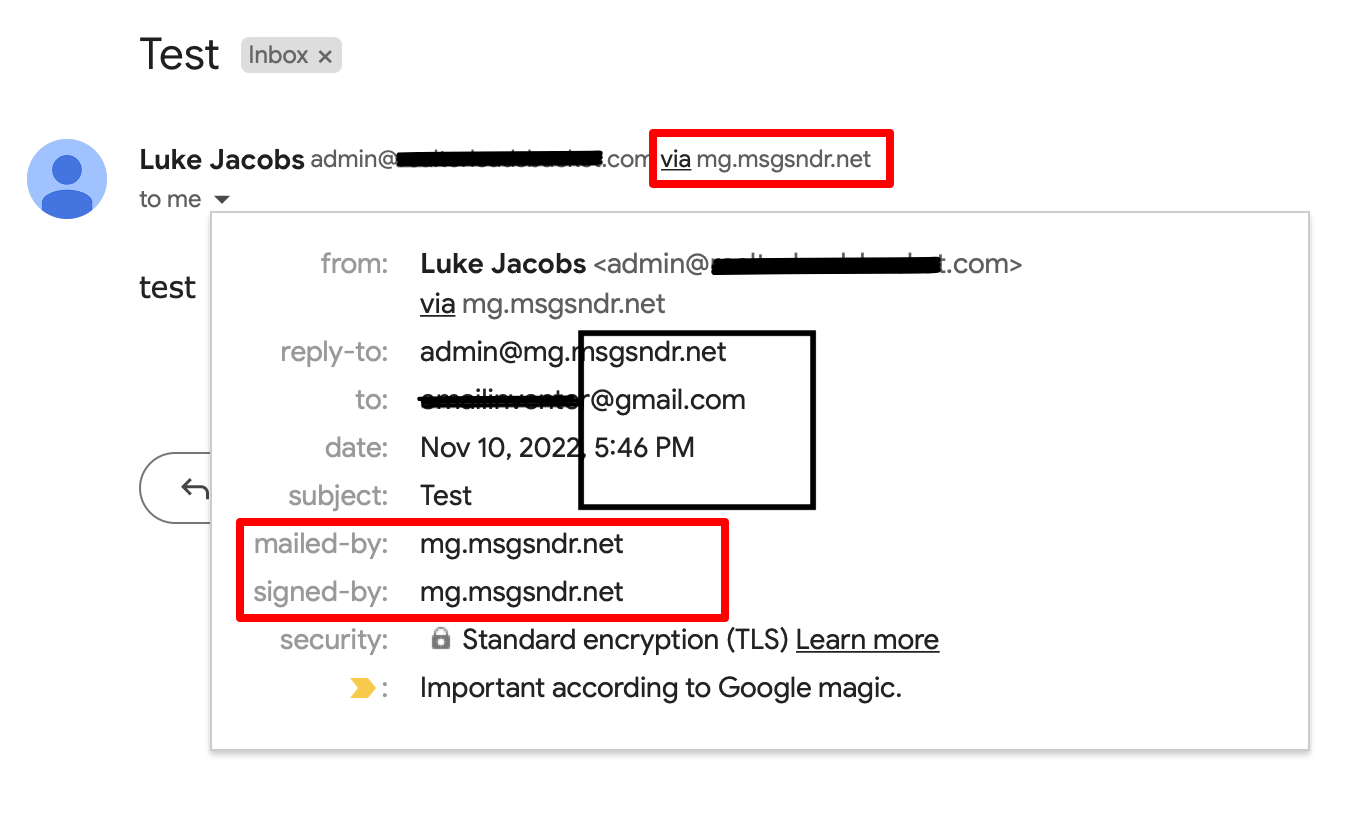
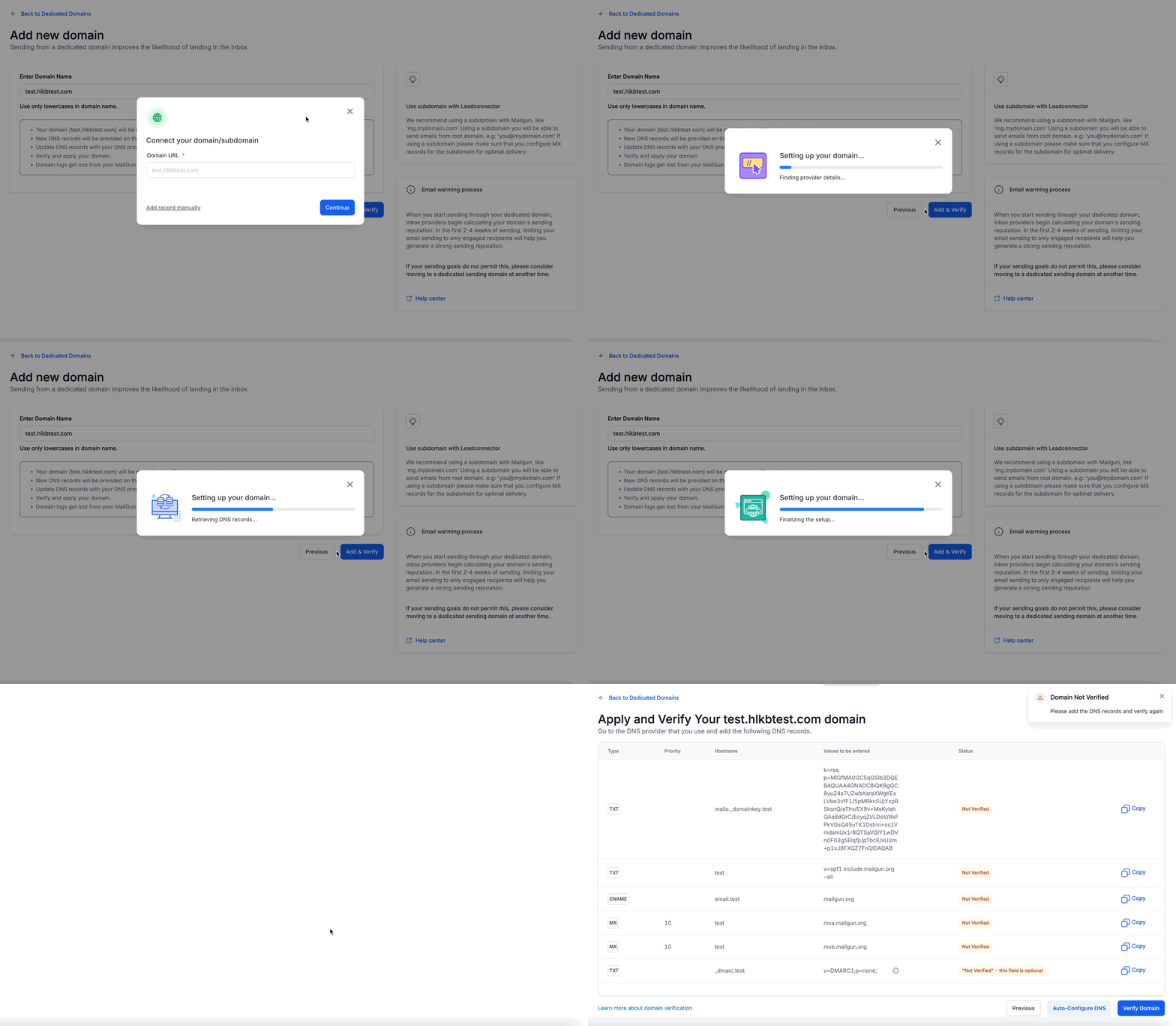
The dedicated sending domain feature replaces the default HighLevel sending address with a sub domain you control. After you add the sub domain, HighLevel either creates the required DNS records automatically or gives you the values to add yourself. Once the records are verified, the platform can use that domain for any email type you assign, such as one to one messages, workflows, campaigns, or invoices.
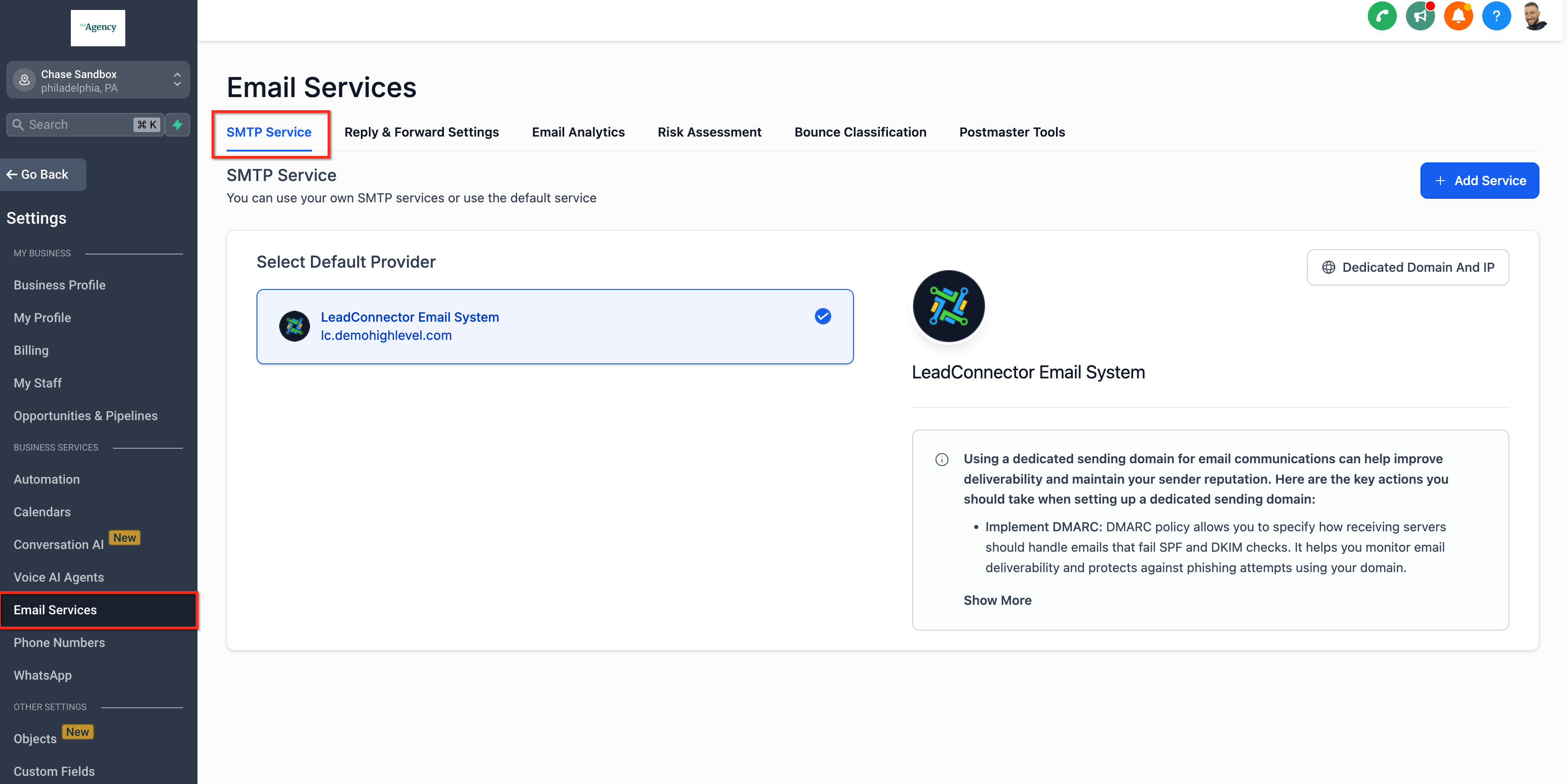
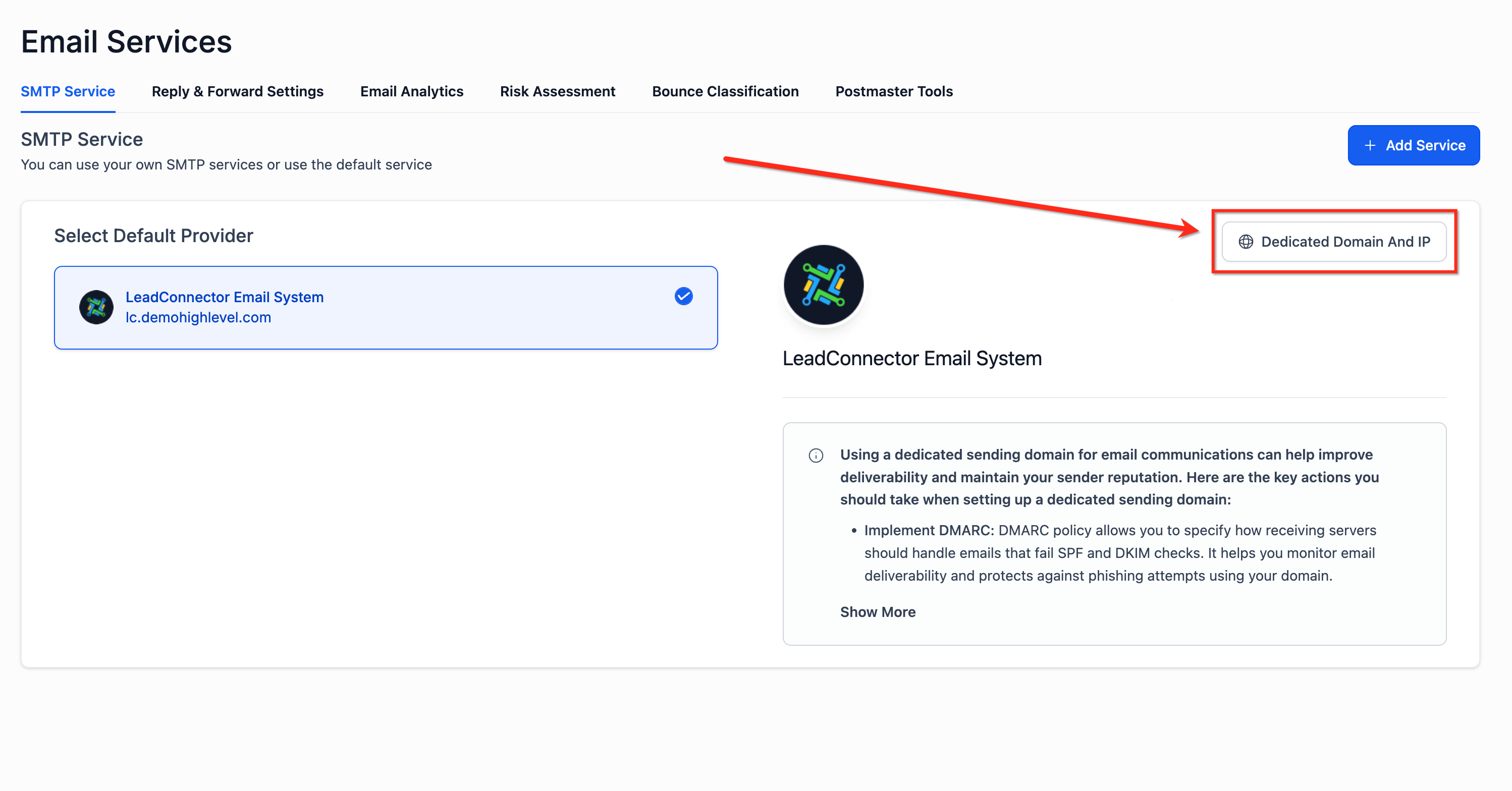
The settings live under Settings > Email Services. Within that area you select the Dedicated Domain and IP tab, add the sub domain, and manage DNS verification. A separate section under SMTP Service allows you to link up to five calendar specific domains and set a percentage distribution for those messages. The feature works only for LC Email accounts and requires the domain to be verified before any email is sent.
03How businesses use dedicated sending domains
- Digital marketing agency. The agency adds a unique sub domain for each client in the Dedicated Domain and IP tab. After verifying the DNS records, it assigns each client’s domain to their marketing campaigns and workflow emails, ensuring brand aligned delivery.
- Online course creator. The creator creates a sub domain like mail.mycourse.com, verifies it, and then maps that domain to all course related notification emails, such as enrollment confirmations and lesson reminders.
- SaaS startup. The startup configures a sub domain for invoice and payment emails, verifies the DNS, and assigns the domain specifically to billing communications to keep financial messages on a trusted sending address.
04The numbers and rules that matter
- Propagation can take up to 24 hours.
- Up to 5 domains can be added for Calendar emails.
05Before you start
- The account must be on the LC Email system.
- Access to the domain’s DNS host is required to add or verify records.
- Warm up any brand new domain before sending large lists to avoid poor deliverability.
06How to set up and use dedicated sending domains in HighLevel
Configure a dedicated sending domain
- Open Settings, choose Email Services, and open the Dedicated Domain and IP tab.
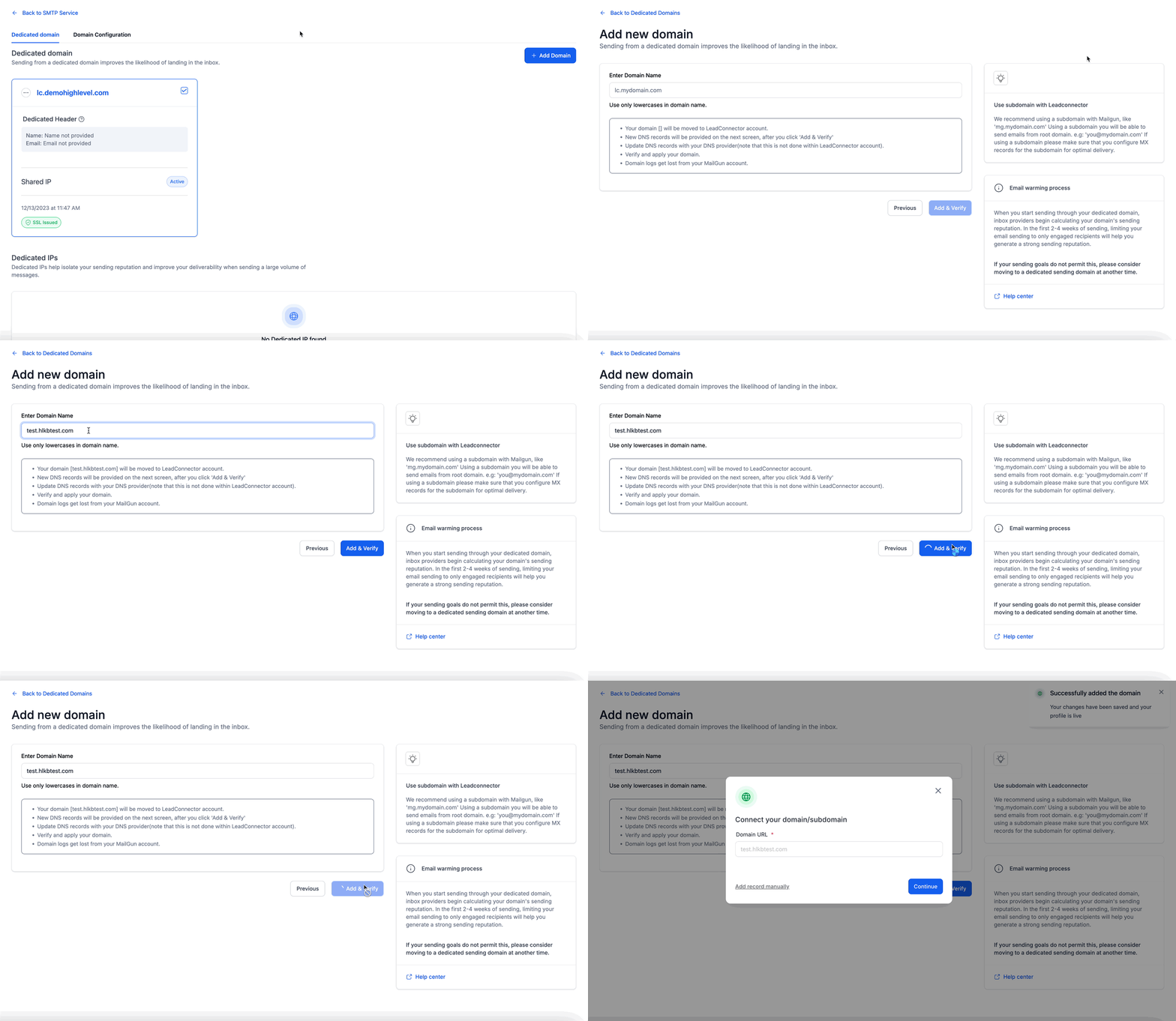
- Press Add Domain and type the sub domain you plan to use for sending.
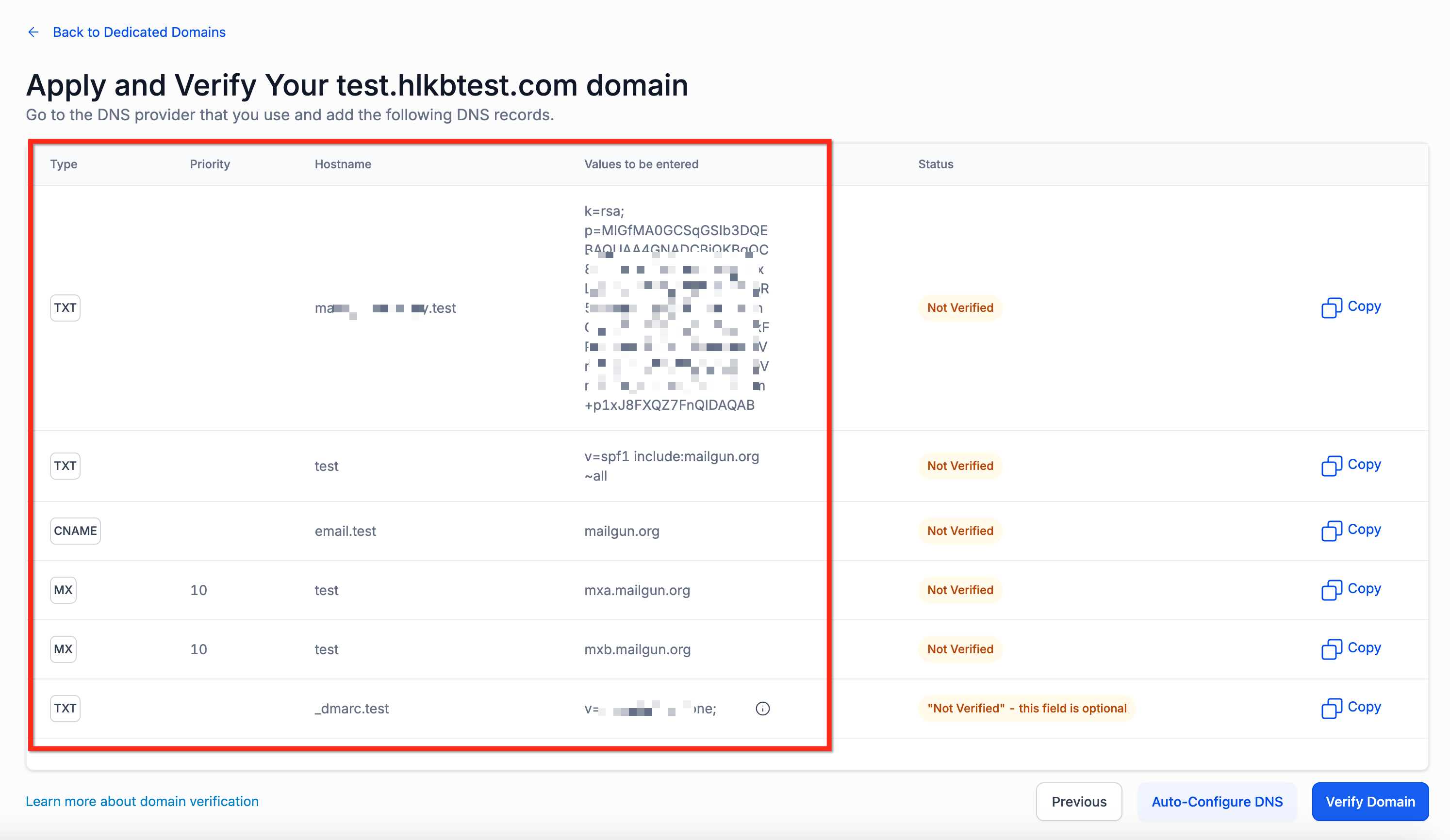
- Verify the DNS records that HighLevel provides, or choose to add them manually.
- If manual entry is needed, create the records in your DNS provider using the supplied values.
- For calendar messages, go to Settings > Email Service > SMTP Service, select Dedicated Domain and IP, add up to five calendar domains, and set any desired percentage distribution.
Set up Google Postmaster Tools for the dedicated domain
- Log in to Google Postmaster Tools at gmail.com/postmaster with a Google account.
- Enter the domain or sub domain you configured in HighLevel.
- Select Verify and copy the displayed TXT record.
- Add that TXT record to your DNS host exactly as shown, then save.
- Return to Postmaster Tools and complete the verification step.
- Send a test email from HighLevel using the verified dedicated domain.
- After enough volume is collected, review the Domain Reputation, IP Reputation, Spam Rate, Authentication, and Delivery Errors panels.
07What it looks like in HighLevel
08Settings that matter
- Dedicated Domain and IP. Selects the area where you create and manage sub domains for sending and where you can associate a dedicated IP address.
- Domain Configuration → Calendar. Allows you to attach up to five separate sub domains to calendar related emails and distribute send volume by percentage.
09Things to know before you rely on it
- Only accounts using LC Email can enable dedicated sending domains.
- New domains should be warmed up before large scale sends to avoid poor deliverability.
- DNS propagation may take up to 24 hours; if it takes longer, re check the records.
- A single domain cannot have multiple DKIM records; only one set is accepted.
- Calendar domain assignment is limited to five domains and works only with subaccount created domains.
10If something goes wrong
- Domain already pointing to email server.. Remove any existing MX or SPF records, including those from HighLevel, before adding the new dedicated domain.
11How it connects to the rest of HighLevel
- Buy a dedicated IP for LC Email Dedicated IP guide
- Manually add DNS records for a dedicated domain Manual DNS setup
- Configure a Google dedicated sending domain Google domain setup
- Start a 30 day HighLevel trial Free trial
- HighLevel pricing and plans Pricing page
Michael's take

If you have a growing list of prospects or regular clients, a dedicated sending domain can be useful for keeping your brand image consistent.
If you’re only sending a handful of internal notifications or low volume messages, the shared HighLevel domain is an option and avoids the extra DNS configuration steps.