
01Who this is for
- Founders who run email campaigns and need full control over sender reputation can avoid shared domain limitations.
- Marketing teams that use sub domains for different outreach types benefit from isolated deliverability tracking.
02LC Email dedicated sending domains, explained
The dedicated sending domain feature lets a subaccount assign an exclusive domain or sub domain to LC Email. HighLevel generates the required SPF, DKIM, MX and CNAME records that must be entered in the domain’s DNS provider.
In GoDaddy, each record is saved individually. After all five records are stored, the platform verifies the domain and activates it for sending. The domain then appears in Settings > Email Services > Dedicated Domain.
03How businesses use LC Email dedicated sending domains
- SaaS startup. The startup creates a sub domain like mail.startup.com in Dedicated Domain, adds the five GoDaddy records, and verifies it. This isolates its email reputation from other customers and keeps marketing messages on a unique domain.
- Local boutique. The boutique selects the root domain boutique.com as its dedicated domain, enters the DNS records in GoDaddy, and verifies. Because it does not use Google Workspace, the root domain can host the LC Email sending identity.
- Co working space. Each member subaccount receives its own sub domain (e.g., events.cowork.com). The manager adds the required records for each sub domain in GoDaddy and verifies them individually, giving members separate sending domains.
04The numbers and rules that matter
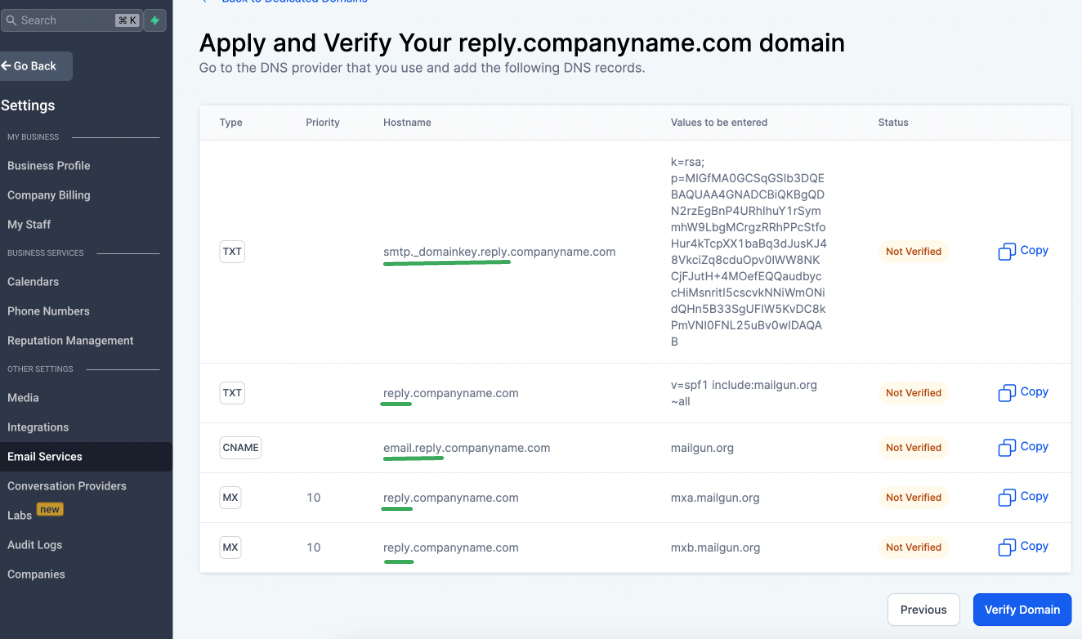
- Add 5 DNS records: 2 TXT, 2 MX, 1 CNAME.
- SPF TXT value: V=spf1 include: Mailgun.org ~all.
- First MX points to mxa.mailgun.org with priority 10.
- Second MX points to mxb.mailgun.org with priority 10.
- All 5 DNS records must be saved before verification.
05Before you start
- A GoDaddy account that owns the domain to be used.
- Access to the HighLevel subaccount with LC Email enabled.
06How to set up and use LC Email dedicated sending domains in HighLevel
Add your domain in Email Services
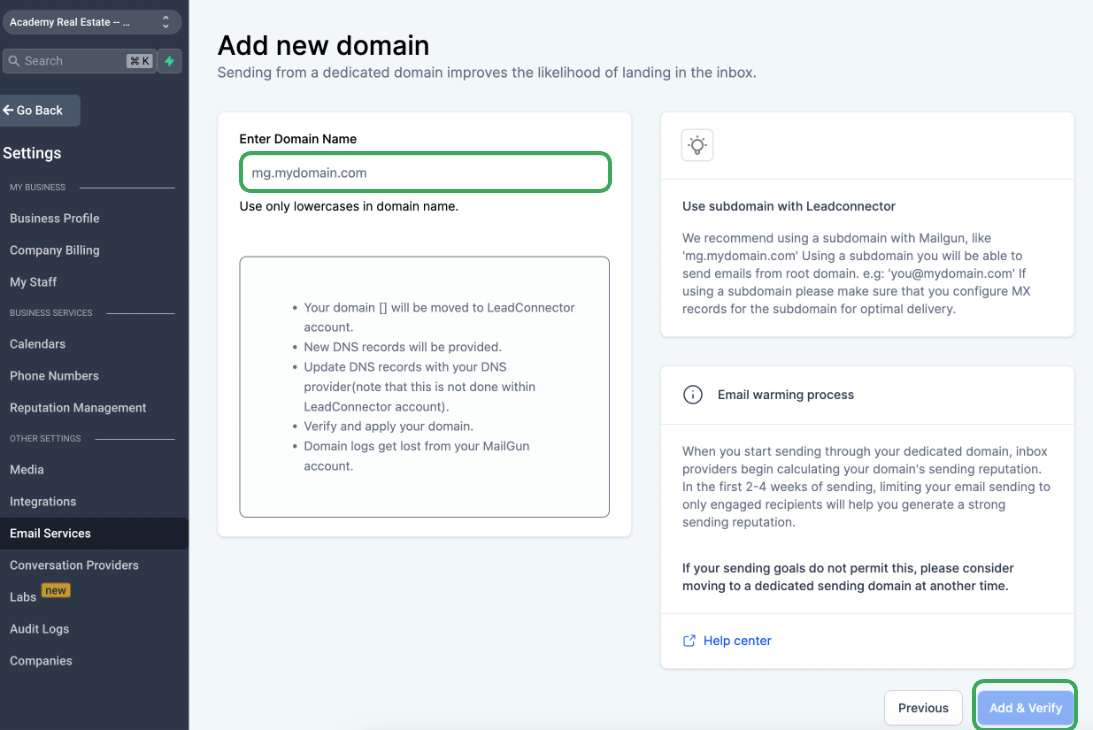
- Open Settings > Email Services > Dedicated Domain and click + Add Domain.
- Choose either the root domain or a sub domain as the dedicated sending domain.
- Confirm the root domain is not already used with Google Workspace or another provider; otherwise select a sub domain.
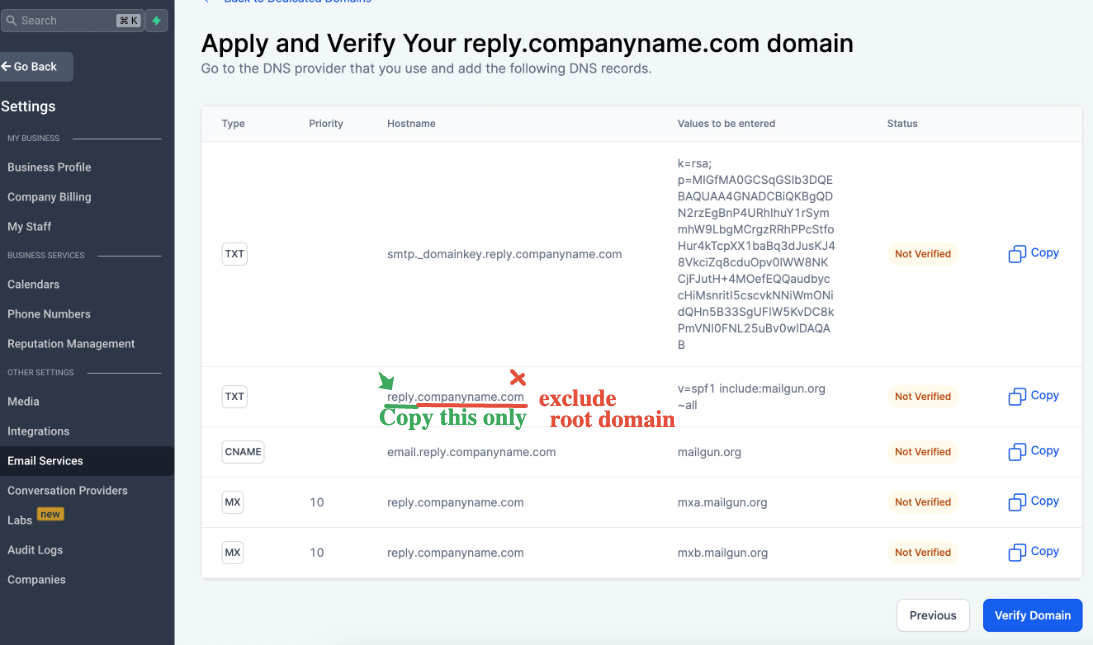
- Click Add & Verify to display the five DNS records that must be added.
Access GoDaddy DNS
- Sign in to the GoDaddy Domain Portfolio in a new browser tab.
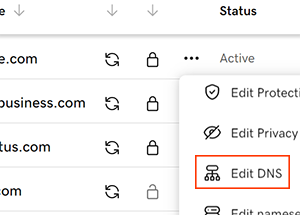
- Click the three dot menu next to the target domain to open Edit Options.
- Select Edit DNS to open the DNS editor for the domain.
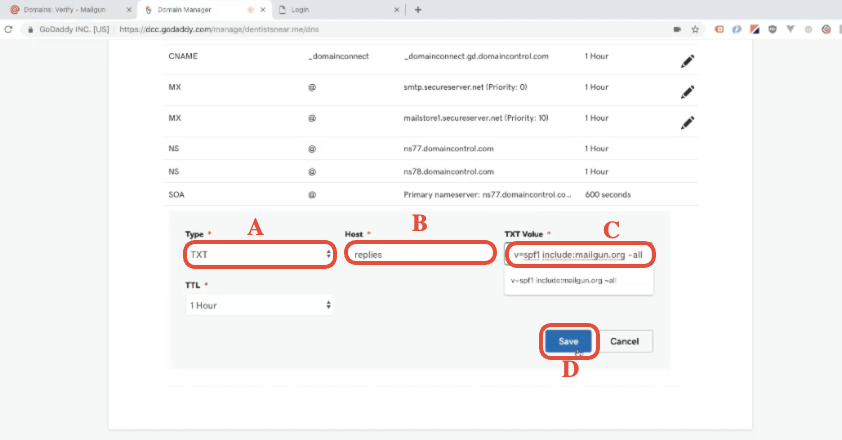
Add the 1st TXT record (SPF)
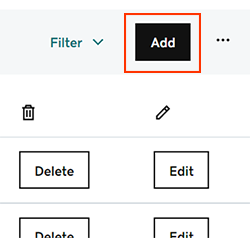
- In the GoDaddy DNS editor, click Add to create a new record.
- Select TXT from the Type dropdown.
- Enter the sub domain prefix in the Host field (or @ for the root domain).
- Paste the SPF value v=spf1 include:mailgun.org ~all into the TXT Value field.
- Click Save to store the record.
Add the 2nd TXT record (DKIM)
- Click Add in the GoDaddy DNS editor to start another record.
- Choose TXT as the Type.
- Copy the hostname portion before the root domain from the HighLevel DNS screen and paste it into Host.
- Paste the unique DKIM value from the HighLevel screen into the TXT Value field.
- Click Save to confirm the record.
Add the 1st MX record (mxa.mailgun.org)
- Click Add in the GoDaddy DNS editor to add a new record.
- Select MX from the Type menu.
- Enter the sub domain prefix (or @ for root) in the Host field.
- Enter mxa.mailgun.org in the Points To field.
- Set Priority to 10.
- Click Save to store the MX record.
Add the 2nd MX record (mxb.mailgun.org)
- Click Add in the GoDaddy DNS editor for another record.
- Select MX as the Type.
- Enter the same sub domain prefix (or @) in the Host field.
- Enter mxb.mailgun.org in the Points To field.
- Set Priority to 10.
- Click Save to confirm the record.
Add the CNAME record
- Click Add in the GoDaddy DNS editor to start a new record.
- Choose CNAME from the Type dropdown.
- Copy the CNAME hostname (prefixed with email.) from the HighLevel screen and paste it into Host.
- Enter mailgun.org in the Points To field.
- Click Save to add the CNAME record.
Verify your domain
- Return to the HighLevel Email Services screen.
- Click Verify Domain.
- If verification does not succeed, wait a few minutes and click Verify Domain again.
- When all records display a green checkmark, the dedicated sending domain is active.
07What it looks like in HighLevel
08Settings that matter
- Dedicated Domain. Enables the assignment of a specific domain or sub domain for sending email from LC Email.
- Type. Specifies the DNS record type (TXT, MX, CNAME) when adding records in GoDaddy.
- Host. Defines the sub domain prefix that GoDaddy appends to the root domain for each DNS entry.
- TXT Value. Holds the SPF or DKIM string that proves the domain is authorized to send mail.
- Points To. Provides the target address for MX and CNAME records (mail servers or aliases).
- Priority. Determines the order in which MX servers are tried; both MX records use a priority of 10.
09Things to know before you rely on it
- GoDaddy saves each DNS record individually; you must click Save after adding each one.
- The root domain cannot be used if Google Workspace or another email service already controls its MX records; a sub domain must be chosen instead.
- The DKIM TXT record hostname and value are unique per account and must be copied exactly from the HighLevel screen.
- DNS propagation typically takes a few minutes to an hour but can extend up to 48 hours in rare cases.
10If something goes wrong
- Records do not turn green after clicking Verify Domain. Wait a few minutes for DNS propagation, then click Verify Domain again. If the records remain unverified after 10 minutes, review each record in GoDaddy for correct Type, Host and value.
- Domain shows as verified but emails are not delivering. Send a test email from the Conversation area to confirm basic sending. Then verify that the SSL Certificate for the dedicated sending domain is active and re check all five DNS records for typos.
11How it connects to the rest of HighLevel
- Overview of dedicated sending domains in HighLevel Dedicated domains overview
- Guide for manually adding DNS records for dedicated sending domains Manual DNS guide
- How to assign dedicated sending domains to different email types Assign domains to email types
Michael's take

Is it worth the effort to set up a dedicated sending domain for my agency? Absolutely. Having your own domain separates your email reputation from everyone else’s and gives you control over branding. The steps are straightforward, but you have to be patient with GoDaddy’s save one record at a time workflow.
If I were doing this for the first time, I’d start by picking a clean subdomain like replies.companyname.com, add the five records exactly as HighLevel shows, and then verify. A quick test email confirms everything is wired up before you roll it out to clients.