
01Who this is for
- Founders who have rebranded and need the sending address to match the new company domain.
- Marketing managers who added an incorrect domain and must replace it to keep campaigns functional.
02Dedicated sending domains, explained
The delete function permanently erases a dedicated sending domain from a subaccount. After confirmation, the platform immediately drops the DNS link, so no email can be sent using that domain from the location. The domain itself remains registered, so it can be added to another subaccount or re added later.
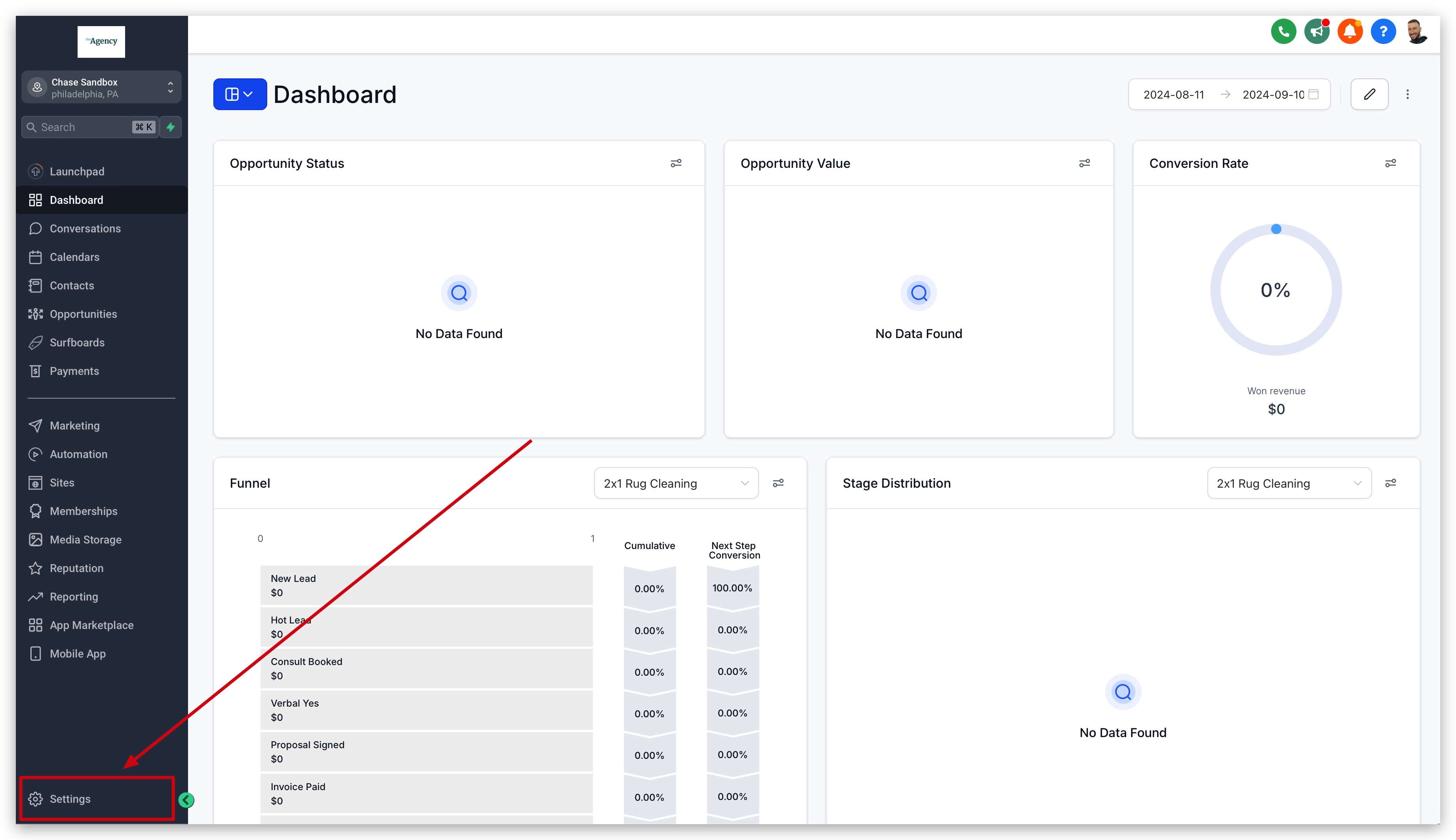
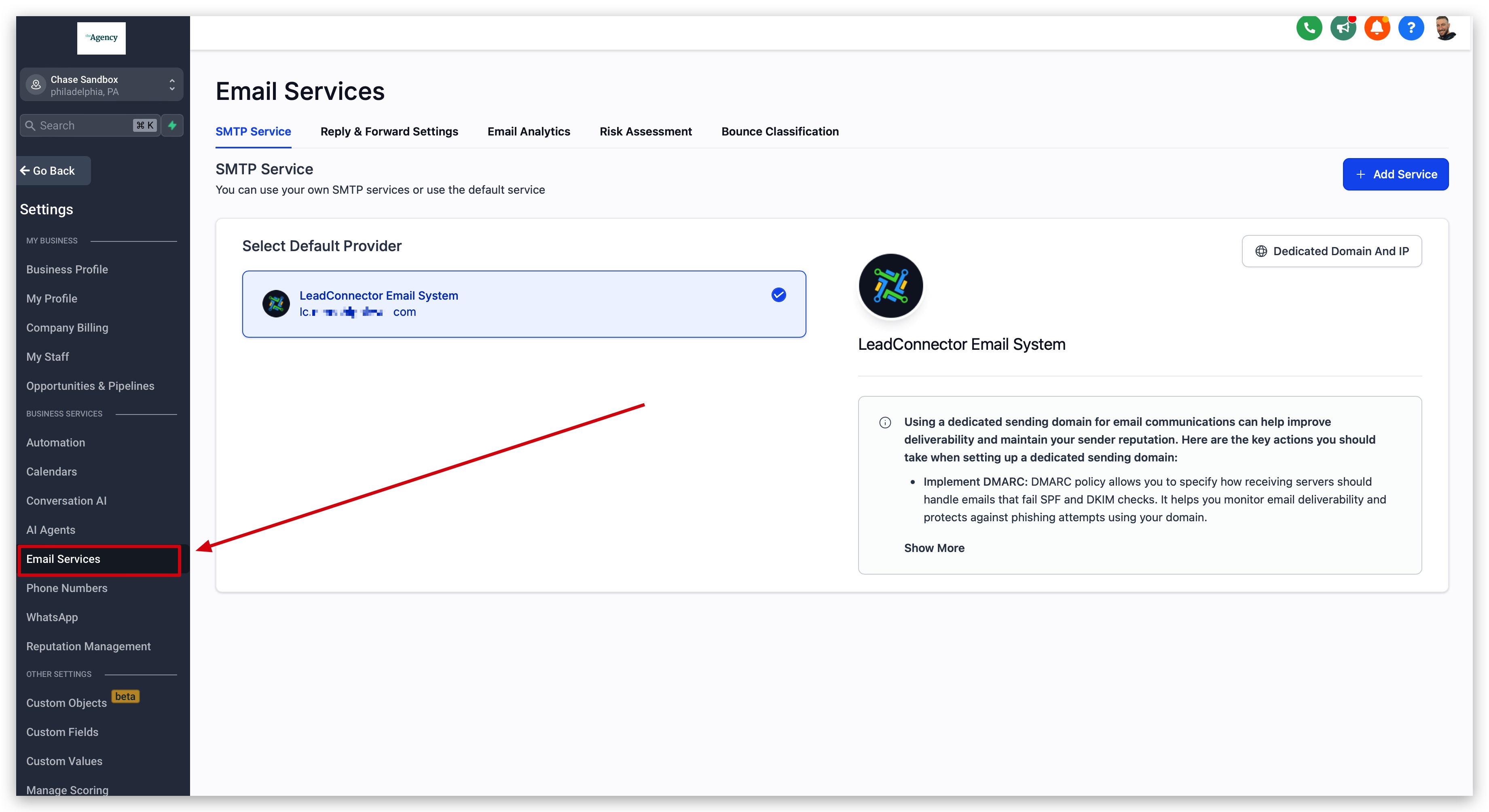
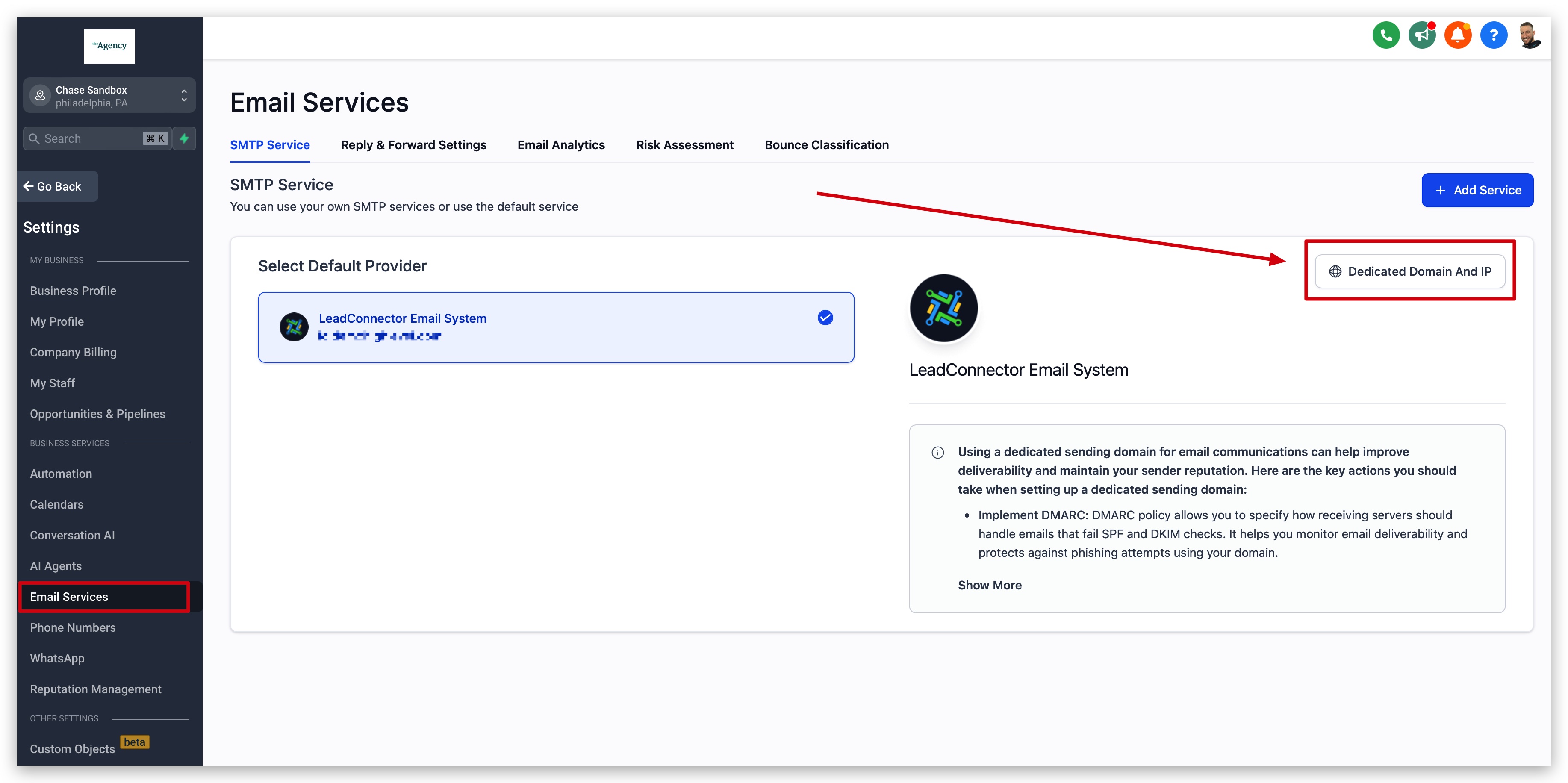
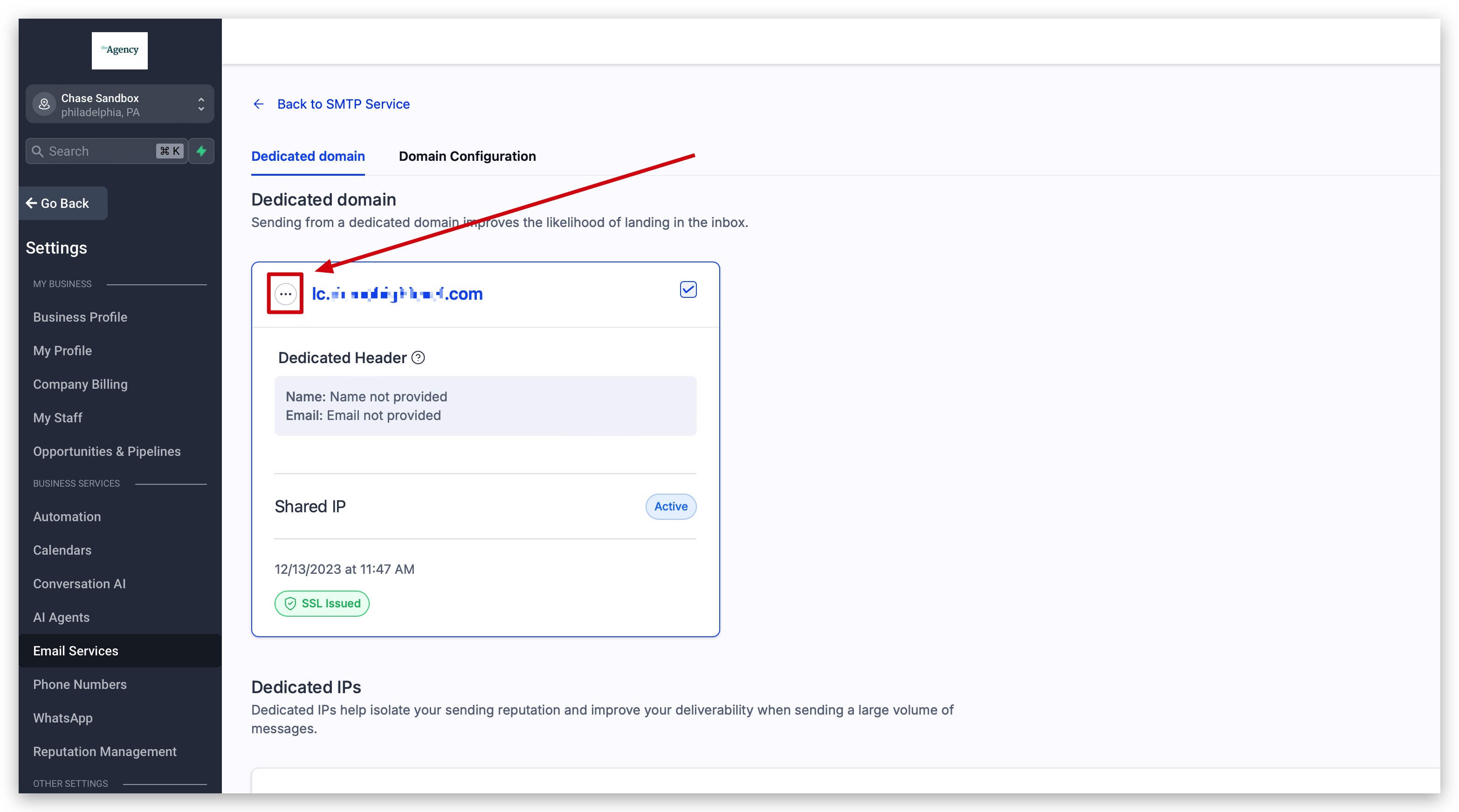
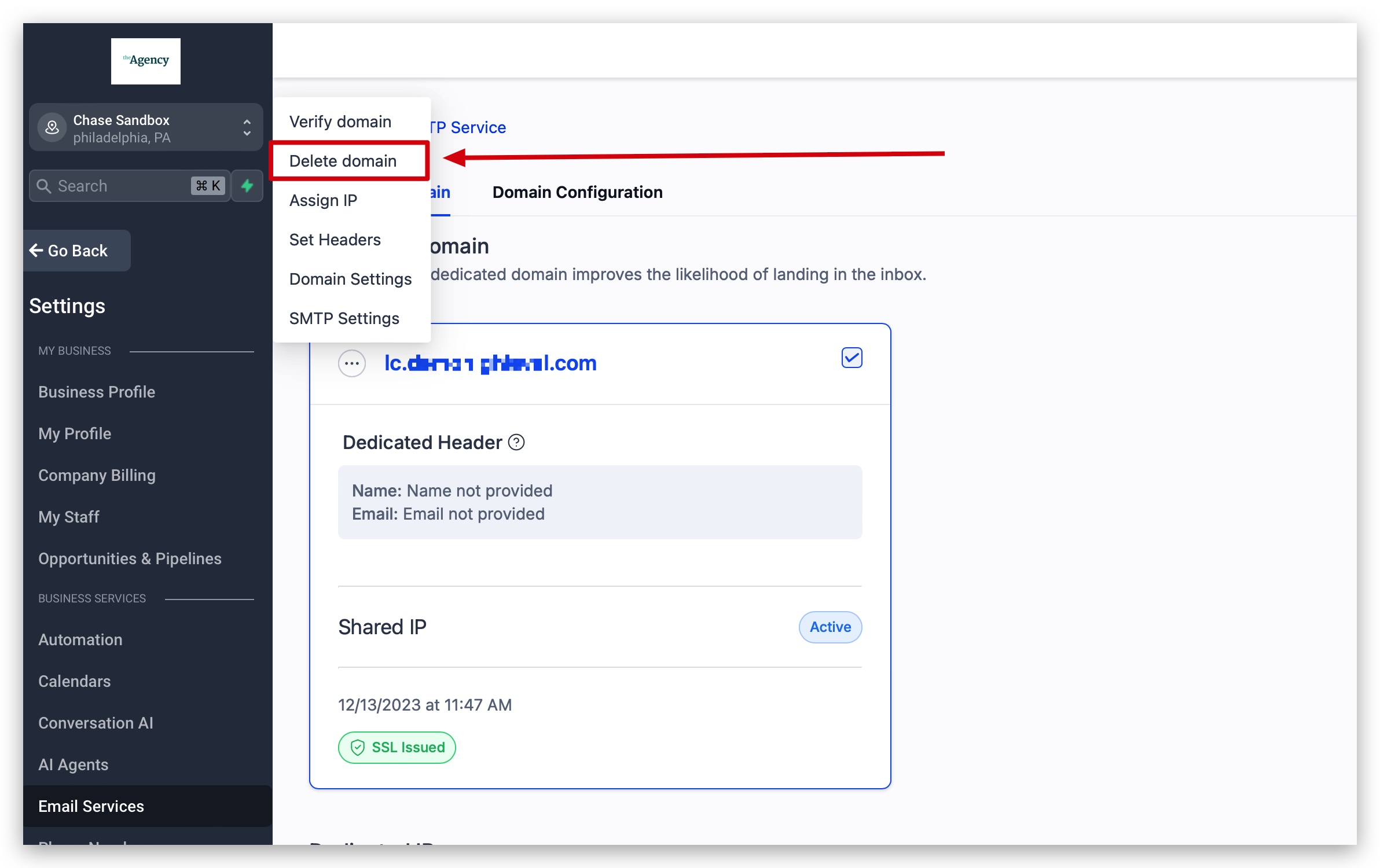
The feature lives in the Email Services area of the subaccount settings. Within that section, the Dedicated Domain and IP button displays all domains attached to the location. From each domain’s card, a three dot menu provides the Delete Domain option.
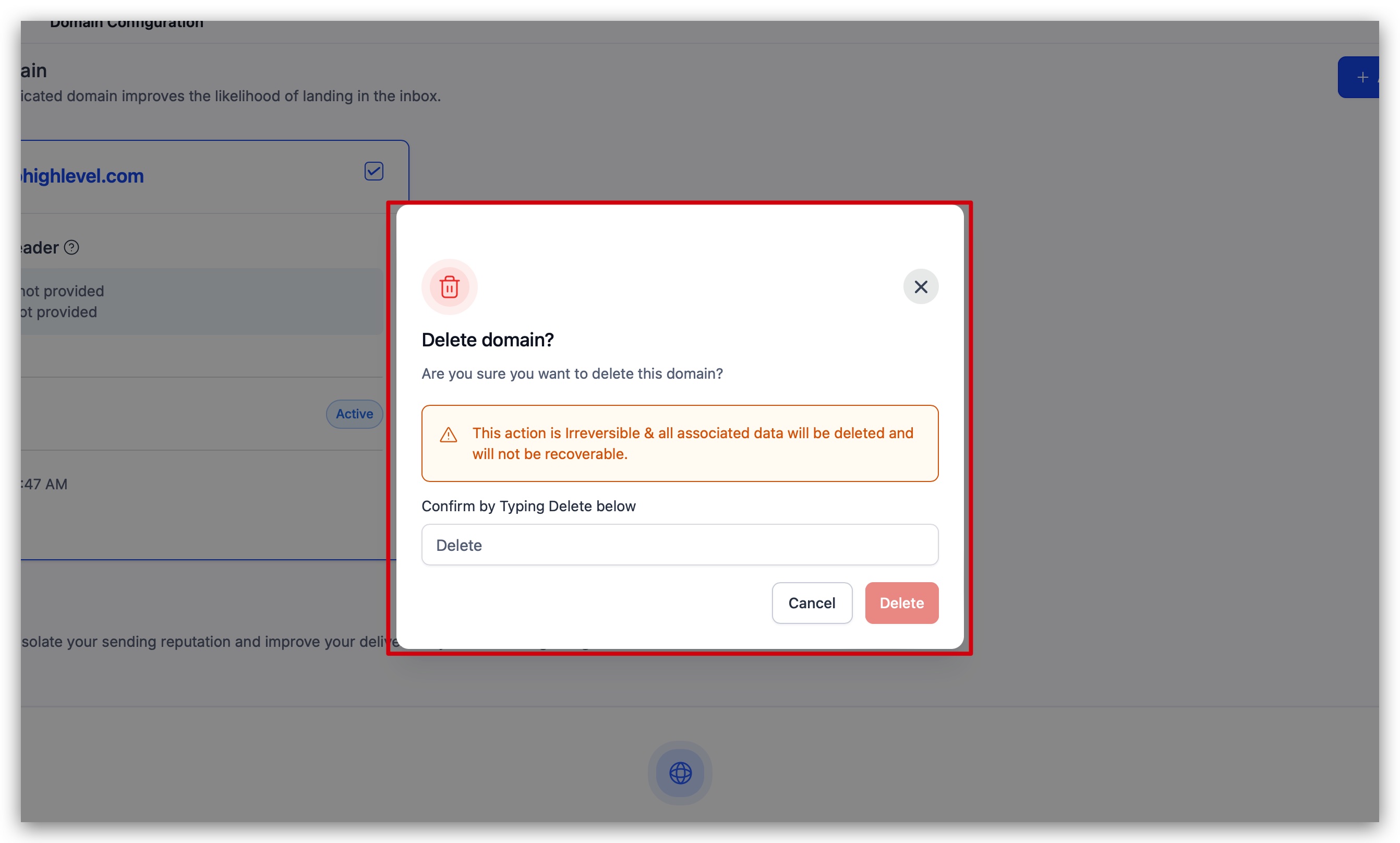
Deletion cannot be undone, and any scheduled or active workflows that reference the removed domain will fail until they are reassigned.
03How businesses use dedicated sending domains
- Ecommerce store. When the store switches to a new brand URL, the owner opens Settings > Email Services, clicks the Dedicated Domain and IP button, selects the old domain’s three dot menu, chooses Delete Domain and confirms. This removes the old domain from all email sends.
- Digital marketing agency. If an agency mistakenly adds a client’s domain, the account manager goes to Settings > Email Services, opens the Dedicated Domain and IP view, uses the three dot menu on the wrong domain, selects Delete Domain and confirms the removal.
- Non profit organization. When a nonprofit’s sending domain receives spam complaints and reputation drops, the communications lead navigates to Settings > Email Services, opens Dedicated Domain and IP, deletes the problematic domain via its actions menu, and later adds a fresh domain.
04The numbers and rules that matter
- There is no hard limit on the number of dedicated sending domains per subaccount.
05How to set up and use dedicated sending domains in HighLevel
Delete dedicated sending domain
- Navigate to Settings > Email Services in the subaccount.
- Click the Dedicated Domain and IP button on the right side to list all attached domains.
- Open the three dot menu on the domain card you want to remove.
- Select Delete Domain from the actions menu.
- Confirm the deletion in the popup that appears.
06What it looks like in HighLevel
07Settings that matter
- Dedicated Domain and IP. Shows all dedicated sending domains linked to the current subaccount and provides access to domain specific actions such as deletion.
08Things to know before you rely on it
- There is no fixed limit on how many dedicated sending domains a subaccount can hold.
- Deleting a domain is permanent; the DNS link is removed immediately and cannot be undone through this action.
09How it connects to the rest of HighLevel
- Set up and manage dedicated sending domains Dedicated domain overview
- Assign dedicated domains to specific email types Domain assignment
- Guide for adding a dedicated domain via GoDaddy GoDaddy setup
Michael's take

I recommend pausing any active campaigns before deleting a sending domain.