
01Dedicated sending domains, explained
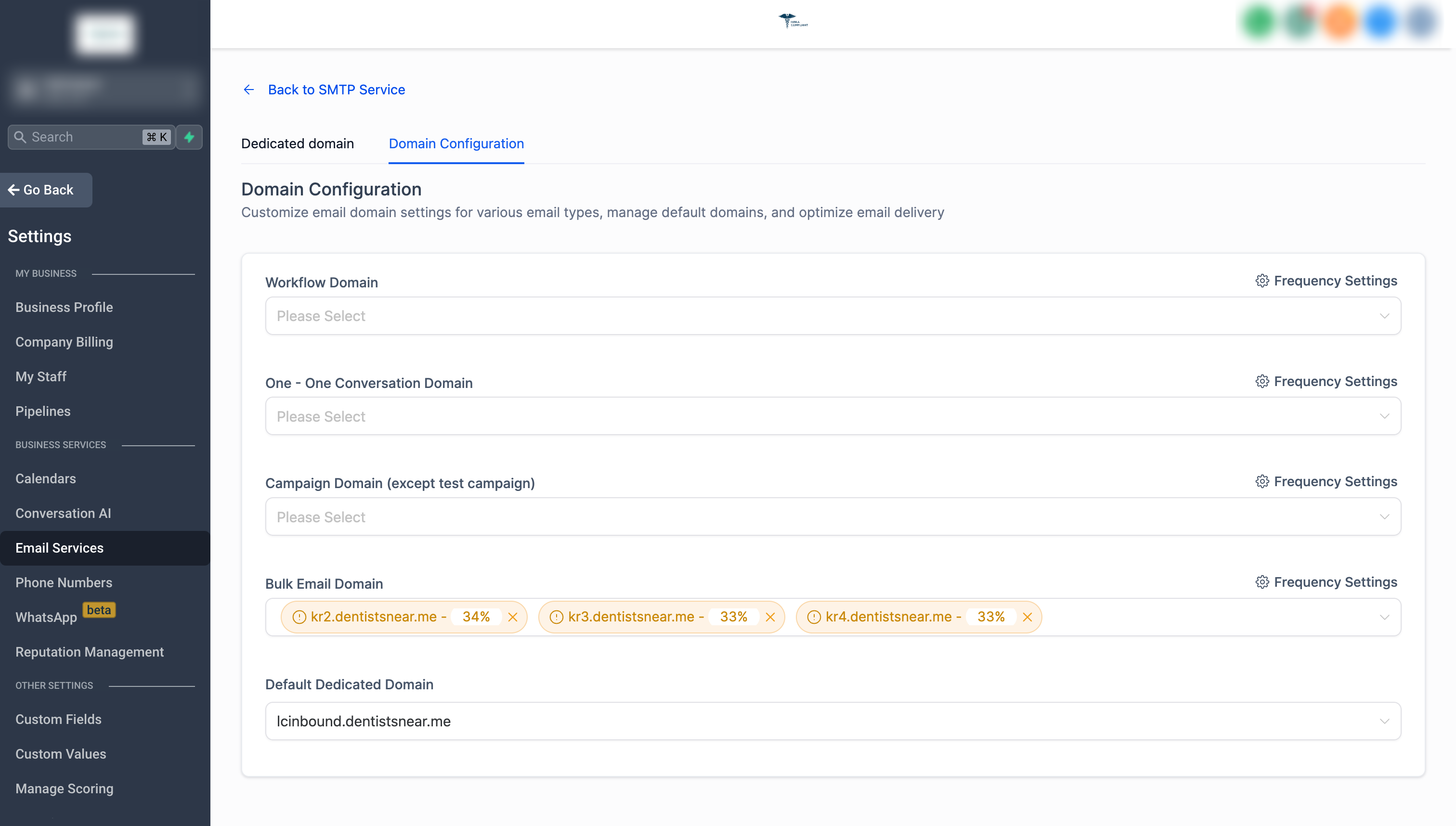
The Domain Configuration panel lets you choose which validated subdomain to use for each major email category. You can set a separate domain for Workflows, Email Campaigns, Bulk Action Emails, and Manual 1 to 1 messages. Any email type that isn’t explicitly assigned will fall back to the default dedicated sending domain.
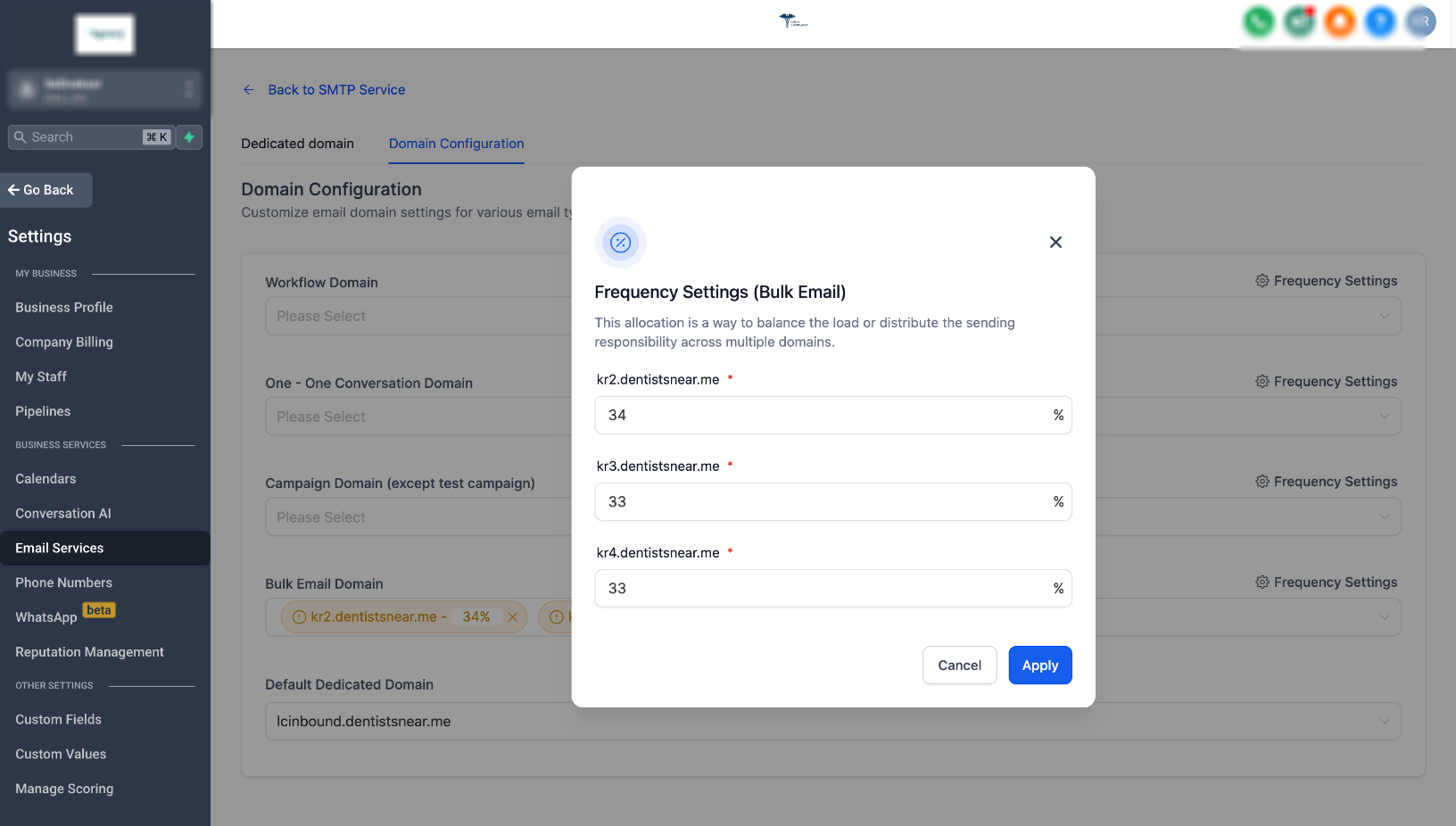
Frequency Settings let you allocate a percentage of total outbound email volume to each domain you have added. The percentages must total 100%, and the platform distributes sends according to those splits. This helps you prioritize domains with stronger deliverability rates while protecting them from over use.
02How businesses use dedicated sending domains
- Per email type domain mapping. In the Domain Configuration panel, select a validated subdomain for Workflows, Email Campaigns, Bulk Action Emails, and Manual 1 to 1 emails. Each type will then route through its assigned domain, keeping deliverability separate.
- Frequency splitting. Enter a percentage for each domain under Frequency Settings so the total equals 100%. The system will send the defined share of each batch through the corresponding domain, allowing you to favor high reputation domains.
- Default catch all domain. Choose one validated domain as the default. Any email send that lacks an explicit domain assignment will automatically use this default, ensuring all messages travel through a validated dedicated domain.
03The numbers and rules that matter
- Total allocation must add up to 100%.
04How to set up and use dedicated sending domains in HighLevel
Configure dedicated sending domains
- Navigate to SubAccount Settings > Email Service > SMTP Service > Dedicated Domain and IP > Domain Configuration.
- In the Domain Configuration panel, assign a validated subdomain to each email type you use.
- Open Frequency Settings and enter percentage values for each domain, making sure the total equals 100%.
- Select a default dedicated sending domain for any unassigned sends.
- Save the configuration.
05What it looks like in HighLevel
06Settings that matter
- Frequency Settings. Allocate a percentage of scheduled emails to each added domain; the percentages must total 100%.
- Default Dedicated Sending Domain. Designates which validated domain acts as the catch all for any email sends that do not have an explicit domain assignment.
07Things to know before you rely on it
- Percentages you assign across all domains in Frequency Settings should total 100%.
08If something goes wrong
- No default domain set. Select a validated domain as the default in the Domain Configuration panel.
- Frequency percentages do not add up to 100%. Adjust the percentages so the total equals 100% before saving.
Michael's take

Wondering if you really need separate subdomains for each email type? You’ll find that keeping Workflows, Campaigns, bulk sends, and 1 to 1 messages on distinct domains lets you protect your best performing domain while testing new ones without risking your sender reputation.
If I were setting this up, I’d start by mapping my highest volume send. Usually the bulk campaign. To the domain with the strongest inbox rate, then allocate the rest with a simple 70/30 split. I’d always lock in a default domain first so nothing slips through a shared IP.