
01Who this is for
- Marketing managers can quickly find engaged prospects to nurture further.
- Compliance officers can spot bounced or complained addresses to keep sender reputation healthy.
- Customer success teams can locate contacts who never opened messages for re engagement outreach.
02Filter contacts by email statistics, explained
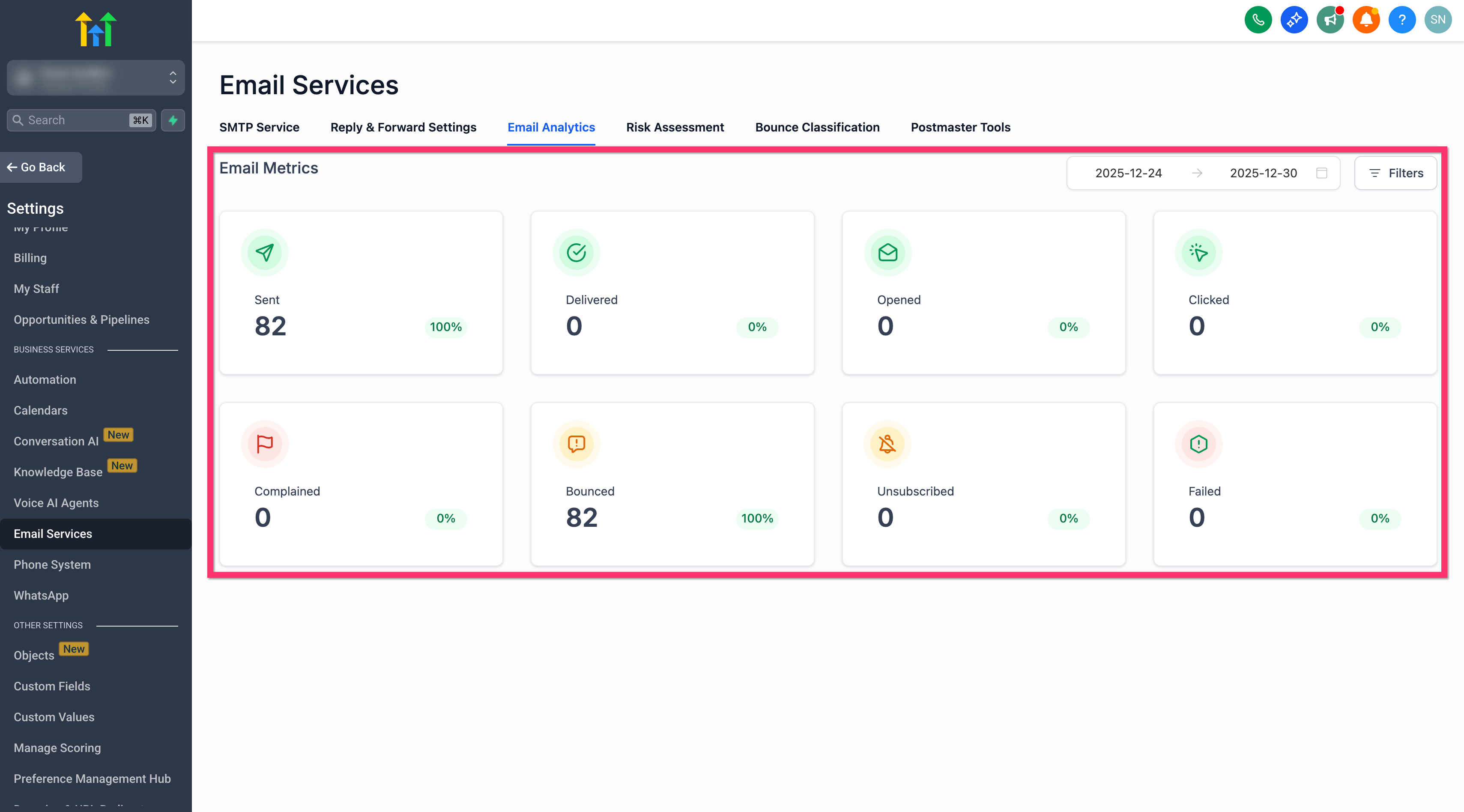
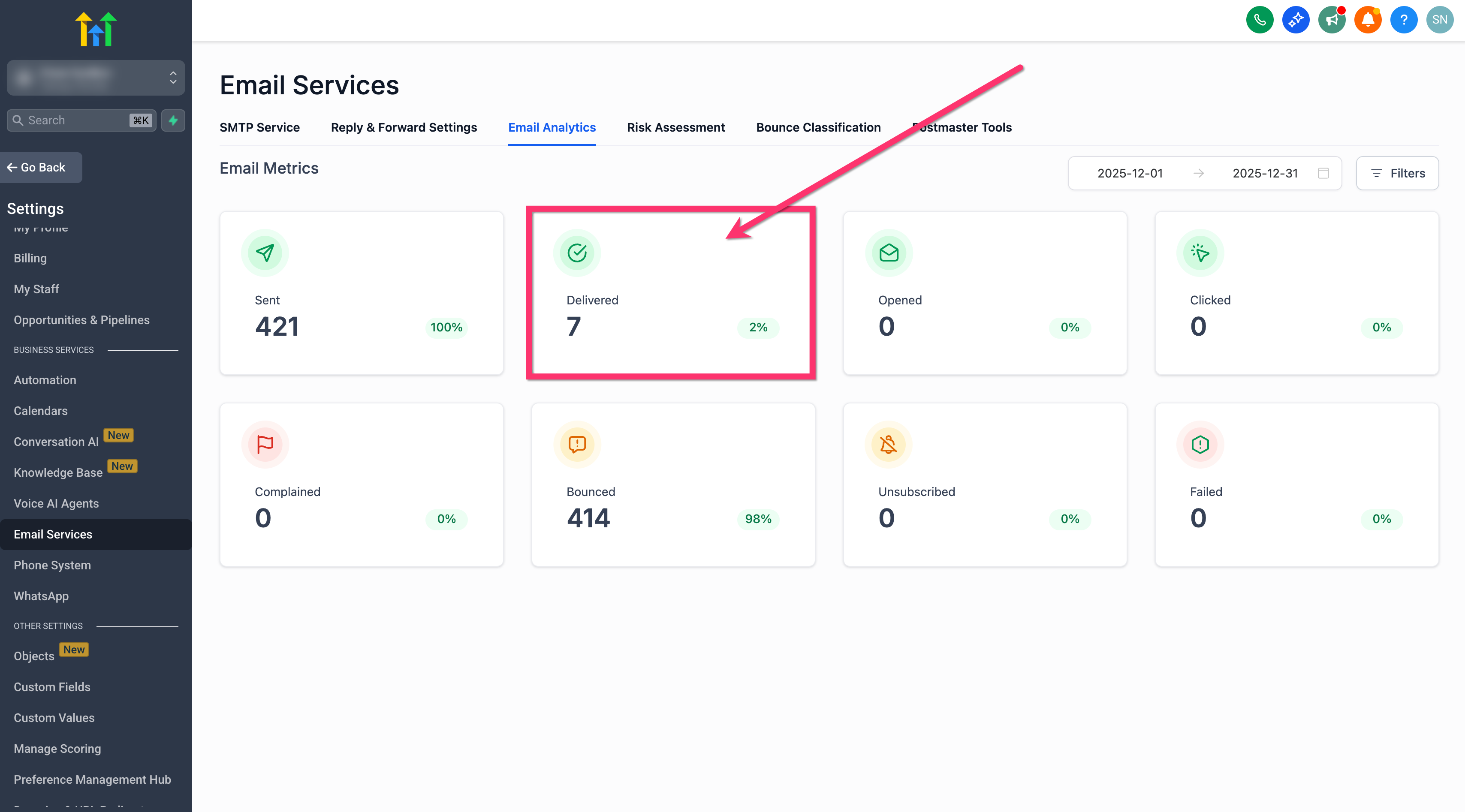
The feature lives in the Email Analytics section of the platform. It shows metric boxes for Sent, Delivered, Opened, Clicked, Complained, Bounced, Unsubscribed and Failed at the top of the page. By applying filters you can narrow the view to a single campaign, workflow or bulk send and a chosen date window.
When you click a metric box, HighLevel returns a paginated list of contacts that match that metric for the selected source and period. Selecting a contact opens its full record where you can add notes, schedule tasks or adjust fields directly.
03How businesses use filter contacts by email statistics
- Real estate agency. The agency selects the email campaign that delivered a new property listing, filters by the Opened metric and exports the list of contacts who viewed the email. Those contacts are then added to a follow up sequence for showing appointments.
- SaaS startup. The startup filters the workflow that sends trial expiration reminders, chooses the Clicked metric, and sees which users clicked the renewal link. Those users are moved into a sales qualified segment for personal outreach.
- Nonprofit organization. The nonprofit filters a bulk fundraiser email by the Bounced metric, identifies invalid addresses, and updates its mailing list to improve future deliverability.
04Before you start
- You must be using an LC Email subaccount.
- You need to be signed in to that subaccount before accessing the filters.
05How to set up and use filter contacts by email statistics in HighLevel
Filter contacts by email statistics
- Log in to the LC Email subaccount where you want to run the analysis.
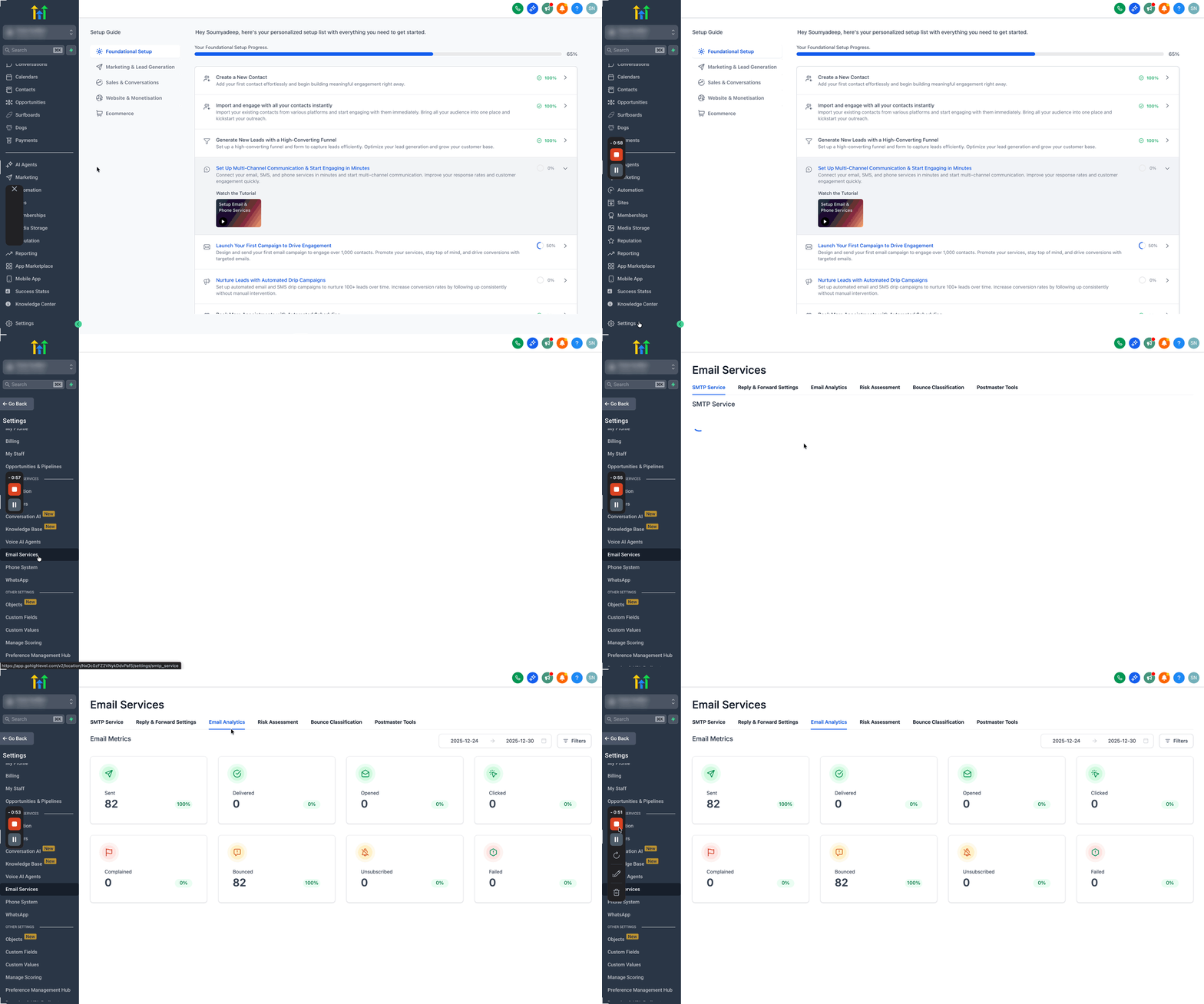
- Navigate through Settings > Email Services > Email Analytics.
- Observe the metric boxes displayed at the top of the page.
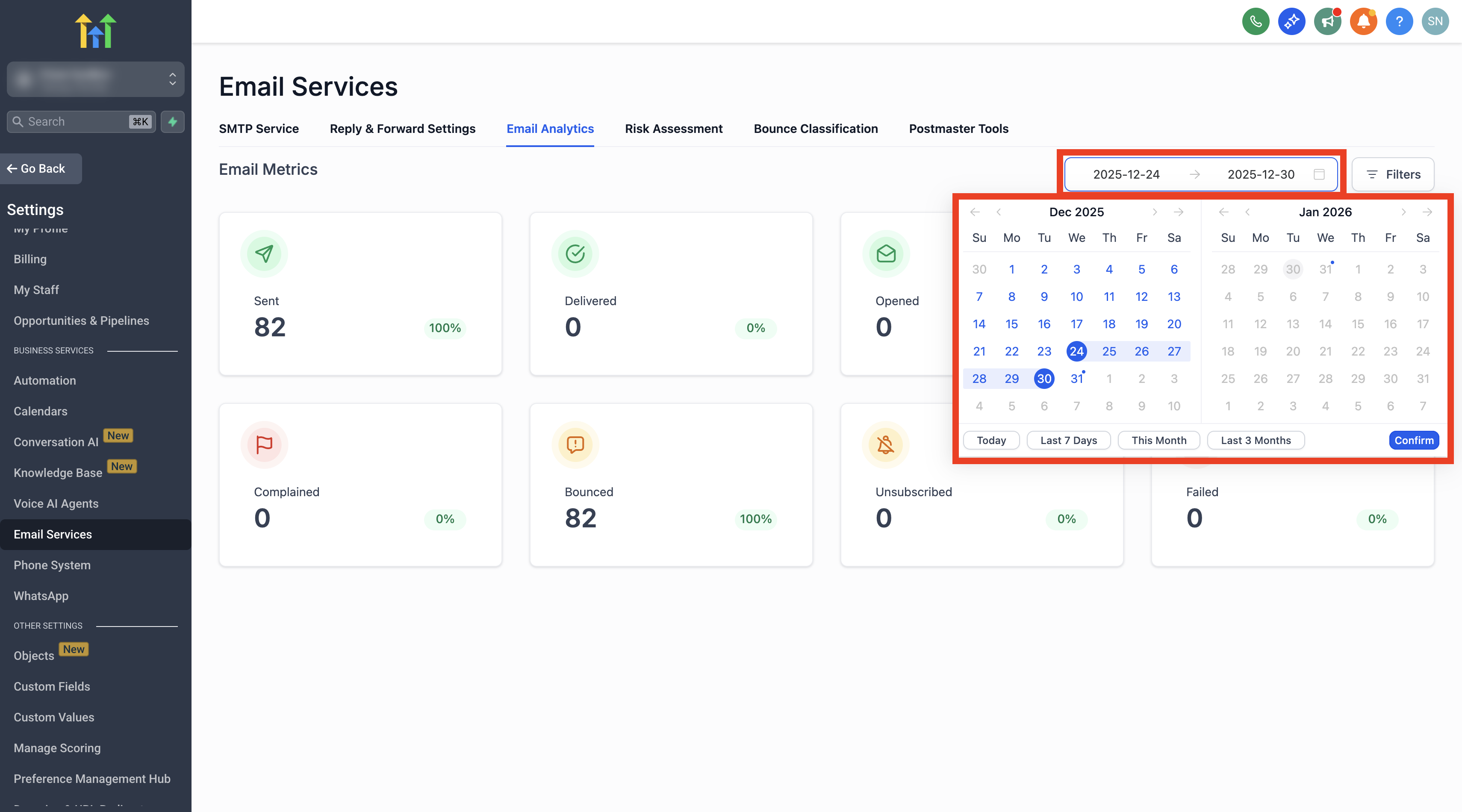
- Pick a start and end date with the Date Range picker.
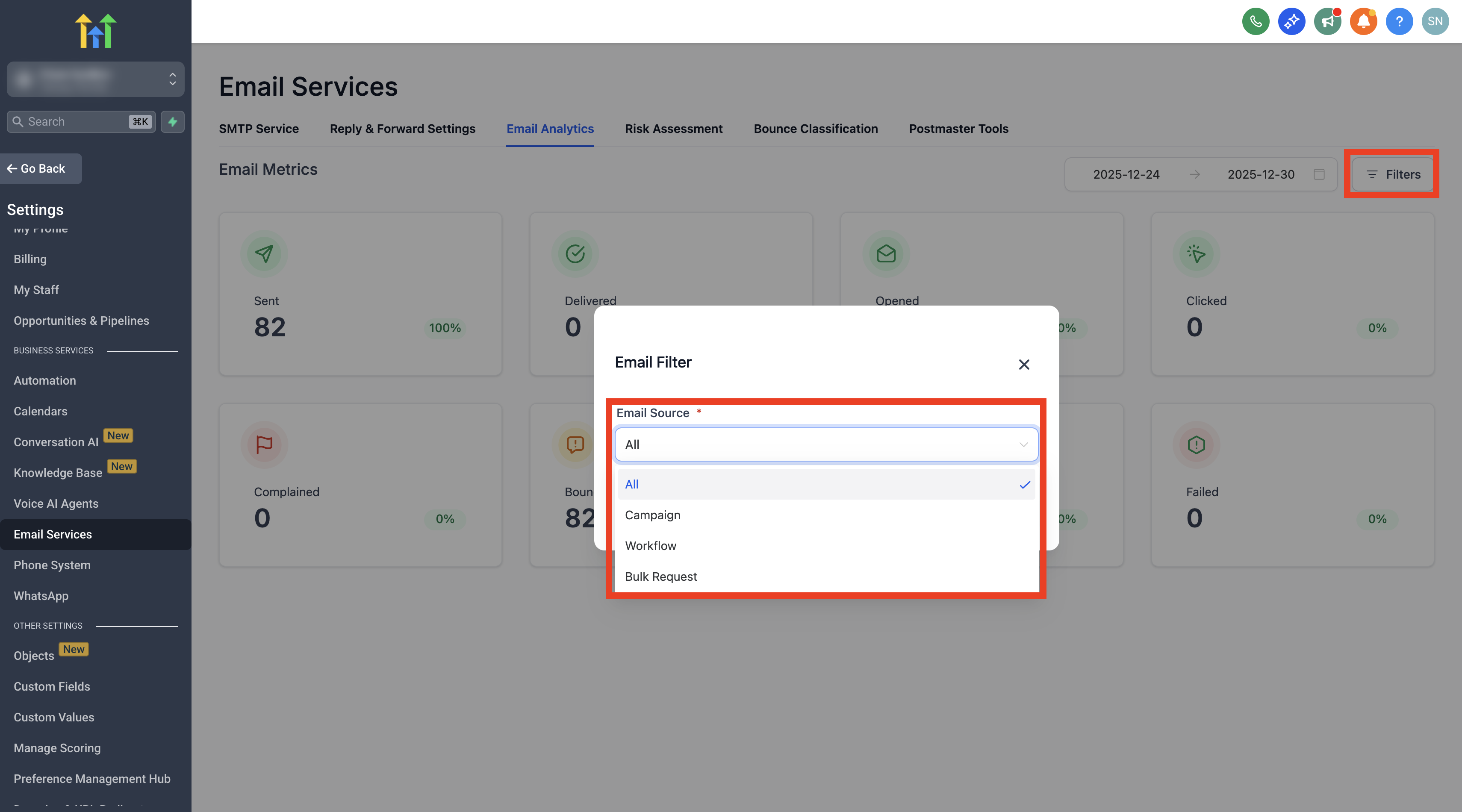
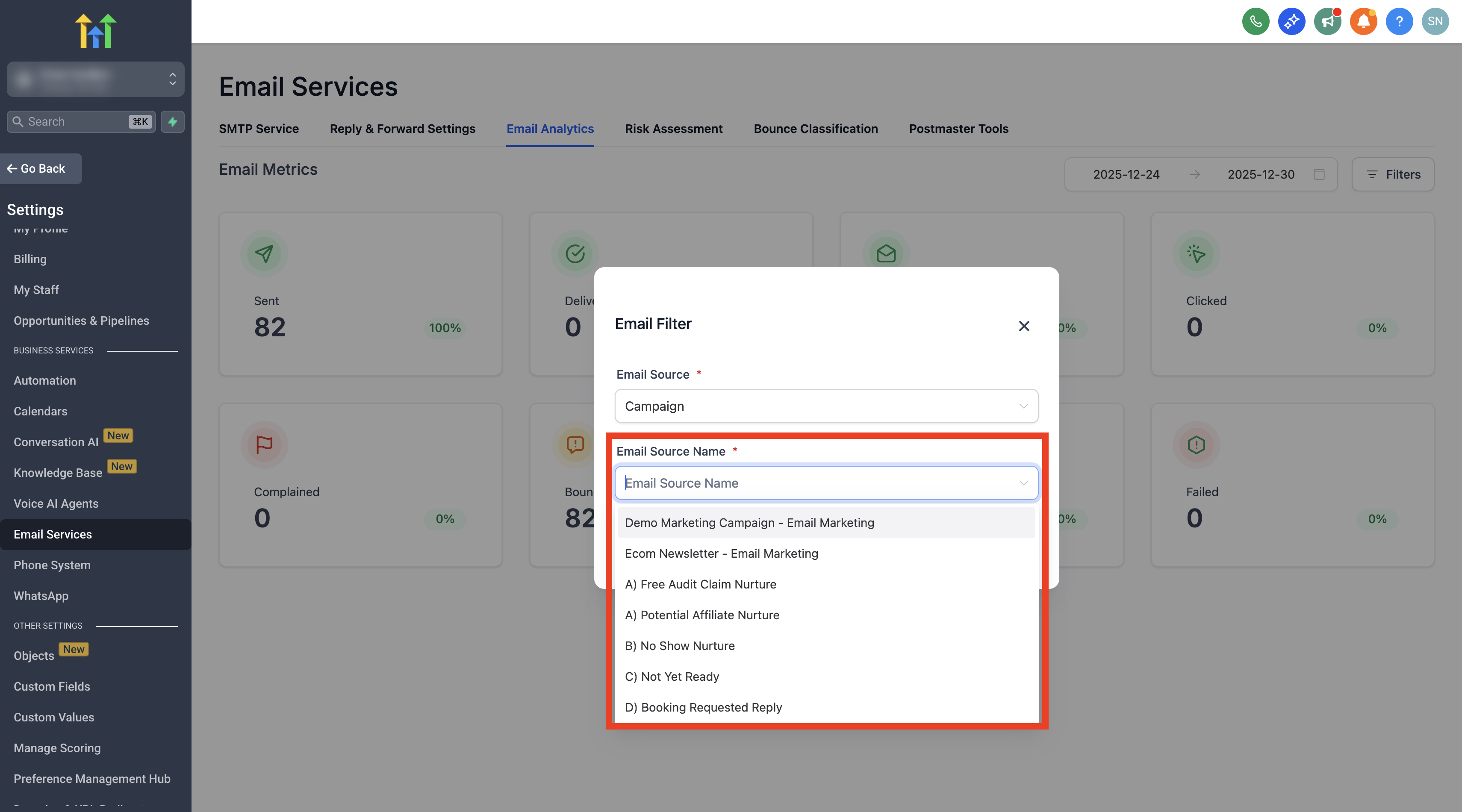
- Open the Filters menu, choose Email Source, and select Campaign, Workflow, or Bulk Request.
- Select the specific Email Source Name that corresponds to the chosen source type.
- Source Name is required; if you skip this step, no results will be returned.
- Click a metric box such as Delivered to see the contacts that meet that condition.
- Change pagination, adjust the date window if needed, and press Refresh to reload the data.
- Click any listed contact to open its complete record for further actions.
06What it looks like in HighLevel
07Settings that matter
- Email Source. Determines which type of sending, Campaign, Workflow, or Bulk Request, will be examined.
- Email Source Name. Specifies the exact campaign, workflow or bulk send within the selected source type; required for results to appear.
- Date Range picker. Sets the time period that the metrics will be calculated for.
- Filters. Provides access to the Email Source and other criteria for narrowing down the contact list.
08Things to know before you rely on it
- Contact level email analytics filtering works only for LC Email subaccounts; other providers are excluded.
- If the Source Name is not chosen, the filter will return no contacts even after an Email Source type is selected.
- Open and click counts may be incomplete when open tracking or link tracking is turned off for the emails.
09If something goes wrong
- No results appear after selecting a Campaign in Filters.. Be sure to also pick the specific Source Name for that campaign; without it the filter yields an empty set.
- Opened and Clicked metrics are missing.. Enable open tracking and link tracking on the emails to capture those events.
10How it connects to the rest of HighLevel
- Configure email reply and forwarding settings Email reply settings
- Reference list of outgoing system generated emails System emails
- Explore HighLevel pricing and plans Pricing
Michael's take

I see this as a small convenience that can turn a messy inbox into a clearer view of who’s actually engaging.
A boutique fitness studio that sends weekly class updates could benefit by pulling out the exact contacts who opened the last promotion and targeting follow ups accordingly.