
01Who this is for
- Agency owners need to know which notifications reach their admins so they can avoid inbox overload.
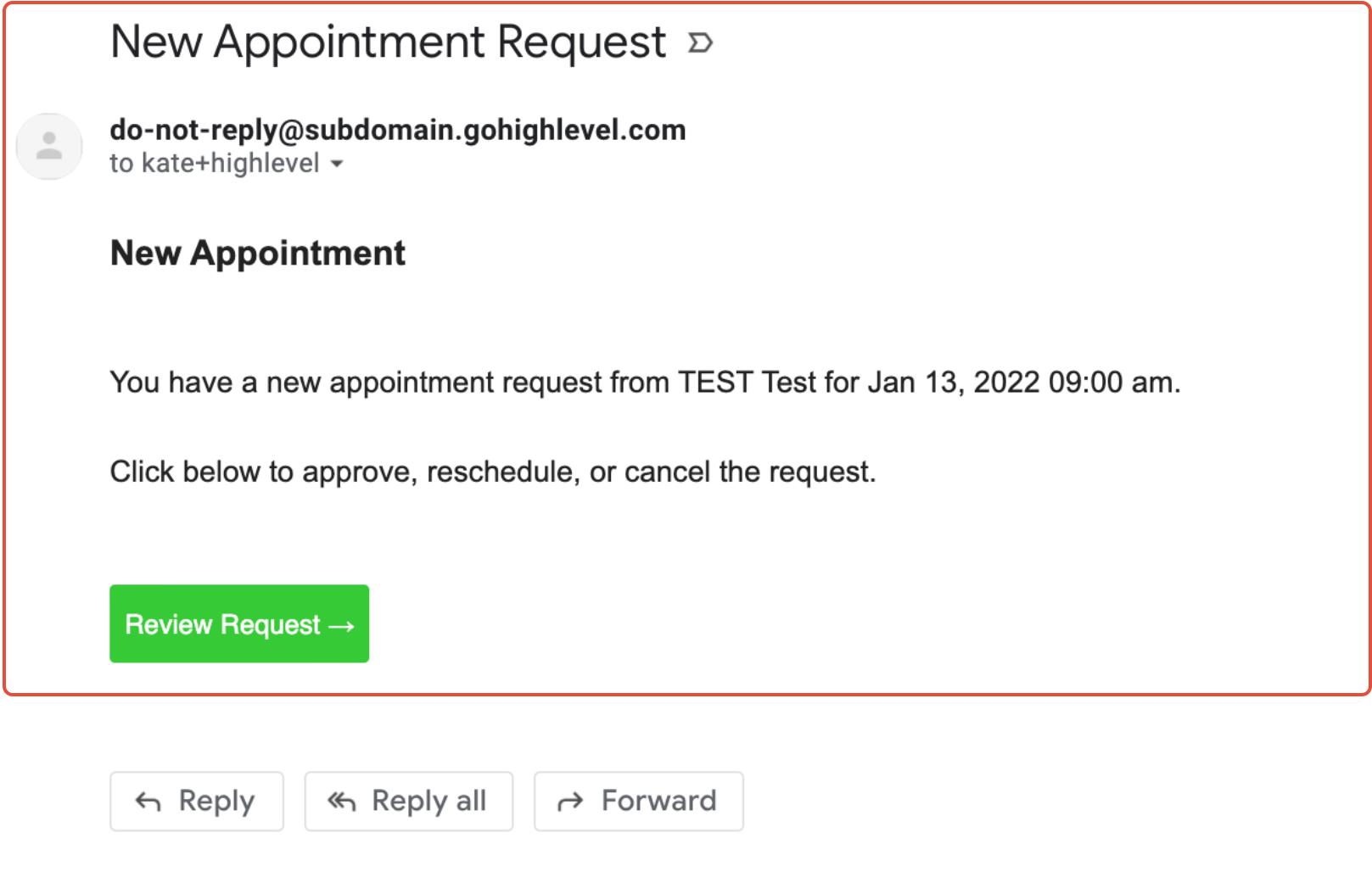
- Location managers can disable appointment request emails that clutter staff inboxes while keeping essential alerts.
- Finance teams benefit from understanding invoice related emails sent to businesses and customers.
02List of all outgoing system emails, explained
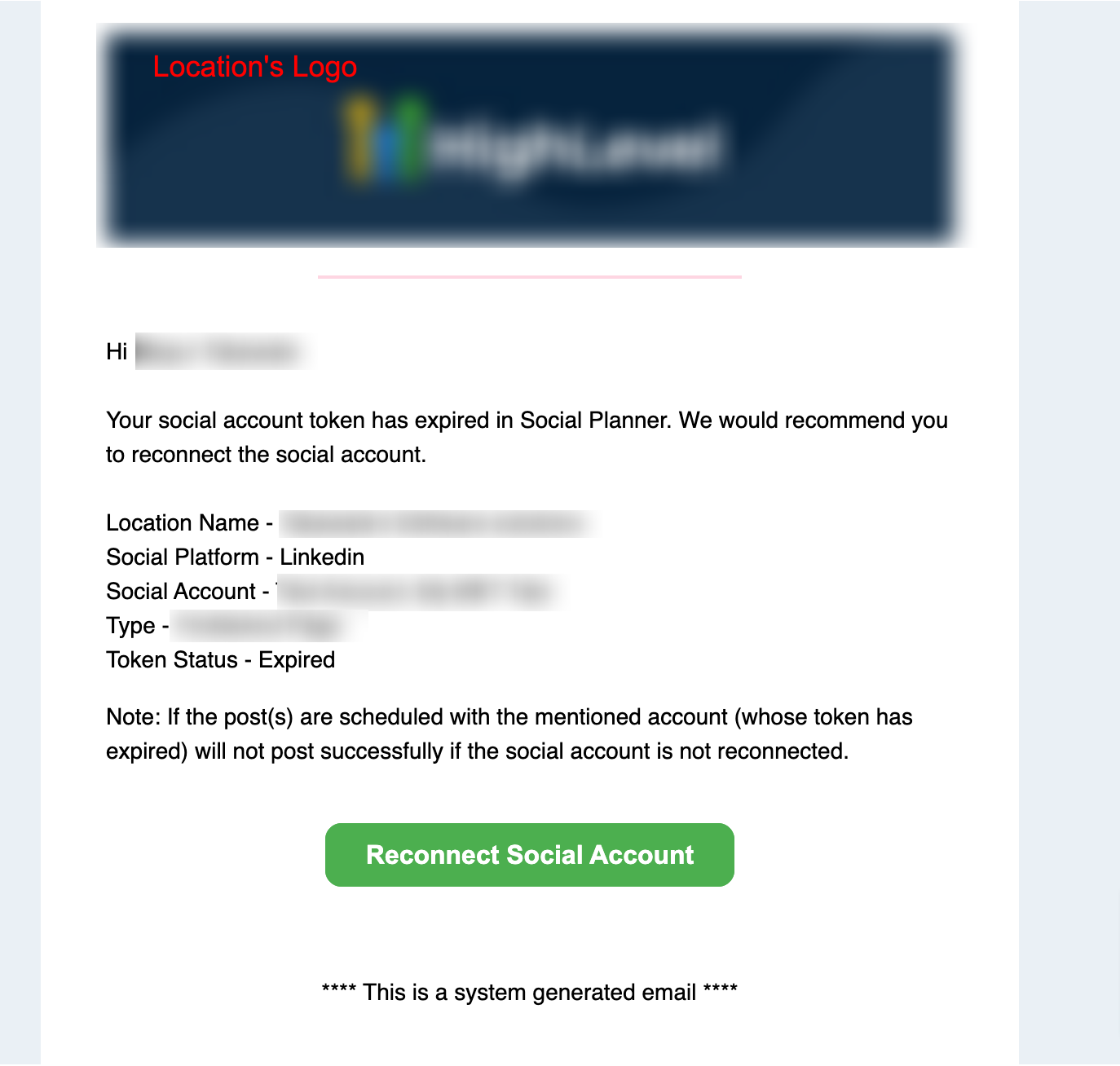
System generated emails cover five scopes: Subaccount or Location level messages such as new appointment requests and review prompts; invoice and payment notices for both the business and its customers; Agency level alerts like password resets and new user notifications; A2P and Toll Free verification updates; and a few other specialized alerts. Each entry lists what triggers the email and whether a disable toggle exists.
The controls live in the calendar and location settings for appointment messages and in the agency’s team settings for user related alerts. Emails marked "Can be disabled" expose a setting that can be turned off; others, such as password resets, are mandatory and cannot be switched off.
03How businesses use list of all outgoing system emails
- Dental practice. The office can turn off new appointment request emails for staff who share a group calendar, reducing internal notifications while still receiving owner alerts. They access Locations Settings, edit the calendar’s Confirmation tab and save the change.
- Real estate agency. Agents can disable appointment request emails in an unassigned calendar to prevent duplicate messages when prospects book viewings. They follow the same steps, removing the email address from the Confirmation tab before saving.
- Online course platform. The platform can review which invoice and payment emails are sent to students versus the business, ensuring only necessary notifications are active. Mandatory emails like password resets remain enabled for account access.
04The numbers and rules that matter
- A2P and Toll Free verification emails are sent from noreply@donotreply.leadconnectorhq.com.
05How to set up and use list of all outgoing system emails in HighLevel
Disable new appointment request emails for assigned users in group calendars
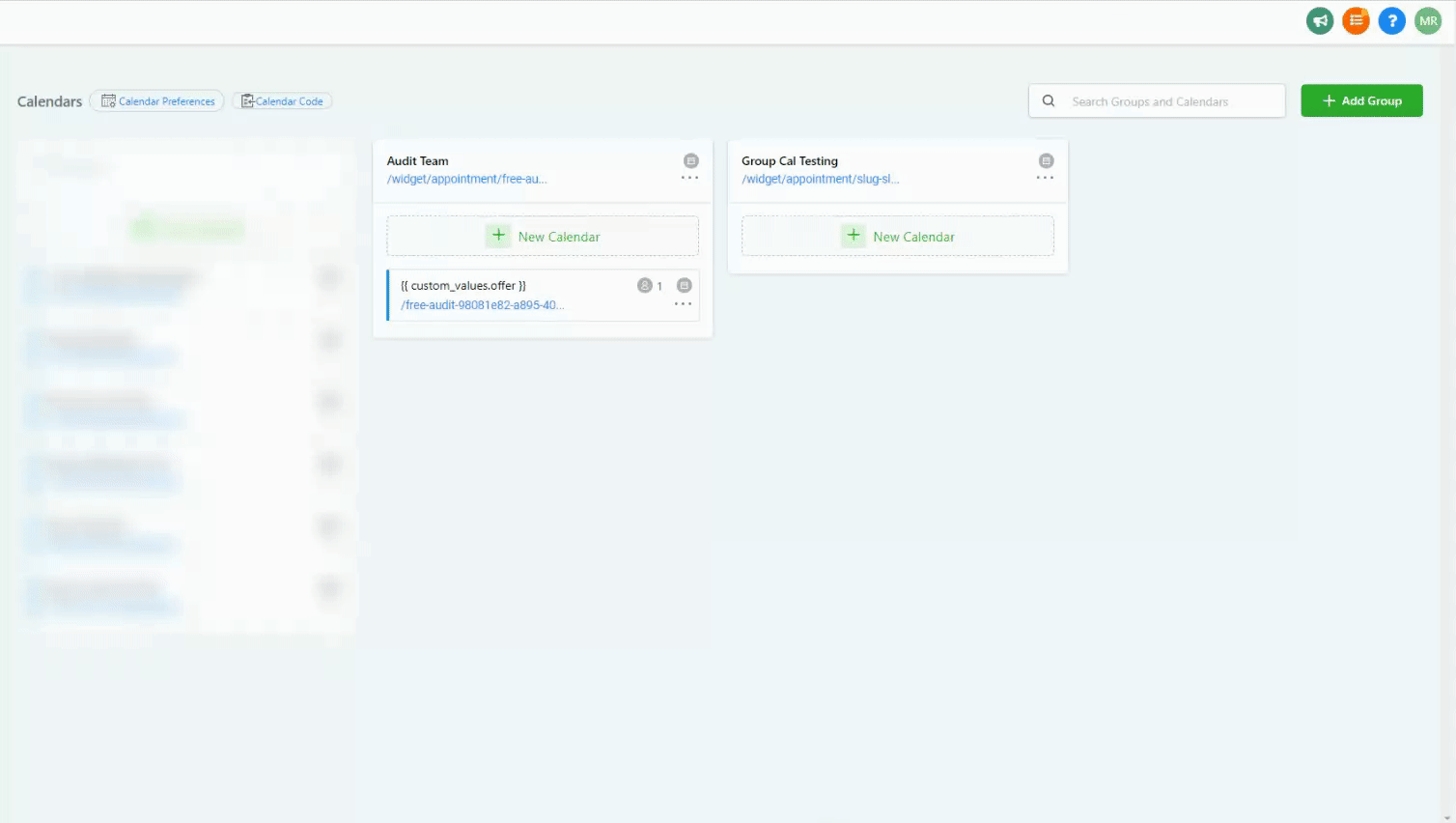
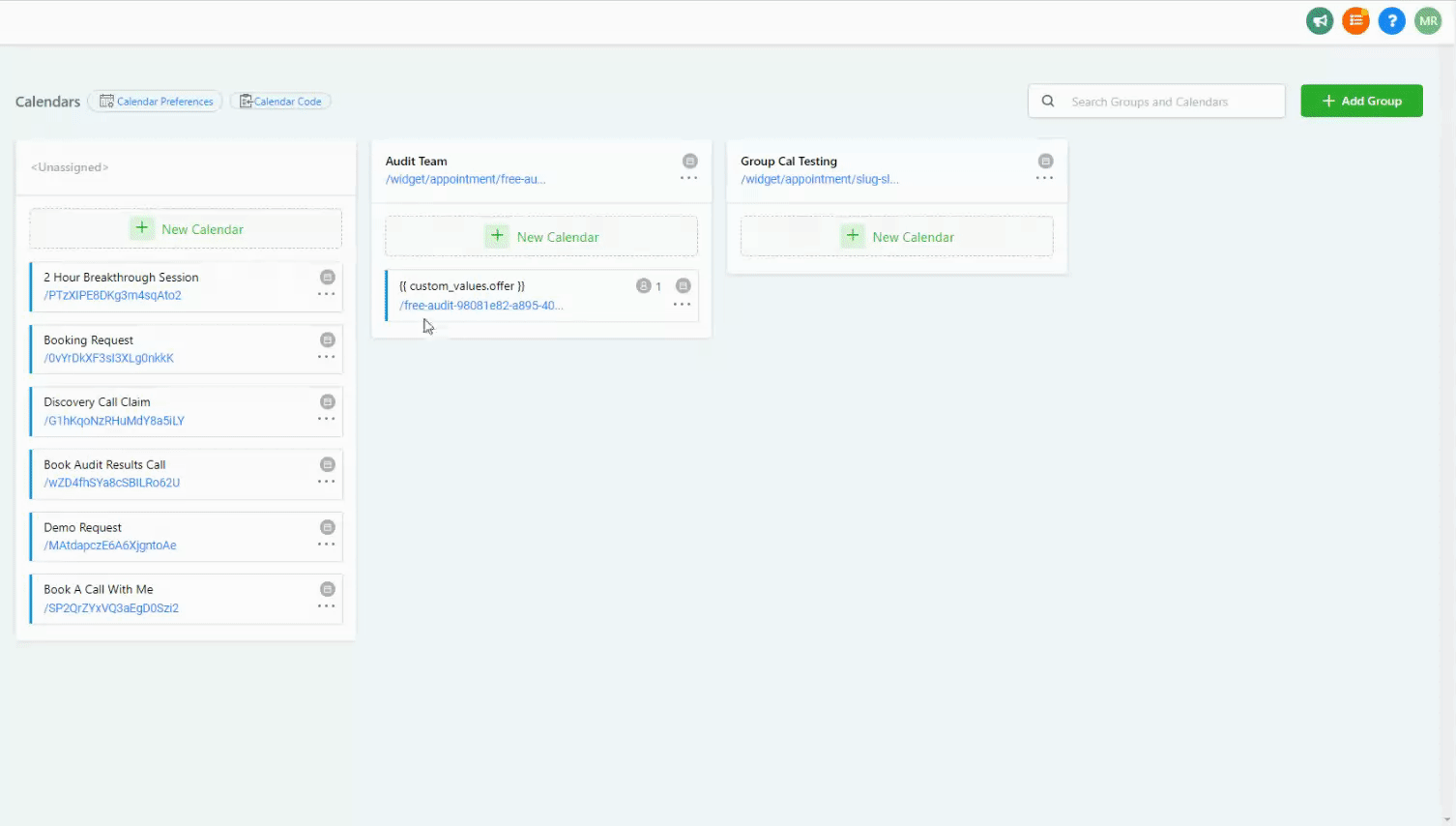
- Open Locations Settings and select Calendar Settings.
- Open the specific group calendar you want to edit.
- Click the 3. Confirmation tab within the calendar.
- Save the changes.
Disable new appointment request emails in unassigned calendar
- Open Locations Settings and select Calendar Settings.
- Open the unassigned calendar you wish to modify.
- Click the 3. Confirmation tab.
- Remove the email address(es) listed.
- Save the changes.
06What it looks like in HighLevel
07Settings that matter
- New Appointment Requests. Controls whether the platform sends email notifications when a client books an appointment from a group or unassigned calendar.
08Things to know before you rely on it
- Only emails marked "Can be disabled" have a toggle; password reset, verification code and new user welcome emails cannot be turned off.
- If auto confirmation and appointment alert emails remain enabled, owners will still receive request emails until a future calendar update fixes this.
- Default sender address is no reply@support.domain.com when no Mailgun subdomain or SMTP integration is configured.
- A2P and Toll Free verification notifications always go to agency owners and admins and cannot be redirected.
09If something goes wrong
- Users aren’t receiving system emails. Check that the user’s email address is correct, look in spam or junk folders, confirm the domain isn’t blocking the sender, and verify agency level email settings haven’t disabled the specific notification.
10How it connects to the rest of HighLevel
- Learn how calendar email sender addresses are configured Calendar sender guide
- Set up SMTP providers for custom sending domains SMTP setup
- Review HighLevel pricing and plan options Pricing
Michael's take

Be careful relying on these automated emails as your only line of communication; some are essential for security and cannot be turned off. Missing or misdirected emails can lock users out or cause missed payments.
When you understand which notifications you can control, you can clean up inbox noise and focus on the alerts that truly matter for your operation.