
01Who this is for
- Agencies that manage many client accounts, because they can forward lead replies to staff inboxes for quick follow up.
- Small business owners who need a single place to track replies while still receiving copies in personal email.
- Sales teams that want BCC records of every one on one email for compliance or audit purposes.
02Reply & forward settings, explained
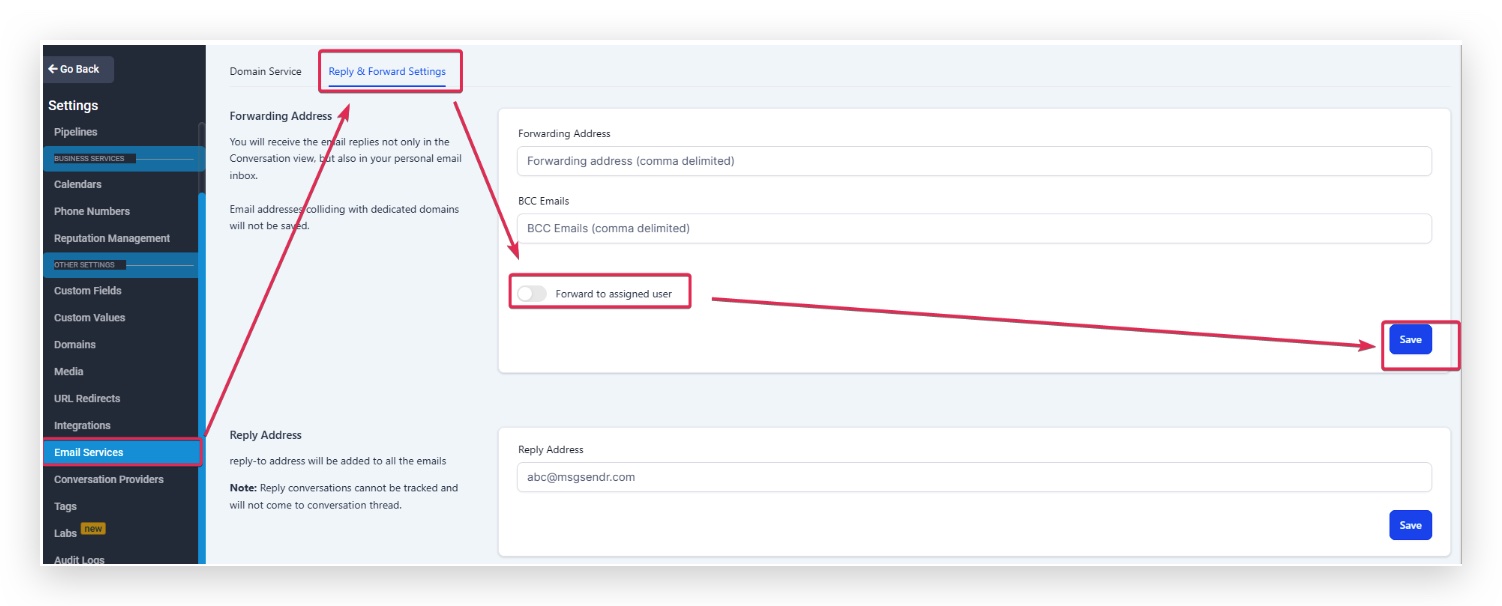
The Reply & Forward Settings live under Settings > Email Services > Reply & Forward Settings. They let you add email addresses that receive a copy of each incoming reply, replace the default reply to address, and automatically BCC selected outbound messages. Forwarded replies still appear in the Conversations tab, while BCC copies are sent for one on one, workflow, and billing emails.
Only Mailgun and LC Email support these options; other SMTP providers cannot use forwarding or BCC. Each forwarded or BCC email is billed the same as a regular outgoing email when rebilling is turned on. The system caps reply to entries at five addresses and allows multiple forwarding addresses separated by commas.
03How businesses use reply & forward settings
- Digital marketing agency. The agency adds a shared inbox as a forwarding address so that account managers see client replies right away. It also sets a generic reply to address to keep client replies inside the platform.
- Real estate brokerage. Each broker configures their personal email as a forwarding address, ensuring property inquiries land in their mailbox while the conversation remains tracked in HighLevel.
- SaaS startup. The startup enables BCC for all workflow emails so the compliance officer receives a copy of every automated message without affecting bulk campaign sends.
04The numbers and rules that matter
- You can add up to 5 reply to email addresses.
- BCC is supported only for 1 on 1 emails, workflow emails, and billing emails.
- Each forwarded email incurs a per email charge aligned to regular email sending rates.
05Before you start
- Mailgun or LC Email must be set up for the location.
- Rebilling must be enabled if you want forwarded emails to be charged.
- Forwarding addresses must be valid and must not conflict with a dedicated sending domain.
06How to set up and use reply & forward settings in HighLevel
Set forwarding address
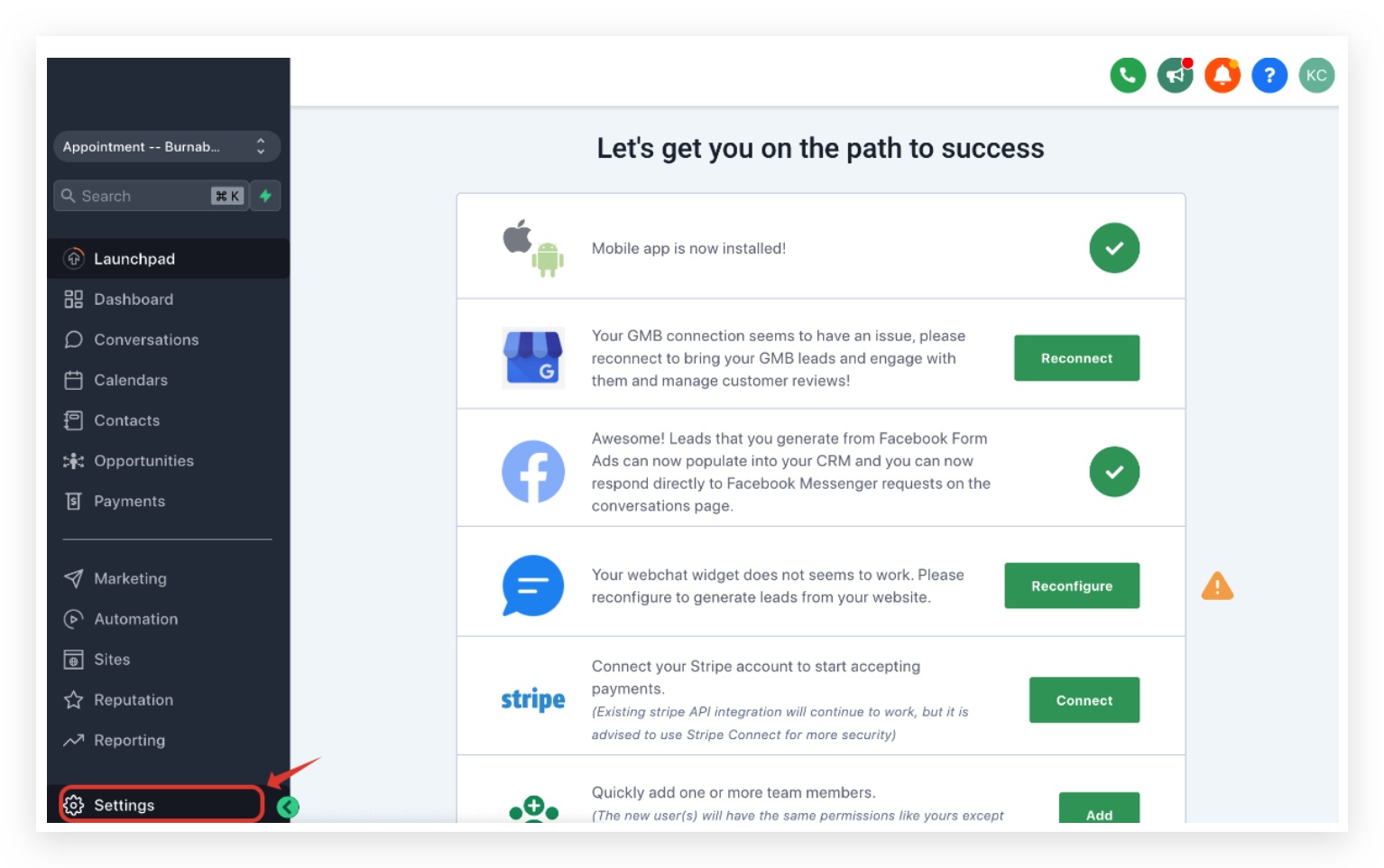
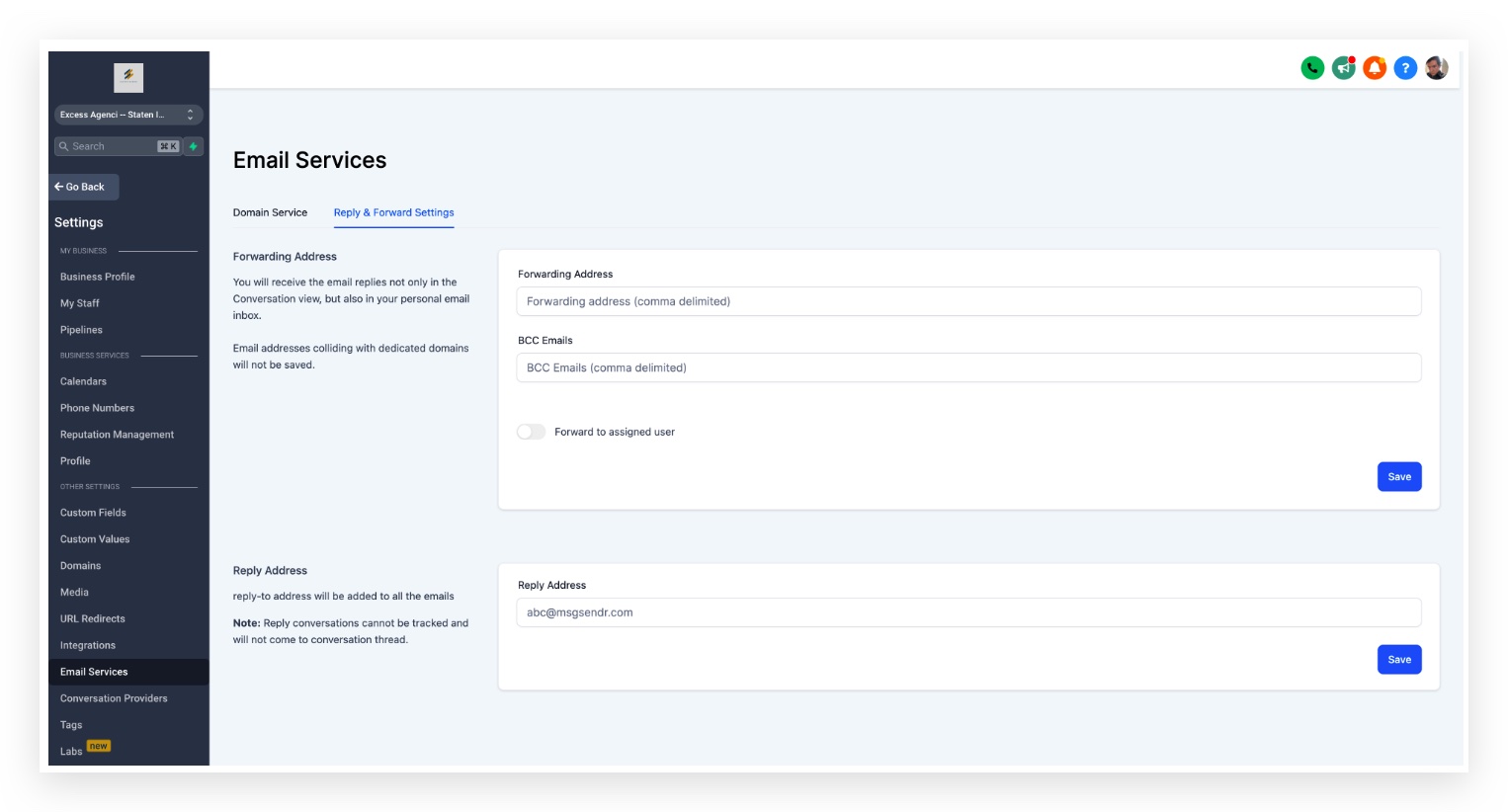
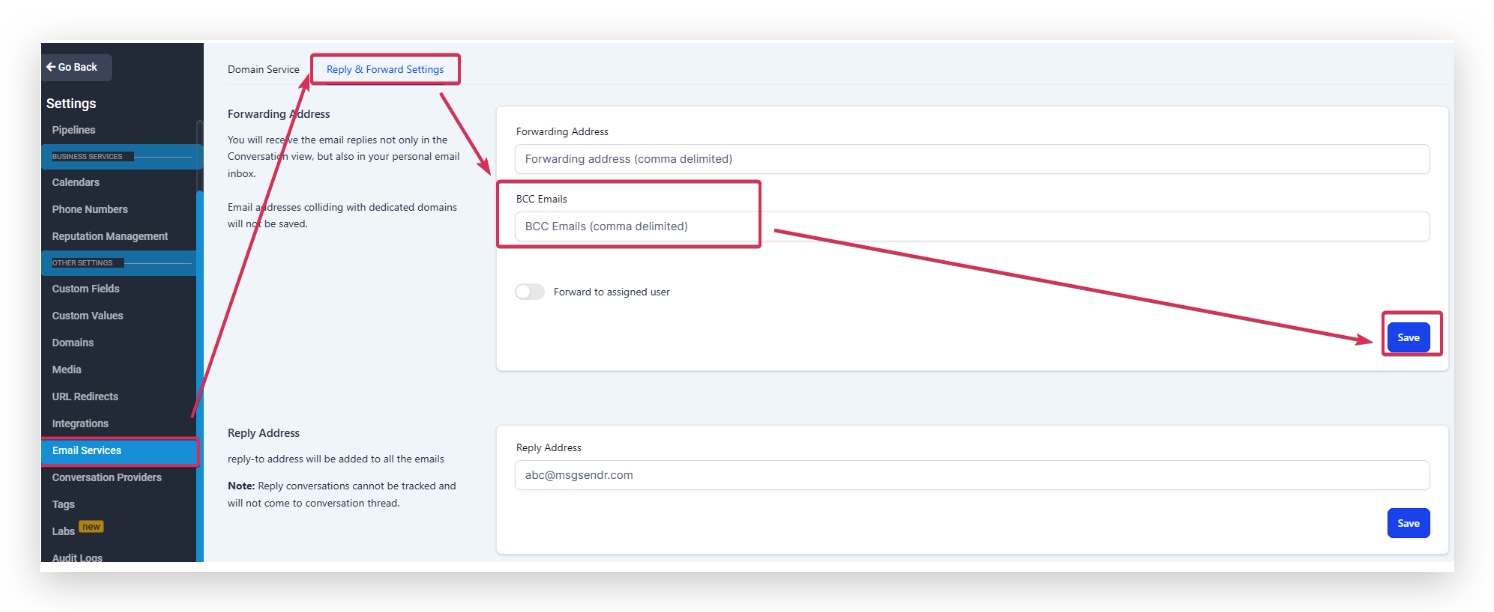
- Open Settings > Email Services > Reply & Forward Settings.
- Enter one or more email addresses in the Forwarding Address field, separating each with a comma.
- Click Save to store the forwarding addresses.
Add reply address
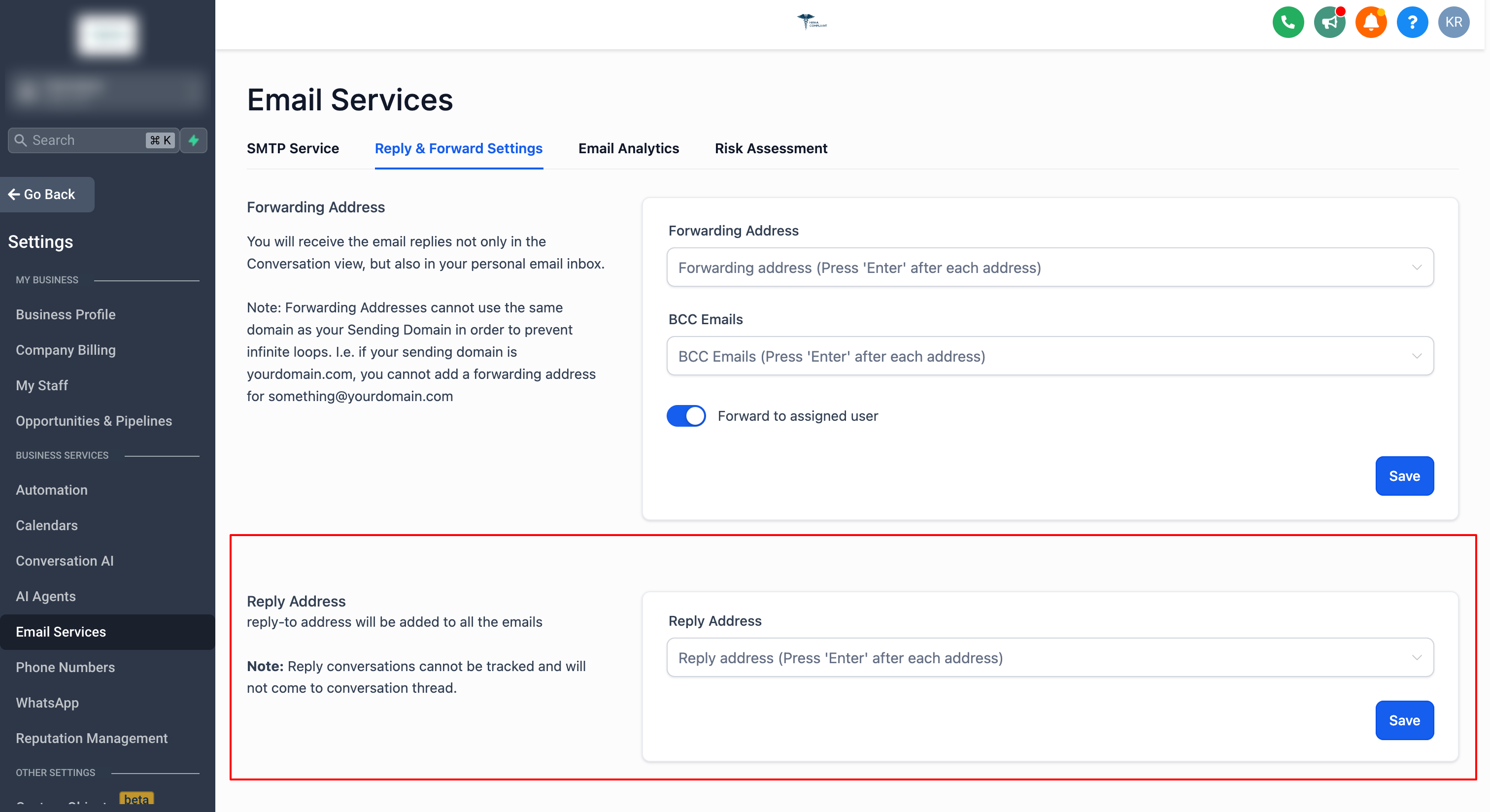
- Navigate to Settings > Email Services > Reply & Forward Settings > Reply Address.
- Type up to five reply to email addresses you want to use.
- Press Save to apply the new reply to settings.
Configure BCC emails
- Go to Settings > Email Services > Reply & Forward Settings > BCC Emails.
- Enter the email address that should receive blind carbon copies of eligible messages.
- Select Save to activate BCC for one on one, workflow, and billing emails.
Important warning about reply to usage
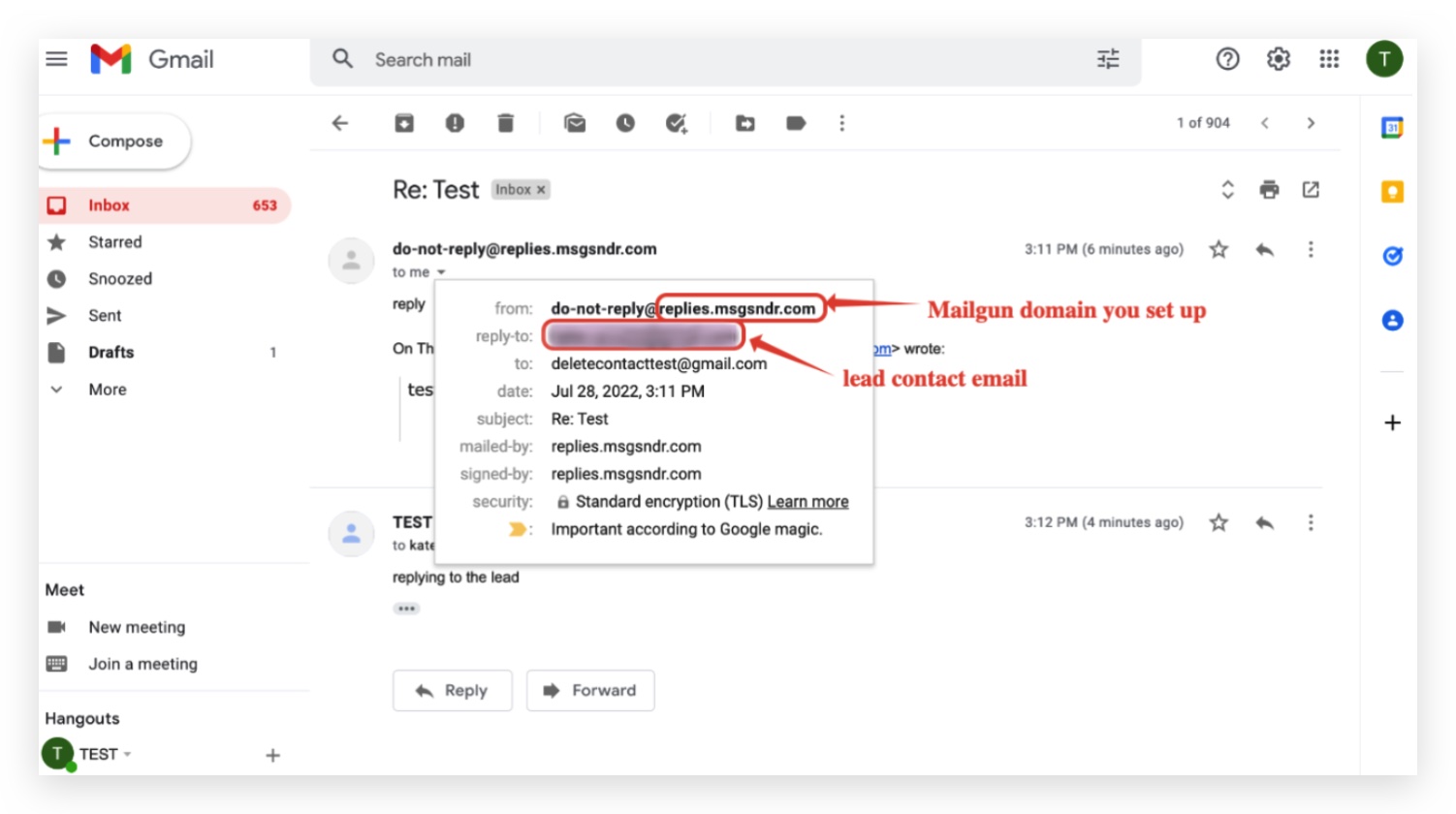
- Do not copy the reply to address and start a brand new email thread; such messages will not route back to the Conversation tab.
- Always reply directly to the original email sent from the system to keep replies captured.
07What it looks like in HighLevel
08Settings that matter
- Forwarding Address. Defines inboxes that receive a copy of every lead reply in addition to the Conversation tab.
- Reply Address. Specifies up to five email addresses that replace the default reply to header for outgoing messages.
- BCC Emails. Sets an address to receive blind carbon copies of each one on one, workflow, and billing email sent from the location.
09Things to know before you rely on it
- Forwarding and BCC work only with Mailgun and LC Email; other SMTP providers are not supported.
- A maximum of five reply to addresses can be stored.
- BCC is limited to one on one, workflow, and billing emails; it does not apply to bulk or campaign emails.
- Each forwarded email incurs a per email charge identical to regular outgoing email rates when rebilling is enabled.
10If something goes wrong
- Attached files are not forwarded with email replies.. Open the conversation view in HighLevel to access any attachments attached to a reply.
- Forwarding emails disappear after saving.. Verify that the addresses are correctly formatted and do not conflict with a dedicated sending domain.
- Uncertainty about forwarding email costs.. When rebilling is on, each forwarded email is billed like a normal outgoing email; check billing entries for source type and trigger ID.
11How it connects to the rest of HighLevel
- Adjust sender email priority and display name Sender email priority guide
- Review the list of system generated outgoing emails System email list
- Explore billing details for forwarded emails HighLevel pricing and plans
Michael's take

Reply & forward settings are useful for teams that need audit trails of email replies.
If you don’t need to track individual replies or bill for forwarded messages, you can skip this feature.